
To determine which driver updates really matter, focus on those that improve security, fix bugs, or enhance hardware performance—like graphics, network, and storage drivers. Avoid updates if your hardware works fine or if the update is minor or unsupported. Always get drivers from official sources to prevent risks. Want to know how to spot essential updates and avoid unnecessary ones? Keep going for essential tips.

Get the latest gadgets delivered free with Prime
- Fast, free delivery on millions of items
- Prime Video, Amazon Music and more included
- Member-only deals all year
Key Takeaways
- Focus on critical updates for graphics, security, and stability; ignore minor feature changes or cosmetic updates.
- Update drivers only when experiencing hardware issues or performance problems, not routinely.
- Download drivers from official sources to ensure authenticity and avoid unnecessary risks.
- Skip updates if your hardware is functioning well and no security or compatibility issues are present.
- Use rollback options if a driver update causes problems, reverting to a stable version to maintain system reliability.
As an affiliate, we earn on qualifying purchases.
What Are the Benefits of Updating Drivers for Performance and Security

Updating your drivers can considerably boost your computer’s performance and protect it from security vulnerabilities. When you perform driver installation, you guarantee that your hardware functions at its best, which can lead to faster processing, smoother graphics, and better overall responsiveness. Updated drivers improve hardware compatibility, reducing conflicts and errors that can cause crashes or slowdowns. They also address security flaws found in older versions, shielding your system from malware and exploits. Regular updates help your device communicate more effectively with the operating system and software, enhancing stability. By staying current with driver updates, you maximize your hardware’s potential while minimizing security risks, making your computer more reliable and secure for everyday use. Additionally, understanding the importance of driver updates can help you prioritize which updates to install and which ones may be unnecessary. Keeping your drivers up-to-date ensures hardware functionality remains optimal and compatible with the latest software standards. Regularly checking for driver updates can also prevent hardware conflicts and improve overall system longevity. For example, updating drivers for specific hardware like graphics cards can significantly improve gaming and graphic-intensive tasks. Recognizing signs of hardware issues, such as unusual noises or performance drops, can also indicate the need for driver updates to maintain hardware performance.
As an affiliate, we earn on qualifying purchases.
How to Recognize Essential Driver Updates for Your Hardware

Recognizing which driver updates are essential for your hardware can seem challenging, but paying attention to certain signs and sources makes it easier. Start by monitoring your device’s performance—if you notice hardware issues like crashes or connectivity problems, an update might be necessary. Check the manufacturer’s website or official support channels for driver updates, focusing on those labeled as critical or recommended. Keep an eye on driver versioning—newer versions often address hardware compatibility issues or bugs. Also, look for updates specifically tailored to your hardware model, as generic updates may not be suitable. Additionally, understanding driver update importance can help you prioritize which updates to install. Regularly reviewing appliance testing and compatibility information can prevent issues with device safety and performance. Being aware of hardware compatibility can further ensure that your devices work smoothly with the latest drivers. Staying informed about driver release notes can also provide insights into whether an update resolves known issues or improves performance. Conducting driver update testing can help verify that new drivers do not introduce unforeseen problems before fully deploying them. By staying alert to these signs and sources, you safeguard your hardware remains compatible and best supported with the latest driver updates.
As an affiliate, we earn on qualifying purchases.
Do You Need to Update Graphics and Display Drivers Now?
Are you experiencing display issues or noticing that your graphics performance isn’t as smooth as it used to be? If so, updating your graphics and display drivers might help. New driver updates often include driver aesthetics improvements, making your visuals sharper and more vibrant. They can also enhance gaming performance through gaming enhancements, providing better frame rates and fewer glitches. Additionally, driver stability is crucial, as updates aim to fix bugs and improve overall reliability. However, if your system runs smoothly and you’re not encountering specific problems, an update isn’t urgent. Sometimes, driver updates can introduce bugs or compatibility issues. Check your hardware manufacturer’s website or device manager for recent updates, but don’t feel pressured to update immediately unless you’re seeking better visuals or smoother gameplay. Use discretion, and only update when you notice a real benefit. Understanding driver update importance can help you decide whether an update is truly necessary. Additionally, considering smart home automation features can help you manage updates more effectively by integrating your system for optimized performance. Being aware of driver update risks can further guide your decision-making process.
As an affiliate, we earn on qualifying purchases.
Which Driver Updates Are Usually Unnecessary or Risky?
Not every driver update is worth risking your system’s stability. Some updates can create hardware conflicts or cause issues with outdated peripherals. If your device is working fine, there’s often no need to update just for the sake of it. Unnecessary updates may introduce bugs or compatibility problems. Be cautious when updating drivers for hardware that isn’t causing issues or that’s no longer supported. Additionally, consider whether the update involves Free Floating features or modifications that may not be essential for your setup. It’s also wise to evaluate whether the update aligns with hardware compatibility and your specific needs to avoid potential disruptions. Checking for security vulnerabilities in driver updates can also help prevent potential breaches. To further safeguard your system, verify that the update is legitimate and not a scam or fake version that could compromise your security. Recognizing which updates are essential for hardware health can help maintain system stability over time.
How to Manage and Automate Driver Updates Safely

Managing and automating driver updates can help keep your system secure and running smoothly without the hassle of manual checks. To do this safely, verify your drivers are properly licensed through valid driver licensing from trusted sources. Use official manufacturer tools or Windows Update to automate updates, as they verify hardware compatibility and reduce risks. Avoid third-party update programs that may install incompatible or unsafe drivers. Regularly check for updates from your hardware manufacturers to maintain compatibility and security. Setting automatic updates helps you stay current without manual effort, but always review updates before installation if possible. This approach minimizes the chance of driver conflicts or hardware issues, ensuring your system remains stable and secure. Additionally, understanding driver compatibility can help prevent potential system errors and optimize performance. Being aware of software conflicts related to driver updates can further improve system stability and prevent disruptions. Ensuring that drivers are properly licensed and verified is crucial for avoiding security vulnerabilities. Keeping track of driver licensing from trusted sources further enhances your system’s safety and reliability. Regularly monitoring driver updates can also help you stay ahead of emerging security threats and compatibility issues.
Troubleshooting Driver Update Problems and When to Roll Back
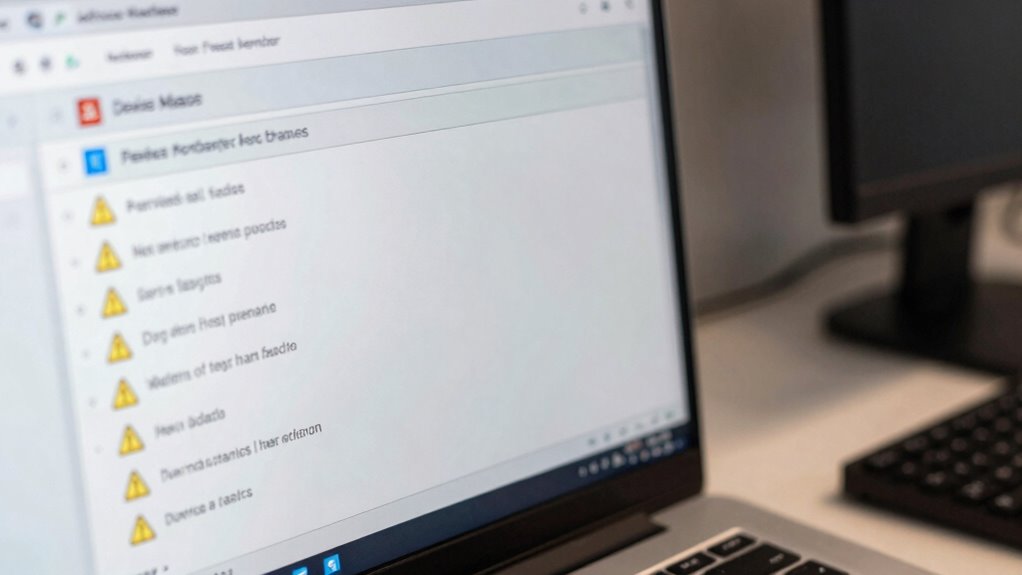
Even with careful management, driver updates can sometimes cause issues, such as system instability, hardware conflicts, or crashes. If you experience problems after an update, it’s time to troubleshoot and consider rolling back. Driver fatigue and update fatigue can make it tempting to keep installing updates, but sometimes the risks outweigh the benefits. To fix problems, you might:
- Use Device Manager to roll back the driver to a previous version.
- Boot into Safe Mode to troubleshoot conflicts.
- Check for error messages or hardware malfunctions that point to driver issues.
If problems persist, rolling back helps restore stability. Remember, not every update is essential, and sometimes, the best choice is to revert to a known working driver to regain control and prevent further frustration. Incorporating requirements traceability into your update process can help ensure that only necessary and compatible updates are applied, reducing the risk of issues.
Why Use Official Sources and Driver Update Tools?

Using official sources and driver update tools helps guarantee you’re installing authentic drivers, reducing the risk of malware or counterfeit files. It also enhances your device’s security and stability by minimizing compatibility issues. Relying on trusted sources keeps your system safe and running smoothly.
Ensures Driver Authenticity
To guarantee your drivers are genuine and functioning correctly, you need to rely on official sources and trusted update tools. This ensures driver authenticity and helps with accurate update verification. Using official channels prevents installing corrupted or malicious drivers that could harm your system. Trusted update tools verify the driver’s origin, making sure it’s legitimate and compatible with your hardware.
- Download drivers directly from manufacturer websites or official app stores.
- Use well-known, reputable driver update tools that perform update verification.
- Avoid third-party sites that might host tampered or outdated drivers.
Sticking to verified sources confirms the authenticity of your drivers, reducing the risk of issues caused by fake or compromised software. Proper update verification keeps your system secure and running smoothly.
Reduces Security Risks
Relying on official sources and trusted driver update tools considerably reduces your system’s security risks. When you download drivers from reputable sources, you’re less likely to encounter malicious software or corrupted files that pose security threats. These sources verify hardware compatibility, ensuring the driver matches your device specifications and prevents potential vulnerabilities. Trusted tools also guarantee proper software integration, reducing the chances of conflicts or exploits that could be exploited by cybercriminals. Using official updates minimizes the risk of outdated or tampered drivers that might open security gaps. This approach keeps your system resilient against malware, ransomware, and other cyber threats, maintaining your data safety. Ultimately, sticking to verified sources helps protect your system while ensuring smooth, secure operation.
Promotes Compatibility Stability
When you choose official sources and trusted driver update tools, you considerably improve your system’s compatibility stability. This guarantees your hardware remains reliable and functions smoothly over time, boosting hardware longevity. Using genuine updates reduces the risk of conflicts or crashes, leading to a seamless user experience.
- Compatibility with new software and hardware components
- Fewer system conflicts and crashes
- Consistent performance for your hardware
How to Prioritize Critical Driver Updates Over Routine Patches
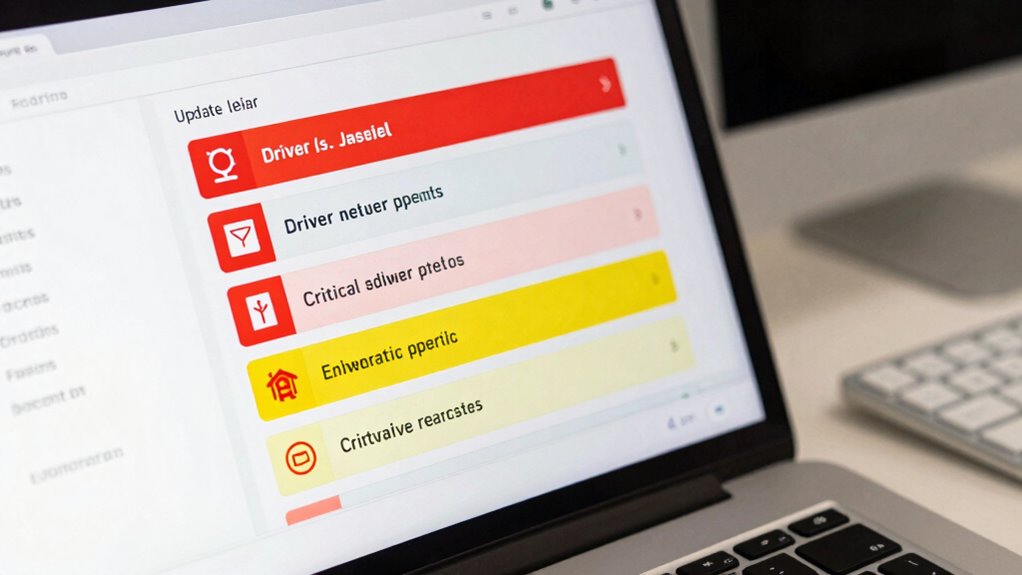
Prioritizing essential driver updates over routine patches is vital to maintaining your system’s security and performance. Focus on updates that improve driver compatibility, especially for hardware components like graphics cards and network adapters, as these are fundamental for stability. Critical updates often address security vulnerabilities or fix bugs that could cause system crashes. Keep an eye on update frequency; drivers with frequent updates may signal ongoing issues or improvements, so don’t ignore important alerts. Regularly check your device manufacturer’s website or use trusted update tools to identify which driver updates are urgent. Avoid delaying critical patches, but skip routine updates if they don’t offer notable performance or security benefits. This approach keeps your system optimized without unnecessary disruptions.
When Skipping Driver Updates Is Actually a Good Idea
Sometimes, skipping driver updates is wise when stability is more important than new features. If an update causes compatibility issues with your existing hardware or software, holding off can save you headaches. Prioritizing proven stability over the latest bells and whistles keeps your system running smoothly.
Stability Over New Features
Updating your drivers isn’t always necessary for new features; in fact, skipping updates can sometimes protect your system’s stability. If you’re focused on hardware customization or seamless software integration, sticking with your current drivers might be wise. New updates sometimes introduce bugs or conflicts that disrupt your setup.
Consider these scenarios where skipping updates benefits stability:
- Your existing drivers work perfectly with your hardware customization setup
- You rely on specific software that might break with the latest driver changes
- You want to avoid compatibility issues that could arise from frequent updates
Compatibility Concerns
While driver updates often bring new features and performance improvements, there are situations where skipping them can actually protect you from compatibility issues. If you’re using legacy hardware, updating drivers may introduce conflicts with older components that no longer support newer software. Outdated drivers can also cause instability or crashes, especially if the update isn’t tailored for your system’s specific setup. In some cases, manufacturers stop supporting legacy hardware, meaning new drivers may not work properly or could even cause hardware failure. If your current setup runs smoothly, it’s often best to avoid updating outdated drivers until you’re sure the new version won’t cause compatibility problems. Sometimes, sticking with the known, stable drivers is the safest choice.
Frequently Asked Questions
How Often Should I Check for Driver Updates?
You should check for driver updates at least once a month to guarantee your system stays current and runs smoothly. For critical hardware components like graphics cards or network adapters, consider more frequent update scheduling—perhaps every two weeks. However, avoid updating drivers unnecessarily, as it can cause stability issues. Regularly monitoring manufacturer websites or using automatic update tools helps you stay on top of essential driver updates without hassle.
Can Outdated Drivers Cause System Crashes or Data Loss?
Outdated drivers can definitely cause system crashes or data loss. When driver compatibility declines due to infrequent updates, your system may struggle to communicate with hardware properly. To prevent issues, you should regularly check for driver updates, especially if you notice hardware malfunctions. Updating drivers at an appropriate frequency guarantees your system runs smoothly, minimizes crashes, and maintains data integrity, reducing the risk of data loss caused by incompatible or outdated drivers.
Are Driver Updates Necessary for Gaming Performance Improvements?
A stitch in time saves nine, and that applies to gaming performance. Updating your drivers can boost hardware compatibility and fix bugs, leading to smoother gameplay. However, not every update is necessary; some might cause issues. Always check for driver rollback options in case an update worsens your experience. Regular updates can enhance your gaming, but stay cautious and prioritize stability over the latest features.
What Signs Indicate a Driver Update Is Problematic?
If you notice hardware compatibility issues, like devices not working properly after a driver update, it’s a sign the update is problematic. You might also experience crashes or driver conflicts. In such cases, you should consider performing a driver rollback to restore stability. Keep an eye on system performance; if it declines or errors increase, it’s a clear indicator that the driver update isn’t working well for your setup.
Is It Safe to Install Driver Updates Outside Official Channels?
Installing driver updates outside official channels is like playing with fire—dangerous and risky. You might encounter hardware compatibility issues or unreliable manufacturer sources that could damage your system. Always prioritize updates from trusted sources, such as your device’s manufacturer or official websites. These are more dependable, reducing the risk of malware or bugs. Trusting official channels ensures your hardware stays safe, stable, and performs efficiently.
Conclusion
Staying on top of driver updates can boost your PC’s performance and security. Did you know that outdated drivers cause up to 85% of hardware-related issues? While not every update is critical, focusing on essential, official sources guarantees your system stays stable and secure. Remember, skipping unnecessary updates can sometimes prevent more harm than good. Keep your drivers current—safely and selectively—to enjoy a faster, more reliable computer experience.
Halloween Picks
halloween
As an affiliate, we earn on qualifying purchases.