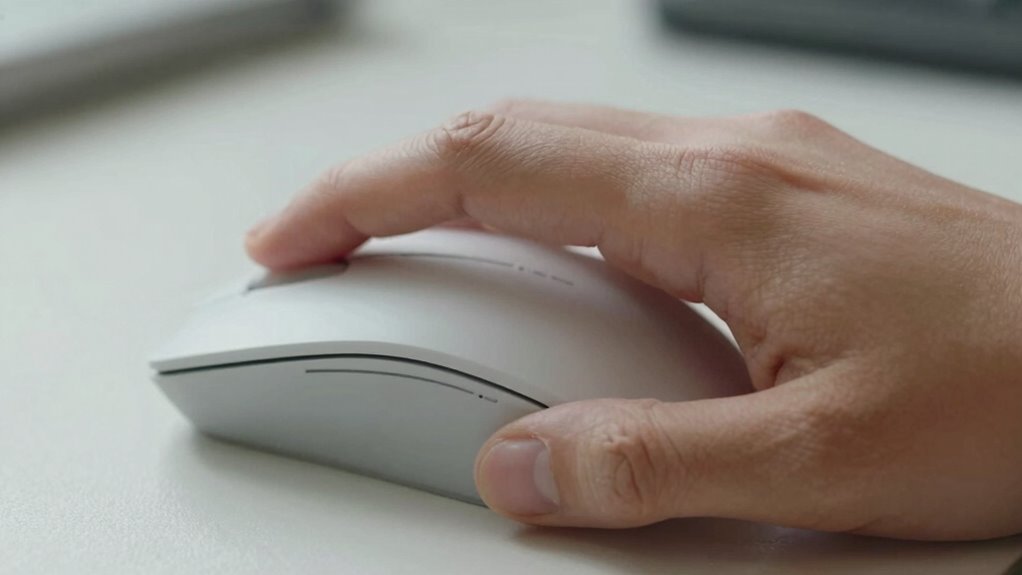

Choosing the right ergonomic mouse grip can boost comfort and improve your performance. Common styles include the palm grip, which supports your entire hand and reduces strain; the claw grip, offering quick, precise movements for gaming or detailed tasks; and the fingertip grip, ideal for fine control with minimal fatigue. Your hand size and work habits influence the best choice. Keep exploring to discover how to find and switch to the perfect grip for you.
Listen free for 30 days with Audible
Thousands of audiobooks and originals — cancel anytime.
As an affiliate, we earn on qualifying purchases.
Key Takeaways
- Understand different grip styles—palm, claw, and fingertip—and their ergonomic benefits for comfort and control.
- Choose a grip that matches your hand size and work style to prevent strain and improve efficiency.
- Keep your hand relaxed and maintain a neutral wrist position to reduce fatigue and injury risk.
- Adjust mouse sensitivity and use ergonomic accessories for better precision and comfort.
- Gradually transition to new grip styles with small changes and regular breaks to prevent discomfort.
As an affiliate, we earn on qualifying purchases.
Why Your Mouse Grip Matters for Comfort and Performance
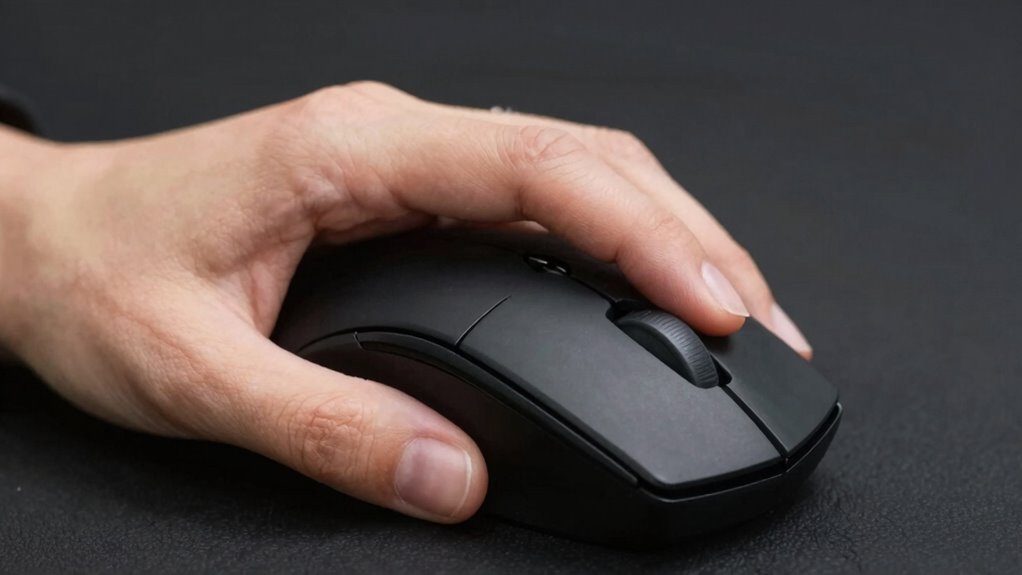
Have you ever wondered why some mice feel more comfortable or responsive than others? Your grip style directly impacts the ergonomic benefits you experience and how your hand muscle functions during use. A proper grip reduces strain on your hand and wrist, preventing fatigue and injury. When you hold your mouse correctly, you maintain a natural hand position that minimizes unnecessary tension. This approach not only improves comfort during long sessions but also boosts your performance by allowing more precise movements. Different grip styles engage various hand muscles differently, influencing responsiveness and control. Choosing a grip that suits your hand size and shape helps you work more efficiently and comfortably. Additionally, understanding free floating techniques can help you reduce contact points and maintain a more relaxed hand posture, further enhancing ergonomic health and performance. Recognizing the importance of hand muscle function can assist you in selecting the most suitable grip style for your needs. Being aware of device limitations is also crucial, as it helps you adapt your grip and usage to avoid unnecessary strain or discomfort. Incorporating knowledge of ergonomic principles can further improve your overall comfort and efficiency. For example, adjusting your hand posture periodically can prevent muscle fatigue and promote better circulation. Ultimately, your mouse grip isn’t just about comfort; it’s about optimizing your overall ergonomic health and performance.
best ergonomic mouse for wrist support
As an affiliate, we earn on qualifying purchases.
As an affiliate, we earn on qualifying purchases.
The Palmar Grip: The Most Comfortable and Common Style
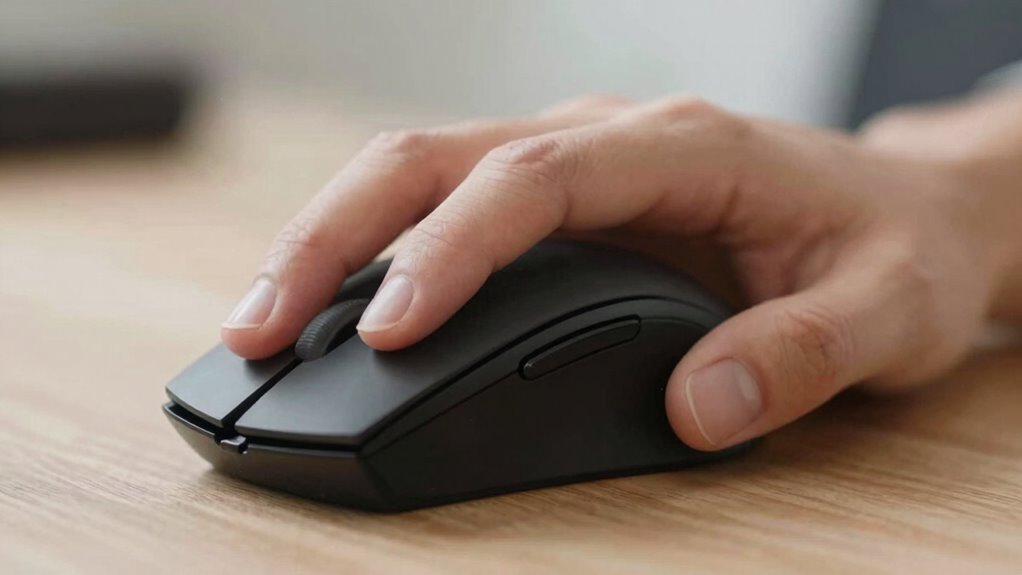
The palmar grip keeps your hand in a natural, relaxed position, making it easy to use for extended periods. This style helps reduce wrist strain by supporting your entire palm on the mouse. As the most common grip, it offers comfort and stability for everyday tasks. Incorporating ergonomic principles like proper positioning and support can further enhance your comfort and reduce fatigue during prolonged use. Additionally, understanding accessibility features can help customize your device setup for even better ergonomic comfort. Being aware of posture habits can also contribute to a healthier and more comfortable computing experience. Proper wrist alignment is essential to prevent strain and promote long-term comfort.
Natural Hand Position
When it comes to the natural hand position, the palmar grip stands out as the most comfortable and widely used style. This grip aligns your hand in a relaxed, natural posture, making it easy to maintain for extended periods. Proper hand positioning is essential for comfort and efficiency, and the palmar grip promotes a neutral wrist and finger placement. An ergonomic design encourages this natural position, reducing strain and promoting better movement control. You’ll find that this grip allows your fingers to rest comfortably on the mouse buttons, minimizing tension. Incorporating ergonomic principles into your setup can further enhance comfort and prevent strain over time. Paying attention to safe tool use and proper hand techniques can help prevent fatigue and injury in the long run. Overall, adopting the palmar grip with attention to ergonomic principles helps you work longer without discomfort and supports healthy hand habits. It’s an ideal starting point for those new to ergonomic mouse styles. Additionally, understanding Proper hand positioning can contribute significantly to reducing repetitive strain injuries.
Reduced Wrist Strain
Because it promotes a relaxed and natural hand posture, the palmar grip considerably reduces wrist strain during extended computer use. When you hold the mouse with your entire palm, your wrist stays in a neutral position, minimizing unnecessary tension. This grip encourages better keyboard posture, as your arm and wrist move smoothly without awkward angles, supporting overall desk ergonomics. By maintaining a comfortable grip, you lessen the risk of repetitive strain injuries like carpal tunnel syndrome. Proper positioning of your mouse in relation to your keyboard helps keep your forearm aligned and reduces unnecessary movement. Adopting the palmar grip makes long work sessions more comfortable and sustainable, allowing you to focus on your tasks without discomfort or fatigue. Additionally, practicing ergonomic techniques can further enhance your comfort and prevent strain over time. Recognizing the importance of training and behavior insights, such as proper techniques, can help reinforce healthy habits while working. Incorporating ergonomic product features, like adjustable mouse settings, can also support sustained comfort during prolonged use. Regularly assessing your workspace setup ensures you maintain optimal ergonomic alignment, which is key to preventing long-term discomfort and promoting overall well-being. Following these guidelines can also help in managing repetitive strain, reducing the likelihood of developing long-term discomfort.
As an affiliate, we earn on qualifying purchases.
The Claw Grip: Boost Speed and Precision
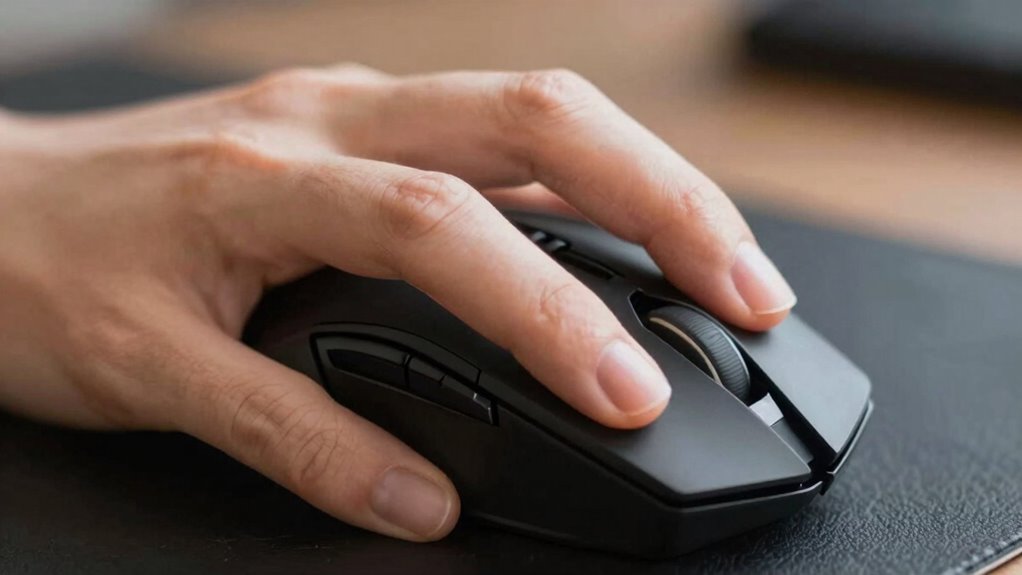
Curious about how to increase your mouse speed and accuracy? The claw grip can help you achieve that by offering enhanced control and quick movements. It’s favored in gaming performance, where precision matters. To optimize your claw grip:
- Adjust your grip pressure to prevent fatigue and maintain quick response times.
- Use ergonomic accessories like textured mouse grips for better finger control.
- Practice flick shots and rapid clicks to develop muscle memory.
- Ensure your mouse DPI settings are high enough for fast, precise movements without sacrificing accuracy.
- Incorporate ergonomic design principles to reduce strain during extended use. Additionally, understanding auditory feedback techniques can help improve your coordination and response times, especially when training for precision tasks. Paying attention to proper posture can also prevent discomfort and enhance overall control during prolonged gaming sessions. Recognizing muscle memory development as a key factor can further refine your technique and boost your performance during intense gameplay. Consistent practice with correct technique reinforces neuromuscular pathways, leading to quicker and more accurate responses. This grip lets you lift and move the mouse swiftly, making it ideal for fast-paced gameplay. Combining proper technique with ergonomic accessories boosts both performance and comfort, helping you stay sharp during long sessions.
As an affiliate, we earn on qualifying purchases.
The Fingertip Grip: Perfect for Fine Control

The fingertip grip allows you to make precise movements with minimal finger strain, giving you better control over small details. It’s ideal if your work requires accuracy rather than speed. By using just your fingertips, you can fine-tune your mouse movements effortlessly. This grip style promotes ergonomic safety, helping prevent fatigue during extended use.
Precise Movement Control
For tasks that require pinpoint accuracy, the fingertip grip excels by offering precise movement control. This grip allows you to finely maneuver your mouse using just your fingertips, enhancing your hand posture for delicate tasks. To optimize control, consider ergonomic accessories like textured mouse surfaces or adjustable DPI settings. Here are ways to improve your precision:
- Maintain a relaxed grip to avoid fatigue and enhance accuracy
- Use a mouse with a lightweight design for smoother movements
- Adjust DPI settings to suit detailed work without sacrificing speed
- Ensure your hand posture supports fine motor control, reducing strain and increasing precision
- Incorporate ergonomic design principles to refine your technique and boost your overall comfort during detailed work.
Mastering this grip with the right accessories helps you achieve superior control in detail-oriented tasks.
Minimal Finger Strain
Using the fingertip grip can considerably reduce finger strain during prolonged or precise tasks, making it an ideal choice for maintaining comfort and control. This grip minimizes hand fatigue by engaging only the fingertips, reducing unnecessary muscle tension. Since less surface contact is involved, your grip remains light, which helps preserve grip durability over time. It allows for quick, accurate movements, perfect for tasks requiring fine control. However, because it relies on delicate finger positioning, it may take some practice to master. With proper technique, you’ll notice less discomfort during extended use, and your fingers won’t tire as quickly. This grip style offers a balance of precision and comfort, making it a smart option for detailed work without sacrificing hand health.
Which Mouse Grip Is Best for Your Hand Size and Work Style?

Choosing the right mouse grip depends largely on your hand size and work style, as both factors influence which grip will feel most comfortable and efficient. Your hand size compatibility determines how much of the mouse you can comfortably grasp, while work style considerations shape how much precision or speed you need.
Choosing the right mouse grip depends on hand size and work style for optimal comfort and efficiency.
- If you have small hands, a fingertip grip might work best for quick movements.
- For larger hands, a palm grip provides more support and comfort during extended use.
- Precision tasks, like graphic design, benefit from a grip that offers control, such as a claw grip.
- Fast-paced gaming or work may require a grip that allows quick, fluid movements, like a relaxed palm grip.
Matching your grip to your hand size and work style ensures comfort and productivity.
How to Choose and Switch to the Right Mouse Grip Safely
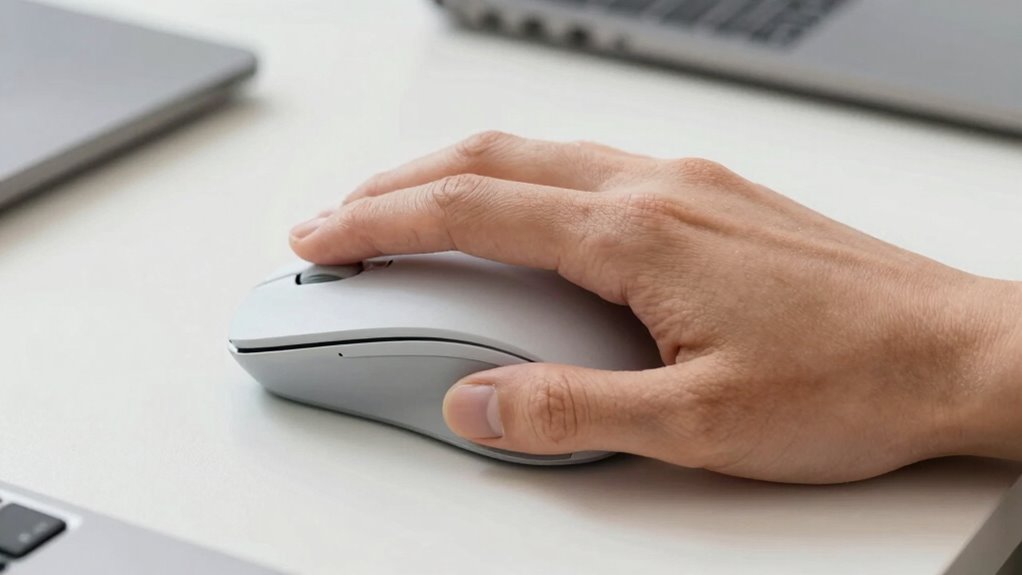
Switching to a new mouse grip can improve comfort and performance, but it’s important to do so safely to avoid strain or injury. Start by gradually trying different grips, paying attention to how your hand feels. Incorporate mouse customization options, like adjustable buttons or sensitivity settings, to enhance comfort. Consider ergonomic accessories, such as wrist rests or textured grips, to support proper hand positioning. When switching, take breaks often to prevent fatigue and listen to your body’s signals. Make small adjustments over time rather than making abrupt changes. Remember, the goal is a natural, relaxed hold that minimizes tension. With patience, you’ll find a grip that promotes both comfort and efficiency, ensuring long-term ergonomic benefits.
Mistakes That Sabotage Your Mouse Grip Ergonomics
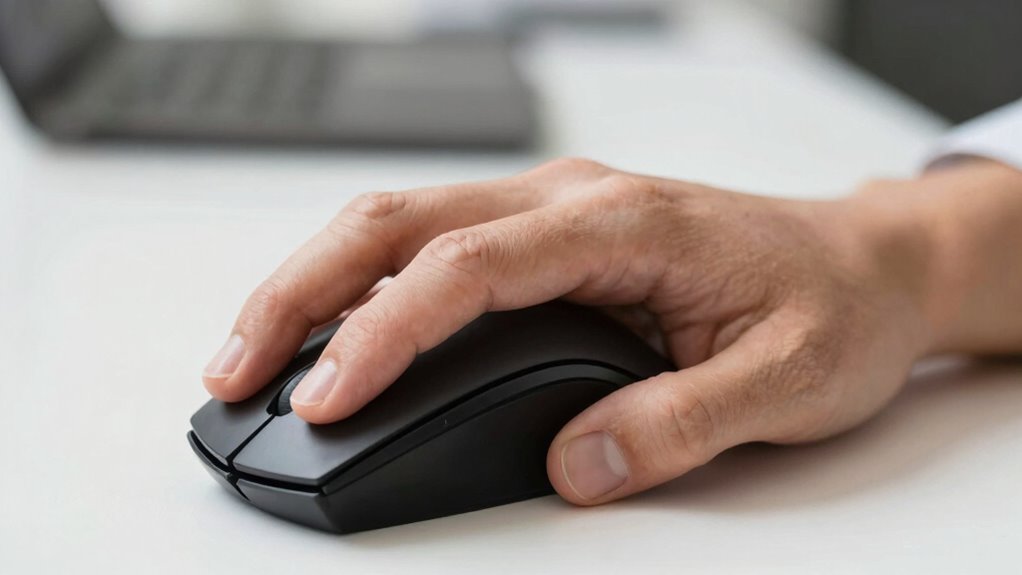
Even small mistakes can substantially undermine the benefits of a proper mouse grip, leading to discomfort or injury over time. Poor grip habits can also negatively impact your overall office posture and ergonomic setup. Here are common mistakes to watch out for:
Small mistakes in mouse grip can cause discomfort and harm your posture over time.
- Gripping the mouse too tightly, which causes unnecessary hand strain.
- Using a palm grip that doesn’t support your wrist properly, increasing risk of discomfort.
- Ignoring your ergonomic keyboard alignment, forcing awkward wrist angles.
- Slouching or leaning forward, which compromises good office posture and strains your upper body.
Avoid these errors by maintaining a relaxed grip, aligning your ergonomic keyboard with your mouse, and keeping a neutral wrist position. Small adjustments can substantially improve comfort and prevent long-term issues.
Signs You Need Professional Help for Wrist or Hand Discomfort
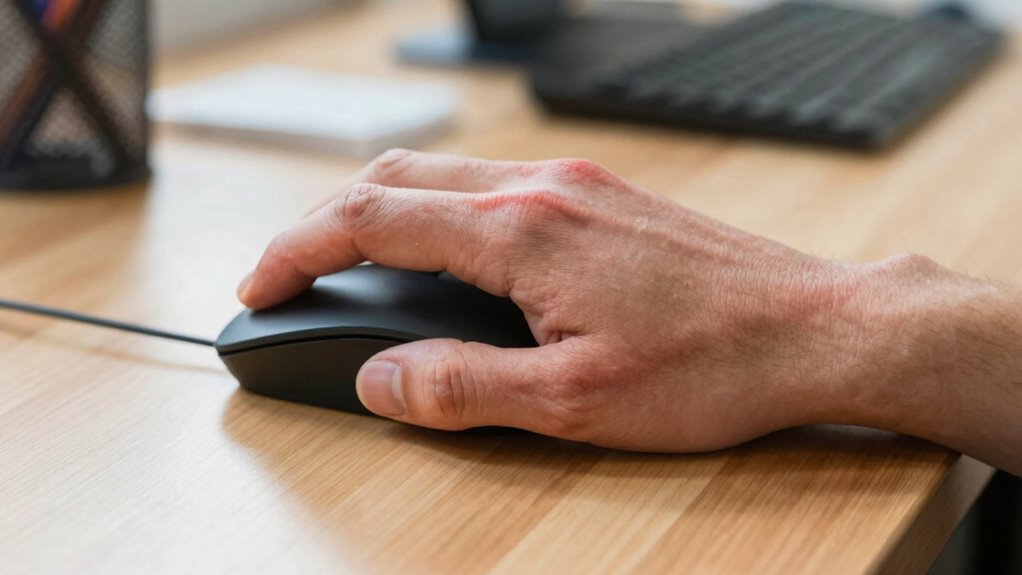
Wrist or hand discomfort that persists despite adjusting your grip or workstation setup should never be overlooked, as it may indicate underlying issues that require professional attention. If pain continues, consider consulting a specialist to prevent long-term damage. Signs you need help include persistent numbness, tingling, or weakness. These symptoms could signal nerve compression or repetitive strain injuries. Incorporate ergonomic accessories, like wrist supports, to reduce strain, and perform wrist stretching regularly. Recognizing these signs early can help you avoid chronic problems and ensure proper treatment.
| Symptom | Possible Cause | Recommended Action |
|---|---|---|
| Persistent numbness | Nerve compression | Seek professional diagnosis |
| Tingling or burning | Repetitive strain injury | Use ergonomic accessories |
| Weakness in grip | Muscle strain or damage | Consult a healthcare provider |
FAQs: Finding the Perfect Grip for Your Needs
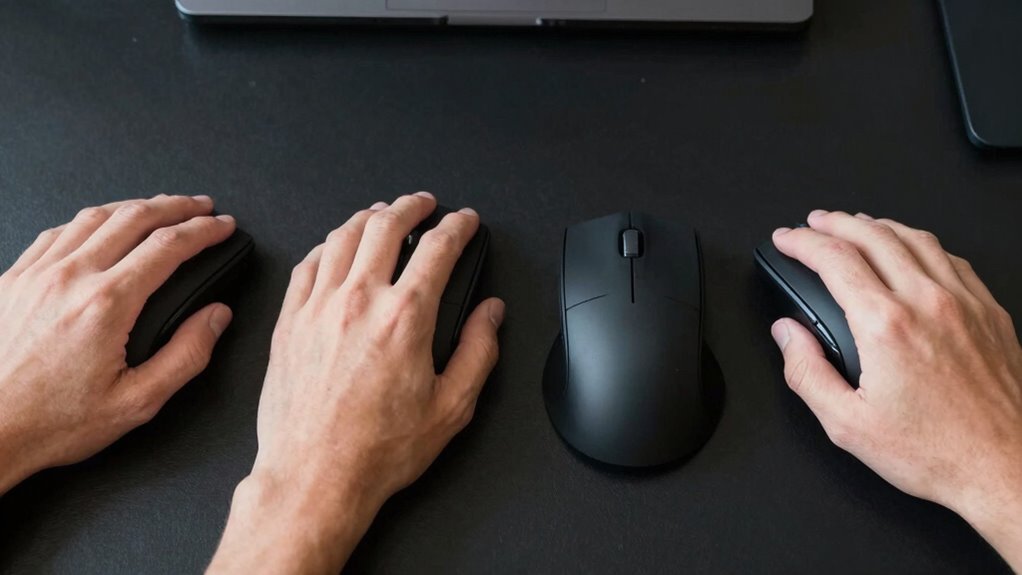
Finding the perfect grip for your mouse can feel overwhelming, especially with the variety of styles available. To determine what works best, consider your comfort and activity level. You might also explore ergonomic accessories designed to support your chosen grip, reducing strain. Incorporate mouse grip exercises into your routine to strengthen hand muscles and improve control.
Finding the right mouse grip boosts comfort, reduces strain, and enhances control for long-term use.
Here are some tips to help you find your ideal grip:
- Experiment with different styles—palm, claw, or fingertip—to see what feels natural.
- Use ergonomic accessories like wrist rests to enhance comfort.
- Pay attention to your hand posture during extended use.
- Regularly perform mouse grip exercises to prevent fatigue and promote flexibility.
Finding the right fit takes patience, but it’s key to long-term comfort and productivity.
Frequently Asked Questions
Can Switching Mouse Grips Improve Long-Term Hand Health?
Switching mouse grips can definitely improve your long-term hand health by reducing hand fatigue and increasing grip comfort. When you change grips, you prevent repetitive strain on the same muscles and tendons, which helps avoid discomfort and injury over time. Experimenting with different grips allows you to find what feels most natural and comfortable, promoting better ergonomics and supporting your hand’s health during long hours of use.
How Often Should I Change or Adjust My Mouse Grip?
Think of your grip like a garden that needs tending; you should adjust it whenever you notice discomfort or fatigue. Every few weeks, check if your wrist support and mouse pad still feel comfortable, and make small tweaks to your grip as needed. Regular adjustments help prevent strain, ensuring your hand stays healthy and happy during long hours at the computer. Listen to your body, and don’t be afraid to shift your grip when necessary.
Are There Specific Mouse Shapes Suited for Different Grip Styles?
Yes, certain mouse shapes are better suited for different grip styles, enhancing grip style ergonomics. For example, a contoured, palm-friendly mouse supports a palm grip, while a smaller, more streamlined design favors a fingertip grip. When choosing a mouse, consider its shape compatibility with your grip style to reduce strain and improve comfort. Picking the right shape helps maintain good ergonomics, making your work or gaming sessions more comfortable and less fatiguing.
What Are the Early Signs of Ergonomic Strain From Mouse Use?
Like a modern-day knight feeling the weight of their armor, you might notice early signs of ergonomic strain from mouse use, such as muscle fatigue or joint discomfort. If your hand or wrist starts aching after use, or if you feel tingling or numbness, these are warning signs. Pay attention to these cues, and adjusting your grip or taking breaks can prevent more serious strain or injury.
How Can I Train My Hand to Adopt a New Grip Style Safely?
To train your hand safely for a new grip style, start with hand stretching exercises daily to improve flexibility. Gradually practice the new grip, focusing on maintaining good posture and avoiding discomfort. Strengthen your grip by gently squeezing a stress ball or grip trainer. Listen to your body, take regular breaks, and don’t force the shift, allowing your hand to adapt naturally over time while preventing strain.
Conclusion
Choosing the right mouse grip can greatly improve your comfort and performance. Remember, it’s not just about speed or control—it’s about finding what works best for your hand and work style. Don’t be afraid to experiment and switch things up if needed. As the saying goes, “A stitch in time saves nine.” Prioritize your ergonomic habits now, so you can avoid pain and discomfort later. Your hands will thank you!
Flea & tick season Picks
flea and tick prevention
As an affiliate, we earn on qualifying purchases.