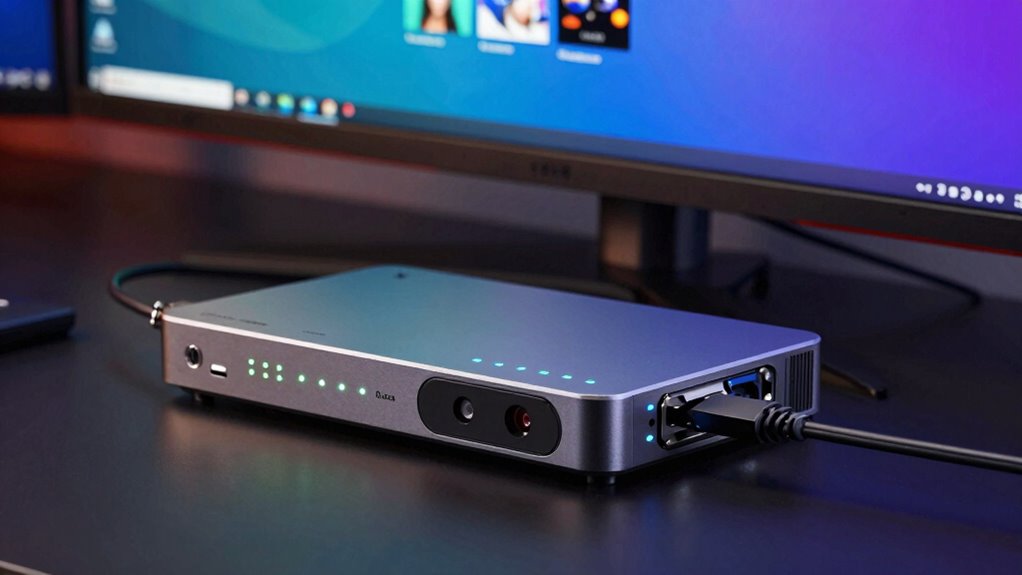

A capture card connects your gaming setup to a computer for high-quality recording and streaming. It handles video signals, supporting different resolutions and frame rates to enhance clarity and smooth motion. Passthrough features let you view gameplay in real-time with minimal delay, even in HDR. Choosing the right card involves balancing resolution, frame rate, and passthrough options based on your hardware. Keep exploring to discover how to optimize your streaming for the best results.
Listen free for 30 days with Audible
Thousands of audiobooks and originals — cancel anytime.
As an affiliate, we earn on qualifying purchases.
Key Takeaways
- Capture cards encode and transmit video signals from gaming devices to a computer for recording or streaming.
- Resolution determines the detail and clarity of the video, with higher resolutions offering sharper images.
- Frame rate affects smoothness; 60 FPS provides more fluid motion compared to 30 FPS.
- Passthrough allows real-time gameplay on a display with minimal latency and supports HDR for better color and contrast.
- Choosing the right capture card involves matching its resolution and frame rate capabilities with your gaming setup and stream needs.
As an affiliate, we earn on qualifying purchases.
What Is a Capture Card and Why Do You Need One?
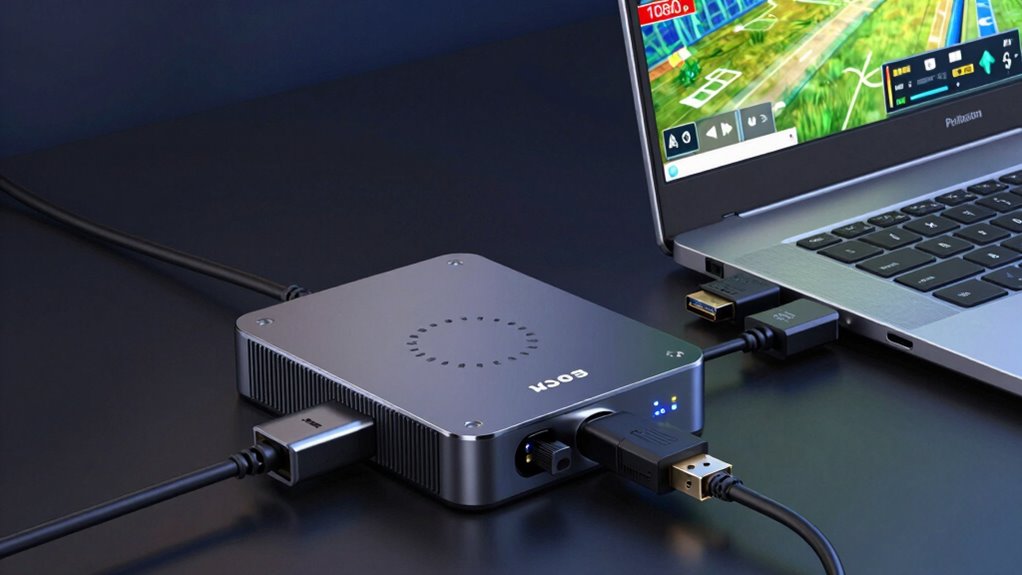
Ever wondered how gamers stream high-quality gameplay or record footage without lag? That’s where a capture card comes in. A capture card is a device that connects your gaming setup to your computer, allowing you to capture and stream your gameplay smoothly. It takes the video signal from your gaming console or PC and encodes it for streaming or recording. Without a capture card, you might experience lag, poor quality, or dropped frames. It’s vital for streamers who want crisp visuals and reliable performance. Whether you’re using a gaming console or a high-end PC, a capture card ensures your setup delivers professional-quality streams. In short, it’s an indispensable tool for anyone serious about capturing gameplay at peak quality.
As an affiliate, we earn on qualifying purchases.
How Do Resolution and Frame Rate Affect Your Streaming Quality?
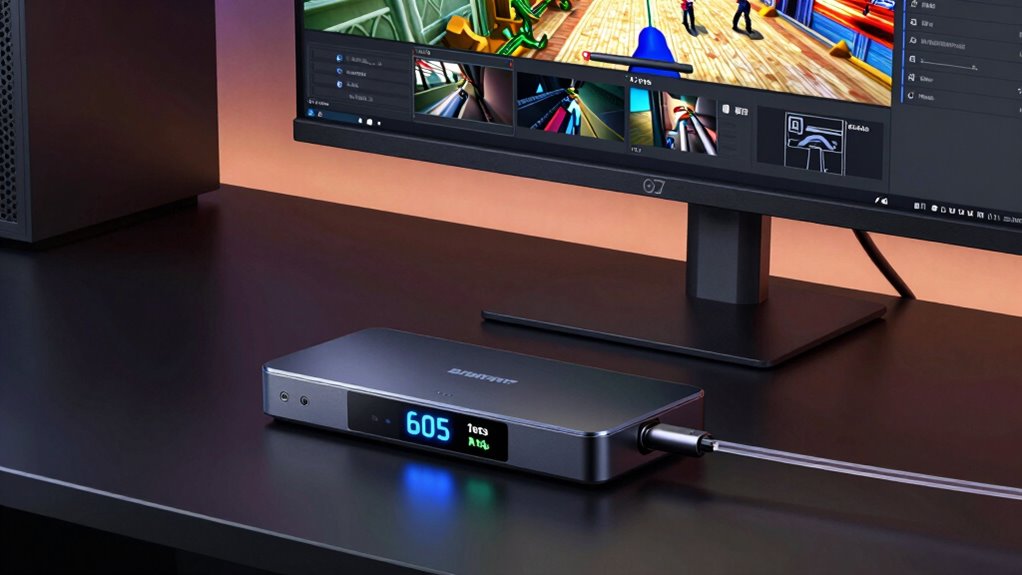
Your streaming quality depends heavily on the resolution and frame rate you choose, affecting how clear and smooth your video appears. Higher settings improve visual clarity and fluidity but require more powerful hardware and compatible equipment. Balancing these factors guarantees your stream looks great without overwhelming your setup. Additionally, understanding projector technology can help you optimize your setup for the best possible streaming experience. Being aware of hardware limitations ensures you select appropriate settings that match your device’s capabilities, preventing issues like lag or dropped frames.
Impact on Visual Clarity
How do resolution and frame rate directly influence your streaming quality? Higher resolution enhances detail and sharpness, making images clearer and more vibrant. A higher frame rate provides smoother motion, reducing blurriness during fast actions. Both factors impact visual clarity, but ideal color accuracy relies heavily on proper screen calibration. When your capture card’s settings match your display’s capabilities, colors appear more true-to-life, improving overall image fidelity. Additionally, digital content formats play a role in how effectively these settings translate to the final image quality.
Consider these points:
- Increased resolution reveals finer details, sharpening visuals.
- Higher frame rates improve motion fluidity, reducing ghosting.
- Proper screen calibration ensures consistent color accuracy.
- Balancing resolution and frame rate prevents image degradation.
Together, these elements create sharper, more vibrant streams that captivate your viewers.
Streaming Smoothness Factors
Resolution and frame rate are key factors that determine how smoothly your stream comes across to viewers. Higher resolutions offer sharper images but require more processing power, which can lead to latency issues if your hardware isn’t up to the task. Frame rate impacts motion fluidity; a higher frame rate (like 60 fps) creates smoother action, especially for fast-paced content. However, increasing frame rate also raises power consumption, putting additional strain on your setup. If your system struggles with processing, you might experience lag or dropped frames, degrading the viewing experience. Balancing resolution and frame rate is vital to guarantee smooth streaming without overloading your hardware. Finding the right mix helps minimize latency issues and keeps your stream stable, providing viewers with a seamless experience.
Hardware Compatibility Needs
Choosing the right hardware is essential because higher resolutions and frame rates demand more processing power from your system. If your hardware isn’t compatible, you’ll see dropped frames, lag, or poor quality. To guarantee smooth streaming, check your capture card’s hardware compatibility with your PC or console. Also, confirm your system’s power supply requirements can support the extra load, especially if upgrading components.
Key considerations include:
- Compatibility with your operating system and ports
- Adequate processing power (CPU and GPU)
- Sufficient power supply capacity
- Support for desired resolution and frame rate
Failing to meet these needs can result in degraded stream quality or hardware failure. Always verify your system’s specs before investing in a capture card.
As an affiliate, we earn on qualifying purchases.
What Is Passthrough in Capture Cards and Why Is It Important?
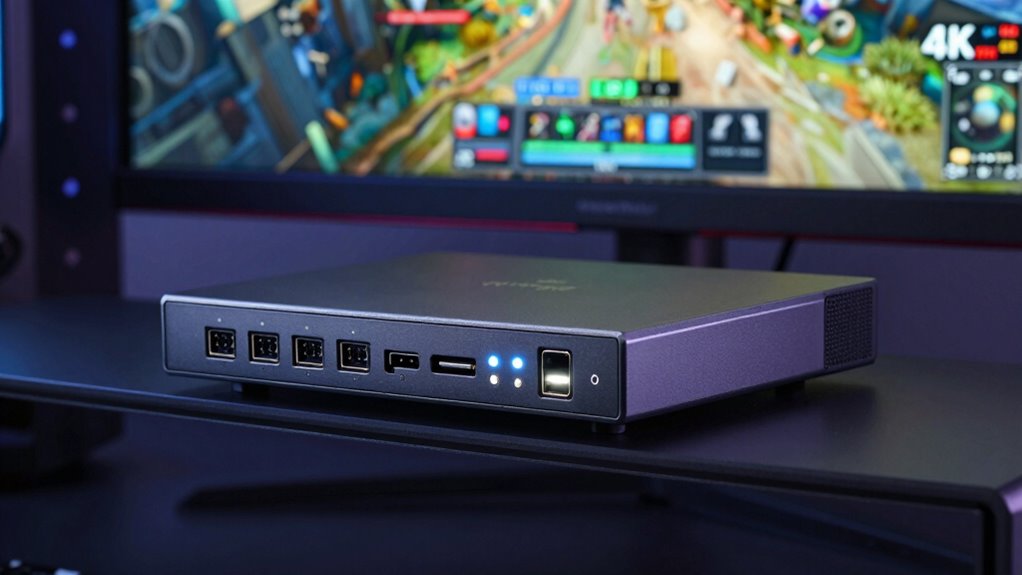
Have you ever wondered why some capture cards let your gameplay appear on your monitor while simultaneously recording or streaming? That’s thanks to passthrough, a feature that routes your video signal directly from your console or PC to your display. Passthrough allows you to play in real-time without noticeable delay, which is essential for fast-paced games. With HDR support, passthrough maintains high dynamic range visuals, delivering richer colors and better contrast. It also helps with latency reduction, ensuring your gameplay remains responsive and smooth. This setup lets you monitor your game directly on your screen while capturing high-quality footage. Passthrough is indispensable for minimizing lag and preserving image quality, making your streaming and gaming experience seamless and professional.
As an affiliate, we earn on qualifying purchases.
How to Choose the Best Capture Card for Your Gaming Setup
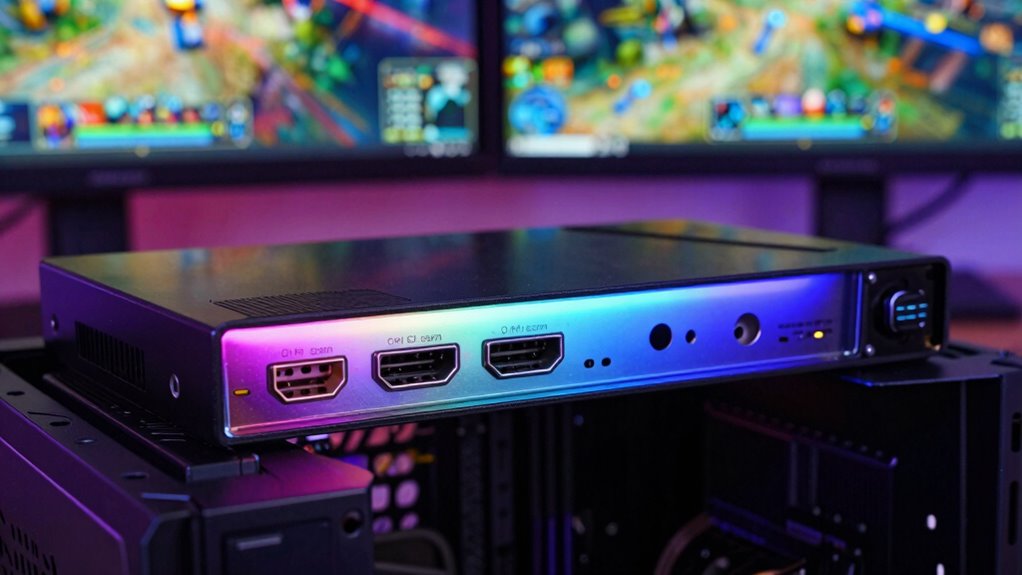
Selecting the right capture card for your gaming setup involves considering how you plan to use it and what features matter most to you. To make an informed choice, look at factors like resolution support, frame rate capabilities, and passthrough options. Also, pay attention to capture card sturdiness—you want something that lasts through intense gaming sessions—and brand reputation, which often indicates quality and support. Keep in mind these key points:
Choose a durable, reputable capture card supporting high resolution and frame rates for reliable gaming and streaming.
- Compatibility with your gaming hardware
- Support for 4K or high frame rates
- Reliable build quality and durability
- Reputable brands with good customer reviews
Balancing these factors helps ensure you get a capture card that’s both durable and reliable, giving you the best gaming and streaming experience possible.
Troubleshooting Common Capture Card Problems
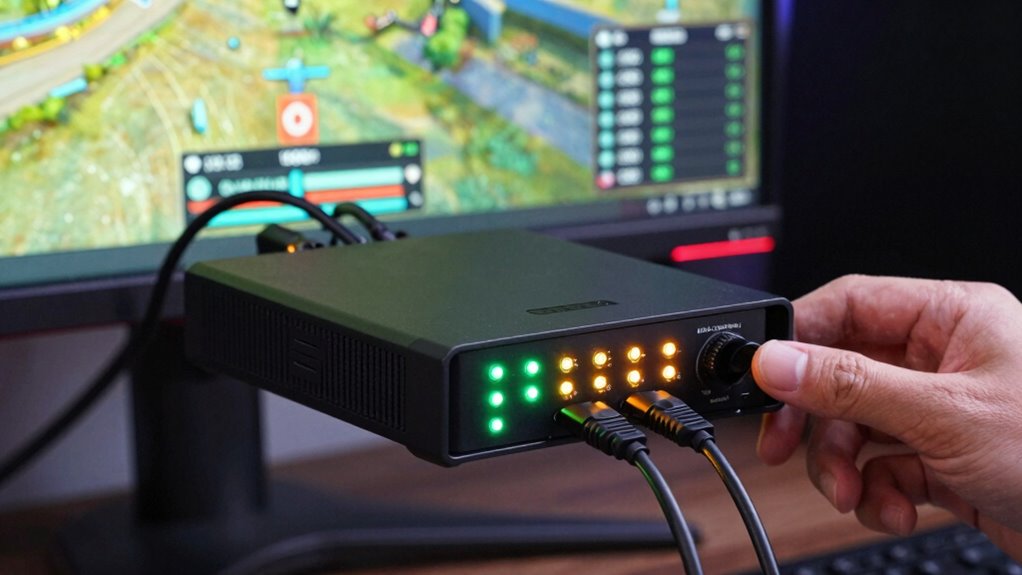
When you start experiencing issues with your capture card, troubleshooting quickly becomes vital to get back to streaming or recording smoothly. One common problem is high capture card latency, which causes delays between your gameplay and the video display. To fix this, try connecting your capture card via a different USB port or lowering the resolution to reduce processing lag. Firmware updates are also essential; outdated firmware can lead to compatibility issues or unstable performance. Check the manufacturer’s website regularly for the latest updates and install them carefully. If problems persist, verify all cables are secure and compatible. Restart your devices, and test your setup with different software to isolate the issue. Proper troubleshooting helps guarantee your capture card functions at its best, delivering smooth, low-latency streams. Additionally, ensuring your setup includes well-maintained hardware can prevent many common technical problems, including issues related to natural pool design and other outdoor entertainment setups. Regularly inspecting and maintaining your equipment, including your capture card, can further prevent performance issues and ensure consistent operation. Being aware of market trends and insights can also help you stay ahead of potential compatibility or hardware obsolescence that might affect your setup. Staying informed about new hardware developments can help you make proactive upgrades before issues arise.
Tips for Optimizing Your Streaming Quality With Capture Cards
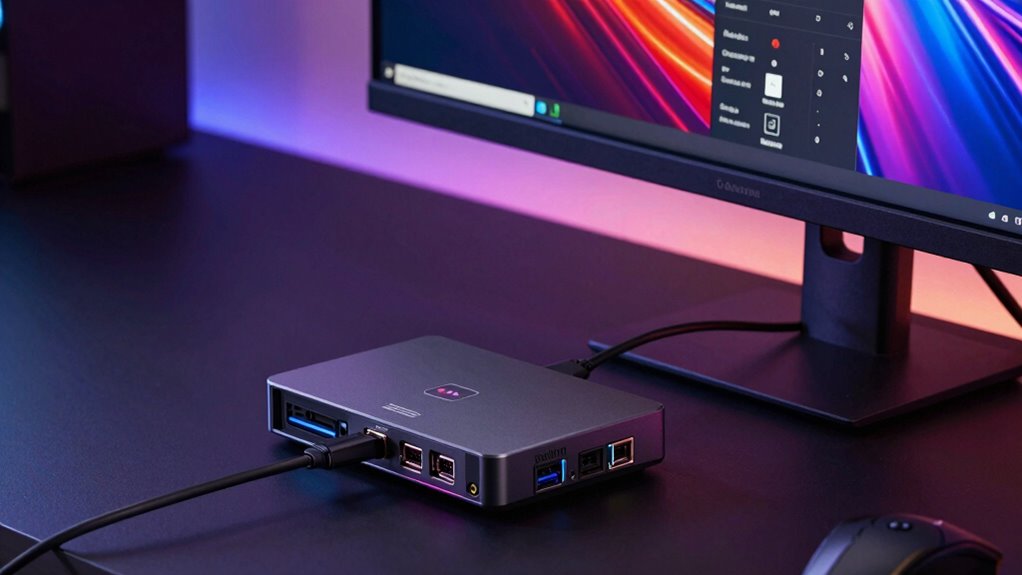
To get the best streaming quality, start by adjusting your resolution settings to match your system’s capabilities. Make sure you optimize the frame rate for smooth playback, and enable passthrough features to reduce latency. These tweaks can considerably improve your stream’s clarity and performance.
Adjust Resolution Settings
Adjusting your resolution settings is essential for maximizing streaming quality with your capture card. Properly configuring resolution guarantees clear visuals and smoother playback. Start by matching your capture card’s resolution with your source device for accurate color calibration. Use software integration features to fine-tune settings and maintain ideal image quality. Keep in mind that higher resolutions demand more bandwidth and processing power, so balance quality with system capabilities.
To enhance your setup, consider these tips:
- Enable color calibration options for vibrant, true-to-life colors
- Select the best resolution based on your streaming platform
- Use software tools to adjust sharpness and contrast
- Regularly update drivers and firmware for better compatibility
These steps help you achieve crisp, professional streams consistently.
Optimize Frame Rate
Optimizing your frame rate is key to delivering smooth, professional-quality streams. To achieve this, focus on maintaining frame rate consistency throughout your broadcast. Inconsistent frame rates can cause stuttering and visual disruptions that hurt viewer experience. Adjust your capture card settings to match your source content’s native frame rate, whether 30 or 60 FPS, for peak results. Reducing latency is also essential, so lower your capture and processing delay to ensure real-time responsiveness. Keep your hardware and software updated, and avoid overloads that can cause dropped frames. By fine-tuning these settings, you’ll enhance overall streaming stability, deliver smoother footage, and provide a more engaging viewer experience. Consistent frame rate and minimized latency are the foundations of professional streaming quality.
Enable Passthrough Features
Enabling passthrough features on your capture card allows your gaming or streaming device to send the original, uncompressed signal directly to your display while simultaneously sending a separate stream to your streaming software. This setup reduces latency issues, giving you a smoother gaming and streaming experience. To enhance performance, consider the following tips:
- Use high-quality HDMI cables to prevent signal degradation
- Enable passthrough in your capture card’s settings
- Upgrade your hardware if you notice persistent latency issues
- Keep your drivers and firmware up to date for peak compatibility
Frequently Asked Questions
Can Capture Cards Be Used With Consoles Other Than Xbox and Playstation?
Yes, capture cards are compatible with various consoles beyond Xbox and PlayStation. You just need to check the capture card’s compatibility and device connection methods, like HDMI or USB, to guarantee it works with your specific console. Most capture cards work with systems that output HDMI signals, including Nintendo Switch, Xbox Series X, and others. Just confirm the ports and compatibility before purchasing to ensure smooth streaming or recording.
Do Capture Cards Support 4K Streaming at High Frame Rates?
Yes, some capture cards support 4K streaming at high frame rates, but you need to check their compression settings and hardware requirements. Higher frame rates and resolutions demand more from your system, so make certain your PC has a powerful GPU and sufficient processing power. Proper compression settings help balance quality and performance, preventing lag or dropped frames. Always verify the specifications before investing in a capture card for 4K, high-frame-rate streaming.
How Does Latency Impact Gameplay When Using a Capture Card?
Latency can substantially impact your gameplay when using a capture card. Input lag and signal delay may cause a noticeable lag between your actions and the game’s response, making fast-paced games harder to play. High-quality capture cards minimize this delay, but it’s essential to choose one with low input lag. Test your setup to make sure that signal delay doesn’t hinder your performance or enjoyment, especially during competitive gaming.
Are There Compatibility Issues With Certain Operating Systems?
You might face compatibility issues with certain operating systems, especially if the capture card lacks proper driver support. Make sure your OS is compatible by checking the manufacturer’s specifications. Some capture cards work seamlessly with Windows but might have limited or no support on macOS or Linux. To avoid problems, update your drivers regularly and verify compatibility before purchasing. This way, you’ll enjoy smooth streaming and recording without technical hiccups.
What Are the Energy Consumption Differences Between USB and PCIE Capture Cards?
Ever wondered how your setup’s energy use stacks up? USB capture cards typically consume less power than PCIe ones, making them more energy-efficient for casual or portable use. PCIe cards might draw more power but offer higher performance for intensive tasks. The efficiency comparison shows USB options are ideal if you want to save energy, while PCIe cards suit those needing maximum throughput without stressing their power supply.
Conclusion
Now that you’ve learned the essentials of capture cards, it’s funny how everything seems to align—your gaming setup, your streaming goals, and the perfect capture card just falling into place. With the right choices, you’ll find yourself capturing smooth, high-quality streams without a hitch. Sometimes, it’s those small details, like resolution and passthrough, that make all the difference. So go ahead, experiment, and enjoy the seamless streaming experience you’ve set out to achieve.
Fall Picks
fall essentials
As an affiliate, we earn on qualifying purchases.