
If your video calls look pixelated, it’s essential to understand whether the issue is your bandwidth or camera settings. Low internet speed can cause compression, making images blurry or blocky, while low camera resolution or poor lighting can reduce image clarity. Check your internet speed first and upgrade if needed. Adjust your camera resolution and improve lighting to sharpen your video. For more tips on fixing pixelation issues, keep exploring different solutions.
Key Takeaways
- Check your internet speed with online tests to ensure sufficient bandwidth for high-quality video calls.
- Use a wired connection or sit closer to the Wi-Fi router to improve internet stability and reduce pixelation.
- Set your camera to the highest compatible resolution for sharper images during calls.
- Improve lighting conditions with natural or diffused light to help your camera focus and reduce blurriness.
- Close unnecessary apps and lower video resolution to free bandwidth and prevent pixelation during the call.
As an affiliate, we earn on qualifying purchases.
How to Improve Your Video Call Quality Quickly
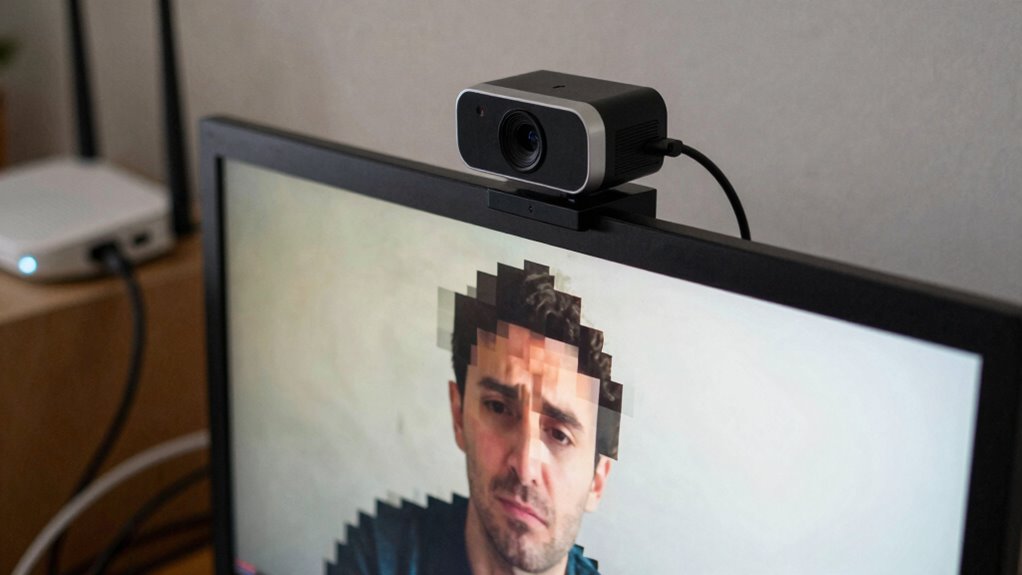
If your video calls are looking pixelated, there are quick steps you can take to improve the quality. First, make sure good lighting—natural light works best—so your camera captures clearer images. Keep your background tidy and use virtual background tips to prevent distractions that can degrade video quality. During calls, stick to proper video call etiquette by staying centered and avoiding sudden movements, which can cause pixelation. Check your internet connection; a wired connection often offers more stability than Wi-Fi. Close unnecessary apps to free up bandwidth and lower the video resolution if possible. These simple adjustments can make a big difference, helping you appear clearer and more professional in every call. Additionally, understanding bandwidth management can help you optimize your network for better video quality and prevent pixelation caused by family photoshoot fails or unexpected disruptions. Being aware of how camera settings influence image clarity can also enhance your overall video experience. Properly configuring your camera resolution settings is essential for achieving sharper visuals during calls.
As an affiliate, we earn on qualifying purchases.
What Causes Blurry Video: Bandwidth or Camera Settings?
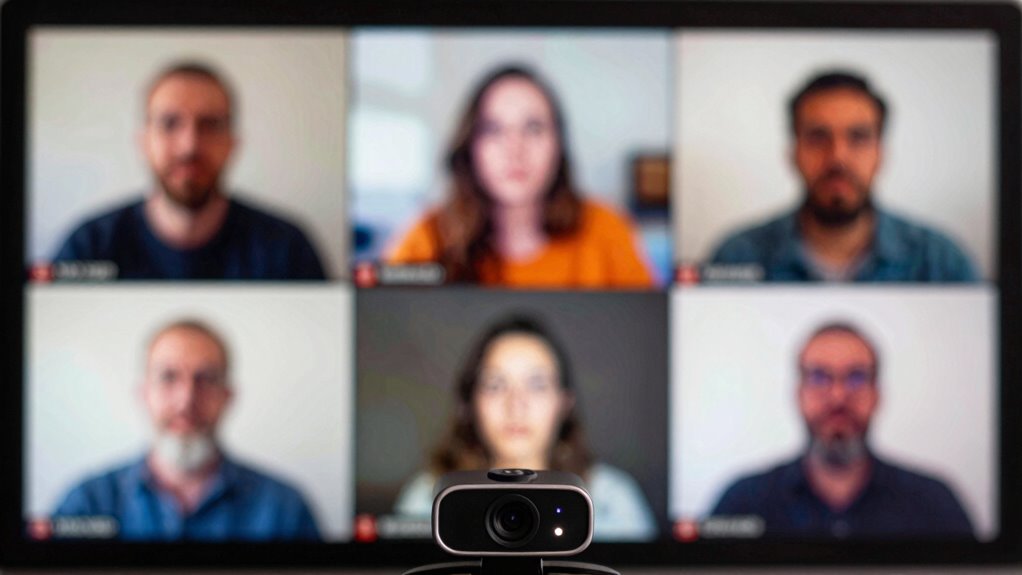
Blurry video during calls often results from either insufficient bandwidth or incorrect camera settings. When your internet connection isn’t strong enough, video compression kicks in, reducing image quality to save bandwidth, which causes pixelation and blurriness. On the other hand, poor lighting conditions can make your camera struggle to focus properly, resulting in a blurry image even if your bandwidth is fine. Camera settings like resolution also play a role—if set too low, your video appears less sharp. Ensuring a stable internet connection minimizes excessive video compression, while improving lighting conditions helps your camera capture clearer images. Adjusting your camera’s resolution and focus settings further sharpens your video, making your calls more professional and visually appealing. Additionally, understanding how digital concepts like compression algorithms influence video quality can help you optimize your setup for better results.
ring light for video conferencing
As an affiliate, we earn on qualifying purchases.
As an affiliate, we earn on qualifying purchases.
Test Your Internet Speed and Bandwidth for Clearer Calls
To guarantee your video calls are clear and crisp, it’s essential to test your internet speed and bandwidth beforehand. Slow or inconsistent connections can cause excessive video compression, leading to pixelation. Use an online speed test to measure your download and upload speeds, ensuring they meet the recommended requirements for high-quality video calls. Pay attention to network latency, as high latency can cause delays and buffering that ruin the experience. A stable, fast connection reduces the need for heavy video compression, which often results in pixelation. If your speeds are lacking, consider upgrading your plan or reducing other device usage during calls. Regular testing helps you identify issues early, so you can troubleshoot or optimize your connection for smoother, clearer video communication.
camera resolution settings for webcams
As an affiliate, we earn on qualifying purchases.
As an affiliate, we earn on qualifying purchases.
Adjust Camera Settings for a Sharper Video Stream
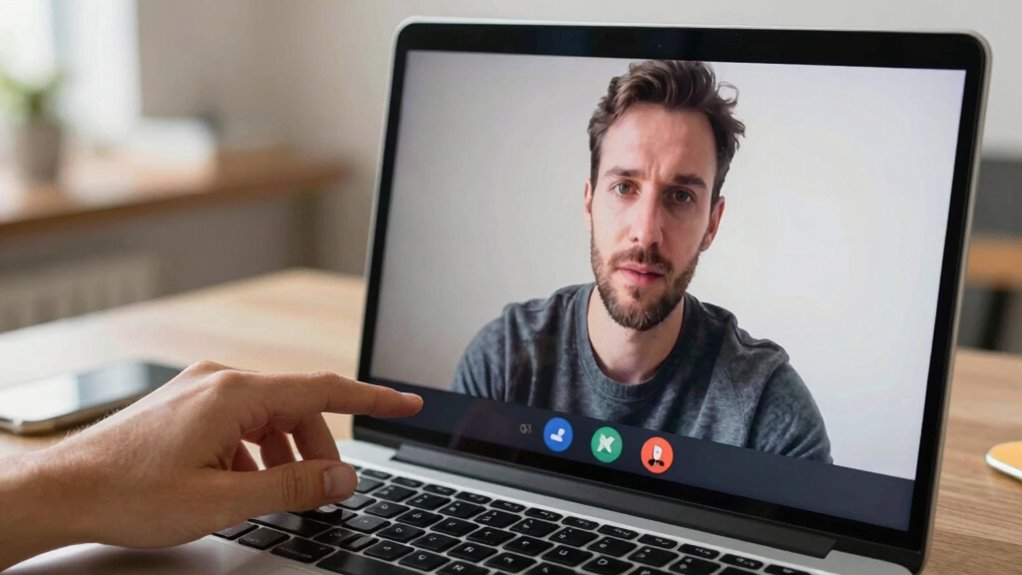
Adjusting your camera settings can greatly improve the clarity of your video calls. Start by checking your camera resolution—higher settings offer sharper images but require more bandwidth. If your camera allows, select the highest resolution compatible with your system. Equally important are lighting conditions; guarantee your space is well-lit to avoid grainy or pixelated images. Natural light is ideal, but if unavailable, use soft, diffused artificial lighting to evenly illuminate your face. Avoid harsh backlighting or extremely dim environments, which can cause your camera to struggle. Adjusting these settings helps your camera capture clearer, more detailed video, reducing pixelation. By optimizing resolution and lighting, you’ll present a sharper, more professional image during your calls.
Troubleshoot and Optimize Your Connection for Better Video Calls
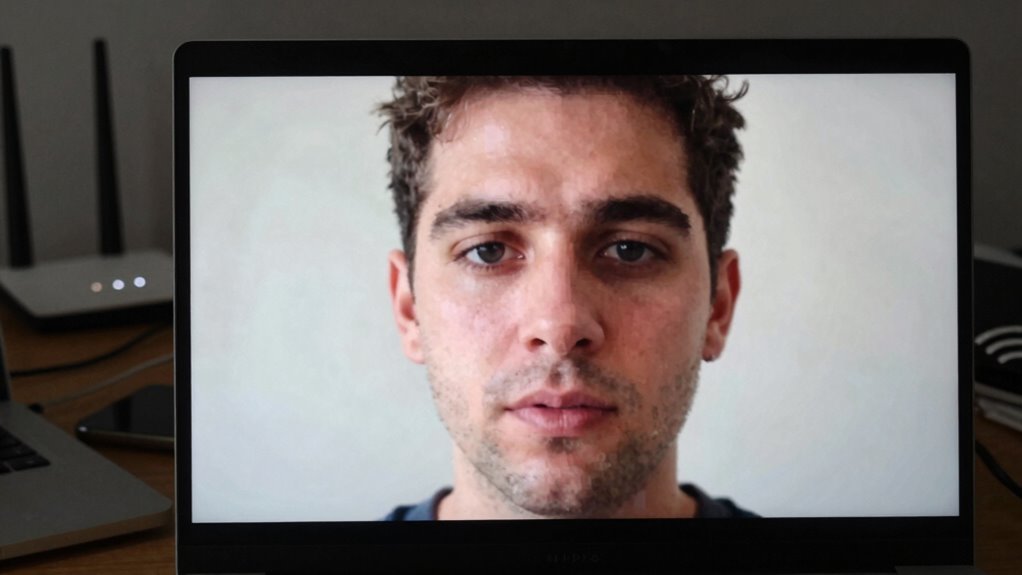
Since a stable internet connection is essential for clear video calls, optimizing your network can make a significant difference. Start by closing unnecessary apps and devices using bandwidth. Use a wired connection if possible, or sit closer to your Wi-Fi router. Prioritize your video app’s bandwidth settings and update your device’s network drivers. Remember, good video call etiquette includes minimizing background noise and distractions, which can be amplified by poor connection. To enhance your appearance, try virtual background tips like simple, clutter-free backgrounds. Here’s how to stay motivated:
| Action | Benefits | Emotional Impact |
|---|---|---|
| Use wired internet | Faster, more reliable calls | Confidence |
| Limit background apps | Reduces lag and buffering | Peace of mind |
| Optimize settings | Clearer video and sound | Satisfaction |
Additionally, understanding the bandwidth vs camera confusion can help you make better adjustments for improved call quality. Be aware that network congestion can also impact your connection quality, so choosing optimal times to call might improve your experience.
Frequently Asked Questions
Can Hardware Upgrades Improve My Video Call Quality?
Yes, hardware upgrades can improve your video call quality. Upgrading your camera guarantees better resolution, and checking hardware compatibility ensures seamless performance. Adjusting camera settings, like resolution and focus, also boosts clarity. Make sure your device’s hardware meets the software requirements, and tweak camera options for ideal results. These steps help reduce pixelation, making your calls sharper and more professional-looking.
Does Background Lighting Affect Video Clarity?
Yes, background lighting considerably affects your video clarity. Poor lighting conditions or uneven environmental factors can create shadows or glare, making your image appear blurry or pixelated. To improve, guarantee your lighting is even and bright, preferably with natural light or soft, diffused lamps. Proper lighting helps your camera focus better, reducing pixelation and enhancing overall video quality. Adjusting environmental factors creates a clearer, more professional-looking video call.
How Does Device Age Impact Camera Performance?
Think of your device’s camera as a seasoned artist’s palette—over time, the colors fade, and details blur. As your device ages, its lifespan impacts camera performance due to wear and tear, leading to camera deterioration. This results in reduced image quality, making your video calls pixelated or blurry. To maintain clarity, consider upgrading your device before camera deterioration substantially hampers your video quality.
Are There Specific Apps Better for Higher Quality Calls?
Yes, some apps are better for higher quality calls. Look for ones with strong app optimization and adjustable camera settings, like Zoom or Microsoft Teams. These apps often adapt to your device’s capabilities and let you tweak video quality. Before calls, check the app’s camera settings, increase resolution if possible, and guarantee your device’s software is up to date. This helps you get clearer, sharper video calls.
Can Using a Wired Connection Improve Video Stability?
Switching to a wired Ethernet connection can markedly improve your video stability. Imagine you’re on an essential video call, and suddenly, your Wi-Fi drops; with Ethernet stability, you avoid these disruptions. Wired connections provide consistent connection speed, reducing lag and pixelation. Because they’re less prone to interference, they guarantee your video quality remains clear and reliable, making your calls smoother and more professional every time.
Conclusion
Now that you know whether your pixelated calls are a bandwidth blunder or camera conundrum, you’re better equipped to fix the issue. Remember, a clearer video is just a few tweaks away—think of it as turning the dial from foggy to crystal-clear. Don’t let poor connection or settings turn your chats into puzzles; instead, make these simple adjustments and enjoy seamless, crisp conversations that bring you closer—no matter the distance.