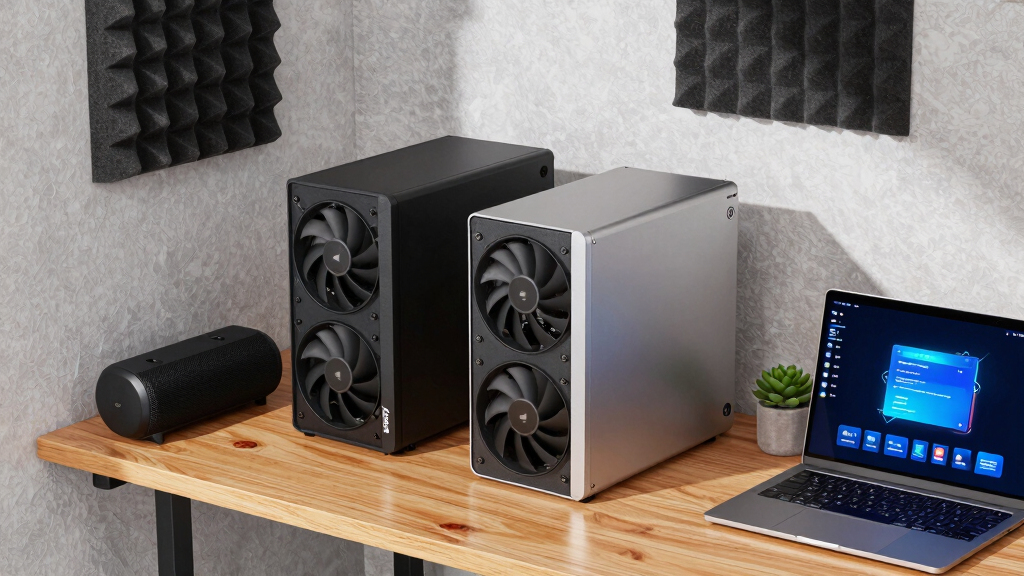

📊 Full opportunity report: How to Reduce Heat and Noise in a High-Power AI Workstation on ThorstenMeyerAI.com — validation score, market gap, and execution plan.

Get the latest gadgets delivered free with Prime
- Fast, free delivery on millions of items
- Prime Video, Amazon Music and more included
- Member-only deals all year
TL;DR
High-power AI workstations generate significant heat and noise due to sustained GPU loads. Effective strategies include undervolting GPUs, improving cooling, and optimizing airflow. These measures help maintain performance while reducing noise and temperature.
High-power AI workstations typically produce excessive heat and noise due to continuous GPU load, impacting workspace comfort and hardware longevity. Recent insights highlight that targeted cooling and power management can significantly mitigate these issues, making AI setups quieter and more efficient.
Unlike gaming PCs, AI workstations run GPUs at or near full load continuously during inference tasks, leading to sustained high temperatures and loud fan noise. The primary sources of heat are the GPU, CPU, power supply, and VRMs, with GPU heat accounting for over 70% of thermal output. Fan noise is driven mainly by the GPU fans, coil whine, and vibrations transmitted through the case.
Effective strategies include undervolting GPUs to reduce power consumption and heat, capping power limits to prevent unnecessary thermal output, and optimizing case airflow. These measures can lower fan speeds, reduce noise, and improve component longevity, often with minimal impact on performance for inference workloads. Proper cooling solutions and case design further enhance thermal management, preventing recirculation of heat within the case.
An AI workstation isn’t a gaming PC —
and that’s why it runs hot.
Local inference is a sustained load: the GPU sits near full power for hours with no loading screens, so the heat never dissipates and the fans never get a break. Here’s where the heat comes from — and the five levers that reduce it.
Impact of Heat and Noise Reduction on AI Workstation Performance
Reducing heat and noise in AI workstations improves workspace comfort, extends hardware lifespan, and maintains optimal inference performance. Efficient thermal management allows continuous operation without throttling, which is critical for long-running AI tasks. Lower noise levels also facilitate quieter work environments, especially important for home offices or shared spaces.
GPU undervolting tool for high-performance workstations
As an affiliate, we earn on qualifying purchases.
As an affiliate, we earn on qualifying purchases.
Understanding Heat Sources in AI Workstations
Unlike gaming PCs, AI workstations handle sustained workloads that keep GPUs at high utilization levels for hours, unlike bursty gaming loads. This continuous demand results in higher average temperatures and fan speeds. Key components contributing to heat include the GPU, CPU, power supply, and VRMs. Historically, many users overlook the importance of airflow and power management in controlling thermal and acoustic performance.
“Targeted undervolting and airflow optimization are the most effective ways to reduce heat and noise in high-power AI workstations.”
— Thorsten Meyer, AI hardware expert
high airflow PC case for AI workstations
As an affiliate, we earn on qualifying purchases.
As an affiliate, we earn on qualifying purchases.
Unresolved Questions About Long-Term Hardware Effects
While undervolting and power capping are proven to reduce heat and noise, the long-term effects on hardware durability and performance consistency remain under study. Additionally, optimal cooling configurations may vary depending on specific hardware models and case designs, with ongoing research needed to establish best practices for diverse setups.
liquid cooling system for GPU and CPU
As an affiliate, we earn on qualifying purchases.
As an affiliate, we earn on qualifying purchases.
Next Steps for Optimizing AI Workstation Cooling
Future developments include refining undervolting techniques, developing smarter fan control algorithms, and designing cases with better airflow. Hardware manufacturers are also expected to release more efficient power supplies and cooling solutions tailored for sustained AI workloads. Users should monitor updates from hardware vendors and experiment with power and cooling settings to find optimal configurations for their specific needs.
noise-reducing computer fan for gaming and AI workstations
As an affiliate, we earn on qualifying purchases.
As an affiliate, we earn on qualifying purchases.
Key Questions
Can undervolting GPU affect inference performance?
Most memory-bound inference workloads are unaffected by undervolting, allowing significant heat and noise reductions without performance loss.
What cooling methods are best for high-power AI workstations?
High-quality air coolers and liquid cooling systems can effectively manage sustained thermal loads, with case airflow optimization being equally important.
How much can power capping reduce noise?
Power capping can lower GPU fan speeds substantially, reducing noise levels by 50% or more, often with negligible impact on inference throughput.
Are there risks to long-term hardware stability from undervolting?
When done correctly, undervolting is safe and can extend hardware lifespan; however, improper settings may cause instability, so gradual adjustments and testing are recommended.
Source: ThorstenMeyerAI.com
Fall Picks
fall essentials
As an affiliate, we earn on qualifying purchases.