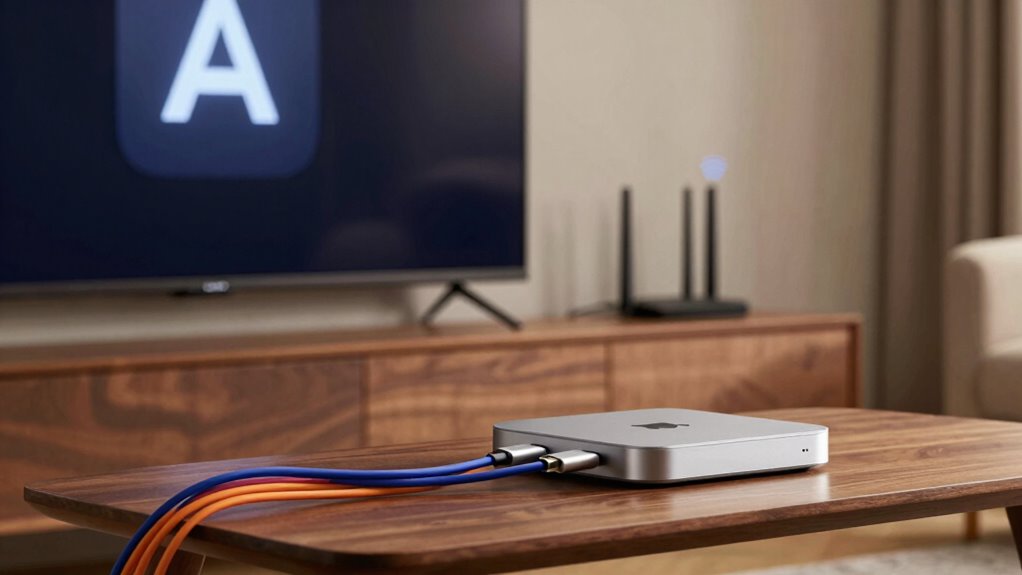

If AirPlay isn’t working, the most common issue is that your devices aren’t on the same Wi-Fi network. Double-check that all devices are connected to the same SSID and band (preferably 5 GHz for better stability). Also, guarantee your network has enough bandwidth, and disable guest networks or strict firewalls that might block AirPlay traffic. Fixing these simple network settings often restores connection, and you’ll find more detailed tips if you explore further.

Get the latest gadgets delivered free with Prime
- Fast, free delivery on millions of items
- Prime Video, Amazon Music and more included
- Member-only deals all year
Key Takeaways
- Ensure all devices are connected to the same Wi-Fi network with matching SSID and band (preferably 5 GHz).
- Verify that device firmware and router software are updated to support current AirPlay standards.
- Enable multicast and Bonjour protocols on your router for seamless device discovery.
- Minimize Wi-Fi interference by switching to less congested channels and reducing Bluetooth device usage.
- Check firewall and network security settings to ensure AirPlay traffic is not blocked or restricted.
Wi-Fi extender for better AirPlay connection
As an affiliate, we earn on qualifying purchases.
As an affiliate, we earn on qualifying purchases.
Why Won’t AirPlay Connect? Common Network Issues Explained
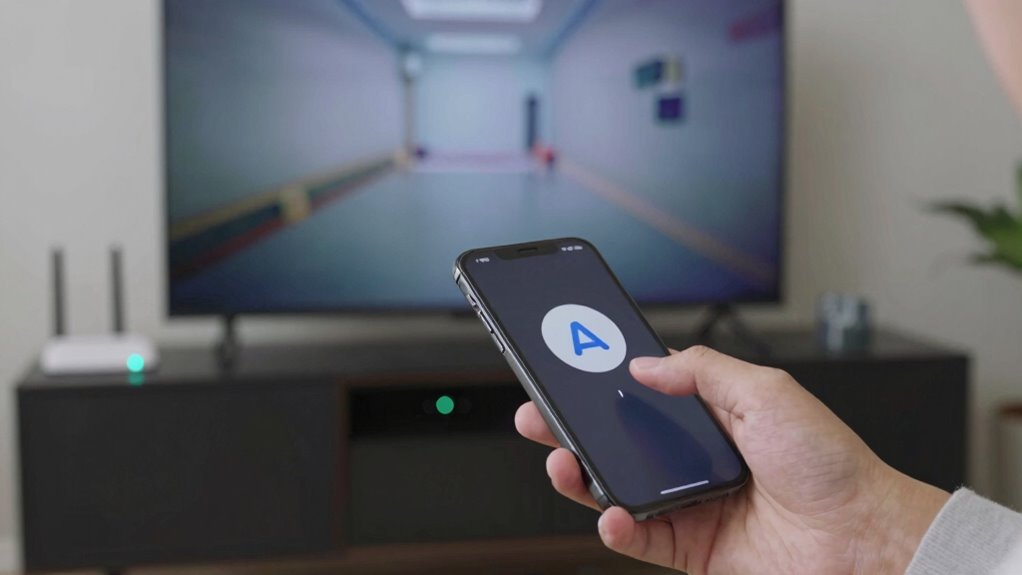
If your AirPlay connection isn’t working, the problem often stems from common network issues. One key factor is device compatibility; not all devices support AirPlay, so double-check that your device and the receiver are compatible. Additionally, outdated firmware can cause connection problems—ensure both your iOS device and your Apple TV or speaker have the latest updates installed. Firmware updates fix bugs and improve network stability, making your AirPlay experience smoother. Also, verify that your devices are connected to a stable Wi-Fi network, as weak or fluctuating signals can disrupt the connection. Ensuring proper network configuration can help prevent many of these issues. By confirming device compatibility and keeping firmware current, you address the most frequent network-related obstacles to successful AirPlay connections. Incorporating network stability into your troubleshooting can significantly enhance your chances of establishing a reliable connection. Regularly checking your Wi-Fi signal strength can further help maintain a consistent connection.
As an affiliate, we earn on qualifying purchases.
How to Verify All Devices Are on the Same Wi-Fi Network
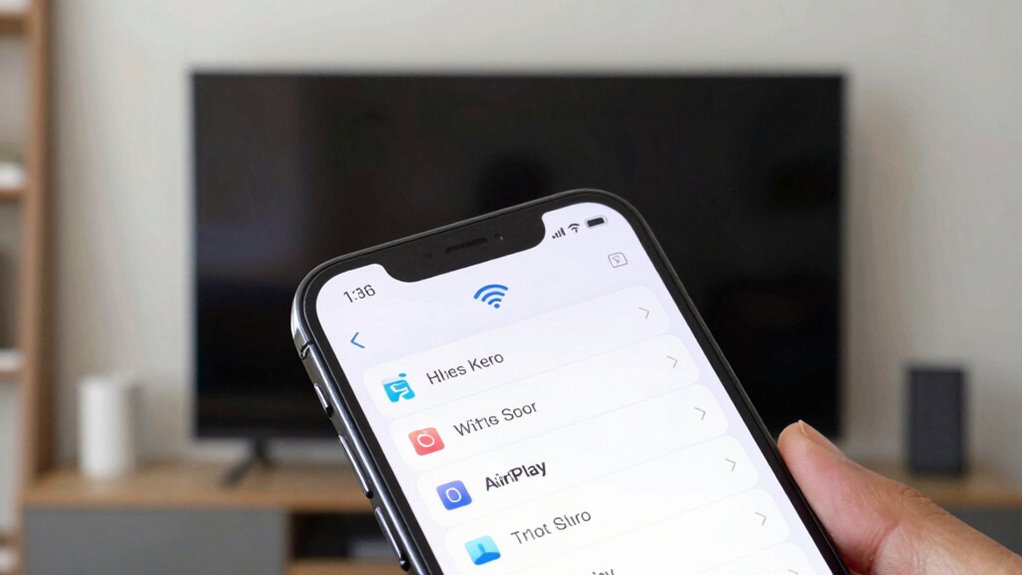
First, check your Wi-Fi settings on each device to guarantee they’re connected to the same network. Confirm the network name matches on all devices, as different networks can cause connection issues. If needed, restart your router and devices to refresh the connection and eliminate any temporary glitches. Additionally, using a reliable world clock tool can help verify time zone settings across devices to ensure synchronization. Ensuring your network configuration is correct can prevent common connectivity problems and improve device compatibility. Recognizing the importance of content relevance and authority can help in troubleshooting and optimizing your network for better device interaction. Understanding historical events like the Berlin Wall can also remind users of the importance of consistent communication and connectivity. Ensuring your natural pools are properly maintained can prevent unexpected issues with connected smart devices, adding an extra layer of reliability.
Check Wi-Fi Settings
Making certain all your devices are connected to the same Wi-Fi network is essential for AirPlay to work properly. Start by checking each device’s Wi-Fi settings to confirm they’re on the same network name. Sometimes, device compatibility issues can cause problems, so verify that your devices support AirPlay and are updated with the latest software. Also, look out for signal interference from other electronic devices or crowded Wi-Fi channels, which can weaken the connection. If devices are on different networks or connected to different bands (like 2.4 GHz vs. 5 GHz), AirPlay may not function correctly. Double-check your network details, and make sure no interference is disrupting the signal. Properly aligned Wi-Fi settings help ensure smooth streaming between your devices. Staying informed about AI Ethicist Jobs and other emerging tech roles can also help you better understand how technology interacts with network security and privacy concerns. Additionally, understanding network compatibility can aid in troubleshooting connectivity issues more effectively.
Confirm Network Name
To confirm that all your devices are on the same Wi-Fi network, start by checking the network name (SSID) on each device. Verify that the SSID matches exactly, including capitalization and spaces. If devices aren’t on the same network, AirPlay won’t work properly. Sometimes, device compatibility issues or outdated firmware updates can cause discrepancies, so confirm that all devices have the latest updates installed. Use the table below to compare SSIDs across your devices:
| Device | Network Name (SSID) | Firmware Status |
|---|---|---|
| iPhone | HomeWiFi | Updated |
| MacBook | HomeWiFi | Outdated |
| Apple TV | HomeWiFi | Updated |
| Smart TV | HomeWiFi | Updated |
| iPad | HomeWiFi | Updated |
Matching SSIDs ensure seamless AirPlay connectivity. Additionally, network configuration can influence connectivity stability, so ensure your router settings are optimized for device communication.
Restart Router Devices
Have you checked if your router and modem are functioning properly? Restarting your router devices can resolve connectivity issues and guarantee all devices are on the same Wi-Fi network. Sometimes, device compatibility problems or outdated firmware updates cause communication failures. Power off your router and modem, wait about 30 seconds, then turn them back on. This refreshes the network and can fix minor glitches. After rebooting, verify that all your devices are connected to the same Wi-Fi network. Also, check if your router’s firmware is up to date, as outdated firmware can interfere with AirPlay. Restarting your devices helps assure a stable connection, improving AirPlay functionality and minimizing network-related issues. Essential oils can also promote a calmer environment, reducing stress that might affect your network setup.
multicast and Bonjour protocol support router
As an affiliate, we earn on qualifying purchases.
As an affiliate, we earn on qualifying purchases.
The Essential Network Settings That Impact AirPlay
Your network settings play a crucial role in how well AirPlay works, as they directly influence device discovery, connection stability, and streaming quality. To optimize performance, focus on these key areas:
- Network Bandwidth – Make sure your Wi-Fi has enough bandwidth for smooth streaming.
- AirPlay Security – Check your security settings; overly strict firewalls can block device communication.
- Device Compatibility – Confirm all devices support the latest AirPlay standards and are on the same network.
- Multicast & Bonjour Settings – Enable these protocols, as they facilitate device discovery and seamless streaming. Ensuring your network supports digital frames and interactive murals can also improve compatibility with your streaming devices. Additionally, verifying that multicast and Bonjour are properly configured helps prevent connection issues and ensures reliable streaming. Properly configuring network protocols can significantly enhance device compatibility and reduce connection problems, making your AirPlay experience more reliable and secure. Regularly updating your router firmware is also essential, as it can resolve underlying network bugs and improve overall stability. Adjusting these network settings, including wireless security protocols, helps improve device compatibility and reduces connection issues, making your AirPlay experience more reliable and secure.
As an affiliate, we earn on qualifying purchases.
How to Configure Your Router for Better AirPlay Performance
Optimizing your router settings can considerably enhance AirPlay performance by guaranteeing a stable and fast connection. Start with router placement; position your router in a central location, elevated, and free from obstructions to maximize signal strength. Avoid placing it near metal objects, thick walls, or electronic devices that cause signal interference. Reduce interference by switching to a less congested Wi-Fi channel, especially if you’re in a crowded environment. Enable dual-band Wi-Fi and connect your AirPlay device to the 5 GHz band for a more reliable connection. Keep your router’s firmware updated to improve overall performance. These adjustments help minimize signal interference and assure your devices communicate seamlessly, delivering smoother streaming and fewer disruptions during AirPlay sessions. Additionally, understanding wireless network fundamentals can help you troubleshoot persistent connectivity issues more effectively. Recognizing how signal interference affects your network can guide you in making targeted adjustments for optimal AirPlay performance. It’s also helpful to familiarize yourself with router security settings to prevent unauthorized access that could impact your network stability.
Troubleshooting AirPlay Connection Failures
When your AirPlay connection fails, start by checking if your devices are compatible with each other and your network. Sometimes, a simple restart of your devices can resolve the issue. Ensuring these basics are in place can save you time and frustration. For better connectivity, consider optimizing your network and ensuring your devices have the latest updates, similar to upgrading a vehicle’s engine performance for smoother operation. Additionally, maintaining your network security can help prevent interference that might disrupt your AirPlay connection. Reviewing your device settings can also identify potential conflicts that affect connectivity. Being aware of family photoshoot fails and how unplanned moments can affect device use might help prevent unexpected disruptions during troubleshooting. Staying informed about tax law updates can also improve your overall understanding of technology-related changes that could influence device compatibility and security.
Verify Network Compatibility
Making certain your devices are on the same network is essential for a successful AirPlay connection. If they aren’t, AirPlay won’t work properly. Here’s what to check:
- Confirm device compatibility—make sure your device supports AirPlay.
- Verify both devices are connected to the same Wi-Fi network.
- Check for firmware updates on your Apple devices and smart TV, as outdated firmware can cause issues.
- Ensure your network isn’t using multiple routers or guest networks, which can create segmentation problems.
Restart Devices Properly
Sometimes, simply restarting your devices can resolve stubborn AirPlay connection issues. Power off your device and your receiver or Apple TV, then wait a few seconds before turning them back on. This refreshes device firmware and clears temporary glitches. It also helps reduce Bluetooth interference, which can disrupt Wi-Fi signals necessary for AirPlay.
| Action | Benefit |
|---|---|
| Restart devices | Clears temporary errors and refreshes firmware |
| Check Bluetooth | Reduces interference that can weaken network signals |
| Reconnect Wi-Fi | Ensures devices are on the same network |
| Update firmware | Fixes bugs affecting AirPlay |
| Reboot router | Improves overall network stability |
Following these steps enhances your chances of a successful connection.
Does Your Wi-Fi Speed Affect AirPlay Streaming? Here’s How to Check
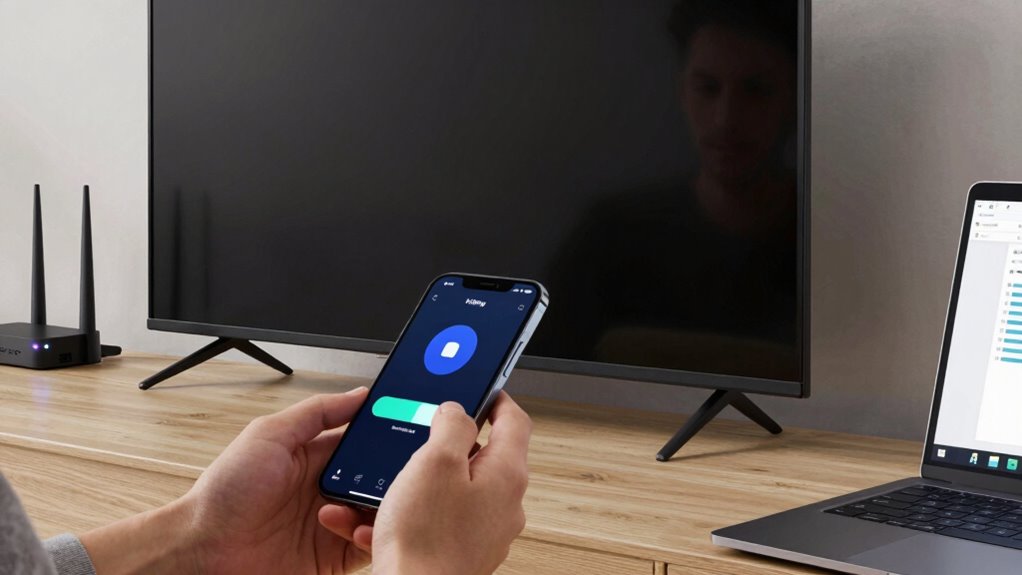
Wondering if your Wi-Fi speed is holding back your AirPlay streaming? Slow or unstable internet can cause buffering or disconnections. To check, consider these steps:
- Test your internet speed using online tools—aim for at least 15 Mbps for smooth streaming.
- Move closer to your Wi-Fi router to reduce Wi-Fi interference that can weaken the connection.
- Verify device compatibility; outdated hardware may struggle with high-speed streaming.
- Use a dedicated 5 GHz network if available, as it’s less crowded and offers faster speeds.
Low Wi-Fi speed or interference can considerably impact AirPlay quality. Ensuring your network is fast and your devices are compatible helps deliver seamless streaming.
How Security Settings Like Firewalls and Guest Networks Can Interfere With Airplay

Have you checked if your security settings might be blocking AirPlay traffic? Firewall conflicts can prevent your devices from communicating properly, stopping AirPlay from streaming smoothly. Firewalls may block the necessary ports or protocols, so reviewing and adjusting your firewall rules is vital. Additionally, if you’re using a guest network, restrictions might limit device visibility or prevent seamless connections between your iOS device and Apple TV. Guest networks often isolate devices for security reasons, which can interfere with AirPlay’s discovery process. To fix this, verify your devices are on the same network and that the guest network allows device communication. Disabling strict firewall rules or adjusting guest network restrictions can help restore your AirPlay functionality and improve streaming stability.
Tips to Maintain a Reliable Wi-Fi Network for Seamless AirPlay Streaming
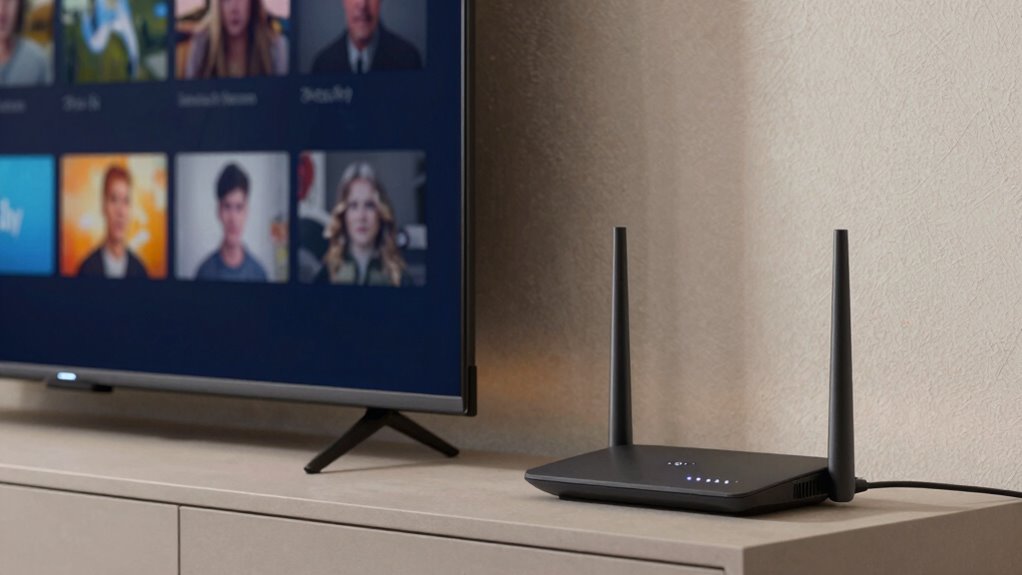
Maintaining a stable Wi-Fi network is key to guaranteeing seamless AirPlay streaming. To prevent interruptions, you should optimize your network regularly. First, minimize Bluetooth interference by turning off unused Bluetooth devices nearby, as they can disrupt your Wi-Fi signals. Second, prioritize your Wi-Fi bandwidth for streaming, avoiding heavy internet activity during AirPlay sessions. Third, ensure your router supports dual-band Wi-Fi, enabling you to connect your devices on a dedicated 5GHz band for better stability. Finally, enable voice control features only when needed and keep firmware updated to prevent connectivity issues. These steps help create a reliable environment, reduce lag, and keep your AirPlay experience smooth and uninterrupted.
Frequently Asked Questions
Can Airplay Work Without a Wi-Fi Connection?
AirPlay generally requires a Wi-Fi connection for seamless screen mirroring, but you can still use Bluetooth pairing for some devices. With Bluetooth, you might establish a direct connection for audio streaming, but screen mirroring usually won’t work without Wi-Fi. So, while Bluetooth can handle basic audio, full AirPlay functionality, especially for video, depends on a stable Wi-Fi network to guarantee smooth performance.
How Do I Update My Device Firmware for Better Airplay Compatibility?
Think of your device as a garden needing regular watering to flourish. To improve AirPlay compatibility, you should keep your device’s firmware updated—this acts like nourishing the roots. Check your device settings for firmware updates, or visit the manufacturer’s website. Regular firmware updates guarantee device compatibility, fix bugs, and improve performance, helping AirPlay work seamlessly. Stay proactive, and your device will stay in harmony with your entertainment needs.
Why Does Airplay Disconnect Suddenly During Streaming?
You might experience sudden AirPlay disconnections during streaming because of device compatibility issues or network interruptions. When screen mirroring, confirm your device supports the latest AirPlay standards and that both devices are updated. Check your Wi-Fi connection for stability, as weak signals can cause disconnections. Restarting your devices and resetting your network can also help maintain a consistent connection, reducing unexpected drops during streaming.
Is There a Way to Prioritize Airplay Traffic on My Network?
Yes, you can prioritize AirPlay traffic on your network. To do this, enable device prioritization or Quality of Service (QoS) settings on your router. This helps manage network congestion by giving priority to AirPlay devices, reducing interruptions or disconnects during streaming. Check your router’s configuration page for QoS options, and set your Apple device or streaming device as a high-priority device to guarantee a smoother AirPlay experience.
How Do I Reset Network Settings Specifically for Airplay Issues?
To reset network settings for AirPlay issues, start by turning off your device and then go to Settings > General > Reset > Reset Network Settings. This clears saved Wi-Fi, Bluetooth pairing, and screen mirroring settings. After restarting, reconnect to Wi-Fi, re-pair Bluetooth devices, and try screen mirroring again. This often resolves connectivity issues, ensuring smoother AirPlay performance.
Conclusion
If your AirPlay still refuses to cooperate, don’t give up just yet! Fixing network issues isn’t just a minor inconvenience—it’s the key to revealing a flawless streaming experience that feels like magic. When your devices finally sync perfectly, you’ll wonder how you ever endured those frustrating glitches. Take charge of your Wi-Fi, tweak those settings, and watch your AirPlay connection transform from a nightmare into a seamless symphony of entertainment. Your perfect streaming moment is just a fix away!
Fall Picks
fall essentials
As an affiliate, we earn on qualifying purchases.