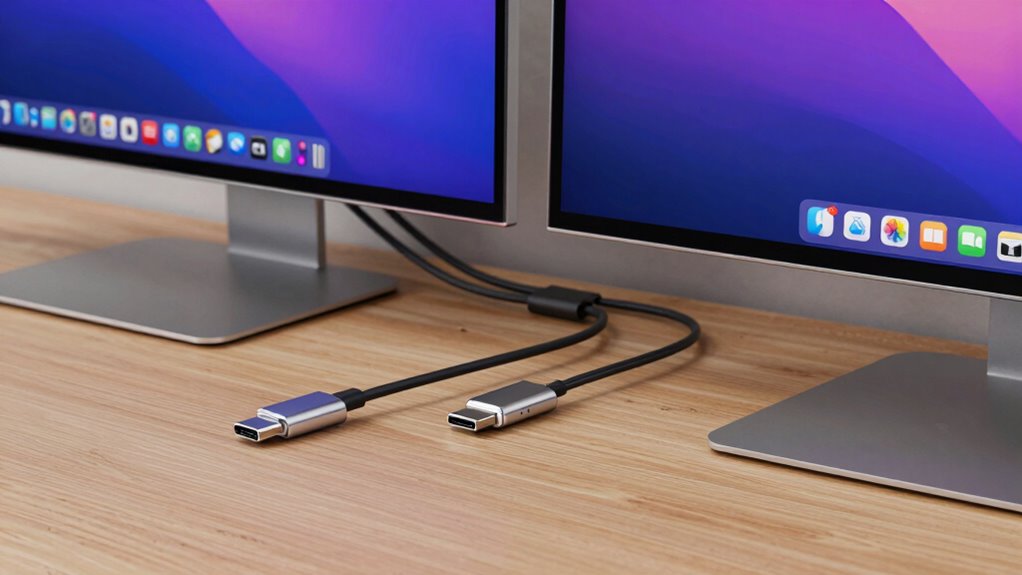

When choosing a dock for your Mac, understand that Thunderbolt offers higher speeds and better support for multiple high-resolution displays, making it ideal for demanding setups. USB‑C docks are more versatile and affordable but may have limitations with multiple displays, especially at higher resolutions. Compatibility varies depending on your Mac model and port type. To maximize your setup’s performance and future-proof your workspace, continue exploring how to select the best dock for your needs.

Get the latest gadgets delivered free with Prime
- Fast, free delivery on millions of items
- Prime Video, Amazon Music and more included
- Member-only deals all year
Key Takeaways
- Thunderbolt docks support higher resolutions and multiple 4K or 6K displays, ideal for demanding setups.
- USB‑C docks are more portable but typically support fewer displays with lower maximum resolutions.
- Compatibility depends on Mac model’s port type and support for Thunderbolt or USB‑C standards.
- Thunderbolt offers daisy-chaining and faster data transfer compared to USB‑C.
- Confirm Mac’s specifications to ensure dock support for the desired number of displays and resolution requirements.
As an affiliate, we earn on qualifying purchases.
What Are the Key Differences Between Thunderbolt and USB‑C?
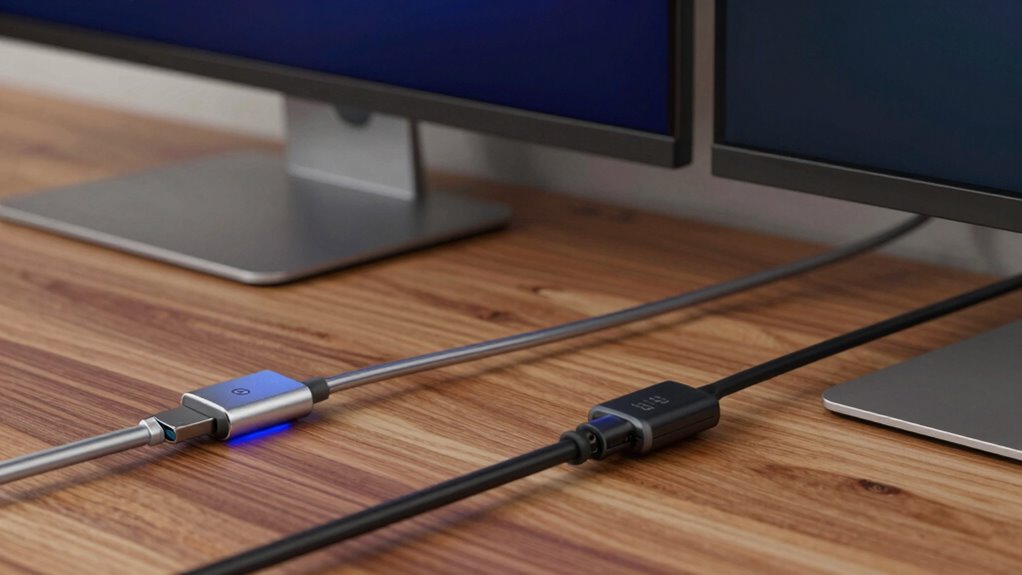
Thunderbolt and USB-C are often used interchangeably, but they serve different purposes and have distinct capabilities. While both use the same physical connector, they differ in data transfer speeds and features. Thunderbolt offers faster transfer rates, supporting higher display resolutions and more data-heavy tasks. It also allows for longer cable lengths without sacrificing performance, making it ideal for multiple displays and complex setups. Additionally, Thunderbolt supports daisy chaining multiple devices, enhancing connectivity options. USB-C, on the other hand, is more versatile for everyday use, supporting various protocols and lower-cost cables. When choosing a dock, consider the display resolution you need and the cable length that fits your workspace. Additionally, understanding connection standards can help you select the most compatible and efficient setup for your needs. Knowing the capabilities of each standard can further ensure your setup meets your performance expectations, especially when considering compatibility requirements for multiple displays. Being aware of performance differences can help you make an informed decision tailored to your specific setup.
USB-C docking station for MacBook
As an affiliate, we earn on qualifying purchases.
As an affiliate, we earn on qualifying purchases.
Are Thunderbolt and USB‑C Docks Compatible With Your Mac?
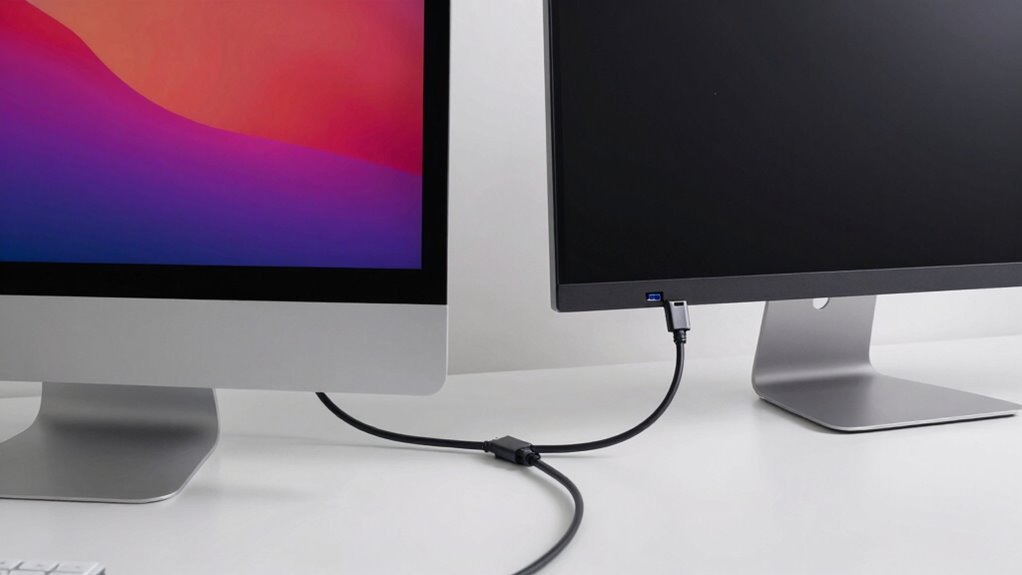
You need to check if your Mac model supports Thunderbolt or USB‑C docks before making a purchase. Different Macs have varying compatibility, which can affect how well the dock works for you. Additionally, keep in mind that Thunderbolt and USB‑C docks offer different features and performance levels, impacting your setup. Be aware that some docks may have limitations based on filter sizing/flow, which can influence overall performance and efficiency.
Compatibility With Mac Models
Determining whether a specific dock is compatible with your Mac depends on the model and its ports. Older Macs may only support USB-C, while newer models often include Thunderbolt ports, offering higher display resolution capabilities. Check your Mac’s specifications to confirm supported connection types and maximum display resolution. Compatibility also hinges on the dock’s design; some docks are tailored for specific Mac models, guaranteeing peak performance. Cable durability matters too, as a sturdy cable prevents connection issues and reduces wear over time. If your Mac has Thunderbolt ports, a Thunderbolt dock will typically deliver better performance and higher resolution options. For older models with only USB-C, confirm the dock’s compatibility before purchasing to avoid connection or display issues. Additionally, understanding High refresh rates and their importance can help ensure your setup supports smooth visuals during intensive tasks like gaming or video editing. Being aware of personality assessment tools like the 16PF or MBTI can also be useful when collaborating on technical projects or troubleshooting setups with colleagues.
Differences in Dock Features
While both Thunderbolt and USB-C docks use the same physical port, their features and performance can differ greatly, affecting compatibility with your Mac. Thunderbolt docks typically support higher display resolutions, allowing multiple 4K or even 6K displays, making them ideal for demanding tasks. USB-C docks often have more limited display resolution capabilities but are still suitable for standard setups. Additionally, dock size matters: Thunderbolt docks tend to be larger due to advanced components, while USB-C docks are usually more compact and portable. These differences impact your setup’s flexibility and performance. If you need high-resolution displays or multiple screens, a Thunderbolt dock might be your best choice. For simpler needs, a USB-C dock provides a more streamlined, space-saving option.
As an affiliate, we earn on qualifying purchases.
How Many Displays Can You Connect Using Thunderbolt on a Mac?
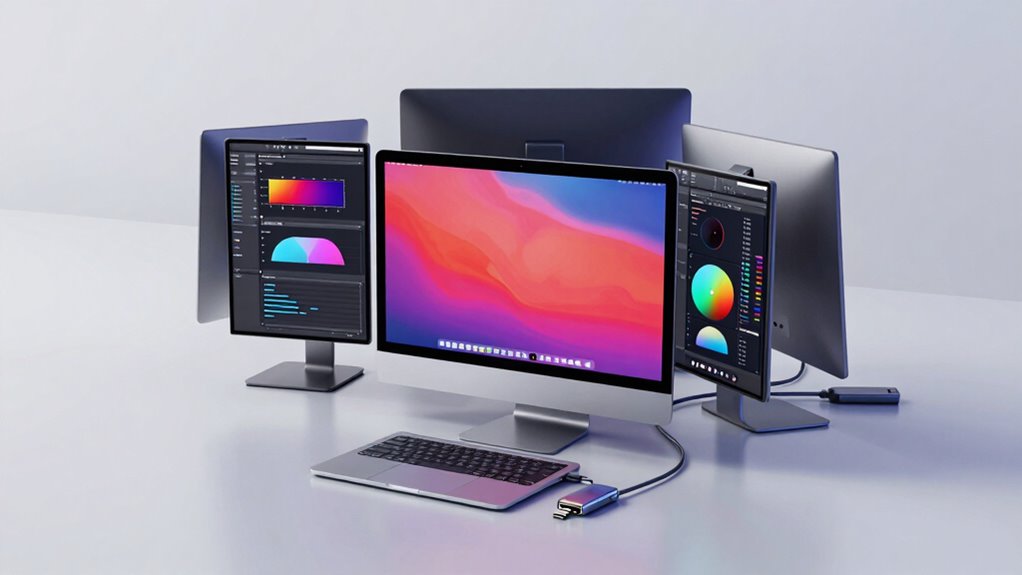
Connecting multiple displays via Thunderbolt on a Mac depends on the model and its specific hardware capabilities. Most Macs can support at least two external displays, but the exact number varies based on the model and Thunderbolt version. Higher display resolutions, like 4K or 5K, may limit the number of screens you can connect simultaneously. For ideal performance, keep cable length in mind—longer cables can sometimes reduce signal quality, especially with high-resolution displays. Apple’s official specifications specify the maximum number of displays supported for each Mac model, often ranging from two to four. Always check your Mac’s hardware details to determine how many displays it can handle via Thunderbolt, ensuring you don’t experience performance issues or display flickering.
Mac compatible multi-display dock
As an affiliate, we earn on qualifying purchases.
As an affiliate, we earn on qualifying purchases.
What Are the Limitations of USB‑C for Multiple Displays on Mac?
Using USB‑C for multiple displays on your Mac comes with some limitations you should be aware of. Bandwidth restrictions can prevent smooth performance, especially with high-resolution monitors, while compatibility varies between devices. Additionally, power delivery limits mean your dock might not supply enough power to all connected displays and peripherals simultaneously. Furthermore, Free Floating backyard setups may require specialized equipment to support multiple displays effectively.
Bandwidth Restrictions
Have you ever wondered why your Mac might struggle with multiple displays through USB‑C? The main issue is bandwidth limitations, which restrict how much data can flow simultaneously. When connecting several monitors, the available bandwidth must be shared, potentially causing reduced resolution or flickering. Signal integrity also suffers if bandwidth is stretched too thin, leading to degraded display quality. Additionally, eco-friendly refrigerants and smart controls are increasingly important factors in modern HVAC systems, emphasizing the need for efficient data management—similar to managing bandwidth in your Mac setup. To optimize performance, understanding data transfer rates is crucial for avoiding connectivity issues. Properly assessing the hardware capabilities of your Mac and peripherals can also help prevent bottlenecks and ensure smooth operation. Being aware of connection standards can further aid in selecting the best setup to maximize performance. Recognizing the compatibility limitations of different ports helps in choosing the most effective configuration. The table below highlights how different configurations impact performance:
| Number of Displays | Max Resolution | Bandwidth Needed |
|---|---|---|
| 1 | 4K | Moderate |
| 2 | 4K + 4K | High |
| 3 | 4K + 4K + 4K | Very High |
Compatibility Variability
While bandwidth limits pose a significant challenge, compatibility variability across different Mac models and USB‑C hubs further complicates multi-display setups. Not all USB‑C ports support the same video output standards, causing inconsistent display performance. Some Macs may handle multiple monitors well, while others struggle due to hardware restrictions. Additionally, certain USB‑C hubs may prioritize wireless charging or Bluetooth connectivity over video support, limiting their effectiveness for multi-display use. You might find that connecting multiple displays works seamlessly on one Mac but not on another, depending on the hardware. This inconsistency stems from differences in chipsets and port capabilities, making it essential to verify compatibility before investing in specific hubs or adapters for your setup. Moreover, expertise spans various architectural needs can influence the quality and reliability of the connections used for multi-monitor configurations.
Power Delivery Limits
USB‑C power delivery (PD) standards are designed primarily to supply energy to devices, but they come with limitations that can affect your multi-display setup on Mac. The main challenge lies in the power capacity, which varies across USB‑C ports and cables. Higher power demands from multiple displays and peripherals often exceed what standard USB‑C can provide, leading to charging limitations or insufficient power. This can result in slower charging or devices not powering on at all. To guarantee best performance, consider these factors:
- Limited power capacity for high-demand displays
- Charging limitations when running multiple peripherals
- Variability in power output across different cables
- Potential for insufficient power delivery during intensive tasks
- Portable oil radiators can be a safe alternative for space heating when working in environments with power limitations or electrical concerns.
Understanding these constraints helps you plan your setup effectively.
Which Dock Is Best for Connecting Multiple Displays to Your Mac?

Choosing the right dock is essential when you need to connect multiple displays to your Mac, as not all docks handle multiple outputs equally well. Look for a dock that supports high display resolution to ensure sharp, clear visuals across all screens. Compatibility with your Mac’s ports, whether Thunderbolt or USB-C, is vital for seamless performance. Additionally, consider cable durability—strong, well-built cables reduce the risk of disconnections or signal issues over time. Some docks may limit the number of supported displays or degrade image quality at higher resolutions, so double-check specifications before purchasing. A well-chosen dock will provide reliable, high-quality connections for multiple displays, making your workspace more efficient and enjoyable without sacrificing visual clarity or cable longevity. Ensuring that the dock supports your power quality and monitoring needs can further enhance overall performance and stability. It’s also important to verify that the dock can handle your desired resolution without compromising on performance or image quality. When selecting a dock, consider the compatibility with your Mac model, as different models may have varying port configurations and capabilities.
How to Set Up Dual or Multiple Displays on Your Mac Using Thunderbolt
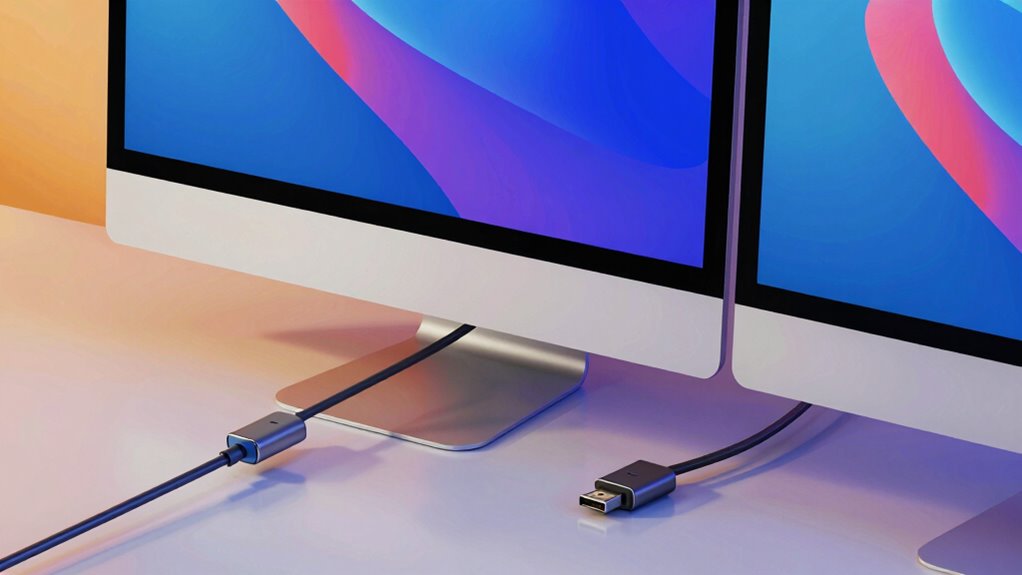
Setting up dual or multiple displays on your Mac with Thunderbolt is straightforward, but it requires careful attention to your hardware and settings. First, identify compatible Thunderbolt displays or adapters. Then, connect your monitors using high-quality cables, ensuring proper cable management to prevent clutter. To optimize your setup:
- Use appropriate display adapters if your monitors don’t have Thunderbolt ports
- Connect each monitor directly to a Thunderbolt port on your Mac
- Adjust display arrangements in System Preferences > Displays
- Confirm your Mac supports multiple Thunderbolt displays simultaneously
- Consider traditional Indonesian home decor principles to enhance the aesthetic appeal of your workspace with cultural artifacts and natural elements
Proper cable management keeps your workspace tidy and reduces connection issues. Additionally, verifying your Mac’s graphics capabilities ensures it can handle multiple high-resolution displays without performance issues. It’s also important to stay informed about Thunderbolt version compatibility, as this influences how many displays you can connect. Understanding your Mac’s hardware specifications can help you determine the maximum number of displays supported. Being aware of display resolution limits is essential to prevent performance bottlenecks and ensure smooth operation. Remember, compatibility depends on your Mac’s Thunderbolt version and graphics capabilities. With the right setup, you’ll enjoy seamless, extended desktops across multiple displays.
Troubleshooting Display Connection Problems With USB‑C Docks
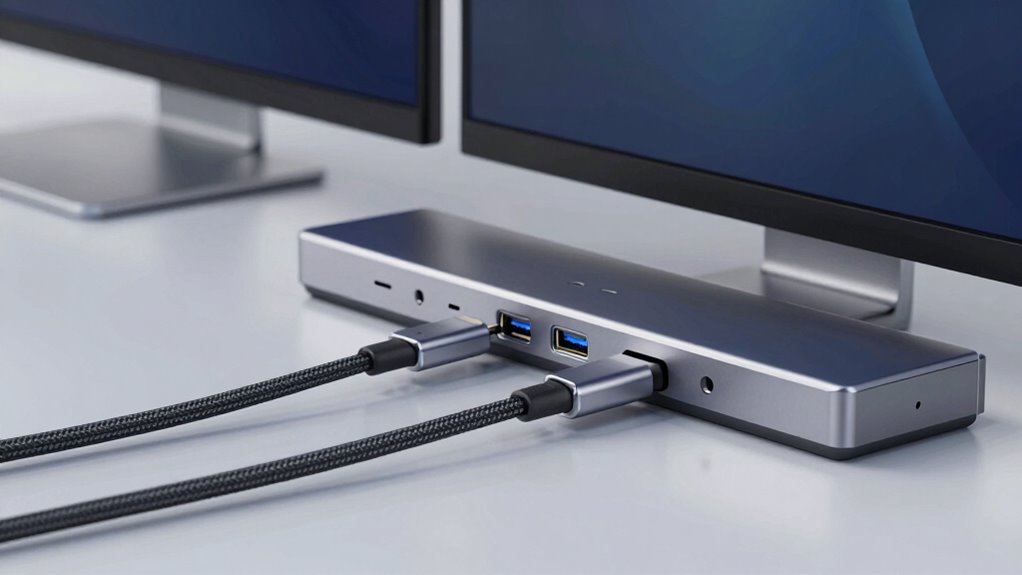
Are you experiencing issues with your display not showing up or flickering when connected through a USB‑C dock? First, check your cable management—unstable or damaged cables can cause connection problems. Confirm your USB‑C cable is high-quality and properly connected. Next, verify display calibration settings on your Mac to eliminate flickering or color issues. Sometimes, adjusting resolution or refresh rate helps stabilize the display. If problems persist, try disconnecting and reconnecting the dock, or restart your Mac. Updating your macOS and device firmware can also resolve compatibility issues. Proper cable management not only improves connection stability but also reduces interference. By systematically troubleshooting these factors, you can resolve most display connection problems and enjoy a seamless multi-display setup.
What Performance Factors Should You Consider With Multiple Displays?
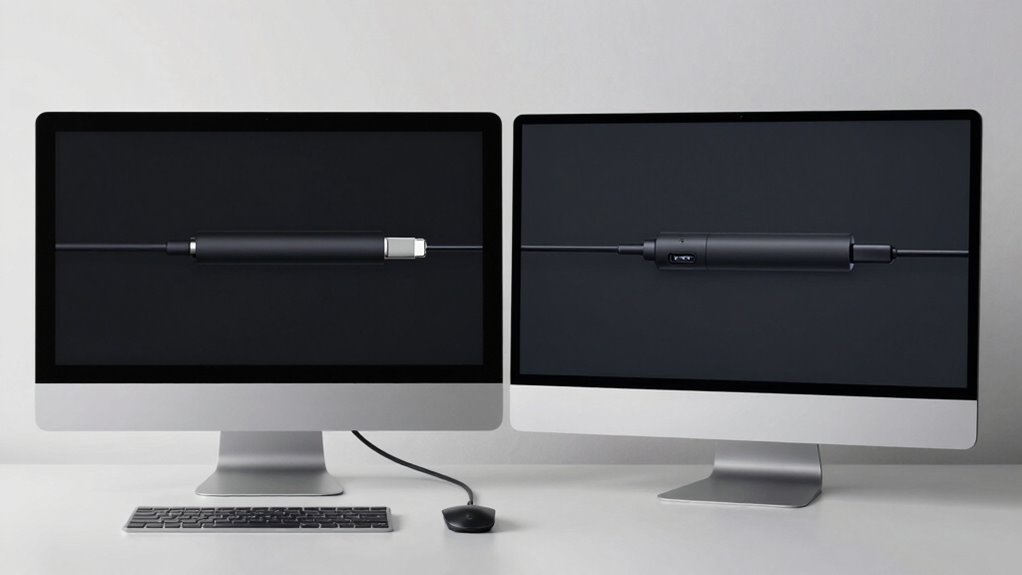
When using multiple displays, your Mac’s performance can be significantly affected by several key factors. First, make sure your graphics card can handle the added workload, especially with high-resolution monitors. Next, consider color calibration; inconsistent colors can strain your eyes and reduce productivity. Ergonomic positioning is also essential—misaligned screens can cause discomfort and fatigue. Additionally, pay attention to your display connections: using the right port type impacts bandwidth and display stability. Keep these factors in mind:
Optimize multiple displays by ensuring your graphics card, connections, and positioning support smooth, comfortable, and productive work.
- Graphics card capabilities and bandwidth
- Accurate color calibration for visual clarity
- Proper ergonomic positioning to reduce strain
- Connection type (Thunderbolt vs USB‑C) for top performance
- Display connection protocols also influence setup stability and compatibility.
Addressing these elements helps guarantee smooth performance and a comfortable workspace when managing multiple displays.
How to Future-Proof Your Mac Dock for Compatibility and Expansion
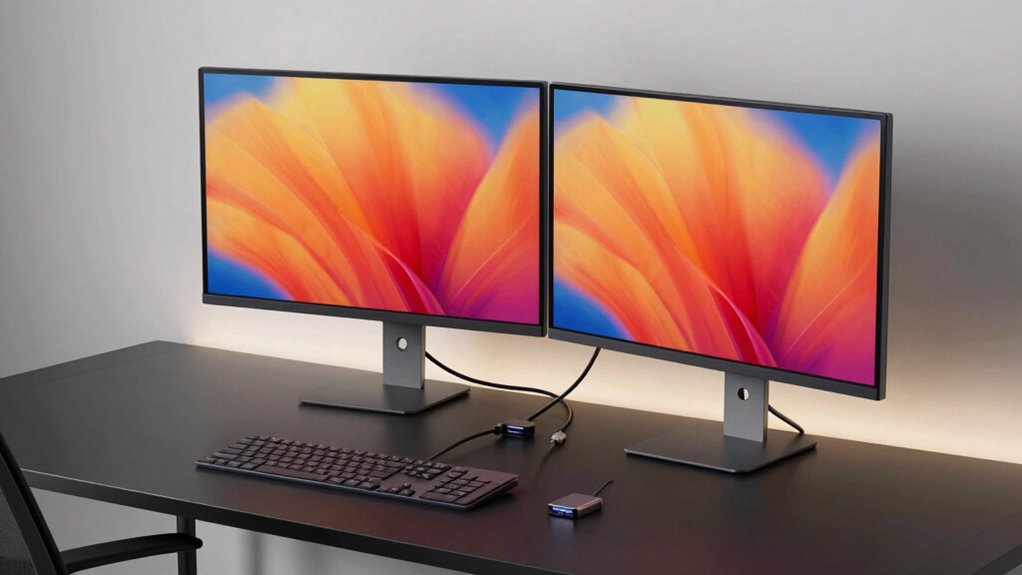
Planning ahead for your Mac dock guarantees it remains compatible with future upgrades and expanding peripheral needs. Focus on selecting a dock with adaptable ports, supporting Thunderbolt and USB-C, to guarantee seamless expansion. Prioritize ergonomic design for comfortable use, especially during long work sessions. Consider docks that support color calibration for accurate visual work, preventing color distortion over time. Look for models that offer future-proof features, like multiple high-speed data ports and charging capabilities.
| Feature | Benefit |
|---|---|
| Ergonomic design | Reduces strain during extended use |
| Color calibration | Maintains color accuracy for professional work |
| Expandability | Supports multiple displays and peripherals effortlessly |
This approach keeps your setup ready for technological advances and your evolving workflow.
Top Tips to Optimize Your Multiple Display Setup on Mac
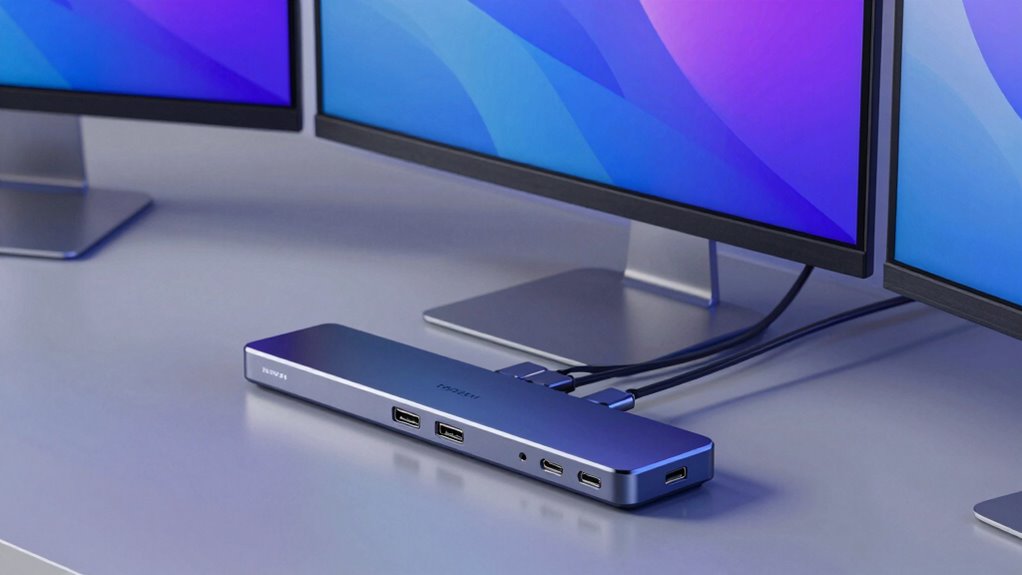
To get the most out of your multiple display setup on Mac, start by ensuring your system and dock support the necessary connections. Properly set up your displays to maximize productivity and comfort. Focus on display ergonomics by positioning screens at eye level and maintaining a comfortable viewing distance. Good cable management reduces clutter and prevents accidental disconnections, creating a cleaner workspace.
Consider these tips:
- Use high-quality cables to ensure reliable data transfer and image quality
- Arrange displays to minimize glare and reflections
- Regularly clean cables and ports to maintain optimal connections
- Adjust display settings for color accuracy and brightness
Implementing these strategies helps you create an efficient, comfortable, and visually appealing multi-display environment.
Frequently Asked Questions
Can I Connect Different Brands of Docks to My Mac Securely?
Yes, you can connect different brands of docks to your Mac securely, but you should consider dock security and brand compatibility. Mixing brands might work, but make certain each dock is compatible with your Mac’s ports and supports your desired features. Check for reliable security features and data protection. Using well-reviewed, compatible docks minimizes risks and guarantees smoother performance, especially when connecting multiple displays or peripherals.
Do Firmware Updates Affect Thunderbolt or Usb‑C Dock Compatibility?
Think of firmware updates like a tune-up for your gear—they often improve firmware stability and enhance compatibility updates. These updates can directly affect your Thunderbolt or USB-C dock’s performance, guaranteeing seamless connection and device recognition. Skipping them might leave your setup vulnerable to bugs or incompatibility issues, making your multi-display experience less reliable. So, yes, keeping firmware current ensures your dock stays in sync and runs smoothly.
Are There Specific Mac Models Better Suited for Multiple Display Setups?
Certain Mac models, like the MacBook Pro and Mac Studio, are better suited for multiple display setups because of superior graphics performance and power delivery. These models support higher resolutions and more displays simultaneously, making multitasking smoother. If you need peak performance, choose a Mac with robust graphics capabilities and strong power delivery, ensuring your displays run seamlessly without draining your system’s resources or causing lag.
How Does Cable Length Impact Display Performance and Stability?
Cable length crucially affects display performance and stability. Longer cables can lead to signal degradation, causing flickering, resolution drops, or intermittent connections. To guarantee ideal performance, keep cables as short as possible, ideally under 2 meters for high-quality signals. If you need longer runs, consider active or powered extenders to maintain signal strength and prevent stability issues with your displays.
Can I Upgrade My Mac’s Ports to Support More Displays?
You’re eager to upgrade your Mac’s ports to support more displays, but beware—limitations exist. While some docks promise increased display resolution and power delivery, your Mac’s hardware might restrict these upgrades. You could face issues with bandwidth or power constraints that prevent seamless multitasking. To truly access the potential, consider hardware upgrades or external adapters designed for your specific model, ensuring your setup supports your display resolution and power needs effortlessly.
Conclusion
Choosing between Thunderbolt and USB-C docks depends on your display needs, compatibility, and future plans. Understand the differences, assess your setup, troubleshoot issues, and optimize performance. Stay informed, stay adaptable, and select the right dock to enhance your workflow. With the right connection, you’ll guarantee your Mac’s display setup is seamless, efficient, and ready for whatever comes next. Make your choice wisely, and enjoy a smoother, more productive visual experience.
Fall Picks
fall essentials
As an affiliate, we earn on qualifying purchases.