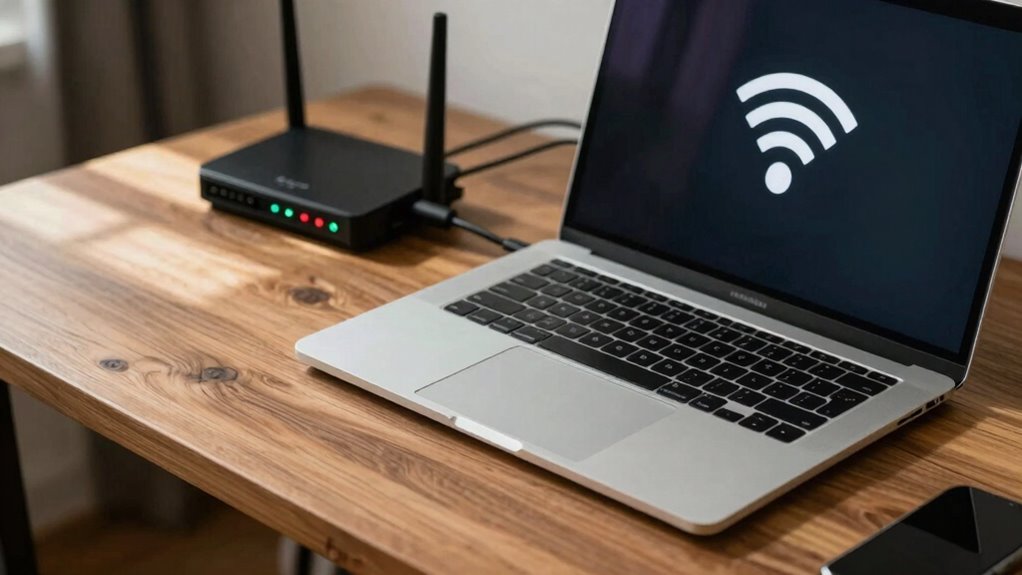

If your Mac won’t connect to Wi-Fi, start by resetting your network settings. Go to System Preferences > Network, remove the Wi-Fi network, then re-add it to refresh your connection. Next, restart your router by unplugging it for 30 seconds before plugging it back in—this clears temporary glitches. These quick steps often fix common issues and improve connection stability. Keep exploring for more tips to troubleshoot and optimize your network setup effectively.

Get the latest gadgets delivered free with Prime
- Fast, free delivery on millions of items
- Prime Video, Amazon Music and more included
- Member-only deals all year
Key Takeaways
- Reset your Mac’s Wi-Fi network by removing and re-adding the Wi-Fi service in System Preferences.
- Restart your router to clear temporary glitches and refresh the internet connection.
- Ensure your router’s firmware is up to date for optimal compatibility and security.
- Reset network settings on your Mac to clear cached data that may cause connection issues.
- Run network diagnostics after resetting to identify and resolve underlying connectivity problems.
As an affiliate, we earn on qualifying purchases.
Reset Your Mac’s Network Settings to Fix Wi-Fi
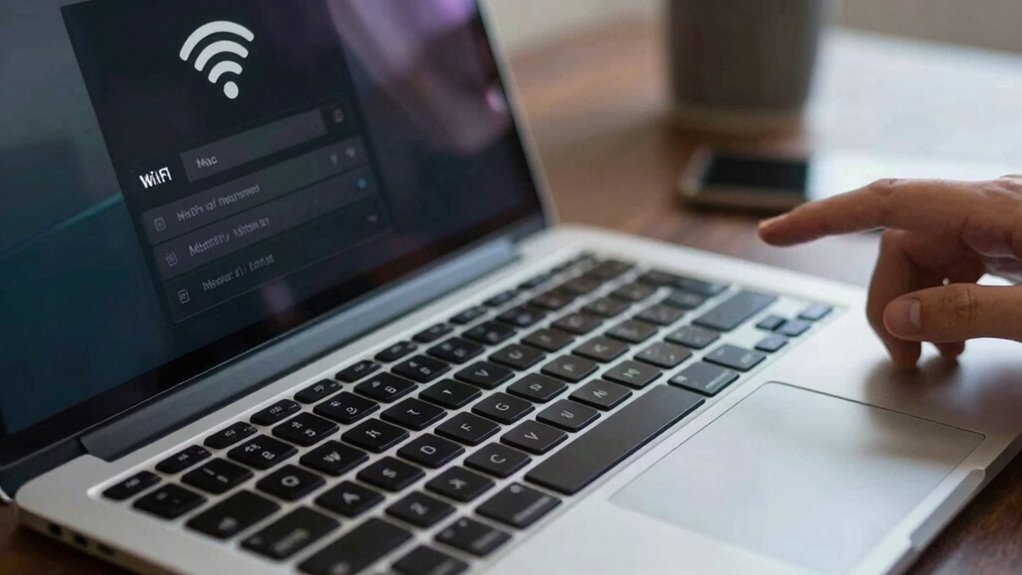
Have you tried resetting your Mac’s network settings to resolve Wi-Fi issues? Doing this can often fix connectivity problems caused by Wi-Fi security settings or network misconfigurations. Resetting clears cached network data, which might be causing interference. First, open System Preferences and go to Network. Select your Wi-Fi network and click “Remove” or the minus sign. Then, re-add the Wi-Fi service to refresh the connection. Running network diagnostics afterward helps identify underlying issues that might be blocking your connection. Resetting your network settings is a quick step that can resolve common Wi-Fi problems without needing a full restart. It’s especially useful if recent changes to Wi-Fi security configurations or network settings have caused your Mac to disconnect unexpectedly. Understanding how network settings influence connectivity can also help you better troubleshoot and optimize your connection.
As an affiliate, we earn on qualifying purchases.
Restart Your Router for Quick Wi-Fi Troubleshooting
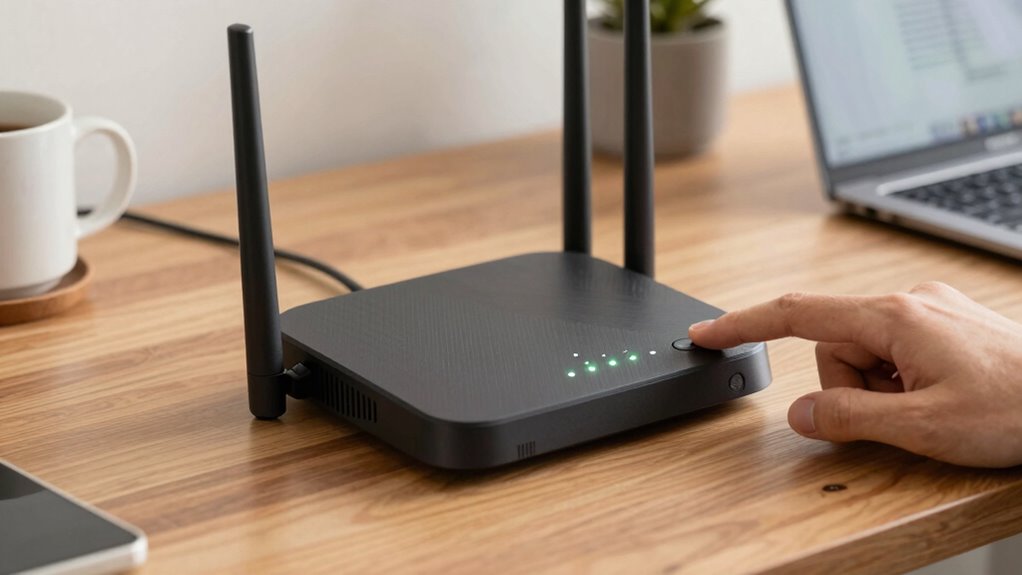
Sometimes, the simplest fix for Wi-Fi issues is restarting your router. This can resolve temporary glitches, refresh your network connection, and improve Wi-Fi security by prompting new security protocols. Before restarting, check that your router firmware is up to date, as outdated firmware can cause connectivity problems. To restart, unplug the router, wait about 30 seconds, then plug it back in. This refreshes the connection and clears minor bugs. Use the table below to understand common router features and troubleshooting tips: Additionally, ensuring your router’s Wi-Fi security is properly configured can help prevent unauthorized access and improve overall network stability. Regularly reviewing privacy and consent settings can help maintain your data security and ensure compliance with regulations. Being aware of cookie categories and managing your cookie preferences can also contribute to protecting your browsing data. Incorporating natural pool considerations in your backyard setup can also enhance your outdoor experience.
As an affiliate, we earn on qualifying purchases.
Frequently Asked Questions
Why Is My Mac Showing a Wi-Fi Connection but Not Loading Pages?
Your Mac showing a Wi-Fi connection but not loading pages often points to troubleshooting Wi-Fi issues or network security problems. First, check if your network has restrictions or firewalls blocking access. Restart your router and Mac, then renew the DHCP lease. Make sure your network security settings are correct and not blocking your device. If issues persist, consider resetting network preferences or contacting your network administrator for further troubleshooting.
How Do I Forget and Reconnect to a Wi-Fi Network on Mac?
Imagine your Mac as a curious explorer needing a fresh map. To forget and reconnect, open Network preferences, select your Wi-Fi network, and click ‘minus’ to forget it. Then, choose ‘Add’ to find it again. This refreshes your network preferences and clears old password baggage. After reconnecting, re-enter your password to manage it smoothly, ensuring your Mac’s journey back online is as seamless as a dance.
Can Malware Affect My Mac’s Wi-Fi Connection?
Malware infection can definitely affect your Mac’s Wi-Fi connection by causing network interference or corrupting network settings. If your Wi-Fi connection keeps dropping or slows down unexpectedly, malware might be the culprit. To fix this, run a trusted antivirus or anti-malware scan, update your software, and check your network settings. Staying vigilant helps prevent malware from disrupting your internet connection and keeps your Mac secure.
Why Does My Wi-Fi Keep Disconnecting Randomly?
Your Wi-Fi connection can feel like a restless dance partner, stumbling and disconnecting unexpectedly. Usually, network congestion slows down Wi-Fi speed, causing those random drops. To fix this, try moving closer to your router or restarting it to clear congestion. Check for interference from other devices, and update your macOS or network drivers. These small steps can restore harmony, keeping your connection steady and reliable.
How Do I Check if My Mac’s Wi-Fi Antenna Is Damaged?
To check if your Mac’s Wi-Fi antenna is damaged, start by observing if other devices connect properly to the same network. If your Mac consistently struggles, it could be Wi-Fi hardware or antenna issues. You might notice weak signals or no signal at all. While you can’t directly inspect the antenna, visiting an authorized service provider for antenna repair or hardware diagnostics is your best bet for a definitive check.
network diagnostic tools for Mac
As an affiliate, we earn on qualifying purchases.
As an affiliate, we earn on qualifying purchases.
Conclusion
If your Mac still won’t connect to Wi-Fi, don’t give up just yet. Reset your network settings, restart your router, and check your connections. Reset your network settings to clear out any glitches, restart your router to refresh your internet connection, and verify your Wi-Fi password for accuracy. These small steps can make a big difference. Keep trying these simple fixes, stay patient, and your Wi-Fi connection will be back up and running smoothly.
Halloween Picks
halloween
As an affiliate, we earn on qualifying purchases.