

To reduce your iPhone camera file sizes without sacrificing quality, use built-in features like shooting in HEIF format, which provides high quality at smaller sizes. Adjust resolution and turn off features like Live Photos when not needed. Use apps for compressing photos and videos efficiently, and crop or resize images before sharing. Avoid over-compression for clean results, and explore export settings to find the right balance. Keep exploring to discover even smarter ways to manage your media space.

Get the latest gadgets delivered free with Prime
- Fast, free delivery on millions of items
- Prime Video, Amazon Music and more included
- Member-only deals all year
Key Takeaways
- Use the HEIF format to capture high-quality images with smaller file sizes.
- Adjust camera settings to lower resolution or disable Live Photos to reduce file size.
- Compress photos with free apps that preserve quality, like Photo Compress & Resize.
- Crop or trim unnecessary parts of images to decrease size without losing quality.
- Export images in optimized formats and resolutions when sharing to maintain clarity while saving space.
As an affiliate, we earn on qualifying purchases.
Why Reducing iPhone Photo and Video Sizes Matters
Reducing iPhone photo and video sizes is important because it helps save storage space on your device. When you keep large files, your storage fills up quickly, forcing you to delete or offload content. By optimizing file sizes, you can keep more photos and videos without sacrificing space. Photo metadata, like timestamps and location data, often contributes to file size, but you can manage or strip this data to reduce size further. Storage optimization is vital, especially if you rely on your iPhone for daily use or backups. Smaller files also make sharing easier and faster, whether via email or messaging apps. Additionally, understanding how to minimize file sizes can involve contrast ratio and other display settings that impact perceived image quality, helping you find the best balance between size and clarity. Being aware of file compression methods can further assist in reducing sizes without a noticeable loss in quality. Knowing about media formats and their compatibility can help you choose the most efficient options for reducing size while maintaining quality. Using metadata management techniques can also help you strip unnecessary data, further reducing file sizes. By understanding how to minimize file sizes, you guarantee your device stays organized, runs smoothly, and retains enough space for new memories.
photo compression app for iPhone
As an affiliate, we earn on qualifying purchases.
As an affiliate, we earn on qualifying purchases.
How Resolution and Compression Affect Photo Quality and Storage
Adjusting your resolution settings directly impacts both your photo quality and file size, with higher resolutions producing clearer images but larger files. Compression levels also play a key role, as stronger compression reduces file size but can introduce artifacts and reduce detail. Finding the right balance guarantees your photos look good while saving storage space. Additionally, understanding the costs of different flight schools can help aspiring pilots plan their training budget effectively. To optimize your camera settings, consider the types of compression available to ensure your images retain quality without unnecessary file bloat. Being aware of the fiber-rich foods in your diet can further help you manage storage on your device, as a healthy gut may support better overall device performance. Moreover, selecting the appropriate resolution settings can help you optimize storage without sacrificing image clarity. When choosing your camera’s settings, keep in mind that yarn weight and stitch type can influence how much detail and thus file size your photos capture, especially if you’re photographing textures or intricate patterns.
Impact of Resolution Settings
When you change the resolution settings on your iPhone camera, it directly influences both the quality of your photos and how much storage space they consume. Higher resolutions capture more detail, improving color accuracy and clarity, especially in good lighting conditions. However, they also produce larger files that take up more storage. Lowering resolution reduces file size but can impact the sharpness and color fidelity, especially in challenging lighting conditions. If you often shoot in dim or uneven lighting, keeping a higher resolution helps preserve image quality. Conversely, if storage is a concern and you mostly shoot casual photos, lowering resolution can help save space without sacrificing too much visual fidelity. Balancing resolution with your typical shooting environment is key to managing file size and quality. Additionally, understanding how compression methods affect photo quality can help optimize storage without noticeable loss in clarity. Recognizing the impact of resolution on storage can guide you in selecting the best settings for your needs. Properly adjusting these settings can help you maintain a good balance between image quality and storage efficiency, especially when combined with file format choices. Adjusting resolution and compression appropriately ensures your photos are not only high-quality but also efficient to store and share.
Role of Compression Levels
While resolution determines the detail in your photos, compression levels play a crucial role in shaping both their quality and file size. When you adjust compression levels, you’re controlling how much data gets reduced to make files smaller. Higher compression levels cut more data, resulting in smaller files but potentially sacrificing image quality, with visible artifacts or blurriness. Lower compression levels preserve more detail, maintaining better image quality but producing larger files. Finding the right balance is essential; too much compression can make photos look ugly, while too little won’t reduce file sizes effectively. By understanding how compression levels impact your photos, you can optimize storage without sacrificing too much quality, ensuring your images look good while saving space on your iPhone. Additionally, exploring image optimization techniques and emerging trends in digital publishing can help you stay updated on new tools and techniques for managing image quality and storage optimization. Recognizing how compression settings influence final image appearance enables you to make more informed decisions when editing and saving photos.
As an affiliate, we earn on qualifying purchases.
Best iPhone Settings to Save Space Without Losing Quality
To save space on your iPhone without sacrificing photo quality, optimizing your camera settings is essential. Start by adjusting the photo format to HEIF, which offers high quality with smaller file sizes. Enable battery optimization and review app permissions to prevent background activity that drains storage. You can also lower the photo resolution slightly if ultra-high detail isn’t necessary. Additionally, disable Live Photos when not needed, as they take up extra space. Consider using iCloud for backing up images, freeing local storage. These tweaks help reduce file sizes while maintaining quality, ensuring your photos stay crisp without overwhelming your device’s storage. Remember, managing app permissions and battery settings keeps your camera app efficient, further saving space. Exploring photo compression techniques can also help optimize storage and preserve photo quality more effectively. Incorporating mindful storage management practices rooted in Stoic wisdom can help you maintain a balanced approach to technology use and prevent clutter from accumulating.
As an affiliate, we earn on qualifying purchases.
How to Compress Photos and Videos Using Built-in iPhone Features

Ever wonder how to quickly reduce the size of your photos and videos without installing third-party apps? Your iPhone has built-in features that help with this, mainly through photo editing and storage management. For photos, you can crop or reduce resolution directly in the Photos app by selecting Edit, then adjusting size or cropping out unnecessary parts. For videos, trimming clips or lowering quality during export can noticeably decrease file sizes. Additionally, enabling iCloud Photos helps optimize storage by keeping full-resolution images in the cloud while saving lightweight versions locally. These tools allow you to manage your media efficiently, reducing file sizes without sacrificing too much quality. Using your iPhone’s native options makes media compression straightforward, saving storage space without complex processes. Incorporating proper space planning techniques can further enhance your media management and storage efficiency.
Top Third-Party Apps for Efficient Media Compression
Many third-party apps offer free options that make media compression simple and accessible. These apps often feature user-friendly interfaces, so you can quickly reduce file sizes without hassle. Plus, some provide advanced customization settings if you want more control over the compression process. Incorporating automation techniques can further streamline your media management workflow. Additionally, understanding smart thermostat setup can help optimize energy use, indirectly supporting more efficient media storage practices.
Best Free Compression Apps
When you’re looking to free up storage space on your iPhone, using free third-party compression apps can be a game-changer. These apps efficiently reduce file sizes without sacrificing quality, making them perfect for sharing or storing more media. Many popular options support a variety of media formats and are easy to use for any photography genre. Plus, they often integrate smoothly with your camera accessories, ensuring quick edits and uploads.
Consider these top free compression apps:
- Photo Compress & Resize: Simple interface, perfect for quick adjustments
- Compress Photos & Pictures: Supports batch compression for multiple images
- Video Compress – Shrink Video: Ideal for reducing video file sizes efficiently
- Image Size – Photo Resizer: Great for resizing images for social media or storage needs
These apps help you manage your camera files effectively without sacrificing the quality you love.
User-Friendly Interface Features
Choosing an app with an intuitive interface makes reducing your media files straightforward and quick. Look for apps that prioritize clear layouts, simple controls, and helpful prompts. Accessibility features like adjustable font sizes, voice commands, and color contrast options enhance usability for everyone. A well-designed user interface helps you navigate compression settings effortlessly, saving time and reducing frustration.
| Feature | Benefit | Example |
|---|---|---|
| Clear icons | Easy to identify functions | Tap to compress or resize |
| Minimal steps | Faster process | One or two taps to start |
| Accessibility tools | Inclusive for all users | Voice guidance, contrast modes |
Prioritize apps with these user-friendly features to make media compression quick, efficient, and accessible.
Advanced Customization Options
To achieve greater control over your media compression, third-party apps with advanced customization options are essential. These tools let you fine-tune your files through features like color grading, which enhances visual quality without increasing size, and metadata editing, allowing you to remove unnecessary data that bloats file sizes. With these apps, you can also set specific compression parameters, balancing quality and size precisely.
Consider options that offer:
- Color grading adjustments to optimize visual appeal
- Metadata editing to strip extraneous info
- Customizable compression levels for tailored results
- Batch processing for efficiency
Using these features, you maintain high-quality visuals while markedly reducing file size, making your media more manageable without sacrificing clarity or detail.
Resizing and Cropping Photos Without Sacrificing Details
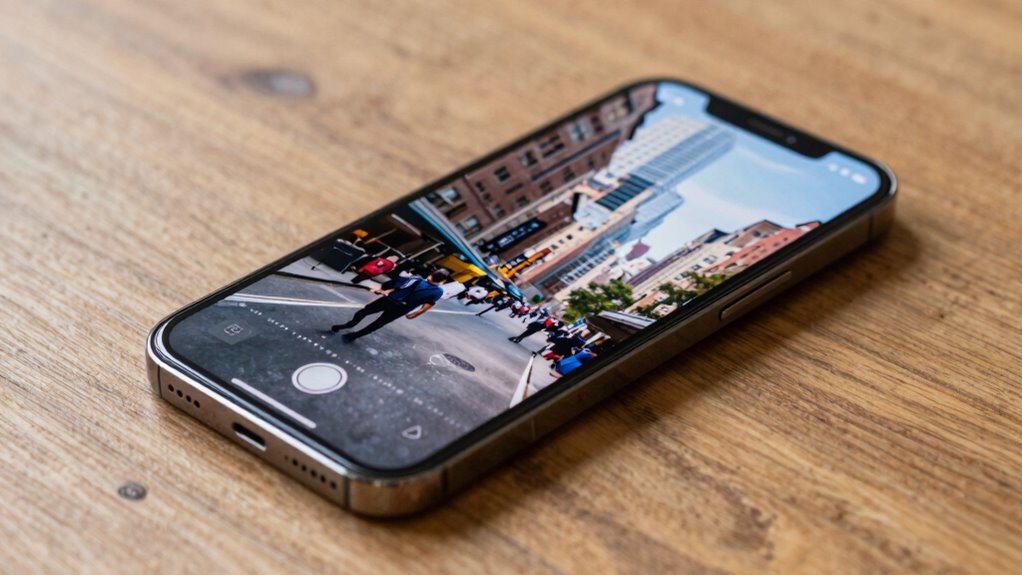
Resizing and cropping photos on your iPhone can greatly reduce file sizes, but it’s vital to do so carefully to avoid losing important details. When resizing, choose dimensions that balance quality and compression, ensuring the image remains clear. Cropping allows you to focus on the main subject, reducing unnecessary background. To preserve details, perform color correction before resizing to enhance clarity and vibrancy. Using artistic filters thoughtfully can improve the photo’s appeal without increasing file size substantially. Be cautious with aggressive cropping—cutting too much might eliminate key details. Always preview your edits to ensure the image maintains its quality. By resizing and cropping strategically, you can minimize file size while keeping your photos sharp, colorful, and visually appealing.
Tips for Exporting and Sharing Compressed Photos and Videos

Once you’ve resized and cropped your photos for the ideal balance between quality and file size, sharing them efficiently becomes the next step. When it comes to photo editing and social sharing, exporting in compressed formats helps save space without sacrificing quality. To maximize results:
- Use optimized file formats like JPEG or HEIC for smaller sizes
- Adjust export settings, such as lowering resolution or quality sliders
- Compress videos with dedicated tools before uploading
- Share directly from your device via messaging apps or cloud services
These tips ensure your photos and videos look great on social platforms while keeping file sizes manageable. Proper export practices help you avoid long upload times and storage issues, making sharing smoother and more efficient.
Common Mistakes That Hurt Your Photo Quality
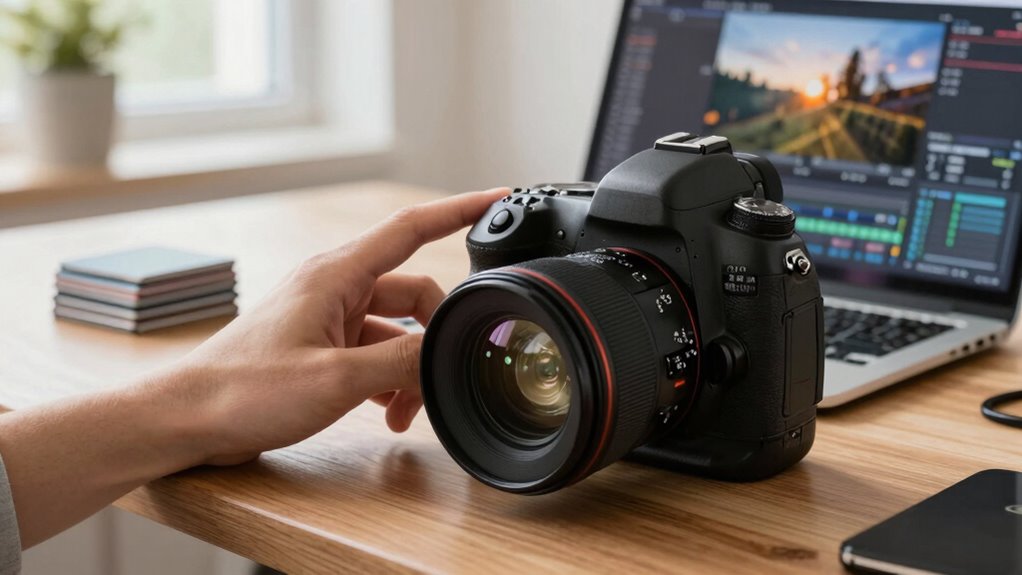
Many common mistakes can considerably degrade your photo quality, even if you start with a great shot. One mistake is overdoing photo editing, which can introduce artifacts and reduce clarity. Be cautious with excessive filters or sharpness adjustments, as they can make images look unnatural. Another pitfall is poor color correction—incorrectly adjusting colors can wash out details or create unnatural tones, hurting overall quality. Rushing through edits or applying them without understanding the image’s needs often leads to worse results. Remember, subtle adjustments usually produce better outcomes. Avoid stacking multiple edits that clash or distort the original scene. By paying attention to how you handle photo editing and color correction, you can preserve your images’ clarity and detail while keeping file sizes optimized.
Final Tips to Keep Your iPhone Media Crisp and Space-Friendly
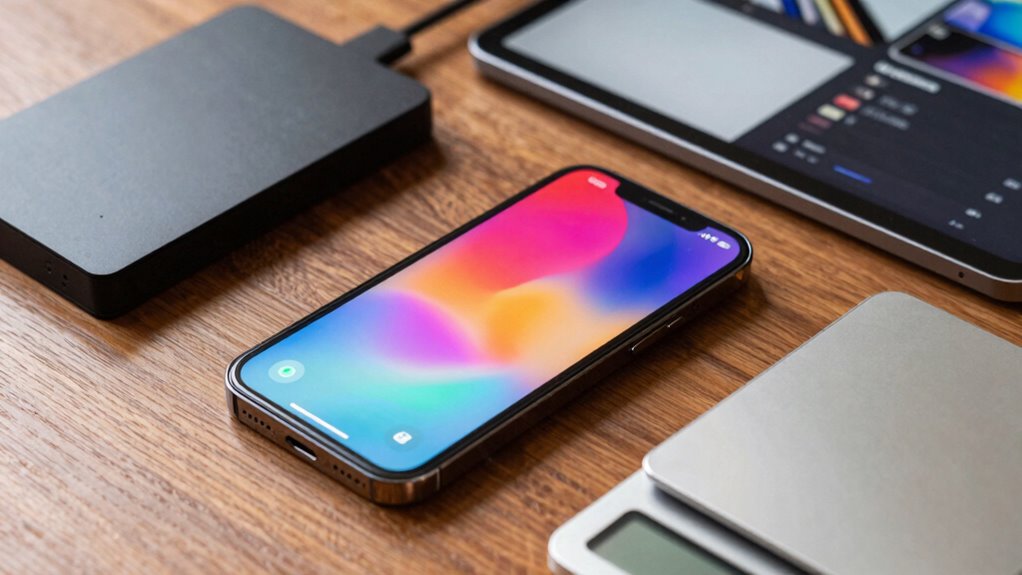
To keep your iPhone media crisp and space-friendly, start by regularly reviewing and deleting unwanted photos and videos. This simple step frees up storage and keeps your gallery organized. Additionally, optimize your battery life by enabling battery optimization settings, which can prevent background app activity that may drain storage and processing power. Manage app permissions carefully—restrict access to camera and media apps to avoid unnecessary file creation or duplication. Consider using built-in tools like iCloud Photos or optimized storage options, which automatically compress files without sacrificing quality. Finally, regularly update your iPhone’s software; updates often include storage and performance improvements, helping your media stay clear and your device efficient. These tips guarantee your media remains crisp while saving space.
Frequently Asked Questions
Can I Selectively Compress Specific Photos or Videos on My iPhone?
Yes, you can perform selective compression on your iPhone photos and videos. Use apps like Compress Photos or Video Compress to target specific files, allowing you to reduce their size while maintaining photo preservation quality. These apps let you choose individual images or videos, giving you control over which files to compress. This way, you save space without sacrificing overall quality, ensuring your important memories stay clear and preserved.
Will Compressing Media Affect the Original Files Stored on iCloud?
Yes, compressing media on your iPhone can impact your photo storage and cloud backup. When you compress files locally, the original uploads to iCloud remain untouched unless you manually replace or delete them. So, if you’re concerned about preserving quality in your cloud backup, double-check your settings. But beware—compressing files might save space on your device, yet the original high-quality versions stay safe in iCloud, waiting to surprise you later.
How Does File Format Impact Compression Effectiveness and Quality?
File format greatly impacts compression quality and effectiveness. Choosing formats like HEIC or JPEG influences how well your images compress without losing quality. HEIC offers better compression, reducing file sizes while maintaining high quality, making it ideal for iPhone photos. JPEG is widely compatible but may result in slightly larger files or reduced quality after compression. Selecting the right format guarantees you optimize file size without sacrificing the visual integrity of your images.
Are There Any Risks of Losing Data During the Compression Process?
Sure, compressing files might seem risk-free, but ironically, it can lead to data loss if you hit the compression limits. You shouldn’t worry too much, though—most tools include data recovery options if something goes wrong. Just remember, pushing compression too far increases the chance of losing important data, so always back up beforehand. Staying within safe compression limits helps protect your files from accidental loss.
How Often Should I Compress My Media to Optimize Storage?
You should compress your media whenever your storage management becomes tight, ideally every few weeks or after a large media upload. This helps keep your iPhone organized and prevents clutter. Regular compression guarantees you free up space without losing quality, making media organization easier. Stick to a routine that fits your usage, and you’ll efficiently manage your storage without risking data loss or sacrificing media quality.
Conclusion
By using the right settings and apps, you can easily reduce your iPhone’s photo and video sizes without sacrificing quality. Don’t worry about losing detail—focused resizing and compression keep your media crisp while saving space. Remember, avoiding overly aggressive compression guarantees your memories stay vibrant. So, give these tips a try, and enjoy a clutter-free phone with stunning, high-quality photos and videos that won’t disappoint.
Fall Picks
fall essentials
As an affiliate, we earn on qualifying purchases.