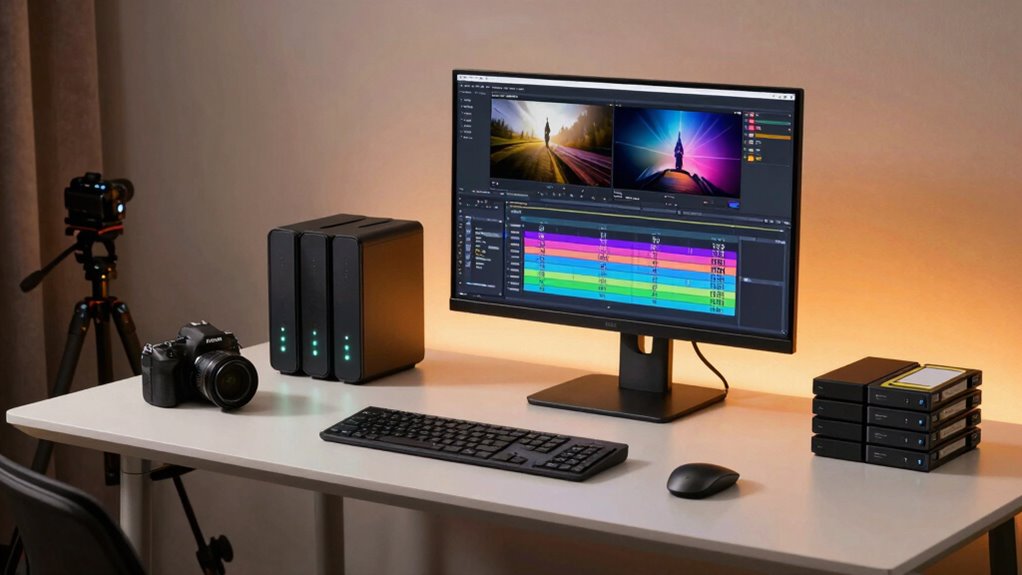

To plan your storage for video editing, first assess your project size, resolution, and collaboration needs. Choose a mix of SSDs for speed and HDDs for capacity, and consider a hybrid architecture like NAS or cloud storage for flexibility. Implement backup and redundancy strategies with RAID and offsite backups to protect your assets. Organize files with clear structures and naming conventions to streamline workflows. If you want to optimize performance and future-proof your setup, there’s more to explore below.

Get the latest gadgets delivered free with Prime
- Fast, free delivery on millions of items
- Prime Video, Amazon Music and more included
- Member-only deals all year
Key Takeaways
- Assess project scale, resolution, and collaboration needs to determine appropriate storage capacity and types.
- Use a mix of SSDs for speed and HDDs for capacity, organized into a structured architecture.
- Implement redundancy and regular backups, including offsite and cloud solutions, for data security.
- Optimize workflows with clear folder structures, consistent naming, and effective file management.
- Plan for scalability and future growth by choosing modular, expandable storage solutions.
As an affiliate, we earn on qualifying purchases.
How to Assess Your Video Editing Storage Needs
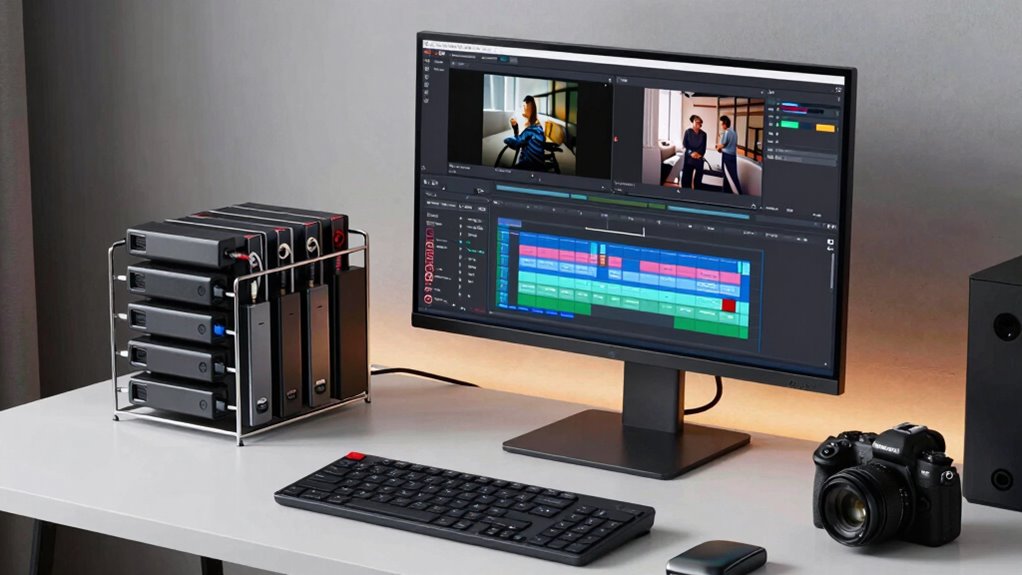
Before you invest in storage solutions, it’s essential to accurately assess your video editing needs. Consider the scale of your projects, including video licensing requirements, which can influence storage size due to legal and quality considerations. If you frequently perform color grading, you’ll need ample space for high-resolution footage and multiple renderings. Think about your workflow: do you handle short clips or long-form content? Do you work with 4K or higher resolutions? These factors impact your storage needs. Additionally, if you collaborate with others, shared storage capacity becomes important. By understanding your typical project demands and technical processes like color accuracy and licensing constraints, you can better determine the right amount of storage upfront, avoiding future bottlenecks or costly upgrades. Considering your workflow efficiency can also help you choose solutions that streamline your editing process and improve productivity. Evaluating your storage scalability needs ensures your setup can adapt as your projects grow or change over time. Moreover, understanding your project size helps in selecting the most appropriate storage options to prevent potential limitations. Incorporating an understanding of project complexity can further refine your storage planning to accommodate diverse editing requirements.
high capacity external HDD for video storage
As an affiliate, we earn on qualifying purchases.
As an affiliate, we earn on qualifying purchases.
What Storage Drives Are Best for Video Editing?
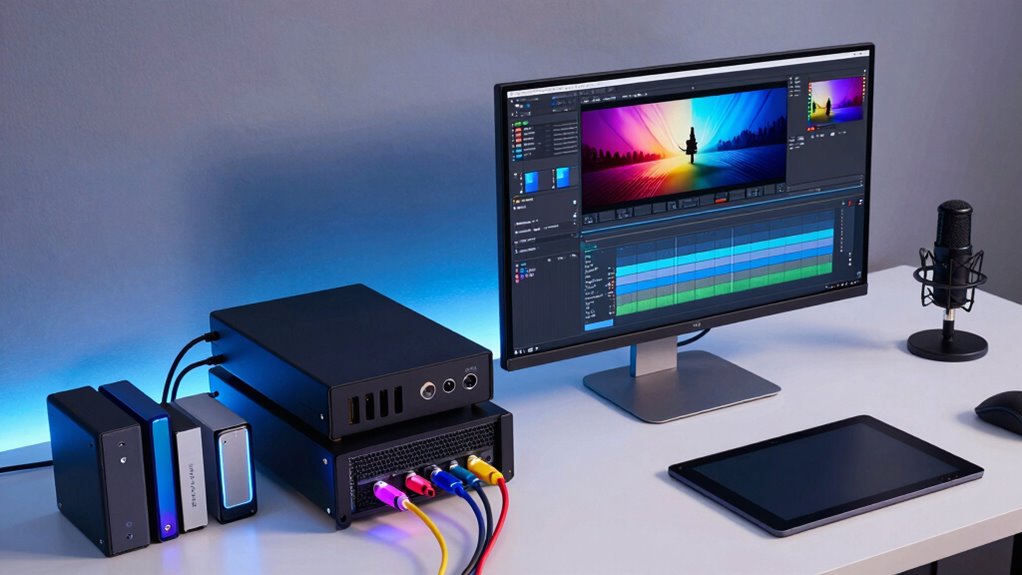
When choosing storage drives for video editing, you need to decide between SSDs and HDDs based on speed and capacity. SSDs offer faster performance for editing and rendering, but typically come at a higher cost per gigabyte. Consider your storage capacity needs carefully to balance performance and budget. Additionally, storage drive organization can improve workflow efficiency by strategically allocating files to different drives. Proper data management practices, such as regular backups and clear folder structures, are essential for maintaining an efficient editing process. Understanding the performance differences between drive types can help you select the best storage solution for your specific editing demands.
SSDs vs HDDs
Choosing the right storage drive is essential for smooth video editing, and understanding the differences between SSDs and HDDs can help you make an informed decision. SSDs typically offer faster read/write speeds, which can considerably improve workflow efficiency. They also have better SSD longevity, meaning they tend to last longer under heavy use. HDDs, on the other hand, boast higher storage capacity at a lower cost but are more vulnerable to physical damage and have lower HDD durability. Use the table below to compare:
| Feature | SSDs | HDDs | Best For |
|---|---|---|---|
| Speed | Fast | Slow | Editing Cache & Files |
| Storage Capacity | Moderate | Large | Archival & Backups |
| Durability | Higher (less prone to damage) | Lower (more fragile) | Long-term Storage |
Additionally, understanding the capacity of your storage drives can help you better plan your workflow and storage needs. When selecting drives, consider the cost-effectiveness of each option in relation to your project scale.
Storage Capacity Needs
Video editing often requires handling large files and multiple project assets, making storage capacity a critical consideration. To meet these needs, you should choose drives with ample capacity, considering future growth. Cloud integration offers a flexible solution, allowing you to expand storage without physical upgrades and facilitating remote access. For ongoing projects, prioritize drives that balance high capacity with energy efficiency, reducing power consumption and heat output. This not only lowers operating costs but also extends drive lifespan. When selecting storage, consider a combination of local and cloud options to optimize capacity, speed, and collaboration. Ensuring your setup can handle your current and future project sizes will keep your workflow smooth and efficient, avoiding bottlenecks caused by insufficient storage.
network attached storage NAS for video editing
As an affiliate, we earn on qualifying purchases.
As an affiliate, we earn on qualifying purchases.
Which Storage Architecture Works for Your Workflow?
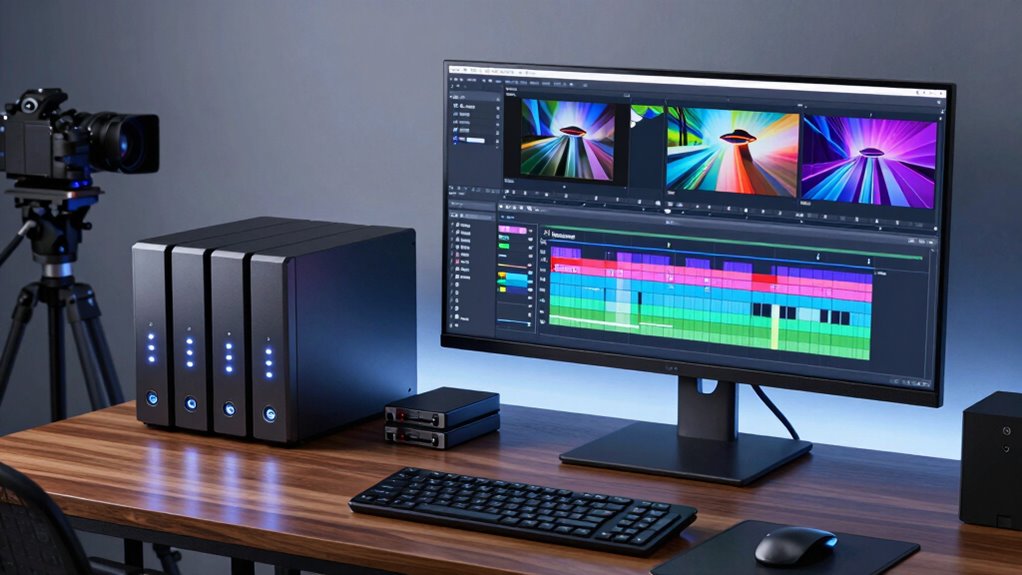
Selecting the right storage architecture is essential for guaranteeing your editing workflow runs smoothly. Consider how cloud integration can provide flexible access and off-site backups, especially for collaborative projects. If you work with large media files, a direct-attached storage (DAS) setup offers speed and simplicity. For teams needing shared access, network-attached storage (NAS) provides centralized storage with easy collaboration. Confirm your chosen architecture prioritizes data security, especially when sensitive footage is involved. Natural pools can be an inspiring design element that complements your workspace aesthetic, promoting a calming environment. Incorporating safe storage practices ensures your valuable data remains protected from loss or unauthorized access. Hybrid solutions combining local storage with cloud services can balance speed, accessibility, and protection. Evaluating your storage options also involves understanding data redundancy to prevent data loss and maintain workflow continuity. Additionally, understanding home decor trends can inspire your workspace setup to enhance productivity and comfort. By aligning your storage architecture with your project demands, you’ll streamline editing, improve collaboration, and safeguard your valuable content. Considering data management strategies can further optimize your workflow by organizing and maintaining your media assets efficiently.
cloud storage solutions for video projects
As an affiliate, we earn on qualifying purchases.
As an affiliate, we earn on qualifying purchases.
How to Optimize Workflow With SSDS and RAID
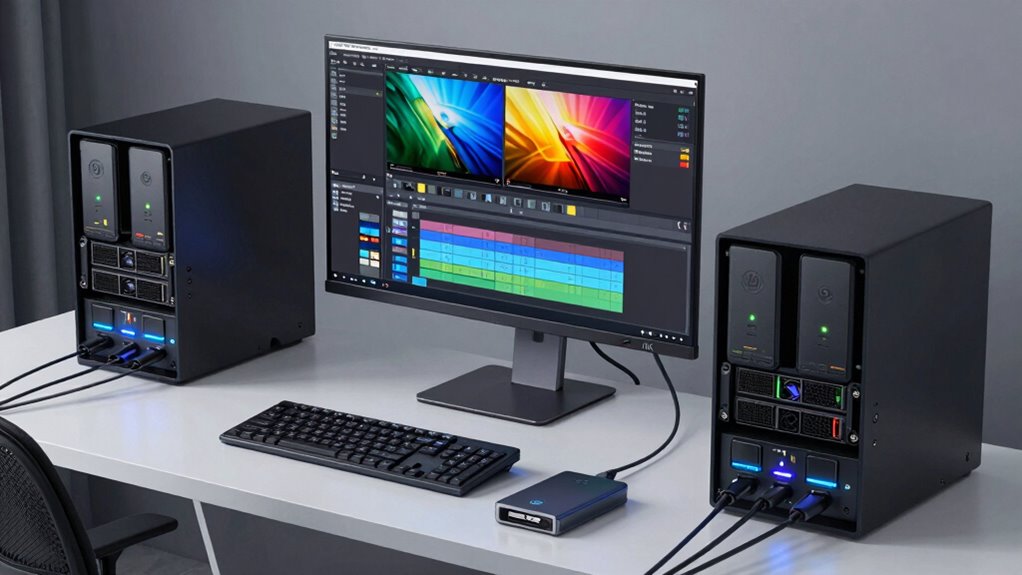
Optimizing your editing workflow involves leveraging the speed and efficiency benefits of SSDs and RAID configurations. SSDs provide rapid read/write speeds essential for editing high-resolution footage, while RAID setups enhances performance and data security. For ideal results, consider combining SSDs in RAID 0 for speed or RAID 10 for redundancy and performance. Cloud integration allows seamless access and sharing, but guarantee data encryption to protect sensitive content. Use SSDs for active projects and cloud storage for archival. Here’s a quick comparison:
| Feature | Benefit |
|---|---|
| SSDs | Fast access for editing |
| RAID configurations | Enhanced performance and security |
| Cloud integration | Remote access and sharing |
| Data encryption | Protects sensitive data |
Additionally, understanding data management strategies can help you maintain an organized and reliable editing environment. Incorporating dream symbolism concepts like timing and organized life structures can inspire more efficient workflows and help you visualize your project timelines more clearly. Implementing a backup strategy ensures your valuable footage is protected against unexpected data loss, especially when combined with a redundant storage approach for added security.
How to Plan Redundancy and Backups for Your Storage System
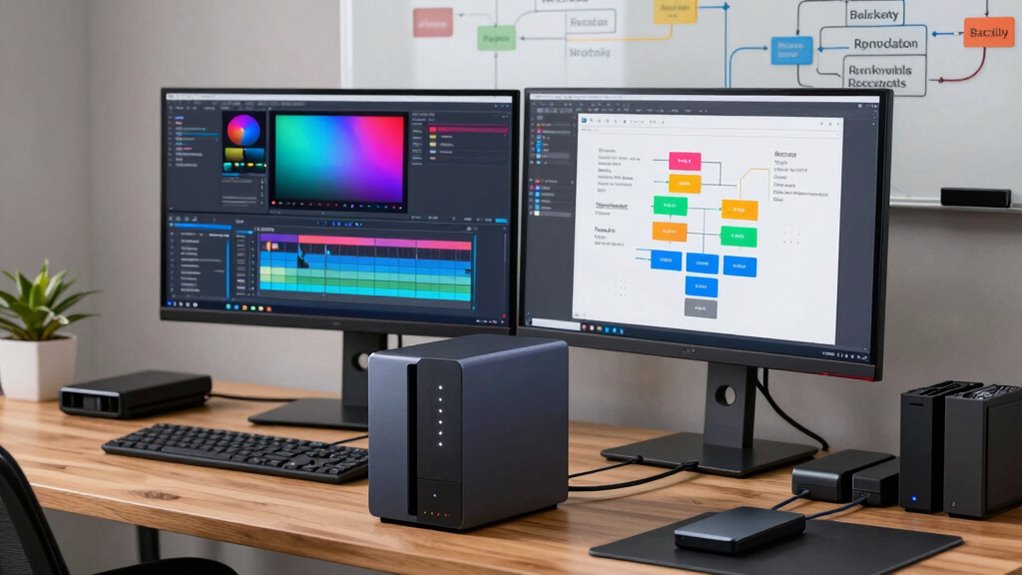
Ensuring your storage system has robust redundancy and backup plans is essential to protect your valuable footage from unexpected failures or data loss. Implement redundancy protocols like RAID configurations to prevent data loss from drive failures. Additionally, maintain an offsite backup to safeguard against disasters like fires or theft. Regularly update your backups and verify their integrity to ensure data can be restored when needed. Automate backup processes where possible to minimize human error. Consider using cloud storage for offsite backups, providing an extra layer of security and accessibility. By combining onsite redundancy with offsite backups, you create a reliable safety net that minimizes downtime and data loss, ensuring your video projects remain protected regardless of unforeseen issues.
Balancing Cost, Speed, and Capacity in Video Storage
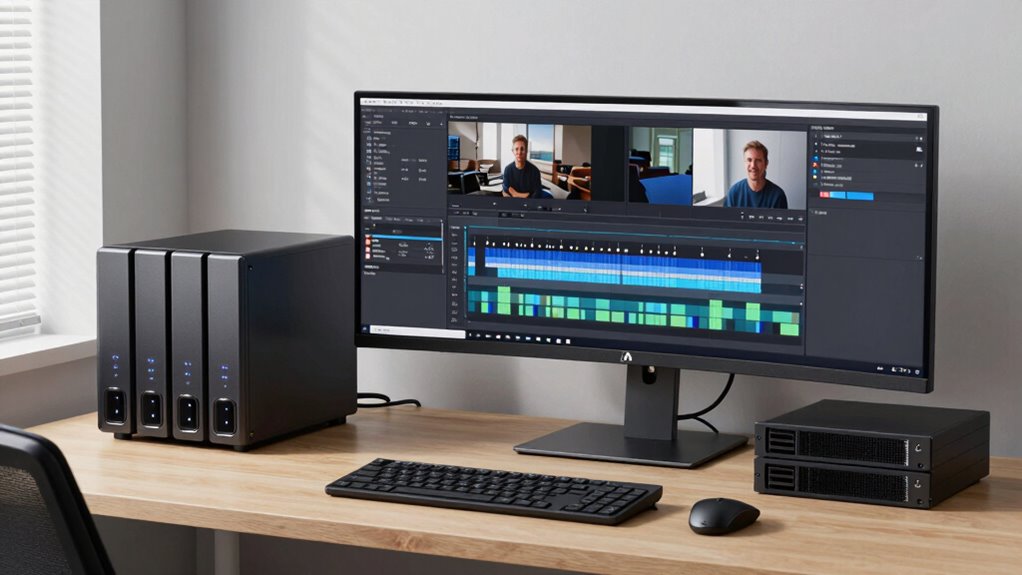
Balancing cost, speed, and capacity is a critical challenge when designing a video storage system, as these factors often influence each other. To achieve this balance, consider storage scalability—select options that grow with your needs without excessive expenses. Fast storage like SSDs speeds up editing but can be costly at large capacities, so weigh performance against budget constraints. Larger capacity drives reduce the need for frequent upgrades, but be mindful of costs. Data encryption adds security but may slightly impact speed, so choose encryption methods that protect your data without slowing workflows. Prioritize a flexible setup that adapts as your project demands evolve, ensuring you’re not sacrificing performance or security for affordability. Incorporating natural light into your workspace can also enhance your focus and wellbeing, making your editing environment more comfortable and productive. Additionally, understanding storage scalability options can help you plan for future growth and avoid costly migrations later. Being aware of technology limitations can help you set realistic expectations and prevent bottlenecks in your workflow. Striking this balance keeps your editing process smooth and cost-effective.
Tips for Organizing and Managing Your Video Files

Organizing and managing your video files effectively can save you time and reduce frustration during editing. To streamline your workflow, consider these key tips:
Effective video file management saves time, reduces frustration, and streamlines your editing workflow.
- Create a clear folder structure, separating raw footage, color grading files, and final exports.
- Use consistent naming conventions to easily identify versions and scenes.
- Regularly apply file compression for backups, guaranteeing files are manageable without losing quality.
- Incorporate file organization methods that reflect the structure of your editing projects, making it easier to locate specific files quickly. Understanding digital systems can help you develop a more efficient storage hierarchy that adapts to your project needs.
This approach helps you quickly locate files needed for color grading and editing, saving valuable time. Proper organization also minimizes errors, keeps your workspace tidy, and simplifies backup processes. Keep your storage efficient by archiving older projects and deleting unnecessary files. A well-organized system ensures smooth editing and easier management of large video files, making your entire workflow more efficient and less stressful.
Troubleshooting Storage Bottlenecks and Performance Issues

When you notice slow performance or lag during editing, it’s essential to identify what’s causing the bottleneck. You can improve speed by optimizing your storage setup and ensuring your hardware is configured correctly. Addressing these issues promptly helps keep your workflow smooth and efficient. Incorporating digital frames or interactive murals into your workspace can also enhance your environment and reduce distractions, contributing to a more focused editing process.
Identifying Bottleneck Causes
Troubleshooting storage bottlenecks begins with pinpointing the specific causes behind performance issues. You need to identify whether the problem stems from hardware limitations, network traffic, or improper configurations. Here are key areas to check:
- Storage virtualization: Overly complex or poorly managed virtualization can cause delays, especially if resources are over-allocated or not optimized for high I/O demands.
- Data encryption: Encryption adds overhead that can slow down data access, especially during real-time editing. Verify if encryption settings are impacting performance.
- Hardware bottlenecks: Look for slow disks, insufficient RAM, or outdated controllers that can hinder data transfer rates.
Optimizing Storage Configuration
After pinpointing the causes of storage bottlenecks, the next step is to optimize your storage configuration to boost performance. Start by balancing your storage types—combine SSDs for speed with HDDs for capacity. Integrate cloud solutions for scalable storage and easy access, but guarantee robust data encryption to protect sensitive footage. To troubleshoot issues, consider the following setup:
| Storage Type | Purpose | Key Features |
|---|---|---|
| SSDs | Fast editing access | High read/write speeds, low latency |
| HDDs | Large archive storage | Cost-effective, high capacity |
| Cloud | Remote backup | Scalability, accessibility, security |
This combined approach minimizes bottlenecks and enhances workflow efficiency while maintaining security.
Future-Proof Your Storage System for Growing Demands
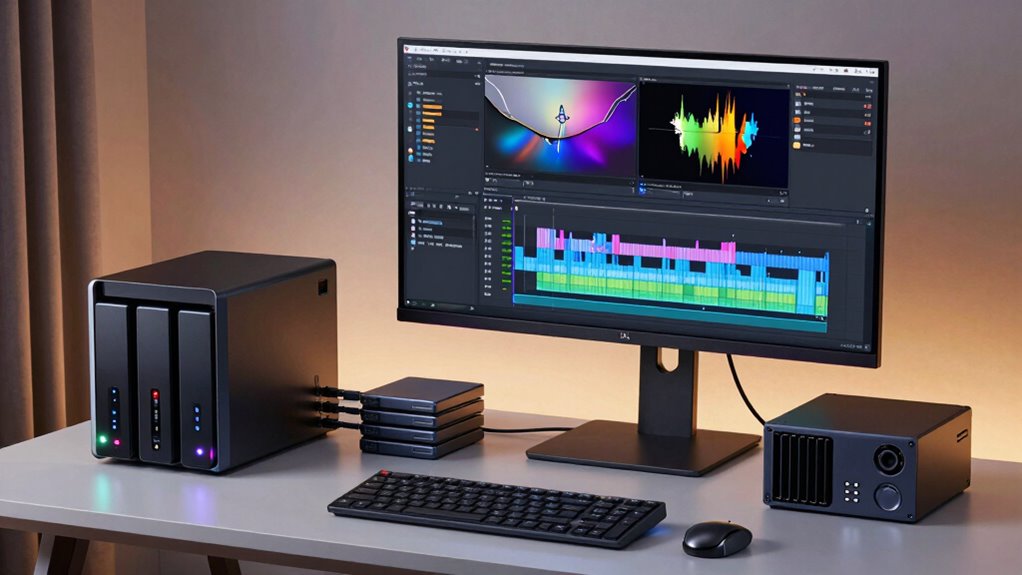
To keep up with the increasing demands of video editing, planning a future-proof storage system is essential. Consider these key strategies:
- Cloud integration: Use cloud storage for scalability and remote access, ensuring you can expand without hardware limitations.
- Data encryption: Protect your projects with robust encryption, safeguarding sensitive footage from cyber threats.
- Scalability options: Invest in modular storage solutions that grow with your workload, avoiding costly overhauls later.
Frequently Asked Questions
How Do I Choose the Right File System for My Editing Storage?
You should choose a file system type that aligns with your editing needs, such as NTFS for Windows or APFS for Mac. Consider storage formatting options like exFAT for cross-platform compatibility or HFS+ for Mac-specific workflows. Opt for a file system that offers robust performance, reliability, and supports large files. Your choice impacts speed, compatibility, and data security, so evaluate your workflow requirements before making a decision.
What Are the Best Practices for Securing My Video Storage Data?
To secure your video storage data, you should implement robust backup strategies, regularly saving copies in multiple locations. Use data encryption to protect sensitive footage from unauthorized access. Keep your software and security protocols updated, and restrict physical access to your storage devices. Additionally, consider using strong passwords and two-factor authentication to enhance security. These best practices help safeguard your valuable video assets against loss and potential breaches.
How Often Should I Upgrade or Replace My Storage Hardware?
You should consider upgrading your storage hardware when its durability begins to wane and storage capacity no longer meets your growing project demands. Typically, every 3 to 5 years, hardware shows signs of aging, risking data security and workflow efficiency. Regularly assess performance and capacity, and stay attentive to signs of slowdowns or hardware failures. Upgrading proactively guarantees your storage remains reliable, supporting your creative needs without interruption.
Can Cloud Storage Integrate Seamlessly With Local Editing Setups?
Yes, cloud storage can seamlessly integrate with your local editing setup. You’ll benefit from cloud collaboration, allowing you to work with others in real-time. Plus, cloud solutions offer storage scalability, so you can easily expand your capacity as your projects grow. Just guarantee your internet connection is fast and reliable, and choose a cloud provider that supports smooth integration with your editing software for peak workflow.
What Are Common Signs of Storage System Failure During Editing?
When your editing process hits a snag, it’s a red flag that your storage might be failing. Watch for slow read/write speeds, frequent crashes, or corrupted files—these are telltale signs. Run hard drive diagnostics to catch issues early, and keep data recovery tips in your back pocket to save important work. If you ignore these signs, your system could go belly up, so stay vigilant and act fast.
Conclusion
Now that you’ve mapped out your storage needs, you’re ready to build a system that flows as smoothly as your edits. Think of your storage setup as the backbone of your creative process—strong, reliable, and adaptable. Keep balance in mind: speed, capacity, and cost must dance together. With careful planning and ongoing management, your storage will grow with your projects, turning chaos into clarity and making your editing journey a seamless voyage.
Fall Picks
fall essentials
As an affiliate, we earn on qualifying purchases.