
To fix audio issues on Windows, start by checking your volume, sound settings, and ensuring your speakers or headphones are properly connected and selected as the default device. Then, update or reinstall your sound drivers, and run the Windows Troubleshooter for quick fixes. Make sure sound is enabled in apps and system settings, and reset Windows sound services if needed. Testing with different apps and files can help you identify the problem. For more detailed steps, keep exploring the solutions.
Key Takeaways
- Check and adjust your device’s volume, sound settings, and ensure the correct default playback device is selected.
- Verify hardware connections, cables, and power to speakers or headphones for secure setup.
- Update or reinstall audio drivers using Device Manager or manufacturer’s website.
- Run Windows Troubleshooter to automatically detect and fix common sound issues.
- Test sound with different applications and files to identify if the problem is software or hardware-related.
![[Upgraded] USB Computer /Laptop Speaker with Stereo Sound & Enhanced Bass, Portable Mini Sound Bar for Windows PCs, Desktop Computer and Laptops](https://m.media-amazon.com/images/I/41G8Kn3kCpL._SL500_.jpg)
[Upgraded] USB Computer /Laptop Speaker with Stereo Sound & Enhanced Bass, Portable Mini Sound Bar for Windows PCs, Desktop Computer and Laptops
🔊 Built-in Dual 3W High-Excursion Drivers and Passive Radiator that allow for louder sound, greater dynamic range, improved…
As an affiliate, we earn on qualifying purchases.
As an affiliate, we earn on qualifying purchases.
Check Your Volume and Playback Settings
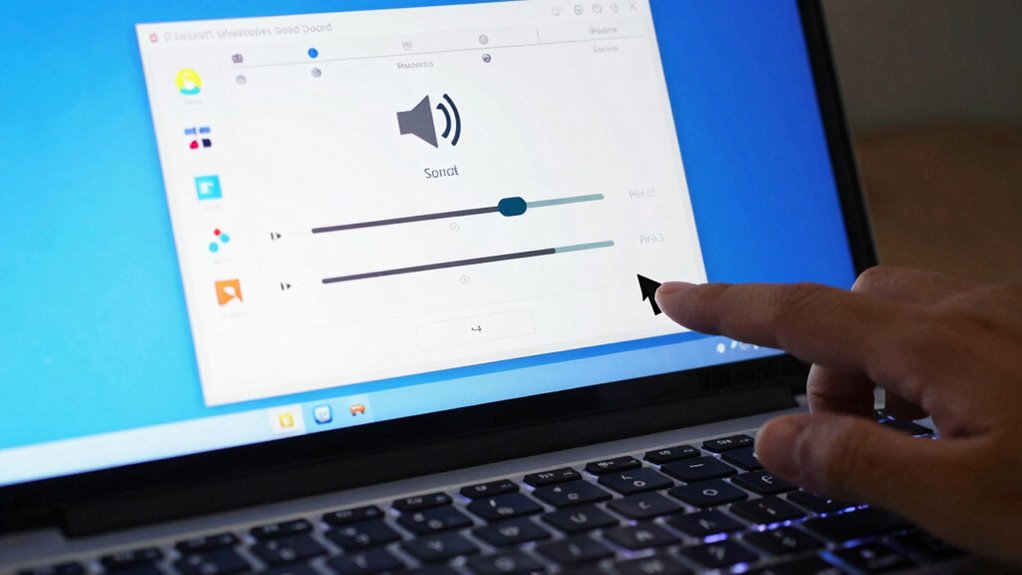
If your audio isn’t working, the first step is to make certain your volume and playback settings are properly configured. Start by checking the volume level on your device and ensure it’s not muted. Adjust the volume calibration to optimize sound quality, making sure it’s set high enough without distortion. Next, open the sound settings in Windows and verify your default playback device is correct. Sometimes, multiple audio devices can cause issues, so select the right one. Also, review any app-specific volume controls to ensure they aren’t muted or turned down low. Properly calibrated volume and correct playback settings are essential for clear sound quality and a seamless listening experience. Checking your audio device settings can also help identify if there are underlying hardware or driver issues impacting sound output. Additionally, ensuring your drivers are up to date can prevent hardware compatibility problems that affect audio performance. Regularly updating your drivers can also help resolve software conflicts that might interfere with sound. To further improve sound quality, consider testing your audio output on different applications or media players. These initial checks often resolve common audio problems quickly. Moreover, inspecting your audio driver updates periodically can prevent potential issues before they arise.

B000UXZQ42
As an affiliate, we earn on qualifying purchases.
As an affiliate, we earn on qualifying purchases.
Verify Hardware Connections and Devices
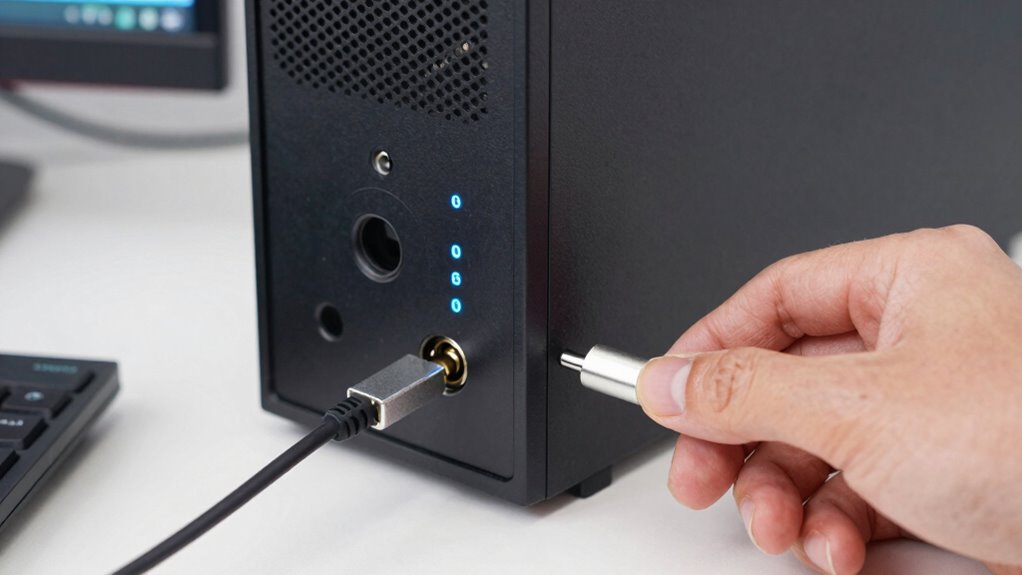
Before troubleshooting software issues, you should guarantee all hardware connections are secure and properly plugged in. Check that your speakers or headphones are connected to the correct ports, and ensure cables are undamaged and snug. Poor cable management can cause loose connections, so tidy up cords to prevent accidental disconnections. Confirm that your hardware is compatible with your Windows device, especially if you’ve recently added new audio devices. If your device isn’t recognized, try unplugging and reconnecting it, or test with different cables. Make sure the hardware is powered on, and look for any physical damage. Proper hardware connections and confirming hardware compatibility are essential steps before diving into software fixes. Additionally, inspecting cable failures can help identify issues caused by damaged or faulty cables that might be affecting audio performance. Ensuring hardware compatibility can prevent many common audio problems, especially when dealing with various audio devices and connections. Regularly updating your device drivers can also help maintain connection stability and prevent hardware-related issues. To further prevent issues, consider checking for driver updates regularly to keep everything running smoothly.

DriverUpdater – Automatically update Windows device drivers, faster and more stable Windows for Win 11, 10, 8, 7
Games and applications bogged down by outdated drivers run smoothly again and start faster.
As an affiliate, we earn on qualifying purchases.
As an affiliate, we earn on qualifying purchases.
Update or Reinstall Your Sound Drivers
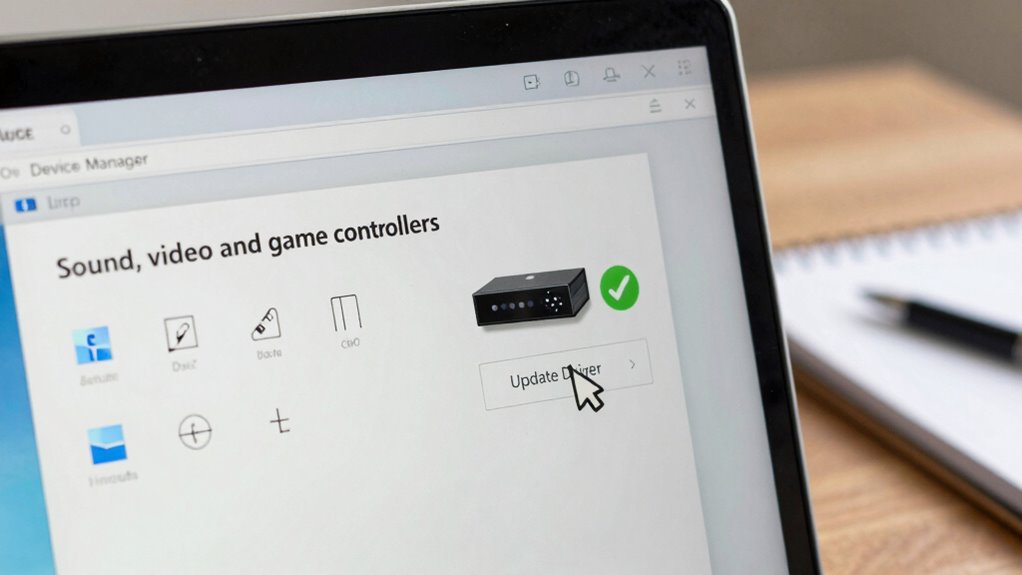
Once you’ve confirmed that your hardware connections are secure and compatible, the next step is to make certain your sound drivers are up to date. Outdated or corrupted drivers can cause your sound card to malfunction, affecting audio through your audio ports. To update or reinstall, go to Device Manager, locate your sound card, right-click, and select “Update driver.” If that doesn’t work, choose “Uninstall device,” then restart your PC to reinstall the driver automatically. Use the table below for quick reference:
| Action | Description | Result |
|---|---|---|
| Update driver | Search online or via Device Manager | Fixes driver bugs |
| Reinstall driver | Uninstall and restart | Replaces corrupted files |
| Check audio ports | Confirm connections | Ensures proper hardware setup |
| Update sound card | Download latest from manufacturer | Improves compatibility |
Additionally, updating your sound drivers can ensure better overall performance and compatibility with your system. Regularly maintaining device drivers is essential for preventing issues and ensuring smooth audio functionality. Keeping your drivers up to date helps prevent common problems and enhances system stability.

Supplying Demand K1908952 Portable Air Conditioner Windows Exhaust Adapter Kit D – Replaces AP7157810
The Supplying Demand Portable Air Conditioner Windows Exhaust Adapter Kit D is designed to fit a wide range…
As an affiliate, we earn on qualifying purchases.
As an affiliate, we earn on qualifying purchases.
Use the Windows Troubleshooter to Fix Sound Issues
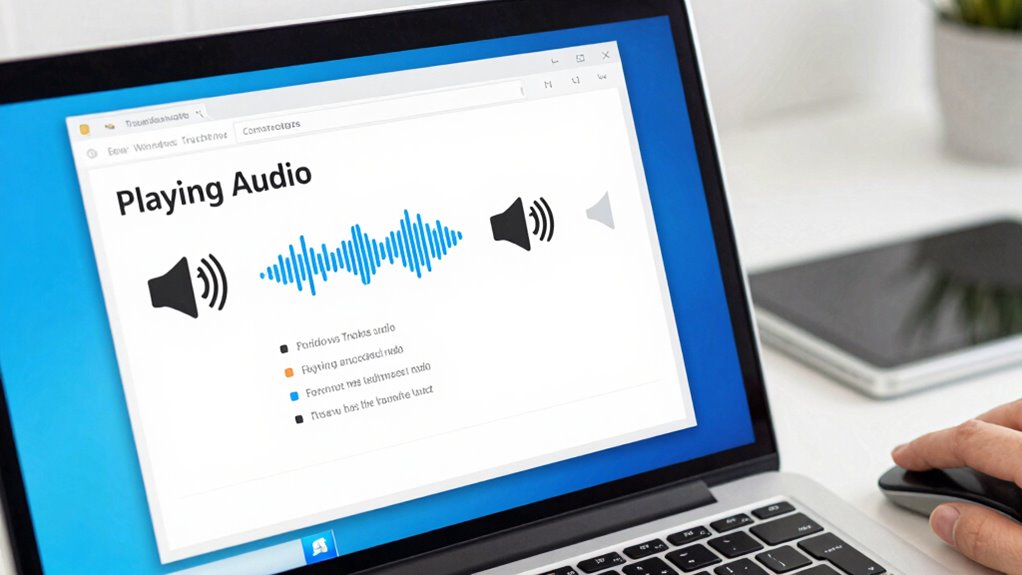
Sometimes, the quickest way to identify and fix sound problems is by using the built-in Windows Troubleshooter. This troubleshooting software automatically detects common issues with your audio system. To start, right-click the sound icon in the taskbar and select “Troubleshoot sound problems.” Windows will run a series of hardware diagnostics and identify potential issues with your audio device or settings. Follow the on-screen instructions to apply recommended fixes. The troubleshooter can resolve problems like disabled audio devices, incorrect settings, or driver conflicts. If it detects issues it can’t fix, it’ll suggest further actions or diagnostics. Using this tool is a fast, effective way to troubleshoot software glitches and hardware diagnostics without needing advanced technical knowledge.
Select the Correct Sound Output Device
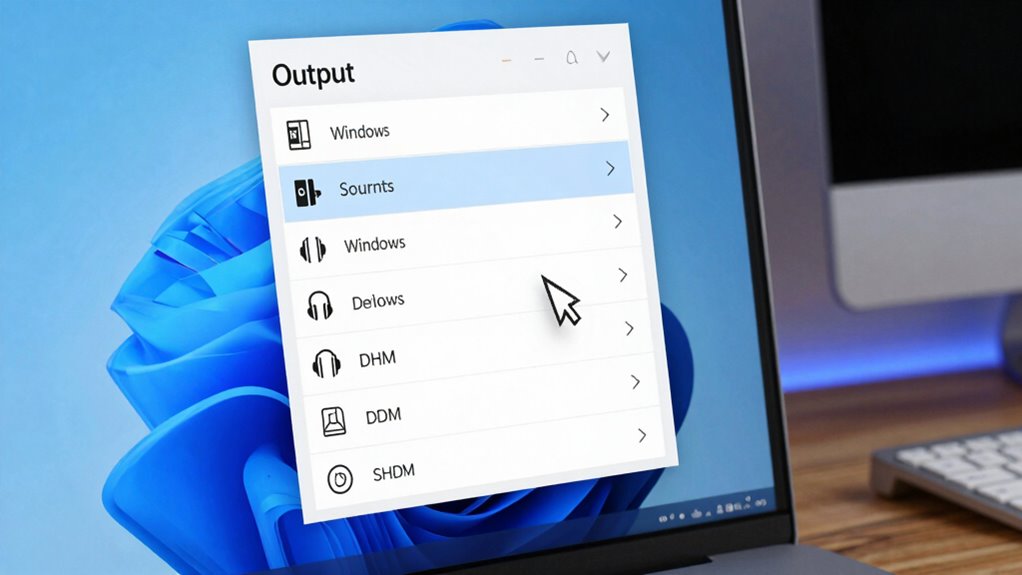
Start by identifying all available sound output devices on your Windows system. Then, set the correct device as your default, and finally, test the sound to guarantee it’s working properly. This process helps you confirm that your audio is routed through the right hardware. Recognizing the sound output device is especially important if you have a mythology-inspired name that symbolizes strength or wisdom, aligning with the importance of choosing the correct hardware. Being aware of the hardware differences between your devices can also help you troubleshoot and optimize your audio setup more effectively. Additionally, understanding how filter sizing/flow impacts your overall system can provide insights into maintaining optimal performance. Knowing how audio drivers interact with your system can further streamline your troubleshooting process and ensure consistent sound quality. Moreover, exploring options like cultural activities in various regions can offer a broader perspective on community engagement through technology and design.
Identify Available Devices
Are you unsure which sound output device your Windows computer is currently using? To identify available devices, check your sound configuration. First, right-click the speaker icon in the taskbar and select “Open Sound settings.” Second, look under the “Output” section to see a list of audio devices. Third, click the dropdown menu to view all options, including headphones, speakers, or external audio devices. Fourth, select the device you want to use, ensuring it’s connected correctly. This step helps you verify the available audio device options before setting a default device. Clear identification of your sound configuration ensures you’re choosing the right output, preventing confusion and ensuring your audio works smoothly. Additionally, understanding indoor air quality and how to improve it can help you maintain a healthier environment by reducing dust and allergens in your space. Knowing how to troubleshoot sound issues can also extend to understanding audio device management for better control over your sound setup.
Set Default Device
To guarantee your audio plays through the correct device, you need to set the default sound output. This ensures your preferred audio equipment, like speakers or headphones, is prioritized for sound playback. To do this, right-click the sound icon in your taskbar and select “Open Sound settings.” Under the “Output” section, choose the device you want as default from the dropdown menu. Setting the correct device improves sound quality and prevents audio from playing through unwanted equipment. If you have multiple audio devices connected, make sure to select the one that provides the best sound experience for your needs. Adjusting the default device is a simple way to fix issues related to audio not playing or sounding muffled. Additionally, exploring audio troubleshooting tips and understanding Gold IRA markets can help resolve common sound problems more effectively. To further optimize your audio setup, consider reviewing sound device settings to ensure all configurations are correctly adjusted.
Test Sound Output
Testing your sound output guarantees that your audio is playing through the correct device and that everything sounds as it should. To guarantee excellent sound quality, follow these steps:
- Right-click the speaker icon in your taskbar and select Open Sound settings.
- Under Output, choose the correct audio equipment from the dropdown list.
- Click Test to play a sound and confirm it’s coming from your selected device.
- Listen carefully to check if the sound quality matches your expectations, indicating you’ve selected the right device.
This process helps verify that your audio equipment is set correctly, preventing issues with sound not playing or poor sound quality. Proper testing ensures you’re using the best device for your listening experience.
Make Sure Sound Is Enabled in App and System Settings
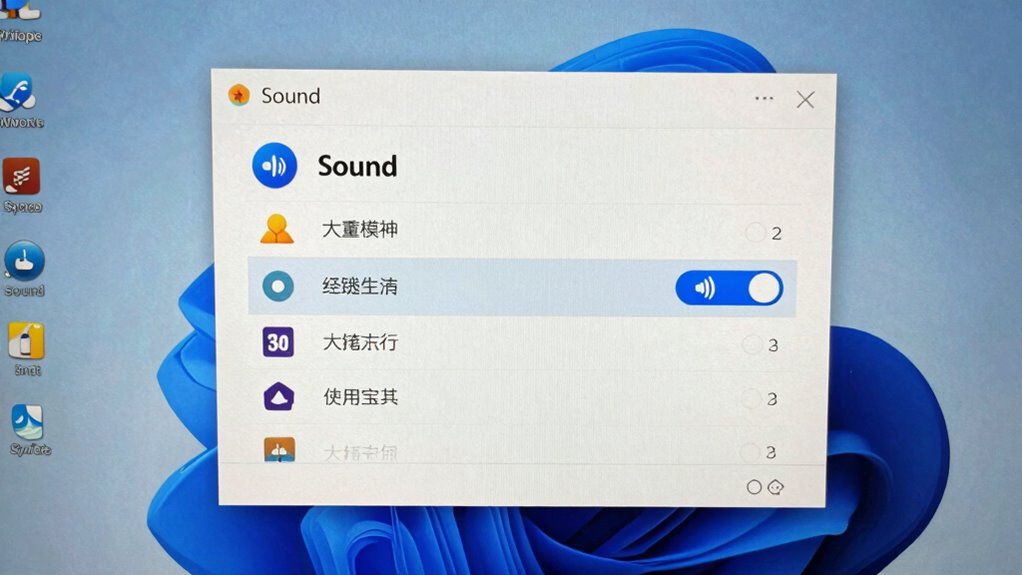
Sometimes, audio issues stem from sound being disabled within the app or system settings. First, check your app’s volume controls to guarantee sound isn’t muted or turned down. Also, verify that audio enhancement features aren’t causing conflicts—disabling them temporarily can help identify issues. In Windows settings, go to Sound, then select your output device to confirm that volume is up and sound is enabled. Don’t forget to review microphone privacy options; if microphone access is disabled, it might affect audio input. Ensuring microphone privacy is correctly set allows apps to use your mic properly, which can impact overall sound performance. Making these adjustments helps guarantee sound is enabled across all apps and system features, reducing potential causes of the problem.
Reset Windows Sound Services and Settings
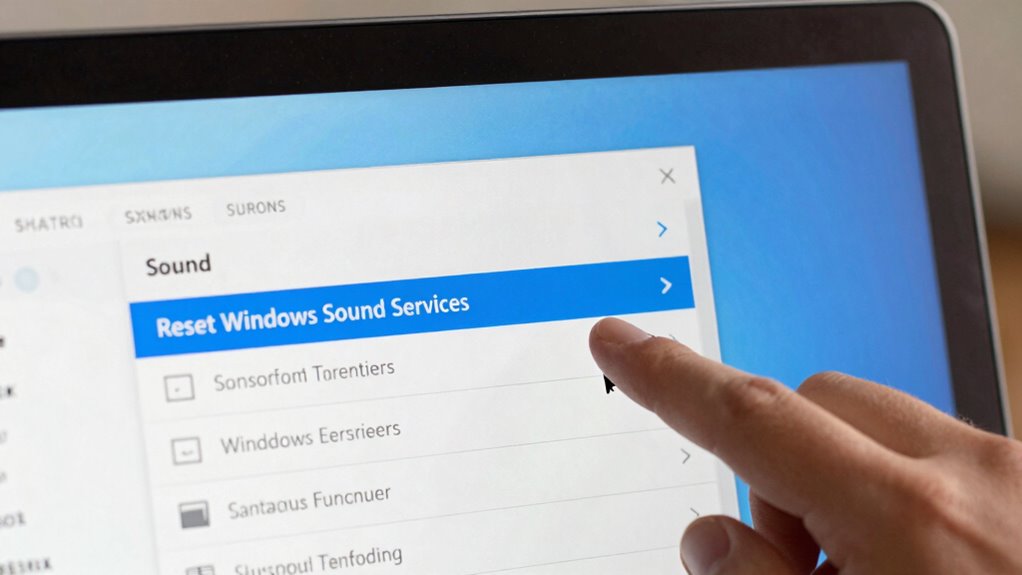
To fix audio issues, you should restart the Windows Sound services to refresh their operation. Resetting sound settings can also clear any misconfigurations causing problems. These steps often resolve common audio glitches quickly and effectively.
Restart Sound Services
Ever wonder why sound issues persist even after trying basic fixes? Restarting sound services can often resolve this. It resets Windows’ audio components, similar to acoustic treatment in a room, which improves sound quality. Here’s what to do:
- Open the Services app and locate “Windows Audio.”
- Right-click and select “Restart.”
- Next, find “Windows Audio Endpoint Builder” and restart it too.
- Finally, check if your audio device appears in the playback settings.
This process refreshes the sound system, much like soundproofing techniques improve audio clarity in a space. Restarting sound services can fix glitches and restore sound output without complicated adjustments, making your audio setup more reliable.
Reset Sound Settings
If sound issues persist after restarting services, resetting your Windows sound settings can often resolve deeper configuration problems. To do this, go to Settings > System > Sound, then click on Advanced sound options or App volume and device preferences. You can also reset sound settings by opening the Control Panel, selecting Hardware and Sound, then Sound. In the Playback tab, right-click your default device and choose Properties, then go to the Advanced tab. Here, you can restore default audio formats and disable enhancements. Resetting these settings helps improve sound quality and fixes issues caused by misconfigured audio formats or settings. After resetting, restart your PC to apply changes, and test your audio to see if the problem is resolved.
Test Your Audio With Different Apps and Files
Have you tested your audio with different apps and files to pinpoint the issue? This helps identify whether the problem lies with specific audio file formats or your headphones. Here’s what to do:
- Play various audio file formats, like MP3, WAV, or AAC, to check if certain formats won’t produce sound.
- Use multiple apps, such as media players and browsers, to see if the issue persists across platforms.
- Test your headphones with different devices to confirm headphone compatibility.
- Switch between wired and wireless headphones to determine if one connection type works better.
Know When to Get Professional Help for Persistent Sound Problems
Persistent sound problems that resist troubleshooting can be frustrating, but recognizing when to seek professional help is essential. If basic fixes and troubleshooting steps don’t resolve the issue, it may be time to contemplate an emergency repair or a professional consultation. Persistent problems could indicate hardware failure, driver corruption, or other complex issues that require expert diagnosis. Don’t delay seeking help if your sound system is causing significant disruption or if you notice signs of damage, like buzzing or no audio at all. A professional can accurately identify the root cause and provide targeted solutions. Knowing when to get help ensures your audio issues are resolved safely and efficiently, saving you time and preventing further damage.
Frequently Asked Questions
How Do I Identify Faulty Hardware Causing Sound Issues?
You can identify faulty hardware causing sound issues by running hardware diagnostics and component testing. Start by checking your device manager for any error flags related to audio devices. Use built-in diagnostic tools or third-party software to test your sound card and speakers. If tests reveal errors or hardware failures, replace or repair the faulty component. Regular diagnostics help pinpoint hardware problems early and restore your audio functionality quickly.
Can Malware or Viruses Affect My Audio Functionality?
Malware and viruses can act like sneaky pirates, hijacking your system’s treasures, including audio functions. They can corrupt drivers or interfere with system processes, causing sound issues. Using digital forensics helps identify malicious activity, while malware removal tools eliminate these threats. Regular scans guarantee your system stays safe, so your audio can flow freely again. Protect your digital ship to keep your sound sailing smoothly without interruptions.
What Should I Do if No Sound Devices Are Listed?
If no sound devices are listed, you should first restart your computer and perform a hardware reset by unplugging your device and plugging it back in. Then, check for driver updates through Device Manager to guarantee your audio drivers are current. If the devices still don’t appear, reinstall or update the audio drivers, and consider running the Windows Troubleshooter to identify and fix underlying issues.
How Do I Troubleshoot Bluetooth Audio Problems?
To troubleshoot Bluetooth audio problems, first make certain your device’s wireless connectivity is stable. Turn Bluetooth off and on again, then reconnect the device. Check if your audio codecs are compatible; outdated codecs can cause issues. Update your Bluetooth drivers if needed, and make sure your device firmware is current. Adjust audio settings in Windows to select the correct playback device, and test with different apps to identify if the problem persists.
Why Does Sound Work on Some Apps but Not Others?
Sound works on some apps but not others because your audio drivers or sound settings might be misconfigured. You should check your audio drivers to verify they’re up-to-date and functioning correctly. Then, review your sound settings in Windows, making sure the correct output device is selected and app-specific volume levels aren’t muted or turned down. Adjusting these can often resolve discrepancies in app audio performance.
Conclusion
When your audio hits a silent note, don’t let frustration mute your day. Follow these steps like a seasoned conductor, tuning your system back to harmony. With a little patience and persistence, you’ll bring your sound back to life—like a symphony rising from silence. Remember, if the music still won’t play, professional help can be your encore. Keep troubleshooting, and soon your Windows will sing in perfect tune again.