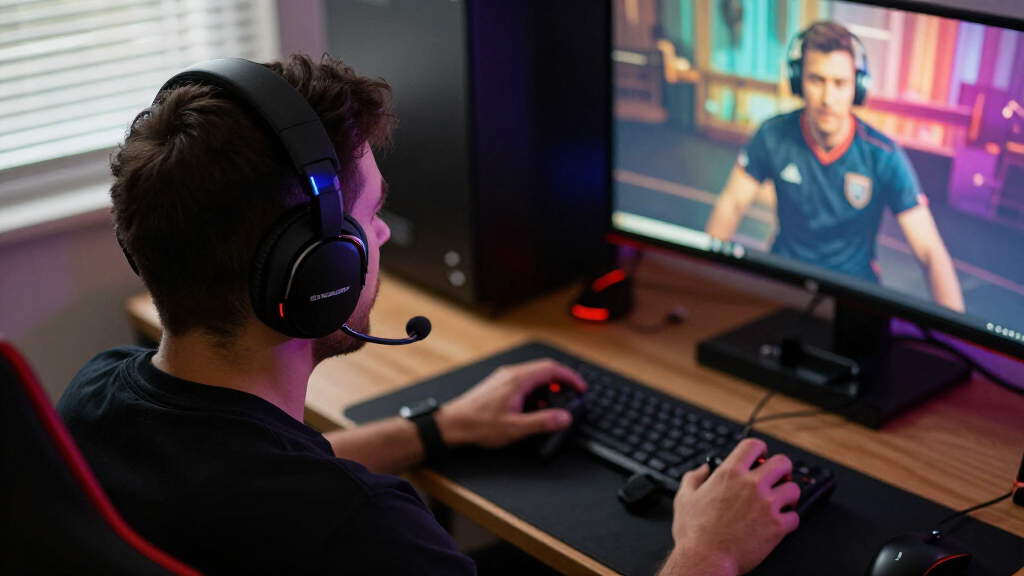
Set up your wireless gaming headset so game audio plays clearly and other players can hear your microphone. This guide is for first-time headset users and anyone replacing a wired headset. You’ll check compatibility, connect the headset using its supported wireless method, adjust device settings, and test the result. Allow about 15–30 minutes; the exact menus vary by headset and platform.

Get the latest gadgets delivered free with Prime
- Fast, free delivery on millions of items
- Prime Video, Amazon Music and more included
- Member-only deals all year

SteelSeries Arctis Nova 5 Wireless Multi-System Gaming Headset
- ✔ Connectivity: 2.4 GHz wireless and Bluetooth 5.3
- ✔ Battery life: Up to 60 hours
- ✔ Fast charging: 15 minutes provides up to 6 hours of use

Turtle Beach Stealth 600 Wireless Gaming Headset
- ✔ Connectivity: 2.4 GHz wireless and Bluetooth
- ✔ Bluetooth version: Conflicting listing: 5.2 and 5.4
- ✔ Drivers: 50 mm Nanoclear

NUBWO G06 Wireless Gaming Headset with Microphone, 100-Hour Battery, 2.4GHz, Bluetooth 5.3, and Wired Modes
- ✔ Wireless connectivity: 2.4 GHz wireless and Bluetooth 5.3
- ✔ Wired connectivity: 3.5mm
- ✔ Battery capacity: 1200mAh
Difficulty: Beginner | Time: 15–30 minutes
What You’ll Need
Tools & Materials:
- Wireless gaming headset
- Headset USB wireless receiver or charging cable, if supplied
- PC, PlayStation, Xbox, Nintendo Switch, or other compatible device
- Internet connection for optional firmware or driver updates
Knowledge:
- Basic ability to open sound or audio settings on your gaming device
- Ability to identify the headset’s power, pairing, and mute controls
Check the headset’s manual or manufacturer product page before connecting. Wireless support differs by model: a USB receiver may work with one console but not another, and Bluetooth support does not automatically mean a headset supports game audio and microphone input on every platform. Charge the headset before setup. If you plan to use it with a controller, phone, or multiple devices, check those connection requirements too.
SteelSeries Arctis Nova 5 Wireless Multi-System Gaming Headset
The Arctis Nova 5 is our leading pick for players who move between gaming systems and want more control over how games sound. Its 2.4 GHz and Bluetooth 5.3 connections cover wireless gaming and compatible mobile devices, while the listed support for PC, PlayStation, Switch, Meta Quest, phones, and tablets gives it the broadest stated device mix in this roundup. Compared with the Turtle Beach Stealth 600, it offers more explicit multi-system positioning; compared with the NUBWO G06, it avoids the stated Xbox Series restriction by focusing its compatibility list on other platforms.Its customizable game audio presets are a notable advantage for players who want different sound profiles for different titles. The tradeoff is that some presets require the companion app, so players who prefer to make every adjustment directly on the headset may find the setup less convenient. The retractable ClearCast 2.X microphone keeps the mic out of the way when it is not needed, whereas Turtle Beach uses a flip-to-mute boom and NUBWO lists a microphone without the same retractable design detail.Battery life is the clearest compromise: the stated up-to-60-hour runtime is substantial, but shorter than the 80-hour Turtle Beach and 100-hour NUBWO claims. Fast charging partly offsets that difference, with the manufacturer stating that 15 minutes provides up to six hours of use. We place SteelSeries first because its combination of platform range, audio customization, and quick charging is the most balanced for a multi-device gaming setup—not because it has the biggest battery number.
Pros:
- 2.4 GHz and Bluetooth 5.3 connectivity
- Compatibility listing spans PC, PlayStation, Switch, Meta Quest, and mobile devices
- Customizable audio presets for game-specific sound
- Fast charging is stated to provide up to six hours from a 15-minute charge
Cons:
- Up-to-60-hour battery claim is shorter than the other two models’ claims
- Some audio presets require the companion app
- Xbox is not included in the listed compatibility
Best for: Players who use PC, PlayStation, Switch, or mobile devices and want customizable game audio with both wireless connection types.
Not ideal for: Xbox Series players seeking listed compatibility, or buyers who want the longest stated battery life and minimal app involvement.
Bottom line: We recommend the Arctis Nova 5 as the most balanced wireless gaming headset here for multi-platform players who value sound customization over the longest battery claim.
“We recommend the Arctis Nova 5 as the most balanced wireless gaming headset here for multi-platform players who value sound customization over the longest battery claim.”
Turtle Beach Stealth 600 Wireless Gaming Headset
The Stealth 600 makes the most sense for players who want a comfortable, flexible headset without giving up a long interval between charges. Its 2.4 GHz wireless and Bluetooth setup suits compatible consoles, PC, and mobile devices, while the up-to-80-hour battery claim sits between the SteelSeries’ 60 hours and NUBWO’s 100 hours. That makes it a strong middle ground for marathon sessions, though the stated figures are manufacturer claims rather than guarantees of identical real-world runtime.Comfort is a differentiator, not an afterthought: the headset lists memory foam cushions with glasses-friendly technology, which may be useful for players who wear frames during long matches. Its flip-to-mute microphone also makes muting straightforward, and AI noise reduction is intended to help manage unwanted background sound. Compared with the SteelSeries retractable mic, the Turtle Beach boom is easier to mute by flipping, but it is a different physical arrangement and may not suit people who want a microphone that retracts fully.Audio customization is available through four EQ presets and a 10-band EQ in Swarm II, giving more adjustment than a simple preset-only approach. The cost in convenience is app dependence for some sound and microphone settings. The listing also gives conflicting Bluetooth versions, naming both 5.4 and 5.2, so we would not rely on a specific version number without checking the current product details. Against the NUBWO, Turtle Beach has clearer comfort and mic features; against SteelSeries, it has the longer stated battery life but a less clearly broad compatibility list.
Pros:
- Up-to-80-hour battery claim with quick charge
- 2.4 GHz wireless and Bluetooth support
- Flip-to-mute microphone with AI noise reduction
- Memory foam cushions with glasses-friendly design
Cons:
- Product details conflict on whether Bluetooth is version 5.2 or 5.4
- Some audio and microphone customization requires Swarm II
- Its stated battery life is shorter than the NUBWO’s claim
Best for: Players who wear glasses, play long sessions, and want both 2.4 GHz gaming audio and Bluetooth for compatible devices.
Not ideal for: Buyers who want unambiguous Bluetooth-version details, avoid companion apps, or need the broadest explicitly listed platform support.
Bottom line: We’d choose the Stealth 600 for long sessions and glasses-friendly comfort, provided its app-based adjustments and inconsistent Bluetooth listing are acceptable.
“We’d choose the Stealth 600 for long sessions and glasses-friendly comfort, provided its app-based adjustments and inconsistent Bluetooth listing are acceptable.”
NUBWO G06 Wireless Gaming Headset with Microphone, 100-Hour Battery, 2.4GHz, Bluetooth 5.3, and Wired Modes
The NUBWO G06 is the pick for buyers who want connection options first and are willing to check platform details closely. It supports 2.4 GHz wireless, Bluetooth 5.3, and 3.5mm wired audio, giving it more connection modes than either the SteelSeries or Turtle Beach. That wired fallback can be useful when a device does not support the wireless setup you want, and simultaneous wireless connections are described as allowing gaming audio and smartphone calls together.Its headline advantage is the up-to-100-hour battery claim, the longest stated runtime in this comparison. The 1200mAh battery and 50mm drivers are listed specifications, but the long runtime and “zero-latency” language should be treated as manufacturer claims rather than independently established results. Compared with the Turtle Beach, NUBWO offers a wired mode and a longer claimed runtime; compared with the SteelSeries, it has more connection types but less detailed audio customization information in the supplied specifications.Compatibility is where we would slow down before buying. The headset is listed for PS5, PS4, PC, mobile devices, tablets, Xbox, and Switch, but Xbox Series support is wired-only through 3.5mm. That limitation makes it less of an all-purpose wireless choice than the SteelSeries for players with a mixed-device setup. Its orange finish is also more conspicuous than a neutral gaming accessory. We rank it third not because its connection flexibility is weak, but because platform restrictions and less detailed feature information make it a more conditional recommendation.
Pros:
- Supports 2.4 GHz, Bluetooth 5.3, and 3.5mm wired connections
- Up-to-100-hour battery life claim
- Can connect to a gaming device and smartphone simultaneously
- 50mm drivers are specified for gaming audio
Cons:
- Xbox Series support is limited to 3.5mm wired mode
- Battery-life and zero-latency claims are manufacturer claims
- Supplied details provide less information about audio customization than the other picks
Best for: Players who value multiple connection modes, a wired fallback, and a long manufacturer-claimed battery life on compatible devices.
Not ideal for: Xbox Series players who specifically want wireless audio, or buyers who want detailed app-based audio controls and fewer compatibility caveats.
Bottom line: The G06 is a flexible, battery-focused option for compatible devices, but Xbox Series players should consider the wired-only limitation before choosing it.
“The G06 is a flexible, battery-focused option for compatible devices, but Xbox Series players should consider the wired-only limitation before choosing it.”
As an Amazon Associate we earn from qualifying purchases.
Before You Start
Place the headset near the device during pairing and keep other wireless receivers or USB hubs from blocking its receiver. Do not assume Bluetooth and a low-latency USB wireless connection are interchangeable: many gaming headsets use a dedicated receiver for game audio, while Bluetooth may be intended for phones or calls. If the headset has a removable microphone, attach it before testing voice chat. Keep the volume low until you confirm which audio output is active.
Step-by-Step Instructions
Step 1: Confirm that your headset works with the device
Find your headset’s exact model name and check its compatibility list for your gaming device and connection type. Look for the supported platform, whether a USB receiver is required, and any limits on chat or microphone features. For a PC, check whether the headset uses a receiver, Bluetooth, or both. For a console, confirm support for that specific console generation rather than relying on a general claim such as “wireless compatible.”
Tip: If the manual lists a USB receiver as the connection method, do not substitute a generic Bluetooth adapter unless the manufacturer says it works.
Check: You know which connection method to use and have confirmed that your platform supports the features you need, including chat microphone input.
Step 2: Charge the headset and prepare its controls
Connect the headset to its supplied charging cable or dock and charge it according to the manual. While it charges, identify the power button, pairing control, volume wheel, game/chat balance control, and microphone mute switch. Attach a detachable microphone and check that its plug is fully seated. Remove any protective film covering the receiver’s contacts or headset charging port.
Tip: A low battery can interrupt pairing or make audio cut out. If the headset supports use while charging, follow the manufacturer’s instructions rather than forcing a connector.
Check: The headset powers on, the microphone is attached if needed, and the battery indicator shows a usable charge or charging status.
Step 3: Connect the wireless receiver or pair over Bluetooth
Use the connection method confirmed in Step 1. For a USB receiver, plug it directly into a supported USB port on the PC or console, then turn on the headset. Set the receiver’s switch to the correct mode, such as PC or console, if it has one. Wait for the receiver and headset indicators to show a connection. For Bluetooth, open your device’s Bluetooth settings, put the headset into pairing mode using the manual’s button sequence, and select the headset’s name from the available devices. Confirm the pairing prompt if one appears.
Tip: Do not hold the power or pairing button for an unfamiliar length of time; some models use different presses for power, pairing, and factory reset.
Check: The headset or receiver shows a connected status, and the headset no longer gives a pairing prompt or flashing search indication.
Step 4: Select the headset for game audio and microphone input
Open your device’s sound or audio settings. On a PC, choose the headset as the output device and select its microphone as the input device; some models show separate game and chat devices. On a console, open audio or accessories settings and choose the headset for output and voice chat where those options are available. Set the output format to a supported default if the headset produces no sound. Leave other sound settings unchanged until basic audio works.
Tip: Some consoles route all audio through a connected USB receiver automatically. If you do not see a headset name, check whether the receiver is fully inserted and the device recognizes it.
Check: The device’s active audio output and microphone input point to the headset or its receiver, rather than the built-in speakers or an unrelated microphone.
Step 5: Set safe volume and microphone levels
Start with the headset volume low, play a game sound or system test tone, then raise the volume gradually to a comfortable level. If your headset has separate game and chat controls, adjust them while listening to both sources. Open the microphone test or input meter and speak at your usual gaming volume. Increase microphone gain only until your voice registers clearly, then confirm the mute switch is off.
Tip: Avoid turning both system volume and headset volume to maximum. If voice sounds distorted, lower microphone gain before changing other settings.
Check: Game audio is audible without being uncomfortably loud, chat is balanced with the game, and your voice registers in the input test.
Step 6: Test the headset in a game or voice call
Launch a game with a safe audio test area or join a private voice call. Listen for left and right audio, check that effects and chat are both present, and speak while watching for microphone activity. Ask a trusted teammate to confirm that your voice is clear and not excessively quiet, clipped, or echoing. Walk a short distance from the device within the headset’s expected range and check for dropouts. Return to settings if you need to adjust output, input, or game/chat balance.
Tip: Test privately before joining a competitive match so you can troubleshoot without interrupting teammates.
Check: You can hear game audio and other speakers, others can hear your voice, and the connection remains steady at your normal playing distance.
Step 7: Install updates only if the headset needs them
Check the manufacturer’s support page or companion app for firmware updates and setup notes for your model. Install an update only with the headset charged and connected as directed. Keep the headset and receiver connected until the update finishes; do not unplug them or shut down the device during the process. Restart the headset and repeat a short audio and microphone test afterward.
Tip: Do not install firmware made for a similar-looking model. Match the exact model and hardware revision shown on the headset or packaging.
Check: The update tool reports completion, the headset reconnects, and audio and microphone tests still work.
Common Mistakes to Avoid
- Starting a firmware update with a low battery or disconnecting the receiver mid-update. — Charge the headset and follow the manufacturer’s update instructions without unplugging the equipment until the process finishes.
Troubleshooting
Problem: Audio cuts out, crackles, or has noticeable delay.
Solution: Move closer to the device and remove objects blocking the receiver. Plug the receiver directly into the device rather than an unpowered hub, and move it away from crowded USB ports when possible. Close unused wireless connections, charge the headset, and check whether the manufacturer recommends a firmware update. Bluetooth may have more delay than the headset’s dedicated gaming receiver.
What Success Looks Like
The setup is complete when the headset stays connected, game audio plays at a comfortable level, chat is audible, and the microphone registers your voice clearly. A brief game or private call should confirm that sound does not cut out at your normal seating distance and that teammates can hear you without echo or distortion.
Next Steps
Save the working audio and microphone settings, then note which receiver port and mode you used. After playing, turn off the headset and charge it as directed; store the receiver with the headset so it is easy to find. If you use the headset on another device, check that device’s compatibility and select its output and input separately. Repeat the short audio and microphone test after changing platforms, updating firmware, or changing voice-chat settings. Contact the headset maker or platform support if it still fails on a confirmed compatible device after these checks.
Frequently Asked Questions
Can I use any wireless gaming headset with any console?
No. Compatibility depends on the headset, receiver, console model, and supported chat features. Check the manufacturer’s compatibility list for the exact headset and console before buying or connecting it.
Should I use Bluetooth or the USB wireless receiver for gaming?
Use the connection method the headset maker recommends for your platform. A dedicated USB receiver often provides lower-latency game audio, while Bluetooth may be intended for phones or other devices and may not support every console’s chat features.
Why can I hear the game but nobody can hear my microphone?
The headset may be selected only for output. Select it as the input device too, attach the microphone, turn off mute, and check the game’s voice-chat permissions and microphone settings.
Do I need to install an app or update firmware?
Not always. Basic audio may work without an app, but the manufacturer’s software can provide updates or extra controls on supported devices. Use only software and firmware for your exact headset model, and follow the maker’s instructions.
How do I know if the headset is charged enough?
Check its battery indicator, companion app, or manual for the meaning of its lights and alerts. Charge it before setup if the battery is low, and repeat the connection and microphone test if audio begins cutting out during play.
Fall Picks
fall essentials
As an affiliate, we earn on qualifying purchases.