
If your smart devices keep going offline, it’s often due to signal interference, outdated firmware, or weak Wi-Fi coverage. Devices may struggle if they’re too far from the router, or if there’s interference from electronics or neighboring networks. Regular updates, proper placement, and reducing interference can improve stability. If issues persist, there are steps to troubleshoot and prevent future disconnections—keep going to find out more.
Key Takeaways
- Outdated firmware or software can cause connectivity issues; keep devices updated regularly.
- Signal interference from other electronics or walls may disrupt device communication.
- Incompatible network settings or wireless standards can lead to devices going offline.
- Poor router placement or weak signal strength reduces device connectivity stability.
- Device incompatibility with current network protocols can result in frequent disconnections.

TP-Link AC1900 WiFi Range Extender RE550 | Dual-Band Wireless Repeater Amplifier w/Gigabit Ethernet Port | Up to 2200 Sq. Ft., 32 Devices | Internet Signal Booster | APP Setup | EasyMesh Compatible
𝐃𝐮𝐚𝐥-𝐁𝐚𝐧𝐝 𝐖𝐢𝐅𝐢 𝐄𝐱𝐭𝐞𝐧𝐝𝐞𝐫 𝐰𝐢𝐭𝐡 𝟏.𝟗 𝐆𝐛𝐩𝐬 𝐓𝐨𝐭𝐚𝐥 𝐁𝐚𝐧𝐝𝐰𝐢𝐝𝐭𝐡 – Extend your home network with speeds of up to…
As an affiliate, we earn on qualifying purchases.
As an affiliate, we earn on qualifying purchases.
Common Reasons Your Smart Devices Keep Disconnecting
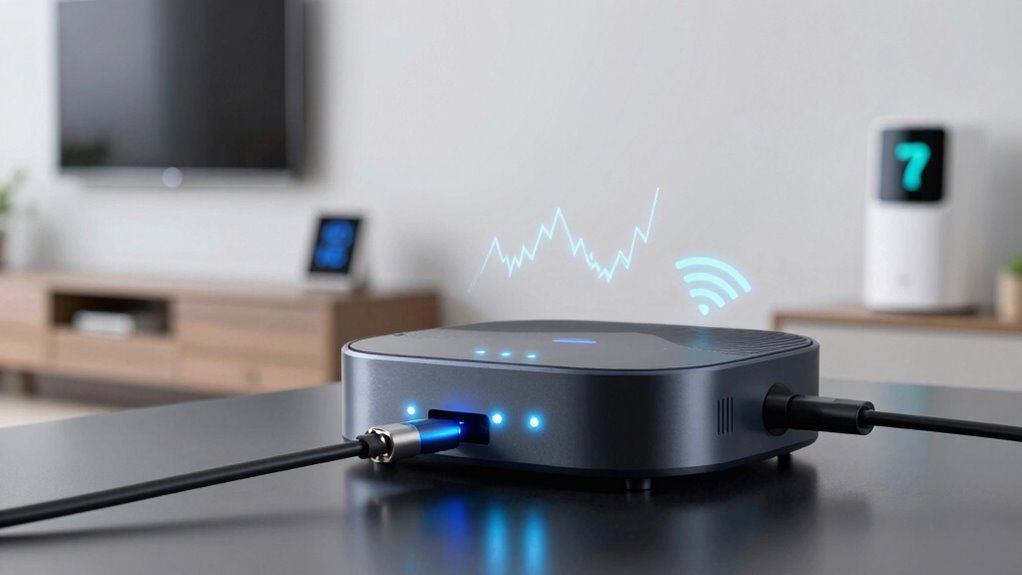
One of the most frustrating issues with smart devices is their tendency to disconnect unexpectedly. Often, this happens because of device compatibility issues. Not all devices work seamlessly with every router or platform, leading to disconnections. If your device isn’t fully compatible, it might struggle to maintain a stable connection. Signal interference is another common culprit. Wireless signals can be disrupted by other electronics, thick walls, or even neighboring Wi-Fi networks. These interferences weaken the connection, causing your device to drop offline. Additionally, outdated firmware or incompatible network settings can worsen the problem. Ensuring your smart device is compatible with your network and reducing sources of interference can help maintain a steady connection, preventing those frustrating disconnections. Understanding device compatibility is key to troubleshooting persistent connectivity issues. Checking wireless signal strength and optimizing your network setup can also significantly improve device stability. Being aware of pollution impact on wireless signals can help you identify and mitigate external sources of interference, leading to more reliable connections. Moreover, Vetted – Nightingale Studio offers insights into optimizing your smart home environment for better connectivity stability.

Wi-Fi Analyzer
Generates a snapshot view of nearby Wi-Fi signals
As an affiliate, we earn on qualifying purchases.
As an affiliate, we earn on qualifying purchases.
Diagnose Your Wi-Fi Signal and Boost Connectivity

To keep your smart devices connected without interruptions, start by diagnosing your Wi-Fi signal strength and quality. Use a Wi-Fi analyzer app to identify dead zones or weak signals in your home. If devices struggle with device pairing, it might be due to poor signal or interference. Consider implementing network segmentation by creating separate networks for your smart devices and main computers, reducing congestion and interference. Verify your router’s firmware is up to date, and position it centrally, away from thick walls or metal objects. A strong, stable Wi-Fi connection minimizes disconnections and improves device pairing. Regularly test your network’s performance, and if needed, upgrade your router or add range extenders to boost coverage. Additionally, maintaining work-life harmony by managing digital device use can help reduce stress and improve overall connectivity. Being aware of common Wi-Fi interference sources, such as microwaves or cordless phones, can also help you optimize your network setup. Recognizing potential signal obstructions can further enhance your network’s reliability, ensuring consistent connectivity for all your smart devices. If you notice persistent issues, checking your network configuration can reveal hidden problems affecting your connection. This proactive approach helps maintain consistent connectivity for all your smart devices.

Keep Connect Router Wi-Fi Reset Device. Automatic Router Rebooter. If You Enter a Phone Number it Will Send Texts Upon resets.
Automatic Router Rebooter – Stop manually rebooting your router and let Keep Connect automate the process. Keep Connect…
As an affiliate, we earn on qualifying purchases.
As an affiliate, we earn on qualifying purchases.
Keep Your Devices up to Date With Firmware and Software Updates

Making sure your devices stay current is essential for smooth operation. Regularly check for firmware updates and respond to notifications promptly to fix bugs and improve performance. Ensuring compatibility with your other devices helps prevent offline issues caused by outdated software. Additionally, maintaining simple systems can help you easily troubleshoot and keep your smart devices functioning reliably. Keeping your network secure and private also plays a crucial role in preventing connectivity problems and safeguarding your data. Regular calibration and understanding color accuracy in your devices can further enhance performance and user experience. Incorporating local automation can reduce reliance on cloud services, minimizing downtime caused by internet issues. Being aware of early warning signs can help you identify potential problems before they lead to offline failures.
Regular Firmware Checks
Regularly checking for firmware and software updates is essential to keep your smart devices running smoothly and securely. Firmware maintenance guarantees your devices stay compatible with new features and security patches, preventing potential offline issues. By keeping firmware current, you reduce the risk of compatibility problems that can cause disconnections or malfunctions. Make it a habit to verify updates through the manufacturer’s app or website. Outdated firmware can hinder device communication, leading to connectivity errors. Staying on top of these updates also helps address bugs and vulnerabilities that might compromise performance. Regular firmware checks ensure your devices remain compatible with your network and other smart gadgets, minimizing disruptions and maintaining reliable operation over time.
Update Notifications Promptly
Staying alert to update notifications guarantees your devices remain secure and functioning correctly. Firmware updates often include important security patches and performance improvements that prevent offline issues. Ignoring these alerts can lead to compatibility problems, causing devices to disconnect or become unresponsive. Promptly installing firmware updates ensures your device stays compatible with the latest network protocols and features, reducing the risk of connectivity drops. Regularly check for update prompts and install them as soon as they’re available. This proactive approach minimizes downtime and keeps your devices running smoothly. Remember, manufacturers release updates to improve device stability and security, so staying current is key to preventing offline issues and maintaining reliable connectivity. Additionally, understanding whole-home water system components can help troubleshoot connectivity problems that affect related smart home devices. Being aware of microplastics in dust can also provide insights into indoor air quality, which indirectly impacts your smart device performance and overall health. Furthermore, ensuring your network settings are optimized can help prevent disruptions caused by network interference or inadequate bandwidth. Keeping your firmware up to date also helps address compatibility issues with new smart device features and protocols. Regular maintenance, including firmware updates, can also prevent potential hardware malfunctions that might cause devices to go offline unexpectedly.
Compatibility With Devices
To guarantee your devices work seamlessly together, it’s vital to keep their firmware and software up to date. Device compatibility can be affected if your devices run outdated firmware or software versions, leading to connectivity issues or features not working correctly. Regular firmware updates ensure your devices can communicate properly with each other and the network. Sometimes, manufacturers release updates specifically to improve compatibility with new devices or protocols, so ignoring these updates can cause offline problems. Make it a habit to check for firmware updates periodically, especially after adding new devices or experiencing connectivity issues. Staying current with updates not only improves compatibility but also enhances security and performance, keeping your smart devices reliably connected and functioning smoothly. Additionally, understanding Device compatibility within the context of evolving technology standards can help you troubleshoot issues more effectively.

TP-Link Deco X55 AX3000 WiFi 6 Mesh System – Covers up to 6500 Sq.Ft, Replaces Wireless Router and Extender, 3 Gigabit Ports per Unit, Supports Ethernet Backhaul, Deco X55(3-Pack)
Wi-Fi 6 Mesh Wi-Fi – Next-gen Wi-Fi 6 AX3000 whole home mesh system to eliminate weak Wi-Fi for…
As an affiliate, we earn on qualifying purchases.
As an affiliate, we earn on qualifying purchases.
Identify and Reduce Interference That Disrupts Your Network
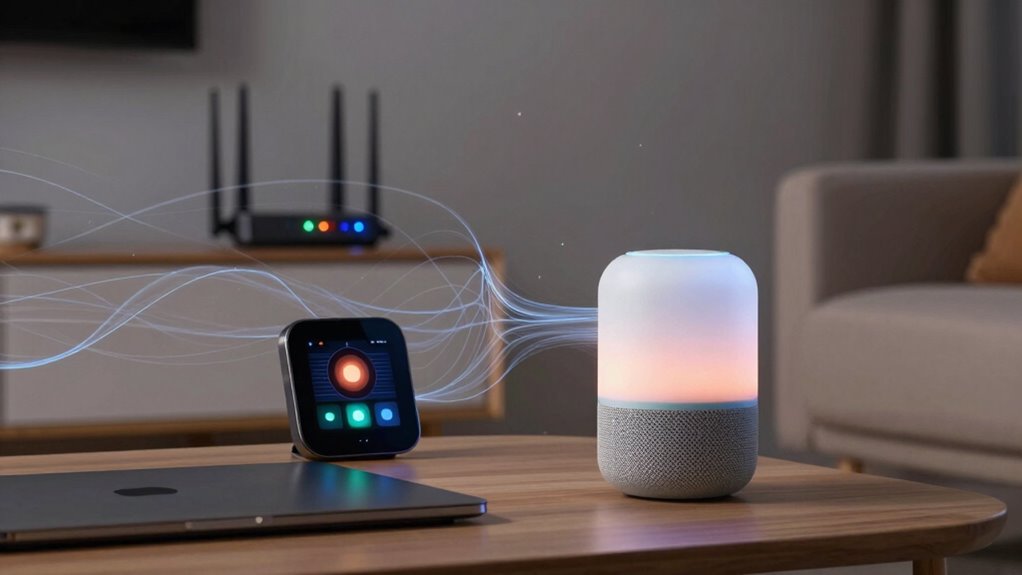
To keep your network running smoothly, you need to reduce interference that can cause devices to go offline. You can do this by minimizing electronic clutter around your router, placing it in a central, open spot, and choosing interference-resistant devices. These steps help guarantee a stable connection and improve overall network reliability. Additionally, using soundproofing techniques around your home can also minimize external disruptions that may impact your Wi-Fi signals. Ensuring your devices are compatible with wireless standards can further enhance connection stability and reduce interference issues. Being aware of reputable Gold IRA markets can also help you make informed investment decisions if you’re considering diversifying your portfolio. Paying attention to performance parts such as high-quality routers and antennas can also significantly improve your network’s resilience to interference.
Minimize Electronic Device Clutter
Electronic device clutter can silently sabotage your network by causing interference that slows down or drops your connection. In a busy smart home, multiple devices and extensive device integration can create signal congestion. To improve your network, minimize unnecessary gadgets and organize your setup. Keep devices like routers, smart hubs, and other electronics spaced apart to reduce interference.
Here’s a visual to help:
| Device Type | Placement Tip |
|---|---|
| Smart home hubs | Place centrally, away from walls |
| Wireless devices | Keep at a distance from other electronics |
| Large electronics | Avoid stacking or stacking nearby |
| Extra cables or gadgets | Declutter to prevent signal blockages |
Reducing clutter clears the path for smoother, more reliable connections.
Optimize Router Placement
Optimizing your router placement is essential for reducing interference and boosting your network’s performance. The right router placement improves signal enhancement and minimizes dead zones. Keep your router in a central location, away from thick walls or metal objects that can block signals. Elevate it off the floor and avoid placing it near appliances or electronics that emit electromagnetic interference, like microwaves or cordless phones. Positioning the router in a high, open space ensures better coverage. Also, steer clear of placing it near large metal objects or mirrors, which can reflect signals. Regularly check your router’s placement, adjusting as needed to maintain peak signal strength. Proper router placement helps your smart devices stay connected reliably and reduces disruptions caused by interference.
Use Interference-Resistant Devices
Interference from other devices can substantially disrupt your Wi-Fi signal, causing slow connections or dropped links. To combat this, use interference-resistant devices that operate on less congested frequencies, like the 5 GHz band instead of 2.4 GHz. These devices are designed to minimize the impact of frequency interference from competing gadgets such as cordless phones, microwave ovens, or Bluetooth devices. When choosing new equipment, look for models with advanced shielding and better filtering to maintain a stable wireless signal. Additionally, prioritize devices with adaptive frequency hopping, which automatically switches channels to avoid interference. By selecting interference-resistant devices, you improve your wireless signal’s stability, reducing disruptions and ensuring your smart devices stay connected reliably.
Troubleshoot Persistent Offline Devices Step-by-Step
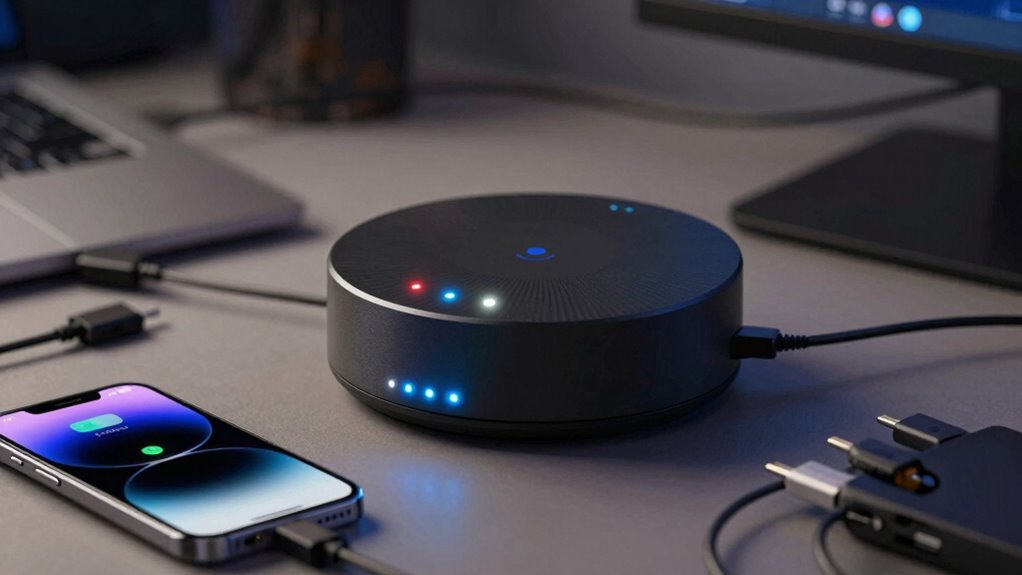
When your smart device repeatedly goes offline, troubleshooting can seem frustrating, but following a systematic approach can help identify and fix the issue quickly. Start by checking device compatibility; make certain your device supports your network’s frequency and standards. Next, verify that your device’s firmware is up to date—outdated firmware can cause connectivity issues. Visit the manufacturer’s website or app to check for updates and install them if available. Restart both your device and your router to refresh connections. If the problem persists, test the device on a different network to rule out local interference. By confirming compatibility and keeping firmware current, you address common causes of persistent offline issues efficiently.
When and How to Reset or Reconfigure Your Devices and Network
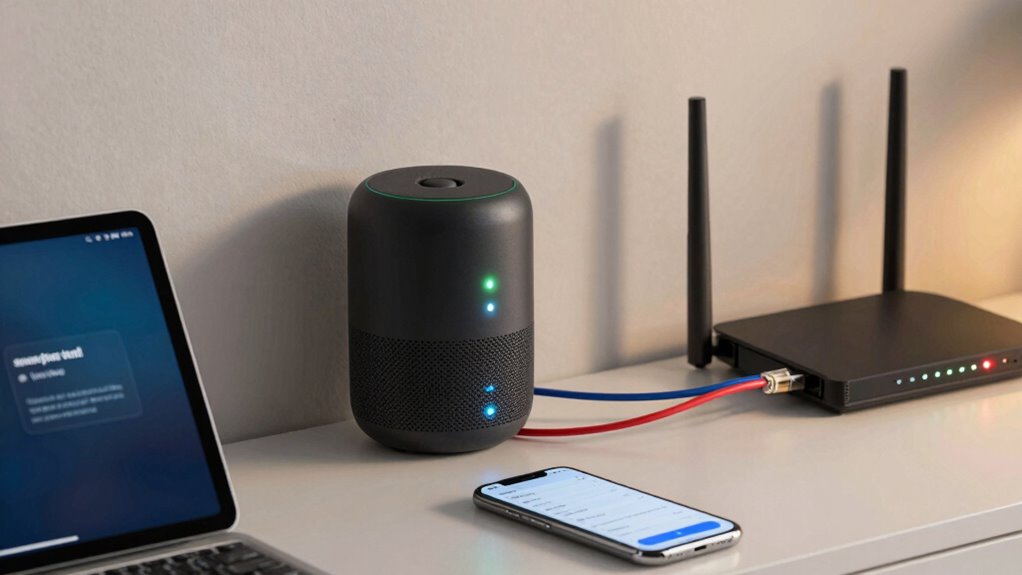
Resetting or reconfiguring your devices and network becomes necessary when troubleshooting steps don’t resolve connectivity issues or when devices continue to go offline despite updates. You should consider resetting if device pairing problems persist or if user authentication fails repeatedly. Start by unplugging your router and smart devices, then wait a few seconds before powering them back on. For reconfiguration, access your device’s settings to re-establish device pairing or update user authentication details. Sometimes, a factory reset is required to clear corrupted settings that cause disconnections. Make sure to follow manufacturer instructions carefully to avoid losing important data. Resetting or reconfiguring helps refresh network connections and resolve underlying issues, restoring stable communication between your devices and network.
Tips to Prevent Future Disconnections and Keep Devices Connected
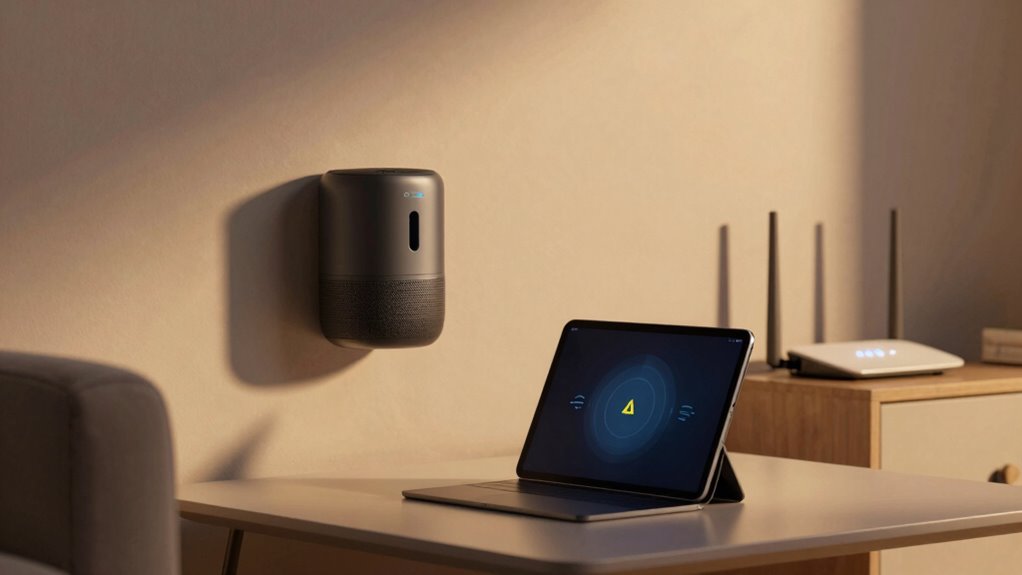
To keep your devices reliably connected, it’s essential to implement proactive strategies that minimize disruptions. Strengthening smart device security and protecting user privacy can prevent unauthorized access that causes disconnections. Regularly updating firmware ensures your devices run smoothly and stay compatible with network changes. Also, optimize your Wi-Fi setup by choosing a strong password and placing your router in a central location.
- Secure your network with strong passwords and encryption
- Keep firmware and apps up to date for compatibility and security
- Position your router optimally to ensure stable coverage
These steps not only help maintain a steady connection but also safeguard your devices from security threats, ensuring your smart devices stay online and your user privacy remains protected.
Frequently Asked Questions
Can Device Placement Affect Connection Stability?
Yes, device placement can markedly affect connection stability. If your smart device is near other electronics or thick walls, device interference can weaken signal strength, causing frequent disconnections. To improve stability, place your device in a central, open location away from potential interference sources. Ensuring a clear line of sight to your Wi-Fi router helps boost signal strength, making your smart devices more reliable and less prone to going offline.
Do Certain Smart Devices Have Known Connectivity Issues?
Like a stubborn mule, some smart devices have known connectivity issues. You might notice your smart speaker or camera disconnecting frequently. These problems often stem from outdated firmware updates or compatibility issues with your Wi-Fi network or other devices. Ensuring your devices have the latest firmware and verifying device compatibility can help improve stability. Sometimes, a quick reboot or repositioning can also reduce these persistent connectivity hiccups.
How Do I Prioritize Devices on My Wi-Fi Network?
To prioritize devices on your Wi-Fi network, start by accessing your router’s settings. Use Quality of Service (QoS) features to allocate bandwidth to essential devices, especially those with outdated device firmware. Manage network congestion by limiting the number of connected devices and scheduling heavy downloads during off-peak hours. This way, your critical smart devices stay connected and perform smoothly, reducing offline issues caused by bandwidth overload or outdated firmware.
What Security Settings Might Cause Device Disconnections?
You might be shooting yourself in the foot with certain security settings that cause disconnections. Check if firmware updates are up to date, as outdated ones can cause instability. Additionally, review your password configurations—if passwords are too complex or frequently change, devices might lose connection. Sometimes, security measures like firewalls or MAC address filtering can block devices. Keep these settings balanced to prevent your smart devices from dropping offline unexpectedly.
Are There Specific Router Features That Improve Device Stability?
Yes, enabling features like Quality of Service (QoS) on your router can improve device stability by prioritizing your smart devices’ bandwidth. Regular firmware updates also help, as they fix bugs and enhance performance. Additionally, reducing network congestion by limiting multiple devices or heavy traffic can prevent disconnections. These steps guarantee your smart devices stay connected more reliably and function smoothly.
Conclusion
Think of your smart devices as loyal companions on a journey; when they disconnect, it’s like losing touch with a trusted friend. By diagnosing issues, updating, and reducing interference, you’re tending to this relationship, ensuring it remains strong. With patience, you can turn disconnections into reconnects, symbolizing resilience and trust. Keep nurturing your network, and your smart devices will continue to guide you through a seamless, connected life—proof that even in digital chaos, harmony is within reach.