To stop browser popups and fake virus alerts in 10 minutes, start by recognizing fake alerts—look for poor design or urgent language. Clear your browser cache and cookies, then remove any suspicious extensions or add-ons. Run a reputable antivirus scan to catch malware, and update your browser and system to patch security holes. Use security tools and best practices to prevent future issues. Keep going to find out more tips for staying safe online.
Key Takeaways
- Clear browser cache and cookies to remove malicious scripts causing popups.
- Disable or remove suspicious browser extensions and add-ons immediately.
- Run a full system antivirus scan to detect and eliminate malware.
- Reset browser settings to default to eliminate unwanted changes and rogue scripts.
- Keep your software, browser, and security tools updated for maximum protection.
McAfee Total Protection 5-Device | AntiVirus Software 2026 for Windows PC & Mac, AI Scam Detection, VPN, Password Manager, Identity Monitoring | 1-Year Subscription with Auto-Renewal | Download
DEVICE SECURITY – Award-winning McAfee antivirus, real-time threat protection, protects your data, phones, laptops, and tablets
As an affiliate, we earn on qualifying purchases.
As an affiliate, we earn on qualifying purchases.
What Are Fake Virus Alerts and Malicious Popups?
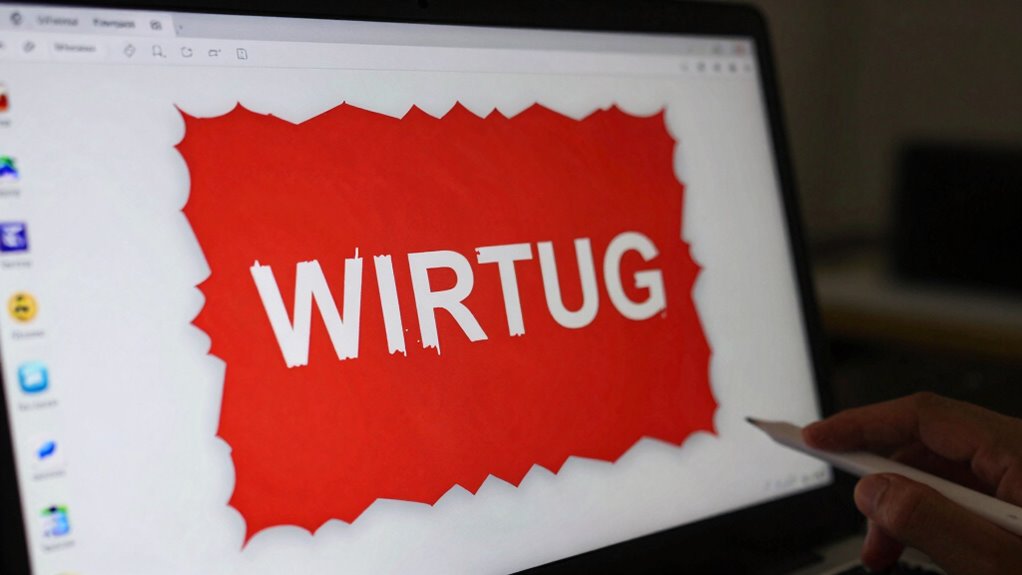
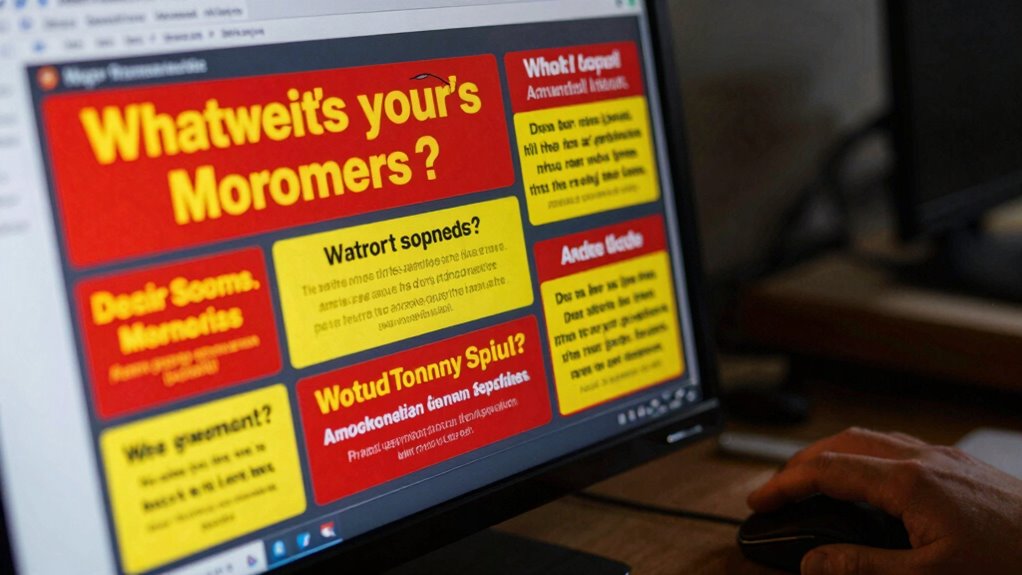
Fake virus alerts and malicious popups are deceptive messages designed to scare you into taking unnecessary or harmful actions. These alerts often mimic legitimate security warnings, making fake alert differentiation essential. They typically appear suddenly, claiming your device is infected and urging immediate action. To avoid falling for scams, you should analyze the popup origin carefully—question whether it comes from a trusted website or a suspicious source. Malicious popups usually originate from malicious scripts embedded on compromised sites or malicious ads. Recognizing these cues helps you avoid clicking links or downloading files that could infect your device. Understanding what fake virus alerts look like and where they originate empowers you to stay safe online and prevents accidental downloads of malware or scams. Additionally, being aware of the different types of popups can help you better identify and avoid these threats. Being familiar with common malware distribution methods enhances your ability to recognize suspicious activity and protect your device effectively. Knowing how malicious scripts are embedded can further improve your detection skills, especially when combined with knowledge of device security practices. Recognizing the origin of popups can also help in promptly addressing and blocking malicious content before it causes harm.
browser cache and cookie cleaner
As an affiliate, we earn on qualifying purchases.
As an affiliate, we earn on qualifying purchases.
How to Recognize Fake Virus Alerts and Malicious Popups
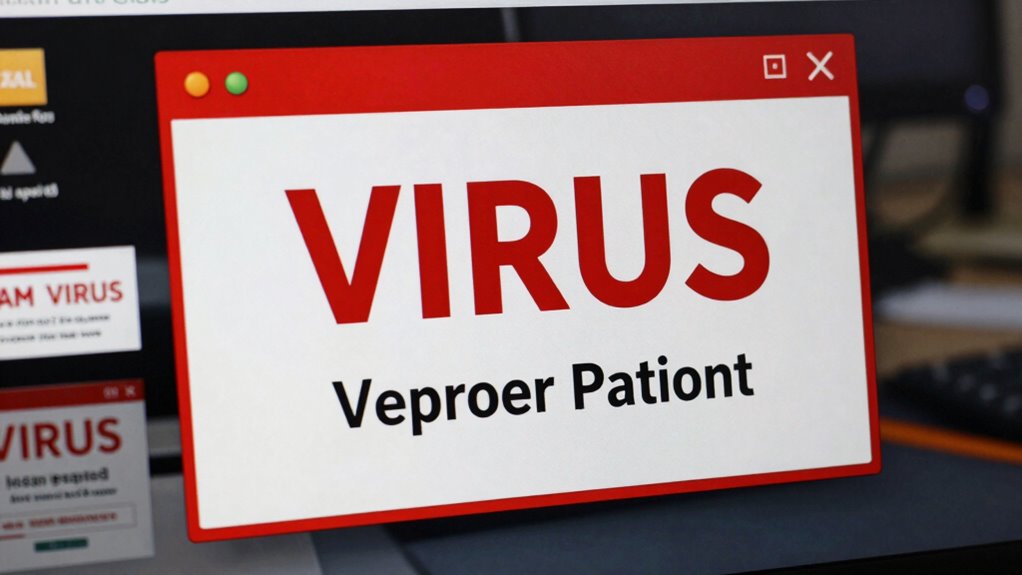
Recognizing fake virus alerts and malicious popups begins with paying close attention to their appearance and behavior. These scams often mimic legitimate security messages but typically contain spelling errors, poor design, or urgent language designed to create panic. Be wary of popups that demand immediate action or ask for personal information. Many fake alerts are part of phishing schemes, attempting to trick you into revealing sensitive data. Social engineering tactics are common, manipulating your emotions to lower your defenses. Always verify the source before clicking links or calling phone numbers provided in these messages. Genuine antivirus alerts rarely pop up unexpectedly or push you to download software immediately. Staying informed about common scam tactics can help you spot these threats more easily. It is also helpful to understand the differences between Twin Flame vs Soul Tie connections, as scammers often exploit emotional vulnerabilities to deceive individuals. Recognizing signs of malicious popups such as unusual behavior or requests for personal info can further enhance your protection. By staying alert and cautious, you can better identify these deceptive tactics and protect yourself from harm.
Extension Rod for Bathroom Pop-Up Vertical or Horizontal Rods, 6.64 Inch Pop Up Drain Extension Rod for Bathroom Sink Drain Assembly, Chrome Plated
【Extension kit】: Extend for vertical or horizontal rod of the pop up drain assembly, making it an essential…
As an affiliate, we earn on qualifying purchases.
As an affiliate, we earn on qualifying purchases.
Clear Your Browser Cache and Cookies to Stop Popups
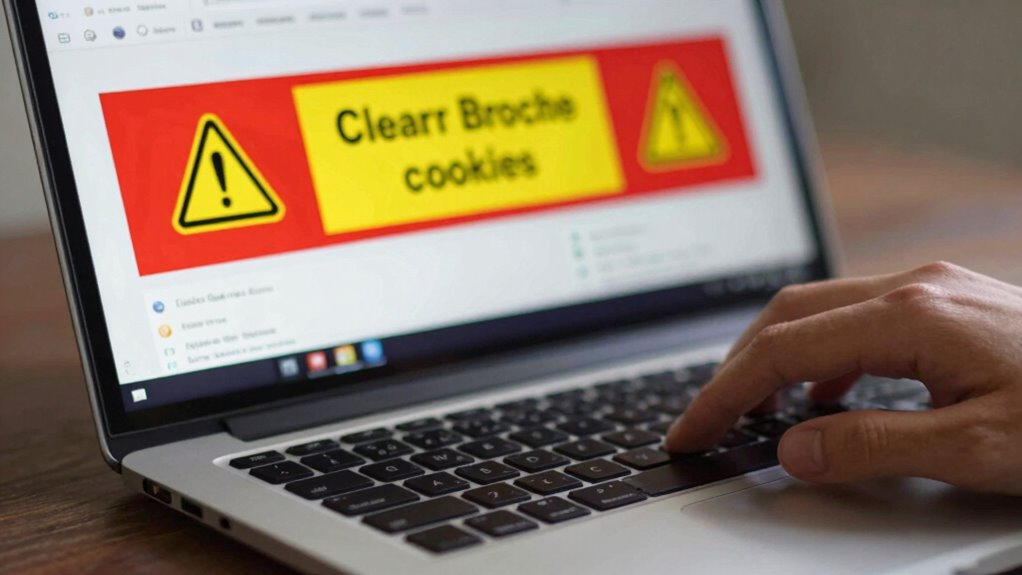
Sometimes, deceptive popups persist even after recognizing warning signs and avoiding suspicious links. Clearing your browser cache and cookies is a simple yet effective way to improve pop up prevention. These files often store malicious scripts that trigger unwanted alerts. Use cache clearing techniques regularly to remove harmful data. Here’s why it’s important:
| Step | Action | Result |
|---|---|---|
| Clear Cache | Access browser settings and choose cache clearing options | Removes stored scripts & data |
| Delete Cookies | Remove stored cookies from suspicious sites | Stops recurring popups |
| Restart Browser | Close and reopen your browser | Ensures changes take effect |
| Repeat Periodically | Do this weekly or after suspicious activity | Maintains cleaner browsing |
Regular cache clearing helps prevent popups and keeps your browser safer from malicious scripts. Proper cache management also reduces the chances of persistent malware causing unwanted alerts. Incorporating browser security practices can further enhance your protection against harmful popups. Additionally, understanding the role of cookies and cache in online security can help you better manage your privacy and safety. Staying informed about common online threats can help you recognize and avoid potential dangers more effectively. Maintaining awareness of traditional practices for holistic health can also contribute to a balanced approach to overall well-being, even in digital environments.

iolo – System Mechanic Ultimate Defense Antivirus Software and Malware, Protection & Privacy
REPAIRS – Finds and fixes over 30,000 different issues using intelligent live updates from iolo Labs to keep…
As an affiliate, we earn on qualifying purchases.
As an affiliate, we earn on qualifying purchases.
Remove Suspicious Extensions and Add-Ons

Start by checking your browser for any unwanted extensions or add-ons that you don’t remember installing. Disable any suspicious ones that could be causing popups or fake alerts. Then, remove malicious plugins to guarantee your browser stays secure and runs smoothly. Incorporating security best practices can further protect your browsing experience from threats. Additionally, reviewing your privacy policy settings can help ensure your personal data remains protected while browsing. Being aware of child development principles can also help you recognize and avoid misleading or harmful content online. Regularly updating your browser and plugins is essential for maintaining software security and preventing vulnerabilities.
Identify Unwanted Extensions
Extensions and add-ons can enhance your browsing experience, but malicious or unnecessary ones can also cause popups and fake virus alerts. To combat this, you need to identify unwanted extensions quickly. Check your browser’s extension management area and look for unfamiliar or suspicious entries. Use adware detection tools to spot malicious extensions that might be hiding. When reviewing extensions, prioritize removing those you don’t recognize or no longer use. Keep your extension management organized to prevent future issues. Here’s a quick guide:
| Extension Name | Purpose | Action Needed |
|---|---|---|
| Example Adware | Popups | Remove |
| Unknown Tool | Unfamiliar | Remove |
| Useful Extension | Safe | Keep |
| Suspicious Add-on | Suspicious | Remove |
Additionally, be aware that smart locks and office gear are increasingly integrated into security systems, so it’s important to ensure that your browser extensions related to security tools are legitimate and trustworthy. Regularly reviewing your extensions can help prevent malicious extensions from compromising your online security.
Disable Suspicious Add-Ons
If you notice suspicious or unfamiliar add-ons in your browser, it’s crucial to disable or remove them immediately to protect your system. These suspicious add-ons can hide malicious scripts or cause unwanted adware removal. To do this effectively:
- Open your browser’s extensions or add-ons menu.
- Identify and disable any suspicious or unfamiliar extensions.
- Remove the suspicious add-ons completely to prevent future issues.
- Regularly updating your browser can also help prevent security vulnerabilities associated with browser security and other emerging technologies. Awareness of side-channel attacks can help you recognize subtle signs of compromise.
Removing these add-ons helps stop popups, fake virus alerts, and malicious scripts from running. Disabling suspicious extensions reduces the risk of adware installation and improves browser security. Always review your add-ons regularly, especially after adware removal, to ensure no harmful scripts remain. Taking these steps keeps your system safe and your browsing experience clean.
Remove Malicious Plugins
Once you’ve identified suspicious add-ons, the next step is to remove any malicious plugins from your browser. Malicious plugins can compromise your browser security, leading to popups, redirects, and fake alerts. To do this, open your browser’s extension or add-on menu. Disable or remove any unfamiliar or suspicious plugins immediately. Be cautious of extensions with vague names or those you didn’t install intentionally. After removal, restart your browser to guarantee changes take effect. Regularly reviewing your plugins helps prevent future infections. Keeping your browser security tight reduces the risk of malware and fake virus alerts. By removing malicious plugins promptly, you protect your system and maintain a safer browsing environment. Staying vigilant with your extensions is vital for ongoing security. Understanding how to manage browser extensions in a secure environment can further enhance your protection. Monitoring your browser activity and detecting suspicious behavior can also help identify potential threats early.
Run an Antivirus or Anti-Malware Scan to Detect Threats
Running an antivirus or anti-malware scan is an essential step to identify and eliminate threats that may be causing unwanted popups or fake virus alerts. Use reputable antivirus tools to scan your system thoroughly. These tools can detect hidden malware and suspicious files that may be triggering fake alerts. To maximize effectiveness, consider these steps:
Running a full system scan with reputable antivirus tools is key to removing fake alerts and hidden malware.
- Update your antivirus software to ensure it recognizes the latest threats.
- Run a full system scan for all-encompassing malware removal.
- Quarantine or delete any detected threats immediately.
Performing regular scans keeps your system protected from evolving threats. Remember, malware removal isn’t a one-time fix—consistent use of antivirus tools helps prevent future infections and keeps your browser safe from unwanted popups.
Reset Your Browser Settings to Remove Unwanted Changes
Resetting your browser settings restores everything to default, removing any unwanted changes made by malware or extensions. This process also eliminates unwanted extensions that might be causing popups or fake alerts. By doing so, you get a cleaner, safer browsing experience with minimal effort.
Restore Default Browser Settings
If your browser is behaving unexpectedly or displaying unwanted changes, restoring its default settings can often resolve the problem quickly. This process resets browser customization and privacy settings, eliminating unwanted modifications from malware or rogue extensions. To do this:
- Access your browser’s settings menu and look for the “Reset” or “Restore” option.
- Confirm the reset to revert all settings to their original state.
- After resetting, review your privacy settings and make necessary adjustments for better security.
Restoring default settings removes unwanted popups, fake virus alerts, and other intrusive changes. It’s a quick way to clean up your browser and regain control, ensuring a safer, smoother browsing experience.
Remove Unwanted Extensions
Unwanted extensions often cause popups, fake alerts, and other intrusive changes in your browser. To fix this, remove these extensions and reset your browser settings. Start by opening your browser’s extension or add-on menu and delete any unfamiliar or suspicious extensions. Use Adblock tools to prevent future popups and unwanted ads. After removing extensions, reset your browser’s Privacy settings to default, which can stop unwanted changes from persisting. This process helps clear malicious scripts or redirects added by extensions. Be sure to review your settings carefully, especially security and privacy options, to guarantee no unwanted modifications remain. Resetting your browser to its original state restores the default configuration, eliminating unwanted extensions and restoring a clean browsing environment.
Update Your Browser and Operating System for Better Security
Keeping your browser and operating system up to date is one of the most effective ways to protect yourself from popups and fake virus alerts. Updates patch security vulnerabilities and improve overall protection. To stay secure:
- Enable automatic updates for your browser and OS to guarantee you always have the latest security patches.
- Adjust your privacy settings and browser customization options to block malicious sites and unwanted popups.
- Regularly review and update your security software to reinforce defenses against emerging threats.
Updating enhances your control over privacy settings, reducing risks linked to outdated software. It also helps your browser run smoothly, preventing errors that could be exploited by malicious actors. Staying current is a simple but essential step in maintaining a safer online experience.
Tips to Prevent Future Popups and Fake Alerts
To prevent future popups and fake alerts, you need to stay vigilant and adopt proactive browsing habits. Pay attention to your browser behavior and avoid clicking on suspicious links or ads, which often act as pop-up triggers. Use a reputable ad blocker to reduce unwanted popups and prevent malicious scripts from running. Keep your browser settings tight—disable pop-up windows and restrict permissions for unfamiliar sites. Regularly clear your cache and cookies to remove any lingering pop-up triggers. Be cautious with downloads and avoid visiting shady websites. Staying informed about common tactics used by scammers helps you recognize potential threats early. By controlling your browser behavior and being selective about what sites you visit, you greatly reduce the chances of encountering fake alerts in the future.
When to Seek Help From a Tech Professional
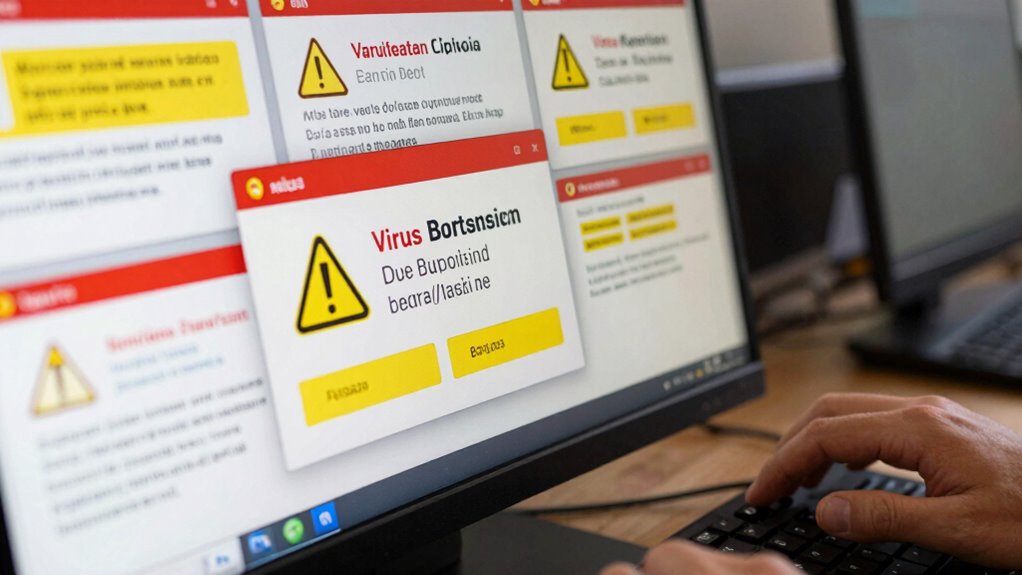
Knowing when to seek help from a tech professional is essential, especially if you’ve tried troubleshooting your issues but still can’t resolve them. If popups or fake virus alerts persist despite your efforts, it’s time to contact tech support. You should also look for help if you suspect online scams or your device shows signs of malware infection.
Seek professional help if malware persists or you suspect scams despite troubleshooting efforts.
Consider reaching out if:
- Your browser continues displaying suspicious popups despite following safety tips.
- You can’t remove malware or unwanted programs on your own.
- You’re unsure whether your device is compromised or if you’ve fallen victim to an online scam.
Getting professional assistance can prevent further damage, protect your personal information, and ensure your device is clean and secure. Don’t hesitate to turn to experts when your issue seems beyond basic troubleshooting.
Keep Your Browser Safe: Top Tools and Resources
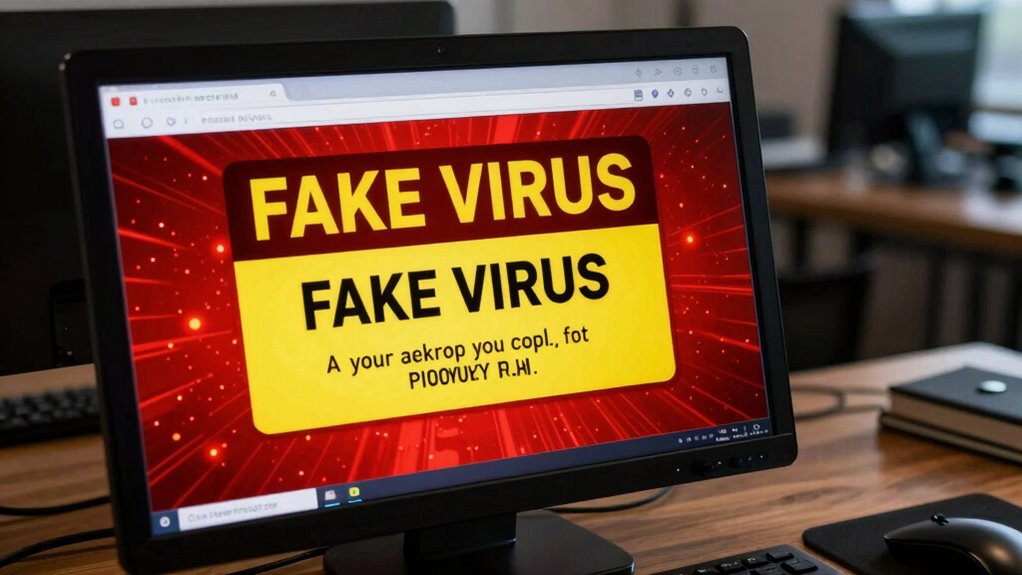
Staying safe while browsing requires you to leverage the right tools and resources that can detect and block threats before they cause harm. Start by choosing browsers that support robust security features like browser encryption, which protects your data from eavesdroppers. Use security extensions that block popups, malicious scripts, and phishing sites. Regularly review privacy policies to understand how your data is handled and opt for services that prioritize privacy. Keep your browser updated to benefit from the latest security patches. Enable two-factor authentication where available. These tools and practices work together to safeguard your online activities and prevent fake virus alerts from misleading you into risky actions. Staying informed and proactive is your best defense against evolving browser threats.
Frequently Asked Questions
Can Fake Virus Alerts Harm My Computer Even if I Ignore Them?
Yes, fake virus alerts can harm your computer even if you ignore them. They often serve as phishing scams that trick you into revealing personal info or clicking malicious links. These scams can lead to malware infections, which may slow down your device, steal data, or cause further security breaches. So, always avoid clicking on suspicious alerts and keep your antivirus software updated to protect yourself from these threats.
Are There Specific Websites More Prone to Fake Popup Attacks?
Certain websites are more prone to fake popup attacks because of their vulnerabilities and lack of security measures. Sites with high pop-up prevalence, often less secure or outdated, attract scammers who exploit these vulnerabilities. You should be cautious when visiting unfamiliar or suspicious sites, as they might serve fake popups. Always keep your browser updated, use ad blockers, and avoid clicking on suspicious links to minimize exposure to these threats.
How Do I Differentiate Between Real and Fake Security Alerts?
Did you know that over 80% of users struggle to recognize phishing scams? To differentiate between real and fake security alerts, check the alert’s origin—legitimate ones come from trusted sources like your antivirus provider or browser. Look for spelling errors, urgent language, and suspicious links. Trust your instincts and don’t click on any prompts that seem unusual. Confirm security alert legitimacy by contacting your security provider directly.
Do Ad Blockers Prevent Malicious Popups Effectively?
Yes, ad blockers are quite effective at preventing malicious popups. They work by blocking the scripts and ads that trigger unwanted windows. For better popup prevention techniques, ensure your ad blocker is updated and enabled. Combine this with browser settings to block popups and consider using security extensions. While no method is foolproof, these steps considerably reduce the chances of encountering malicious popups and fake alerts during your browsing.
What Are the Best Practices for Avoiding Fake Virus Alerts?
Imagine fake virus alerts as wolves in sheep’s clothing. To avoid falling for phishing scams and malware infections, you should keep your software updated, use reputable security tools, and never click suspicious links or download unknown attachments. Always verify alerts through official websites or support lines. Staying cautious and informed helps you spot scams early, preventing malicious popups from turning into costly malware infections.
Conclusion
By following these simple steps, you can banish fake virus alerts and malicious popups faster than a lightning strike! Say goodbye to sleepless nights and endless worries, and reclaim your browser’s safety and your peace of mind. With just a few minutes of action, you’ll turn your device into an impenetrable fortress — so powerful, hackers won’t stand a chance. Don’t wait—protect your digital world now before these scams take over completely!