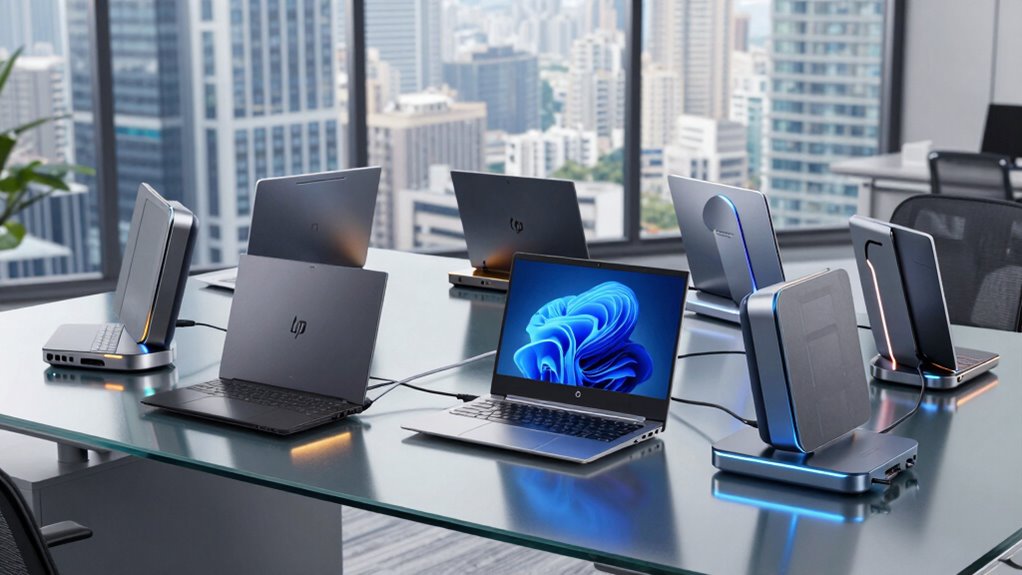

Finding the right dock for an HP EliteBook can dramatically improve your workspace by expanding connectivity and simplifying cable management. The HP Thunderbolt Dock 120W G2 stands out as the best overall choice, offering robust performance and multiple ports for versatile setups. For users on a budget, the HP USB-C G5 Docking Station provides essential features at a more accessible price, while the HP USB-C Dock G5 11-in-1 Adapter excels in portability and compatibility. The main challenge in this category is balancing connection options, power delivery, and build quality within different price points. Continue reading for a detailed breakdown of each option to help you find the perfect fit for your HP EliteBook.

Get the latest gadgets delivered free with Prime
- Fast, free delivery on millions of items
- Prime Video, Amazon Music and more included
- Member-only deals all year
Complete the kit



Key Takeaways
- The top-ranking docks balance high power delivery with multiple video outputs and expandability for diverse workspace needs.
- Most premium options prioritize build quality and additional features like Thunderbolt support, but come at a higher price.
- Budget-friendly docks often focus on essential connectivity, making them suitable for basic setups but with fewer ports and features.
- Compatibility and port selection are critical; not all docks support every HP EliteBook model equally, so matching specs is vital.
- Renewed or refurbished docks can offer significant savings but may have limited warranties or slightly reduced longevity.
| HP Docking Station for Laptop Dual Monitor and Charging – 5TW10AA G5 Dock |  | Best Overall for Versatile Connectivity | Compatible Devices: Notebook, Monitors, Laptops, Desktops | Ports: 1 USB 3.0, 1 USB-C, 1 audio port, 1 super speed USB 3.0, 1 network port, 2 DisplayPort, 1 HDMI | Network Connectivity: Gigabit Ethernet | VIEW ON AMAZON | See Our Full Breakdown |
| HP USB-C Dock G5 11-in-1 Adapter for USB-C and Thunderbolt Laptops |  | Best for Compatibility Across Devices | Compatibility: USB-C and Thunderbolt-enabled laptops | Number of ports: 11-in-1 | Size: 5 x 5 inches | VIEW ON AMAZON | See Our Full Breakdown |
| HP Thunderbolt Dock 120W G2 (2UK37AA#ABA) Docking Station – Renewed |  | Best for High-Powered HP Setups | Ports: USB-C, USB 3.0, Thunderbolt, DisplayPort, VGA, Audio Jack, Ethernet, Kensington Lock | Compatibility: HP Elite X2 1012 G1/G2, HP Pro X2 612 G2, HP EliteBook Folio G1, 1040 G4, 700 G5, and more | Dimensions: 3.9 x 3.9 x 4 inches | VIEW ON AMAZON | See Our Full Breakdown |
| HP Docking Station for Laptop Dual Monitor and Charging Bundle – Dock 5TW10AA / 5TW10UT / #ABB with 120W Adapter + HDMI Cable + DisplayPort + USB-C + Microfiber Cloth (Renewed) |  | Best for Multi-Display Productivity | Compatibility: HP and non-HP USB-C and Thunderbolt laptops | Number of Displays Supported: Up to 3 | Ports: USB 3.0, USB-C, Audio, Ethernet, DisplayPort, HDMI | VIEW ON AMAZON | See Our Full Breakdown |
| HP USB-C G5 Docking Station for Laptop with Dual Monitor and Charging Bundle | | Best for Balanced Performance and Compatibility | Compatible Devices: Notebooks, Monitors, Laptops, Desktops | Model: 5TW10AA / 5TW10UT / 5TW10AA#ABB | Power Adapter: 120W | VIEW ON AMAZON | See Our Full Breakdown |
| USB C Docking Station Dual Monitor for HP, Laptop Docking Station 3 Monitors |  | Best for Multi-Display Productivity and Power Delivery | Video Outputs: 2 HDMI, DisplayPort, VGA | Max Resolution: 4K@60Hz (HDMI), 1080P (VGA) | USB Ports: 3 USB 2.0 | VIEW ON AMAZON | See Our Full Breakdown |
| HP USB-C Dock G5 (Renewed) |  | Best for Versatile Compatibility and Business Use | Ports: 1 USB Type-C, 1 USB 3.0 (charging), 3 USB 3.0 (charging), 2 DisplayPort, 1 HDMI 2.0, 1 headphone/microphone | Dimensions: 4.8 x 4.8 x 1.77 inches | Weight: 1.49 lbs | VIEW ON AMAZON | See Our Full Breakdown |
| dock for hp elitebook | Ports | Compatibility | Dimensions | Weight |
|---|---|---|---|---|
| HP Docking Station for Laptop | 1 USB 3.0, 1 USB-C, 1 audio port, 1 super speed USB 3.0, 1 network port, 2 DisplayPort, 1 HDMI | — | — | — |
| HP USB-C Dock G5 11-in-1 Adapt | — | USB-C and Thunderbolt-enabled laptops | — | — |
| HP Thunderbolt Dock 120W G2 | USB-C, USB 3.0, Thunderbolt, DisplayPort, VGA, Audio Jack, Ethernet, Kensington Lock | HP Elite X2 1012 G1/G2, HP Pro X2 612 G2, HP EliteBook Folio G1, 1040 G4, 700 G5, and more | 3.9 x 3.9 x 4 inches | 2.4 lbs |
| HP Docking Station for Laptop | USB 3.0, USB-C, Audio, Ethernet, DisplayPort, HDMI | HP and non-HP USB-C and Thunderbolt laptops | 4.8 in x 4.8 in x 1.8 in | 23.98 oz |
| HP USB-C G5 Docking Station fo | 1 x USB-C (power), 1 x USB 3.0, 1 x Audio, 1 x Network, 1 x DisplayPort, 1 x HDMI | — | 4.8 in x 4.8 in x 1.8 in | 23.98 oz |
| USB C Docking Station Dual Mon | — | Supports USB-C with DisplayPort Alt Mode | — | — |
| HP USB-C Dock G5 | 1 USB Type-C, 1 USB 3.0 (charging), 3 USB 3.0 (charging), 2 DisplayPort, 1 HDMI 2.0, 1 headphone/microphone | Windows 7, Windows 10, Chrome OS, MacOS, Ubuntu Linux | 4.8 x 4.8 x 1.77 inches | 1.49 lbs |
More Details on Our Top Picks
HP Docking Station for Laptop Dual Monitor and Charging – 5TW10AA G5 Dock
This docking station stands out for its ability to support dual monitors with multiple display options, making it ideal for professionals needing a flexible workspace. Compared with the HP USB-C Dock G5, it offers a broader range of ports, including two DisplayPorts and HDMI, which is beneficial for multi-monitor setups. However, it falls short on details about power delivery, meaning it may not fully charge high-demand laptops during extended use. The wide compatibility with HP devices and reliable Ethernet port make it a strong choice for office environments. Its main tradeoff is the limited information on its power supply capacity, so users should verify it can meet their device’s charging needs.
Pros:- Supports dual monitor setup with multiple display options
- Provides fast and reliable network connectivity
- Compatible with a wide range of HP devices
Cons:- Limited information on power supply capacity
- No mention of charging speed or power delivery
Best for: IT managers or professionals needing a reliable, multi-monitor setup with wired network access for HP desktops or laptops.
Not ideal for: Users seeking a lightweight, portable dock for travel, as its design prioritizes connectivity over portability.
- Compatible Devices:Notebook, Monitors, Laptops, Desktops
- Ports:1 USB 3.0, 1 USB-C, 1 audio port, 1 super speed USB 3.0, 1 network port, 2 DisplayPort, 1 HDMI
- Network Connectivity:Gigabit Ethernet
- Energy Supply:Rated at 100
Our verdict“This dock is best suited for users who prioritize multiple display outputs and wired network access in a static office environment.”
HP USB-C Dock G5 11-in-1 Adapter for USB-C and Thunderbolt Laptops
This compact 11-in-1 dock excels at providing a universal connection hub for a variety of laptops, including non-HP models, with support for multiple displays and accessories. Unlike the HP Docking Station for Laptop, which is more focused on wired Ethernet and dual monitor setups, the G5 offers a versatile array of ports suitable for users who need a single, streamlined cable for charging, data, and video. Its size, at 5 x 5 inches, makes it ideal for users with limited desk space or for remote workers. The main limitation is that it only works with USB-C or Thunderbolt-enabled devices, so users with older or incompatible laptops should skip this option.
Pros:- Universal compatibility with various laptops
- Reduces desk clutter with a single-cable connection
- Supports multiple displays and accessories
Cons:- Limited to USB-C and Thunderbolt-enabled devices
- No specific price information available
- Full functionality depends on laptop compatibility
Best for: Remote workers or professionals with a mix of HP and non-HP USB-C or Thunderbolt laptops needing a compact, all-in-one connection solution.
Not ideal for: Users with older laptops lacking USB-C or Thunderbolt ports, as this dock will not be compatible.
- Compatibility:USB-C and Thunderbolt-enabled laptops
- Number of ports:11-in-1
- Size:5 x 5 inches
- Features:Charging, networking, data transfer, multiple displays, remote management
Our verdict“This dock is perfect for users seeking a universal, space-saving hub for modern USB-C or Thunderbolt laptops, especially in remote or flexible work settings.”
HP Thunderbolt Dock 120W G2 (2UK37AA#ABA) Docking Station – Renewed
This Thunderbolt dock offers a rich array of ports, including USB-C, USB 3.0, DisplayPort, VGA, Ethernet, and audio, making it well-suited for professional environments requiring extensive connectivity. Compared with the HP Docking Station for Laptop, it provides more versatile port options, especially with VGA and DisplayPort, ideal for legacy or multiple display setups. Its compact size and lightweight design make it portable enough for on-the-go professionals. The main drawback is that being a renewed product, it may have limited warranty and potential concerns about longevity. It’s best for users who need maximum port variety and high power output, but those on a tight budget or seeking brand-new devices should consider other options.
Pros:- Multiple versatile ports for various devices
- Supports high power delivery for demanding laptops
- Compact and lightweight for portability
Cons:- Renewed product may have limited warranty
- Requires compatible HP devices for full functionality
Best for: Professionals needing a portable, high-power dock that supports multiple peripherals and legacy display options for HP EliteBooks and similar devices.
Not ideal for: Budget-conscious buyers or those preferring brand-new equipment, as this is a renewed product with potential warranty limitations.
- Ports:USB-C, USB 3.0, Thunderbolt, DisplayPort, VGA, Audio Jack, Ethernet, Kensington Lock
- Compatibility:HP Elite X2 1012 G1/G2, HP Pro X2 612 G2, HP EliteBook Folio G1, 1040 G4, 700 G5, and more
- Dimensions:3.9 x 3.9 x 4 inches
- Weight:2.4 lbs
Our verdict“This dock fits professionals who require extensive port options and high power, especially if portability is a priority, but should be avoided if warranty concerns are critical.”
HP Docking Station for Laptop Dual Monitor and Charging Bundle – Dock 5TW10AA / 5TW10UT / #ABB with 120W Adapter + HDMI Cable + DisplayPort + USB-C + Microfiber Cloth (Renewed)
This docking station supports up to three displays, making it an excellent choice for users needing extensive screen real estate. Its compatibility with both HP and non-HP laptops via USB-C or Thunderbolt enhances its flexibility. Compared to the HP USB-C Dock G5, it offers more display outputs, including HDMI and DisplayPort, and supports more extensive multi-monitor arrangements. Its compact form factor and included accessories like HDMI cable and microfiber cloth add value for workspace organization. However, being a renewed product, it might come with limited warranty and firmware update requirements. This dock is ideal for productivity-focused users who need multiple screens in a single, space-saving device.
Pros:- Supports up to three displays for enhanced productivity
- Universal compatibility with various laptops
- Compact, space-saving design with included accessories
Cons:- Requires compatible USB-C or Thunderbolt ports
- Firmware updates may be needed for full compatibility
- Renewed product may have limited warranty
Best for: Designers, traders, or multitaskers who need up to three displays for complex workflows, especially in a shared or flexible workspace.
Not ideal for: Users with strict budget constraints or those requiring brand-new equipment, given the renewed status and possible warranty limitations.
- Compatibility:HP and non-HP USB-C and Thunderbolt laptops
- Number of Displays Supported:Up to 3
- Ports:USB 3.0, USB-C, Audio, Ethernet, DisplayPort, HDMI
- Power Adapter:120W
- Dimensions:4.8 in x 4.8 in x 1.8 in
- Weight:23.98 oz
Our verdict“This multi-display dock is perfect for power users needing extensive screen real estate in a compact form, provided they accept the renewal status risk.”
HP USB-C G5 Docking Station for Laptop with Dual Monitor and Charging Bundle
This dock provides a well-rounded option for users needing dual monitor support plus reliable charging, with a powerful 120W adapter. Its support for HDMI and DisplayPort allows flexible multi-monitor configurations, making it comparable to the Dock 5TW10AA but with a slightly more streamlined setup. Its universal compatibility with HP and non-HP USB-C and Thunderbolt laptops makes it suitable for mixed-device environments. However, it shares similar limitations—requiring compatible ports and potential firmware updates—meaning it’s best suited for users with modern laptops that support these standards. The inclusion of a high-capacity power adapter makes it particularly appealing for demanding workflows, though it may be overkill for casual users.
Pros:- Supports up to two displays with HDMI and DisplayPort
- Includes a 120W power adapter for demanding devices
- Universal compatibility with a wide range of laptops
Cons:- Requires compatible USB-C or Thunderbolt ports
- May need firmware updates for full feature set
Best for: Busy professionals or teams who need dual monitors and robust charging in a compact, universally compatible dock.
Not ideal for: Owners of older laptops without USB-C or Thunderbolt ports, as compatibility is limited.
- Compatible Devices:Notebooks, Monitors, Laptops, Desktops
- Model:5TW10AA / 5TW10UT / 5TW10AA#ABB
- Power Adapter:120W
- Ports:1 x USB-C (power), 1 x USB 3.0, 1 x Audio, 1 x Network, 1 x DisplayPort, 1 x HDMI
- Dimensions:4.8 in x 4.8 in x 1.8 in
- Weight:23.98 oz
Our verdict“This dock suits users looking for a balanced mix of dual monitor support and high-power charging, especially in multi-device environments.”
USB C Docking Station Dual Monitor for HP, Laptop Docking Station 3 Monitors
This docking station stands out for supporting two 4K displays via HDMI, making it ideal for users who need extensive screen real estate. Compared with the HP USB-C Dock G5, it offers higher resolution support for multiple monitors, but the VGA port limits one display to 1080P, which could be a drawback for users needing legacy port support at high resolutions. Its 100W power delivery ensures fast charging for compatible HP EliteBooks, streamlining workspace clutter. The inclusion of three USB 2.0 ports enhances peripheral connectivity, though it lacks newer USB 3.0 ports which are more common in modern setups. The requirement for a DisplayPort Alt Mode-compatible USB-C port means not all laptops will work seamlessly without checking specs. The absence of a power adapter means users must supply their own, adding an extra step. This dock makes the most sense for professionals who prioritize multiple high-res displays, reliable charging, and basic peripheral support, but less so for those needing USB-C 3.0 or Thunderbolt 3/4 compatibility.
Pros:- Supports dual 4K displays at 60Hz for crisp, detailed visuals
- Power delivery up to 100W for fast charging of compatible laptops
- Multiple USB 2.0 ports for peripherals and accessories
Cons:- VGA port only supports 1080P, limiting legacy display options
- Requires a compatible USB-C port with DisplayPort Alt Mode, which isn’t universal
Best for: Professionals who need dual 4K monitors, reliable charging, and multiple peripherals in a workspace.
Not ideal for: Users with legacy equipment relying heavily on VGA or those requiring Thunderbolt 3 support, as compatibility and port options are limited.
- Video Outputs:2 HDMI, DisplayPort, VGA
- Max Resolution:4K@60Hz (HDMI), 1080P (VGA)
- USB Ports:3 USB 2.0
- Power Delivery:Up to 100W input, 87W output
- Compatibility:Supports USB-C with DisplayPort Alt Mode
Our verdict“This dock is best suited for users needing high-resolution dual displays and charging in a professional setting but may fall short for those requiring newer USB standards or legacy ports at higher resolutions.”
HP USB-C Dock G5 (Renewed)
This dock provides a compact, single-cable solution that works well across many operating systems, making it ideal for mixed-device environments. Unlike the more specialized dual-monitor docks, the G5 offers multiple ports including HDMI and DisplayPort, but its single video output limits multi-monitor configurations unless adapters are used. Its compatibility with Windows, Mac, Chrome OS, and Linux makes it versatile for different users, but the renewed status introduces some uncertainty regarding warranty and condition, which may concern corporate or heavy users. The inclusion of advanced features like PXE Boot and MAC Address Pass-Through makes it particularly attractive for enterprise deployments, yet these features are unnecessary for casual users. The dock’s small footprint helps keep desks tidy, but it requires a USB-C or Thunderbolt-enabled laptop for full functionality, which could exclude some older models. This pick is best for IT managers or users who value broad OS support and manage multiple devices with a single dock, but it’s less ideal for those needing multiple high-resolution displays without adapters.
Pros:- Supports multiple operating systems including Windows, MacOS, Chrome OS, and Linux
- Compact size saves desk space and reduces clutter
- Features advanced management options like PXE Boot and MAC Address Pass-Through
Cons:- Renewed product may have limited warranty or unknown condition
- Requires a USB-C or Thunderbolt port for full functionality, limiting compatibility with older laptops
Best for: IT professionals and business users managing diverse devices who need a compact, manageable docking solution.
Not ideal for: Consumers with older laptops lacking USB-C or Thunderbolt, or those needing multiple 4K monitors without adapters, as the dock’s single video output limits expansion.
- Ports:1 USB Type-C, 1 USB 3.0 (charging), 3 USB 3.0 (charging), 2 DisplayPort, 1 HDMI 2.0, 1 headphone/microphone
- Dimensions:4.8 x 4.8 x 1.77 inches
- Weight:1.49 lbs
- Compatibility:Windows 7, Windows 10, Chrome OS, MacOS, Ubuntu Linux
- Features:PXE Boot, LAN/WLAN switching, WoL, MAC Address Pass-Through
Our verdict“This dock is ideal for multi-device environments requiring broad OS support and enterprise features, but less suitable for users prioritizing multiple 4K displays or older hardware.”

How We Picked
The products in this roundup were evaluated based on their connectivity options, power delivery capabilities, build quality, and compatibility with HP EliteBook models. We prioritized docks that support multiple monitor setups, high-speed data transfer, and reliable charging power. Durability and ease of use also played a key role, along with overall value for different budget ranges. Docks that offer a combination of these factors, especially those with positive user feedback and broad compatibility, ranked higher in this list. The goal was to find options suitable for various users—from casual to professional—while maintaining high standards of performance and reliability.| dock for hp elitebook | Compatibility |
|---|---|
| HP Docking Station for Laptop | — |
| HP USB-C Dock G5 11-in-1 Adapt | USB-C and Thunderbolt-enabled laptops |
| HP Thunderbolt Dock 120W G2 | HP Elite X2 1012 G1/G2, HP Pro X2 612 G2, HP EliteBook Folio G1, 1040 G4, 700 G5, and more |
| HP Docking Station for Laptop | HP and non-HP USB-C and Thunderbolt laptops |
| HP USB-C G5 Docking Station fo | — |
| USB C Docking Station Dual Mon | Supports USB-C with DisplayPort Alt Mode |
| HP USB-C Dock G5 | Windows 7, Windows 10, Chrome OS, MacOS, Ubuntu Linux |
Factors to Consider When Choosing Dock For Hp Elitebook
Choosing the right dock for your HP EliteBook involves more than just matching ports. It requires understanding your specific connectivity needs, power requirements, and workspace setup. Considering these factors carefully can prevent costly mistakes and ensure seamless integration with your device. Here are key considerations to keep in mind:Compatibility and Port Selection
Verify that the dock supports your specific HP EliteBook model, especially regarding USB-C or Thunderbolt compatibility. Look for docks with a variety of ports—such as HDMI, DisplayPort, USB-A, and Ethernet—to match your peripherals and display needs. Ensuring compatibility helps avoid connectivity issues and future-proofs your setup as your needs evolve.
Power Delivery and Charging
Check the dock’s power output to ensure it can charge your HP EliteBook adequately, ideally matching or exceeding your laptop’s original charger wattage. A dock with insufficient power delivery can result in slower charging or even drained batteries during heavy use. Prioritize docks that support fast charging and provide reliable power to keep your device ready throughout the day.
Build Quality and Reliability
Durability matters, especially for docks that stay on your desk long-term. Metal construction tends to last longer and resist wear better than plastic. Consider user reviews about build quality and longevity, especially if opting for refurbished or renewed models, to avoid frequent replacements or technical issues.
Ease of Use and Setup
Simplicity in connection and setup can save time and frustration. Look for docks with straightforward plug-and-play functionality, clear port labeling, and minimal driver requirements. A user-friendly dock makes it easier to switch between different devices or workspace configurations without hassle.
Price and Overall Value
While it’s tempting to opt for the cheapest option, consider the tradeoffs in ports, power, and build quality. Sometimes paying a bit more yields better longevity, more features, and a more seamless experience. Balance your budget with your needs to find a dock that provides the best overall value for your specific use case.
Frequently Asked Questions
Will a universal dock work with my HP EliteBook?
Many universal docks are compatible with HP EliteBook laptops, especially those supporting USB-C or Thunderbolt standards. However, it’s important to verify that the dock supports the specific ports and power requirements of your model. Compatibility can vary, so checking the specifications against your laptop’s port types and wattage needs helps prevent connection issues or insufficient charging.
Can I connect multiple monitors to an HP EliteBook with a dock?
Most docks in this roundup support dual or even triple monitor setups, but the number of supported displays depends on the dock’s graphics output capabilities. Thunderbolt docks generally handle multiple high-resolution monitors more reliably, making them ideal for professional tasks. Always confirm the maximum number of displays and resolution support before purchasing to match your workflow needs.
Is it better to choose a dock with Thunderbolt or USB-C only?
Thunderbolt docks typically offer faster data transfer, higher power delivery, and greater expandability, making them suitable for demanding professional use. USB-C-only docks can still be effective for everyday tasks and usually cost less. Your choice depends on your performance needs and whether your HP EliteBook supports Thunderbolt; if it does, investing in a Thunderbolt dock can provide future-proofing and enhanced capabilities.
Are refurbished docks a safe choice?
Refurbished docks can offer significant savings and still deliver solid performance when purchased from reputable sources. However, they may have limited warranties and slightly reduced longevity. It’s important to check the refurbisher’s return policy and warranty coverage, and ensure the dock has passed quality control tests to avoid compatibility or durability issues.
What is the most important feature to consider for a dock for HP EliteBook?
The most vital feature is compatibility with your specific model, especially regarding port types and power delivery. A dock that supports your laptop’s charging requirements and offers enough ports for your peripherals ensures a smooth, clutter-free workspace. Prioritizing compatibility and power ensures the dock will perform reliably over time, making it the foundation of your workstation setup.
Conclusion
For most users, the HP Thunderbolt Dock 120W G2 offers the best overall experience, combining speed, expandability, and build quality. If you’re seeking the best value, the HP USB-C G5 Docking Station provides essential features at a lower price point. Professionals who need maximum performance and multiple monitor support will find the HP Thunderbolt Dock 120W G2 or similar premium options worth the investment. Beginners or casual users should consider simpler, more affordable docks to avoid unnecessary complexity. For those with specific workspace needs, such as multi-monitor setups or high-powered tasks, choosing a dock with Thunderbolt support or higher wattage can make a noticeable difference. Ultimately, matching the dock’s features to your usage scenario ensures a smooth, future-proof connection for your HP EliteBook.
Halloween Picks
halloween
As an affiliate, we earn on qualifying purchases.