
If your Bluetooth keeps disconnecting and gets stuck in a pairing loop, start by ensuring devices are within range and free from interference. Restart and reset your devices, then update their firmware and drivers to fix bugs and improve stability. Follow correct pairing steps and clear old connections or cache. For persistent issues, check environmental factors or damaged hardware. To learn more and troubleshoot deeper, explore the detailed tips below for a smoother Bluetooth experience.
Key Takeaways
- Ensure devices have updated firmware and Bluetooth drivers to prevent compatibility issues causing disconnections.
- Reset devices to factory settings and re-pair following proper pairing procedures for a fresh connection.
- Check for environmental interference from Wi-Fi, microwaves, or other Bluetooth devices and minimize obstacles.
- Keep devices within range, maintain good battery health, and turn off unused Bluetooth connections.
- Use diagnostic tools to identify interference, signal fluctuations, or hardware issues, and seek professional help if problems persist.

TP-Link USB Bluetooth Adapter for PC, Bluetooth 5.3 Long Range Receiver, Plug and Play, Adjustable Antenna, Supports Windows 11/10/8.1/7 for Desktop, Laptop, Keyboard, Mouse, etc (UB500 Plus)
𝐁𝐥𝐮𝐞𝐭𝐨𝐨𝐭𝐡 𝟓.𝟑 𝐒𝐮𝐩𝐩𝐨r𝐭 – Applies the latest Bluetooth 5.3 plus EDR technology and is backward compatible with Bluetooth…
As an affiliate, we earn on qualifying purchases.
As an affiliate, we earn on qualifying purchases.
Why Does My Bluetooth Keep Disconnecting?
If your Bluetooth keeps disconnecting, there could be several reasons behind the issue. During Bluetooth troubleshooting, you might find that your device needs better optimization. Outdated software or firmware can cause connection drops, so make certain everything is up to date. Interference from other wireless devices or crowded Wi-Fi channels can also disrupt signals. Additionally, low battery levels on your device or Bluetooth accessory can lead to unstable connections. Sometimes, the problem lies in the Bluetooth settings, where resetting or re-pairing can help. By focusing on device optimization—like turning off unused Bluetooth connections and restarting your device—you can often fix frequent disconnections. Recognizing common causes, including device compatibility, allows you to maintain a stable Bluetooth connection and enjoy seamless pairing. Furthermore, ensuring your device’s wireless technology is functioning properly can significantly improve connection stability. Regularly checking for software updates can prevent many connection issues before they occur. Also, paying attention to filter maintenance and ensuring your device’s environment is free from excessive dust or obstructions can contribute to better overall device performance. In addition, optimizing your device’s wireless environment can reduce interference and enhance stability.

Diymore DIY Bluetooth Speaker Kit – Radio Soldering Practice Kit with Acrylic Case,Dual Speakers&Remote Control,for TF/AUX/Bluetooth/USB Support,Remote Control Soldering Project for Indoor/Outdoor
DIY PROJECT KIT: Complete radio assembly kit with transparent acrylic case, dual speakers, control board, and all necessary…
As an affiliate, we earn on qualifying purchases.
As an affiliate, we earn on qualifying purchases.
How to Check If Devices Are Within Range and Free of Interference
Ensuring your Bluetooth devices are within effective range is essential for a stable connection, especially since wireless signals can weaken or drop if they’re too far apart. To check, keep your devices close—ideally within 10 meters—since a weak device signal causes disconnects. Be aware of interference sources like Wi-Fi routers, microwaves, or other Bluetooth devices, which can disrupt the signal. Move away from these sources to see if the connection improves. Also, ensure there are no thick walls or metal objects blocking the signal path. Testing device proximity and eliminating interference sources helps confirm whether distance or environmental factors are causing the disconnects. Keeping devices within the optimal range and free from interference supports a more reliable Bluetooth connection. Understanding signal range can help you troubleshoot and maintain a stable connection. Additionally, being aware of potential market manipulation tactics, such as pump schemes, can help you stay cautious when engaging in crypto-related activities. Regularly reviewing wireless interference sources in your environment, including interfering electronic devices, can further improve connection stability.
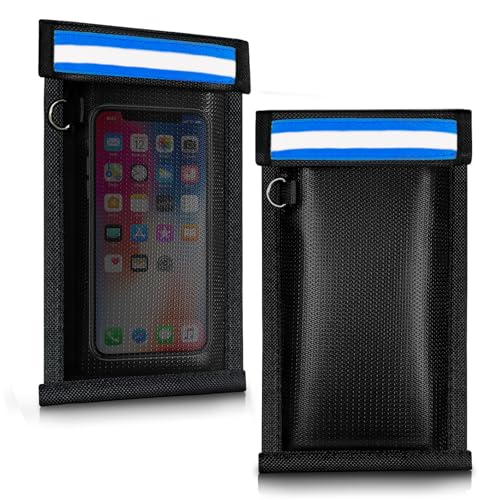
ocuvaep Faraday Bags for Phones and Car Keys (2 Pack), Military Grade Signal Blocking Bag Blocks 5G, WiFi, GPS, RFID & Bluetooth, Anti-Theft Protection for Phones & Digital Privacy
【Perfect Signal Blocking】ocuvaep Faraday bags feature a double-fold closure. They are made of double-layer super-shielding metal fibers, which…
As an affiliate, we earn on qualifying purchases.
As an affiliate, we earn on qualifying purchases.
How to Restart and Reset Your Bluetooth Devices
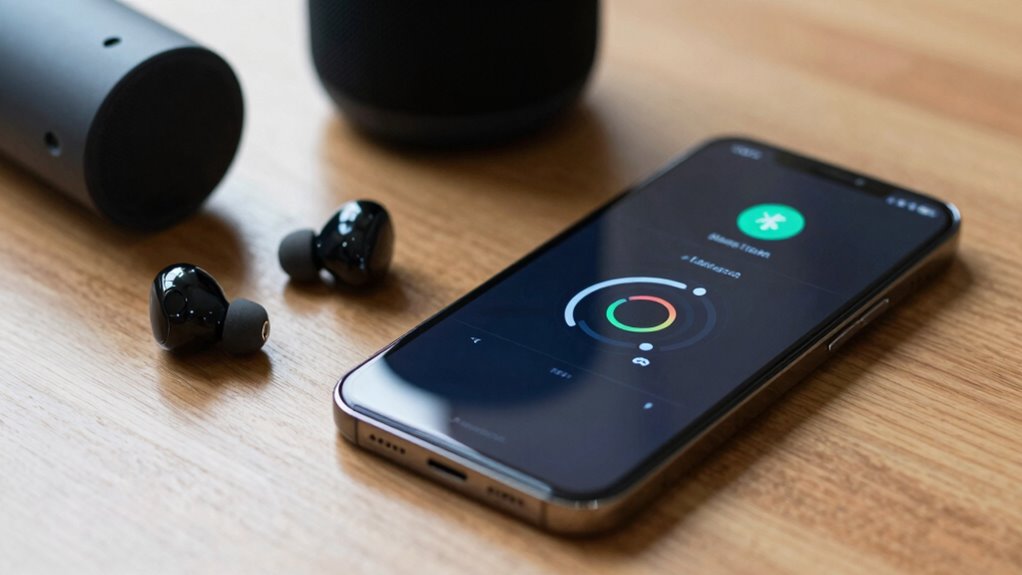
Sometimes, despite being within range and free from interference, Bluetooth devices still experience disconnects. Restarting your devices can often resolve this. Power off your Bluetooth device completely, then turn it back on to refresh the connection. For a deeper reset, consider resetting the device to factory settings, which can clear temporary glitches. Check your device firmware; outdated firmware can cause connectivity issues, so guarantee it’s up to date. Also, verify that the Bluetooth profiles on both devices are compatible. Resetting the Bluetooth connection often resets these profiles, helping to restore a stable connection. After restarting, re-pair your devices, making sure to follow the pairing instructions carefully. This process can resolve common software glitches affecting device performance and connection stability. Ensuring your device’s firmware is current can prevent many common connectivity problems, and regularly updating your device’s software can also help prevent compatibility issues with other Bluetooth devices. Additionally, keeping your device’s software updated is crucial for maintaining a reliable connection. Regularly performing these steps can help maintain a stable Bluetooth connection and improve overall device performance. Incorporating routine maintenance of your Bluetooth devices can further enhance their longevity and reliability.
TP-Link USB Bluetooth Adapter for PC, Bluetooth 5.3 Long Range Receiver, Plug and Play, Adjustable Antenna, Supports Windows 11/10/8.1/7 for Desktop, Laptop, Keyboard, Mouse, etc (UB500 Plus)
𝐁𝐥𝐮𝐞𝐭𝐨𝐨𝐭𝐡 𝟓.𝟑 𝐒𝐮𝐩𝐩𝐨r𝐭 – Applies the latest Bluetooth 5.3 plus EDR technology and is backward compatible with Bluetooth…
As an affiliate, we earn on qualifying purchases.
As an affiliate, we earn on qualifying purchases.
How to Update Bluetooth Firmware and Drivers for Better Connection
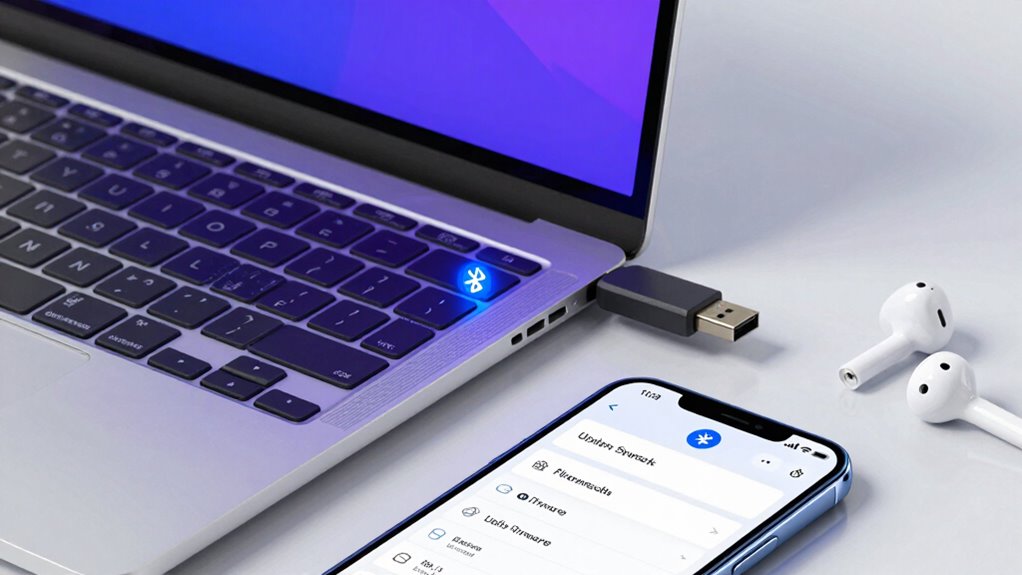
To improve your Bluetooth connection, you should first check if your device is compatible with the latest updates. Next, download and install the newest firmware and driver updates available from your device manufacturer. Regularly updating these guarantees your Bluetooth stays stable and minimizes disconnects.
Check Device Compatibility
Are your Bluetooth devices still disconnecting despite troubleshooting efforts? First, check device compatibility. Not all devices work seamlessly with every Bluetooth version or profile, which can cause disconnections. Confirm that your device supports the Bluetooth version required by your peripherals. Outdated or incompatible hardware may struggle to maintain a stable connection. Additionally, verify that your device’s firmware is up to date, as manufacturers often release updates to improve compatibility and fix bugs. If your device isn’t compatible or has outdated firmware, it might be the root of persistent disconnects. Ensuring compatibility and keeping firmware current are essential steps before diving into further troubleshooting. This helps create a solid foundation for a more reliable Bluetooth connection. Also, device compatibility can be affected by hardware limitations or outdated technology, so staying informed about your device’s specifications is crucial. Regularly reviewing Bluetooth standards can help you understand what features are necessary for optimal performance.
Download Latest Firmware Updates
Updating your Bluetooth firmware and drivers can markedly improve connection stability, especially if your devices continue to disconnect despite compatibility checks. To do this, visit your device manufacturer’s website or use their support tools to find the latest firmware updates. Ensuring your firmware is current enhances device compatibility and fixes bugs that cause disconnections. Check for updates regularly to maintain peak performance. Additionally, understanding nail biology can remind you of the importance of proper care and maintenance for your devices, just as with nails.
| Firmware Updates | Device Compatibility |
|---|---|
| Improve stability | Prevent disconnections |
| Fix bugs | Enhance device support |
| Available online | Compatibility checks |
| Follow manufacturer instructions | Keep devices synced |
Update Bluetooth Drivers Regularly
Regularly updating your Bluetooth drivers is vital for maintaining a stable connection. Outdated drivers can cause Bluetooth troubleshooting issues, including frequent disconnects and pairing problems. To guarantee peak performance, check for driver updates through your device manager or the manufacturer’s website. Updated drivers improve compatibility with new Bluetooth standards and fix bugs that may disrupt your connection. Keep an eye out for driver update notifications or manually verify your drivers’ versions periodically. Updating drivers is a simple, effective step that can resolve many pairing loops and disconnect issues. Don’t ignore driver updates; they’re essential for a smoother Bluetooth experience and reducing connection disruptions. Additionally, understanding Bluetooth device compatibility can help prevent many common connection issues. Staying informed about hardware specifications can also contribute to a more reliable connection experience, especially when considering devices with varying regional standards.
How to Pair Your Devices Correctly
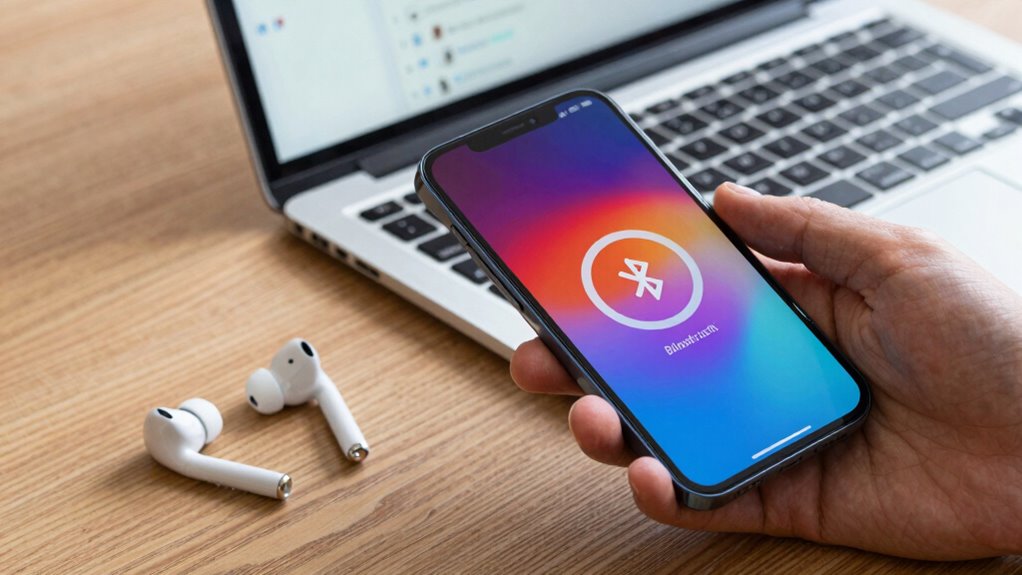
To guarantee your devices connect smoothly, you need to verify they’re compatible with each other. Follow the correct pairing steps, like enabling Bluetooth and making sure your device is discoverable. Doing this properly can prevent disconnects and improve overall connection stability. Additionally, ensuring your devices are up to date can resolve compatibility issues and enhance connection reliability. Regularly checking for software updates can help maintain a reliable and secure connection, and understanding your device’s compatibility requirements can prevent pairing problems before they start. Being aware of internet safety practices can also protect your devices from security risks during the pairing process.
Ensure Device Compatibility
Ensuring device compatibility is essential for a stable Bluetooth connection. Before pairing, verify that your devices support the same Bluetooth version and profiles, as incompatibility can cause disconnects. Check the device specifications or user manuals for compatibility details. Additionally, keep your devices’ firmware updated, as manufacturers often release updates that fix bugs and improve connectivity. Outdated firmware can hinder pairing or cause frequent disconnections. If your devices aren’t compatible, consider upgrading to newer models that support the latest Bluetooth standards. By confirming device compatibility and ensuring firmware is current, you minimize the risk of connection issues and establish a more reliable Bluetooth link. This proactive step helps prevent frustrating disconnects and enhances overall performance. device compatibility is a crucial factor that impacts the stability of your Bluetooth connections.
Follow Proper Pairing Steps
Properly pairing your devices is essential for maintaining a stable Bluetooth connection. Start by turning on Bluetooth on both devices and ensuring they’re discoverable. Follow the correct pairing sequence: select the device you want to connect to from your list of available devices, then confirm the pairing request if prompted. Avoid rushing through the process or skipping steps, as this can cause connection issues. Once paired, allow your devices to complete the device synchronization before using them. If the pairing fails, remove the device from your Bluetooth list and repeat the steps. Proper pairing helps establish a reliable connection by ensuring both devices recognize and trust each other. This reduces the chances of disconnections and keeps your Bluetooth connection steady.
How to Clear Bluetooth Cache and Remove Old Pairings

Over time, your device’s Bluetooth cache can become cluttered with outdated information, which may lead to frequent disconnects. Clearing the cache helps improve Bluetooth security and streamlines cache management. To do this, follow these steps:
| Step | Action | Result |
|---|---|---|
| 1 | Go to Settings > Bluetooth | Opens Bluetooth menu |
| 2 | Find paired device | Select device to remove |
| 3 | Tap ‘Forget’ or ‘Remove’ | Removes old pairing info |
Removing outdated pairings clears the cache, preventing connection issues. Regular cache management keeps your Bluetooth connections stable and secure. Clearing the cache also helps your device forget obsolete data, reducing the chance of conflicts and disconnections. This simple step is vital for maintaining reliable Bluetooth performance.
Troubleshooting Bluetooth Headphones, Speakers, and Other Devices

When your Bluetooth headphones, speakers, or other devices keep disconnecting, it can be frustrating, but many issues are fixable with some straightforward troubleshooting steps. First, check the device’s battery life; low power can cause disconnections and drop in audio quality. Second, make certain your device is within range—obstacles or distance can weaken the signal. Third, restart both your device and the Bluetooth gadget to refresh connections. Additionally, consider updating firmware or drivers, as outdated software can cause instability. Maintaining good battery health and keeping your devices close will improve overall audio quality and reduce disconnects. Staying attentive to these factors helps keep your Bluetooth experience seamless and frustration-free.
How to Adjust Bluetooth Settings and Power Options

Adjusting your Bluetooth settings and power options can substantially improve connection stability. First, check your device’s Bluetooth settings to verify Bluetooth is enabled and discoverable. Disable any unnecessary connections to reduce interference. On Windows, go to Power Options and set your device to a balanced or high-performance plan, which keeps Bluetooth active without unnecessary power saving. For mobile devices, disable battery saver modes that might restrict Bluetooth activity. Additionally, update your device’s Bluetooth drivers or firmware to the latest version. Adjusting these settings helps maintain consistent connections, preventing frequent disconnects. Keep Bluetooth and power settings optimized to guarantee your device stays paired and functional, reducing the frustration of repeated disconnections. Proper configuration makes a significant difference in connection reliability.
Using Apps and Tools to Diagnose Bluetooth Connection Problems

Using apps and tools can help you identify what’s causing Bluetooth disconnects. Diagnostic apps monitor connection stability and reveal signal interference, making troubleshooting easier. By analyzing this data, you can pinpoint issues and improve your Bluetooth experience.
Diagnostic Apps for Bluetooth
Ever wonder if a simple app can pinpoint your Bluetooth issues? Diagnostic apps can be surprisingly effective in revealing what’s causing your disconnections. They help identify problems like poor battery optimization, which drains power and disrupts connections, or device synchronization errors that prevent smooth pairing. Here’s what these apps can do for you:
- Detect Bluetooth signal interference and strength issues.
- Analyze battery consumption related to Bluetooth activity.
- Test device synchronization to ensure seamless pairing.
Using these tools, you gain insight into underlying problems, saving you time and frustration. They provide real-time data to troubleshoot and improve your Bluetooth reliability, making disconnections less frequent and pairing more stable.
Monitoring Connection Stability
Once you’ve used diagnostic apps to identify potential Bluetooth issues, the next step is to actively monitor your connection’s stability over time. This helps you spot patterns and pinpoint causes like wireless interference that may disrupt your signal. Use apps that track connection quality and log disconnects, so you can see if signal stability fluctuates during specific times or environments. Pay attention to nearby devices or Wi-Fi networks that could interfere with your Bluetooth connection. Regular monitoring provides insight into whether issues are consistent or situational, helping you decide if the problem stems from external interference or hardware limitations. By keeping an eye on connection stability, you can better understand what’s impacting your Bluetooth reliability and take appropriate steps to fix it.
Analyzing Signal Interference
To diagnose Bluetooth connection problems effectively, you need to identify whether signal interference is causing disruptions. Wireless overlap from other devices can cause signal disruption, making your connection unstable. Using apps and tools helps you pinpoint interference sources.
Here’s what to check:
- Scan for interference sources—identify nearby Wi-Fi, microwaves, or other Bluetooth devices that might cause wireless overlap.
- Test in different environments—move away from crowded areas with many electronics to see if the connection stabilizes.
- Use diagnostic apps—employ tools like Bluetooth Analyzer or Wi-Fi analyzers to detect signal disruption patterns and overlapping signals.
These steps help you understand if external interference is behind your Bluetooth issues, so you can take targeted action.
When to Seek Professional Help or Replace Your Bluetooth Device
If troubleshooting your Bluetooth connection doesn’t resolve the issue after trying basic fixes, it’s time to contemplate professional help or replacing your device. You might need a professional repair if the device shows physical damage or persistent software glitches that you can’t rectify on your own. A technician can diagnose underlying hardware issues or perform firmware updates to restore functionality. If your device remains unreliable despite repairs, consider device replacement. Sometimes, the cost and effort of repairs outweigh the benefits, especially if the device is outdated or no longer supported. Recognizing when professional repair isn’t enough helps you avoid ongoing frustration. Ultimately, knowing when to seek expert assistance or replace your Bluetooth device ensures you maintain reliable connectivity without wasting time or money on futile attempts.
Frequently Asked Questions
Can Bluetooth Issues Be Caused by Software Conflicts on My Device?
Yes, Bluetooth issues can be caused by software conflicts on your device. Firmware bugs may interfere with Bluetooth functionality, and incompatible or corrupted Bluetooth profiles can disrupt connections. Updating your device’s firmware and resetting Bluetooth settings often resolves these conflicts. You should also make certain that your Bluetooth profiles are compatible with your device, as mismatched profiles can cause disconnections. Regular updates help maintain smooth Bluetooth performance.
Does Device Age Affect Bluetooth Connection Stability?
Think of your device as a vintage radio—over time, its internal parts wear out, causing connection deterioration. As your device ages, its hardware and software may struggle to maintain a stable Bluetooth connection. Device longevity can lead to weaker signals and more frequent disconnects. To improve stability, consider updating your device’s software or upgrading to a newer model, because older gadgets often can’t keep pace with modern Bluetooth demands.
How Do Environmental Factors Impact Bluetooth Signal Strength?
Environmental factors, like interference sources and signal interference, can weaken your Bluetooth signal. When you’re in crowded places with lots of Wi-Fi networks, microwaves, or other wireless devices, these interferences disrupt the connection. To improve stability, keep your device away from such sources, reduce obstacles, and maintain a clear line of sight. These steps help minimize signal interference and strengthen your Bluetooth connection.
Are There Specific Settings for Different Bluetooth Device Types?
Yes, there are specific settings for different Bluetooth device types. You should check device compatibility to guarantee your device supports the needed profiles. Updating firmware is vital because it fixes bugs and improves connectivity. Adjust settings like discoverability and audio profiles, depending on the device—such as headphones or speakers—to optimize performance. Always keep your device’s firmware current for the best compatibility and minimal disconnection issues.
Can Using Multiple Bluetooth Devices Simultaneously Cause Disconnections?
Yes, using multiple Bluetooth devices at once can cause disconnections. Interference sources like Wi-Fi or other wireless signals may disrupt the connection, while battery drain can weaken device performance, leading to frequent drops. To minimize issues, keep devices close, reduce interference sources, and guarantee your devices are well-charged. Managing these factors helps maintain stable Bluetooth connections, even when using multiple devices simultaneously.
Conclusion
Don’t let a stubborn Bluetooth connection be a thorn in your side. By following these steps, you’re fundamentally tuning up your devices like a well-oiled machine, ensuring they work in harmony. Remember, patience is key—sometimes, the solution is just a reset away. With a little troubleshooting, your Bluetooth devices will be singing in perfect harmony again, turning the frustrating static into a smooth, seamless connection, like a symphony finally finding its rhythm.