If you’re experiencing streaming buffers on fast Wi-Fi, it’s usually due to factors beyond your internet speed like network congestion, device limitations, or interference. To fix this, try restarting your router, lowering streaming quality, closing background apps, and using a wired connection if possible. Placing your router centrally and limiting connected devices can also help. Want to discover more ways to keep your streaming smooth and problem-free? Keep exploring to find out!
Key Takeaways
- Lower streaming quality settings to reduce bandwidth demand during buffering issues.
- Restart your router and disconnect unnecessary devices to clear network congestion.
- Use a wired Ethernet connection for more stable and consistent internet performance.
- Place your router centrally and update firmware to improve signal strength and stability.
- Check for ISP throttling or data caps that could limit bandwidth despite high-speed plans.

DbillionDa Cat8 Ethernet Cable, Outdoor&Indoor, 6FT Heavy Duty High Speed 26AWG, 2000Mhz with Gold Plated RJ45 Connector, Weatherproof F/FTP UV Resistant for Router, Modem, PC, Gaming
Designed for Outdoor & Direct Burial Installations – Heavy-duty double-shielded Cat8 Ethernet cable minimizes EMI/RFI interference and delivers…
As an affiliate, we earn on qualifying purchases.
As an affiliate, we earn on qualifying purchases.
Quick Fixes for Buffering on Fast Wi-Fi
Even with fast Wi-Fi, buffering can still be frustrating. To improve your streaming quality, start by lowering the video quality settings. This reduces the load on your connection and minimizes buffering. Check if your internet provider has data caps; exceeding them can slow your connection or trigger throttling, making buffering worse. Another quick fix is restarting your router—sometimes, a simple reboot clears network congestion. Use a wired Ethernet connection if possible, as it offers a more stable link than Wi-Fi. Also, close any background apps or devices that might be using bandwidth. These steps help optimize your current setup without needing to upgrade hardware immediately. Understanding digital concepts can help you better troubleshoot and improve your streaming experience. Being aware of home appliance management can also assist in maintaining overall network performance. Additionally, managing your network traffic effectively ensures your bandwidth is prioritized for streaming. Keeping an eye on your connection stability can help you identify issues before they cause buffering. Monitoring network congestion levels can provide insights into peak usage times and help you plan your streaming accordingly. By managing these factors, you can enjoy smoother streaming even when your Wi-Fi is fast.

TP-Link BE6500 Dual-Band WiFi 7 Router (BE400) – Dual 2.5Gbps Ports, USB 3.0, Covers up to 2,400 sq. ft., 90 Devices, Quad-Core CPU, HomeShield, Private IoT, Free Expert Support
𝐅𝐮𝐭𝐮𝐫𝐞-𝐑𝐞𝐚𝐝𝐲 𝐖𝐢-𝐅𝐢 𝟕 – Designed with the latest Wi-Fi 7 technology, featuring Multi-Link Operation (MLO), Multi-RUs, and 4K-QAM….
As an affiliate, we earn on qualifying purchases.
As an affiliate, we earn on qualifying purchases.
Why Does Buffering Happen on High-Speed Internet?
Even with fast internet, buffering can still occur because of network congestion, especially during peak times. Your device’s bandwidth limitations can also prevent smooth streaming if multiple apps or devices are using the connection simultaneously. Understanding these issues helps you pinpoint why your high-speed connection isn’t always streaming seamlessly. Additionally, gear maintenance plays a role in ensuring your setup runs optimally, as outdated or poorly functioning hardware can contribute to buffering issues. Regularly monitoring network performance can help identify underlying problems that impact streaming quality. Properly cleaning and updating your hardware can also improve overall network reliability and reduce buffering interruptions. For example, support breakfast options like high-protein meals can keep your energy levels stable during long streaming sessions. Maintaining good network health by periodically checking your equipment can further prevent unexpected buffering problems.
Network Congestion Issues
Why does buffering still occur on high-speed internet connections? Network congestion is a common culprit. When many devices use the same network, it creates traffic that increases network latency, causing delays in data transfer. Even if your internet speed is fast, this congestion can slow down streaming, leading to buffering. Additionally, server overload can happen if the streaming service’s servers are handling too many requests simultaneously. This overload hampers data delivery, making it harder for your device to receive the stream smoothly. These issues aren’t always related to your hardware or connection speed but stem from the wider network environment. To improve your streaming experience, reducing device usage during peak hours or choosing servers closer to your location can help alleviate congestion and minimize buffering.
Device Bandwidth Limitations
Having a high-speed internet connection doesn’t guarantee smooth streaming if your device can’t allocate enough bandwidth. Devices often limit how much data they send or receive, especially when multiple apps run simultaneously. A proper configuration of device settings can help mitigate some of these issues. Bandwidth throttling from your ISP or signal interference can also reduce effective speeds. These limitations cause buffering, even on fast Wi-Fi. To see the issue clearly, consider this table:
| Device Limitation | Cause | Effect |
|---|---|---|
| Bandwidth caps | Data restrictions | Buffering delays |
| Signal interference | Wi-Fi congestion or obstructions | Slower data transfer |
| Network throttling | ISP control measures | Reduced streaming quality |
Understanding these factors helps you identify whether device limitations or external interference cause buffering issues. For example, some electric dirt bikes and other devices may have power or connectivity constraints that impact streaming performance. Additionally, awareness of network management practices can help optimize your setup for smoother streaming experiences, especially when considering device limitations and external factors affecting your connection. Recognizing the role of pollution impact on signal quality can also be crucial in high-density environments.

TP-Link Hardware Controller (OC200) – SDN Integrated, Powered, Manages up to 100 Devices, Intelligent Network Monitoring, Cloud Access, App Support
Hardware Controller With Professional Network Management: Centralized Management For Up To 100 Omada Devices Including Omada Access Points,…
As an affiliate, we earn on qualifying purchases.
As an affiliate, we earn on qualifying purchases.
How Your Device and Apps Can Cause Streaming Buffering
Your device and apps play a significant role in streaming buffering issues, often slowing down your experience without you realizing it. Sometimes, it’s due to content licensing restrictions that limit what you can stream or how often you can access certain shows. Additionally, streaming service differences in app design and how they handle data can impact buffering. Some apps automatically adjust video quality based on your device’s processing power, which can cause pauses if your device struggles with higher-quality streams. Background apps running simultaneously also consume bandwidth and processing power, slowing down playback. These factors can cause buffering even if your Wi-Fi is fast. Being aware of how your device and apps interact with content licensing and streaming service differences helps you troubleshoot and improve your streaming experience. Understanding test accuracy and how your equipment functions can further help identify issues impacting your streaming quality, especially when considering Indonesian decor masks or other cultural artifacts that might influence device performance if stored near electronic equipment. Recognizing how content licensing restrictions affect access can also prevent unexpected buffering interruptions. Additionally, knowing how device and app compatibility can affect streaming performance allows you to optimize settings for smoother playback. Moreover, network congestion during peak hours can exacerbate buffering issues, even on a fast Wi-Fi connection.

1200Mbps Dual Band 5GHz/2.4GHz WiFi Extender, WiFi Extender Signal Booster, 12880 Sq.Ft Coverage, 105-Device Support, Setup for Home & Outdoor Use
12880 Sq.Ft 360°Indoor-Outdoor Coverage: The WiFi Extender, paired with four high-gain antennas, delivers 360°comprehensive coverage up to 12880…
As an affiliate, we earn on qualifying purchases.
As an affiliate, we earn on qualifying purchases.
Tips to Optimize Your Wi-Fi and Streaming Setup
To get the most out of your streaming experience, optimizing your Wi-Fi and setup is essential. Start by placing your router centrally, away from interference, and use the latest streaming algorithms to prioritize bandwidth. Ensure your device supports high-speed connections and update your firmware regularly. Be mindful of content licensing restrictions that may affect streaming quality or access. Consider connecting devices via Ethernet for stability. Use quality routers with bands that reduce congestion, especially on busy networks. Also, limit background apps consuming bandwidth during streaming. Implementing a smart thermostat setup can also help manage your home’s overall energy use, indirectly supporting a more stable network environment. Additionally, staying informed about network security best practices ensures your setup remains protected and reliable during high-demand streaming sessions. Understanding Wi-Fi optimization techniques can further enhance your streaming quality and reduce buffering issues. Regularly performing router firmware updates can also address security vulnerabilities and improve overall performance.
When to Upgrade Your Hardware or Internet Plan
Even with optimized Wi-Fi setup and streaming tips in place, there comes a point when your current hardware or internet plan no longer keeps up with your needs. If you notice persistent buffering, lower video quality, or frequent interruptions, it’s time to reassess. Upgrading your hardware, like a faster router or a more powerful device, can improve streaming performance. Additionally, reevaluate your subscription plan; some providers offer higher bandwidth tiers or plans tailored for streaming. Higher video quality, such as 4K, demands more speed, so a plan that supports this can make a difference. Recognizing these signs early helps prevent frustration and guarantees your setup can handle the demands of modern streaming. When your current plan or hardware falls short, upgrading is the logical next step. Incorporating AI-powered network management can optimize your connection and identify issues proactively.
Prevent Buffering With These Best Practices
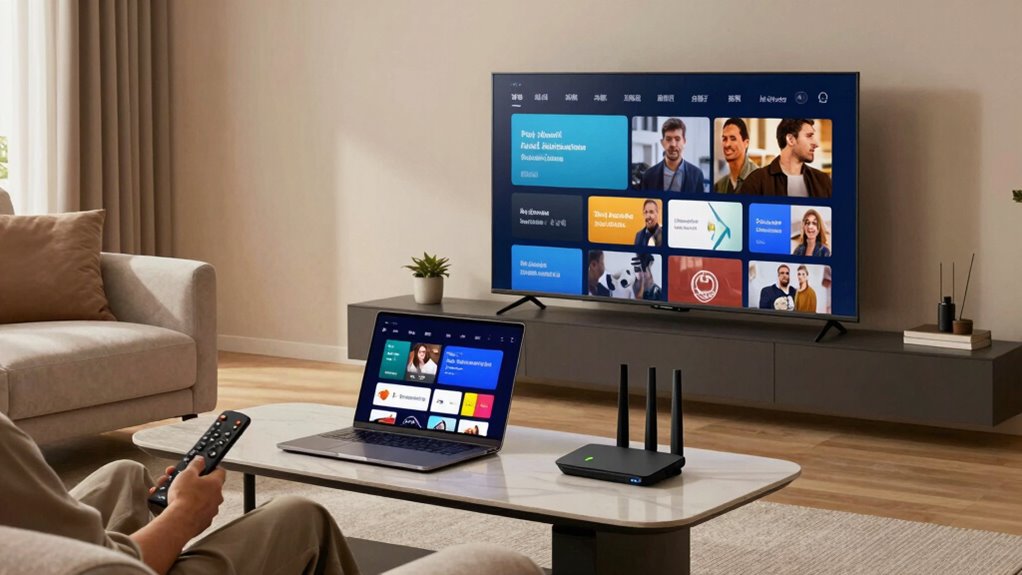
To prevent buffering, start by optimizing your router placement—keep it central and away from obstructions. Limiting the number of devices connected at once can also improve streaming stability. Simple adjustments like these can make a noticeable difference in your viewing experience.
Optimize Router Placement
Placing your router in the right spot can make a significant difference in streaming performance. Keep it elevated and central in your home, avoiding walls or metal objects that can block signals. A well-placed router ensures a stronger, more stable connection, reducing buffering. Also, prioritize router security by changing default passwords and enabling encryption, preventing unauthorized access that could slow your network. Regular firmware updates are vital—they improve performance, fix bugs, and enhance security. Avoid placing the router near cordless phones or microwaves, which can cause interference. Clear line-of-sight between your device and the router minimizes disruptions. By optimizing placement and maintaining your router’s security and firmware, you set a solid foundation for smooth, buffer-free streaming.
Limit Device Usage
When multiple devices connect to your Wi-Fi simultaneously, they compete for bandwidth, which can lead to buffering during streaming. To improve performance, limit device usage during high-demand times. Encourage device multitasking only when necessary, as running multiple apps or downloads can strain your network. Consider implementing data throttling on devices that consume excessive bandwidth, such as streaming or gaming devices. This helps prioritize essential activities and prevents any single device from hogging the connection. Disconnect unused devices or pause background updates to free up bandwidth. Setting boundaries on device usage guarantees your Wi-Fi stays fast and stable, reducing buffering issues. By managing how devices access your network, you maintain a smoother streaming experience without expensive upgrades.
Troubleshoot Buffering Issues Step-by-Step
Buffering problems can be frustrating, but systematically troubleshooting can often identify the root cause. Start by checking your internet speed to confirm your connection isn’t suffering from bandwidth throttling, which can limit your streaming quality. Next, test different streaming codecs—some formats are more efficient than others and can reduce buffering. Restart your router to clear any temporary issues and reconnect your device. If buffering persists, try lowering streaming quality settings within the app to see if that improves playback. Disable other devices or applications that might be hogging bandwidth. Finally, update your streaming app and device firmware. These steps help isolate whether the problem stems from your network, device, or the streaming service itself, guiding you toward a solution.
Frequently Asked Questions
Can VPNS Affect Streaming Buffer Times on Fast Wi-Fi?
Yes, VPNs can affect your streaming buffer times even on fast Wi-Fi. VPN encryption can slow down your connection, causing longer buffers, and network congestion on the VPN server can further hinder streaming performance. If you notice increased buffering, try switching to a faster VPN server or disabling the VPN temporarily. Ensuring your VPN provider offers high-speed servers helps minimize these effects and keeps your streaming smooth.
How Do Different Streaming Services Handle Buffering Differently?
Different streaming services handle buffering uniquely through video compression and content delivery methods. Some optimize video quality with advanced compression to reduce buffering, while others use adaptive streaming, adjusting quality based on your bandwidth. You may notice differences in how quickly videos load and buffer, depending on their approach. For the best experience, choose services that prioritize efficient content delivery and smart compression to minimize interruptions, even on fast Wi-Fi.
Does Device Age Impact Streaming Performance on High-Speed Internet?
Your device age definitely impacts streaming performance, especially on high-speed internet. As devices age, hardware degradation and device longevity issues can cause buffering and lag, even with a robust Wi-Fi connection. Think of it as a car losing its spark; newer devices handle streaming smoothly, but older ones struggle. Regular updates and maintenance can help, but eventually, upgrading might be the best way to keep your streaming experience seamless.
Are There Specific Router Settings That Improve Streaming Buffer Times?
Yes, adjusting your router settings can improve streaming buffer times. Make sure your router firmware is up to date to enhance performance and security. Enable bandwidth prioritization to allocate more bandwidth to your streaming device, reducing buffering. Additionally, consider adjusting Quality of Service (QoS) settings to prioritize streaming traffic. These tweaks help optimize your connection, ensuring smoother streaming even with multiple devices on your fast Wi-Fi network.
How Does Background App Activity Influence Streaming Quality?
Imagine a quiet room suddenly filled with chatter—that’s what background app activity can do to your streaming. When background processes or app updates run, they consume bandwidth and processing power, causing buffer times to increase and quality to drop. You might not notice until your favorite show stutters or pauses. To keep streaming smooth, close unnecessary apps and pause updates during viewing. This keeps your Wi-Fi dedicated to your entertainment.
Conclusion
Imagine your streaming experience like a smooth highway—fast Wi-Fi should be the open road, not a traffic jam. By understanding the causes and applying these tips, you can clear the congestion and enjoy seamless movies and shows. Think of each fix as a traffic light turning green, guiding your data smoothly to your device. With the right setup, you’ll feel like your Wi-Fi is a speedy race car, always ready to deliver your favorite content without delay.