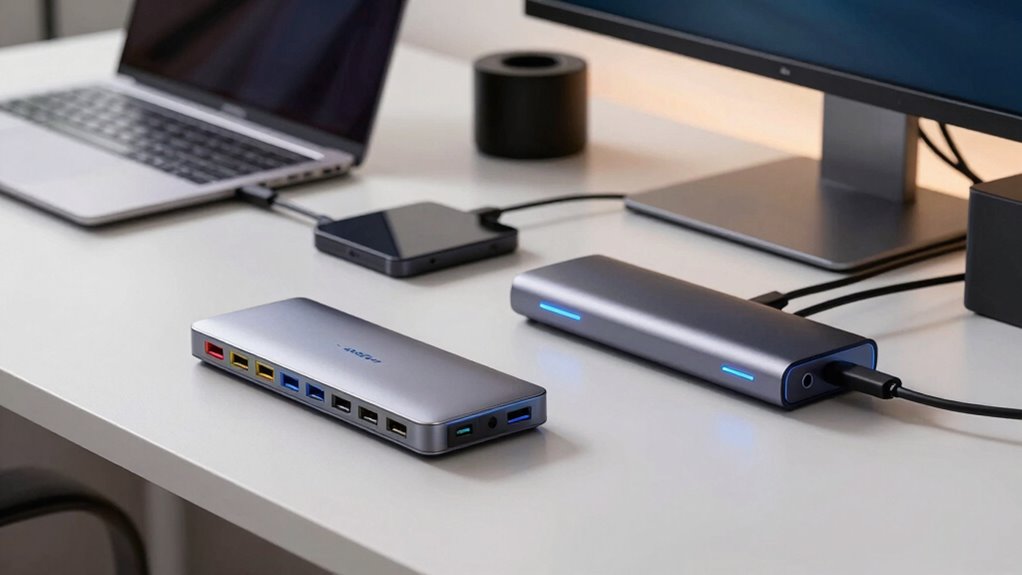
USB hubs add extra USB ports for peripherals and are budget-friendly but offer lower speeds, making them great for simple setups. Docks provide a wider range of ports like HDMI, Ethernet, and audio, supporting more complex workstations. Thunderbolt offers ultra-fast data transfer up to 40 Gbps and advanced features for demanding tasks or future-proofing. To discover which option best fits your needs and budget, explore the details further.
Key Takeaways
- USB hubs mainly expand USB-A ports for basic peripherals, while docks provide multiple port types, including HDMI, Ethernet, and audio.
- Thunderbolt offers the highest data transfer speeds (up to 40 Gbps), ideal for high-performance, data-intensive tasks.
- Docks support diverse device connectivity with better power management, whereas USB hubs are more affordable and suited for simple expansion.
- Thunderbolt devices are more costly but future-proof with advanced features like daisy-chaining and enhanced security.
- Choice depends on budget, device compatibility, performance needs, and whether basic or advanced connectivity is required.

Acer USB Hub 4 Ports, Multiple USB 3.0 Hub, USBA Splitter for Laptop with Type C Power Port, Extender for A Port Laptop, PC, Desktop and More (2ft)
【4 Ports USB 3.0 Hub】Acer USB Hub extends your device with 4 additional USB 3.0 ports, ideal for…
As an affiliate, we earn on qualifying purchases.
As an affiliate, we earn on qualifying purchases.
What Are USB Hubs, Docks, and Thunderbolt Devices?
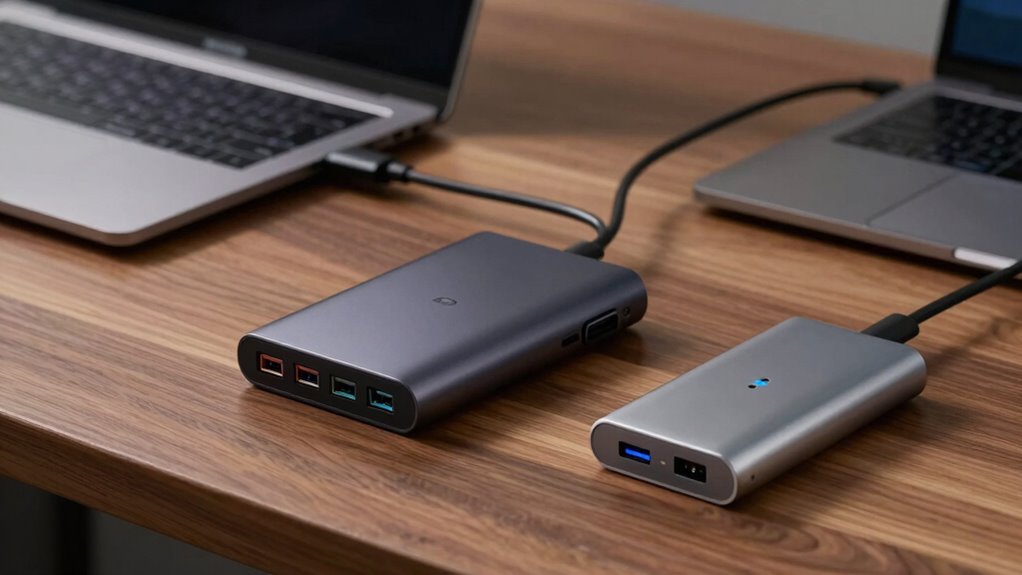
USB hubs, docks, and Thunderbolt devices all serve to expand your computer’s connectivity, but they do so in different ways. USB hubs typically add multiple USB ports, allowing you to connect more peripherals. Docks often include various ports like HDMI, Ethernet, and audio, along with features like wireless charging and power management, so you can keep your device charged while using multiple accessories. Thunderbolt devices go beyond simple expansion, offering high-speed data transfer and daisy-chaining capabilities. They often incorporate advanced features like power delivery and wireless charging, making your setup more efficient. Each device type caters to different needs, whether it’s simple connectivity, all-encompassing docking, or high-performance expansion, helping you optimize your workspace.

USB C Docking Station Dual Monitor, 9-in-1 USB Hub with 2 HDMI 4K@60HZ, 1×1000Mbps Ethernet, 3× USB 3.0, 1× Type C, 1× PD Charging, 1×3.5mm Audio, HDMI Adapter for Laptops/Computer/Tablets/Windows
【9-Port Expansion】With a single USB-C connection, this docking station expands your laptop into a complete workstation. It combines…
As an affiliate, we earn on qualifying purchases.
As an affiliate, we earn on qualifying purchases.
How Do USB Hubs Expand Your Computer’s Connectivity
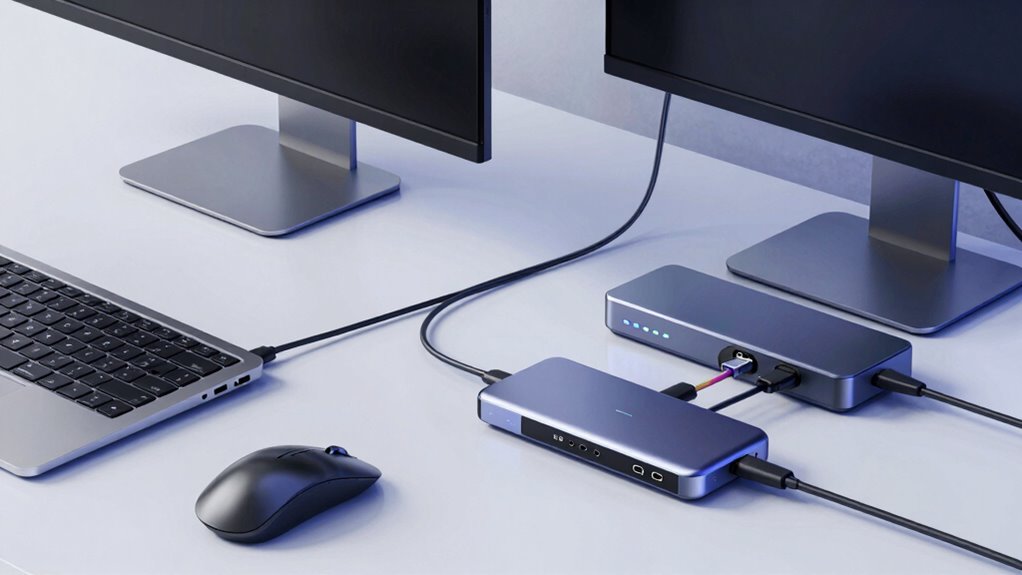
A single USB port on your computer can quickly become a bottleneck when you try to connect multiple devices. USB hubs expand your connectivity by providing additional ports for peripherals like keyboards, mice, and external drives. They often include features like wireless connectivity, making it easier to connect Bluetooth devices without cluttering your workspace. Many hubs also support power delivery, so you can charge smartphones or tablets while using other peripherals—reducing the need for separate chargers. By centralizing connections, USB hubs streamline your setup and prevent the frustration of unplugging and replugging devices. They’re a simple, cost-effective way to boost your computer’s versatility, especially if you frequently work with multiple peripherals or need to keep your workspace organized. Exploring different digital concepts like connectivity enhancements can help you optimize your setup further.
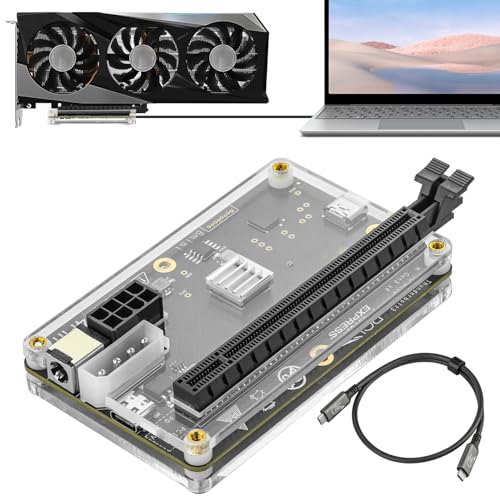
PCIE 3.0 x16 22Gbps eGPU DOCK, Thunderbolt 4 cable, compatible with external GPU NVIDIA AMD Graphics Card for Windows Laptop Console featuring Thunderbolt 3/4 USB 4, Powered by PD/8PinCPU/Molex/DC5521
Compatible graphics cards: Any GPU with available drivers on the official NVIDIA or AMD websites can be used….
As an affiliate, we earn on qualifying purchases.
As an affiliate, we earn on qualifying purchases.
What Are the Key Differences Between Docks and USB Hubs?
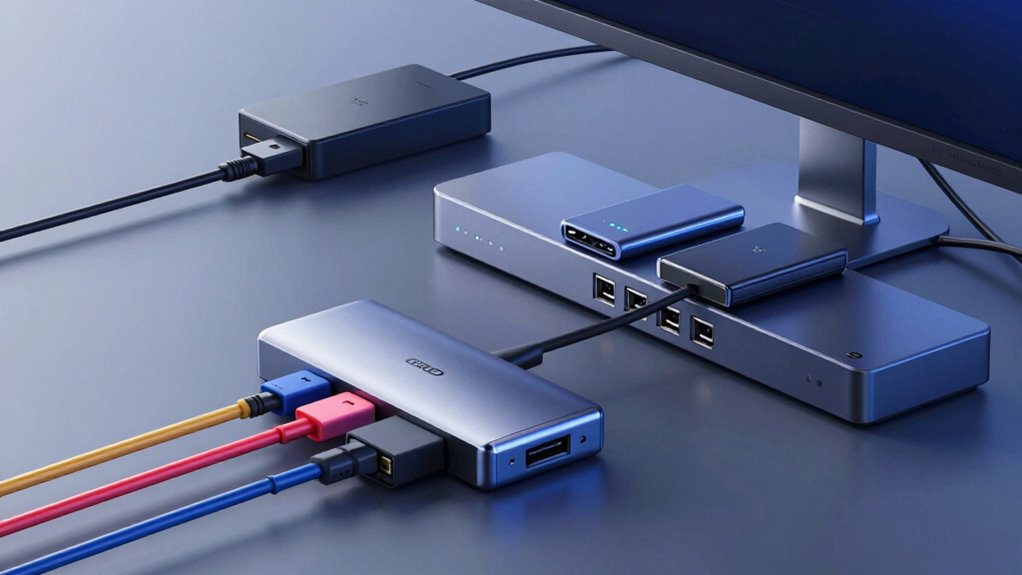
While USB hubs are excellent for adding extra ports quickly and affordably, docks offer a more all-encompassing solution for expanding your computer’s capabilities. Docks provide multiple features like Ethernet, audio, video output, and better power management, making them ideal for workstation setups. USB hubs mainly focus on increasing port count, often with limited power delivery and no wireless alternatives. For outdoor or creative backyard setups, docks can even support additional connectivity options that enhance your overall experience.

10Gbps USB C Hub with 4K@60Hz Video Display, Selore 5 Ports USB-C Splitter, C Port Data Transfer, 100W PD-in Charging, Dongle Multiport Adapter for MacBook Pro, iPad, Dell, HP, and More
10Gbps USB C Video Hub: The Selore USB C Video Hub multiport adapter offers versatile connectivity with a…
As an affiliate, we earn on qualifying purchases.
As an affiliate, we earn on qualifying purchases.
When Is Thunderbolt the Right Choice for Speed and Performance?
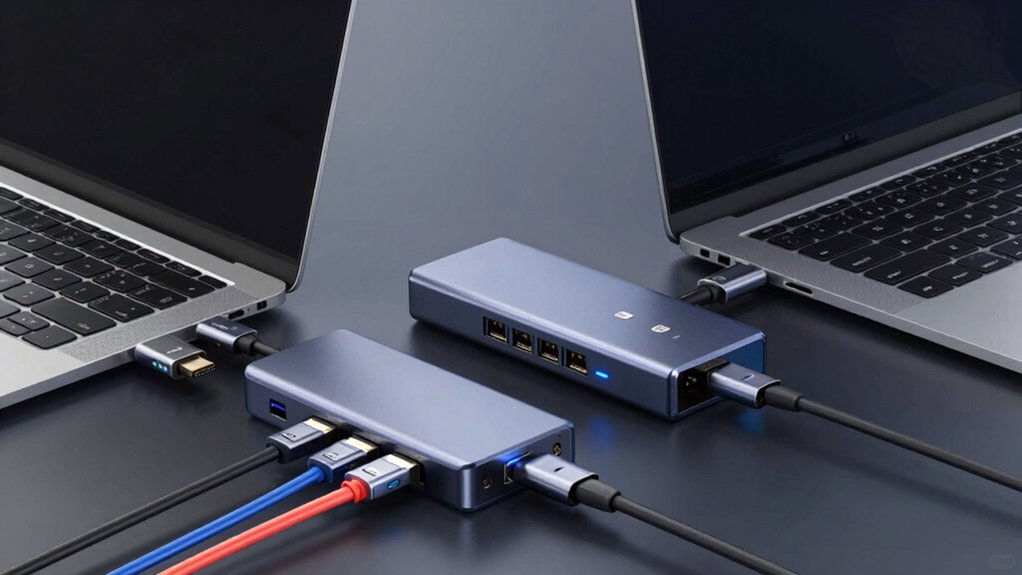
Thunderbolt is the right choice when you need maximum data transfer speeds and seamless compatibility with high-performance devices. If your work involves large files or creative tasks like video editing, its speed can save you time. Consider Thunderbolt when speed and performance are critical for your workflow. For example, using high-performance automotive parts can also enhance your vehicle’s overall efficiency and responsiveness.
Maximum Data Transfer Rates
Have you ever wondered which connection type offers the fastest data transfer? Thunderbolt clearly leads with impressive speeds, reaching up to 40 Gbps, making it ideal for large file transfers and high-performance tasks. USB hubs and docks usually max out at much lower rates, around 10-20 Gbps, which are sufficient for everyday use but less suitable for intensive workflows. When speed matters most, Thunderbolt’s high transfer rate ensures quick data movement without bottlenecks. Additionally, Thunderbolt offers enhanced data security, reducing the risk of data breaches during transfers. Power delivery is another advantage, allowing you to charge devices while transferring data efficiently. If maximum speed, robust data security, and reliable power delivery are priorities, Thunderbolt is the right choice for your setup.
Compatibility With Devices
Choosing the right connection type depends heavily on device compatibility. Thunderbolt offers exceptional speed and performance, but it’s mainly compatible with newer devices that support Thunderbolt technology. If your equipment requires high data transfer rates or advanced device security, Thunderbolt is a solid choice. It also provides reliable power delivery, meaning it can charge compatible devices efficiently while transferring data. However, not all peripherals or laptops support Thunderbolt, so you might need adapters or different ports. Docks and USB hubs are more versatile across a broader range of devices but may lack the speed or power delivery capabilities of Thunderbolt. Assess your device compatibility first to guarantee you select the connection that best meets your security, performance, and power needs.
Ideal for Creative Work
When speed and performance are critical for your creative projects, opting for a Thunderbolt connection can make a significant difference. It offers faster data transfer rates, essential for handling large files like 4K videos or high-resolution images. Thunderbolt also provides robust power delivery, reducing the need for multiple chargers. Unlike wireless connectivity, Thunderbolt ensures a stable, high-speed connection crucial for real-time editing and rendering.
| Feature | Benefits | Use Case |
|---|---|---|
| Speed | High transfer rates for large files | Video editing, 3D modeling |
| Power Delivery | Powers devices and accessories | External drives, monitors |
| Wireless Connectivity | Limited for high-bandwidth tasks | Not ideal for intensive work |
| Device Compatibility | Supports a wide range of peripherals | Creative workflows |
| Reliability | Stable, wired connection | Critical creative tasks |
Which Setup Fits Your Needs and Budget?
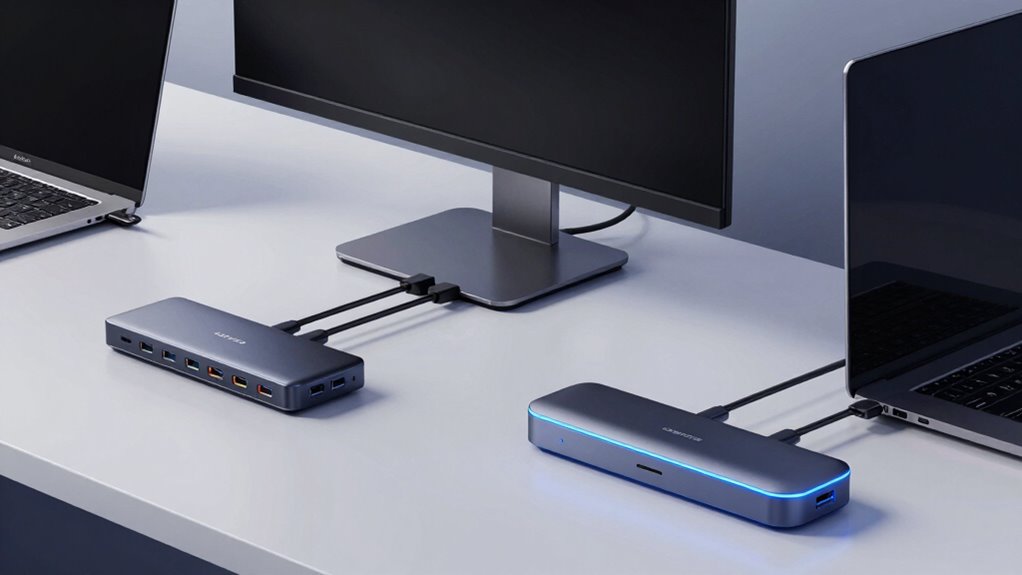
To choose the right setup, you need to take into account your budget, ensuring you don’t overspend on features you don’t need. Think about your device compatibility and how many ports you require now and in the future. Balancing performance with cost will help you find a solution that meets both your current needs and long-term goals. Additionally, consider the types of connectivity your devices support, such as USB, Thunderbolt, or other interfaces, to ensure seamless integration.
Budget Constraints and Costs
Budget constraints play a significant role in determining which setup—USB hub, dock, or Thunderbolt—best suits your needs. When considering cost comparison, USB hubs are usually the most affordable option, making them ideal if you need basic expansion without breaking the bank. Docks tend to be mid-range, offering more features and better build quality but at a higher price. Thunderbolt setups are typically the most expensive, reflecting their superior speed and advanced capabilities. Affordability factors, such as your budget limits and intended use, should guide your choice. If you’re on a tight budget and only need basic connectivity, a USB hub is your best bet. However, if you need high performance and future-proofing, investing in a dock or Thunderbolt might be justified.
Device Compatibility and Ports
Choosing the right setup depends heavily on the devices you plan to connect and the types of ports they require. Consider these factors:
- Compatibility with existing ports, like USB-A, USB-C, or Thunderbolt, to guarantee seamless connection.
- Support for wireless connectivity options if you prefer wireless devices or peripherals.
- Power delivery capabilities, especially if you need to charge laptops or other power-hungry devices through the hub or dock.
A USB hub might suffice if your devices mainly use USB-A ports and don’t need power delivery. Docks often offer a broader range of ports, including Ethernet and audio, along with power delivery. Thunderbolt setups excel with high-speed data transfer and compatibility with newer devices. Choose based on your device types and connectivity needs.
Performance and Future Needs
When evaluating performance and future needs, it’s essential to reflect on how each setup handles your current workload and upcoming demands. USB hubs are affordable but limited in power delivery and wireless connectivity. Docks offer better performance, supporting multiple devices with reliable power and some wireless features. Thunderbolt setups provide the highest performance, ideal for data-intensive tasks, fast wireless connectivity, and robust power delivery. Consider your future needs—if you plan on expanding or upgrading, investing in Thunderbolt might save you money long-term. Here’s a quick comparison:
| Setup | Power Delivery | Wireless Connectivity | Performance Level |
|---|---|---|---|
| USB Hub | Basic | Limited | Entry |
| Dock | Moderate | Moderate | Mid-range |
| Thunderbolt | High | Fast, reliable | High-end |
Factors to Consider When Choosing Between USB Hubs, Docks, and Thunderbolt Devices
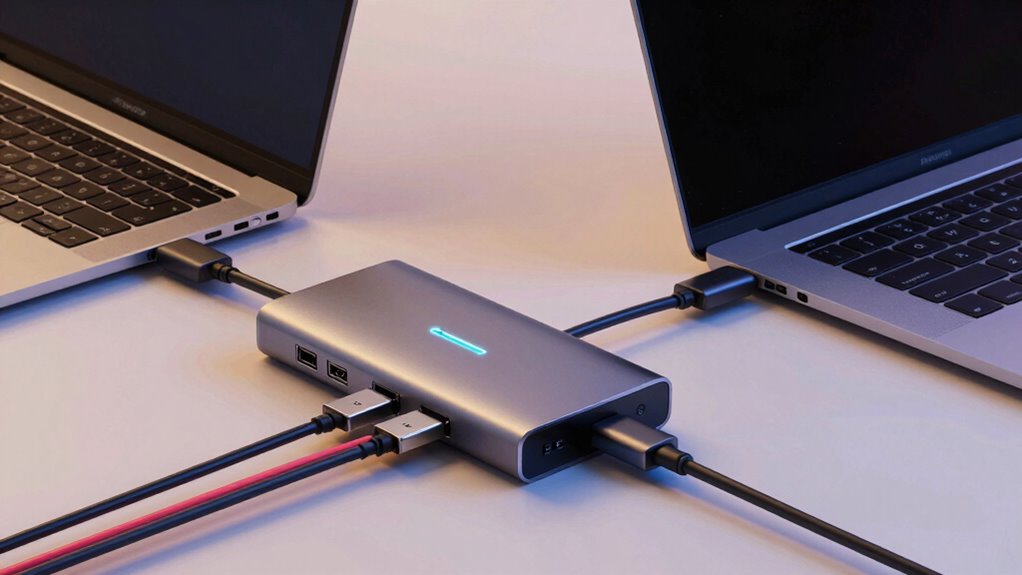
Selecting the right connectivity device depends on several key factors that influence your overall experience and device performance. First, consider your need for wireless alternatives—if you prefer cable-free setups, a dock or Thunderbolt device might suit you better. Second, evaluate power delivery options; some docks and Thunderbolt devices can charge your laptop or peripherals, reducing clutter. Third, think about your device compatibility and future-proofing, ensuring the device supports current standards and potential upgrades. USB hubs are typically affordable and simple, but may lack advanced features like high power delivery or wireless options. Docks and Thunderbolt devices offer faster data transfer and better expansion, ideal for demanding tasks. Your choice hinges on balancing connectivity needs with performance, flexibility, and budget.
How Do Performance, Compatibility, and Future-Proofing Vary Across These Devices?
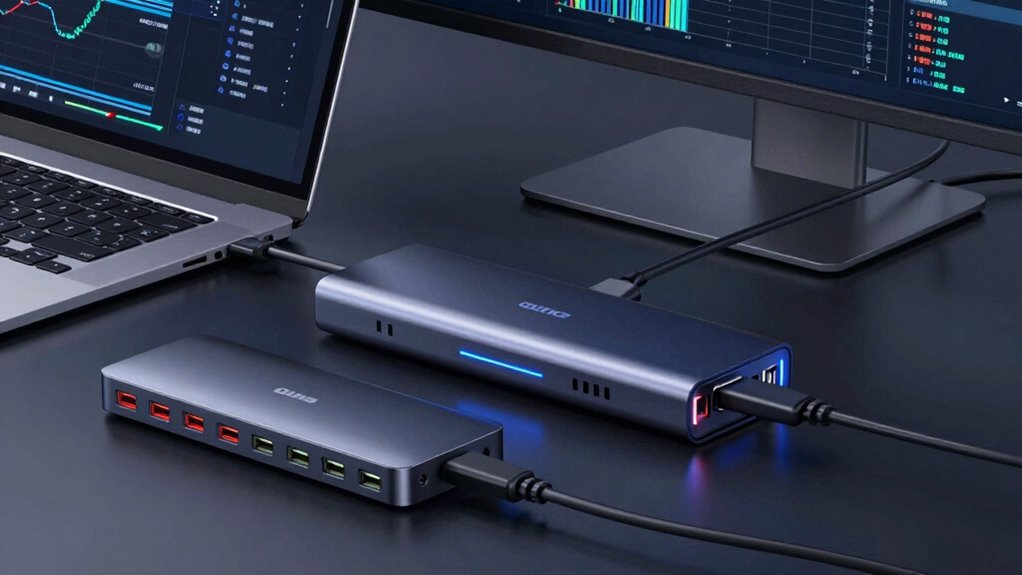
Performance, compatibility, and future-proofing vary considerably across USB hubs, docks, and Thunderbolt devices. Thunderbolt offers the highest data transfer speeds, excellent device security, and advanced power management, making it more forward-looking. Docks typically support a broad range of devices but may lag in security features and power efficiency, limiting longevity. USB hubs are the most affordable but often provide lower performance and fewer security protocols, affecting compatibility with newer devices. Power management is vital for device security, preventing unauthorized access or data breaches. As technology advances, Thunderbolt’s higher bandwidth and better power management ensure better future-proofing. In contrast, USB hubs and docks may require upgrades sooner to maintain essential device security and performance.
Frequently Asked Questions
Can USB Hubs Support Charging Multiple Devices Simultaneously?
Yes, USB hubs can support charging multiple devices simultaneously, but charging capabilities vary depending on the hub. Some hubs provide power delivery to charge devices, while others only transfer data. Check the device compatibility and power output specifications before purchasing. If you need to charge multiple devices efficiently, look for hubs with higher wattage and dedicated charging ports. This guarantees your devices get the power they need without overloading the hub.
Are Docks Compatible With All Laptop Brands and Operating Systems?
Docks aren’t compatible with all laptop brands and operating systems. You need to check the dock’s laptop compatibility and operating system support before buying. Some docks work only with specific brands like Dell or HP, and others may require Windows or macOS. Always verify the specs to guarantee your laptop connects properly and functions seamlessly, avoiding any compatibility issues that could hinder your setup.
What Are the Power Requirements for Thunderbolt Devices?
Thunderbolt devices generally require higher power, often supplied through Thunderbolt power delivery. This allows for device charging and guarantees stable operation, especially for high-power peripherals like external drives or displays. When connecting Thunderbolt devices, make certain your port supports power delivery, typically up to 100W. Without proper power, your device might not charge or function correctly, so check your device’s power requirements and your laptop’s Thunderbolt capabilities.
Do Docks Offer Better Security Features Than USB Hubs?
Think of docks as security vaults compared to USB hubs’ open safes. Docks often come with enhanced security features like data encryption and device management options, making them more secure. They’re designed to protect your data and prevent unauthorized access. USB hubs, on the other hand, typically lack these advanced security features. So, if security is your priority, docks offer a safer harbor for your devices and data.
How Do These Devices Impact Overall System Latency?
These devices can affect your system latency and device performance. USB hubs often introduce slight delays because they share bandwidth among multiple devices, which can slow down data transfer. Docks usually offer better performance with dedicated connections, reducing latency. Thunderbolt connections provide the lowest latency and highest device performance, thanks to their direct, high-speed links. Choosing the right device depends on your need for speed and responsiveness.
Conclusion
Choosing between USB hubs, docks, and Thunderbolt devices depends on your needs, budget, and how much future-proofing matters to you. Just like finding the perfect coffee blend, it’s about balancing performance and convenience. Sometimes, a simple hub fits best; other times, a Thunderbolt setup is worth the investment. Whatever you pick, remember that the right connection can transform your workflow, making tech choices feel a bit more like serendipitous discoveries rather than hassle.