
If you’re experiencing echo in Zoom or Meet, start by checking your room setup. Use a headset to block sound from your speakers, and position your microphone close to your mouth while keeping it away from reflective surfaces like walls or windows. Reduce background noise and mute when not speaking. These simple steps eliminate most echo issues quickly. Want more tips on maintaining crystal-clear audio? Keep going to discover how to keep your calls noise-free.

Get the latest gadgets delivered free with Prime
- Fast, free delivery on millions of items
- Prime Video, Amazon Music and more included
- Member-only deals all year
Key Takeaways
- Use headphones or earbuds to prevent sound feedback and echo during calls.
- Position your microphone close to your mouth and away from reflective surfaces.
- Mute microphones when not speaking to reduce background noise and echo.
- Add soft furnishings like rugs and curtains to absorb sound reflections in the room.
- Adjust audio settings, such as lowering microphone sensitivity and enabling noise suppression features.
noise cancelling headphones for Zoom meetings
As an affiliate, we earn on qualifying purchases.
As an affiliate, we earn on qualifying purchases.
Recognize the Signs of Echo in Virtual Meetings

Echo in virtual meetings can be be subtle at first, but it becomes obvious when you notice certain signs. One key indicator is when you hear a repeated, echoing sound that lingers after someone speaks. Background noise from your environment or others’ can intensify the effect, making the echo more noticeable. You might also observe that speaker volume seems inconsistent—either too loud or too soft—causing a distorted audio experience. If conversations feel disjointed or there’s a strange feedback loop, these are signs of echo. Paying attention to how audio sounds during calls helps you identify the problem early. Recognizing these signs guarantees you can take steps to fix the issue before it hampers communication. Using accessibility features like Guided Access can help manage device settings to reduce background noise and improve audio clarity. Additionally, understanding the role of sound quality in home theater setups can provide insights into optimizing your environment for clearer audio during virtual meetings. Improving your audio environment by minimizing reflective surfaces and choosing a quiet space can also significantly reduce echo issues. Incorporating soundproofing techniques can further enhance overall audio clarity in your space. Being aware of acoustic properties in your room can help you make better adjustments for optimal sound.
microphone with noise suppression
As an affiliate, we earn on qualifying purchases.
As an affiliate, we earn on qualifying purchases.
Check Your Room Setup for Echo
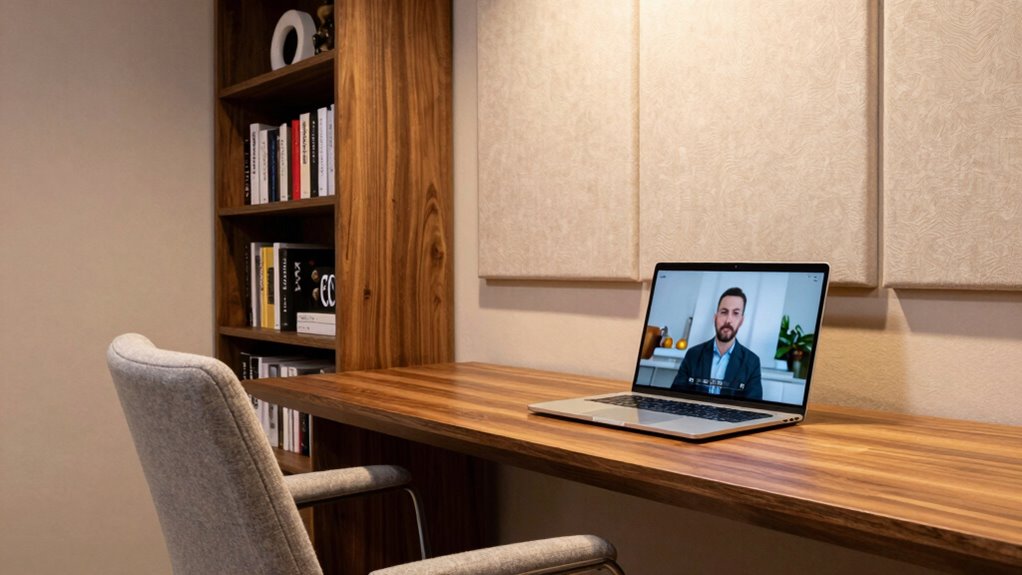
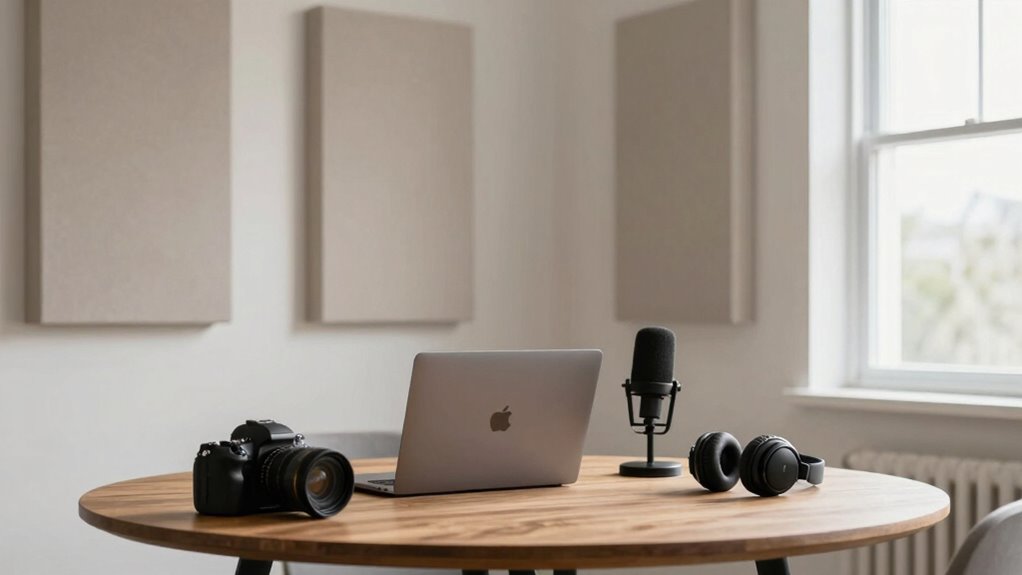
Start by evaluating your room’s acoustic properties; hard surfaces like bare walls and floors can cause echo. Make sure your microphone is positioned correctly—close to your mouth and away from reflective surfaces. Adjusting these factors can considerably reduce echo during your meetings. Additionally, incorporating cozy decor elements such as soft rugs or curtains can help absorb sound and improve overall room acoustics. Using sound-absorbing materials strategically can further enhance your audio quality and minimize echo issues. Proper room setup can make a significant difference in creating a quieter, more comfortable environment. Considering sound wave patterns in your room’s design can also help optimize sound absorption and reduce echoes. Consider also assessing your room’s size and shape, as larger or irregularly shaped rooms may require additional sound absorption techniques.
Room Acoustic Properties
The acoustic properties of your room play a crucial role in how sound behaves during calls, and understanding them can help you reduce echo effectively. Your room’s aesthetics influence how sound waves bounce, so cluttered or highly reflective surfaces can worsen echo. To improve acoustics, consider adding soft furnishings like rugs, curtains, or wall hangings to absorb sound. Proper speaker positioning also matters—you want to direct sound toward you and avoid placing speakers where sound reflects off hard surfaces. Keep your microphone away from reflective walls or windows that can cause sound to bounce back. Adjusting your room setup by reducing reflective surfaces and optimizing speaker placement can make a significant difference in minimizing echo, providing clearer communication during your calls. Additionally, choosing appropriate flooring materials can help dampen sound reflections and improve overall room acoustics.
Proper Microphone Placement
Proper microphone placement can markedly reduce echo during your Zoom or Meet calls. First, choose the right microphone type; a directional mic focuses on your voice and minimizes room sounds, while a lavalier or headset mic keeps the device close to your mouth. Wireless options give you flexibility to adjust positioning easily, preventing distant or poorly placed mics that can cause echo. Keep the microphone at mouth level and slightly off to the side, avoiding placing it directly in front of reflective surfaces like walls or windows. If you’re using a desktop mic, position it close to your mouth but away from reflective objects. Proper placement guarantees your voice is captured clearly, reducing room reverberations and echo, and improving overall call quality. Incorporating creative craft ideas such as soundproofing with craft materials can also help enhance your room acoustics. Additionally, using room treatment techniques can further minimize echo and improve sound clarity in your space. Ensuring your room has proper sound absorption strategies can make a significant difference in echo reduction, especially when combined with an understanding of cold sensation, vibration therapy, and temperature treatments. Paying attention to room acoustics and furniture arrangement can also significantly influence how sound behaves in your environment.
As an affiliate, we earn on qualifying purchases.
Quick Fixes to Eliminate Echo in 3 Easy Steps

Echoes during a Zoom or Google Meet call can be be frustrating, but you don’t have to accept them as unavoidable. To quickly reduce echo, start by minimizing background noise—mute yourself when not speaking and ask others to do the same. This lowers the chances of sound bouncing around the room, causing echo. Next, check your speaker volume; lowering it slightly can prevent sound from re-entering your microphone. Finally, position your microphone close to your mouth and away from reflective surfaces, which helps prevent sound reflections that cause echo. Using sound-absorbing materials like curtains or rugs can also help dampen sound reflections and improve overall audio quality. Incorporating natural acoustics techniques, such as strategic furniture placement, can further improve sound quality in your space. Additionally, selecting the right microphone type can significantly reduce ambient sound pickup and improve clarity during calls. Being aware of room acoustics can guide you in optimizing your environment for better audio. These simple adjustments can substantially reduce echo, making conversations clearer and less tiring. Reducing background noise and better microphone positioning also help reduce speaker fatigue, so you stay focused and engaged throughout your meeting.
As an affiliate, we earn on qualifying purchases.
Troubleshoot Persistent Echo Problems
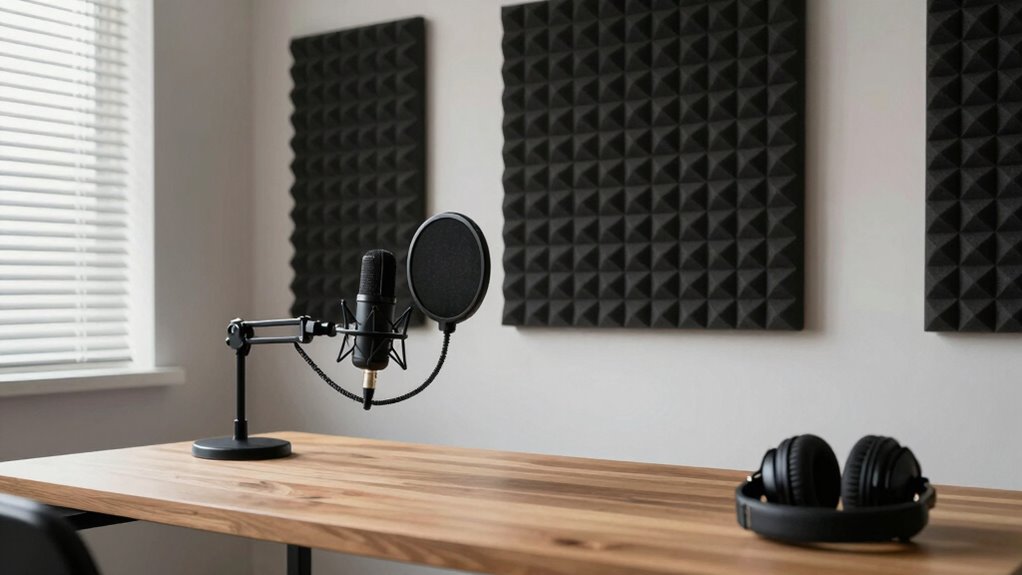
When echo persists despite initial fixes, start by identifying its source, like nearby speakers or open microphones. Then, adjust your audio settings to reduce feedback and improve clarity. These steps can help eliminate stubborn echo problems and enhance your meeting quality.
Identify Echo Sources
Persistent echo problems can be frustrating, but identifying their sources is the first step to fixing them. Start by checking your audio equipment—poor-quality microphones or speakers often cause echoes. Make sure your microphone isn’t too close to your speakers, which can create a feedback loop. Also, listen for background noise that might be bouncing around the room, amplifying the echo. If you hear echoing during a call, ask others to mute their microphones one by one to see if the problem stops. Pay attention to the room’s acoustics; hard surfaces reflect sound, worsening the echo. By pinpointing whether the issue stems from your audio equipment, background noise, or room acoustics, you can better target your solution and improve your call quality. Considering the impact of sound reflection at the molecular level can also provide insights into effective soundproofing techniques and sound absorption methods. Additionally, using acoustic treatments such as rugs, curtains, or foam panels can significantly reduce sound reflections and improve clarity.
Adjust Audio Settings
Adjusting your audio settings can often reduce or eliminate echo during calls. By fine-tuning these settings, you can minimize background noise and control microphone sensitivity, which are common causes of echo. Start by lowering microphone sensitivity to prevent your mic from picking up too much ambient sound. Use noise suppression features to reduce background noise, making your audio clearer. Check your audio input and output devices to ensure they’re properly configured. Adjust volume levels so your microphone isn’t too loud, which can cause feedback. Finally, test your settings before calls to see if the echo persists.
- Reduce microphone sensitivity to limit background noise pickup
- Enable noise suppression features in your app
- Use headphones to prevent sound feedback
- Adjust input/output volume levels for clarity
- Test audio settings before joining calls
Simple Tips to Prevent Echo in Future Calls
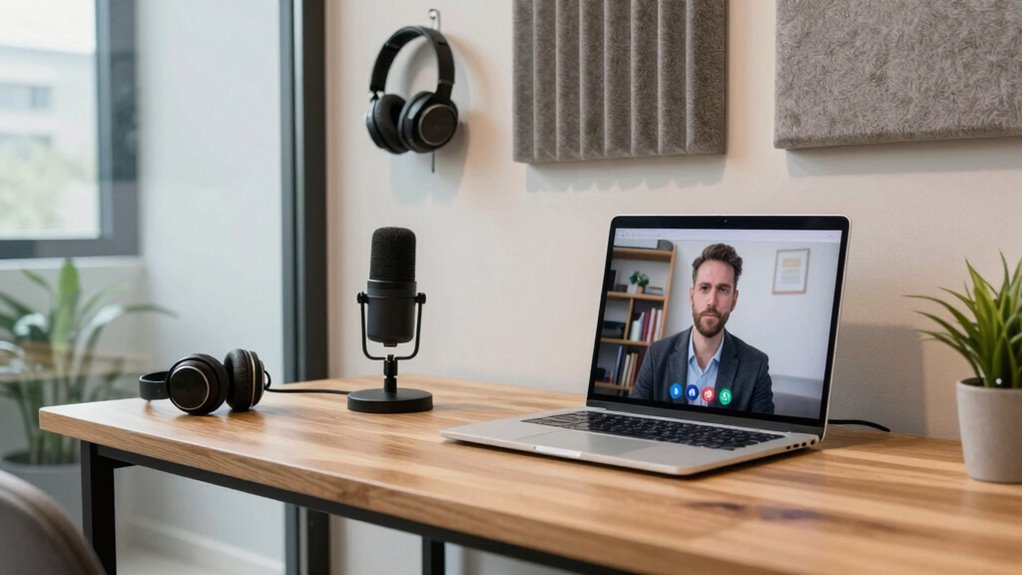
To prevent echo in future calls, start by optimizing your room setup. Minimize background noise by closing windows, turning off fans, and silencing any appliances that create sound. Choose a quiet, well-insulated room to reduce sound reflections. Encourage participants to follow good participant behavior, like muting microphones when not speaking, to cut down on unnecessary audio feedback. Use headphones or earbuds, which help isolate your microphone from surrounding sounds and prevent audio from looping back. Position yourself and your microphone away from walls and reflective surfaces that can bounce sound. Clear, consistent participant behavior and a controlled environment make a big difference. Implementing these simple tips creates a more professional, echo-free experience for everyone on the call.
When to Seek Professional Audio Help

Wondering when it’s time to call in a professional for audio issues? If persistent echo or poor sound quality disrupts your meetings despite trying DIY fixes, it’s a sign. You might need expert help with proper soundproofing tips or installing acoustic panels tailored for your space. Consider seeking professional advice if:
- Echo remains even after basic adjustments
- Your room has high ceilings or irregular surfaces
- You struggle with excessive background noise
- DIY soundproofing doesn’t improve audio clarity
- You need a customized acoustic treatment plan
A professional can evaluate your room’s acoustics and recommend solutions like advanced acoustic panels or soundproofing techniques. Investing in expert help guarantees your space is optimized for clear, echo-free communication.
Frequently Asked Questions
Can Echo Occur on Mobile Devices During Virtual Meetings?
Yes, echo can occur on mobile devices during virtual meetings. Mobile audio often causes echo interference because of microphone and speaker proximity, leading to feedback loops. To fix this, you should use headphones to isolate your microphone and speakers, reduce volume levels, or mute your mic when not speaking. These simple steps help prevent mobile audio echo interference, ensuring clearer communication during your virtual meetings.
What Specific Tools or Software Can Help Reduce Echo?
You can use tools like Krisp or RTX Voice to reduce echo during your calls. These software solutions apply noise suppression and echo cancellation, enhancing audio clarity. Additionally, implementing soundproofing techniques like adding acoustic treatments—such as foam panels or carpets—helps absorb sound reflections. Combining these tools and treatments considerably minimizes echo, ensuring your virtual meetings sound professional and clear, no matter your room’s acoustics.
Does the Type of Microphone Affect Echo Problems?
A better microphone quality can subtly improve your audio experience, often easing echo issues. While it might not be a magic fix, higher-quality microphones with built-in audio filtering tend to reduce echo by minimizing background noise and feedback. So, investing in a good microphone can make a noticeable difference, helping your voice come through clearer and more natural, making virtual meetings smoother and more professional.
Are There Differences in Echo Issues Between Zoom and Google Meet?
Yes, there are differences in echo issues between Zoom and Google Meet. You might notice more audio reflection and sound feedback in one platform depending on your device setup and room acoustics. Both apps can suffer from echo, but Google Meet’s audio processing sometimes handles reflections better. To minimize echo, make sure your microphone and speakers are properly configured, and use headphones to cut down on sound feedback.
How Do Room Materials Influence Echo in Virtual Meeting Spaces?
Room materials greatly influence echo in virtual meetings. You’ll notice more echo in rooms with hard surfaces like glass, tile, or metal because they reflect sound waves, creating poor acoustics. On the other hand, materials with high absorption, such as carpets, curtains, and soft furniture, help dampen sound reflections. Improving room acoustics by adding absorbent materials reduces echo, making your virtual meetings clearer and more professional.
Conclusion
By tackling echo like a pesky shadow, you can clear the way for smooth, crystal-clear meetings. Recognize the signs, check your setup, and apply these quick fixes to keep your virtual conversations flowing seamlessly. Remember, troubleshooting is an ongoing journey—think of it as tuning a musical instrument. With a little patience and these simple steps, you’ll transform your virtual space into a harmonious environment where every word resonates perfectly.
Halloween Picks
halloween
As an affiliate, we earn on qualifying purchases.