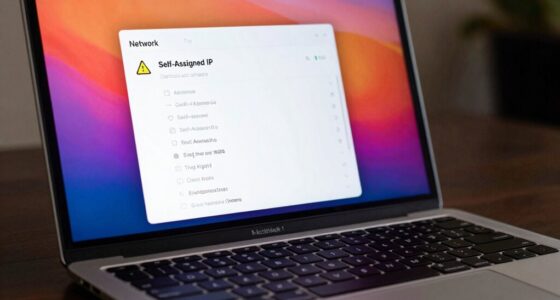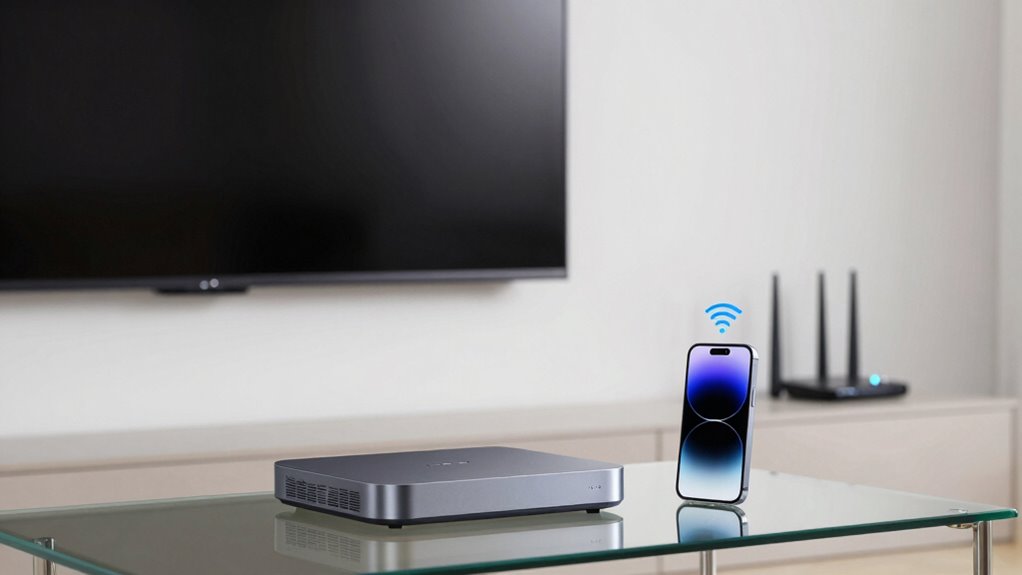

To guarantee AirPlay works smoothly, your devices need to be connected to the same Wi-Fi network that supports modern standards like 802.11n or ac. Poor signal quality, interference, or network congestion can cause failures, so check your Wi-Fi strength and minimize interference. Security settings or network restrictions might block device discovery. If your network is outdated or overwhelmed, AirPlay may fail. Stay with us to find out how to troubleshoot and optimize your setup for better streaming.

Get the latest gadgets delivered free with Prime
- Fast, free delivery on millions of items
- Prime Video, Amazon Music and more included
- Member-only deals all year
Key Takeaways
- Devices must be on the same Wi-Fi network supporting AirPlay and modern wireless standards like 802.11n or ac.
- Poor Wi-Fi signal quality or interference from other devices can disrupt AirPlay connections.
- Network congestion from multiple devices streaming or downloading reduces bandwidth and causes failures.
- Firewall restrictions, security settings, or network policies may block necessary device discovery and data transfer.
- Outdated routers or network hardware can limit bandwidth, stability, and overall AirPlay performance.
Wi-Fi router for seamless AirPlay streaming
As an affiliate, we earn on qualifying purchases.
As an affiliate, we earn on qualifying purchases.
What Are the Basic Network Requirements for AirPlay?
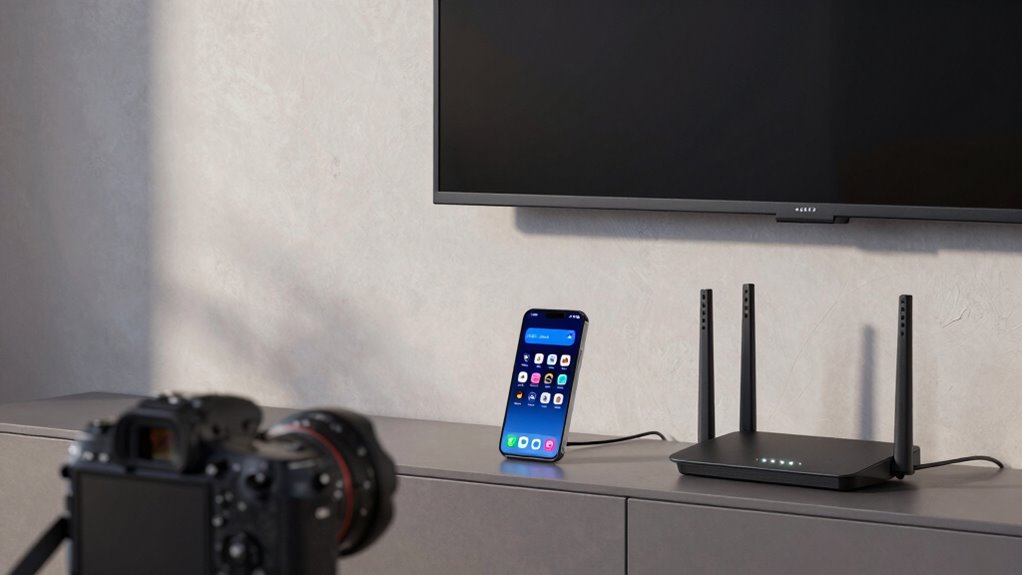
To guarantee smooth streaming with AirPlay, your devices need to be connected to the same Wi-Fi network. This assures minimal AirPlay latency, giving you real-time audio and video transmission. Device compatibility is essential; both your sending and receiving devices should support AirPlay. Check that your Apple device and the target device, like a smart TV or speaker, meet the necessary requirements. A stable Wi-Fi connection with sufficient bandwidth helps reduce lag and buffering issues. Avoid using networks with heavy traffic or weak signals, as these can increase latency and cause interruptions. Confirming your devices are compatible and on the same reliable Wi-Fi network sets a solid foundation for seamless AirPlay streaming. Ensuring your network supports the necessary bandwidth requirements can significantly improve streaming quality. Additionally, understanding the network infrastructure can help identify potential issues that may impact performance. For optimal results, consider the quality of your Wi-Fi router and its ability to handle multiple connected devices efficiently.
Wi-Fi extender for better AirPlay performance
As an affiliate, we earn on qualifying purchases.
As an affiliate, we earn on qualifying purchases.
How Do Wi-Fi Settings Impact AirPlay Performance?
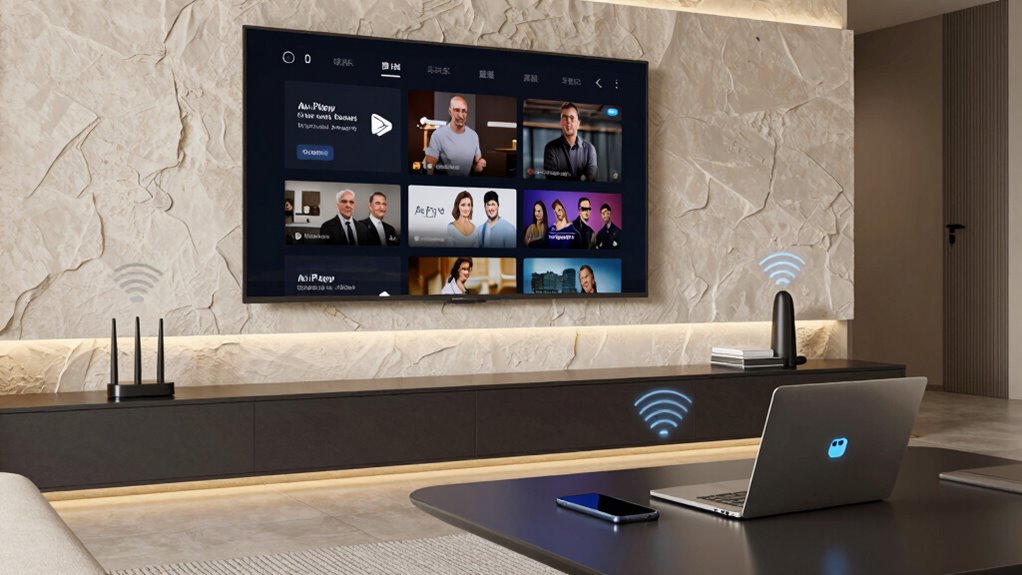
Wi-Fi settings play a crucial role in determining AirPlay performance because they directly affect the strength and stability of your network connection. Wireless interference from other devices, such as microwaves or neighboring Wi-Fi networks, can disrupt your signal, causing buffering or connection drops. Ensuring your router uses a less congested channel and minimizing interference improves streaming quality. Additionally, device compatibility depends on your Wi-Fi configuration; older routers or network settings may hinder seamless communication between your device and the AirPlay receiver. Properly configured Wi-Fi, with strong signal strength and minimal interference, enhances AirPlay’s dependability. Adjusting your network settings to optimize performance helps prevent drops and lag, providing a smoother streaming experience. For reliable operation, it’s also helpful to understand common network issues and how they can impact your streaming setup. Being aware of Wi-Fi frequency bands, such as 2.4 GHz and 5 GHz, can further help in optimizing your network for better AirPlay performance. Choosing the appropriate network security settings can also prevent unauthorized devices from causing interference or bandwidth issues.
As an affiliate, we earn on qualifying purchases.
Is Your Network Compatible With Airplay?
To guarantee AirPlay works smoothly, your network needs to support the right type of connection and have a strong Wi-Fi signal. If your Wi-Fi is weak or your network isn’t compatible, you might experience interruptions or failures. Checking these factors before using AirPlay can save you time and frustration. Additionally, ensuring your network settings are optimized for streaming can improve overall performance. Properly maintaining your network, including essential DIY tools and safety tips for your projects, can also help prevent connectivity issues. Incorporating smart home technology features like optimized zoning and local automation can further enhance your connection stability. Regularly monitoring your network performance can help identify potential issues before they affect your streaming experience, especially considering the impact of network configuration on streaming quality.
Network Type Compatibility
Ensuring your network supports AirPlay is essential for seamless streaming. The compatibility depends heavily on your wireless standards and network topology. AirPlay works best with modern wireless standards like 802.11n, 802.11ac, or newer, which provide faster, more reliable connections. Older standards, such as 802.11g, may cause lag or disruptions. Additionally, your network topology matters; a simple, centralized setup with devices connected to the same Wi-Fi router ensures better communication. Avoid complex configurations like multiple routers or mesh systems that aren’t properly integrated, as they can hinder device discovery and streaming. Confirm that your network type supports these standards and a straightforward topology to optimize AirPlay performance and prevent connection issues. Being aware of media literacy can help you identify and troubleshoot potential network problems effectively.
Wi-Fi Signal Strength
A strong Wi-Fi signal is essential for smooth AirPlay streaming, as weak signals can cause buffering, lag, or disconnections. If your Wi-Fi network experiences interference from other devices or neighboring networks, it can lead to signal degradation, reducing streaming quality. Wi-Fi interference—caused by microwaves, cordless phones, or overlapping channels—can weaken the connection between your device and the AirPlay receiver. To guarantee compatibility, check your Wi-Fi signal strength near your streaming device. Use a signal analyzer or move closer to your router if needed. A stable, high-quality connection minimizes signal degradation, preventing interruptions during streaming. Addressing interference sources and optimizing your network setup improves AirPlay performance and reduces the chances of failure. Understanding energetic alignment can also enhance your overall connection quality, ensuring a more seamless streaming experience.
As an affiliate, we earn on qualifying purchases.
Can Network Congestion Cause AirPlay Failures?
Network congestion can cause your AirPlay connection to drop or lag, especially when bandwidth is limited. When too much traffic is on your network, streaming quality suffers, and interruptions are common. Ensuring your network isn’t overloaded helps keep your AirPlay experience smooth and reliable. Being aware of network congestion and managing device usage can prevent disruptions during streaming. Additionally, optimizing your network with Free Floating techniques like prioritizing traffic or creating dedicated zones for streaming can further improve performance. Properly configuring your network settings can also help reduce bandwidth limitations that contribute to these issues. Understanding the best gear and setup strategies can further optimize streaming stability on your network. Regularly monitoring your network’s traffic patterns can help identify potential sources of congestion before they affect your streaming experience.
Bandwidth Limitations Impact Streaming
When network congestion occurs, it can considerably disrupt AirPlay streaming. Limited bandwidth means your network struggles to handle multiple data streams simultaneously, leading to buffering or dropped connections. Bandwidth throttling by your internet provider or your router can intentionally reduce available speed, causing streaming failures. Signal interference from other wireless devices, such as microwaves or neighboring Wi-Fi networks, further diminishes effective bandwidth, making it harder for your device to maintain a stable connection. As a result, your AirPlay stream may lag, freeze, or disconnect entirely. To improve performance, make sure your network has sufficient bandwidth, minimize interference sources, and avoid bandwidth throttling. These steps help maintain a smooth, uninterrupted streaming experience.
Network Traffic Causes Interruptions
Heavy network traffic can profoundly disrupt your AirPlay connections, especially during peak usage times. When multiple devices stream or download simultaneously, network congestion causes interruptions, making AirPlay flaky. Wireless interference from nearby networks or electronics can also worsen the situation, reducing signal quality. Additionally, device compatibility plays a role; older devices may struggle with congested networks, leading to failures. To visualize, consider the table below:
| Issue | Solution |
|---|---|
| High network traffic | Limit device usage during streaming |
| Wireless interference | Change Wi-Fi channels or reduce interference |
| Device incompatibility | Update or replace outdated devices |
| Router limitations | Upgrade to a more capable router |
| Signal strength issues | Position devices closer to Wi-Fi source |
Incorporating microplastics in dust awareness can help you understand other factors affecting indoor air quality, which may indirectly influence wireless device performance. Network congestion can also be mitigated by managing the number of active devices and optimizing your Wi-Fi setup, leading to improved AirPlay reliability.
Are Security Settings Blocking AirPlay?

Are security settings preventing your device from connecting via AirPlay? If so, certain configurations might be be blocking the connection. Firewall restrictions are a common culprit; they can prevent your device from communicating with the AirPlay receiver. Additionally, complex password requirements can interfere, especially if your device struggles to authenticate smoothly. To visualize this, consider:
- Firewall rules that restrict device discovery or data transfer.
- Password complexities that hinder automatic connections or prompt repeated authentication failures.
- Network security policies that isolate devices or restrict multicast traffic essential for AirPlay.
- Proper network configuration for secure spaces ensures that devices can discover each other and share data seamlessly, especially when considering Vetted – Nightingale Studio recommendations to optimize network performance. Checking your network’s security policies can reveal restrictions that block AirPlay functionality.
Troubleshooting Common Network Issues With Airplay
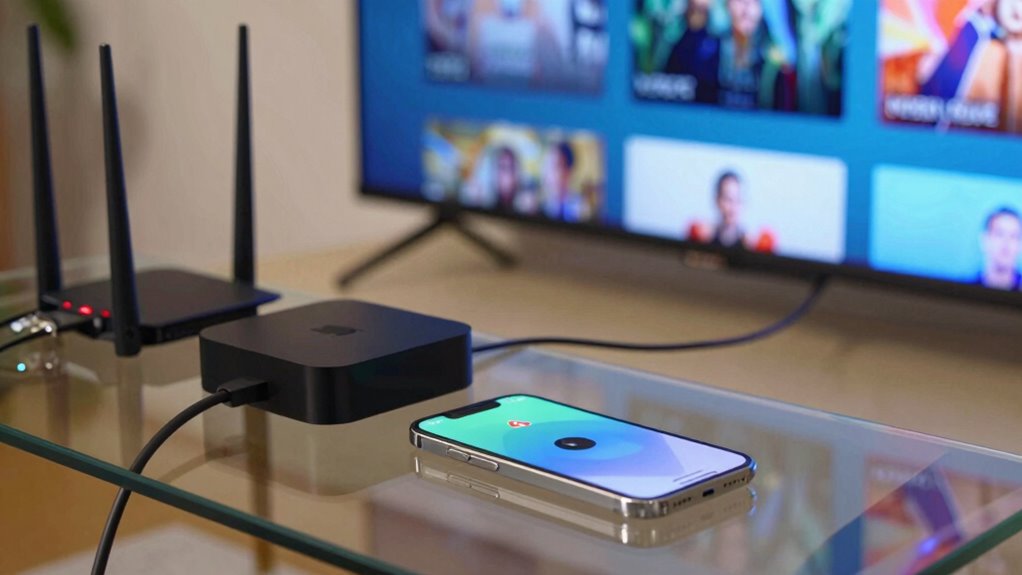
Network issues are a common cause of AirPlay disruptions, and identifying these problems quickly can save you time and frustration. Wireless interference from other devices, like Bluetooth speakers or routers, can weaken the connection, causing lag or dropout. To troubleshoot, move your devices closer together and reduce the number of active wireless devices nearby. Additionally, check device compatibility; not all devices support the latest AirPlay versions, which can lead to connection failures. Restart your Wi-Fi router, your streaming device, and your source device to refresh connections. Make sure your devices are updated with the latest firmware or software. By addressing wireless interference and confirming device compatibility, you improve your chances of a smooth, uninterrupted AirPlay experience.
Does Your Network Type Affect AirPlay Reliability?
The type of network you use can profoundly influence your AirPlay experience. Different networks handle device compatibility and network security differently, impacting reliability. For example:
- Wi-Fi Networks: Stable Wi-Fi, especially with strong signals, ensures smooth streaming, but insecure networks can cause interruptions.
- Guest Networks: Often have stricter security settings, which might block AirPlay traffic or limit device compatibility.
- Public Wi-Fi: Usually less secure and prone to interference, making AirPlay less reliable and more vulnerable to security issues.
Selecting a secure, well-configured network improves device compatibility and reduces connection failures. Confirming your network’s security settings allow AirPlay traffic is key to maintaining a consistent streaming experience.
When Should You Upgrade Your Network for Better AirPlay?
If your AirPlay experience frequently stalls, disconnects, or buffers, it’s a clear sign that your current network may need an upgrade. Slow or unreliable connections can stem from outdated router configurations or weak network security that limits bandwidth. Consider upgrading your router to a modern, dual-band or Wi-Fi 6 model for better speed and stability. Updating your router’s firmware and optimizing its configuration can also improve performance. Additionally, enhanced network security settings, like enabling guest networks or prioritizing device traffic, can reduce interference and congestion. If you’ve tried these adjustments and still face issues, it’s time to invest in a more robust network infrastructure. A stronger, more secure network guarantees smoother AirPlay streaming and fewer interruptions.
Frequently Asked Questions
Can Using a VPN Interfere With Airplay Connectivity?
Yes, using a VPN can interfere with AirPlay connectivity. VPN conflicts often cause network restrictions, which block the necessary communication between your device and the AirPlay-compatible device. When you activate a VPN, it may create a separate network pathway, making it difficult for AirPlay to detect or connect properly. To avoid issues, disable the VPN or adjust its settings to allow local network access while using AirPlay.
Does the Distance From the Wi-Fi Router Impact Airplay Performance?
Did you know that signal strength drops considerably when you’re more than 30 feet from your Wi-Fi router? Yes, the distance impacts AirPlay performance directly. As you move farther away, Wi-Fi interference increases, reducing signal quality. This weakens your connection, causing lag or dropouts. To improve streaming, keep your device within a close range of the router to minimize Wi-Fi interference and guarantee a strong, stable connection.
Are Older Devices Less Compatible With the Latest Airplay Features?
Yes, older devices often face compatibility issues with the latest AirPlay features. Legacy devices may lack the necessary hardware or software updates, making them less compatible with newer AirPlay versions. You might experience streaming failures or limited functionality. To avoid these problems, verify your device supports the latest AirPlay standards or consider upgrading to a newer model that’s designed to work seamlessly with current Apple streaming technology.
How Do Firmware Updates Affect Airplay Stability?
They say, “A stitch in time saves nine,” and that’s true for firmware updates. Regular updates improve AirPlay stability by fixing bugs and enhancing firmware compatibility, ensuring devices communicate seamlessly. Skipping updates can leave you vulnerable to connection drops or lag. Keep your device’s firmware current, and you’ll enjoy a smoother AirPlay experience. Remember, the more frequently you update, the more reliable your streaming becomes.
Can Third-Party Network Equipment Cause Airplay Issues?
Yes, third-party network equipment can cause AirPlay issues. It can introduce network congestion or signal interference, disrupting the connection between your device and the streaming source. These issues might result in stuttering, lag, or failed connections. To improve AirPlay stability, make certain your third-party equipment is compatible, update firmware regularly, and minimize interference by placing devices away from potential signal disruptors like microwaves or wireless cameras.
Conclusion
Think of your network as a delicate dance floor—if the music isn’t synchronized or the space is overcrowded, the dance falters. Ensuring your Wi-Fi is properly tuned, free of congestion, and secure keeps your AirPlay performance smooth and harmonious. When issues arise, it’s like adjusting the lighting or repositioning the dancers. With patience and the right setup, your streaming experience will glide effortlessly, turning your network into the perfect stage for seamless entertainment.
Evergreen bestsellers Picks
bestsellers
As an affiliate, we earn on qualifying purchases.