If your MacBook won’t charge via USB-C, make sure you’re using the right, certified power adapter and a cable supporting Power Delivery (PD). Check for any damage or dirt in the ports and test with different chargers and cables to identify faulty hardware. Avoid uncertified accessories, as they often lead to compatibility issues. Keep your software up to date and inspect hardware connections carefully. Continue exploring these tips to find out how to fix your charging problems effectively.

Get the latest gadgets delivered free with Prime
- Fast, free delivery on millions of items
- Prime Video, Amazon Music and more included
- Member-only deals all year
Key Takeaways
- Use only certified, genuine USB-C chargers and cables compatible with your MacBook’s power requirements.
- Inspect and clean USB-C ports to remove dirt, debris, or damage that could block charging.
- Ensure your macOS and firmware are up to date to prevent hardware compatibility issues.
- Avoid third-party accessories that lack proper Power Delivery (PD) support or official certification.
- Test with different cables and chargers to identify whether the issue stems from incompatible or faulty hardware.
Apple certified USB-C power adapter for MacBook
As an affiliate, we earn on qualifying purchases.
As an affiliate, we earn on qualifying purchases.
Why Isn’t My MacBook Charging via USB‑C?
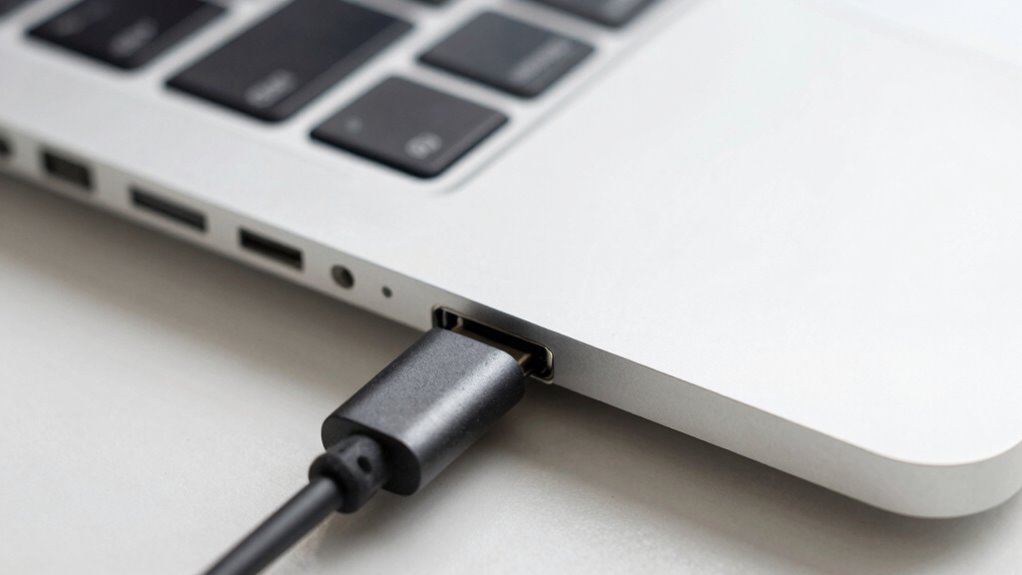
If your MacBook isn’t charging via USB-C, there could be several reasons behind the issue. One common factor is battery health; if your battery is degraded, it might prevent proper charging. Check your battery’s status in System Preferences, and consider replacing it if needed. Software updates also play a role—outdated macOS versions can cause charging problems. Make sure your system is up to date, as updates often include bug fixes that improve hardware compatibility. Additionally, software glitches or corrupted settings could interfere with charging. Restart your MacBook to see if that resolves the issue. By keeping an eye on battery health and applying the latest software updates, you can often troubleshoot charging problems effectively before exploring more complex solutions. Also, hardware compatibility can significantly influence charging functionality. Ensuring your USB-C cables and chargers meet the official Apple specifications can help prevent compatibility issues. Furthermore, understanding USB-C standards can assist in selecting the right accessories.
USB-C to USB-C cable with Power Delivery
As an affiliate, we earn on qualifying purchases.
As an affiliate, we earn on qualifying purchases.
How to Check If Your Charger and Cable Are Compatible
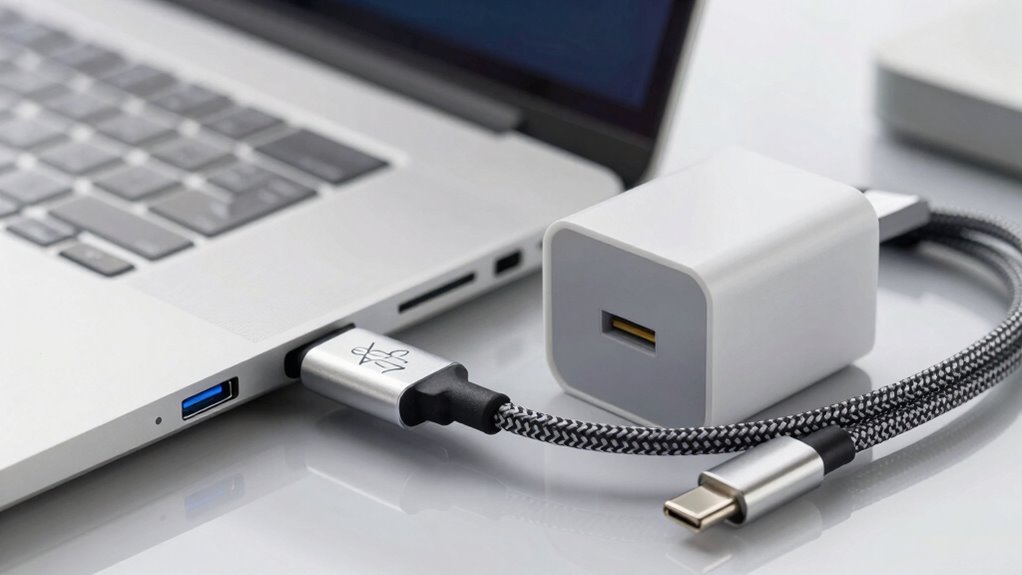
Before troubleshooting further, it’s essential to verify that your charger and cable are compatible with your MacBook. Check charger compatibility by ensuring it provides the correct wattage and meets Apple’s specifications. For cable standards, use only cables certified for your device, avoiding third-party options that might not support fast charging or data transfer. Additionally, consider outdoor transformation essentials to ensure your setup is in good working condition and free from environmental factors that could affect charging. Verifying labeled claims and certifications can help confirm the authenticity and safety of your charging accessories.
MacBook charging port cleaning kit
As an affiliate, we earn on qualifying purchases.
As an affiliate, we earn on qualifying purchases.
Choosing the Right Power Adapter for Your MacBook
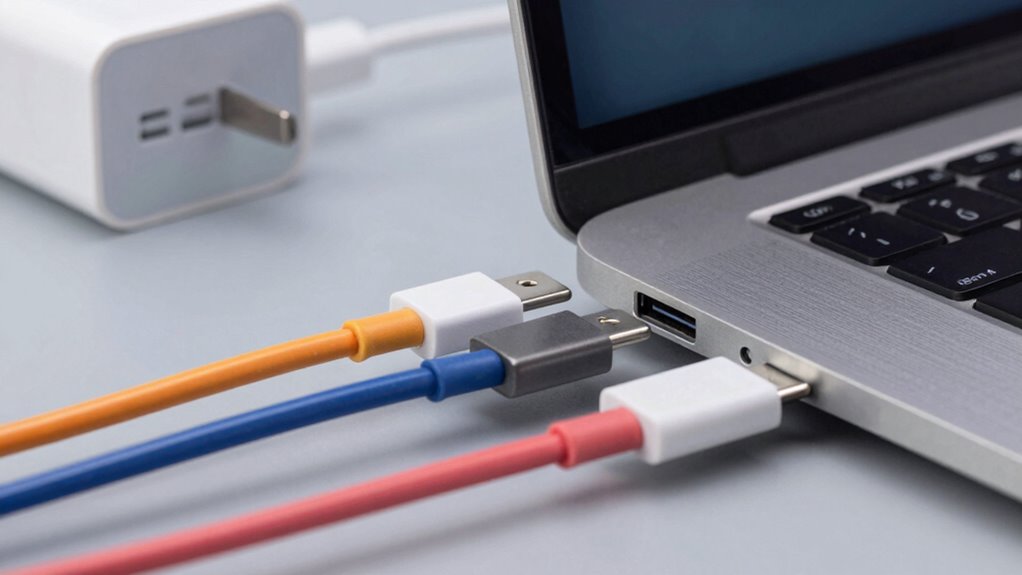
When selecting a power adapter, make certain it matches your MacBook’s required wattage to ensure proper charging and safety. You should also prioritize genuine Apple adapters over third-party options to avoid potential compatibility issues. Understanding these factors helps you choose a reliable charger that keeps your MacBook powered efficiently. Additionally, consider the compatibility of charging ports to prevent damage and ensure efficient power transfer. Being aware of security measures in your charging setup can further protect your device from potential risks.
Compatibility and Wattage
Choosing the right power adapter for your MacBook is essential to guarantee safe and efficient charging. Ensuring compatibility means selecting an adapter with the correct wattage for your model, preventing under- or over-powering your device. Using a higher wattage charger won’t harm your MacBook, as it only draws what it needs, but a lower wattage can lead to slow charging or no charge at all. While wireless charging is convenient for compatible devices, your MacBook relies on proper USB‑C power delivery for ideal battery health. Mismatched wattage can stress your battery, reducing its lifespan over time. Always verify that your charger matches Apple’s recommended specifications to maintain battery health and avoid potential charging issues. Additionally, understanding home safety can help you protect your devices and household from electrical hazards that might arise from incompatible chargers. Ensuring proper electrical compatibility can prevent damage not only to your MacBook but also to other household electronics. It’s also important to check for charger quality to ensure reliable and safe power delivery. A secure connection between your charger and device also minimizes risks of electrical faults or accidental disconnections. Furthermore, opting for certified chargers enhances overall charging safety and device longevity.
Genuine vs. Third-Party
Opting for a genuine Apple power adapter guarantees you get a reliable, safe, and fully compatible charging solution for your MacBook. While third-party chargers may seem tempting and often cost less, they can compromise your device’s wireless charging capabilities and battery health over time. Genuine adapters are designed to meet Apple’s strict standards, ensuring peak power delivery without risking damage. Using authentic accessories helps maintain your MacBook’s performance and longevity, especially when it comes to preserving battery health. Counterfeit or uncertified chargers might cause inconsistent charging or even harm your device’s internal components. Ultimately, investing in genuine Apple adapters offers peace of mind and better protection, making sure your MacBook charges correctly and stays in top condition longer.
As an affiliate, we earn on qualifying purchases.
Is Your USB‑C Cable Supporting Power Delivery (PD)?
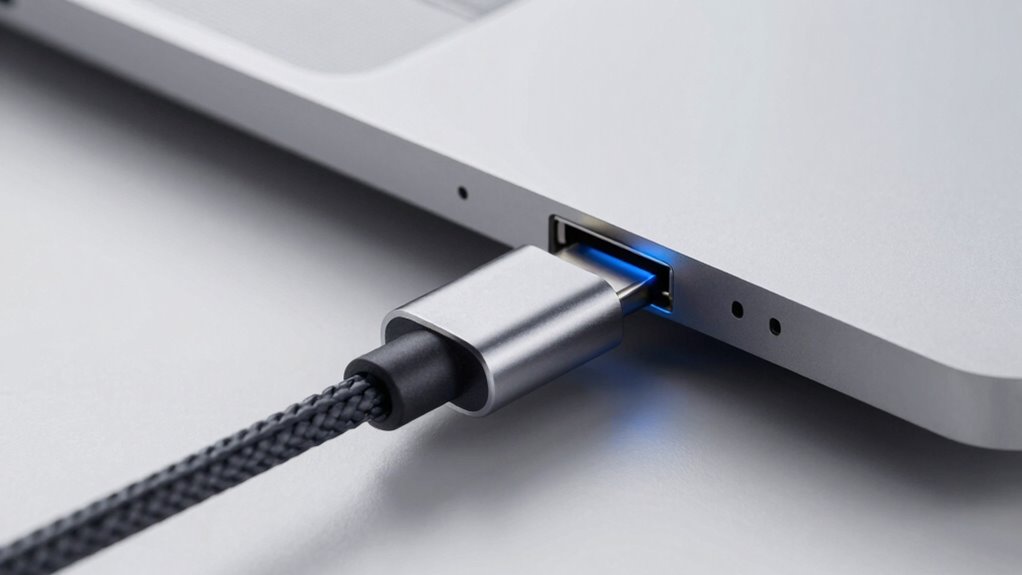
Not all USB-C cables are created equal, especially when it comes to supporting Power Delivery (PD). You need a cable with solid cable durability to handle high current flows safely. If your cable isn’t rated for PD, it might not deliver enough power to charge your MacBook efficiently, or worse, it could cause a power surge that damages your device. Always check the cable specifications to confirm it supports PD standards. Using a cable that’s compatible guarantees safe, reliable charging and protects your MacBook’s internal components. Cheap or uncertified cables may seem convenient but often lack the necessary build quality and safety features. Investing in a well-made, PD-compatible cable reduces charging issues and keeps your device safe from potential electrical hazards. Proper cable support is essential for ensuring safe and efficient charging, especially when dealing with high current flows. Also, ensure that your USB-C port on the MacBook itself is functioning correctly, as damaged ports can also prevent proper charging. Additionally, verifying that your cable meets USB-C Power Delivery standards can help prevent compatibility issues and ensure optimal charging performance. To avoid potential compatibility traps, always purchase cables from reputable brands that explicitly state support for PD. Moreover, selecting a certified cable from a trusted manufacturer can provide additional assurance of safety and compatibility.
Troubleshooting Software and Firmware Issues Causing Charging Problems
Even if your cable supports Power Delivery and looks fine, software or firmware issues can still block your MacBook from charging properly. Outdated software can cause miscommunications between your device and charger, preventing proper power transfer. To fix this, start by checking for software updates—Apple regularly releases updates that fix bugs and improve hardware compatibility. Additionally, perform a battery calibration: fully charge your MacBook, then use it until it completely discharges. This recalibrates the battery’s sensor, ensuring accurate readings and better power management. Firmware issues can also interfere with charging; ensure your MacBook’s firmware is current. Keeping your software and firmware up to date helps your MacBook recognize and work smoothly with connected chargers, reducing charging disruptions caused by software glitches. Proper software maintenance is essential for optimal device performance. Regularly updating your system helps prevent compatibility issues that can hinder charging efficiency.
Checking Ports and Connections for Damage or Dirt
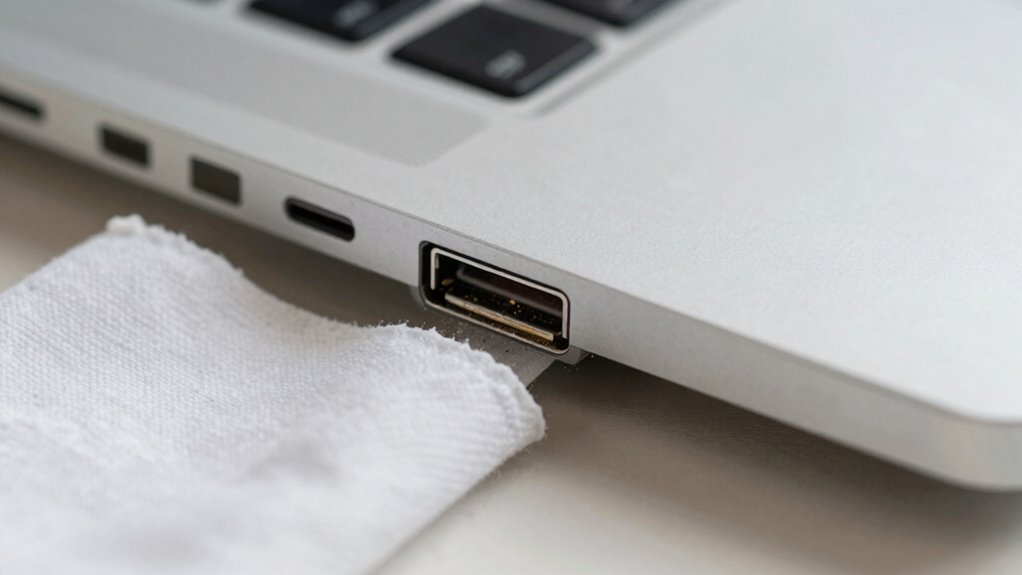
Start by inspecting your USB-C port for any debris or dirt that could block the connection. Check for visible signs of physical damage, such as bent pins or cracks. If needed, clean the port carefully and test your cables and charger to guarantee a solid, secure connection. Be mindful of compatibility issues that can arise from using incompatible accessories, which may prevent charging or data transfer. Additionally, ensure your accessories meet the Apple specifications to avoid potential power and communication problems. Considering the Gold IRA markets, it’s also important to verify that your accessories are from reputable sources to ensure optimal performance and safety. To prevent issues, always use certified kitchen gear and equipment designed for your device, as substandard products can cause damage or malfunctions.
Inspect Port for Debris
Have you checked the USB-C port for any debris or dirt that might be causing a poor connection? Port cleanliness is vital for proper charging, so perform a debris inspection carefully. Use a soft brush or compressed air to remove dust, lint, or any foreign objects lodged inside the port. Avoid sticking anything sharp or metal into the port, as this could cause damage. Sometimes, tiny particles accumulate over time, disrupting the connection between your MacBook and the charging cable. Ensuring the port is free of debris helps maintain a solid contact, which is essential for consistent charging. Regularly inspecting and cleaning the port can prevent charging issues caused by dirt or grime buildup, saving you time and frustration.
Check for Physical Damage
Inspecting your MacBook’s ports and connections for physical damage is a crucial step when troubleshooting charging issues. Look closely at the USB-C port for bent pins, cracks, or signs of wear. Damage here can prevent proper power transfer. Also, examine the cable and connector for fraying, dents, or corrosion. Sometimes, a damaged port can cause irregularities like sudden changes in screen brightness or keyboard malfunction, indicating internal issues. If the port appears damaged or dirty, avoid forcing connections, as this might worsen the problem. Ensuring the port and cable are intact helps rule out hardware damage as a cause. Checking for physical damage or dirt can help prevent further issues. Always handle your MacBook gently and look for any signs of physical harm that could compromise charging or overall device function.
Clean and Test Connections
Dirt, dust, or debris in the USB-C port can interfere with a proper connection and cause charging problems. Carefully inspect the port for any buildup and gently clean it with a soft brush or compressed air. Dirty or damaged ports can negatively impact battery health by preventing efficient charging. After cleaning, test the connection with a different cable or charger to rule out hardware issues. Make sure your MacBook’s software is up to date, as software updates often include improvements for hardware compatibility and charging stability. If the port shows signs of physical damage, avoid forcing connections, as this can worsen the issue. Regular cleaning and testing help guarantee your MacBook charges properly and maintains excellent battery health over time.
Testing Different Chargers and Cables to Find the Fault
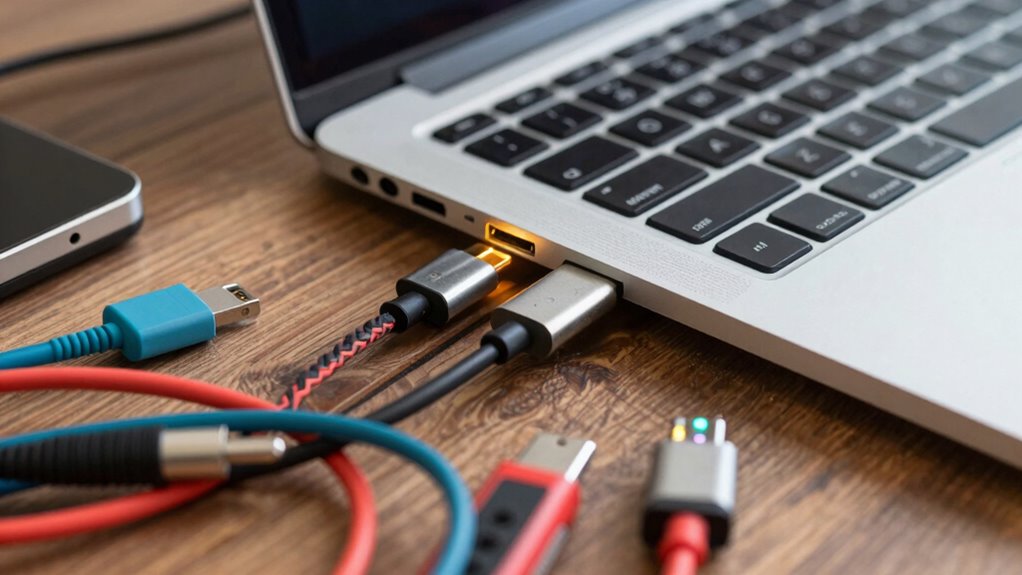
When troubleshooting your MacBook’s charging issues, testing different chargers and cables is an essential step. Use chargers and cables that meet Apple’s charging safety standards to avoid potential damage or safety risks. Start by swapping out your current cable for one known to be reliable and durable. Check the cable’s construction for signs of wear or damage, as cable durability affects charging consistency. Try different chargers, preferably Apple-certified or reputable third-party options, to see if the issue persists. If a particular charger works with other devices, but not your MacBook, it could point to compatibility or port issues. Always prioritize charging safety to prevent harm, and remember that a faulty cable or charger might be the cause rather than the MacBook itself.
How to Reset Your MacBook’s SMC and NVRAM
If swapping chargers and cables doesn’t resolve your MacBook’s charging issues, resetting the System Management Controller (SMC) and Non-Volatile Random-Access Memory (NVRAM) can often fix underlying hardware and system settings problems. Resetting the SMC can help improve battery health and address power management issues, while resetting NVRAM clears corrupted settings that may interfere with charging. To reset the SMC, shut down your MacBook, then press and hold specific keys depending on your model, including the power button. For NVRAM, turn on your MacBook and immediately press Option-Command-P-R for about 20 seconds. After resetting, check if your software updates are current, as outdated software can also cause charging problems. This process often restores proper hardware function and system stability.
When to Contact Apple Support or Visit a Repair Shop
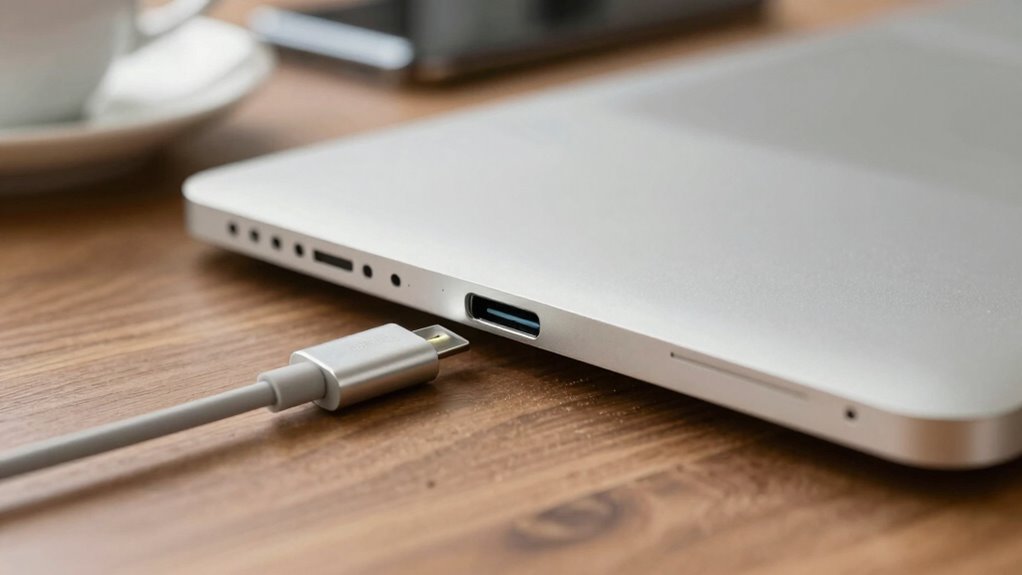
Recognizing when to seek professional help is essential, especially if your MacBook continues to experience charging problems despite troubleshooting efforts. If you notice issues like rapid battery drain, poor battery health, or inconsistent charging, it’s time to contact Apple Support or visit a repair shop. Power management features may be malfunctioning, or the battery might need replacement. Persistent charging problems that don’t resolve after resetting SMC or NVRAM indicate a hardware issue. Also, if your MacBook shows unusual battery notifications or refuses to recognize a compatible charger, professional diagnosis is necessary. Don’t delay seeking help, as ignoring these signs can lead to further damage or reduced performance. Expert technicians can accurately identify and fix underlying hardware or power management problems, ensuring your MacBook functions properly again.
Frequently Asked Questions
Can Software Updates Fix Charging Issues on My Macbook?
Yes, software updates can fix charging issues on your MacBook. They often include firmware updates that resolve bugs affecting the charging process. By installing the latest macOS version, you guarantee your system has the newest fixes and improvements. Keep your software current, as this can address underlying software bugs that might be causing your charging problems, helping your MacBook charge properly via USB-C.
Do All Usb‑C Cables Support Fast Charging?
Not all USB-C cables support fast charging. Cable quality and adherence to power standards matter. Look for cables labeled with USB Power Delivery (USB PD) or those that meet the latest safety and power standards. Cheaper or older cables may only support basic data transfer or slow charging. To guarantee fast charging for your MacBook, use high-quality cables designed for higher wattage and compatible with your device’s power requirements.
What Environmental Factors Affect Macbook Charging Performance?
Environmental factors can gently influence your MacBook’s charging performance. Make sure you’re plugging into a stable power outlet, as inconsistent voltage can slow charging. Also, pay attention to cable quality; lower-quality cables might struggle with power delivery. Keep your workspace free from extreme temperatures and moisture, which can impact the battery’s health and charging efficiency. By maintaining a clean, stable environment, you help your MacBook charge smoothly and reliably.
How Does Temperature Impact Usb‑C Charging Efficiency?
Temperature considerably impacts USB-C charging efficiency because high heat can accelerate battery degradation and disrupt thermal management. When your environment is too hot or cold, your MacBook may struggle to charge properly, as thermal management systems work harder to protect internal components. Keep your workspace at a moderate temperature to maintain ideal charging performance, and avoid exposing your MacBook to extreme temperatures that could harm its battery longevity.
Are Third-Party Chargers Safe for My Macbook?
Using third-party chargers can be risky—they might be the Trojan horse that damages your MacBook’s delicate internals. While some third-party chargers claim compatibility, they often lack the proper safety features, risking your device’s health. Always check for charger compatibility with your MacBook, and prioritize reputable brands. Remember, the wrong charger isn’t just a minor inconvenience; it could lead to costly repairs or data loss. Stay safe and stick with trusted options!
Conclusion
If your MacBook’s charging woes seem stubborn, don’t give up hope—think of it as untangling a knot in your favorite necklace. By checking compatibility, cleaning ports, and resetting settings, you’re gradually restoring the flow of power. Sometimes, the fix is just around the corner, waiting to be uncovered. Stay patient, follow the steps, and remember that troubleshooting is like peeling an onion—layer by layer, you’ll find the core of the issue.
Halloween Picks
halloween
As an affiliate, we earn on qualifying purchases.