

To manage your iPhone storage, start by evaluating usage in Settings to identify large apps and hidden data. Organize photos and videos by deleting duplicates, lower resolution settings, and using cloud backups like iCloud to free space. Offload unused apps without losing data, and transfer large files to your computer or external drive. Adjust storage settings for automatic cleanup and auto-deletion. Keep your device optimized; if you want detailed steps, keep exploring to learn more.

Get the latest gadgets delivered free — and shop member deals
- Fast, free delivery on millions of items
- Access to Prime Big Deal Days deals on October 6–7
- Prime Video, Amazon Music and more included
Key Takeaways
- Enable iCloud Photos and “Optimize iPhone Storage” to automatically manage photo and video sizes and free device space.
- Regularly delete duplicate, blurry, or unnecessary media to reduce storage clutter.
- Offload rarely used apps while preserving their data to maintain performance without losing important information.
- Use third-party apps or cloud services for additional backup and to offload large media files.
- Review and adjust photo and video quality settings to balance media quality with storage efficiency.
As an affiliate, we earn on qualifying purchases.
How to Assess Your iPhone Storage and Find Bottlenecks
To effectively manage your iPhone storage, you first need to understand what’s taking up space. Start by checking your storage usage in Settings > General > iPhone Storage. Look for large apps or hidden data that might be consuming space. Pay attention to app permissions, as some apps store more data than necessary, and review battery health to identify apps draining power and storage. Poor battery health can lead to apps running inefficiently, increasing data and cache accumulation. Clearing app caches or deleting unused apps can free significant space. Also, consider which apps have permission to access photos, location, or files, as excessive permissions might cause unnecessary data storage. Regularly evaluating these aspects helps you pinpoint storage bottlenecks and optimize your device’s capacity. Additionally, understanding content formats and how they impact storage can help you make more informed decisions about what to keep or delete. Being aware of storage management techniques can further streamline your device’s performance and free up valuable space.
external drives for iPhone backup
As an affiliate, we earn on qualifying purchases.
As an affiliate, we earn on qualifying purchases.
Organize Your Photos and Videos to Save Space
To free up space, start by deleting duplicate photos and videos. Use albums to organize your media efficiently, making it easier to identify what you no longer need. Adjust your photo settings to lower resolution or disable live photos to further reduce storage use. Exploring innovative planter designs can inspire you to refresh your indoor gardening setup and make your space more vibrant. Additionally, consider creating designated outdoor seating areas to enhance your backyard’s social and relaxation appeal. Being aware of portable restroom solutions can also be helpful for event planning and outdoor activities. Utilizing tools that detect passive voice can help ensure your writing remains clear and engaging. For added efficiency, consider using storage management features available in your device to better monitor and optimize your space usage.
Delete Duplicate Photos
Have you ever noticed how quickly duplicate photos clutter your iPhone storage? To free up space, focus on duplicate detection during your photo cleanup. Manually searching for repeats can be tedious, but apps like Gemini Photos or Remo Duplicate Photos help identify duplicates efficiently. Utilizing user consent management can also ensure you’re aware of how third-party apps handle your data during the cleanup process. Additionally, considering photo storage solutions, such as cloud backups, can further help manage and preserve your photos without sacrificing device space.
| Duplicate Detection Method | Benefit |
|---|---|
| Built-in Photos App | Quick, basic detection |
| Third-party Apps | Advanced detection, faster |
| Manual Review | Precise, personalized cleanup |
Using these methods, you can easily delete identical or near-identical photos, optimizing your storage. Regular photo cleanup prevents buildup of unnecessary duplicates, ensuring your device stays organized and space-efficient.
Use Albums Effectively
Organizing your photos and videos into albums can considerably reduce clutter and make it easier to find what you need. By creating specific albums, you can quickly locate memorable moments, saving time and storage space. Use photo tagging to label images with keywords, making searches even more efficient. Sharing albums with friends and family becomes simple, allowing everyone to contribute or enjoy shared memories. Incorporating local attractions or regional specialties into your albums can enrich your collection and provide context for your memories. Support Breakfast—highlighting local favorites or regional dishes—can add a unique touch to your photo organization. Feel the satisfaction of a tidy, well-organized library. Relish the ease of finding photos during emergencies. Experience the joy of sharing albums with loved ones. Enjoy the peace of knowing your memories are well-categorized. Save storage space by removing duplicate or unnecessary files from albums.
Optimize Photo Settings
Adjusting your photo settings can especially reduce storage needs by controlling the quality and size of your images and videos. Start by lowering the photo resolution in your camera settings; this decreases file size without sacrificing essential detail. Using editing techniques, you can crop or compress photos before saving, further reducing storage. Enable “Optimize iPhone Storage” in your Photos settings to store full-resolution images in iCloud while keeping smaller versions on your device. Consider recording videos in lower resolutions or shorter durations to save space. Regularly reviewing and editing your photos to delete duplicates or blurry shots helps manage storage efficiently. By fine-tuning these settings, you keep your favorite moments accessible without overwhelming your device’s capacity.
As an affiliate, we earn on qualifying purchases.
Use iCloud and Cloud Services to Free Up Storage
Using iCloud and other cloud services is one of the most effective ways to free up storage on your iPhone. By enabling photo backup and cloud synchronization, you can keep your memories safe without cluttering your device. Cloud services automatically upload your photos and videos, freeing space while ensuring your data is accessible anytime. Imagine never worrying about losing precious moments or running out of storage again. Incorporating nutritional information about your stored media can help you make informed decisions about what to keep and what to delete.
duplicate photo finder for iPhone
As an affiliate, we earn on qualifying purchases.
As an affiliate, we earn on qualifying purchases.
How to Offload Apps Without Losing Data
Before offloading an app, make sure to back up its data to avoid losing important information. You can also use the iPhone’s “Offload App” feature, which removes the app but keeps its documents and data intact. This allows you to free up space without sacrificing your data. Remember that understanding how data privacy is managed can help you make informed decisions about app offloading and data security. Additionally, being aware of traditional Indonesian home decor principles can inspire you to organize your digital space in a harmonious way that reflects your personal style. Proper cybersecurity practices, such as regularly updating your device and using strong passwords, further protect your data during this process. Being aware of cookie categories and your consent preferences can also ensure your browsing remains secure and personalized. Incorporating digital organization techniques can help you maintain a clutter-free device, making it easier to find and manage your stored content.
Backup Before Offloading
Ever wondered how to free up space on your iPhone without losing important data? Before offloading apps, it’s vital to back up your device. This guarantees your data remains safe through data encryption and can be restored easily. Regular backup frequency keeps your information current and protected from unexpected losses. To safely offload apps without losing anything essential, follow these steps:
- Confirm your backup is complete and recent
- Use iCloud or iTunes for secure data encryption
- Double-check that all important files are included
- Keep your backup updated regularly
- Store backups in a safe, accessible location
Taking these precautions means you can confidently offload apps, knowing your valuable photos, messages, and app data are secure and easily recoverable.
Use Offload App Feature
Once you’ve backed up your data, offloading apps becomes a simple way to free up space without losing important information. Using the offload app feature helps with app optimization by removing unnecessary app files while keeping your documents and data safe. To do this, go to Settings > General > iPhone Storage, then tap the app you want to offload. Select “Offload App,” and your app will be temporarily removed, but your data remains intact. When you reinstall the app, all your data restores automatically. This process is guided by storage analytics, which identifies apps that take up space but are rarely used. Offloading is an effective way to manage storage efficiently without sacrificing your essential app data.
Optimize Storage Settings and Enable Auto-Deletion
To make the most of your iPhone’s storage, it’s essential to optimize your settings and enable auto-deletion features. Start by turning on iCloud Photos with photo compression to save space without sacrificing quality. Enable Optimize Video Storage to automatically replace full-resolution videos with smaller versions. Adjust your auto-delete settings for messages and emails to remove clutter. Use the Offload Unused Apps feature to free space without losing data. Regularly review Recently Deleted albums to permanently erase unnecessary files. These steps guarantee your device stays streamlined, giving you more room for new memories. Additionally, understanding the smart storage management options available can help you make informed decisions about space optimization.
- Feel confident knowing your photos and videos are efficiently managed.
- Experience peace of mind with automatic space-saving features.
- Enjoy faster device performance with less clutter.
- Stay in control of your storage with smart settings.
- Keep your device ready for every moment.
Troubleshoot Common iPhone Storage Errors
Even with optimized storage settings and automatic deletion features in place, you might still encounter common iPhone storage errors that prevent your device from functioning smoothly. One issue could be related to low battery health, which may cause your phone to restrict background activity or free up storage unexpectedly. Check your battery health in Settings, and consider replacing the battery if it’s degraded. Additionally, app permissions can contribute to storage problems—some apps may store unnecessary data or cache files. Review app permissions in Settings to see what data each app accesses and clear cache or data if possible. Regularly monitoring these factors helps prevent storage errors, ensuring your iPhone runs efficiently without unexpected disruptions. Being aware of microplastics in dust and how they can affect indoor environments highlights the importance of regular device maintenance and cleaning, which can also help manage clutter and storage. Incorporating cleaning techniques for your device and apps can further optimize storage and performance. Furthermore, understanding sound healing science and its principles can offer stress relief techniques that help maintain mental clarity during technical troubleshooting. Incorporating mind-body balance techniques can also help reduce stress caused by technical issues, promoting overall well-being.
Transfer Large Files to Your Computer or External Drive
When your iPhone’s storage is nearly full, transferring large files to your computer or external drive can free up valuable space quickly. This file transfer is a simple way to optimize storage and keep your device running smoothly. By moving videos, high-resolution photos, and other large files, you regain space and prevent performance issues.
Consider these emotional benefits:
- Reclaim your device’s speed and responsiveness
- Protect precious memories from accidental deletion
- Enjoy a clutter-free, organized phone
- Feel relieved knowing your important files are safely stored elsewhere
- Empower yourself with better storage control
Taking the time for storage optimization through file transfer not only frees space but also gives you peace of mind, knowing your data is safe and accessible whenever you need it.
Are Paid iCloud Plans Worth It?
Paid iCloud plans can be a smart investment if you value ease and quick access to your files without extra hardware. Consider whether the cost fits your budget and if the convenience outweighs the expense. Ultimately, weighing the price against the benefits helps determine if it’s worth it for you. Additionally, assessing media literacy skills can help you make more informed decisions about managing your digital storage. Being mindful of your digital habits can also prevent unnecessary expenses and help you optimize your storage solutions. For example, choosing the right storage options based on your needs can ensure you’re not overspending on unused space.
Cost-Effectiveness Analysis
Are paid iCloud plans worth the investment? When you do a cost analysis, consider how much storage flexibility impacts your daily life. Paid plans can seem pricey, but they often save you from stress and lost memories. With a clear budget plan, you’ll see the value of reliable storage that keeps your photos and videos safe. Think about these emotional benefits:
- Peace of mind knowing your memories are secure
- No more constant deleting to free space
- Seamless access across devices
- Avoiding expensive data recovery later
- Simplifying your digital life
Ultimately, investing in a paid plan can be cost-effective if it prevents frustration and preserves your most cherished moments. Weigh the price against the peace of mind, and decide what fits your budget and emotional needs best.
Storage Convenience Benefits
Having easy access to your files across all your Apple devices makes managing your digital life much more convenient. Paid iCloud plans streamline this by providing seamless Cloud Backup, ensuring your photos, videos, and documents are always up-to-date and protected. With automatic synchronization, you don’t have to worry about manually transferring files between devices. Plus, Apple’s data encryption keeps your data secure, giving you peace of mind that your personal information stays private. Paying for extra storage means you won’t constantly delete files to free space, saving you time and frustration. The convenience of having everything accessible whenever you need it, combined with the security of encrypted data, makes paid iCloud plans a smart choice for those looking to simplify their digital management.
Automate Storage Management for Future Peace of Mind

To guarantee your iPhone’s storage stays manageable and prevents unexpected disruptions, automating storage management is a smart move. AI-driven automation and predictive storage help keep your device optimized without constant effort. You’ll feel confident knowing your photos, videos, and apps are organized seamlessly. Automating these tasks reduces stress and saves time.
Consider these benefits:
- Enjoy a clutter-free device with minimal effort
- Stay ahead of storage shortages effortlessly
- Let AI predict and free up space proactively
- Keep your memories safe without manual cleanup
- Experience peace of mind knowing your storage is optimized
Your Final Checklist for Maintaining iPhone Storage and Organization
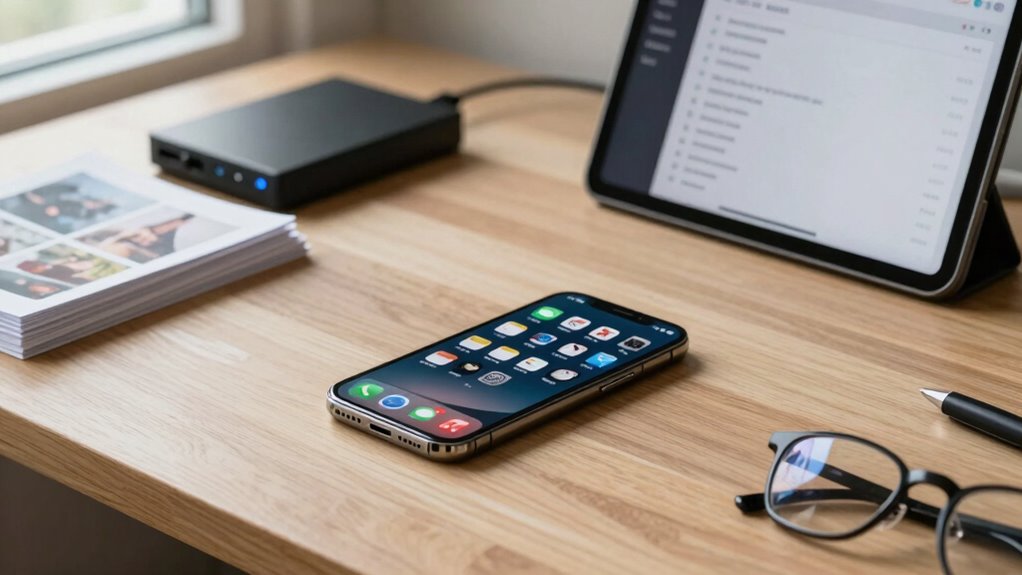
Keeping your iPhone organized and its storage under control requires a proactive approach. Start by reviewing your photo quality and video resolution settings—lowering these can save significant space without sacrificing too much clarity. Delete duplicate or blurry photos and videos, and regularly clear out screenshots or unnecessary media. Utilize iCloud or other cloud services for offloading large files, especially high-resolution videos that consume a lot of storage. Keep an eye on app sizes, removing unused apps and clearing cache data when possible. Enable automatic offloading for apps you rarely use, and regularly back up your device. By maintaining this routine, you’ll guarantee your storage stays manageable, your photos stay optimized, and your videos don’t overwhelm your space.
Frequently Asked Questions
How Can I Identify Which Photos or Videos Take up the Most Space?
To find which photos or videos take up the most space, check their file size in your Photos app. Photos with higher resolution or in newer formats like HEIF or RAW tend to be larger. Similarly, videos in 4K or higher frame rates consume more storage. You can sort your media by size in your device settings or export and compare file sizes to identify the biggest space hogs.
What Are the Best Apps for Managing Large Media Files?
You should try apps like Google Photos, which offers cloud backup and smart management for large media files, or Gemini Photos for app management and decluttering. These apps help you identify and organize large photos and videos, freeing up space. They also allow you to securely back up your media to the cloud, so you can delete unnecessary files from your device without losing memories.
Can I Recover Storage if I Accidentally Delete Important Photos?
Did you know that over 30% of photos are deleted accidentally? If you accidentally delete important photos, you can usually recover them if you’ve previously backed up your photos. Check your photo backup or cloud storage services like iCloud or Google Photos, as they often keep deleted items for a limited time. Act quickly before the recovery window closes, and you might restore your precious memories easily.
How Often Should I Review and Clear My iPhone Storage?
You should review and clear your iPhone storage at least once a month to stay organized and optimize space. Regularly check your photo backup to guarantee important images are saved elsewhere, freeing up local storage. Use storage optimization techniques like offloading unused apps and deleting duplicate or unnecessary photos and videos. This habit helps prevent storage issues, keeps your device running smoothly, and ensures your valuable memories are safely backed up.
Are There Third-Party Tools to Analyze My Storage Usage?
Yes, there are third-party tools that analyze your storage usage, helping you identify large files and unnecessary data. When using these tools, make sure they support cloud backup options and prioritize data encryption for security. This way, you can safely review and manage your storage, freeing space efficiently without risking sensitive information. Always choose reputable apps to maintain your data privacy and protect your device.
Conclusion
By following these tips, you’ll keep your iPhone clutter-free and running smoothly, much like a well-organized library from a bygone era. Regularly assess your storage, offload unnecessary files, and use cloud services to stay ahead of space constraints. Remember, even the most modern device benefits from a touch of old-fashioned diligence. Stay proactive, and your iPhone will serve you faithfully—no matter if you’re capturing memories or tackling your daily tasks.
Halloween Picks
halloween
As an affiliate, we earn on qualifying purchases.