

If Windows Search isn’t working, you can fix it by rebuilding the index or resetting key components. Start with troubleshooting tools, check that relevant services are running, and rebuild the search index through Settings or Control Panel. For deeper issues, consider resetting Windows Search with PowerShell commands. Keeping your system and drivers updated also helps prevent future problems. Stay tuned to learn the full steps to restore your search quickly and effectively.

Get the latest gadgets delivered free — and shop member deals
- Fast, free delivery on millions of items
- Access to Prime Big Deal Days deals on October 6–7
- Prime Video, Amazon Music and more included
Key Takeaways
- Use the built-in Troubleshooter via Settings > Update & Security > Troubleshoot to diagnose and fix search issues.
- Rebuild the search index through Control Panel > Indexing Options > Rebuild to resolve corruption and outdated data.
- Reset Windows Search by running PowerShell commands to reinstall core components and clear cached data.
- Verify that essential services like Windows Search and Indexing Service are running and set to automatic.
- Keep Windows and device drivers updated to ensure search algorithms and system components function optimally.
As an affiliate, we earn on qualifying purchases.
Why Windows Search Stops Working and How It Affects You
When Windows Search stops working, it can seriously disrupt your productivity by making it difficult to find files, emails, and other important data quickly. The essential issue often lies in the Search algorithm, which powers how your system locates information. If the algorithm encounters errors or becomes corrupted, search results may appear incomplete or not at all. Additionally, problems with the user interface can make it seem like Search isn’t functioning, even if the underlying system is fine. A broken Search function hampers your ability to access data efficiently, leading to frustration and wasted time. Understanding that both the Search algorithm and user interface play vital roles helps you recognize why Search may fail and how it directly impacts your daily workflow. Recognizing issues with the Search algorithm can help you troubleshoot and restore full functionality more effectively. Sometimes, system errors can also interfere with the Search process, requiring specific fixes to get everything back on track. Properly maintaining the system files involved in Search can prevent recurring issues and ensure reliable performance. Regularly system maintenance can help identify and resolve underlying problems before they cause significant disruptions.
As an affiliate, we earn on qualifying purchases.
How to Check Basic Troubleshooting Steps for Search Issues
Before diving into complex fixes, it’s important to start with some basic troubleshooting steps to identify and resolve common Search issues. First, check if your Search algorithms are functioning correctly by searching for simple terms. If results are missing or slow, it might be a sign of indexing problems. Next, confirm that the Indexing services are running properly. Open the Services app and verify that Windows Search is active and set to automatic. Restart the service if needed. Also, run the built-in Troubleshooter for Search and Indexing in Windows settings. These steps help determine if the issue is related to Search algorithms or the Indexing services, providing a foundation for further troubleshooting if necessary. Additionally, understanding how search algorithms work can help you pinpoint where the problem originates. Recognizing how Free Floating elements like landscaping or outdoor features can impact the overall environment may also offer insights into potential system or hardware issues that affect performance. Knowing how indexing is managed can further assist in diagnosing search-related problems. Regularly reviewing your system performance can help identify underlying issues that might be contributing to slow or unresponsive searches, especially when combined with checking the indexing status in system settings.
As an affiliate, we earn on qualifying purchases.
How to Rebuild the Windows Search Index Manually
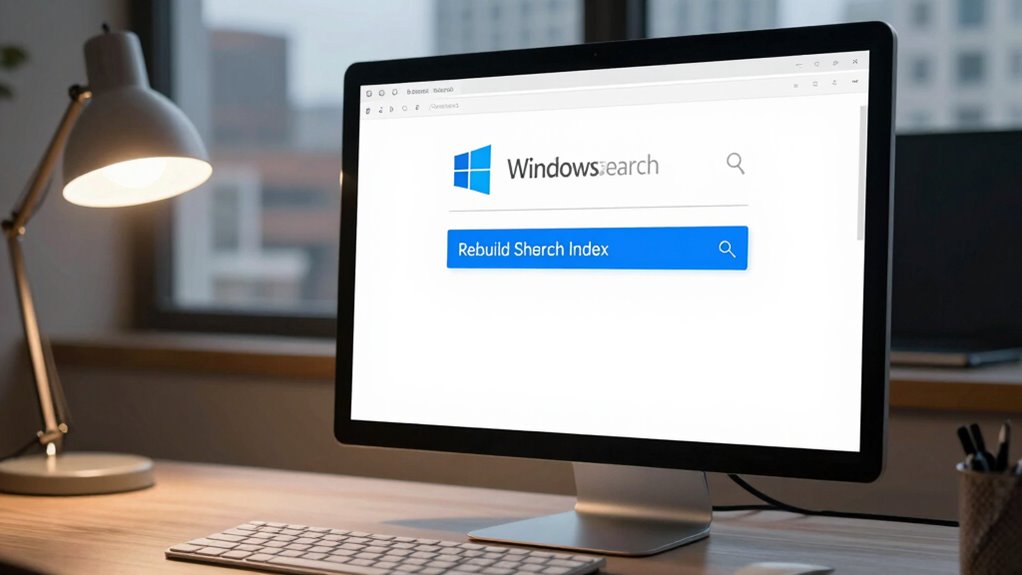
To rebuild the Windows Search index manually, start by opening the Indexing Options from the Control Panel. Next, click on the “Rebuild” button to begin the process, which can take some time to complete. Once finished, your search should work more reliably, resolving common indexing issues. Ensuring your system is properly optimized can also improve overall performance during the rebuild process, similar to how setting up a cozy movie night enhances your viewing experience system optimization techniques. Regular maintenance of your system’s performance can help prevent future indexing problems, keeping your searches efficient and accurate.
Access Indexing Options
Accessing the Indexing Options is a straightforward step in manually rebuilding your Windows Search index. To do this, open the Control Panel and navigate to “Indexing Options”—you can quickly find it by typing “Indexing Options” into the search bar. Once there, you’ll see a list of indexed locations, allowing you to customize your Search options. This is essential for search customization, helping you control which folders or files are included. If you notice issues with search results, accessing these options lets you review and adjust your indexing settings before proceeding with a rebuild. Taking this step ensures your Windows Search is tailored to your needs, making the process of rebuilding more effective and targeted.
Rebuild Search Index
If your Windows Search isn’t returning accurate results or seems unresponsive, manually rebuilding the search index can often resolve the issue. You’ll be resetting the search engine’s foundation, forcing it to reevaluate and reorganize data. To do this, access the Indexing Service settings and click on “Rebuild.” As the process runs, imagine the search engine working behind the scenes, methodically scanning files, emails, and documents anew. Picture a list of indexed locations being wiped clean, then rebuilt from scratch, ensuring future searches are fast and accurate. Keep in mind, rebuilding may take some time depending on the number of files. This refresh can fix corruption or outdated entries, restoring the search engine’s efficiency and reliability.
Windows Search troubleshooting software
As an affiliate, we earn on qualifying purchases.
As an affiliate, we earn on qualifying purchases.
How to Reset Windows Search Using PowerShell

To reset Windows Search using PowerShell, you need to launch it properly with administrator privileges. Then, you must execute the correct reset commands carefully to prevent errors. Following these steps ensures the reset process runs smoothly and effectively restores your search functionality. Additionally, understanding how filter sizing/flow impacts your system can help optimize overall performance during troubleshooting.
Launch PowerShell Properly
Before you can reset Windows Search using PowerShell, you need to launch the tool correctly. Proper launching ensures commands run smoothly. Start by searching for “PowerShell” in the Start menu. Right-click on Windows PowerShell and select Run as administrator—this guarantees you have the necessary permissions. Alternatively, you can use command line shortcuts: press Win + X and choose Windows PowerShell (Admin) from the menu. Visualize a black window opening, ready for your commands. Picture yourself typing in the commands confidently, knowing you’ve launched PowerShell correctly. This step is crucial because improper launching can cause errors or incomplete resets. Taking this initial step ensures your Windows Search reset process proceeds without hiccups.
Execute Reset Commands Correctly
Once you’ve launched PowerShell with administrator privileges, it’s time to execute the reset commands to fix Windows Search. These commands rebuild the search algorithms and reset user settings to their default state. First, run the command `Get-AppXPackage -Name Microsoft.Windows.Search -AllUsers | Foreach {Add-AppxPackage -DisableDevelopmentMode -Register “$($_.InstallLocation)AppXManifest.xml”}`. This reinstalls and resets the core search components. Next, execute `Stop-Service -Name WSearch; Remove-Item -Path “C:ProgramDataMicrosoftSearchDataApplicationsWindowsProjects” -Recurse -Force; Start-Service -Name WSearch`. This clears cached data and restarts the search service. By carefully executing these commands, you guarantee the search algorithms and user settings are properly reset, resolving common search issues.
How to Use the Troubleshooter to Fix Search Problems
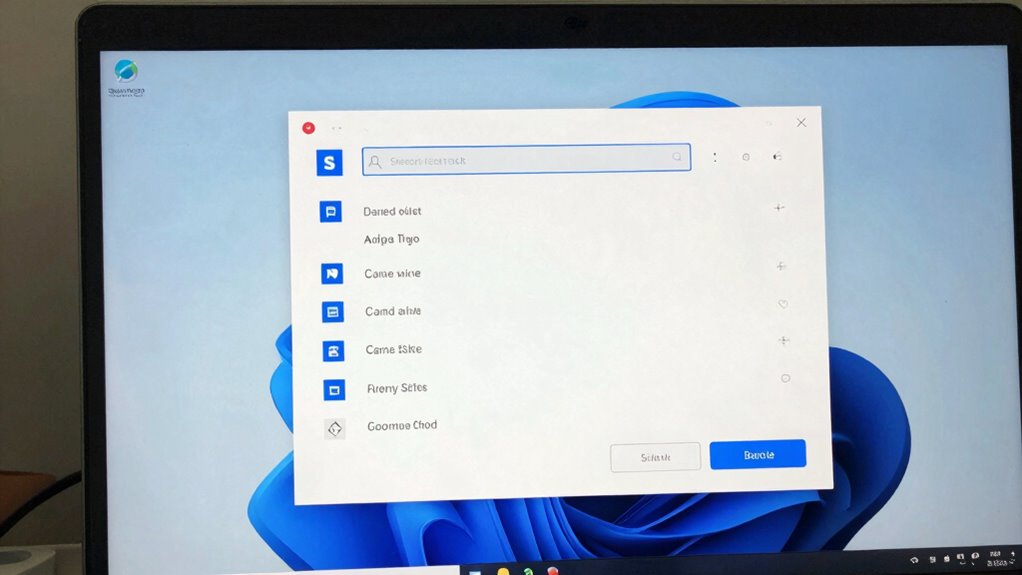
When search problems arise in Windows, running the built-in troubleshooter can often pinpoint and fix the issue quickly. It scans your system’s search algorithm and user interface components to identify errors. To start, open the Settings menu, go to Update & Security, then Troubleshoot, and select Search and Indexing. The troubleshooter guides you through a step-by-step process to diagnose issues. Additionally, understanding how cultural festivals reflect community heritage can help you appreciate the diverse backgrounds that influence your system’s regional settings and language preferences. As it works, it provides clear instructions or automatically repairs problems, helping restore your Windows Search to full health efficiently. Regular maintenance of your system’s search index can also prevent future issues and improve overall performance. Performing periodic system updates can ensure compatibility with the latest search features and security improvements. Keeping your system’s search configuration optimized can further enhance search accuracy and speed, especially when combined with proper indexing options settings.
Why Windows Search Dependencies Matter and How to Check Them

After running the troubleshooter, it’s important to understand that Windows Search relies on several key services and components working together. These are known as Search dependencies, and if any of them aren’t functioning correctly, search may break or become sluggish. Checking these dependencies helps assure Indexing integrity, which is crucial for accurate and fast search results. You can verify them by opening the Services app and confirming that services like Windows Search, Windows Update, and the Indexing Service are running and set to automatic. If any are disabled or not responding, restart or re-enable them. Maintaining healthy Search dependencies guarantees your indexing process stays intact, preventing future search errors. Regular checks can save you time and keep Windows Search running smoothly. Ensuring the health of search dependencies is vital for a seamless search experience, especially since search indexing relies on the proper functioning of these services. Understanding the Search dependencies helps in troubleshooting potential issues effectively and maintaining overall system performance. Additionally, monitoring service status ensures that all essential components are operating correctly to avoid disruptions. Being aware of astrological influences can sometimes be useful in understanding how personal or cultural factors might affect perceptions of system performance, although primarily, system health depends on technical components.
How to Update Windows and Drivers to Fix Search Errors
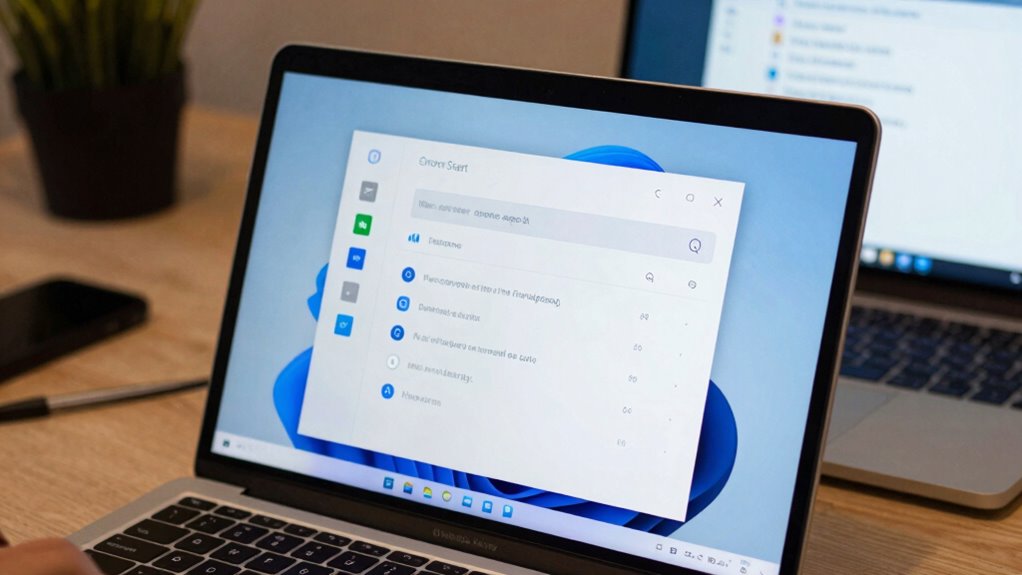
Updating Windows and drivers is a crucial step in fixing search errors because outdated software can cause compatibility issues and disrupt system functions. To get your search back on track, make sure your Windows is up to date by going to Settings > Update & Security > Windows Update. Also, check for driver updates through Device Manager, especially for your graphics card and network adapters. These updates can improve search algorithms and resolve conflicts causing search failures. Imagine:
- A smooth, refreshed interface that quickly finds your files
- Search results that accurately match your queries
- Fewer crashes or freezes when searching files or apps
Keeping your system current ensures compatibility and stability, fixing many underlying issues that cause search errors. Additionally, system stability plays a vital role in preventing search malfunctions. Regular updates are your best defense against search malfunction and system hiccups. Furthermore, ensuring all your device drivers are current can help prevent conflicts that may interfere with Windows Search functionality. Proper maintenance of cultural artifacts and traditional decor elements can also contribute to a harmonious digital environment, reducing distractions and improving overall system performance.
When to Consider Advanced Repairs or Reinstall Windows

If updating Windows and drivers hasn’t resolved your search issues, it may be time to contemplate more advanced repairs or even reinstalling Windows. Persistent problems affecting system performance or a degraded user experience signal deeper issues. Think about advanced repairs if troubleshooting hasn’t helped, but reinstall Windows if problems persist after multiple attempts.
| When to Think About | What It Means |
|---|---|
| System performance decline | Your PC feels slow or unresponsive, indicating deep system issues. |
| Search function failures | Basic fixes didn’t restore search, hinting at corruption. |
| Frequent crashes or errors | These errors impact overall user experience, requiring drastic measures. |
| Significant malware infections | Damage to system files may necessitate reinstallation. |
| Outdated hardware or OS | Reinstalling ensures compatibility and peak performance. |
Frequently Asked Questions
Can Third-Party Tools Improve Windows Search Performance?
Yes, third-party tools can improve Windows Search performance by optimizing the search algorithm and boosting indexing speed. These tools often offer advanced features like faster indexing, better filtering, and more accurate results. By replacing or supplementing the default Windows Search, you can experience quicker file discovery and smoother operation, especially if your current system struggles with large data sets or slow searches.
How Long Does Rebuilding the Search Index Typically Take?
You might worry that rebuilding the search index takes forever, but it usually varies between a few minutes to an hour, depending on your system’s size. This process is essential for search optimization and index maintenance, ensuring faster and more accurate results. During this time, your computer may slow down slightly, but once complete, you’ll notice improved search performance. Patience pays off for a smoother, more reliable Windows Search experience.
Will Rebuilding the Index Delete Your Personal Files?
Rebuilding the index won’t delete your personal files because it’s part of index maintenance, which only updates the search database, not your actual data. Your search customization settings remain intact, ensuring your preferences are preserved. During the process, Windows updates the index to improve search speed and accuracy. So, you can confidently rebuild the index without worrying about losing personal files, just as it enhances overall search performance.
What Are Common Causes of Search Index Corruption?
Ever wonder if your search algorithm decided to take a vacation? Common causes of search index corruption include system crashes, sudden shutdowns, or stubborn malware. Sometimes, index repair gets stubborn and refuses to cooperate, leading to a wonky search experience. Corruption often stems from disk errors or conflicting software. To fix it, you need to troubleshoot and rebuild the index, ensuring your search algorithm gets back to work smoothly.
How Often Should I Rebuild My Windows Search Index?
You should rebuild your Windows search index whenever you notice slow indexing speed or search accuracy issues. Typically, doing this every few months keeps your search functioning smoothly. If you experience frequent crashes or persistent errors, rebuild it sooner. Regular rebuilding helps maintain fast indexing speed and reliable search results, ensuring you find files quickly and accurately. Keep an eye on performance, and don’t hesitate to rebuild when needed.
Conclusion
If your Windows Search still isn’t working after trying these fixes, don’t give up. Imagine you’re in a library, but the catalog system is broken—searching for a book becomes a nightmare. Rebuilding the index or resetting Search is like fixing that catalog. With patience, you’ll soon find that essential document or photo again, just like finding that perfect book in your library. Keep troubleshooting, and you’ll restore your Windows Search to working order.
Fall Picks
fall essentials
As an affiliate, we earn on qualifying purchases.