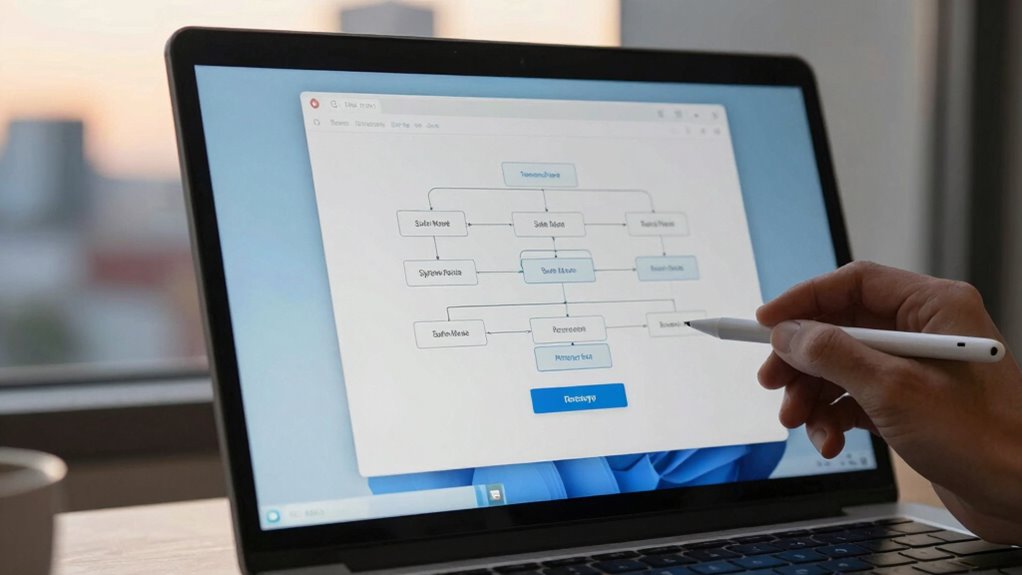

To create a recovery plan for Windows login problems, start by backing up important files regularly and creating a password reset disk or setting up online recovery options. Make sure to document troubleshooting steps and keep system restore points. Keep your Windows and security software updated. In case of recurring issues, consider resetting or reinstalling Windows as a last resort. For detailed strategies and tips, find out how you can better prepare for unexpected login failures.
Key Takeaways
- Regularly back up important files and system images to enable quick restoration during login issues.
- Create a password reset disk or set up online recovery options for easy access.
- Document step-by-step recovery procedures for quick reference during emergencies.
- Schedule system restore points before installing new software or updates to revert changes if problems occur.
- Keep recovery tools like Windows Recovery Drive or installation media readily available for troubleshooting.

Password Reset Recovery Disk for Windows 11 ,10 ,8.1 ,7 ,Vista , XP, Server Compatible with all brands of PC Laptops and Desktops
- Resets Windows Passwords and PINs: Supports all Windows versions including 11, 10, 8, 7, Vista, XP, Server
- Easy to Use: Boot from DVD, select user, remove password
- Universal Compatibility: Works with all PC brands and Windows systems
As an affiliate, we earn on qualifying purchases.
As an affiliate, we earn on qualifying purchases.
What Are the Most Common Windows Login Problems?
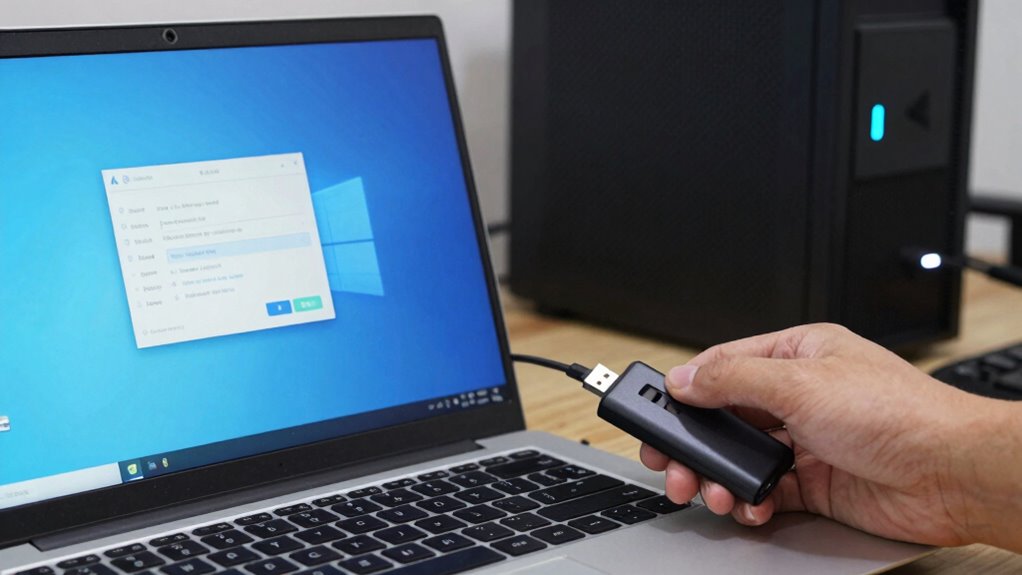
Have you ever been locked out of your Windows account unexpectedly? One common problem is a failure in user authentication, where your credentials aren’t recognized, even if they’re correct. This can happen due to corrupted passwords, account lockouts, or security updates. Another frequent issue occurs during system boot, where Windows struggles to load user profiles properly. Sometimes, error messages like “User profile cannot be loaded” appear, preventing access. Other times, login screens freeze or refresh repeatedly. These problems often tie back to issues with the login process itself, whether it’s a corrupted account, software conflicts, or hardware glitches. Recognizing these common Windows login problems helps you prepare a recovery plan, and understanding content formats used in digital environments can improve your troubleshooting strategies. Being aware of user account management practices can also help prevent some of these login issues from occurring in the first place. Additionally, understanding how contrast ratio impacts system visuals can assist in diagnosing display-related login errors that involve screen clarity or color discrepancies. Knowing how to address hardware and software conflicts can further streamline your recovery process.
As an affiliate, we earn on qualifying purchases.
How to Troubleshoot Login Failures Using Built-In Windows Tools
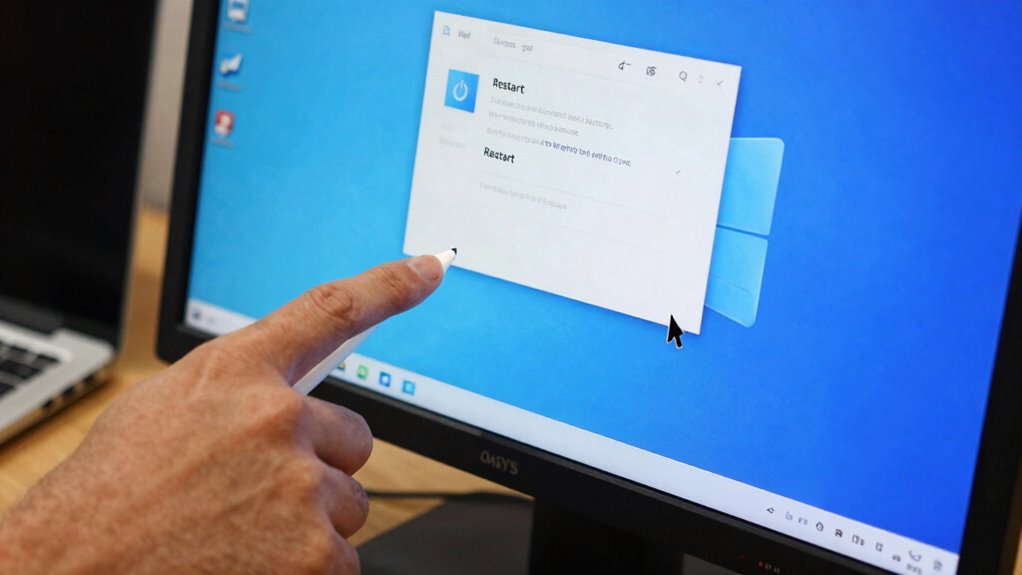
When Windows login fails, troubleshooting with built-in tools can often pinpoint the problem quickly. First, try a password reset if you suspect your credentials are incorrect. You can do this from the login screen by selecting the “Forgot password” option or using a password reset disk. If that doesn’t work, Windows offers system repair options through Advanced Startup. Restart your PC and access the recovery environment by pressing F8 or Shift + Restart. From there, select “Troubleshoot” > “Advanced options” > “Startup Repair.” This tool scans for issues preventing login and attempts repairs automatically. Using these built-in tools helps you identify whether the problem lies with your password or system files, paving the way for targeted solutions.
![Express Schedule Free Employee Scheduling Software [PC/Mac Download]](https://m.media-amazon.com/images/I/41yvuCFIVfS._SL500_.jpg)
Express Schedule Free Employee Scheduling Software [PC/Mac Download]
- User-friendly drag & drop interface: Simple shift planning
- Manage time-off and holidays: Add sick leave, breaks, holidays
- Email schedules to employees: Send schedules directly via email
As an affiliate, we earn on qualifying purchases.
As an affiliate, we earn on qualifying purchases.
Develop a Recovery Plan for Password and System Glitches
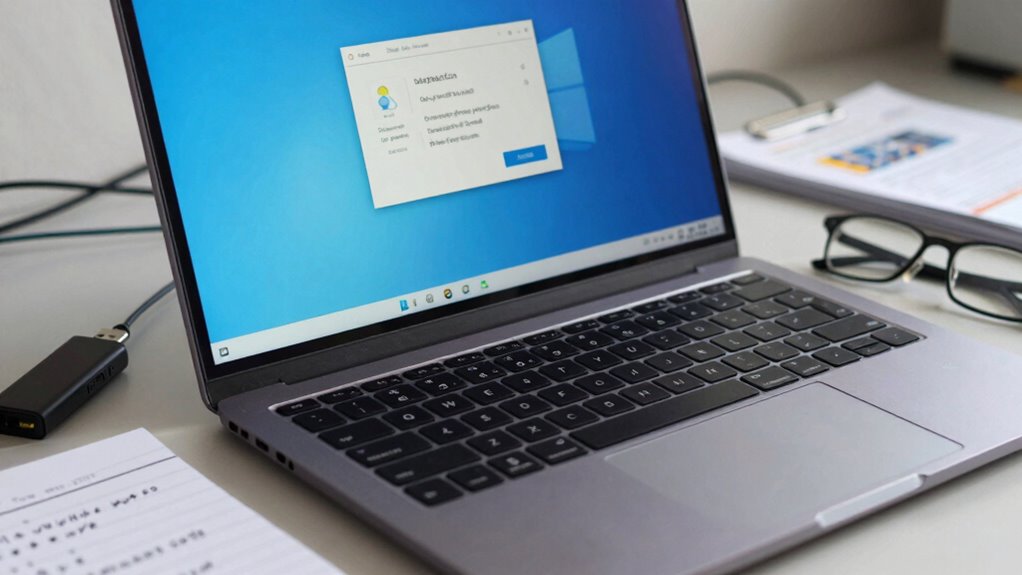
- Create a password reset disk or use online recovery options
- Regularly back up your system and files
- Document recovery procedures for quick reference
- Schedule periodic system restore points to prepare for unexpected glitches
- Explore local resources or community centers that offer technical support for additional assistance

Microsoft® Windows® Administrator's Automation Toolkit
- Condition: Used Book in Good Condition
As an affiliate, we earn on qualifying purchases.
As an affiliate, we earn on qualifying purchases.
When Should You Reset or Reinstall Windows for Login Issues?
Knowing when to reset or reinstall Windows is essential for resolving persistent login issues that standard troubleshooting can’t fix. If your user account is corrupted or inaccessible despite attempts to repair it, a system recovery might be necessary. Reinstalling Windows should be your last resort after trying other options like password resets or safe mode fixes. Consider reset or reinstallation if login problems persist for days, or if you encounter repeated system errors preventing access. Use the table below to identify scenarios requiring system recovery:
| Scenario | Recommended Action | Impact |
|---|---|---|
| Corrupted user account | Reset or reinstall Windows | Loss of user data |
| Repeated login errors | System recovery | Potential data backup needed |
| System files damaged | Reset or reinstall Windows | Fresh system setup |
| Malware or virus infection | Reinstall Windows | Complete system cleanup |
| Failed updates causing issues | System recovery | Restore previous state |
Additionally, understanding emerging trends in digital publishing can help you stay informed about new tools and methods for troubleshooting and system recovery.
A comprehensive approach that includes system diagnostics can often help pinpoint the root cause before proceeding with more drastic measures.
Tips to Prevent Future Login Problems
To prevent future login problems, adopting proactive security and maintenance habits is essential. Ensuring proper user authentication and robust access control keeps your system secure and reduces login issues. Regularly update your Windows OS and security patches to fix vulnerabilities. Use strong, unique passwords and enable two-factor authentication when possible. Manage user accounts carefully, granting permissions only when necessary. Additionally, back up your login credentials securely and avoid sharing passwords. Incorporating system performance optimization can also help prevent issues caused by system sluggishness or conflicts. Understanding affiliate disclosure and privacy policies can help you stay informed about how your data is managed and protected. Being aware of Greek Sceptic philosophies can encourage a cautious approach to trusting online security claims and updates. Keeping your system and security software up to date is vital for maintaining reliability. Use strong, unique passwords for each account. Enable multi-factor authentication for added security. Regularly review user accounts and permissions. Incorporating essential oils for security-related issues, such as those with antimicrobial or calming properties, may also support overall system stability and reduce stress on your device. Additionally, researching sound healing science might offer insights into calming techniques that can reduce system stress indirectly.
Frequently Asked Questions
Can I Recover a Windows Login Without Losing Data?
Yes, you can recover a Windows login without losing data. Start by attempting a password reset through your user account options or using security questions. If that doesn’t work, use a Windows recovery drive or reset your password via a Microsoft account. These methods allow you to regain access without deleting your files, ensuring your data stays safe while resolving login issues.
How Long Does a Typical Windows Recovery Process Take?
A typical Windows recovery process, like a system restore or fixing a user account, can surprisingly take anywhere from 15 minutes to over an hour. You might think your PC will magically fix itself instantly, but patience is key. The duration depends on your system’s speed and the complexity of the issue. So, grab a coffee and prepare for a slightly longer wait than you’d expect.
Are Third-Party Tools Safe for Fixing Login Problems?
Third-party tools can be safe for fixing login problems if you choose reputable ones. Always guarantee your antivirus software is active and up-to-date before using these tools to prevent malware risks. Additionally, keep your system updated, as updates often fix security vulnerabilities that could be exploited. Research reviews and user feedback to confirm safety, and avoid tools from untrusted sources to protect your data and system integrity.
What Should I Do if My Recovery Options Are Unavailable?
If your recovery options are unavailable, don’t panic—think of it as maneuvering a maze with a broken compass. Start by trying a System Restore to revert your PC to a previous state. If that’s not an option, consider resetting your BIOS settings to default, which might resolve boot issues. These steps can often get you back in without needing external tools, saving you from a digital “time warp.”
How Can I Prevent Password Lockouts in Windows?
To prevent password lockouts, focus on effective password management and user account security. Use strong, unique passwords and update them regularly. Enable account lockout policies to deter brute-force attacks, but set thresholds wisely to avoid accidental lockouts. Consider using a password manager for convenience and security. Also, educate yourself on best practices for user account security, like avoiding shared passwords and enabling two-factor authentication when possible.
Conclusion
Having a solid recovery plan guarantees you’re prepared for Windows login issues. Did you know that over 30% of users experience login problems at some point? By understanding common issues, utilizing built-in tools, and knowing when to reset or reinstall, you can minimize downtime. Stay proactive with regular backups and security updates. With these steps, you’ll maintain smooth access and keep your system running seamlessly, even when unexpected login glitches occur.