
To make Android text and icons easier to read, start by opening Settings and moving to Accessibility. Increase text size, change font styles, and adjust display settings like brightness and contrast. Enable high contrast or color adjustments, such as color inversion or warm tones, for better visibility. Use magnification gestures or screen zoom for quick enlargements. Saving your preferences guarantees a more comfortable experience. Keep exploring these options to customize your device for maximum clarity and ease of use.
Play games included with Prime
Start a Prime free trial and play with Amazon Luna on your devices.
As an affiliate, we earn on qualifying purchases.
Key Takeaways
- Increase text size and font style in Settings > Accessibility or Display for better readability.
- Use larger grid layouts and icon size adjustments in accessibility or launcher settings.
- Enable high contrast mode and adjust color contrast to improve screen clarity.
- Activate magnification gestures for quick zooming and easier viewing of text and icons.
- Adjust brightness, color temperature, and enable color inversion based on lighting conditions for optimal visibility.
As an affiliate, we earn on qualifying purchases.
How to Access Accessibility Settings on Android for Better Readability
To improve readability on your Android device, you need to access the accessibility settings. You can do this quickly by opening your device’s Settings app and selecting “Accessibility.” Once there, you’ll find various options to enhance your experience. For easier control, enable accessibility shortcuts—these let you quickly toggle features like magnification or voice commands without digging through menus. Voice commands allow you to navigate and control your device hands-free, making it more user-friendly. To set up shortcuts, simply tap “Accessibility shortcuts” and choose your preferred features. This way, you can activate readability tools instantly whenever you need them. Additionally, incorporating color accuracy features can help you customize your display for better visibility, especially if you have specific visual needs. Accessing these settings empowers you to customize your device for better readability and overall convenience.
Android high contrast display settings
As an affiliate, we earn on qualifying purchases.
As an affiliate, we earn on qualifying purchases.
How to Increase Text Size and Change Font Style on Your Android Device
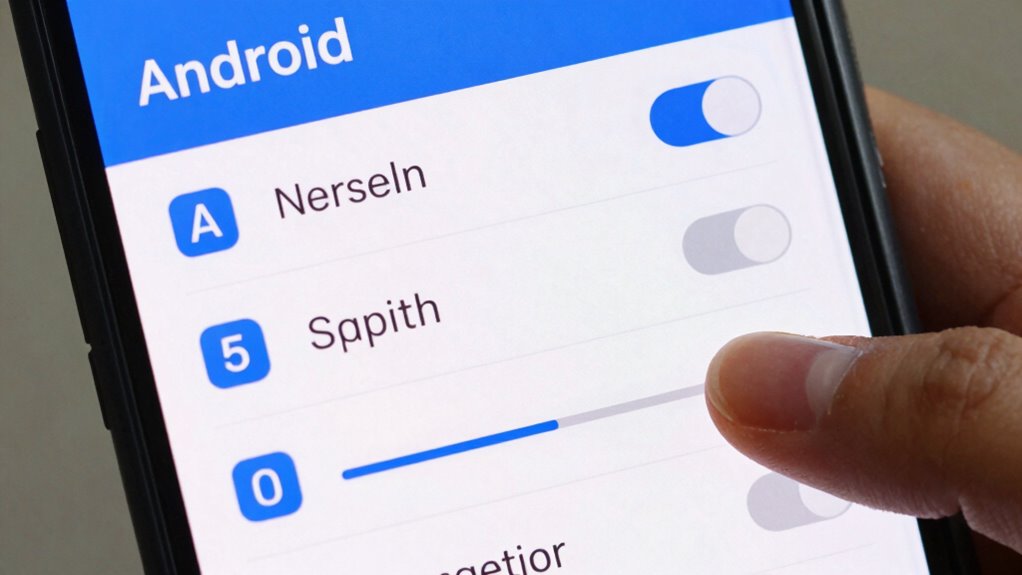
After customizing your accessibility settings for better readability, adjusting your text size and font style can make a significant difference in how comfortably you read on your Android device. To do this, go to Settings > Accessibility or Display. Here, you can increase the text size to improve text readability, making it easier on your eyes. For font customization, select the Font or Font Style option, then choose from available fonts to personalize your reading experience. Changing the font style not only enhances visual appeal but also improves overall clarity. These adjustments help reduce eye strain and make reading long texts more comfortable. Additionally, exploring features like Guided Access can help limit distractions and create a focused reading environment, especially for kids. By customizing font size and style, you guarantee your device’s display aligns with your preferences for maximum readability. Understanding how text customization impacts your visual comfort can lead to a more enjoyable digital experience. Moreover, familiarizing yourself with accessibility features can further enhance your overall device usability and comfort. Learning about visual adjustments can also help you tailor your device to better suit your individual needs.
Android magnification gesture device
As an affiliate, we earn on qualifying purchases.
As an affiliate, we earn on qualifying purchases.
How to Adjust Icon Size and Visibility for Easier Navigation
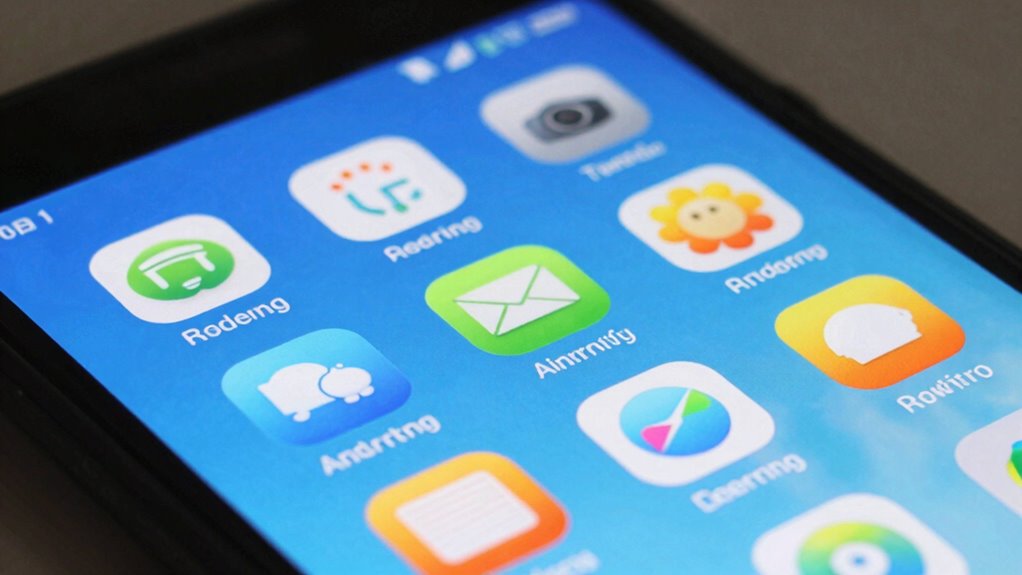
If you find maneuvering your Android device challenging due to small or hard-to-see icons, adjusting their size and visibility can make a big difference. Icon customization helps simplify navigation, making it faster and less frustrating. To enhance visibility, explore your device’s accessibility settings or launcher options, where you can increase icon size or apply a larger grid layout. Optimizing your performance parts can also improve overall device responsiveness, making interface adjustments even more effective. Incorporating essential oils for visual clarity, like peppermint or lavender, may promote relaxation and focus when customizing your device settings. Additionally, adjusting your device’s smart features can further streamline navigation and improve usability. Being aware of whole-home water systems and their components can inspire you to better understand your device’s internal settings and adjustments.
Android screen brightness and contrast adjustment
As an affiliate, we earn on qualifying purchases.
As an affiliate, we earn on qualifying purchases.
How to Enable High Contrast and Color Adjustments to Improve Screen Clarity
You can improve screen clarity by enabling high contrast mode, which makes text and icons stand out more clearly. Adjusting color settings or using color inversion can also help if you have difficulty distinguishing colors. These features make your device easier to see and navigate, especially in different lighting conditions. Incorporating accessibility features like visual aids can further enhance your experience and ensure you can use your device comfortably.
Enable High Contrast Mode
Have trouble distinguishing text and icons on your screen? Enabling high contrast mode can make a big difference. This feature enhances color contrast, making text and icons stand out more clearly against their backgrounds. To activate it, go to your device’s accessibility settings and select “High Contrast Mode.” Once enabled, it adjusts the display to improve visibility for users with visual difficulties. You can also customize font options, such as increasing size or changing styles, to further improve readability. High contrast mode simplifies the visual clutter, ensuring essential elements are easier to see. This adjustment is perfect if you struggle with low contrast or find it hard to differentiate colors. It’s a simple step that markedly boosts screen clarity and overall usability. Additionally, understanding how display technology influences screen readability can inspire innovative solutions for improving visibility in the future. Recognizing the environmental impact of tissue paper can also encourage more eco-friendly choices when using or replacing display cleaning materials. Incorporating color contrast principles into your device settings can further enhance your screen’s clarity and reduce eye strain over time. Moreover, adjusting filtering and cleaning methods for your device can help maintain optimal display performance and longevity.
Adjust Color Settings
Wondering how to make your screen easier to see? Adjusting your color settings can help improve clarity. Start by increasing the color contrast so text and icons stand out more clearly against backgrounds. This makes reading easier, especially in bright environments. You can also use hue adjustment to modify the color tones on your screen, reducing color confusion for better visibility. By fine-tuning these settings, you create a customized display that’s easier on your eyes. Many Android devices have accessibility options where you can enable these features. Simply go to Settings > Accessibility > Color and adjust the contrast and hue sliders until the display feels clearer and more comfortable to view. These small tweaks can notably enhance your screen’s display clarity.
Use Color Inversion
Enabling color inversion can markedly enhance screen clarity, especially for users with visual sensitivities or in bright environments. This feature increases color contrast by reversing the display’s colors, making text and icons stand out more clearly. When you turn on color inversion, it reduces glare and improves visual clarity, helping you distinguish elements more easily. It’s particularly useful if you find standard colors hard to see or if you’re in a well-lit setting. To activate it, go to Accessibility settings, then select “Color Inversion” or “High Contrast” options. Keep in mind, while some images may appear unusual, this adjustment prioritizes readability and screen visibility, making your device more accessible and easier on your eyes in various lighting conditions. Using features like best dishwasher cleaners can further maintain your device’s cleanliness for optimal performance. Additionally, understanding visual sensitivities can help you tailor your device settings for maximum comfort and clarity, especially when managing screen readability challenges.
How to Use Magnification Gestures and Screen Zoom on Android
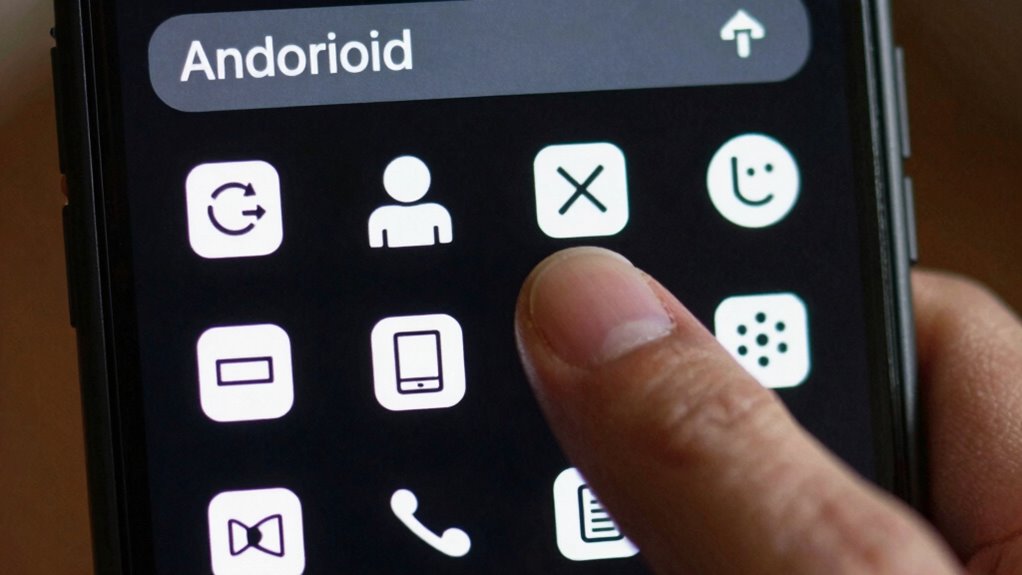
If you find small text and icons difficult to see on your Android device, using magnification gestures and screen zoom can make a significant difference. To activate magnification gestures, go to Settings > Accessibility > Magnification, then turn it on. Once enabled, triple-tap the screen to zoom in or out, or drag with three fingers to move around the zoomed area. Screen zoom adjusts the display size, making everything larger. Here’s a quick comparison:
| Feature | How to Activate | Effect |
|---|---|---|
| Magnification gestures | Settings > Accessibility > Magnification | Temporarily zooms in on tap |
| Screen zoom | Settings > Display > Font size & display size | Enlarges overall display |
| Usage | Triple-tap or adjust display size | Improves readability |
Both tools help make content easier to read without straining your eyes.
How to Customize Display Settings for Bright or Low-Light Conditions
Adjusting your display settings can considerably improve visibility in bright or low-light environments, making your device easier to use at any time of day. To do this, start by tweaking your screen brightness: increase it for outdoor use or lower it indoors to reduce eye strain. Additionally, you can customize color calibration to enhance contrast and color accuracy, which helps make text and icons clearer in different lighting conditions. Many Android devices also offer adaptive brightness, automatically adjusting screen brightness based on ambient light—activate this for seamless shifts. Some phones allow you to adjust color temperature, shifting between warmer or cooler tones to suit your environment. These adjustments guarantee your display remains comfortable and easy to read, regardless of lighting conditions. Incorporating inclusive casting can also ensure that your device settings accommodate diverse visual preferences and needs. Proper humidity control can also reduce glare and fogging on screens, further improving readability in varying environments. Furthermore, enabling visual accessibility features can help customize your display for better clarity and comfort. Being aware of how screen glare affects visibility can help you position your device more effectively for optimal readability.
How to Save and Manage Your Readability Preferences for Easy Access
To make it easier to maintain your preferred display settings, you should save and manage your readability preferences within your device’s settings. Start by customizing your font options through font customization features, choosing styles and sizes that suit your needs. Adjust your screen layout to optimize spacing, icon size, and overall arrangement for better clarity. Once you’ve set these preferences, save them so you can quickly apply them whenever needed. Many Android devices allow you to create different display profiles or use accessibility shortcuts for easy switching. By managing your readability preferences efficiently, you guarantee consistent comfort and clarity across your apps and screens. This streamlined approach helps you access your ideal display settings effortlessly whenever you need them.
Troubleshooting Common Android Readability and Accessibility Issues
If you’re still having trouble reading text or icons, adjusting your display size settings can often help. Enabling accessibility features like magnification or high contrast makes content easier to see. These quick fixes can considerably improve your device’s readability and overall accessibility. Additionally, understanding spirituality and success can encourage a positive mindset that supports confidence in navigating technology challenges.
Adjust Display Size Settings
Have you ever struggled to read text or see icons clearly on your Android device? Adjusting the display size settings can help. To do this, go to your device’s Settings, then tap on Display. Here, you can modify the display calibration to improve clarity. Increasing the display size makes text and icons bigger, which can reduce eye strain and improve readability. You can also customize fonts for better visibility by selecting Font Size or Font Style options. These adjustments make everything on your screen larger and easier to see without affecting overall performance. By customizing display size settings, you personalize your device to suit your visual needs, making daily use more comfortable and accessible.
Enable Accessibility Features
Enabling accessibility features on your Android device can considerably improve readability and make everyday tasks easier. You can customize voice commands to control your device hands-free, making navigation simpler. Accessibility shortcut options allow you to quickly toggle features like magnification, high contrast text, or screen readers, saving you time and effort. To activate these features, go to Settings > Accessibility, and explore options such as TalkBack or Select to Speak. Customizing voice command settings lets you tailor commands that suit your needs, enhancing ease of use. Accessibility shortcuts provide instant access to essential tools without digging through menus. By activating and customizing these features, you guarantee that your device adapts to your readability needs, making it easier to read text and icons comfortably.
Frequently Asked Questions
Can I Customize Accessibility Settings for Specific Apps on Android?
Yes, you can customize accessibility settings for specific apps on Android by using app-specific customization and accessibility profile settings. You’ll need to access your device’s accessibility menu, then look for options like “Advanced Settings” or “App-specific Settings,” where you can adjust font size, contrast, or other features tailored to each app. This way, you improve readability and usability directly within individual apps, enhancing your overall experience.
How Do I Reset Display Settings to Default on Android?
Imagine you’ve tweaked your display settings, but now want to revert to default. To reset display settings on Android, go to Settings > Accessibility > Display, then tap on “Reset” or “Restore Defaults.” This restores screen contrast, font size, and other visual elements to the original factory settings. Doing this helps you regain clear readability, making your screen easier on the eyes without manually adjusting each option.
Are There Third-Party Apps to Enhance Readability on Android?
Yes, there are third-party apps that can enhance readability on Android. You can find apps like Big Font or Readability that allow you to adjust font size and improve color contrast, making text and icons easier to see. These apps give you more control over your display settings, helping you customize your device for better comfort and clarity. Just install, tweak the settings, and enjoy a more accessible Android experience.
How Can I Quickly Toggle Accessibility Features on My Android Device?
Think of your Android device as a well-tuned instrument, ready to respond at your command. To quickly toggle accessibility features, use voice command customization—say “Turn on accessibility” or “Enable large text.” Or, master gesture navigation options, swiping and tapping with purpose. Set these shortcuts in your device’s accessibility settings, so you can effortlessly bring clarity to your screen whenever you need it, like flipping a switch in a moment’s notice.
Do Android Accessibility Options Work With External Screen Readers?
Yes, Android accessibility options work with external screen readers. Your device supports screen reader compatibility and external device support, guaranteeing you can connect devices like Bluetooth or wired readers seamlessly. When you enable accessibility features, your Android device communicates effectively with external screen readers, providing a smooth experience. Just ensure your external device is compatible and properly connected, and you’ll benefit from enhanced audio descriptions and navigation assistance.
Conclusion
By tweaking text, icons, and settings, you’ll transform your Android into a more readable, reliable resource. Adjust, activate, and customize to create a clear, comfortable, and convenient device experience. With a few simple steps, you’ll reduce resistance and regain readability, making your screen settings smooth and simple. So, explore, enhance, and enjoy effortless access—your perfect, personalized Android awaits!
Fall Picks
fall essentials
As an affiliate, we earn on qualifying purchases.