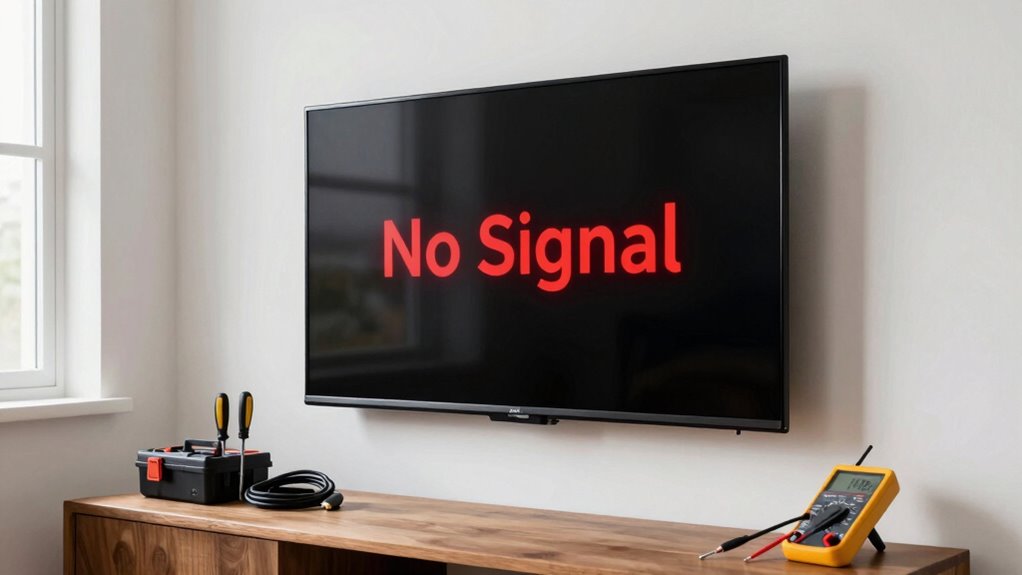

To fix the “No Signal” message without guessing, start by checking all cables— HDMI, VGA, or AV—for damage and secure connections. Make sure your TV is set to the correct input source and test different devices and ports. Power cycle your TV and connected devices, and look for firmware updates. Use built-in troubleshooting tools to diagnose issues. If problems persist, you’ll find more detailed steps to help restore your signal efficiently.

Get the latest gadgets delivered free — and shop member deals
- Fast, free delivery on millions of items
- Access to Prime Big Deal Days deals on October 6–7
- Prime Video, Amazon Music and more included
Key Takeaways
- Check and secure all cable connections, replacing damaged cables to eliminate physical signal disruptions.
- Confirm the correct input source is selected on your TV to ensure it matches your connected device.
- Power cycle your TV and external devices to refresh connections and clear temporary glitches.
- Update your TV firmware to fix bugs that may affect signal reception.
- Use built-in diagnostic tools or reset settings to identify and resolve configuration issues without guessing.
As an affiliate, we earn on qualifying purchases.
How to Identify the Cause of the “No Signal” Message
When your TV displays a “No Signal” message, the first step is to determine what’s causing it. Signal interference from nearby electronics or wireless devices can disrupt the signal, so consider turning off other electronics nearby to see if that helps. Also, check if your cables are compatible with your TV and device; incompatible or damaged cables often cause signal issues. Sometimes, the problem isn’t with the source but with external factors like weak signals from your antenna or cable provider. Carefully examine all connections, ensuring they’re secure and in good condition. If you notice any damage or signs of wear, replacing the cables might resolve the issue. Identifying whether interference or compatibility problems are behind the message helps you troubleshoot more effectively. Additionally, understanding regional flavors and insights can remind you to consider all external factors that might influence your setup, including environmental or regional influences. Checking for regional signal variations can also help determine if local broadcasting issues are affecting your reception, which is common in certain areas due to regional weather patterns or infrastructure limitations. It may also be helpful to explore how home electronics can contribute to signal disruption and how to minimize their impact. Recognizing the types of signals involved can further refine your troubleshooting approach.
As an affiliate, we earn on qualifying purchases.
Check and Secure Your HDMI, VGA, or AV Cables
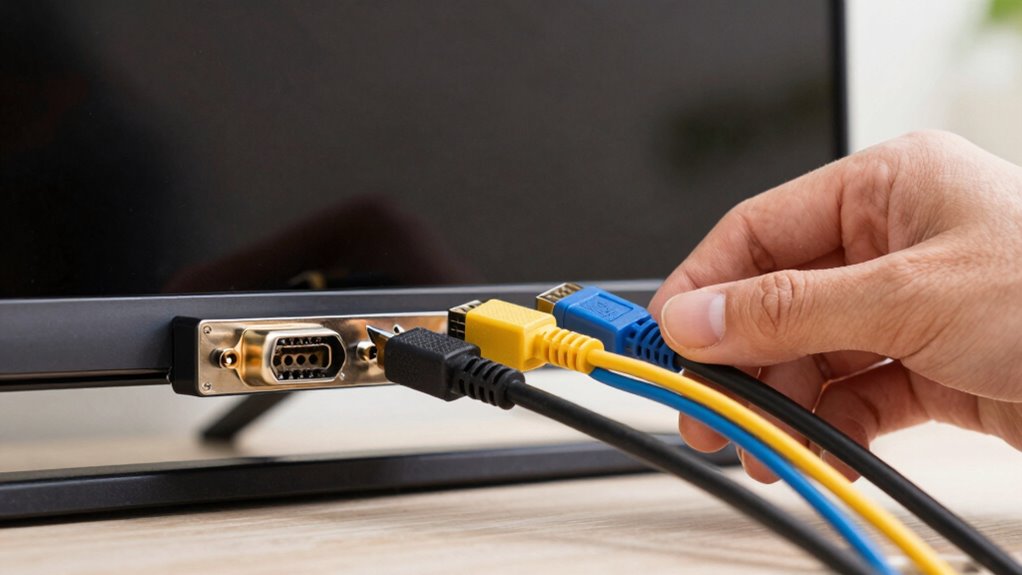
Sometimes, loose or damaged cables are the culprit behind a “No Signal” message. Start by checking your HDMI, VGA, or AV cables to verify they’re securely connected to both your TV and device. Loose connections can easily cause signal loss, so tighten any loose connectors. Also, inspect the cables for visible damage like frays or bent pins, and replace any that are compromised. Make sure your cables are compatible with your devices—using incompatible cables can lead to signal interference or no signal altogether. Proper cable compatibility ensures a clear connection and reduces interference issues. Additionally, try unplugging and replugging the cables to see if that resolves the problem. Secure, undamaged, and compatible cables are essential for a stable signal and a working TV. Understanding the importance of testing accuracy can help ensure your connections are functioning properly and prevent recurring signal issues. Regularly inspecting your connection integrity can help identify issues before they cause complete signal loss. Even small issues like loose connectors can disrupt your entire setup and cause unnecessary troubleshooting. Incorporating cable management practices can also reduce strain and prevent disconnections over time. Furthermore, implementing quality control measures can help maintain optimal connection performance and longevity.
As an affiliate, we earn on qualifying purchases.
Make Sure Your TV Input Is Correct
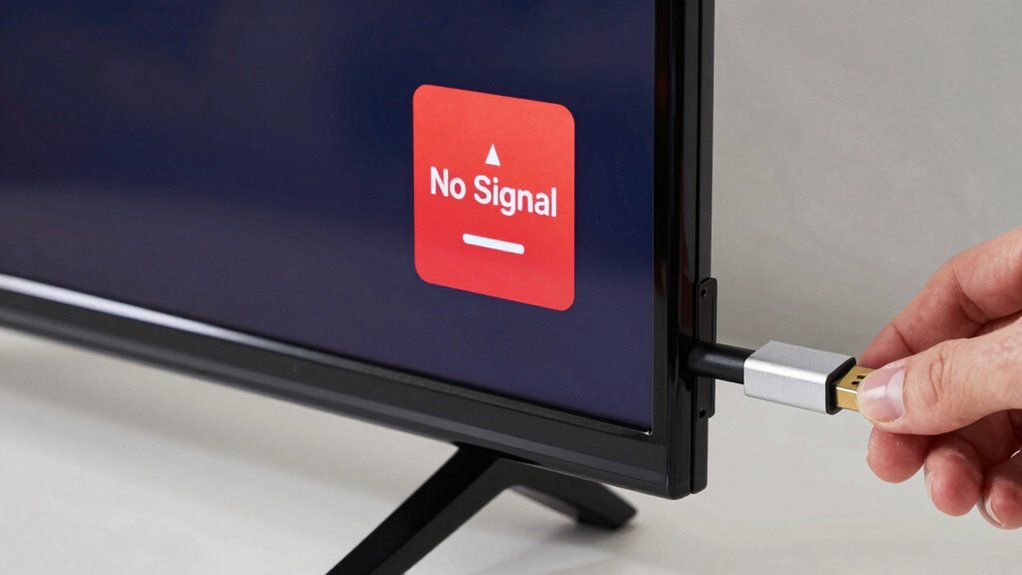
Even if your cables are secure and undamaged, your TV might still display a “No Signal” message if it’s set to the wrong input source. Use your remote control to cycle through inputs, ensuring you’re on the correct one—like HDMI 1 or AV. Sometimes, your TV’s screen resolution settings can interfere with signal detection, especially if they don’t match your device’s output. Check your remote control for an input or source button, and press it to select the right input. Double-check that your device is powered on and connected properly. If your TV is set to the correct input and resolution, but you still see “No Signal,” it’s time to move on to testing different devices and ports. Additionally, understanding how cabling solutions and societal factors influence connectivity can help troubleshoot broader connectivity issues. Being aware of signal interference sources can also prevent future disruptions, and ensuring your connection compatibility is maintained can further improve your setup.
As an affiliate, we earn on qualifying purchases.
Test Different Devices and Ports to Find the Issue
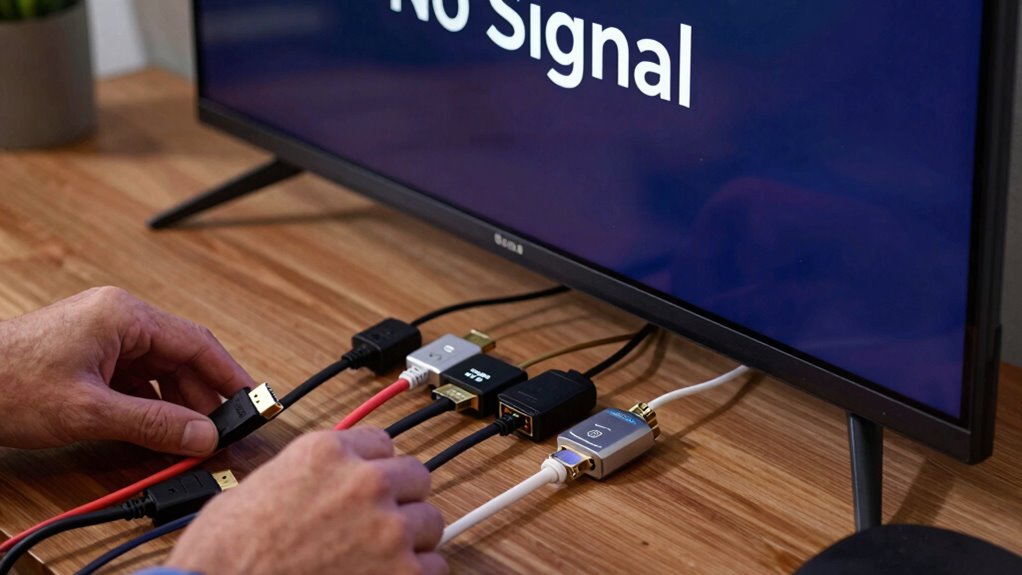
To identify if the problem lies with your device, try connecting a different device—like another cable box, DVD player, or gaming console—to the same port on your TV. This helps determine if the issue is with the device itself or the port. Check device compatibility, as some older devices might not work properly with newer TVs or require specific settings. If switching devices doesn’t resolve the issue, try different ports on your TV, since some ports may have signal amplification problems or be faulty. Using different ports can also reveal if a particular input is damaged. Testing various connections allows you to isolate the problem more efficiently, ensuring you’re not troubleshooting the wrong component and speeding up your fix.
Power Cycle Your TV and External Devices
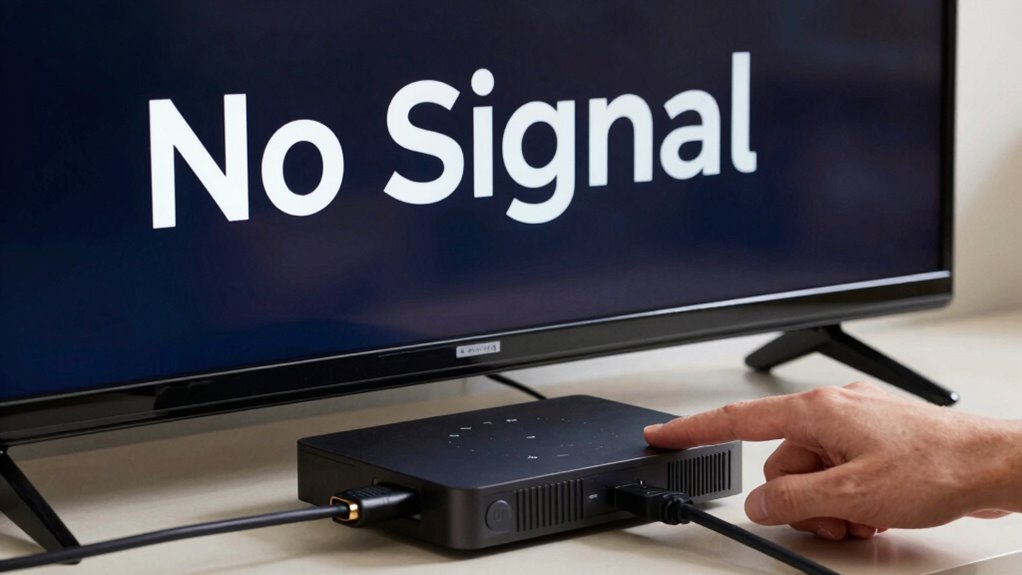
Power cycling your TV and external devices is a simple yet effective way to resolve signal issues. Start by turning off your TV and unplugging it from the power source. Do the same with any connected external devices, like a cable box or streaming device. Wait at least 30 seconds to allow residual power to dissipate. While unplugged, use your remote control to turn off the TV completely and check for any screen calibration settings that might affect display. Then, plug everything back in and power on your TV first, followed by the external devices. This reset often clears minor glitches and refreshes the connection, helping to restore signal and fix “No Signal” errors without guesswork. Additionally, inspecting your connection cables for damage or loose connections can prevent future issues. Ensuring your cables and connections are in good condition can also improve overall signal reliability. Regularly checking your setup can help maintain a stable connection and avoid recurring problems. Being aware of signal interference sources in your environment can also contribute to a more consistent viewing experience, especially since interference from other electronic devices can disrupt signal quality.
Update Your TV’s Firmware and Software
To fix the “No Signal” issue, you should check if your TV has any available firmware or software updates. Make sure you download updates directly from the manufacturer’s website or your TV’s settings menu. Properly installing these updates can resolve bugs and improve compatibility, potentially fixing the signal problem. Additionally, airless paint spraying tips can help ensure your TV setup remains clean and well-maintained, avoiding technical issues caused by dust or debris. Being aware of dust accumulation in electronics and maintaining a clean environment can prevent dust buildup that may affect your TV’s performance. Regularly inspecting and maintaining your TV’s components can also help prevent issues related to filter sizing/flow that might impact signal quality. Recognizing the importance of firmware updates can significantly enhance overall device stability and functionality.
Check For Updates
Have you checked if your TV’s firmware or software needs an update? Outdated firmware can impact signal strength and cause “No Signal” issues. To verify, navigate to your TV’s settings menu and look for a “Software Update” or “Firmware” option. If an update is available, follow the prompts to install it. Firmware updates often fix bugs, improve compatibility, and optimize performance. Keeping your TV’s software current ensures better handling of input signals and reduces glitches. Regularly checking for updates can prevent recurring signal problems. Remember, manufacturers release updates to enhance overall stability and address known issues that might affect your viewing experience. Staying up to date is a simple but effective step toward fixing “No Signal” errors without guesswork.
Install Firmware Properly
Ensuring your TV’s firmware is installed correctly is essential for maintaining ideal signal performance. Firmware installation should be done carefully to prevent compatibility issues that could cause a “No Signal” problem. First, check your TV manufacturer’s website for the latest firmware update compatible with your model. Download the update file and follow the instructions precisely, whether installing via USB or over the internet. Proper software compatibility ensures the firmware functions smoothly without conflicts. Avoid rushing the process or using incorrect files, as this can corrupt the software. Regularly updating your firmware helps fix bugs, improve stability, and support new features. By installing firmware properly, you reduce the chances of signal issues and keep your TV operating at its best.
Use Built-In Troubleshooting Tools to Diagnose Problems
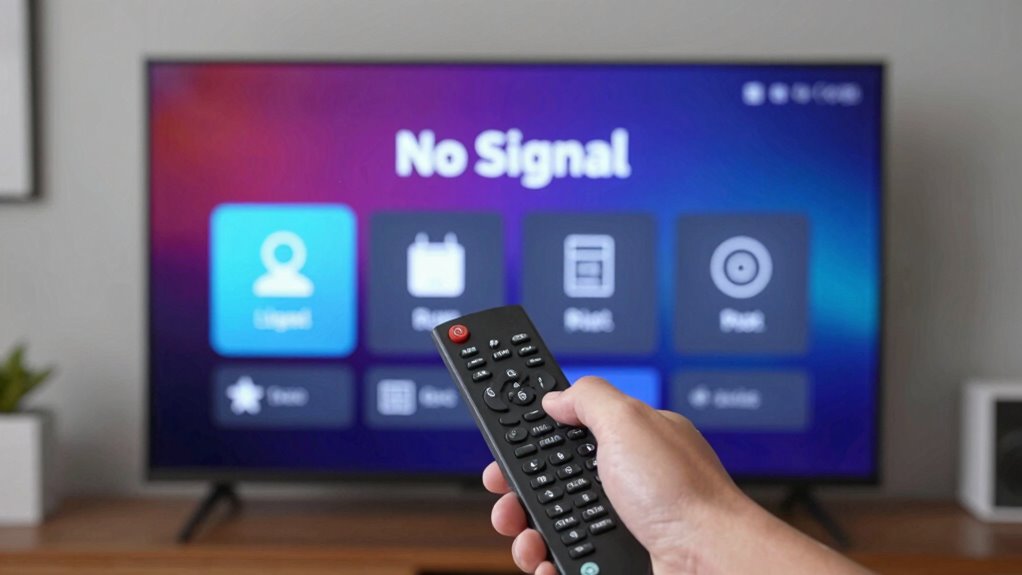
Many modern TVs come equipped with built-in troubleshooting tools designed to quickly identify and resolve common problems, including the dreaded “No Signal” message. Use your remote control to access these diagnostic options—look for a menu labeled “Troubleshooting” or “Diagnostics.” These tools can analyze connection issues or display settings that may be causing the problem.
Try these steps:
- Run the built-in test to check the signal path.
- Reset display settings to default.
- Use the remote to check input/source selection.
- Follow on-screen prompts for specific fixes.
These tools save you time by pinpointing issues without guesswork, helping you restore your TV’s picture faster.
When to Contact Support or Call a Technician

If you notice ongoing signal loss despite troubleshooting, it’s time to contemplate support or a technician. When your efforts hit a limit and the issue persists, professional help can identify hardware problems or complex issues. Don’t hesitate to contact support when basic fixes don’t resolve the problem or if you’re unsure about handling repairs yourself.
Persistent Signal Loss Signs
Persistent signal loss that persists despite troubleshooting is a clear sign you should contact support or call a technician. You might experience frequent disruptions even after checking cables and settings. Look out for signs like worsening picture quality, audio dropouts, or complete signal cuts. Wireless interference from nearby devices can cause persistent issues, making it hard for your TV to maintain a stable connection. Signal amplification problems may also be at fault, especially if your setup relies on boosters or long cable runs. If these signs continue despite your efforts, it’s time to seek professional help. They can diagnose issues with your signal source or internal components, ensuring a proper fix. Don’t ignore ongoing problems—professional support can save you time and prevent further damage.
Troubleshooting Limits Reached
Sometimes, despite your best efforts to troubleshoot, the problem with your TV still isn’t resolved. If you’ve checked all connections, tested different cables, and confirmed your equipment’s hardware compatibility, it might be time to accept your limits. Persistent “No Signal” issues can stem from hardware compatibility issues or ongoing signal interference that you can’t rectify yourself. When troubleshooting no longer yields results, it’s a sign you should contact support or call a technician. They can diagnose more complex problems, like internal hardware faults or signal interference sources beyond your control. Trying to force a fix could cause further damage or frustration. Recognizing when to seek professional help ensures a proper resolution and prevents wasting time on issues that are beyond your DIY scope.
When Professional Help Needed
When your troubleshooting efforts have run their course and the “No Signal” issue persists, it’s time to contemplate professional assistance. If you’ve tried basic DIY repairs like checking connections or resetting the TV without success, it’s a sign to call in experts. Also, consider if your TV is still under warranty coverage—professional repairs or replacements might be free or discounted. You should contact support if:
- The problem seems hardware-related, like a faulty tuner or port
- Your TV is still under warranty
- The issue involves internal components or complex wiring
- Previous DIY fixes haven’t worked after multiple attempts
Knowing when to seek help saves you time and prevents further damage. Don’t hesitate to get professional support for persistent or complex problems—your TV may need expert diagnosis and repair.
Frequently Asked Questions
Can a Power Outage Cause a “No Signal” Message on My TV?
Yes, a power outage can cause a “no signal” message on your TV. When power is restored, your cable connections might have loosened or reset, leading to signal issues. Check all cable connections and make certain they’re secure. If you use signal boosters, they might need to be reset or checked for power. Restarting your TV and cable box after a power outage often resolves the problem quickly.
Does a Weak Wi-Fi Connection Affect the “No Signal” Error?
Did you know that over 80% of streaming issues are caused by Wi-Fi problems? A weak Wi-Fi connection can definitely affect your TV’s “No Signal” error. Poor Wi-Fi stability leads to signal interference, which disrupts the data flow to your device. When your Wi-Fi isn’t strong or stable, your TV struggles to receive a proper signal, making it appear as if there’s no signal at all.
How Do I Reset My TV to Factory Settings?
To reset your TV to factory settings, access the menu using your remote, then find the “Settings” or “Setup” option. Select “Factory Reset” or “Reset to Default,” and confirm your choice. This process recalibrates your TV’s signal settings and clears any custom configurations. Keep in mind, a factory reset can resolve signal calibration issues and may fix the “No Signal” error, but you might need to reconfigure some personalized settings afterward.
Are There Specific Cables That Are More Reliable for Signal Transmission?
Think of your cables as the bridge between your device and screen—stronger bridges guarantee smoother journeys. For reliable signal transmission, opt for high-quality HDMI or coaxial cables, as they offer superior connection stability. Avoid cheaper, generic cables that might cause interruptions or signal loss. Investing in well-made cables assures clearer picture quality and fewer disruptions, making your viewing experience seamless and enjoyable.
Can External Factors Like Nearby Electronic Devices Interfere With TV Signals?
Yes, external factors like nearby electronic devices can interfere with your TV signals. Electromagnetic interference from gadgets such as microwaves, cordless phones, or Wi-Fi routers can cause signal disruption. To avoid this, keep these devices away from your TV and cables. Turning off or relocating electronic devices can substantially improve signal quality, reducing the chances of encountering a “No Signal” issue.
Conclusion
By following these straightforward steps, you can confidently combat the “no signal” conundrum. Check connections, change channels, and cycle power to clear common glitches. If issues persist, update firmware or utilize troubleshooting tools. When all else fails, don’t hesitate to seek support or summon a technician. Remember, patience and persistence pave the path to perfect picture and pristine programming—so stay calm, check thoroughly, and enjoy your TV time without technical trouble.
Fall Picks
fall essentials
As an affiliate, we earn on qualifying purchases.