Make guarantee your external drive is properly connected and powered, with secure cables and an active power supply if needed. Check Finder preferences and open Disk Utility to see if your drive appears, even if not mounted. Verify your security and privacy settings to ensure nothing blocks the drive. Confirm the drive’s format is compatible and test different cables and ports. For more detailed tips on fixing this issue, keep exploring the options available.
Key Takeaways
- Ensure the external drive is properly connected, powered, and recognized by checking indicator lights and trying different cables or ports.
- Verify the drive appears in Finder preferences and Disk Utility, even if it’s not mounted.
- Confirm your security and privacy settings aren’t restricting external device access.
- Check the drive’s file system format for compatibility with macOS (e.g., APFS, HFS+).
- Test the drive on another Mac or device to rule out hardware or cable issues.
![SABRENT USB 3.0 to SATA External Hard Drive Lay-Flat Docking Station for 2.5 or 3.5in HDD, SSD [Support UASP] (EC-DFLT)](https://m.media-amazon.com/images/I/41Ffqd8GUUL._SL500_.jpg)
SABRENT USB 3.0 to SATA External Hard Drive Lay-Flat Docking Station for 2.5 or 3.5in HDD, SSD [Support UASP] (EC-DFLT)
Supports all 2.5 and 3.5-inch SATA drives. Make sure you have the latest firmware installed for this dock…
As an affiliate, we earn on qualifying purchases.
As an affiliate, we earn on qualifying purchases.
Make Sure Your External Drive Is Properly Connected and Powered
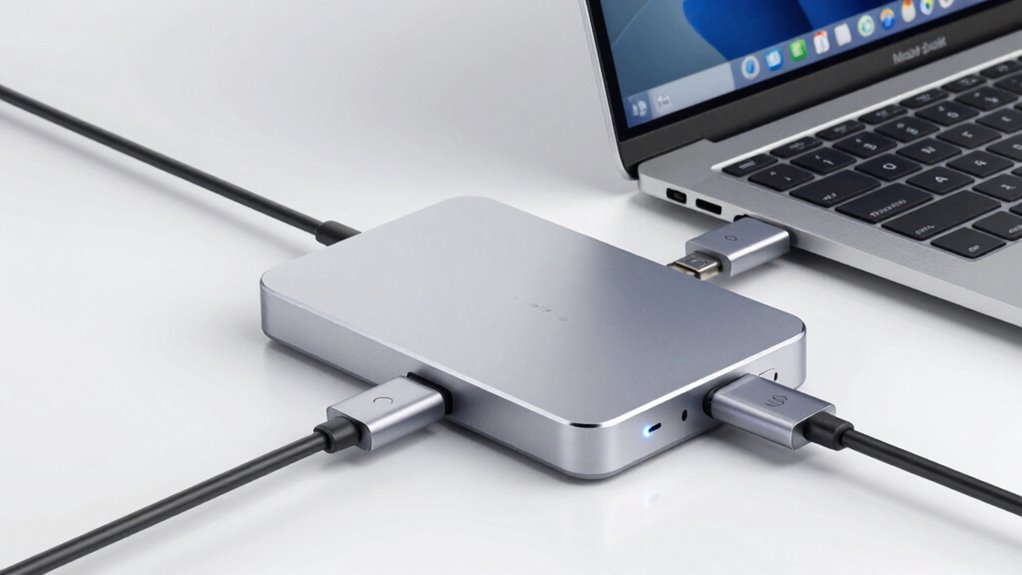
Before troubleshooting other issues, make sure your external drive is properly connected and powered. Check that the cable is securely plugged into both your Mac and the drive. If your drive requires an external power source, ensure it’s plugged in and turned on. Sometimes, drive encryption can prevent your Mac from recognizing the drive, especially if encryption settings changed unexpectedly. This can hinder data recovery efforts, so verify if encryption is active. If your drive still isn’t showing up, try connecting it to another port or computer. Using a different cable might also help. Confirm the drive’s power indicator lights up. Proper connection and power are crucial for your Mac to detect the drive, which is the first step before exploring further troubleshooting options. Also, consider drive formatting and encryption settings that could affect drive recognition. Additionally, understanding drive compatibility with your Mac can help prevent recognition issues in the first place. Ensuring that the drive firmware is up to date can also improve compatibility and performance. Regularly checking for firmware updates can help address known bugs and enhance overall stability.

UGREEN 10 Gbps Micro B to USB C Hard Drive Cables, 1.5FT USB C to Micro B, External Hard Drive Cable Compatible with MacBook Pro/Air, iPad/Tablet, iPhone, Samsung Galaxy S24, WD Seagate etc
All in one cable: The USB 3.1 Micro B to USB C cable connects a computer/PC/laptop/iPad with a…
As an affiliate, we earn on qualifying purchases.
As an affiliate, we earn on qualifying purchases.
Check Finder and Disk Utility Settings to Detect Your Drive
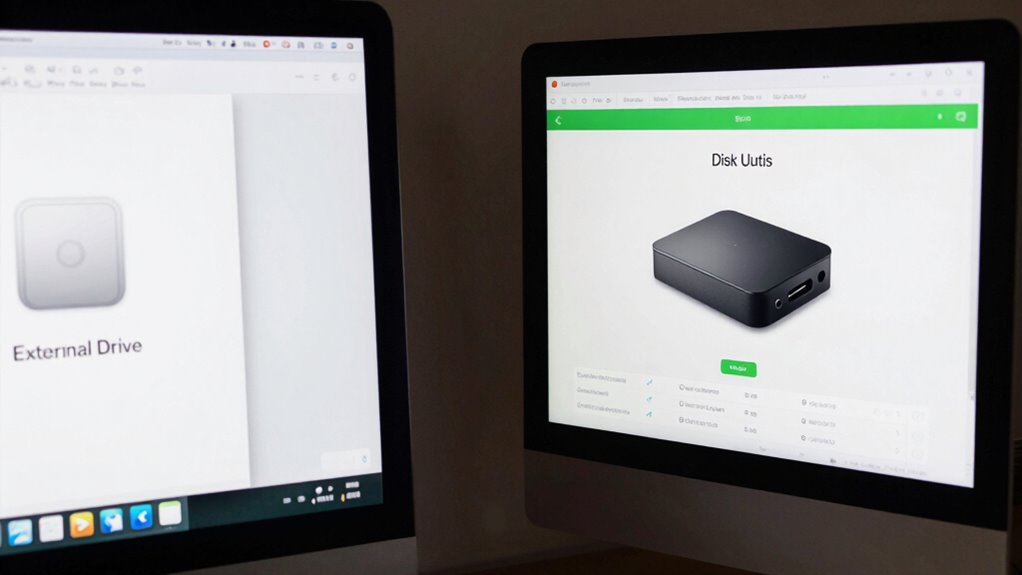
Check Finder preferences and make sure external disks are set to show on the sidebar.
Launch Disk Utility to see if your drive appears there, even if it’s not mounted. Confirm the file system is recognized and compatible.
Verify if drive encryption is enabled; encrypted drives may require special access or decryption before they show up properly.
Ensure your drive’s format and partition scheme are compatible with macOS to avoid recognition issues.
Additionally, consult external drive compatibility to ensure your drive model and connection type are supported by your Mac.
For additional assurance, review your system security settings to rule out any restrictions that might prevent the drive from displaying.
Understanding early warning signs can also help identify potential issues with external drives before they become problems, including recognizing connection problems early on.

ASUS ZenDrive V1M External DVD Drive and Writer with Built-in Cable-Storage Design, USB-C Interface, Compatible with Win 11 and macOS, M-DISC Support (SDRW-08V1M-U)
Convenient cable storage: No more losses with a built-in 24cm connecting cable.
As an affiliate, we earn on qualifying purchases.
As an affiliate, we earn on qualifying purchases.
Review Security & Privacy Settings That Might Block External Drives
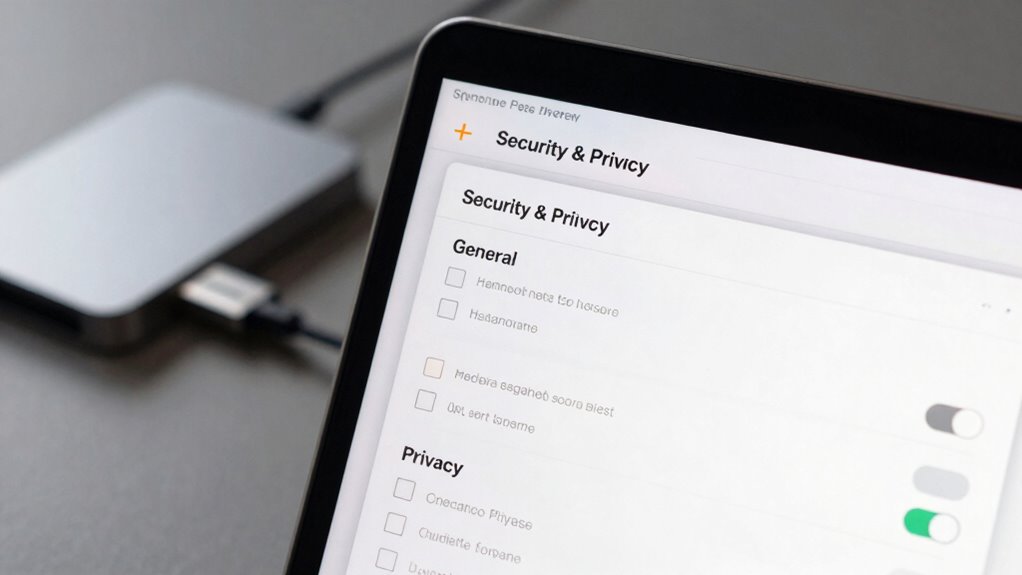
Sometimes, your Mac’s security settings can block external drives from appearing, even if they’re properly connected. Check your Security & Privacy preferences to guarantee no restrictions are in place. File encryption might prevent your Mac from recognizing the drive if permissions aren’t set correctly. Additionally, user permissions play a role; if your account lacks access rights, the drive won’t show up. For example, privacy and consent in digital spaces can influence access permissions and data handling. Ensuring your device’s security settings are appropriately configured can help prevent such issues. Being aware of your digital privacy settings can also help you identify any unintended restrictions on external devices. Familiarizing yourself with user consent management can further assist in troubleshooting connection problems. Knowing how device compatibility affects external drive recognition can also be valuable in resolving these issues.
kenddeel Headphone Plug Extraction Tool- Remove Broken Headphone Plug from Headphone Jack of Mobile Devices
🛠️Applicable To :all models of mobile phones, pads and computers headphone jack, built to easily remove broken 3.5mm…
As an affiliate, we earn on qualifying purchases.
As an affiliate, we earn on qualifying purchases.
Verify Your Drive’s Format and Mounting Preferences
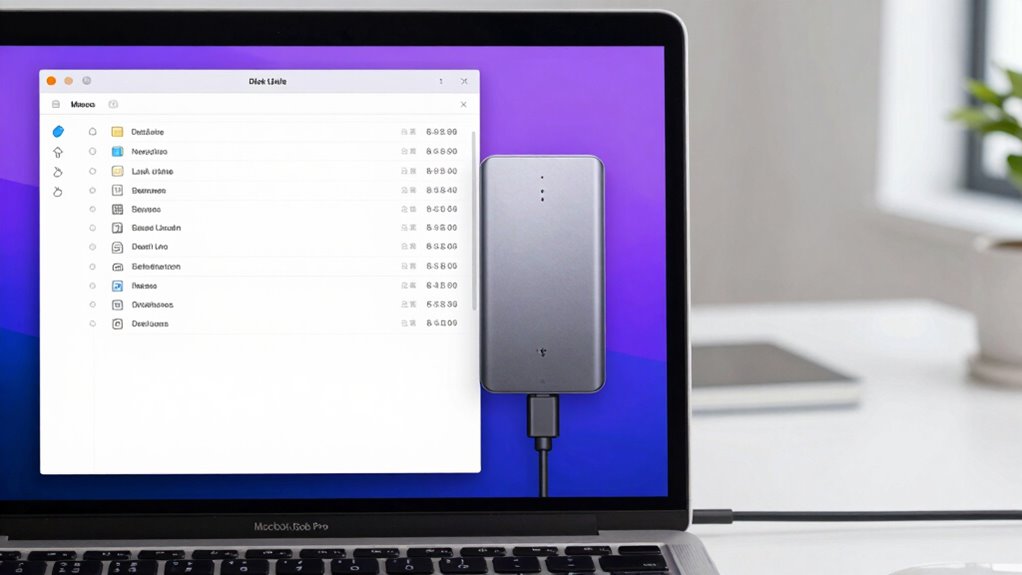
Your Mac may not recognize an external drive if its format isn’t compatible or properly configured for macOS. First, check the drive’s file system compatibility; drives formatted with Windows-specific formats like NTFS might not mount automatically. A compatible file system is essential for seamless recognition on macOS. Second, verify if drive encryption is enabled, as encrypted drives sometimes require special permissions or software to mount correctly. Third, confirm the drive’s mounting preferences are correct—sometimes, drives are formatted or set up to mount only when certain conditions are met. Adjust drive encryption settings if needed, and consider reformatting the drive to a macOS-friendly file system like APFS or HFS+ for seamless recognition. Additionally, storage device configurations can impact drive detection, so review these settings to ensure compatibility. It’s also helpful to check drive connection methods, such as using different cables or ports, to rule out physical connection issues. Ensuring the drive’s format and mounting preferences are correctly set up can help prevent connection problems. Properly verifying the drive’s format and mounting preferences can save you time and avoid unnecessary troubleshooting.
Test Your Hardware and Cables for Common Connection Issues
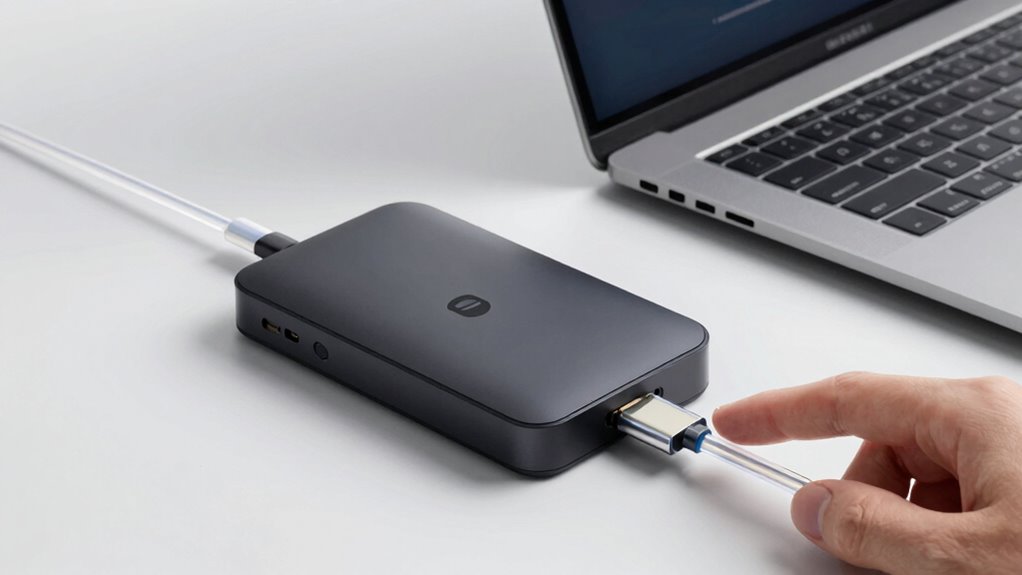
If your external drive still isn’t showing up, the issue might be with the hardware or cables connecting it to your Mac. First, check all connections—try using a different USB or Thunderbolt cable, and connect to another port. A faulty cable or port can prevent your Mac from recognizing the drive, risking data loss or complicating data recovery efforts. Also, verify your drive isn’t encrypted unexpectedly, as drive encryption settings can interfere with detection. Test the hardware by connecting the drive to another Mac or PC to determine if the issue is with the drive itself. If you suspect hardware failure, consult a professional before attempting data recovery. Properly testing your cables and hardware can prevent further damage and ensure your data remains secure during troubleshooting. Additionally, considering the best woods for farmhouse tables, choosing reliable hardware components can help maintain your setup’s longevity and stability. Regularly updating your macOS can also address compatibility issues that might prevent external drives from appearing.
Frequently Asked Questions
Can External Drives Work Without Formatting on a Mac?
External drives can work on a Mac without formatting if they’re already formatted with a compatible file system like exFAT or FAT32. However, if Drive encryption is enabled, you might need the password to access the data. Keep in mind, if the drive becomes inaccessible, Data recovery tools can help retrieve your files. Always verify the drive’s format and encryption status before connecting to avoid potential issues.
How Do I Update My Mac’s macOS to Fix Drive Issues?
To update your Mac’s macOS and fix drive issues, start by backing up important data, then check for available updates in System Preferences. Updating guarantees compatibility with drive encryption and improves data recovery options. It also patches bugs that might prevent drives from appearing. Follow the prompts to install the latest version, and restart your Mac. Keep your system current to enhance drive recognition and safeguard your data.
What Third-Party Apps Can Help Troubleshoot Drive Problems?
You can try third-party apps like DiskWarrior or TechTool Pro to troubleshoot drive problems. These tools help with drive encryption issues and can repair corrupted volumes, improving your chances of successful file recovery. They analyze your external drive for errors, fix filesystem problems, and recover lost files, making them valuable for resolving drive detection issues. Always back up before attempting repairs to avoid data loss.
Is It Safe to Reformat an External Drive if It’s Not Detected?
Is your data safe if you reformat a drive that’s not detected? Usually, it’s not recommended, especially if you haven’t backed up your data, as reformatting can erase everything. If the drive is encrypted or you need data recovery, reformatting might worsen the situation. Before proceeding, try troubleshooting or consult a professional to avoid losing important files or compromising drive encryption.
How Do I Reset My Mac’s SMC or NVRAM for Drive Recognition?
To reset your Mac’s SMC or NVRAM for drive recognition, shut down your Mac. For SMC reset, unplug the power, hold Shift + Control + Option + Power for 10 seconds, then release and turn it back on. For NVRAM, restart and hold Option + Command + P + R for about 20 seconds. Make certain your external drive’s cable compatibility and drive encryption settings are correct, as these can affect detection.
Conclusion
Think of your external drive as a trusted companion waiting to share its treasures. When it doesn’t show up, it’s like a silent partner hiding in the shadows. By checking connections, settings, and hardware, you’re lighting the path to reveal its presence. Don’t let uncertainty keep your data in the dark—shine a light on every possibility. With patience and persistence, your drive will step into the spotlight, ready to access new possibilities.