If your Mac keyboard shortcuts stop working, it’s often due to software updates, conflicting apps, or changes in system preferences and accessibility settings. Hardware issues like damaged keys or loose connections can also cause problems. Make certain your focus is on the active window, your external keyboard is working properly, and shortcuts are correctly configured. For persistent issues, reviewing system updates or resetting preferences might help. Keep going to discover detailed solutions that can get your shortcuts working again.

Get the latest gadgets delivered free with Prime
- Fast, free delivery on millions of items
- Prime Video, Amazon Music and more included
- Member-only deals all year
Key Takeaways
- Changes in input sources or keyboard layouts can conflict with existing shortcuts, causing them to stop working.
- System updates or customizations may reset or override shortcut settings, leading to malfunction.
- External hardware issues, such as loose connections or incompatible keyboards, can prevent shortcut registration.
- Accessibility features or focus issues might interfere with shortcut execution or override default commands.
- Software conflicts or background apps can hijack or disable shortcuts, especially after updates or installations.
Mac external keyboard troubleshooting
As an affiliate, we earn on qualifying purchases.
As an affiliate, we earn on qualifying purchases.
Why Do Mac Keyboard Shortcuts Suddenly Stop Working?

Sometimes, your Mac keyboard shortcuts suddenly stop working without any clear reason. One common cause is a change in your keyboard layout, which can happen if you accidentally switch to a different language or input source. This change can alter how shortcuts respond or make them stop functioning altogether. Another factor is shortcut customization—if you or a third-party app updates or modifies your shortcut settings, it might disable or override your existing shortcuts. Additionally, software updates sometimes reset or conflict with your customizations, causing shortcuts to break. To fix this, check your keyboard layout in System Preferences and verify it matches your usual setup. Also, review your shortcut customization settings to confirm they’re active and correctly assigned. Understanding keyboard technology can help you troubleshoot issues related to input and shortcuts more effectively, especially as input sources are often involved in such conflicts. Being aware of System Preferences updates can also prevent unexpected shortcut issues in the future. Moreover, ensuring your software compatibility is up to date can help prevent conflicts that disrupt shortcut functionality. It’s also helpful to periodically review your shortcut settings to prevent conflicts from arising unexpectedly.
Mac keyboard shortcut remapping software
As an affiliate, we earn on qualifying purchases.
As an affiliate, we earn on qualifying purchases.
How Do System Preferences and Accessibility Settings Impact Shortcuts?
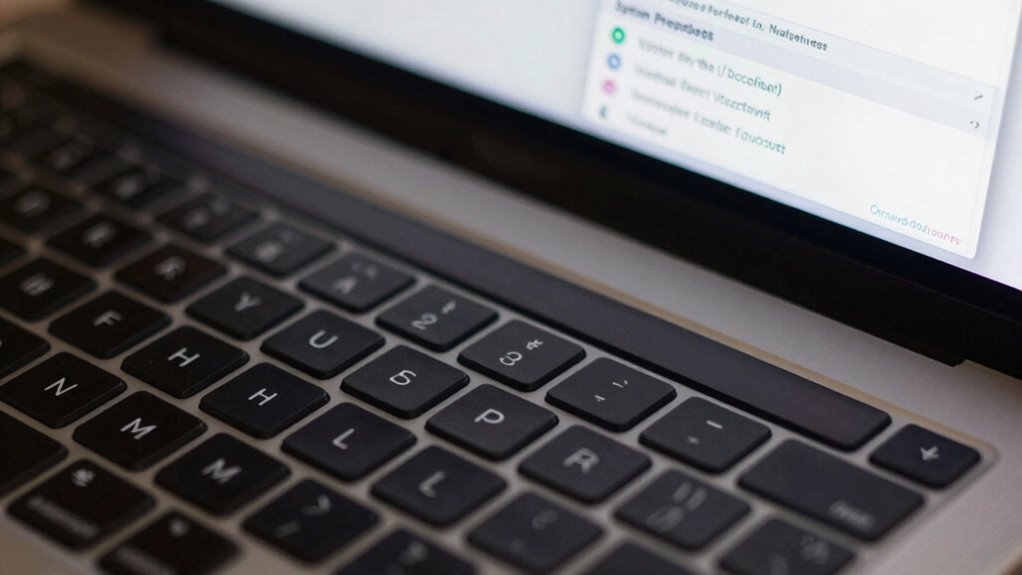
Your system preferences and accessibility settings can cause shortcut conflicts or override custom key commands. If an accessibility shortcut is enabled, it might interfere with your usual shortcuts without you realizing. Checking and adjusting these settings can help restore your keyboard shortcuts to work properly. Additionally, understanding the essential DIY tools and safety tips can help you troubleshoot hardware issues that might affect your keyboard’s functionality. Being aware of how accessibility features interact with shortcuts can prevent unintended conflicts and improve your overall user experience. Moreover, certain keyboard customization options may also impact shortcut behavior, so reviewing these settings can be beneficial. Recognizing how system preferences influence shortcut behavior is crucial for maintaining an efficient workflow. Being familiar with system updates can also ensure that your keyboard drivers and software are current, reducing potential conflicts.
Accessibility Shortcut Conflicts
When you enable certain accessibility features on your Mac, they can inadvertently override or conflict with standard keyboard shortcuts, causing them to stop working. For example, activating voice commands might assign new shortcuts or change existing ones, disrupting your workflow. Similarly, if you use an external keyboard, accessibility shortcuts may trigger differently or overlap with other commands, leading to confusion. These shortcuts are designed to provide quick access to accessibility options, but they can interfere with your regular shortcuts if not configured properly. To avoid issues, check your System Preferences and disable or customize accessibility shortcut settings that may conflict with your usual shortcuts. This helps guarantee your keyboard commands work seamlessly, whether you’re using voice features or external hardware.
Custom Shortcut Settings
Custom shortcut settings in System Preferences and Accessibility options directly influence how your keyboard commands function. If you’ve modified shortcut customization or engaged in key remapping, it can cause conflicts or disable certain shortcuts. For instance, changing how keys are mapped might override default shortcuts or create overlaps, making some commands unresponsive. Accessibility features, like VoiceOver or other assistive options, may also alter shortcut behavior to prioritize specific functions. To troubleshoot, check your System Preferences under Keyboard and Accessibility, ensuring no custom shortcuts conflict with default commands. Resetting or adjusting these settings can restore normal shortcut functionality. Remember, any manual changes to shortcut customization or key remapping can impact the overall performance of your keyboard shortcuts.
As an affiliate, we earn on qualifying purchases.
Can Conflicting Apps or Software Break Your Keyboard Shortcuts?

Conflicting shortcut assignments from different apps can cause your Mac keyboard shortcuts to stop working unexpectedly. Background apps or software running silently in the background might interfere with your shortcuts without you realizing. Additionally, software updates can sometimes change or reset shortcut settings, leading to further conflicts. Being aware of software conflicts and how they relate to system preferences can help you troubleshoot and restore your shortcut functionality more effectively. Sometimes, incompatible kitchen gear or outdated system configurations can also contribute to these issues, so keeping your software and hardware properly maintained is essential.
Conflicting Shortcut Assignments
Software applications can sometimes hijack keyboard shortcuts, causing your Mac’s commands to stop working unexpectedly. When apps assign their own shortcuts, they can conflict with system or other app shortcuts, leading to broken functionality. If you’ve recently customized shortcuts or altered user preferences, these changes might inadvertently overlap with existing shortcuts. To fix this, review your shortcut customization in System Preferences and within individual apps. Look for overlapping key combinations and adjust them to unique, conflict-free options. Some applications may override default shortcuts without warning, so it’s important to regularly check your user preferences when troubleshooting. By managing conflicting shortcut assignments, you guarantee your Mac’s commands work smoothly and avoid interruptions caused by unintentional overlaps.
Background App Interference
Sometimes, other apps running in the background can interfere with your keyboard shortcuts without you realizing it. Background apps may have their own shortcut conflicts, especially if they’re designed to customize or override system shortcuts. These conflicts can cause your intended shortcuts to become unresponsive or trigger unexpected actions. For example, a third-party app might assign a shortcut that overlaps with macOS commands, disrupting your workflow. To fix this, check for recently installed apps or utilities that run in the background and review their shortcut settings. Quitting or disabling problematic background apps can often resolve the issue, restoring your keyboard shortcuts to proper function. Identifying and managing background app interference helps guarantee your shortcuts work seamlessly again.
Software Updates Impact
When you update your macOS or install new software, it can inadvertently disrupt existing keyboard shortcuts. Conflicting apps, especially those involving Voice Control or custom Keyboard layout settings, may override or disable your shortcuts. Imagine a table where each cell represents different software:
| Voice Control | Keyboard Layout | Other Apps |
|---|---|---|
| Changes input | Alters shortcuts | Conflicts |
| Overrides keys | Resets mappings | Disrupts |
| Defaults reset | Customizations lost | Malfunctions |
These updates can reset Voice Control preferences, alter your Keyboard layout, or cause app conflicts. As a result, your shortcuts stop working, making it seem like your Mac is unresponsive. Keeping track of recent updates and ensuring compatibility can save you from these confusing disruptions.
Mac system preferences keyboard settings
As an affiliate, we earn on qualifying purchases.
As an affiliate, we earn on qualifying purchases.
Do macOS Updates Cause Shortcut Problems? Here’s What to Know

After a macOS update, you might notice that some keyboard shortcuts suddenly stop working. Updates can change the keyboard layout or reset shortcut customization settings, leading to unexpected issues. Sometimes, new macOS versions introduce default shortcuts that conflict with your custom ones, causing confusion. These changes can affect how your shortcuts function, especially if you rely on specific key combinations. To fix this, check your Keyboard preferences and verify your shortcut customization settings. You might need to reassign or adjust shortcuts to match your preferred setup. Also, review the keyboard layout settings to ensure they align with your language and regional preferences. Maintaining your shortcuts organized and consistent helps minimize the impact of macOS updates on your workflow. Additionally, understanding how AI tools can assist in troubleshooting or automating adjustments may streamline the process. Being aware of system preferences and how to customize them can further prevent shortcut issues in the future. Staying informed about software updates and their potential effects can help you proactively manage such changes, especially when considering the cultural significance of your personalized settings and customizations.
What Hardware Issues Can Disrupt Keyboard Shortcut Functionality

If your keyboard shortcuts suddenly stop working, hardware issues might be to blame. Loose or damaged connections can disrupt signal transmission, making shortcuts unresponsive. Additionally, wear and damage over time can impair the keyboard’s ability to register key presses properly. Trusted product recommendations can help identify durable and reliable keyboards less prone to such issues. Regular maintenance and inspecting the keyboard’s physical condition can prevent some common problems caused by hardware deterioration. Exploring keyboard repair or replacement options can also be a practical step when troubleshooting persistent issues. Proper cable management and secure connections, as emphasized in cabling solutions, can further reduce the risk of hardware-related shortcut failures. Understanding golf history and advancements in women’s golf can also be a reminder of how sustained quality and care are essential in maintaining equipment and performance.
Faulty Keyboard Connections
Have you checked the physical connection between your keyboard and your Mac lately? Loose or damaged cables can cause your keyboard to malfunction, including shortcut issues. If you’re using an external device, confirm it’s properly connected and compatible with your Mac’s keyboard layout. Sometimes, the connection might appear secure but isn’t making proper contact. Dust, debris, or bent connectors can also interfere with communication. Also, verify that your keyboard’s port isn’t damaged. For wireless keyboards, check the Bluetooth connection and batteries. Faulty connections can cause intermittent or complete failure of shortcut commands, so inspecting these hardware links is a good first step. Remember, even small connection issues can disrupt your workflow, so keep everything snug and clean.
Hardware Damage or Wear
Hardware damage or wear can silently impair your keyboard’s ability to function properly, including executing shortcuts. Over time, repeated use can reduce keyboard durability, leading to issues like sticky or unresponsive keys. Physical damage from spills, impacts, or dust buildup can also affect key sensitivity, causing certain shortcuts to fail. Worn-out keys may register presses inconsistently, disrupting your workflow. If your keyboard shows signs of wear, it might not respond correctly to specific inputs, making shortcuts unreliable. Regular cleaning and gentle use can help preserve key sensitivity and extend hardware lifespan. Additionally, using airless paint sprayers efficiently requires proper maintenance, which can be compared to maintaining your keyboard to ensure optimal performance. Proper preventive maintenance can help identify early signs of wear and prevent more severe hardware issues. However, if damage is severe, replacing the keyboard or having it repaired might be necessary to restore proper shortcut functionality and guarantee smooth operation.
How to Reset and Reconfigure Keyboard Shortcuts on Your Mac

Sometimes, conflicting or corrupted keyboard shortcut settings can cause your Mac’s shortcuts to stop working properly. To reset and reconfigure them, start by opening System Preferences and accessing Keyboard > Shortcuts. Here, you can restore default settings or adjust existing shortcuts. If shortcut conflicts occur, disable or change overlapping shortcuts to avoid overlaps. You can also customize shortcuts for specific apps to improve functionality. Additionally, resetting the keyboard preferences files can help resolve persistent issues. Simply delete the preferences files located in ~/Library/Preferences and restart your Mac. This clears customizations, allowing you to set fresh shortcuts.
- Review and reset default shortcuts in System Preferences
- Customize keyboard shortcuts to prevent conflicts
- Delete preference files to clear corrupt settings
- Reassign shortcuts for specific apps
Why Focus or Active Window Affects Shortcut Responsiveness
The active window or focus on your Mac plays a crucial role in how effectively keyboard shortcuts work. Focus issues occur when the window you’re using isn’t the primary one, causing shortcuts to become unresponsive. For example, if you’re working in a web browser but another app or window is active, your shortcuts might not trigger as expected. The active window determines where commands are sent; if it’s not correctly focused, shortcuts won’t execute. Ensuring the right window is active and focused is essential for shortcut responsiveness. Click on the window or use Command + Tab to switch focus. Recognizing how the active window influences shortcut behavior helps you troubleshoot and avoid unnecessary frustration.
Troubleshooting Steps to Fix Shortcut Failures Quickly

When keyboard shortcuts stop working on your Mac, quickly troubleshooting can save you time and frustration. Start by checking if your voice command feature is enabled and functioning properly. If you’re using an external keyboard, ensure it’s connected securely and compatible. Restart your Mac to clear temporary glitches. Test shortcuts in different apps to identify if the issue is app-specific. Additionally, verify system preferences for shortcut conflicts or disabled commands. If shortcuts still fail, disconnect and reconnect your external keyboard or disable voice command temporarily to see if that resolves the problem. These quick steps can often fix the issue without needing complex solutions.
- Check voice command settings and functionality
- Confirm external keyboard connection and compatibility
- Restart your Mac to reset temporary bugs
- Test shortcuts across multiple apps
When to Reinstall macOS or Seek Expert Help for Shortcut Problems

If your Mac keyboard shortcuts continue to malfunction despite troubleshooting, it might be time to contemplate more drastic measures like reinstalling macOS or seeking expert help. Persistent issues could stem from deeper system problems, such as corrupted files affecting color calibration or font customization settings. Reinstalling macOS can resolve underlying software conflicts, but make sure you back up your data first. If problems persist after reinstalling, consulting an expert is advisable. They can diagnose hardware issues or complex software conflicts that typical troubleshooting can’t fix. Remember, stubborn shortcut problems might also be linked to custom display or font settings that interfere with system commands. Taking these steps ensures your Mac runs smoothly and your shortcuts work reliably again.
Preventative Tips to Keep Your Keyboard Shortcuts Working Smoothly

Regular maintenance and mindful usage can help prevent keyboard shortcut issues from cropping up in the first place. Start by regularly checking your keyboard layout settings to guarantee they match your preferences, especially if you use multiple language inputs. Customize shortcuts carefully to avoid overlaps or conflicts, which can cause shortcuts to stop working. Keep your macOS updated, as updates often include fixes for keyboard and shortcut bugs. Additionally, avoid installing unverified third-party apps that might interfere with shortcut functions. Regularly restarting your Mac can also refresh system processes. To stay proactive, periodically test your shortcuts and adjust settings as needed, ensuring a smooth experience. Properly managing your keyboard layout and shortcut customization keeps your shortcuts reliable and functional.
Frequently Asked Questions
Can Third-Party Keyboard Apps Interfere With Mac Shortcut Functions?
Yes, third-party keyboard apps can interfere with your Mac shortcut functions. They often customize key mappings or override default shortcuts, which may cause conflicts. Additionally, improper app permissions can prevent these apps from functioning correctly, further disrupting shortcuts. To fix this, check your keyboard customization settings and verify the app has the necessary permissions. Disabling or updating the third-party app can also restore your shortcuts to normal.
How Do Keyboard Shortcut Conflicts Affect Different User Profiles?
You might notice that keyboard shortcut conflicts vary across user profiles, subtly influencing your workflow. In some profiles, shortcut customization can clash with system defaults or third-party apps, causing unexpected behavior. This means your personalized shortcuts may not work consistently if profiles aren’t synchronized or configured properly. To keep things running smoothly, review each user profile’s shortcut settings, ensuring they harmonize and don’t interfere with one another’s preferences.
Do External Keyboards Have Different Shortcut Issues Than Built-In Ones?
External keyboards can have different shortcut issues than built-in ones mainly due to variations in keyboard layout and shortcut customization options. You might find that certain shortcuts don’t work as expected because the external keyboard’s layout differs or it doesn’t support specific customizations. To fix this, check your keyboard’s layout settings and customize shortcuts if needed. Ensuring compatibility and proper configuration helps you use shortcuts seamlessly across both types of keyboards.
Can Malware or Viruses Impact Keyboard Shortcut Performance?
Like a rogue knight in shining armor, malware interference can unexpectedly disrupt your Mac’s keyboard shortcuts. Viruses impact your system’s performance, potentially corrupting or disabling shortcut functions. They might hijack input commands or alter settings without you noticing. To keep your shortcuts working smoothly, run reliable antivirus scans regularly, and guarantee your system is protected against malware. Staying vigilant helps prevent these digital invaders from hampering your productivity.
Are There Specific Shortcuts More Prone to Failure Than Others?
Certain shortcuts, especially those involving system functions or app-specific commands, tend to be more prone to failure. You might notice issues with shortcuts related to accessibility settings or custom shortcut configurations, as these are often user-modified. When shortcut customization conflicts arise or accessibility settings change, some shortcuts stop working. To fix this, review your custom shortcuts and accessibility options, ensuring they’re correctly set up and don’t clash with system defaults.
Conclusion
Now that you know the potential pitfalls and practical fixes, you can confidently combat quirky keyboard quirks. By troubleshooting, tweaking settings, and staying alert to updates, you’ll keep your shortcuts seamless and your Mac moving smoothly. Think of your keyboard as a loyal companion—faithful and fast, ready to fire off commands at your command. Keep it clean, current, and conflict-free, and enjoy effortless efficiency every time you tap a shortcut.
Fall Picks
fall essentials
As an affiliate, we earn on qualifying purchases.