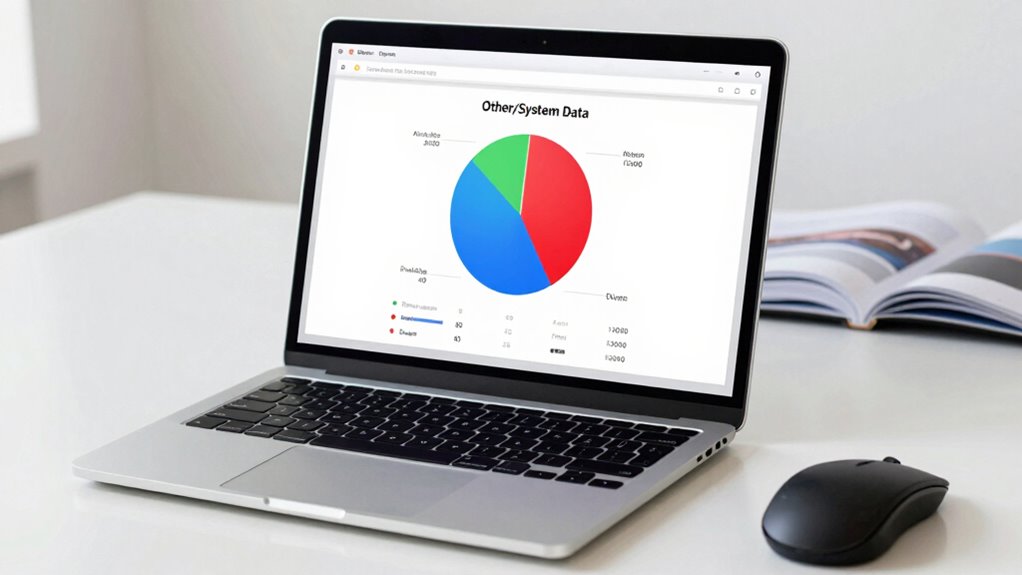

“Other” storage on your Mac includes system files, caches, logs, and hidden data that can grow over time, taking up space and slowing your device. You can reduce this by deleting cache files, removing outdated logs, and managing leftover files from uninstalled apps. Use built-in tools like Storage Management or third-party apps for deeper cleanup. Continue exploring ways to keep your space optimized and your Mac running smoothly.
Key Takeaways
- “Other” storage includes caches, logs, temporary files, and system data that don’t fit into standard categories, often growing over time.
- Regularly clearing cache files, logs, and leftover app data helps reduce “Other” storage buildup.
- Use macOS Storage Management tools to identify large or unnecessary files and optimize storage.
- Deleting outdated backups and redundant files prevents “Other” data from consuming excessive space.
- Employ third-party cleaning apps or manual cleanup to maintain optimal storage and system performance.

Macworld July 2006 Protect Your Mac- 18 Ways to Safeguard Your Data & Privacy, Antivirus & Firewall Apps Reviewed, Boot Camp: Should You Run Windows? New MacBooks, Manage a Large iTunes Library, Cleaning Your SLR Camera, Disk Utility's Hidden Talents
As an affiliate, we earn on qualifying purchases.
As an affiliate, we earn on qualifying purchases.
What Is “Other” Storage on Your Mac?
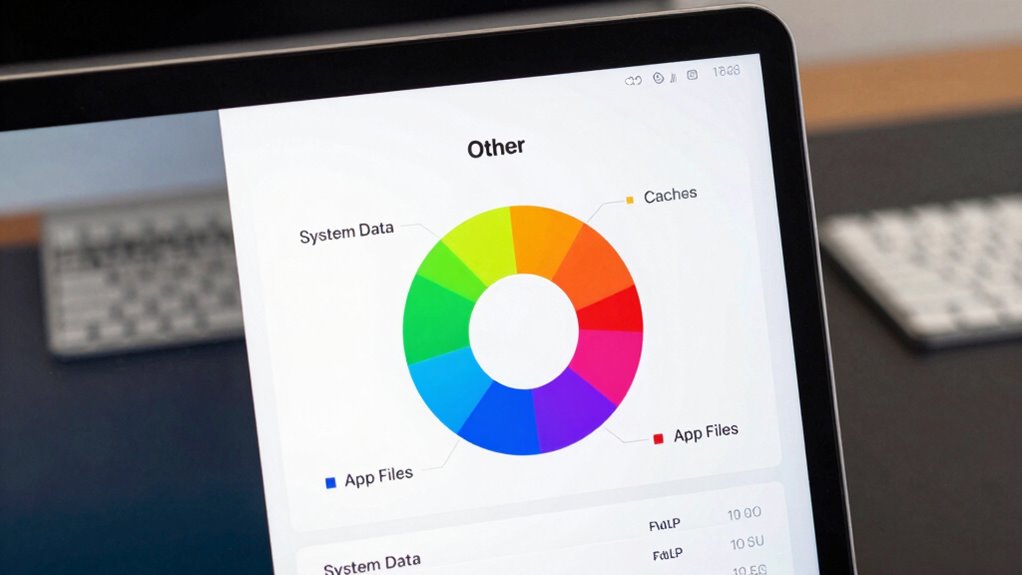
Ever wonder what your Mac means by “Other” storage? It includes files that don’t fit into categories like apps, photos, or documents. This can involve system caches, logs, and even data from file sharing activities. When you set up file sharing, your Mac manages user permissions to control who can access shared folders. Sometimes, these permissions or cached files from sharing sessions contribute to “Other” storage. Additionally, system management tools can help analyze and reduce unnecessary “Other” data. Understanding how file sharing permissions impact your storage can help you better manage and optimize your Mac’s space. It’s also useful to know that cached files from various system processes can accumulate over time, further expanding the “Other” category. Recognizing storage categories can assist in identifying what’s taking up space and how to address it. Recognizing system caches and their role in storage can help you target specific files for cleanup. Basically, “Other” is a catch-all for data your system can’t classify into standard categories. It’s helpful to understand this because large “Other” storage can slow down your Mac. Identifying and managing these files—like clearing caches or adjusting user permissions—can free up space and improve performance.
![Free Fling File Transfer Software for Windows [PC Download]](https://m.media-amazon.com/images/I/41Vq6ZqHfjL._SL500_.jpg)
Free Fling File Transfer Software for Windows [PC Download]
Intuitive interface of a conventional FTP client
As an affiliate, we earn on qualifying purchases.
As an affiliate, we earn on qualifying purchases.
Common Files Included in “Other” Data
Your “Other” data often includes cache and temporary files that help speed up your apps, as well as system and app data necessary for proper functioning. These files can accumulate over time, taking up significant space without being immediately obvious. Understanding what’s included can help you decide whether to keep or clear these files to free up storage. For example, color accuracy can influence how vivid and true-to-life your images appear, which is especially important for media consumption and visual projects. Additionally, some of these files support privacy policy and user experience enhancements, ensuring smoother operation and personalized content. Recognizing the role of system integrity files can also help in maintaining your device’s overall stability and security, and knowing which files are non-essential can assist in efficient storage management. Regularly reviewing and managing these temporary files can prevent unnecessary clutter and optimize your device’s performance.
Cache and Temporary Files
Cache and temporary files are essential components of your Mac’s system, designed to speed up processes and improve overall performance. They store data from apps like photo organization tools and email archiving, making future access faster. Over time, these files accumulate and can take up significant space, even if they no longer serve a purpose. For example, cached images from photo apps or temporary files from email clients might linger after updates or deletions. Regularly clearing cache and temporary files helps free up storage and keeps your Mac running smoothly. You can do this manually or with cleanup tools, but be cautious to avoid deleting important data. Managing these files ensures your system remains optimized without sacrificing your workflow.
System and App Data
What exactly falls under “System and App Data” in the “Other” category on your Mac? This includes files essential for system operation and apps but not stored in regular locations. It often contains app caches, logs, and support files. These files can accumulate over time, especially with cloud synchronization, which keeps app data up-to-date across devices. File compression also plays a role—large app installers or backups get compressed, occupying space. To reduce this data, you can delete old logs or unused app support files. Be cautious not to remove critical system files. Managing this data helps free up space without risking your system’s stability. Regularly reviewing and cleaning these files ensures your Mac runs smoothly and efficiently.
Mac cache and log cleaner
As an affiliate, we earn on qualifying purchases.
As an affiliate, we earn on qualifying purchases.
How “Other” Files Build Up Over Time
Over time, “Other” files on your Mac can grow unexpectedly large, quietly taking up valuable storage space. This buildup often includes cached files, logs, app installers, and stray data from file encryption or user permissions that weren’t properly cleaned up. When files are encrypted for security, they can add to “Other” data, especially if the encryption process leaves behind temporary files. Similarly, files with restricted user permissions might not delete easily, causing remnants to accumulate. Over months or years, these small files and hidden data fragments pile up, making your storage seem fuller than it actually is. Regularly managing and removing unnecessary files can help prevent this buildup and keep your Mac running smoothly. Understanding file encryption and its impact on storage can help you better identify and clear these hidden data remnants. Additionally, being aware of how storage management tools work can assist in keeping these unwanted files in check.

Multi Platform USB Logic Analyzer for Windows and For Mac 16 Channel Use
[DUAL MODE 16 CHANNELS] Experience functionality with long-term sampling in stream mode and high sampling rates in buffer…
As an affiliate, we earn on qualifying purchases.
As an affiliate, we earn on qualifying purchases.
How to Check and Identify What’s Taking Up Space
To effectively manage your Mac’s storage, you need to know what’s taking up space. Start by checking storage details in Apple menu > About This Mac > Storage. Use the Manage button to see recommendations and categories. Look for large files or folders that seem unnecessary. Also, review your file sharing settings and network configurations, which can sometimes create hidden data or backups. To dig deeper, browse your Finder for large files or use third-party tools that analyze storage use. Pay attention to system files, caches, or logs that may be accumulating. Regularly monitoring these areas helps identify what’s consuming space and keeps your storage optimized. Keeping an eye on network-related data and shared files can prevent unexpected storage growth.
How to Clear Cache Files and Logs on Mac

To free up space, start by locating cache files on your Mac, which can often be found in the Library folders. Then, delete log files that are no longer needed to reduce clutter. You can also use cleaning tools to safely automate the process and keep your storage optimized. Additionally, understanding battery capacity can help you manage storage more effectively when dealing with large application caches related to power management. Familiarizing yourself with natural pools can also help you recognize unnecessary files or outdated data that may be taking up space on your device. Regularly reviewing and managing home decor tips can also indirectly support your overall device organization, especially when integrating smart home systems that help monitor storage health.
Locate Cache Files
Locating cache files on your Mac is a crucial step before clearing them, as these files can accumulate over time and take up significant storage space. Proper cache management involves finding temporary files stored by apps and the system that aren’t always obvious. To locate these files:
- Use Finder and navigate to `~/Library/Caches` for user cache files
- Check `/Library/Caches` for system-wide cache data
- Use third-party tools designed for cache management
- Search for cache folders within specific app directories
Delete Log Files
Have you ever noticed log files piling up on your Mac and wondered how to clear them out? Log files can accumulate over time, taking up space and affecting storage. To delete them, start by locating system logs in the Library or ~/Library folders. Be cautious, as some logs may contain information related to file encryption or cloud synchronization processes. Removing outdated log files helps free space but make sure you don’t delete essential files needed for system stability. Regularly clearing logs can improve performance and reduce the “Other” storage category. Just remember, if you’re syncing files with iCloud or other cloud services, some logs may be necessary for smooth synchronization. Clearing logs should be done carefully to avoid disrupting important system functions. Additionally, understanding Gold IRA markets can help you make informed investment decisions that support your financial security.
Use Cleaning Tools
Wondering how to efficiently clear cache files and logs on your Mac? Using cleaning tools can streamline file organization and reduce “Other” storage. These tools scan your system for unnecessary caches, logs, and temporary files that accumulate over time due to user habits. They help you reclaim space without risking important data. Regular maintenance can also prevent the buildup of system junk that contributes to storage issues.
Consider these steps:
- Use reputable cleaning apps to automate cache and log removal
- Manually locate and delete cache folders in Library and ~/Library
- Clear browser caches to free up storage
- Regularly review and delete old logs and temporary files
- Refer to conversion tools to understand large numbers and manage storage more effectively.
- Employ storage management features built into macOS to better monitor and optimize your disk space.
Removing App Leftovers and Old Backups to Free Space

Over time, app leftovers and old backups can accumulate and take up significant space on your Mac. These remnants often result from incomplete app removals or outdated cloud backups that are no longer needed. File synchronization across devices can create redundant copies that occupy unnecessary space, especially if you don’t clean up regularly. To free up storage, start by deleting leftover files from uninstalled apps—check your Library folders and Downloads. Also, review your cloud backups and remove outdated versions or unnecessary backups stored locally. Removing these leftovers and old backups guarantees your storage stays optimized and reduces “Other/System Data” clutter. Keeping your storage organized can also be enhanced by understanding File synchronization processes, which can help you identify and eliminate redundant data across your devices. Incorporating connected equipment and apps designed for cleanup can further streamline your storage management efforts. Additionally, being aware of the horsepower of electric dirt bikes can inspire energy-efficient choices when considering power usage and sustainability.
How to Use Built-In Mac Tools to Manage Storage
You can manage your Mac storage easily with built-in tools that help identify large files and unnecessary data. These tools enable you to optimize storage space effectively and keep your system running smoothly. Regularly clearing system data guarantees your Mac stays organized and performs at its best. Additionally, understanding storage management options can help you make informed decisions about what to keep or delete. Being aware of device/dock limitations is also essential to prevent hardware issues that can contribute to excessive system data accumulation.
Manage Storage With Built-In Tools
To effectively manage your Mac’s storage, it’s essential to utilize the built-in tools designed for this purpose. These tools help you organize files efficiently and optimize cloud synchronization, reducing unnecessary data buildup. You can use the Storage Management feature by clicking the Apple menu > About This Mac > Storage > Manage. This provides options to review large files, delete unused apps, and optimize storage. Consider enabling iCloud Desktop and Documents Folders to keep files in the cloud and free up local space. Additionally, use the Recommendations section to automatically remove clutter, store files in iCloud, and review files stored in “Other” or “System Data.” These tools simplify file organization and help you manage storage effectively without third-party apps.
Optimize Storage Space Effectively
| Tool/Feature | Benefit |
|---|---|
| Optimize Storage | Deletes unused files and manages local space |
| iCloud File Sync | Keeps files accessible without local storage |
| Store in Cloud Storage | Offloads large files to third-party cloud services |
| Empty Trash Automatically | Removes deleted files periodically |
| Reduce Clutter | Finds large or unnecessary files for review |
Using these tools, you efficiently manage storage, ensuring your Mac stays clutter-free.
Clear System Data Regularly
Regularly clearing system data is essential to maintaining ideal storage on your Mac. This helps prevent “Other/System Data” from growing uncontrollably and keeps your file organization streamlined. Use built-in tools like Storage Management to identify large or unnecessary files, caches, and logs. Regularly review your backups to guarantee they’re current and delete outdated ones to free space. Consider setting up backup strategies that automate file archiving, so you don’t accumulate redundant data. To optimize storage further, clear cache files and temporary system data that are no longer needed. Keeping your system clean prevents “Other” data from taking up excessive space, making it easier to manage your storage efficiently.
- Review large files and remove duplicates
- Clear cache and temporary files
- Update and delete outdated backups
- Use Storage Management to identify hidden data
When and Why to Use Third-Party Cleanup Apps?
Sometimes, your Mac’s storage can fill up unexpectedly, and cleaning it manually feels overwhelming or time-consuming. Third-party cleanup apps can help you quickly identify and remove unnecessary files, especially when your storage is cluttered with “Other” data. Use these tools when your file organization is scattered or backups are outdated, making manual cleanup inefficient. These apps often automate the process, saving you time and reducing errors. They can also optimize storage by removing caches, logs, and redundant files. Here’s a quick comparison:
| Feature | Manual Cleanup | Third-Party Apps | Recommended When |
|---|---|---|---|
| File organization | Time-consuming | Automated | Files are scattered |
| Backup strategies | Manual updates | Auto-removal | Backups outdated |
| Speed | Slow | Fast | Need quick cleanup |
| Accuracy | Variable | High | Large clutter |
How to Prevent “Other” Storage Buildup in Mac
To prevent “Other” storage buildup on your Mac, maintaining good habits and managing your files proactively is essential. Proper file organization helps you keep track of documents, downloads, and caches, reducing unnecessary data accumulation. Regularly updating your backup strategies guarantees you can delete old files safely without risking data loss. Be mindful of large files or duplicates that can quickly inflate storage. Also, clear cache files and temporary data periodically to free up space. Implement these habits to minimize “Other” storage:
- Organize files into folders and delete unused items
- Use backup strategies to archive old data externally
- Remove cache files and clear browser data regularly
- Review and delete large or duplicate files periodically
Consistent file management keeps your storage optimized and avoids unnecessary buildup of “Other” data.
Do You Need Help When Storage Issues Persist?
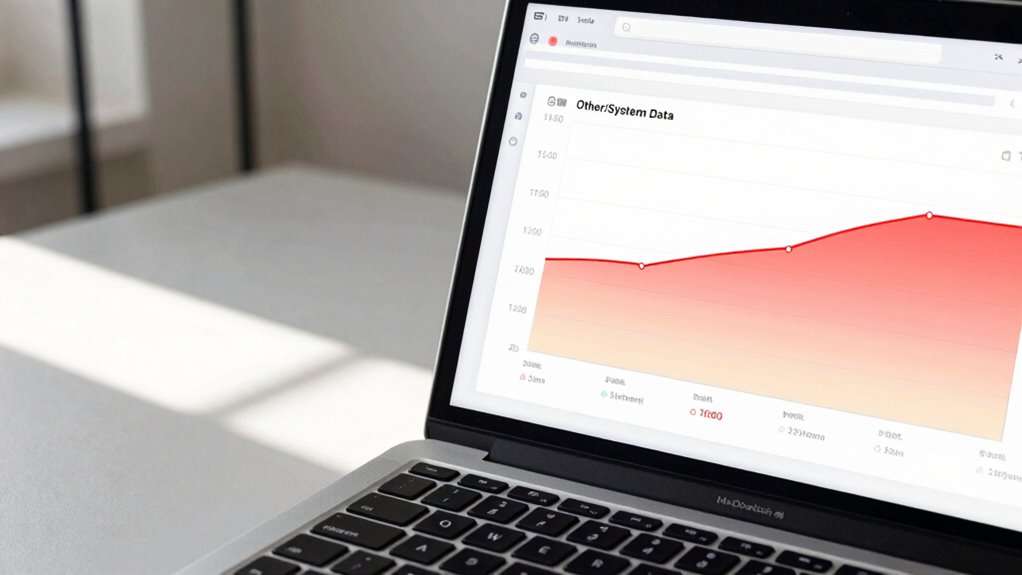
When storage issues on your Mac continue despite your best efforts, seeking professional help can be a smart move. If cleaning up “Other” or “System Data” isn’t enough, experts can analyze your storage to identify hidden files or system errors. They can also advise on backup strategies to safeguard your data before making significant changes. If your storage problems persist, hardware upgrades, like adding external drives or upgrading your internal SSD, might be necessary to expand capacity. Professionals can help determine whether a hardware upgrade or a clean reinstall is the best solution. Don’t hesitate to reach out if troubleshooting and DIY methods fail—having a specialist evaluate your setup ensures you optimize your Mac’s storage effectively and prevent future issues.
Frequently Asked Questions
Can “Other” Storage Affect Mac Performance Significantly?
Yes, “Other” storage can affect your Mac’s performance considerably. When the file system accumulates unnecessary files and data, it can slow down your system’s speed and responsiveness. Effective storage management helps by clearing out junk files, caches, and system logs, freeing space for essential functions. Regularly monitoring “Other” data ensures your Mac runs smoothly, preventing performance issues caused by cluttered storage.
Are There Risks in Deleting “Other” Files Manually?
Sure, deleting “Other” files manually might seem harmless, but it can be risky. You could accidentally erase important system cache or file backups that your Mac relies on for smooth operation. While freeing up space sounds tempting, you could cause system instability or data loss. It’s safer to use dedicated cleanup tools or let your macOS handle it, ensuring you don’t unintentionally delete critical files.
How Often Should I Clean up My “Other” Storage?
You should clean up your “Other” storage every few months to keep your Mac running smoothly. Regular disk cleanup tools can help identify unnecessary files, while a solid backup strategy ensures you don’t lose important data. Doing this periodically prevents “Other” data from piling up, making it easier to manage. Incorporate cleanup routines into your routine to maintain ideal storage health and avoid potential performance issues.
Does iCloud Storage Influence “Other” Data Size?
Think of iCloud storage as a backpack for your files—sometimes it’s packed tightly, affecting your “Other” data. Yes, iCloud synchronization can influence “Other” data size, especially if backups or cached files aren’t managed well. To keep things lean, use data management techniques like deleting old backups and optimizing sync settings. Regularly reviewing your iCloud storage helps prevent it from swelling and keeps your Mac running smoothly.
Which Specific Files Are Safe to Delete From “Other” Storage?
You can safely delete cache files, logs, temporary files, and old iOS backups from “Other” storage to free space. Focus on file organization and storage optimization by reviewing large, unused files and removing duplicates. Use built-in tools like Manage Storage or third-party apps to identify safe-to-delete items. Always back up important data before deleting, ensuring you don’t accidentally remove essential files and keep your Mac running smoothly.
Conclusion
By understanding what “Other” storage entails and regularly managing your files, you can prevent your Mac’s storage from becoming a cluttered attic. Think of it as tidying up a well-loved home—regular upkeep keeps things running smoothly and prevents surprises. With the right tools and habits, you’ll keep your Mac’s storage lean and efficient, ensuring your digital space remains as organized as a well-curated library. Stay proactive, and your Mac will thank you.