

To organize photos across your iPhone and Mac without chaos, use iCloud Photos for seamless syncing and automatic updates. Create albums and folders to sort your pictures by event or theme, and add tags for quick searches. Keep backups on external drives or cloud services to protect your collection. Regularly review and adjust your organization methods to stay tidy. If you want to master every detail, you’ll find useful tips ahead.
Key Takeaways
- Enable iCloud Photos for automatic syncing and real-time updates across iPhone and Mac devices.
- Use consistent album and folder structures on one device to streamline organization and reflect changes across all devices.
- Regularly review and delete duplicates, and tag photos for easier searching and categorization.
- Keep software and storage settings updated to prevent sync issues and ensure smooth photo management.
- Back up your photo library regularly to secure memories and facilitate recovery if needed.
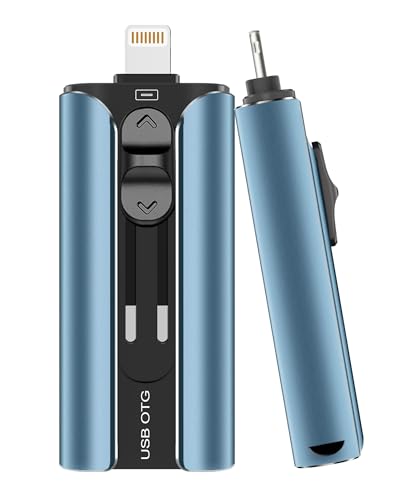
MFi Certified Flash Drive 256GB for iPhone Thumb Drive Photo Stick, High Speed USB Memory Stick iPhone Flash Drive for Photos Videos, External Storage Jump Drive for iPhone/iPad/Android/PC (Blue)
MFi Certified High-quality iPhone Flash Drive: This usb flash drive for iphone is MFi certified, made with high-quality…
As an affiliate, we earn on qualifying purchases.
As an affiliate, we earn on qualifying purchases.
Why Managing Your iPhone and Mac Photos Is a Challenge

Why is managing your iPhone and Mac photos often so tricky? It’s mainly because of inconsistent photo organization and device synchronization issues. Your photos are scattered across different apps and folders, making it hard to find what you need quickly. Device synchronization can also cause headaches, especially if your iPhone and Mac aren’t always up to date or properly connected. Without a unified system, duplicate photos and misplaced files become common, cluttering your library. You might spend extra time sorting through dozens of images to locate a specific shot. This chaos hampers your ability to enjoy and share your memories efficiently. To keep everything streamlined, you need a clear photo organization strategy and reliable device synchronization that keeps all your photos current across devices. Digital content management is essential for maintaining a cohesive photo library in today’s interconnected ecosystem. Additionally, understanding how home technology like projectors and displays can enhance your viewing experience can make your media setup more enjoyable.
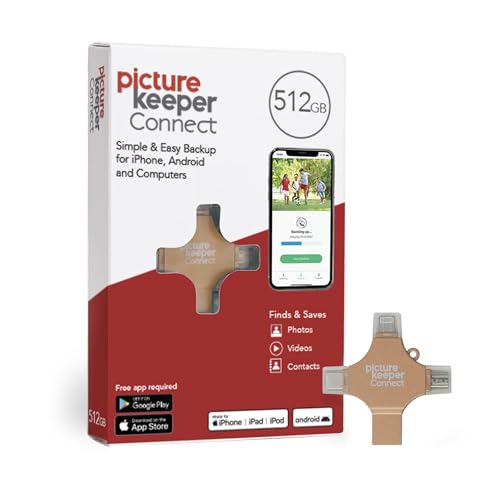
Picture Keeper Connect for iPhone, Android, USB-C, PC & Mac – 512GB USB Stick Backup for Photos, Videos, Flash Drive Memory Backup – 512GB, Gold
Photo Stick Backup Drive: Easily copy, store, and protect photos, videos, and contacts with this lightning, USB-C, Micro…
As an affiliate, we earn on qualifying purchases.
As an affiliate, we earn on qualifying purchases.
Sync Photos Easily Between Your Devices

With seamless iCloud integration, your photos automatically stay up-to-date across all your devices. You can enable automatic sync settings to guarantee new photos are uploaded without any extra effort. This makes managing your photos straightforward and hassle-free. Additionally, understanding user privacy can help ensure your experience remains positive and comfortable. Implementing effective home soundproofing techniques can also contribute to a more peaceful environment, especially if you want to reduce noise distractions while managing your digital content. Ensuring your devices are optimized for photo organization can help you keep your digital albums tidy and easily accessible.
Seamless iCloud Integration
Seamless iCloud integration makes it easy to keep your photos synchronized across all your Apple devices. With iCloud’s cloud storage, your photos automatically update wherever you access them, eliminating the need for manual transfers. This digital organization system guarantees that your entire photo library stays current and accessible, whether you’re on your iPhone or Mac. You won’t have to worry about losing track of images or juggling multiple copies. Instead, everything stays in sync behind the scenes, saving you time and reducing chaos. By leveraging iCloud, you create a centralized hub for your photos that simplifies management and enhances your overall digital organization. This smooth integration means your memories are always at your fingertips, no matter which device you’re using. Understanding digital safety can help you protect your photo library from potential risks and ensure your memories remain secure.
Automatic Sync Settings
To make sure your photos stay updated across all your Apple devices, you need to enable automatic sync settings. This feature guarantees that any photo you take or edit on your iPhone or Mac automatically appears on your other devices. To activate it, go to your device’s iCloud settings and toggle on Photos. This way, your images stay current without manual transfers. Keep in mind, your privacy settings play an essential role—review who can access your photos and adjust permissions accordingly. If you do photo editing, syncing guarantees your edits are consistent across devices. Enabling automatic sync helps you manage your photo library effortlessly while maintaining control over your privacy. Additionally, understanding how cloud storage impacts your photo backups can help optimize your overall device performance and data security. Incorporating backup strategies can further ensure your cherished memories are protected and accessible whenever needed, especially since automatic sync relies on stable internet connections to function effectively. Being aware of local automation options can help you customize how your devices handle photo organization and syncing based on your preferences. Moreover, exploring storage management tools can help you optimize space and prevent unnecessary backups.

Screen Cleaner Spray & Wipe Kit (Streak & Scratch Free) Computer Screen Cleaner + 2 Microfiber Cleaning Cloths Cleaning Kit LCD LED OLED Touchscreen Flat Smart TV Monitor Laptop Electronics Car 2oz
Laptop, Computer, & Car Screen Cleaner Spray and Wipe: Altura Photo 2 oz. cleaning solution spray bottle +…
As an affiliate, we earn on qualifying purchases.
As an affiliate, we earn on qualifying purchases.
Create Albums and Folders for Simple Photo Navigation

Creating albums and folders is an effective way to keep your photos organized and easy to find. You can create albums for specific events or themes, making navigation simple. Folders help group related albums, providing a higher-level organization. To enhance your system, try creating Smart Albums that automatically gather photos based on criteria like date, location, or keywords. When organizing, keep in mind Photo Editing Tips to refine your images before adding them to albums. Here’s a visual to clarify the concept:
| Album Type | Purpose | Example |
|---|---|---|
| Manual Albums | User-defined organization | Vacation 2023 |
| Smart Albums | Automated, based on criteria | “Photos Taken Today” |
| Folders | Grouping related albums | Family Events |
Additionally, understanding store return policies and hours of popular retailers can be helpful if you need to purchase accessories or replacements for your devices. Being aware of photo storage options can further improve your organization system by ensuring your images are safely preserved across devices. Exploring cloud storage solutions can also help you access your photos from multiple devices seamlessly.

EATOP 512GB Flash Drive Intended for Phone Tablet Androidphone and Computers, 4 in 1 Photo Stick for Phone Memory Storage Easily Backup Photos Videos, Plug and Play, No App Required (Navy Blue)
【Plug and Play, No Application Required, Instantly Increases Phone and Tablet Memory Space】If you almost used up all…
As an affiliate, we earn on qualifying purchases.
As an affiliate, we earn on qualifying purchases.
Tag and Categorize Photos to Find Them Faster
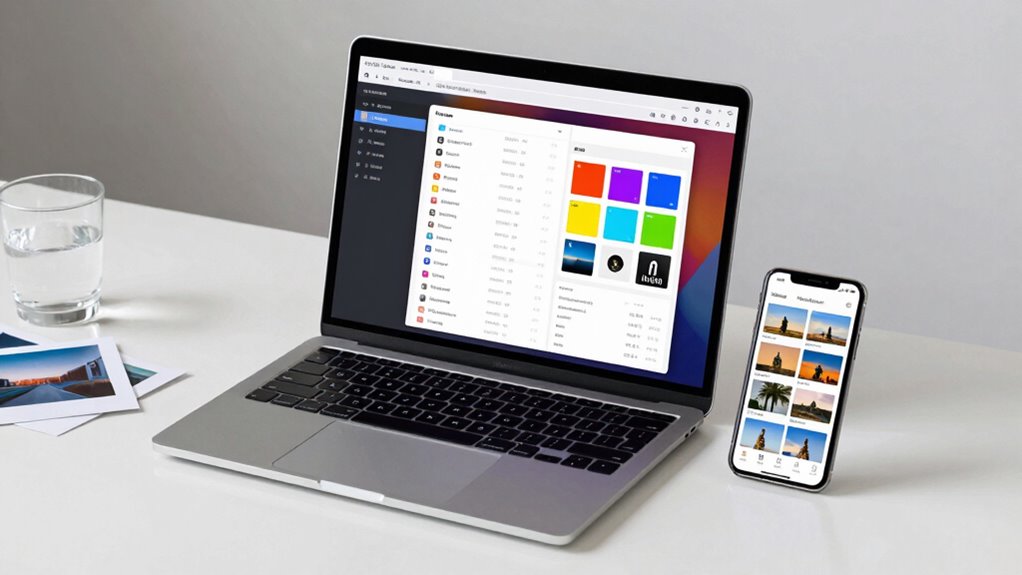
Tagging and categorizing your photos makes it much easier to find specific images quickly, especially as your collection grows. Photo tagging involves adding keywords or labels to your images, while categorization strategies group photos based on themes, locations, or dates. Use descriptive tags like “beach,” “birthday,” or “mountains” to create a searchable system. Developing a routine for photo tagging and categorization embeds ancient wisdom into your digital organization process, streamlining your workflow and reducing frustration. Over time, these strategies turn your vast collection into a well-structured gallery you can navigate effortlessly. Implementing these methods can also help you manage large collections more effectively and prevent chaos. Embracing a consistent organization system ensures your photos remain accessible and clutter-free as your collection continues to grow. Additionally, understanding how electric bikes can enhance your mobility might inspire you to incorporate new tools for your outdoor adventures.
By applying these strategies, you can optimize your workflow and enjoy a more efficient digital photo experience.
Save Space and Keep Your Photos Safe With Storage and Backup
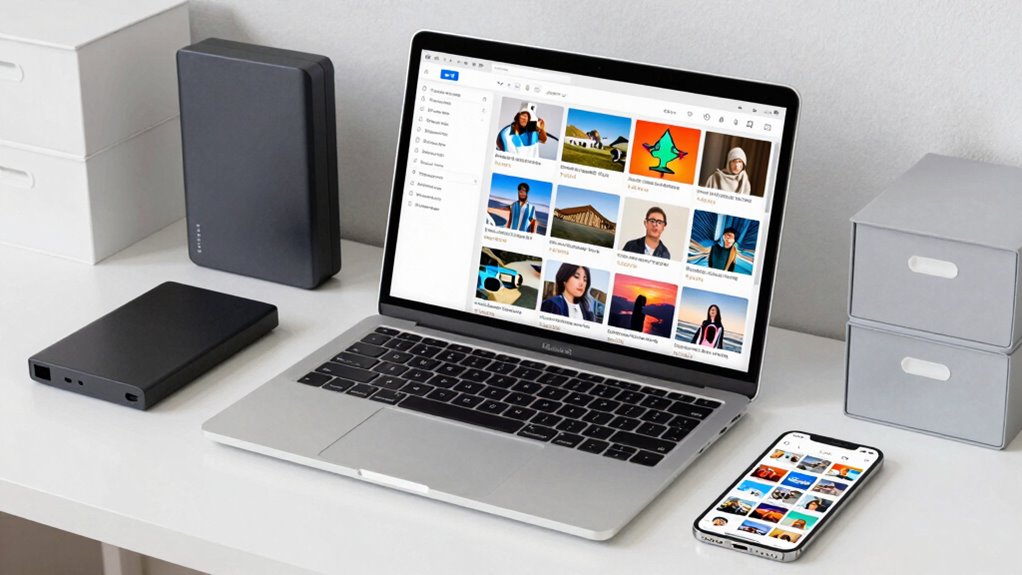
After organizing your photos with tags and categories, it’s important to think about how to keep your collection manageable and protected. Using iCloud or external drives helps save space and guarantees your images are safe. Regularly back up your photos so you won’t lose precious memories. This also allows you to access your collection for photo editing or printing options anytime. Consider compressing images for space efficiency without sacrificing quality. Here’s a quick overview:
| Storage Method | Benefits |
|---|---|
| iCloud | Automatic backups, access across devices |
| External Drives | Large capacity, offline safety |
| Cloud Services | Easy sharing, multiple backups |
Choosing a reliable storage method ensures your photos remain protected and accessible, giving you peace of mind and making editing and printing hassle-free. Additionally, backup strategies are essential for maintaining the longevity of your collection and avoiding data loss due to hardware failure or accidental deletion.
Troubleshooting Common Photo Sync and Organization Issues

When your photos don’t sync properly between your iPhone and Mac, it can be frustrating and disrupt your organization process. First, check your internet connection and confirm iCloud Photos is enabled on both devices. Sometimes, a simple restart or signing out and back into iCloud resolves sync issues. If photos aren’t appearing, verify that you’re using the same Apple ID. For smooth photo editing and sharing tips, keep your apps updated, as outdated software can cause conflicts. Also, review storage space; limited space can hinder syncing. If you’re trying to organize photos into albums, do so on one device first, then let the sync update. Consistent organization and proper settings help prevent future issues, making your photo management seamless.
Frequently Asked Questions
Can I Organize Photos Without Using iCloud?
Yes, you can organize photos without using iCloud by relying on manual organization. You can transfer your photos to your Mac via USB or AirDrop, then manage and sort them directly in your photo management app, like Photos or Finder. This way, you maintain control over your photos without cloud syncing, keeping your library organized and accessible locally. It’s a straightforward way to manage your images without relying on iCloud.
How Do I Recover Deleted Photos Across Devices?
You can recover deleted photos across devices by checking your Photo backup and Cloud storage. First, open the Recently Deleted album on your iPhone or Mac; if you find your photos there, select them and tap “Recover.” If not, visit your Cloud storage service, like iCloud or Google Photos, and restore from a backup. Regular photo backup guarantees you won’t lose images, even if deleted accidentally.
Is There a Way to Sync Photos Without Internet?
You can sync photos without internet using offline transfer methods like AirDrop or a direct cable connection. These methods guarantee your photos stay private, especially if you enable photo encryption during transfer. With AirDrop, you simply select the photos, choose your device, and transfer securely. For wired transfers, connect your devices with a cable, and use your computer’s photo management software to sync files offline, maintaining your privacy.
How Do I Prevent Duplicate Photos From Syncing?
Imagine your photo library as a garden; unwanted duplicates are weeds choking the beauty. To prevent duplicate photos from syncing, enable photo deduplication tools or apps that scan for identical images before syncing. This keeps your library neat and enhances storage optimization, preventing clutter and saving space. Regularly review your library to catch any duplicates missed by automation, ensuring your collection remains tidy and easy to navigate across iPhone and Mac.
Can I Password-Protect Specific Photo Albums?
You can’t directly password-protect specific photo albums on iPhone or Mac. However, you can use photo album encryption by hiding sensitive photos in the “Hidden” album and securing your device with a passcode or Face ID. For added security, consider third-party apps that offer password protection for albums. This way, your most private photos stay protected, and you control access to your albums.
Conclusion
Mastering your media management might seem messy, but with a few mindful moves, you’ll transform chaos into clarity. By syncing seamlessly, sorting smartly, tagging thoughtfully, and safeguarding your snapshots, you create a cohesive collection that’s easy to explore. Stay consistent, troubleshoot tactfully, and trust your tech to tame the tangled tangle of photos. With these tips, you’ll confidently conquer clutter and cherish your cherished captures forever.