
If Safari is acting weird, you don’t need to clear everything—just target specific issues. Start by disabling or updating problematic extensions and clearing cache or cookies for affected sites only. Use Safari’s privacy settings to manage data and back up important passwords or autofill info first. Regularly managing extensions and site data helps keep Safari running smoothly. Keep going for more tips on fixing issues without losing your important data.

Get the latest gadgets delivered free — and shop member deals
- Fast, free delivery on millions of items
- Access to Prime Big Deal Days deals on October 6–7
- Prime Video, Amazon Music and more included
Key Takeaways
- Clear cookies and cache for specific websites to fix issues without losing all browsing data.
- Use Safari’s privacy settings to selectively remove stored data, preserving important information.
- Disable or update extensions that may conflict with Safari’s performance.
- Reset website permissions for targeted troubleshooting rather than clearing all data.
- Regularly review and remove unnecessary extensions and clear cache periodically to maintain optimal performance.
Safari cache and cookies cleaner
As an affiliate, we earn on qualifying purchases.
As an affiliate, we earn on qualifying purchases.
Why Is Safari Acting Slow or Unresponsive?

Have you noticed Safari slowing down or becoming unresponsive? Your browsing habits and Safari extensions could be the culprits. Some extensions consume a lot of resources or conflict with each other, causing lag or crashes. If you’ve recently added new Safari extensions, they might be overloading your browser. Additionally, heavy browsing habits—like opening many tabs or visiting resource-heavy websites—can strain Safari’s performance. Over time, cache and data buildup also contribute to sluggishness. To improve speed, review your extensions and disable any unnecessary ones. Limit the number of open tabs and avoid visiting too many resource-intensive sites simultaneously. Regularly clearing cache and managing your browsing habits can help keep Safari running smoothly, preventing it from becoming slow or unresponsive. Monitoring content formats and digital concepts can also help optimize your browsing experience.
As an affiliate, we earn on qualifying purchases.
How to Diagnose Which Data Is Causing Safari Problems

When Safari starts acting up, pinpointing the exact cause can seem challenging, but diagnosing which data is responsible is essential for effective troubleshooting. First, consider data corruption; corrupted cache or cookies can cause strange behaviors or crashes. Clearing or resetting specific data types can help identify the issue. Next, look for incompatible plugins or extensions that may not work well with your current Safari version. Disable plugins one at a time to see if problems resolve. Using Safari’s built-in tools, like the Develop menu, can also help diagnose issues. If problems persist after disabling plugins, suspect corrupted or outdated data. Narrowing down the cause allows you to target the problematic data, reducing the risk of unnecessary data loss and fixing Safari’s issues efficiently. Additionally, understanding the types of data that impact browser performance can guide your troubleshooting process more effectively. Being aware of how browser cache and cookies influence behavior can help you decide what data to clear first. Recognizing how data corruption affects browser stability is crucial for maintaining optimal performance.
Safari extension management tools
As an affiliate, we earn on qualifying purchases.
As an affiliate, we earn on qualifying purchases.
When and Why You Should Clear Safari Browsing History and Cookies

You should clear your Safari browsing history and cookies when you want to protect your privacy or fix browser errors quickly. Doing so can also free up storage space on your device, improving overall performance. Knowing when to clear this data helps keep your browsing smooth and secure. Regularly managing your browser tools and understanding safety tips can further enhance your online experience. Additionally, clearing data can prevent issues with website compatibility and ensure your device remains energy-efficient and safe from potential threats. Being aware of cookie categories can help you make informed decisions about which data to delete and preserve.
Protect Privacy Quickly
Clearing your Safari browsing history and cookies is a quick way to protect your privacy, especially if you notice suspicious activity or want to prevent others from seeing your online habits. When you clear this data, you reduce the risk of sensitive information being accessed, which is essential if you’re using public Wi-Fi or shared devices. While VPN security and data encryption are critical for online safety, clearing your history adds an extra layer of privacy, ensuring no traces remain on your device. This approach helps prevent targeted ads and tracking by websites or third parties. Doing it regularly keeps your browsing discreet and minimizes potential privacy breaches, giving you control over what information is stored locally and enhancing your overall online security. Additionally, understanding halal culture and traditions can help you navigate online content more responsibly and with cultural awareness.
Resolve Browser Errors
If your browsing experience starts acting up—pages not loading correctly, unexpected errors, or strange website behavior—removing Safari’s browsing history and cookies can often resolve these issues. Sometimes, outdated or corrupted data interferes with website functionality, causing errors or disrupting Safari customization options like browser themes. Clearing history removes stored website data that might be causing conflicts, helping Safari run smoother. Cookies can also store problematic login details or site preferences that lead to errors. Regularly clearing this data ensures your browser functions correctly without affecting your saved passwords or autofill information. Remember, you don’t need to clear everything—targeting cookies and history specifically fixes errors without compromising your personalized Safari settings or customizations.
Free Up Storage Space
Wondering when it’s time to clear your Safari browsing history and cookies? If your device’s storage is running low or Safari feels sluggish, it’s a good sign. Clearing history and cookies frees up space and can improve browsing speed. Be mindful if you use Safari extensions, as they often rely on stored data to function correctly. Clearing cookies might disrupt data synchronization across your Apple devices, so consider what’s essential before deleting. Regularly managing this data helps prevent clutter that can slow down your browser and impact performance. Remember, you don’t have to clear everything—just the data that’s no longer needed. This targeted approach keeps your browsing smooth while preserving necessary data for a seamless experience.
As an affiliate, we earn on qualifying purchases.
How to Clear Safari Cache Without Losing Important Data
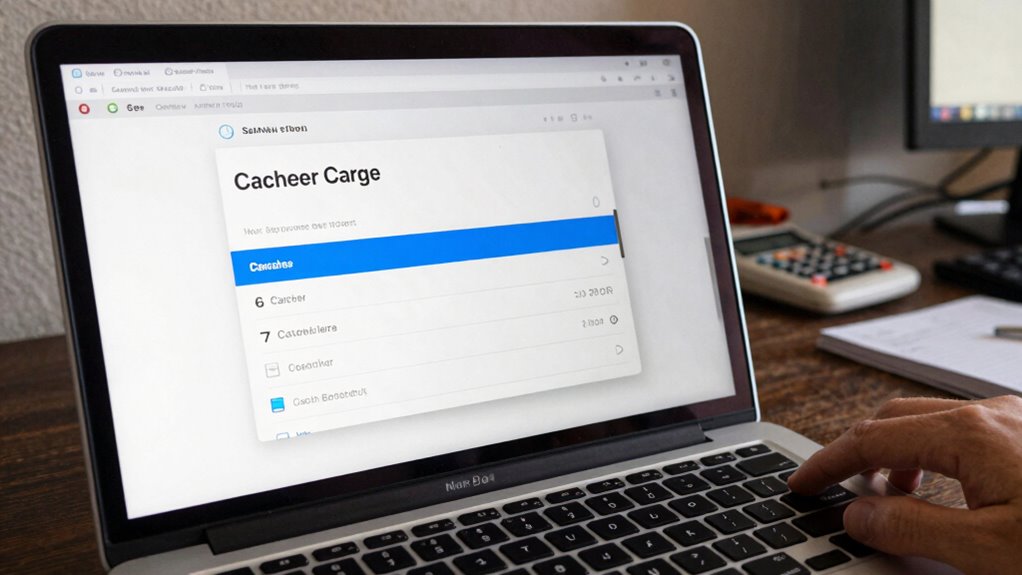
To clear your Safari cache without losing important data, start by identifying which cache files are unnecessary and which are crucial. Use Safari’s privacy settings to selectively clear cache, cookies, and history, ensuring you don’t erase essential login details or saved information. Before making any changes, back up your data so you can restore anything accidentally removed. Incorporating knowledge about sound healing science can also help you understand how digital vibrations affect your device’s performance, guiding you in making more mindful clearing choices. Understanding how natural pools integrate with your digital environment can further inform your approach to maintaining a balanced and healthy device ecosystem. Recognizing the importance of security best practices can help you protect your data from potential vulnerabilities during the clearing process. Being aware of smart home technology can also help you optimize your device settings for better performance and security.
Identify Cache Data
Before clearing your Safari cache, it’s important to identify which data is stored there. Proper cache management relies on understanding what information is saved, so you avoid deleting essential data. Focus on recognizing cache data related to website images, scripts, cookies, and stored files. This helps you prioritize what to remove, ensuring smooth browsing without losing login credentials or important form data. Additionally, consider how natural light can influence your workspace environment, creating a cozy and wellness-focused space even during digital decluttering. Being aware of cache data types can further help you make informed decisions about what to delete and what to keep, especially since some cached information may include personal information that you might want to protect. Recognizing the types of stored data can also aid in maintaining your privacy and security online.
Use Privacy Settings
Are you looking for a way to clear your Safari cache without losing important data? Adjusting your privacy settings helps you control what data Safari retains. You can disable ad blocking tools temporarily or set browsing restrictions to prevent unnecessary data storage. This targeted approach allows you to clear cache selectively, keeping your saved passwords and autofill info intact. Additionally, understanding the horsepower of electric dirt bikes can help you make informed decisions about your bike’s performance and maintenance needs. Knowing how precious metals are valued in IRAs can also guide you when considering investment options to diversify your portfolio. Learning about privacy management can further enhance your control over data and improve your browsing experience. Paying attention to your device’s performance optimization can also ensure smoother and more secure browsing sessions. Recognizing the role of hive health in bee populations reminds us of the importance of maintaining balanced systems for optimal results.
Backup Important Information
While adjusting your privacy settings helps control what data Safari retains, it’s equally important to back up your important information before clearing your cache. This guarantees you don’t lose critical data during the process. Start by enabling data synchronization with iCloud or other cloud backup services, so your bookmarks, passwords, and browsing history stay safe. Consider exporting essential passwords and bookmarks manually for extra security. Regular cloud backups help preserve your browsing data and prevent accidental loss. Be cautious with local backups if you prefer manual control over your data. By backing up properly, you can confidently clear Safari’s cache without risking valuable information. Remember, safeguarding your data is key to maintaining a smooth browsing experience and quick recovery if needed.
Safely Manage Saved Passwords and Autofill Data
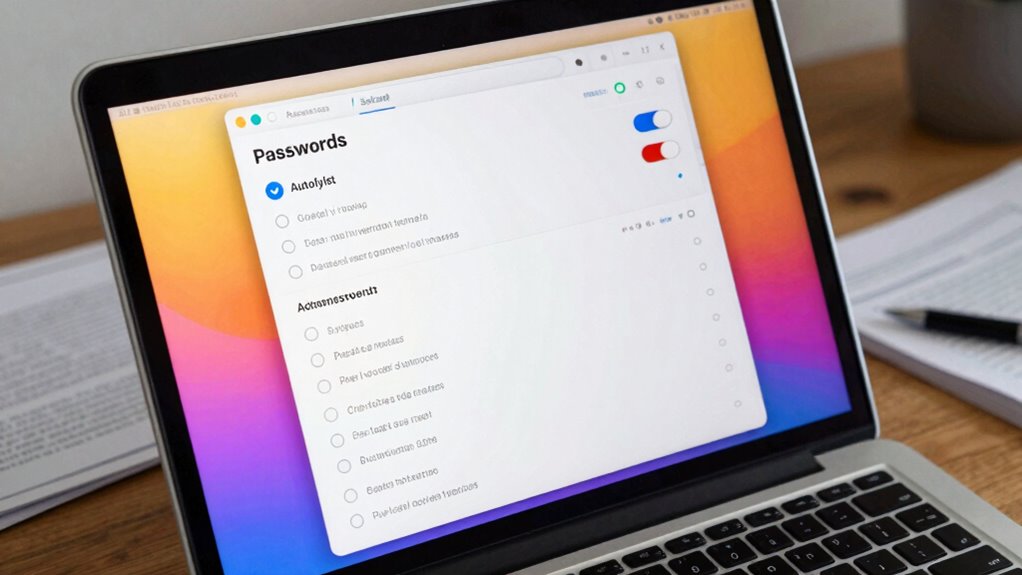
Managing your saved passwords and autofill data safely is essential to protect your personal information. Start by reviewing your saved passwords regularly to guarantee they’re strong and unique, enhancing password security. Use Safari’s password management features to update or delete outdated or weak passwords. For added security, consider using a free online tool to transform text capitalization styles to create strong, unique passwords that are easier to remember. For autofill management, check your saved addresses, payment info, and other details, removing any unnecessary or outdated entries. Keep your autofill data accurate to avoid errors when filling out forms. Be cautious about which passwords and autofill data you save, especially on shared devices. Using Safari’s built-in tools for managing this information helps keep your data secure and organized. Regularly updating and reviewing your saved data minimizes risks and maintains your privacy. Additionally, staying informed about payment security trends can help you recognize potential risks and take appropriate precautions. Incorporating Indigenous wellness practices into your routine can also promote overall well-being and resilience, further supporting your digital and personal security.
Troubleshooting Extensions and Website Data That Cause Glitches

Extensions and website data can often cause glitches in Safari, disrupting your browsing experience. These issues are frequently linked to extension conflicts or problematic website data that interfere with browser customization. To troubleshoot, start by disabling extensions one at a time to identify any causing conflicts. Clear site data for specific websites that behave oddly instead of wiping all browsing data. Check for outdated extensions or those incompatible with your Safari version. Use Safari’s built-in tools to reset website permissions or remove cache selectively. This targeted approach helps fix glitches without losing important saved data.
- Disable extensions individually to spot conflicts
- Remove cookies and cache for specific websites
- Update or uninstall outdated extensions
- Reset website permissions selectively
- Use Safari’s developer tools for deeper troubleshooting
Best Ways to Clear Safari Data Without Losing Your Important Info

After identifying problematic extensions or website data, you might need to clear your browsing data to resolve issues. To do this without losing your important info, focus on selective clearing options. Use Safari’s built-in tools to delete cache or cookies for specific sites, preserving your browser customization preferences. You can also clear history without affecting saved passwords or autofill info. Creating Safari shortcuts for quick access to privacy settings helps streamline this process. Remember, avoiding a full data wipe keeps your essential data intact while resolving glitches. Regularly managing your browsing data with precision ensures smoother performance without sacrificing your saved passwords, autofill, or customizations. This targeted approach keeps Safari running efficiently while maintaining your personalized browsing experience.
Tips to Keep Safari Running Smoothly Long-Term

To keep Safari running smoothly over the long term, adopting proactive habits that prevent buildup and slowdowns is essential. Regularly review your browsing preferences to disable unnecessary features, which can improve performance. Manage your Safari extensions by removing or updating those you no longer need, as outdated extensions can cause issues. Clear cache data periodically to prevent accumulated files from slowing down your browsing experience. Keep your macOS updated to guarantee compatibility and security. Be mindful of open tabs; close those you no longer need to reduce memory usage and improve speed. Also, consider resetting Safari settings occasionally to resolve persistent issues, making sure your browsing environment stays optimized and responsive over time.
Frequently Asked Questions
Can Clearing Data Improve Safari’s Battery Life?
Yes, clearing cache management and adjusting privacy settings can improve Safari’s battery life. When you clear cache, Safari loads data more efficiently, reducing power drain. Updating privacy settings can also limit background activity and data tracking, which helps conserve battery. Just make sure you clear only the necessary data to keep your browsing experience smooth without losing important information. Regularly managing these settings can keep Safari running faster and extend your device’s battery life.
Does Clearing Data Delete Saved Login Credentials?
Clearing data in Safari typically doesn’t delete your saved login credentials, so your passwords remain secure. Think of your passwords as locked safes; clearing cache or cookies is like tidying your desk—your secure safes stay untouched. However, if you clear website data or cookies, you might temporarily lose auto-fill info. For password security and data recovery, always back up your passwords using a trusted manager before clearing any data.
How Often Should I Clear Safari Data for Optimal Performance?
You should clear Safari data every few months to maintain ideal performance, but avoid doing it too often, as it can disrupt your cache management and privacy settings. Regularly clearing your cache helps speed up browsing and resolve glitches. Focus on removing cached images and cookies rather than everything, so your saved login credentials stay intact. Balance this routine to keep Safari running smoothly without compromising your privacy or convenience.
Will Clearing Data Remove My Browser Bookmarks?
Surprisingly, clearing data won’t erase your cherished bookmarks—those are stored separately. So, you can clear cache and cookies without losing bookmark preservation. The data removal impact is mostly on browsing history and temporary files, which can slow down Safari or fix bugs. Think of it as tidying up your closet without tossing out your favorite keepsakes. Your bookmarks stay safe, so go ahead and clear the right data for a smoother experience.
Is It Safe to Clear Website Data on Shared Devices?
Yes, it’s safe to clear website data on shared devices, but you should follow shared device etiquette and consider data privacy concerns. Clearing cookies and cache can protect your personal information and improve browser performance. However, avoid deleting bookmarks or saved passwords unless you’re comfortable losing that data. Always inform other users beforehand, and only clear data related to your browsing to maintain a respectful, privacy-conscious environment.
Conclusion
Now that you know how to clear the right data from Safari, you can keep it running smoothly without throwing the baby out with the bathwater. Regularly managing your browsing history, cookies, and cache helps prevent glitches and sluggishness. Remember, a little upkeep goes a long way—don’t wait until things break down completely. Stay on top of your browser health, and you’ll be sailing smoothly without hitting any rough patches.
Evergreen bestsellers Picks
bestsellers
As an affiliate, we earn on qualifying purchases.