
To reduce battery wear without constant micromanagement, keep your software updated and avoid exposing your device to extreme temperatures. Use battery saver modes when needed, adjust screen brightness and timeout settings easily, and unplug accessories when not in use. Regularly check your battery health to catch issues early. By adopting these simple habits, you’ll help extend your battery’s lifespan and maintain performance over time—more helpful tips await as you explore further.

Get the latest gadgets delivered free with Prime
- Fast, free delivery on millions of items
- Prime Video, Amazon Music and more included
- Member-only deals all year
Key Takeaways
- Enable battery saver or low power mode to automatically limit background activity and conserve energy.
- Keep software updated to benefit from efficiency improvements and bug fixes.
- Manage display brightness and turn off unused features like Wi-Fi and Bluetooth when not needed.
- Avoid full discharges by maintaining charge levels between 20% and 80%.
- Perform routine calibration and capacity checks to ensure accurate battery health monitoring.
battery saver mode for smartphones
As an affiliate, we earn on qualifying purchases.
As an affiliate, we earn on qualifying purchases.
Why Battery Health Matters and How Small Habits Help
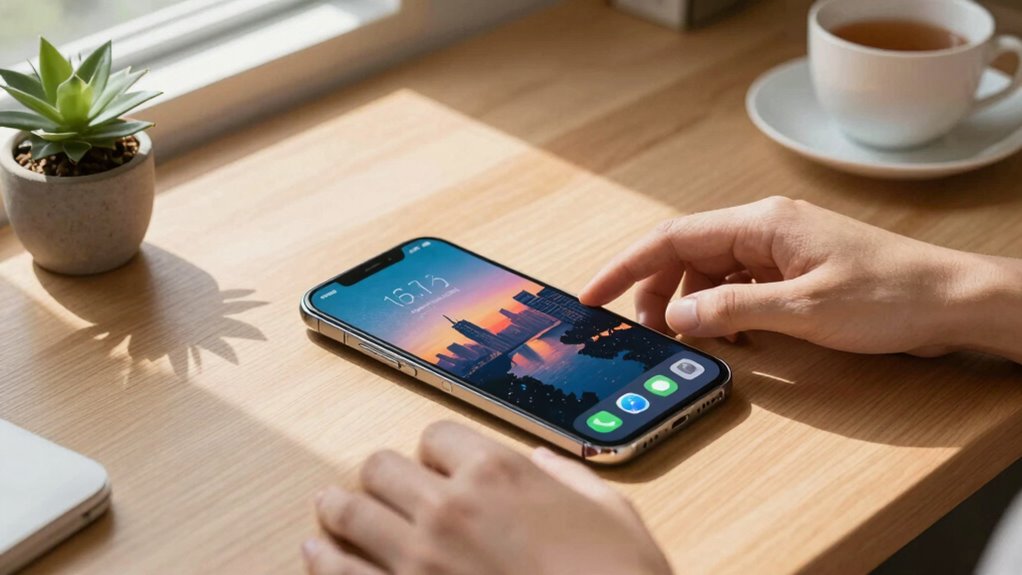
Maintaining good battery health is essential because it directly affects your device’s performance and lifespan. When you care for your battery, you extend its longevity, meaning fewer replacements and less hassle. Small habits, like avoiding letting your battery drain completely or charging it partially instead of always to 100%, make a big difference. Power conservation tips, such as reducing screen brightness and turning off unused features, also help preserve your battery’s health. By practicing these habits, you prevent unnecessary stress on your battery, which can cause faster wear. Using Accessibility Features like Guided Access can help limit screen time and reduce accidental touches, further protecting your device’s battery. Additionally, understanding battery cycling can guide you in adopting better charging habits to prolong battery life. Being aware of thermal management can help you avoid exposing your device to extreme temperatures that accelerate battery degradation. Consistent, mindful use, including avoiding overcharging, not only keeps your device running smoothly longer but also saves you money over time. Small adjustments in your routine can profoundly improve your battery’s overall health and efficiency.
As an affiliate, we earn on qualifying purchases.
Keep Your Device Updated for Better Battery Management
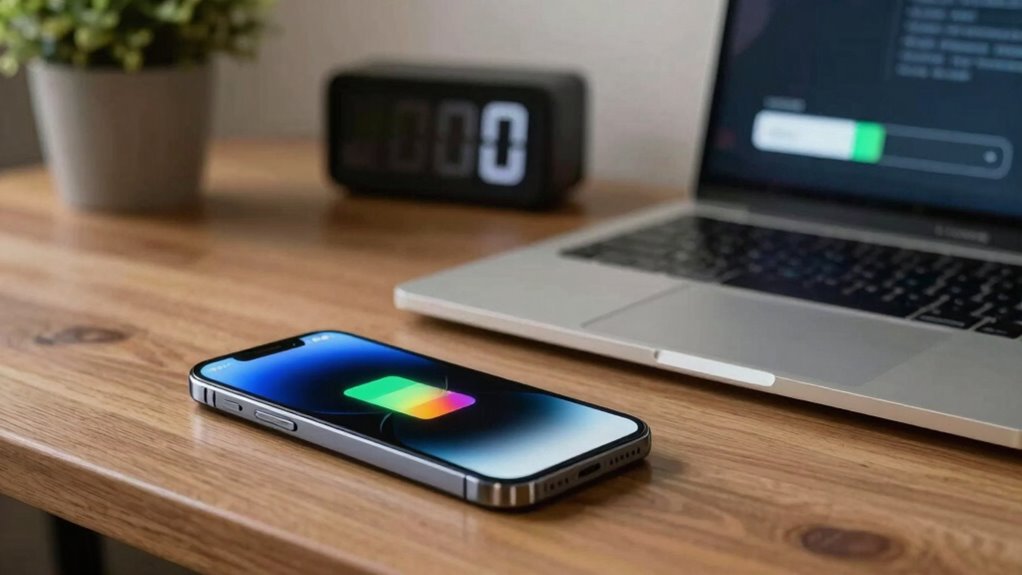
Keeping your device updated guarantees you get the latest improvements in battery efficiency and performance. Software updates also fix security vulnerabilities that could drain your battery faster. Regularly installing updates helps your device run smoothly and stay compatible with new apps and features. Additionally, understanding color accuracy can help you optimize your device’s display settings for better visual clarity and energy efficiency. Staying informed about battery technology advancements can further enhance your device’s longevity and overall performance. Being aware of recent AI discoveries can also provide insights into emerging technologies that may benefit your device’s capabilities in the future, especially as new battery inverters become available with improved energy management features. Recognizing charging habits can help prevent unnecessary battery wear and extend overall lifespan.
Benefits of Software Updates
Regularly updating your device’s software guarantees it runs more efficiently and helps extend battery life. Updates often include power optimization improvements that reduce unnecessary drain, making your battery last longer. They can also enhance battery calibration, ensuring your device accurately reports remaining charge and prevents premature shutdowns. Manufacturers fix bugs and optimize energy use with each update, which can greatly improve how your device manages power. Staying current with updates ensures you benefit from the latest features designed to conserve battery life without compromising performance. Ignoring updates might leave your device vulnerable to inefficiencies that accelerate battery wear. By keeping your software current, you support better overall device health and longevity, helping you avoid the need for micromanaging your battery usage. Additionally, software updates can address security vulnerabilities that, if left unpatched, could indirectly impact battery performance. Keeping your device’s battery health in check through regular updates is an effective way to extend its lifespan. Regular updates also help your device adapt to new technologies, ensuring optimal compatibility and efficiency. In addition, updates often include improvements for battery management algorithms, further enhancing power efficiency and device stability over time. Incorporating these updates can also help your device better utilize sound healing science principles, which are increasingly integrated into health-related features to promote overall well-being.
Ensuring Compatibility and Security
Because your device’s security vulnerabilities can lead to increased power consumption, staying updated is essential for peak battery management. Regular software updates often include security patches that prevent unauthorized access, which can drain your battery faster. Additionally, updates improve compatibility with apps and hardware, guaranteeing maximum power efficiency. To maintain accuracy, perform battery calibration periodically by fully draining and recharging your device. Power cycling—turning your device off and on—also helps clear temporary glitches that may cause unnecessary battery drain. Ensuring your device’s software security remains robust can help prevent background processes from consuming extra power. By keeping your device current, you reduce the risk of security breaches and enhance battery performance, helping you avoid micro-managing your device’s power settings. Staying aware of device performance issues caused by outdated software can help you address potential problems before they significantly impact battery life. Regularly checking for software updates ensures your device remains secure and energy-efficient. Staying updated is a simple yet effective way to ensure your device remains secure and energy-efficient, especially when using features like nighttime mode that conserve battery life. Moreover, being proactive about system maintenance can further optimize battery longevity and overall device health.
screen brightness adjustment device
As an affiliate, we earn on qualifying purchases.
As an affiliate, we earn on qualifying purchases.
Avoid Extreme Temperatures to Protect Your Battery
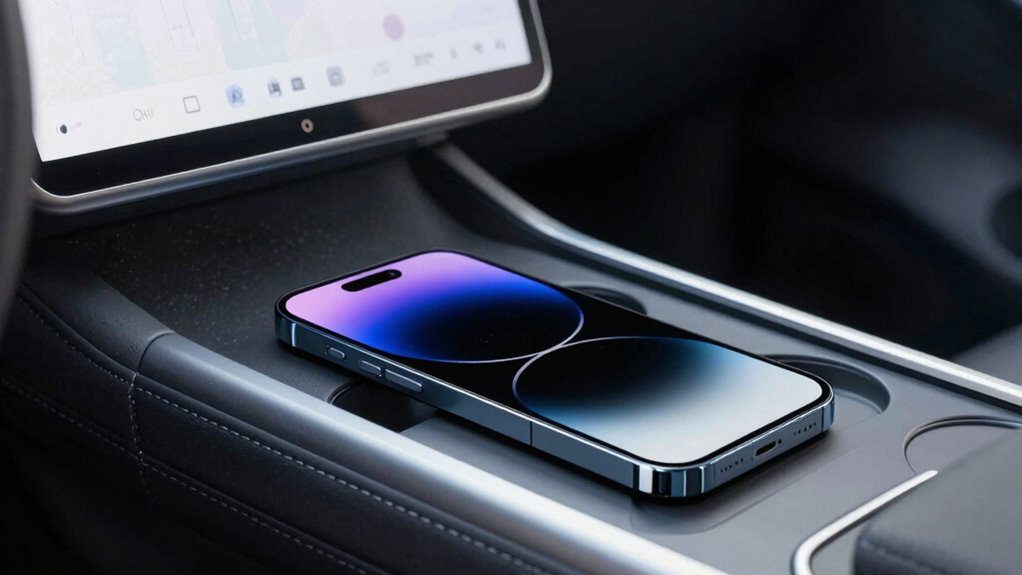
Extreme temperatures can substantially accelerate your battery’s wear, so it’s essential to avoid exposing your device to excessive heat or cold. High heat can cause thermal regulation issues, leading to faster degradation, while cold temperatures can temporarily reduce performance. To protect your battery, regularly monitor the temperature of your device and keep it within ideal ranges. Utilizing landscaping to create shaded areas or windbreaks can help maintain a stable environment around your device. Consider these tips:
- Avoid leaving your device in direct sunlight or hot environments
- Don’t leave it in freezing conditions for extended periods
- Use a case that helps insulate against temperature extremes
- Store your device in a cool, dry place when not in use
- Use built-in temperature monitoring features to stay aware of device temperature
- Be aware of temperature regulation mechanisms that can influence battery longevity and performance.
- Maintaining a stable temperature environment is crucial for battery health and overall device performance. Proper thermal management can help prevent unnecessary battery wear and extend its lifespan, especially by understanding exposure to extreme temperatures and how it impacts battery degradation.
USB charging cable with smart chip
As an affiliate, we earn on qualifying purchases.
As an affiliate, we earn on qualifying purchases.
Use Battery-Saving Modes When You Need Extra Power

When you need extra power, activating battery-saving modes can make a big difference. These settings limit background activities and reduce screen brightness automatically. Using them helps conserve energy and extends your battery life when it matters most. Implementing smart thermostat protocols can further optimize your home’s energy efficiency during these times.
Activating Power-Saving Settings
Activating power-saving settings can considerably extend your device’s battery life when you need extra power. These modes optimize performance by reducing screen brightness, limiting background activity, and disabling unnecessary features, helping you conserve energy during critical moments. To get the most out of your device, consider performing a battery calibration to ensure accurate usage data. When your battery’s low, a power bank can serve as a reliable backup, but enabling power-saving modes helps you stretch its capacity further.
- Enable battery saver or low power mode in settings
- Reduce screen brightness manually or automatically
- Turn off Wi-Fi, Bluetooth, and location services when not in use
- Limit app refresh and background activity
- Adjust sync frequency and disable unnecessary notifications
Limiting Background Activities
Limiting background activities is an effective way to conserve battery life, especially when you’re running low and need your device to last longer. You can do this by managing app permissions and restricting background data for apps that don’t need constant updates. Review which apps have permission to run in the background and disable unnecessary access. Limiting background data prevents apps from rejuvenating or syncing when you’re not actively using them, saving power. Many devices allow you to set restrictions or enable battery-saving modes that automatically limit background activity. These modes reduce app activity, notifications, and background processes, helping your device conserve energy. Keep an eye on app permissions and background data settings to optimize battery life without sacrificing essential functionality.
Adjust Screen Brightness and Timeout Settings Easily

Adjusting your screen brightness and timeout settings is one of the simplest ways to reduce battery wear. Use screen calibration to guarantee your display is refined, preventing unnecessary power drain. Enable brightness automation so your device adjusts brightness based on ambient light, saving energy without manual adjustments. Lowering your screen brightness during the day can notably extend battery life. Set your display to timeout quickly—around 15 to 30 seconds—to reduce screen-on time. Avoid high brightness levels when not needed, and periodically review your settings for efficiency. Consider using auto-brightness and adjusting screen calibration for peak performance. These simple tweaks help conserve power effortlessly, keeping your device running longer without micromanaging every detail.
Limit Background Apps to Save Your Battery
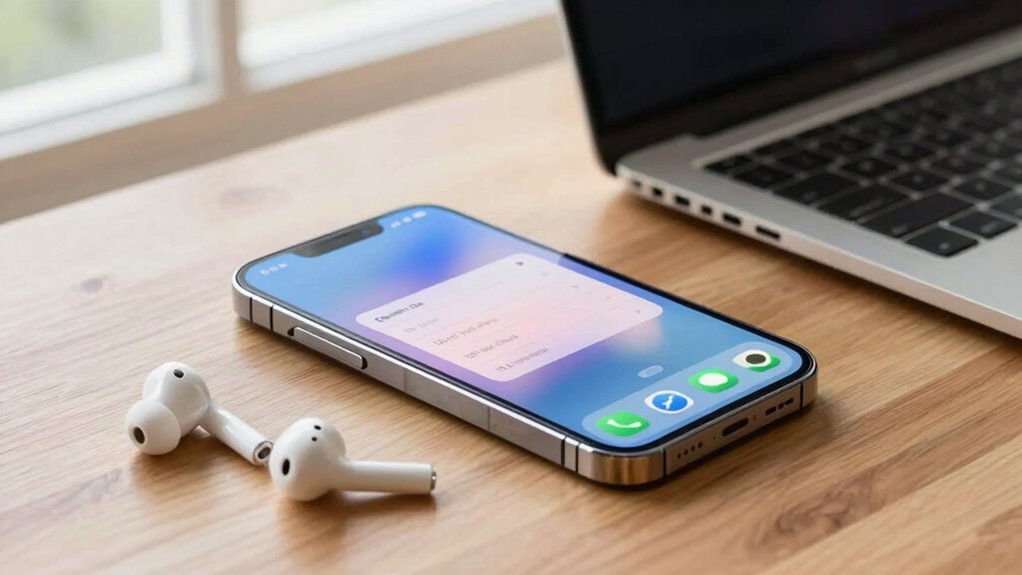
When you focus on optimizing your device’s performance, managing background apps becomes a key step in preserving battery life. Many apps run in the background, consuming power even when you’re not using them. Review app permissions to identify which apps have access to functions like location or notifications, and revoke unnecessary permissions. This reduces their activity and prevents unnecessary battery drain. Limiting background activity can also improve overall battery calibration, helping your device provide accurate battery readings. Use your device’s settings to restrict background refreshes or close apps manually when they’re not in use. By controlling background app activity, you minimize power consumption and extend your battery’s lifespan without constantly micromanaging.
Charge Smart: Tips to Minimize Battery Wear
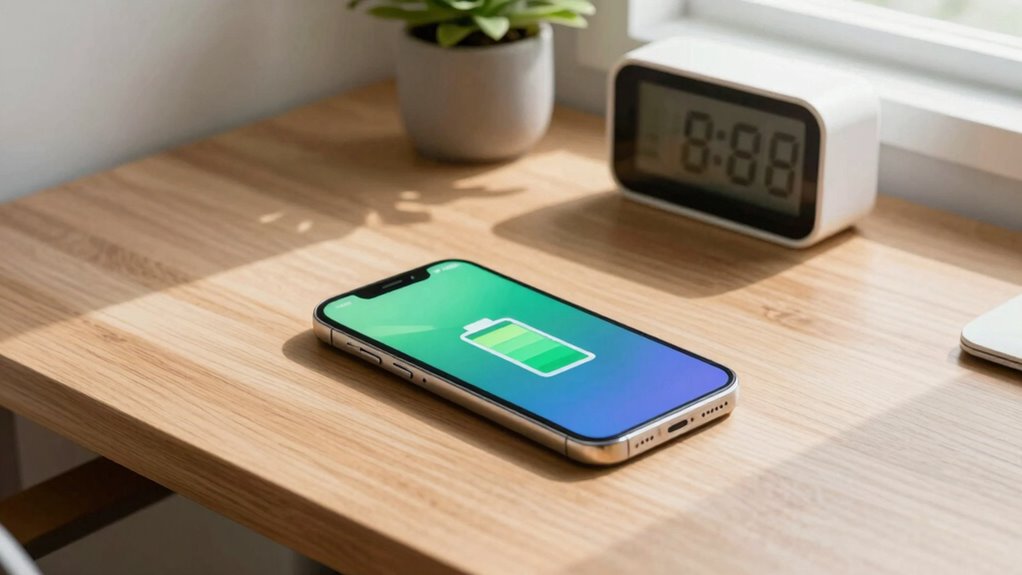
To extend your battery’s lifespan, avoid letting it fully discharge and keep charge levels between 20% and 80%. Using the right charging equipment also helps prevent unnecessary wear. By following these simple tips, you can keep your battery healthier for longer.
Avoid Full Discharges
Full discharges can considerably shorten your battery’s lifespan, so it’s best to avoid letting your device’s battery drain completely whenever possible. Regularly fully discharging your battery can lead to capacity loss over time. Instead, try to keep your charge levels between 20% and 80%, which helps reduce wear. Performing occasional battery calibration by fully charging and then fully discharging can improve accuracy but isn’t necessary often. Power cycling, or turning your device off and on, can also help reset the battery’s reporting system without stressing it.
- Keep charge levels moderate, avoiding extremes
- Use battery calibration sparingly to reset capacity readings
- Power cycle your device periodically
- Avoid overnight charging to prevent full discharges
- Don’t let the battery sit at 0% for long periods
Keep Charge Levels Optimal
Keeping your battery charge levels in a moderate range is one of the best ways to extend its lifespan. Your charging habits play a significant role—try to keep your battery between 20% and 80%. Avoid consistently charging to 100% or letting the battery drain completely, as these extremes accelerate wear. It’s also helpful to perform periodic battery calibration by fully discharging and recharging your device occasionally; this ensures accurate battery readings. Consistently maintaining ideal charge levels reduces stress on the battery and minimizes capacity loss over time. By adopting smarter charging habits and calibrating your battery when needed, you help preserve its health longer, saving you money and hassle in the long run.
Use Proper Charging Equipment
Using the right charging equipment is essential for protecting your battery’s health. High-quality chargers help regulate charging cycles, preventing overcharging and reducing stress on your battery. Avoid cheap or incompatible chargers, which can damage the battery or cause inaccurate battery calibration. Opt for chargers with built-in protections, like temperature regulation and voltage control, to extend battery life. Proper equipment also ensures consistent charging, minimizing unnecessary wear. Regularly calibrate your battery with full charge and discharge cycles to keep readings accurate. Using the right charger supports efficient power delivery and helps maintain ideal charge levels, reducing the frequency of full charge cycles. Invest in quality charging equipment to safeguard your battery’s longevity and performance over time.
Disconnect Devices and Accessories When Not in Use
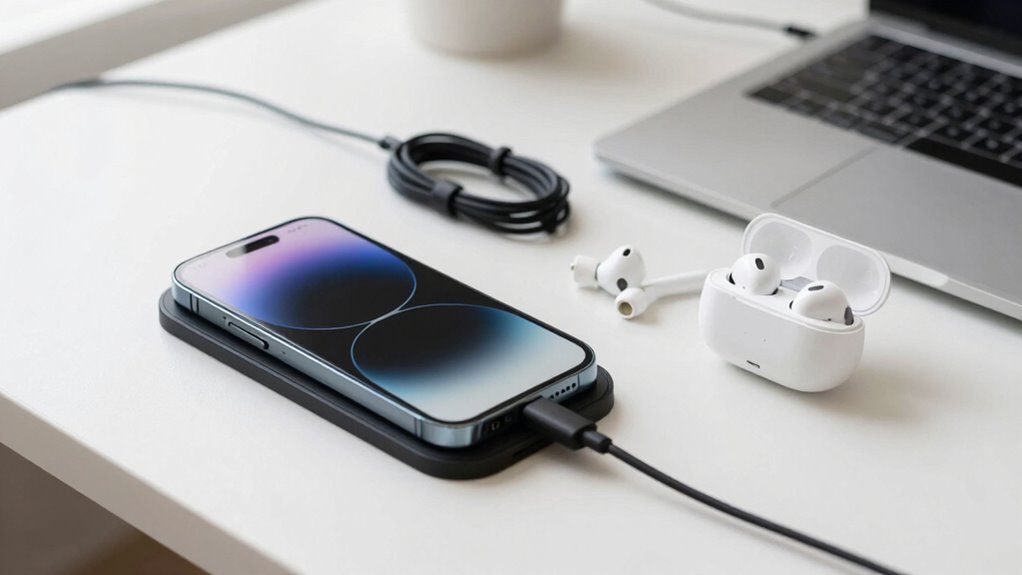
When devices and accessories are left plugged in or connected, they draw power even when not in use, which can accelerate battery wear over time. For example, wireless charging pads may continue to draw power if a device remains on the charger, gradually stressing the battery. Similarly, keeping accessories like protective cases attached doesn’t directly harm the battery, but if they make disconnecting the device more cumbersome, you might leave devices plugged in longer than necessary. To minimize battery wear, unplug devices and accessories when you’re done using them. This prevents unnecessary power drain and reduces strain on your battery. Making a habit of disconnecting devices and accessories helps your battery stay healthier longer, ensuring best performance over time.
How to Check Your Battery Health and Usage
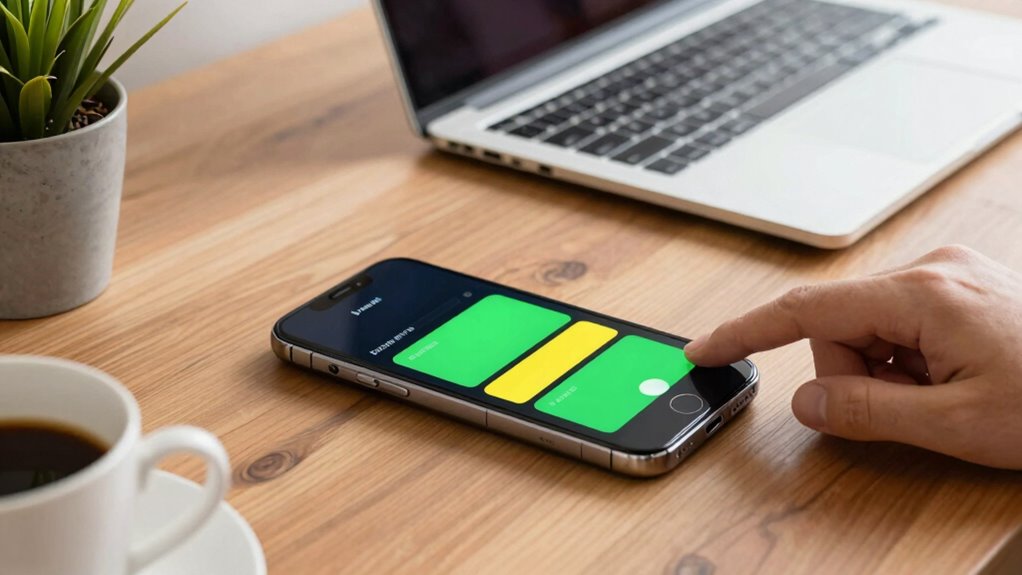
Ever wondered how healthy your device’s battery really is? Checking your battery health and usage helps you identify early signs of wear and optimize performance. Start with capacity testing, which measures your battery’s maximum charge compared to its original capacity. You can do this through built-in diagnostics or third-party apps. Battery calibration is also essential; fully charge your device, then let it drain completely before recharging to 100%, resetting the battery’s internal measurements. Keep an eye on your device’s battery statistics, such as drain rate and cycle count, via settings or diagnostic tools. Regularly monitoring these aspects guarantees you catch issues early. To keep track, consider:
- Using built-in battery health tools
- Installing third-party diagnostic apps
- Performing capacity testing periodically
- Calibrating after major updates
- Watching for unusual battery drain
Easy Ways to Keep Your Battery Performing Well Over Time
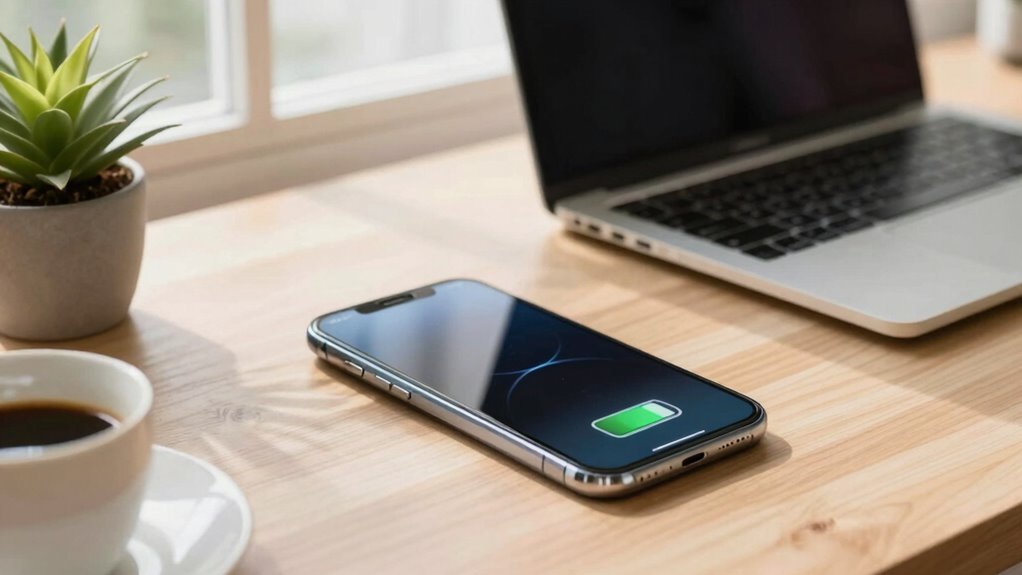
Maintaining your battery’s health over time is all about adopting simple habits that prevent unnecessary wear. One effective tip is to perform regular battery calibration by fully charging and discharging your device occasionally, which helps improve the accuracy of battery level readings. Avoid keeping your battery at 0% or 100% for long periods, as this stresses the cells. Using a power bank can be a convenient way to keep your device charged without overloading it, especially during long days away from a power source. When using a power bank, opt for one with a smart charging feature to prevent overcharging. These small habits help keep your battery performing well over time, reducing wear and prolonging its lifespan without constant micromanagement.
Frequently Asked Questions
Can Using Third-Party Chargers Damage My Battery?
Using third-party chargers can damage your battery if their quality is poor or they aren’t compatible with your device. Cheap or incompatible chargers may deliver inconsistent power, which strains your battery and accelerates wear. To protect your battery, always check the charger’s quality and verify it’s compatible with your device. Opt for reputable brands and original chargers whenever possible, as they’re designed to maintain battery health and prevent damage.
How Often Should I Calibrate My Device’s Battery?
Did you know that most batteries only retain about 80% of their capacity after 300-500 charging cycles? You should calibrate your device’s battery every 3 to 6 months to maintain accurate readings. Battery calibration involves a full charge and drain, helping your device’s battery health and performance. Regular calibration guarantees your battery’s lifespan is maximized, saving you from unexpected shutdowns and inaccurate battery level indicators.
Does Closing Apps Improve Battery Lifespan?
Closing apps can help improve battery lifespan, especially if they run in the background and drain power. Effective app management guarantees unnecessary apps aren’t consuming resources when you’re not using them, which reduces battery wear. While not always necessary for all apps, regularly closing those that use a lot of power can extend your device’s battery life and keep it functioning smoothly for longer periods.
Are There Specific Apps That Drain Battery More?
Did you know background processes and high screen brightness can drain your battery faster? Some apps, like streaming services and social media, tend to use more power due to constant background activity. You can reduce their impact by closing unnecessary background processes and lowering your screen brightness. This way, you avoid micromanaging, but still extend your battery life efficiently. Stay mindful of these factors to keep your device running longer.
Is It Better to Keep My Device Fully Charged or Partially Charged?
It’s better to keep your device partially charged rather than always fully charging it. Regular partial charging helps prevent battery wear and extends its lifespan. You should occasionally perform a battery calibration by fully charging your device to 100% and then draining it completely. This process guarantees accurate battery readings, but avoid constant full charges, as they can accelerate battery degradation over time.
Conclusion
By balancing brightness, boundaries, and battery habits, you can boost longevity without fuss. Focus on flexible fixes like updating, unplugging, and adjusting settings to avoid battery burnout. Simple, smart strategies sustain your device’s power, prolong its life, and prevent premature problems. With these easy tips, you’ll keep your battery healthy and your device happy—hassle-free and hassle-proof!
Fall Picks
fall essentials
As an affiliate, we earn on qualifying purchases.