
A 4K monitor can boost productivity if you work in creative fields like photo editing, graphic design, or multitasking with multiple windows. It offers sharper visuals and color accuracy that help you work more precisely and efficiently. But if your tasks are simple, like browsing or basic documents, the extra resolution might be unnecessary and strain your system. Keep in mind how your hardware, workspace setup, and everyday tasks influence whether 4K is a smart upgrade. Learn more to find out if it’s right for you.
Key Takeaways
- 4K enhances productivity by providing sharper visuals, better multitasking, and more screen real estate for complex tasks like design or video editing.
- It benefits workflows requiring high color accuracy and detailed visuals, such as photo editing and graphic design.
- For basic tasks like browsing or emails, 4K may be overkill and can strain system resources or cause scaling issues.
- Proper hardware, connections, and calibration are essential to fully leverage 4K’s productivity advantages.
- Consider screen size, viewing distance, and ergonomic setup to maximize comfort and visual clarity with 4K displays.

ASUS ProArt Display 27” 4K HDR Professional Monitor (PA279CRV) – IPS, UHD (3840 x 2160), 99% DCI-P3/Adobe RGB, ΔE < 2, Calman Verified, USB-C PD 96W, DisplayPort, Daisy-Chain, Ergonomic, 3yr Warranty
27-inch 4K (3840 x 2160) LED backlight HDR display with 178° wide-view IPS panel
As an affiliate, we earn on qualifying purchases.
As an affiliate, we earn on qualifying purchases.
Is Upgrading to a 4K Display Worth It for Your Needs?
Wondering if upgrading to a 4K display is worth it? If you value color accuracy, a 4K screen can markedly enhance your visual experience, especially for tasks like photo editing or detailed design work. The higher resolution offers sharper images and more precise detail, making your work clearer and more enjoyable. Additionally, consider the ergonomic design of the monitor—features like adjustable height, tilt, and swivel help reduce strain during long hours at your desk. If you often multitask, a larger, high-resolution display can improve your workflow by allowing multiple windows to be open simultaneously without sacrificing clarity. Moreover, ensuring your display has color calibration capabilities can further optimize your visual output. It’s also important to verify that your hardware can support 4K resolution smoothly to avoid performance issues. If these factors align with your needs, upgrading could be a worthwhile investment. Also, ensure your graphics card has 4K support to fully benefit from the higher resolution.

Samsung 32” ViewFinity S8 (S80UD) 4K UHD IPS HDR10 High Resolution Monitor, USB-C, Built-in Speakers, Ergonomic Stand, Built-in KVM Switch, Intelligent Eye Care, LS32D808UBNXGO, 2025
DISCOVER THE DEEPER DETAILS: Visual excellence that professionals demand.¹ UHD (3840×2160) resolution reveals greater levels of detail with…
As an affiliate, we earn on qualifying purchases.
As an affiliate, we earn on qualifying purchases.
How 4K Displays Boost Productivity for Creative and Multitasking Tasks
4K displays considerably enhance productivity for creative professionals and multitaskers by providing sharper visuals and more screen real estate. With higher resolution, you can see finer details, which is vital for tasks like photo editing, graphic design, and video production. Improved color accuracy ensures your colors are true to life, helping you make precise adjustments and maintain consistency across projects. The extra space allows you to run multiple applications side by side, streamlining your creative workflows and reducing the need to switch between windows. This setup enables you to work more efficiently and stay focused on intricate details without sacrificing clarity. Overall, a 4K display elevates your ability to produce high-quality work while managing multiple tasks seamlessly, especially when visual clarity is crucial for accuracy.
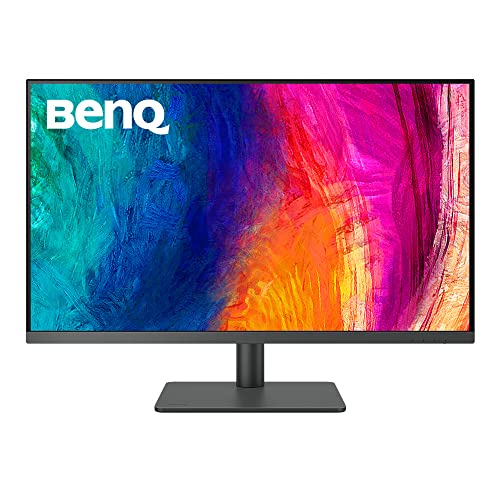
BenQ PD3205U Mac-Ready Monitor 32" 4K UHD 99% Rec.709 & sRGB, IPS, DeltaE ≤3, ICC Sync, Calibration Report, AQCOLOR, Uniformity HotKey Puck Ergonomic DisplayPort, USB-C (90W), USB Hub
Made for Designers: 32 Inch 4K UHD IPS computer monitor is factory calibrated for color accuracy and comes…
As an affiliate, we earn on qualifying purchases.
As an affiliate, we earn on qualifying purchases.
When 4K Might Be Overkill for Simple Office Tasks
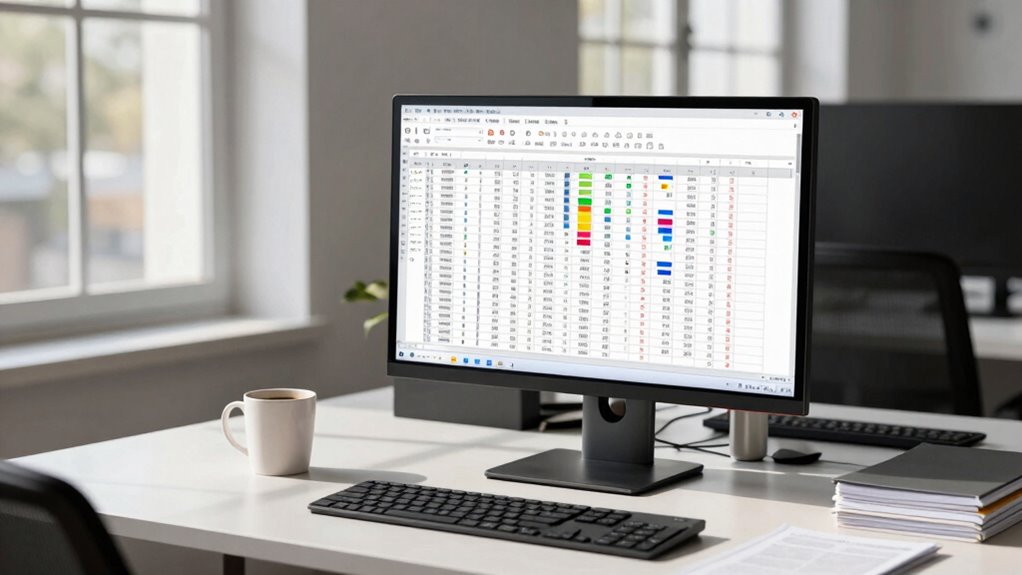
While a 4K display offers impressive detail and space, it can be overkill for simple office tasks like writing emails, browsing the web, or working on basic documents. These tasks often require minimal resolution, so the extra pixels don’t add much value. Instead, the high resolution can strain your system’s resources and complicate office simplicity. For example, landscaping in a backyard setting can be enhanced with thoughtful design, but in a workspace, overly complex displays may hinder productivity. You may find yourself adjusting settings or dealing with scaling issues, which can distract from productivity. For straightforward tasks, a full HD or 1440p monitor typically provides enough clarity without the unnecessary expense or complexity. Additionally, AI software engineer jobs and related tech roles often rely on efficient workflows that don’t benefit from high-resolution displays, emphasizing the importance of choosing the right setup for your needs. If your primary focus is basic office work, investing in a lower-resolution display usually offers better cost-effectiveness and simplicity. Higher resolution isn’t always the best choice when you value efficiency and ease. Understanding resolution requirements can help you choose the right display for your needs.
Samsung 32” ViewFinity S8 (S80UD) 4K UHD IPS HDR10 High Resolution Monitor, USB-C, Built-in Speakers, Ergonomic Stand, Built-in KVM Switch, Intelligent Eye Care, LS32D808UBNXGO, 2025
DISCOVER THE DEEPER DETAILS: Visual excellence that professionals demand.¹ UHD (3840×2160) resolution reveals greater levels of detail with…
As an affiliate, we earn on qualifying purchases.
As an affiliate, we earn on qualifying purchases.
How Screen Size and Viewing Distance Affect 4K Benefits
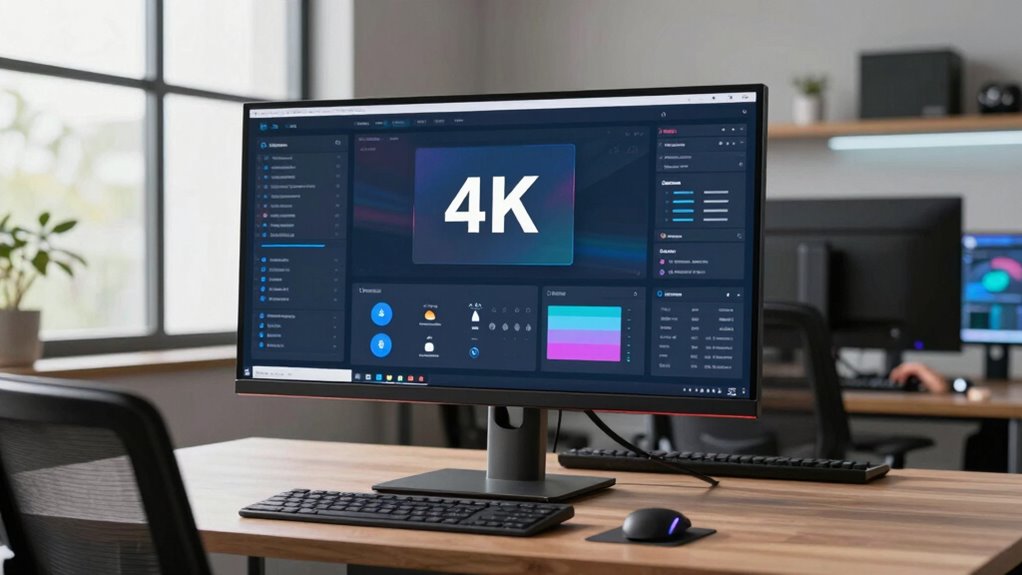
Your screen size and viewing distance directly influence how much you benefit from 4K resolution. A larger screen requires you to sit farther back to avoid pixelation, while a smaller screen might not fully showcase 4K detail. Finding the right balance guarantees you maximize clarity and productivity without straining your eyes. Additionally, being aware of passive voice detection can help you write more clearly and effectively. Understanding how screen size and viewing distance impact resolution benefits can help you optimize your setup for both comfort and efficiency.
Optimal Screen Size
Choosing the right screen size is essential to maximizing the benefits of 4K resolution, as it directly influences how sharp and detailed images appear. A larger screen enhances color accuracy, making visuals more vibrant and true-to-life, which boosts productivity by reducing eye strain. However, the ideal size depends on your workspace and ergonomic design; a screen that’s too big can cause neck strain, while one that’s too small might diminish the benefits of 4K clarity. Generally, a 27-inch to 32-inch monitor offers a balance between detail and comfort for most desk setups. This size allows you to enjoy crisp images without overwhelming your workspace, ensuring you can work comfortably for long periods while taking full advantage of 4K’s detailed display features. Proper screen ergonomics also play a crucial role in maintaining comfort and maximizing productivity. Additionally, understanding resolution and display size can help you make more informed decisions about your setup, especially when considering how visual acuity impacts your viewing experience. Adjusting your viewing distance according to screen size can further optimize clarity and reduce eye fatigue, particularly when considering how screen size and viewing distance influence overall comfort and image sharpness.
Viewing Distance Impact
The distance between your eyes and the screen considerably influences how effectively you can enjoy the benefits of 4K resolution. When you sit too close, small text and detailed images become sharper, enhancing resolution clarity and making multitasking easier. Conversely, sitting too far reduces these benefits, as the screen’s sharpness diminishes and details blur. Maintaining an ideal viewing distance improves viewing comfort and allows you to appreciate 4K’s full potential. For most screens, sitting about one to one and a half times the screen’s diagonal size away strikes a good balance. This distance ensures you experience crisp visuals without straining your eyes, maximizing resolution clarity while keeping viewing comfort high during long work sessions.
What Hardware Do You Need for a 4K Monitor?
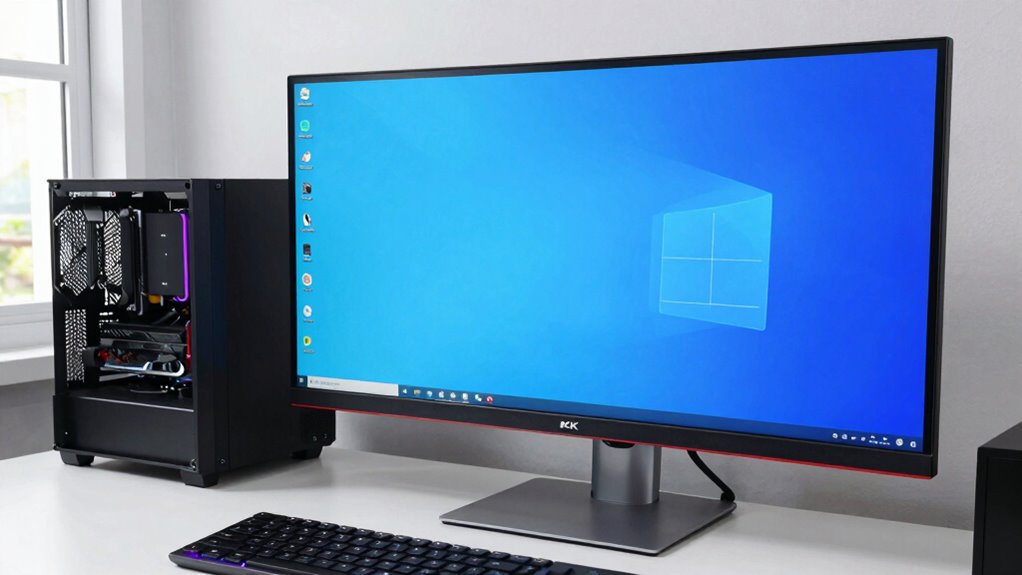
Wondering what hardware upgrades are necessary to run a 4K monitor smoothly? You’ll need to guarantee your setup can handle the increased resolution and maintain display calibration and color accuracy. Here are four essential components:
- Graphics Card – Choose a powerful GPU that supports 4K output at your desired refresh rate.
- Processor (CPU) – Opt for a fast CPU to prevent bottlenecks during intensive tasks.
- Cables and Ports – Use compatible HDMI 2.0, DisplayPort 1.4, or Thunderbolt cables for reliable connection.
- Calibration Tools – Invest in hardware or software for display calibration to guarantee color accuracy. Proper display calibration ensures your 4K monitor delivers true-to-life colors and sharp images. Additionally, understanding resolution requirements helps in selecting compatible hardware components for optimal performance.
Upgrading these components will help you access the full potential of your 4K monitor, delivering sharp images and true-to-life colors.
Will Your Devices Support 4K Compatibility?
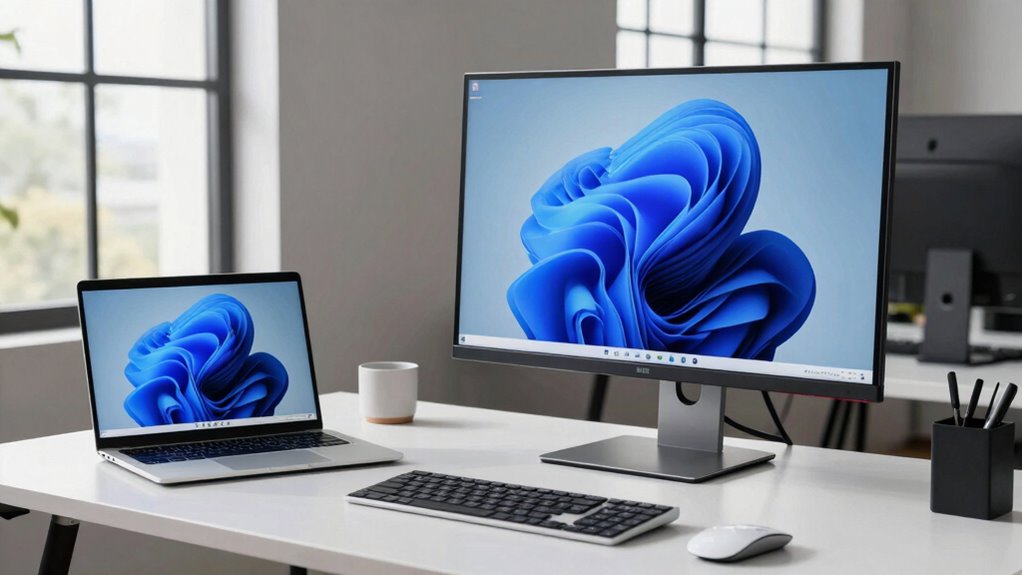
Before upgrading, check if your device’s hardware can handle 4K displays, including your graphics card and processor. Make certain your operating system supports 4K resolution to avoid compatibility issues. Finally, verify that your connections—like HDMI or DisplayPort—can transmit 4K signals smoothly to get the best productivity boost.
Device Hardware Requirements
To enjoy the benefits of 4K resolution, your devices must have the right hardware capabilities. First, make certain your graphics card supports 4K output at a suitable refresh rate—ideally 60Hz or higher for smooth visuals. Second, check that your monitor offers proper color calibration to display accurate colors, especially important for detailed work. Third, verify your device’s HDMI or DisplayPort version; newer standards like HDMI 2.0 or DisplayPort 1.4 are essential for 4K at higher refresh rates. Finally, confirm your CPU and RAM can handle increased data loads without lag or stuttering. Ensuring your cabling standards are up to date is also crucial for reliable 4K transmission. Proper hardware compatibility ensures crisp visuals, vibrant colors, and smooth performance, making your productivity setup truly effective at 4K resolution.
Operating System Compatibility
Ensuring your operating system supports 4K resolution is crucial for a seamless visual experience. Check if your OS can handle the higher pixel density without performance issues. Modern systems like Windows 10/11 and macOS Big Sur or later generally offer native 4K support, but you’ll want to verify compatibility. Proper display calibration is necessary to enhance image clarity and guarantee accurate color reproduction. If your OS lacks robust display calibration tools, it might be challenging to achieve ideal color accuracy, which affects productivity, especially for tasks requiring precise visuals. Additionally, confirm that your graphics driver is up to date, as outdated drivers can hamper 4K support. Ensuring compatibility at this level guarantees your device can fully leverage 4K resolution’s benefits without sacrificing display quality. AI developments in display technology also influence visual clarity, making it essential to stay informed about the latest advancements and operating system compatibility.
Connection and Display Needs
Your devices need to have the right ports and hardware capabilities to support 4K displays effectively. Without proper connections, you won’t get the full benefits of higher resolution. Here are key factors to contemplate:
- Ports and Cables: Ensure your device has HDMI 2.0 or DisplayPort 1.4 for smooth 4K at 60Hz, supporting a higher refresh rate.
- Graphics Card: Verify it can handle 4K output and supports color calibration for accurate colors. Hardware compatibility is crucial to ensure your system can support 4K performance without issues.
- Monitor Compatibility: Check if your display supports 4K resolution with adjustable color calibration for precise visuals.
- Performance: A higher refresh rate minimizes motion blur, making your workflow smoother and more responsive.
- Understanding Digital Distractions can help you optimize your setup for better focus and productivity.
Matching these needs guarantees sharp visuals, accurate colors, and seamless performance for increased productivity.
Can My Hardware Handle a 4K Monitor?
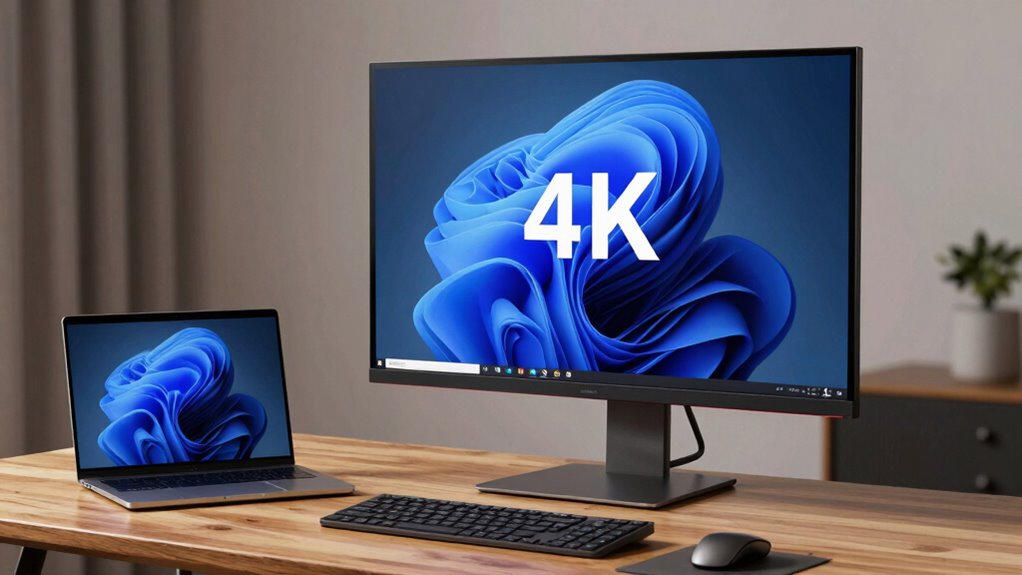
Wondering if your current hardware can support a 4K monitor? To handle 4K resolution smoothly, your graphics card needs sufficient power, especially for tasks requiring color accuracy. Check if your GPU supports 4K output and has enough VRAM. Your CPU and RAM should also meet the demands of high-resolution displays. Here’s a quick overview:
| Hardware Component | Minimum Requirement | Recommended for 4K Tasks |
|---|---|---|
| Graphics Card | Capable of 4K output | High-end GPU with 8GB VRAM |
| CPU | Quad-core or better | Modern multi-core processor |
| RAM | 8GB minimum | 16GB or more for multitasking |
| Display Interface | HDMI 2.0 or DisplayPort 1.4 | For peak color accuracy |
| Ergonomic Design | Adjustable stand, low blue light | To reduce strain during long work sessions |
Upgrading hardware guarantees smooth performance and helps maximize ergonomic benefits.
Is 4K Right for Your Specific Tasks?
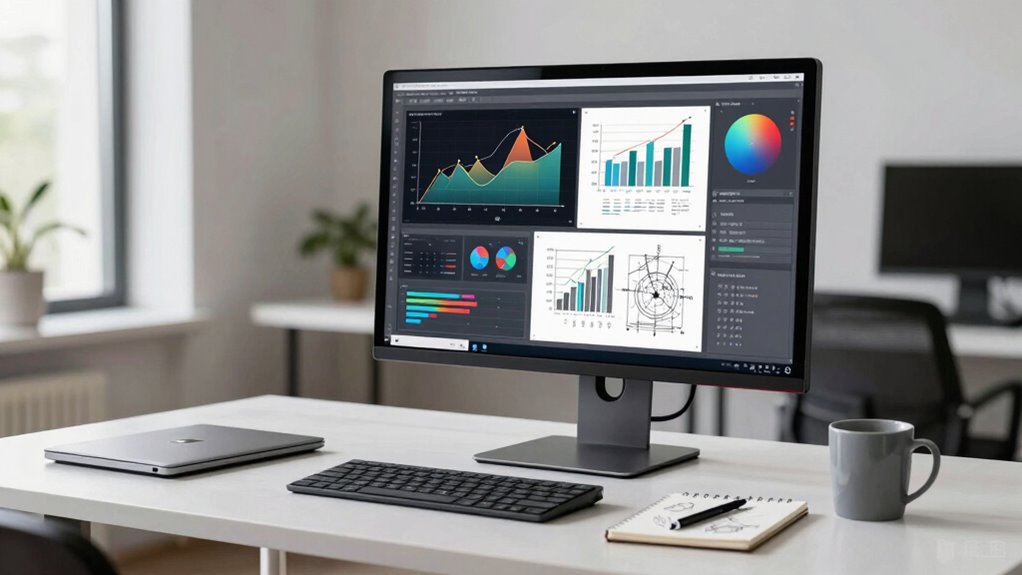
Consider whether your tasks require detailed visuals or complex workflows, as 4K offers sharper images and more screen space. If you handle intricate designs, spreadsheets, or multitasking, 4K can boost your efficiency; otherwise, it might be overkill. Also, check if your hardware can support 4K smoothly to avoid setup headaches.
Task Complexity and Detail
When evaluating whether 4K displays are suitable for your tasks, it’s important to take into account the complexity and level of detail involved. Higher resolution can greatly benefit tasks demanding precision, such as photo editing or detailed design work. Consider these factors:
- Color accuracy: Essential for tasks requiring true-to-life visuals, like graphic design or video editing.
- Refresh rate: Important if your work involves fast-moving visuals or real-time editing.
- Detail recognition: 4K’s clarity helps you spot subtle differences in textures or fine lines.
- Screen real estate: More pixels mean more workspace, which is vital for multitasking or complex projects.
If your work demands high detail and precise color, 4K can boost productivity. Otherwise, it might be overkill.
Screen Space Benefits
Have you ever felt limited by your screen space during complex multitasking or detailed projects? 4K displays dramatically increase your available workspace by packing four times the pixels of standard HD screens. This expanded space allows you to view multiple windows side-by-side without constantly switching or resizing, boosting your productivity. The higher resolution also enhances color accuracy, making detailed work like graphic design or photo editing more precise. An ergonomic design ensures you can position the monitor comfortably, reducing strain during long hours. With more screen real estate, you can organize your tasks more efficiently, minimizing clutter and distraction. Overall, a 4K display offers significant screen space benefits that can help streamline your workflow and improve focus on demanding projects.
Hardware Compatibility Needs
Before upgrading to a 4K display, you need to guarantee your hardware can handle the increased resolution. Not all systems are ready for 4K’s demands, especially if you rely on color accuracy or high refresh rates. Here’s what to check:
- Graphics Card: Confirm it supports 4K output at your desired refresh rate—ideally 60Hz or higher for smooth motion.
- CPU and RAM: Verify your processor and memory can manage the extra pixel load without slowing down workflows.
- Color Accuracy: Ensure your GPU can deliver precise color reproduction, essential for tasks like editing or design.
- Connectivity: Use compatible cables (like HDMI 2.0 or DisplayPort 1.4) to support stable, high-quality signal transfer.
Tips to Maximize Productivity With Your 4K Setup
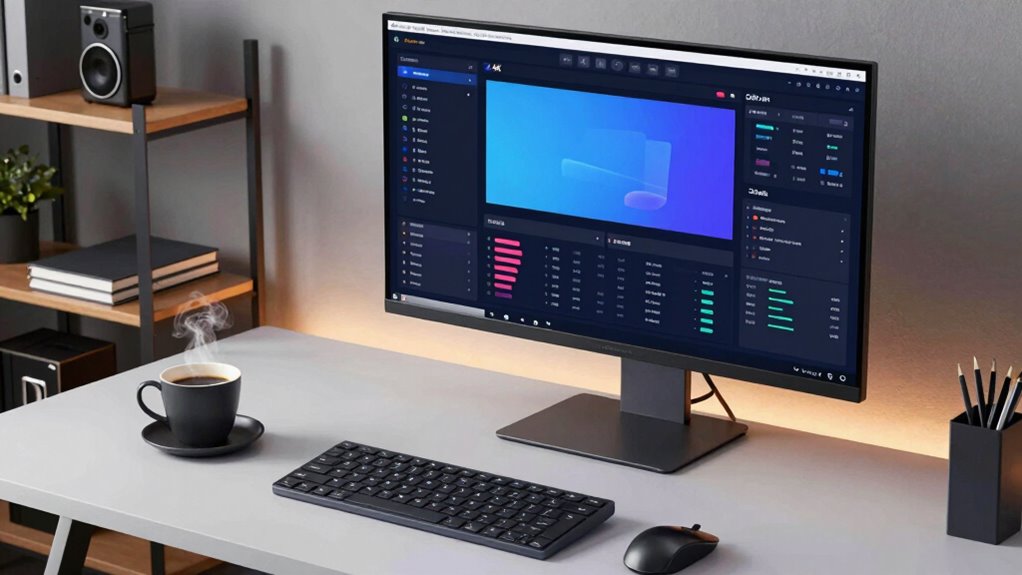
To truly maximize your productivity with a 4K setup, you need to leverage its high resolution to create an efficient and organized workspace. Start by fine-tuning your monitor through proper color calibration, ensuring colors are accurate and reducing eye strain during long work sessions. An ergonomic setup is essential; position your monitor at eye level, keep your chair supportive, and maintain good posture to prevent discomfort. Use a multi-window workflow to take advantage of the extra screen real estate, minimizing switching between tabs. Customize your workspace layout for quick access to frequently used tools. Regularly adjust brightness and contrast to reduce eye fatigue. These steps help you work comfortably and efficiently, fully utilizing your 4K display’s capabilities.
Is Upgrading to 4K Worth the Cost? A Quick Guide
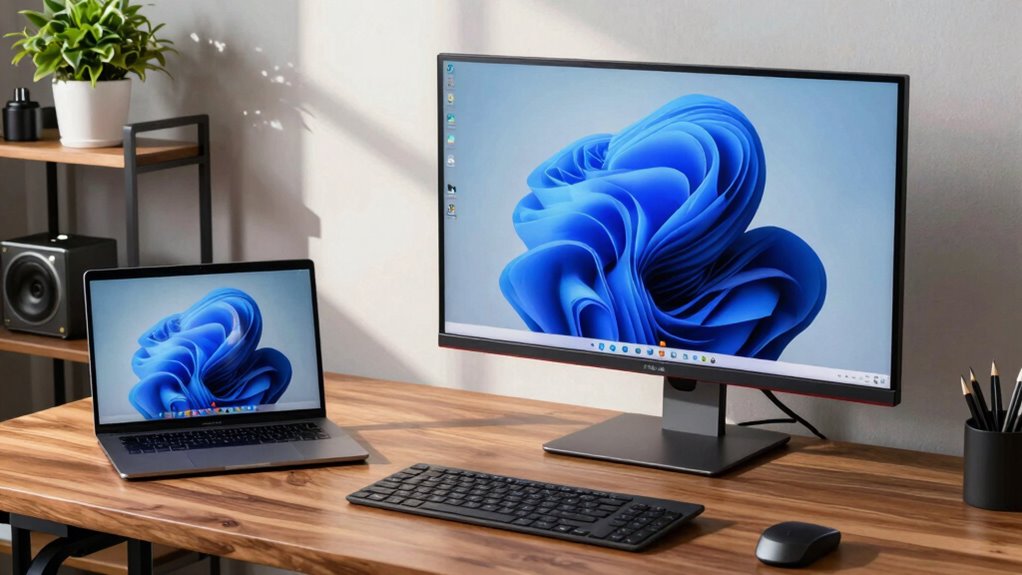
Deciding whether upgrading to a 4K monitor is worth the cost depends on how you plan to use it. Consider these factors:
- Color accuracy: If your work demands precise colors, 4K screens offer sharper images and better color reproduction, making upgrades worthwhile.
- Productivity boost: More screen real estate allows for multitasking and improved workflow, justifying the expense if you handle complex tasks.
- Battery life: Higher resolution screens can drain batteries faster, so check if your device can handle extended use without frequent charging.
- Cost vs. benefit: If the upgrade exceeds your budget or the visual improvement isn’t essential, sticking with a lower resolution may be smarter.
Ultimately, weigh these factors based on your needs before investing in a 4K monitor.
Frequently Asked Questions
How Does 4K Impact Gaming Performance and Refresh Rates?
Higher resolution 4K can impact your gaming performance and refresh rates by increasing the load on your GPU, which may lead to higher gaming latency and lower frame rates. To counteract this, enable refresh synchronization technologies like V-Sync or G-Sync, which help smooth out gameplay. Keep in mind, achieving ideal performance at 4K requires a powerful GPU to minimize latency and maintain high refresh rates.
What Are the Environmental Impacts of Upgrading to 4K Displays?
Upgrading to 4K displays is like stepping into Pandora’s box—exciting but with environmental costs. You’ll increase energy consumption, as these screens demand more power. Additionally, e-waste generation rises when older monitors are discarded, adding to landfill issues. To minimize impact, choose energy-efficient models and responsibly recycle your old equipment. Your upgrade can be greener if you’re mindful of these environmental factors.
Can 4K Screens Improve Remote Work Productivity?
Yes, a 4K screen can boost your remote work productivity by offering better visual clarity, making it easier to read documents and view detailed images. The ergonomic benefits come from reducing eye strain and the need to squint or scroll excessively. With sharper text and clearer visuals, you work more comfortably and efficiently, ultimately helping you stay focused and productive during long remote work sessions.
How Does 4K Resolution Affect Battery Life on Portable Devices?
While 4K resolution provides stunning visuals, it also increases battery drain due to higher power consumption. Your portable device works harder to render detailed images, reducing battery life faster than lower-resolution screens. However, you can mitigate this by adjusting display settings or using power-saving modes. Essentially, the sharpness of 4K comes at a cost—shorter battery life—so weigh the visual benefits against your need for longer device use.
Are There Specific Color Accuracy Benefits With 4K Displays?
Yes, 4K displays often offer better color accuracy because they tend to have advanced color calibration features, improving visual accuracy. With higher pixel density, you get sharper images and more precise color details, which benefit tasks like photo editing or design work. However, make sure the monitor is properly calibrated, as not all 4K screens come factory-calibrated. Proper calibration enhances color consistency, making your work more accurate and reliable.
Conclusion
Upgrading to a 4K monitor is like adding a turbocharger to your workspace—boosting clarity and efficiency when suited to your tasks. But just like a turbo isn’t needed for every drive, 4K isn’t necessary for simple tasks. Consider your needs, hardware, and budget carefully. When used right, a 4K display can transform your productivity, making your work sharper and more enjoyable. So, weigh the benefits and decide if it’s the upgrade your setup needs.