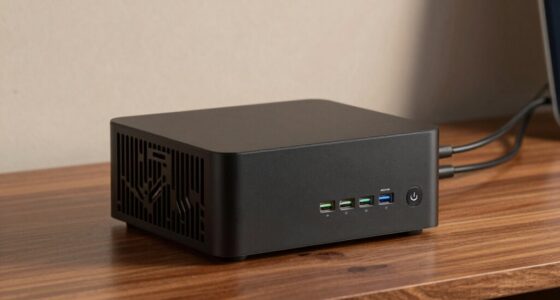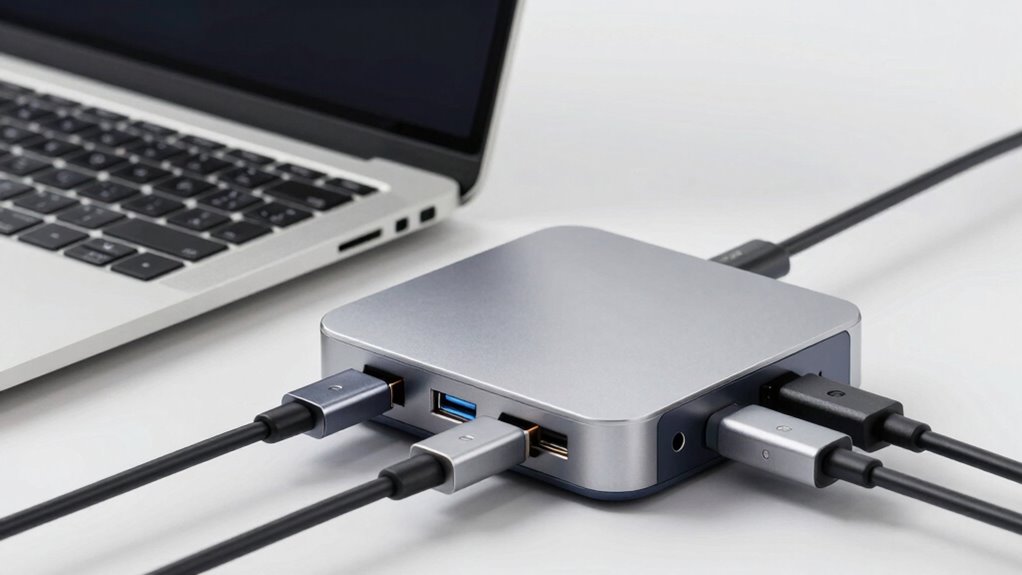
Choosing a docking station depends on your device’s support for USB-C, USB4, or Thunderbolt. USB-C is versatile but limited by cable quality, while USB4 offers faster speeds and better performance with future-proofing. Thunderbolt provides the highest data transfer rates and professional-grade features, but requires specific compatibility. To make the best choice, you need to understand your device’s supported standards—continue exploring to find the ideal dock for your needs.
Key Takeaways
- Compatibility depends on device ports and whether they support USB-C, USB4, or Thunderbolt standards.
- Thunderbolt docks require Thunderbolt-enabled devices and specific ports for optimal performance.
- USB4 docks are compatible with USB-C ports supporting USB4 or Thunderbolt 3, offering versatile connectivity.
- Not all USB-C ports support high-speed data transfer or power delivery, affecting dock compatibility.
- Always verify device and system support for advanced standards before choosing a docking station.

Anker Prime Docking Station, 14-Port with 160W Max Output, 10Gbps Fast Data Transfer, Real-Time Smart Interface, Audio and Ethernet Ports, Dual 4K Displays for Dell, HP, Lenovo and More
14-in-1 Connectivity: Bring together all your devices with a 14-in-1 solution, perfect for charging, transferring data quickly, and…
As an affiliate, we earn on qualifying purchases.
As an affiliate, we earn on qualifying purchases.
Understanding USB-C, USB4, and Thunderbolt: What Are the Differences?

While USB-C, USB4, and Thunderbolt might seem similar at a glance, they each serve different purposes and offer varying levels of performance. You’ll face compatibility challenges because not all cables support the same standards, leading to potential connection issues. USB-C is versatile but often limited by cable quality, which can restrict data transfer speeds or charging power. USB4 improves compatibility by integrating Thunderbolt 3 features, but it still depends on the cable’s specifications. Thunderbolt, on the other hand, provides the highest performance but requires specific cables and ports. Understanding these distinctions helps you avoid cable limitations and choose the right connection for your needs, ensuring your docking station functions smoothly without unexpected compatibility problems.

Belkin Thunderbolt 3 Dock Pro w/ Thunderbolt 3 Cable – USB-C Hub – USB-C Docking Station for MacOS & Windows, Dual 4K @60Hz, 40Gbps Transfer Speed, 85W Upstream Charging, w/ Ethernet, SD & Audio Ports
ROOM FOR ALL YOUR PERIPHERALS: Enjoy easy access to monitors, networks, power, and peripherals with multiple ports available….
As an affiliate, we earn on qualifying purchases.
As an affiliate, we earn on qualifying purchases.
Which Devices and Operating Systems Support Each Connection Standard?
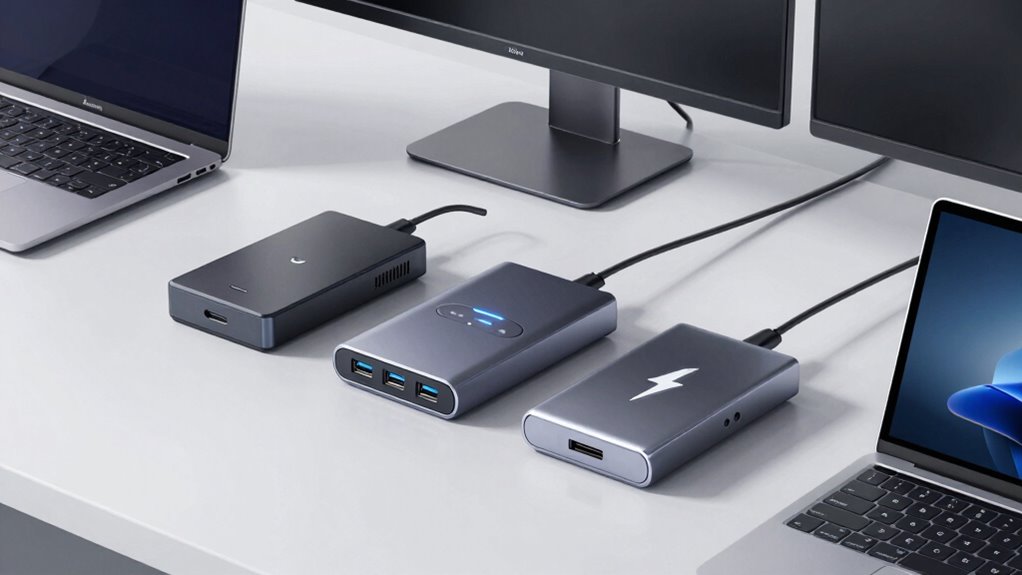
Support for USB-C, USB4, and Thunderbolt varies across devices and operating systems, making it vital to check compatibility before purchasing accessories. Most modern laptops and desktops support USB-C, but device compatibility can differ, especially with USB4 and Thunderbolt. Operating system support is essential; Windows and macOS generally support USB-C, with newer versions offering full USB4 and Thunderbolt integration. However, some older systems may lack driver support or hardware compatibility. Many smartphones and tablets also use USB-C, but their support for high-speed standards like Thunderbolt is limited. Before buying a docking station, verify your device’s compatibility and confirm your operating system can recognize and utilize the connection standard. This step helps prevent connectivity issues and guarantees peak performance. Additionally, understanding the hardware capabilities of your device can ensure optimal performance and avoid potential bottlenecks. Recognizing the differences between standards can also help you choose the most suitable connection type for your needs. To make an informed decision, it’s helpful to learn about the compatibility requirements associated with each standard. Being aware of the evolving standards can further aid in future-proofing your device setup.

Plugable USB-C Dock with 4K HDMI and 60W Charging, Compatible with Thunderbolt 3/4, USB4, and USB C macOS, Windows, and Chromebook 1Gbps Ethernet, 3X USB 3.0, 2X USB 2.0, Driverless
10-in-1 Dock – Use a single USB-C port with this USB C dock that delivers a single 4K…
As an affiliate, we earn on qualifying purchases.
As an affiliate, we earn on qualifying purchases.
Speed, Power, and Performance: How Do These Connection Types Compare?

Understanding the differences in speed, power, and performance among USB-C, USB4, and Thunderbolt connection types is essential when choosing a docking station. USB-C offers decent data transfer rates and supports features like wireless charging, making it versatile for everyday needs. USB4 doubles the bandwidth of USB-C, providing faster data transfer and improved power delivery, ideal for high-performance tasks. Thunderbolt, however, delivers the highest speed, supporting data encryption for secure transfers and rapid charging capabilities. When it comes to performance, Thunderbolt outshines the others, especially for demanding applications. While all three support wireless charging to some extent, Thunderbolt’s superior power and data encryption capabilities make it the best choice for professional environments requiring both speed and security. Additionally, battery capacity can influence how well these connection types perform when powering or charging devices.

Plugable Thunderbolt 4 Dock with 100W Charging, Thunderbolt Certified, Laptop Docking Station Dual Monitor Single 8K or Dual 4K HDMI for Windows and Mac, 4X USB, Gigabit Ethernet (TBT4-UD5)
Thunderbolt Certified & Award-Winning Performance: Officially recognized as the Best Thunderbolt Dock 2025 by Wirecutter, this Thunderbolt docking…
As an affiliate, we earn on qualifying purchases.
As an affiliate, we earn on qualifying purchases.
Best Use Cases for USB-C, USB4, and Thunderbolt Docking Stations

Choosing the right docking station depends on your specific needs and the tasks you perform. If you prioritize broad compatibility, consult compatibility charts to find options that support your devices. USB-C docks are versatile for everyday tasks like extending displays and charging laptops, making them ideal for general use. USB4 docking stations offer faster data transfer and better future-proofing, suitable for creative professionals working with large files. Thunderbolt docks excel in high-performance tasks such as video editing, gaming, and professional workflows, thanks to their superior bandwidth. Keep an eye on future developments, as evolving standards may expand capabilities and compatibility. Knowing these use cases helps you select a docking station that aligns with your workflow, ensuring you get the most out of your setup now and later.
How to Choose the Right Docking Station for Your Needs
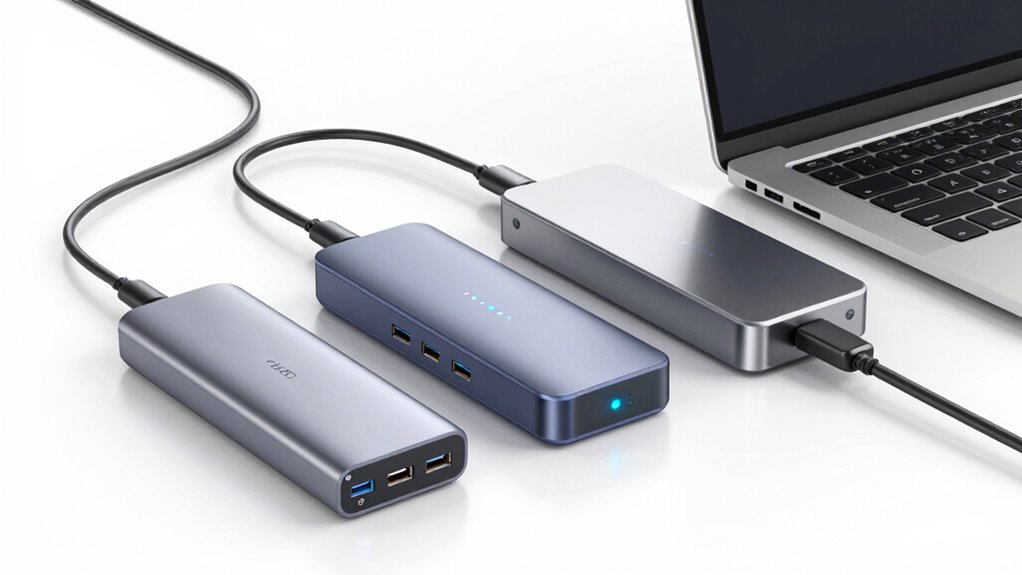
Figuring out which docking station fits your needs starts with evaluating your daily tasks and device requirements. If you rely on wireless charging, make certain the dock supports it so you can power your devices effortlessly. Consider the ergonomic design—look for features like adjustable stands or easy cable management to reduce strain during your workday. Think about the ports you need, whether it’s USB-C, USB4, or Thunderbolt, to guarantee compatibility with your devices. If you work remotely or in a shared space, a sleek and ergonomic design helps create a comfortable setup. Also, assess the power delivery capacity, speed, and additional features like built-in displays or audio ports. Understanding dock compatibility can streamline your setup and ensure seamless connectivity. Carefully reviewing system monitoring capabilities can assist in maintaining optimal performance of your dock and connected devices. Choosing the right dock means matching its capabilities with your specific workflow and comfort preferences.
Frequently Asked Questions
Can I Use a USB-C Dock With Thunderbolt-Only Devices?
You can use a USB-C dock with Thunderbolt-only devices, but compatibility depends on the dock’s features. Many USB-C docks support power delivery and data transfer, yet Thunderbolt devices often require Thunderbolt-specific ports for maximum performance. Using a USB-C adapter might limit data speeds or power delivery. To guarantee full functionality, check if the dock explicitly supports Thunderbolt technology, as this guarantees seamless operation with Thunderbolt-only devices.
Are All USB4 Docks Compatible With Older USB Standards?
Not all USB4 docks are fully compatible with older USB standards, especially when it comes to legacy ports. You might encounter adapter limitations or reduced functionality if your device relies on older USB versions. To guarantee seamless compatibility, check the dock’s specifications and confirm it supports the specific USB standards your devices use. This way, you avoid potential issues with legacy ports and maximize your docking station’s performance.
Do All Thunderbolt Docks Support Daisy-Chaining Multiple Devices?
Think of Thunderbolt docks like a busy highway—daisy chaining works well, but there are limitations. Not all Thunderbolt docks support daisy chaining multiple devices; it depends on the dock’s design and compatibility. Some Thunderbolt devices may have daisy chaining limitations, so check the specifications. To guarantee smooth connections, verify that your dock explicitly supports daisy chaining and is compatible with your Thunderbolt devices.
How Do I Identify if My Device Supports USB4 or Thunderbolt?
To identify if your device supports USB4 or Thunderbolt, start with compatibility verification by checking your device’s specifications or user manual. Look at the port identification: Thunderbolt ports usually have a lightning bolt icon, while USB4 ports resemble USB-C ports without extra symbols. You can also check your device’s system information or use compatibility tools. Ensuring these details match helps you confirm the supported technology.
Are There Compatibility Issues With Non-Windows Operating Systems?
You might face cross-platform compatibility issues with non-Windows operating systems, especially if driver support isn’t robust. Some docking stations designed for Windows may lack drivers for macOS or Linux, leading to limited functionality or connectivity problems. To prevent this, check if the device explicitly states support for your OS, and look for docks with broad driver support. Testing before purchase can also help guarantee seamless operation across your preferred platforms.
Conclusion
Choosing the right docking station depends on your specific needs and device compatibility. Did you know that Thunderbolt 4 offers data transfer speeds up to 40Gbps—twice as fast as USB4? By understanding the differences among USB-C, USB4, and Thunderbolt, you can make an informed decision that enhances your productivity and connectivity. Whether for everyday use or high-performance tasks, selecting the right standard guarantees you get the most out of your setup.