

To set up separate accounts for family devices, start by creating individual user profiles or accounts with customized privacy and access controls. Adjust content restrictions, screen time limits, and app permissions for each person based on their age and needs. Use strong, unique passwords and enable multi-factor authentication for security. Regularly review account settings and educate family members about responsible device use. If you want to discover additional tips, there’s more to explore on managing a safe, organized family digital environment.

Get the latest gadgets delivered free with Prime
- Fast, free delivery on millions of items
- Prime Video, Amazon Music and more included
- Member-only deals all year
Key Takeaways
- Create individual user profiles or accounts for each family member on the device or platform.
- Set personalized privacy, app permissions, and content restrictions for each account.
- Implement screen time limits and schedule device usage for healthier habits.
- Enable secure login methods like strong passwords and multi-factor authentication.
- Regularly review and update account permissions, activity logs, and security settings.
family device management platform
As an affiliate, we earn on qualifying purchases.
As an affiliate, we earn on qualifying purchases.
How to Choose the Best Family Device Management Platform
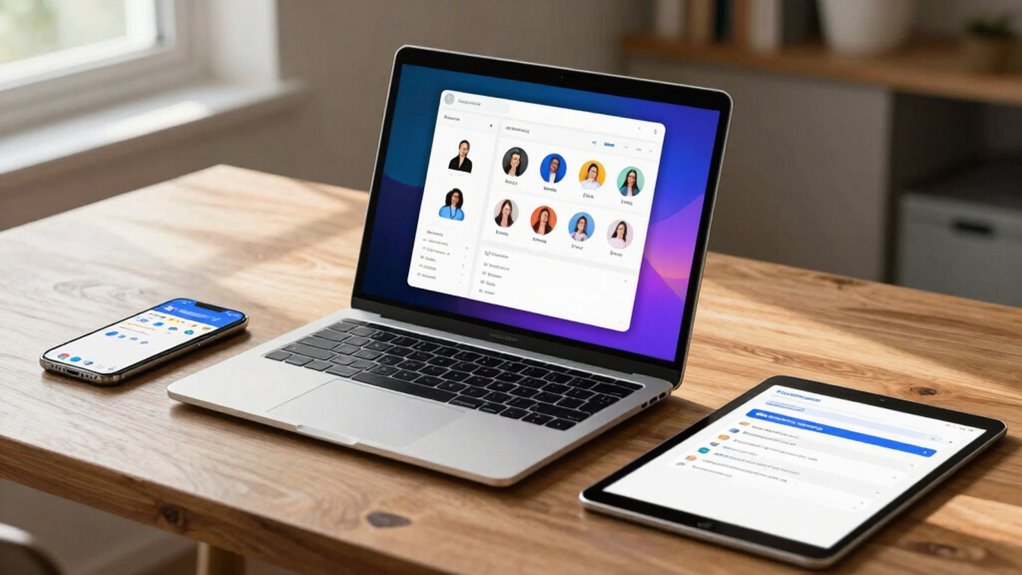
Choosing the right family device management platform is vital for keeping your kids safe and managing their screen time effectively. You want a solution that prioritizes family device security, protecting your children from unsafe content and online threats. You look for platforms that offer robust safety features, like content filtering and activity monitoring. A platform with real-time alerts can help you respond swiftly to potential issues as they arise. Account synchronization is also essential, as it guarantees all devices stay connected and updated seamlessly. This helps prevent security vulnerabilities and ensures that privacy policies are upheld and user data is handled responsibly. Implementing effective device management strategies can further enhance your control and oversight. This makes managing multiple devices easier and helps you enforce consistent rules across your household. Focus on platforms that provide user-friendly interfaces and reliable security measures, so you can easily oversee your family’s digital activities without hassle. The right platform simplifies your tech management and keeps your kids safer in the digital world.
child safe tablet with content filtering
As an affiliate, we earn on qualifying purchases.
As an affiliate, we earn on qualifying purchases.
Setting Up Individual Accounts on Your Devices
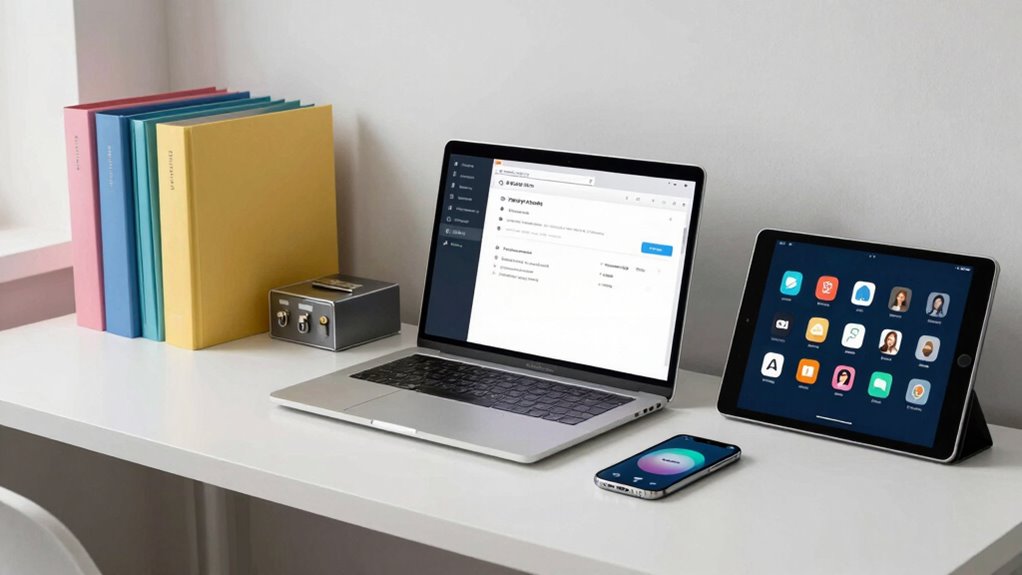
Setting up individual accounts on your devices helps you customize each family member’s experience. You’ll want to create user profiles, manage privacy settings, and set access restrictions to keep everyone safe. These steps guarantee that each person can use the device comfortably while maintaining necessary controls. Additionally, understanding how to optimize device performance ensures that the technology functions smoothly for all users. Proper account setup can also help prevent unauthorized access to sensitive information and manage app permissions effectively. Incorporating device security practices can further enhance protection across all accounts, especially considering the diverse urban and cultural environments that influence how families use technology. Being aware of common safety hazards related to device use can also help you prepare for potential issues and ensure a safer digital experience for everyone.
Creating User Profiles
Creating user profiles on your devices is a crucial step to guarantee each family member has a personalized and secure space. When setting up profiles, focus on user profile customization to reflect individual preferences, such as app access and display settings. This helps family members enjoy a tailored experience without interfering with others. Additionally, configuring parental control settings within each profile allows you to manage content restrictions, screen time limits, and app permissions. By establishing separate profiles, you prevent accidental access to sensitive data or inappropriate content, maintaining safety for younger users. Ensuring each profile is properly set up promotes independence and security, making device sharing smoother and more organized for everyone involved. Incorporating user profile customization can also improve overall device efficiency by reducing unnecessary app loads and streamlining user experiences. Furthermore, understanding digital security best practices can help you protect each profile from unauthorized access and potential online threats. Considering device storage management is also essential to ensure each profile does not contribute to unnecessary clutter, keeping your devices running smoothly.
Managing Privacy Settings
To protect each family member’s personal information, managing privacy settings on your devices is essential. Start by reviewing the privacy policies of your apps and platforms to understand how data is collected and used. Enable data encryption features where available, ensuring that stored data remains secure. Adjust privacy settings to limit app permissions, such as location sharing, camera access, and contacts, to only what’s necessary. Regularly update your devices and apps to benefit from security patches. Educate family members about privacy controls, so they know how to manage their own settings. By actively managing privacy policies and enabling data encryption, you reduce risks and safeguard personal information across all devices. Understanding the importance of privacy controls can help you appreciate how diverse tastes influence your overall experience, similar to managing device security.
Setting Access Restrictions
After adjusting privacy settings to protect personal information, it’s important to control who can access certain apps, websites, and features on your devices. Setting access restrictions strengthens family device security and helps prevent accidental or intentional misuse. Use account management strategies like creating separate user profiles or parental controls to limit screen time and block inappropriate content. On smartphones and tablets, enable device-specific restrictions or set up supervised accounts for kids. For computers, set up individual user accounts with tailored permissions. Regularly review these access settings to make sure they align with your family’s needs. Incorporating positive intentions into your approach can foster a healthier and more responsible technology environment within your household. Additionally, understanding the importance of battery storage and energy management can help families make more informed choices about their device usage and security. Recognizing the role of time management in preventing overuse can further enhance your family’s digital well-being. Effective device security measures, such as strong passwords and regular updates, are essential components of responsible device management. By actively managing access restrictions, you maintain better control over device use, protect sensitive information, and foster responsible technology habits within your family. Being aware of energy efficiency can also contribute to reducing power consumption and extending device lifespan, supporting overall household sustainability.
multi-user profile setup for smartphones
As an affiliate, we earn on qualifying purchases.
As an affiliate, we earn on qualifying purchases.
Customizing Privacy and Parental Controls for Each Family Member
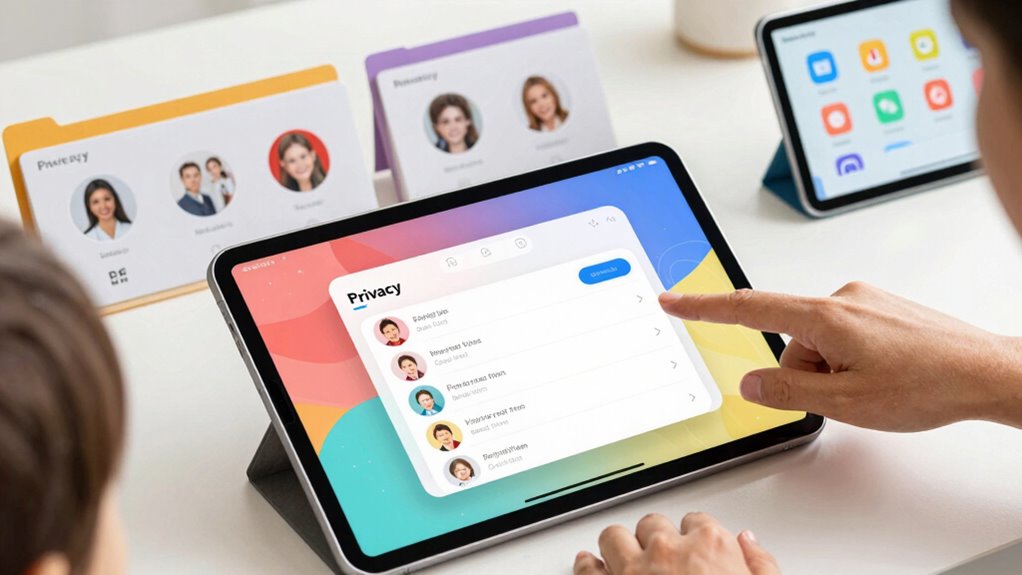
Customizing privacy and parental controls for each family member is essential to guarantee everyone’s online safety while respecting their individual needs. Start by reviewing and adjusting family account security settings to prevent unauthorized access. Focus on user privacy settings to control what personal information is shared and who can see it. For younger users, set restrictions that limit access to inappropriate content and messaging. For teenagers, allow more independence but still monitor key activities. Regularly update these controls to adapt to changing needs. By tailoring privacy and parental controls, you assure each person’s online experience is safe, secure, and appropriate. This approach helps protect personal data while fostering responsible device use within your family. Additionally, understanding shipwreck preservation and other curiosities can inspire safer digital navigation and exploration, especially when considering how cybersecurity measures protect sensitive information and digital assets.
secure password manager for families
As an affiliate, we earn on qualifying purchases.
As an affiliate, we earn on qualifying purchases.
Managing Screen Time and App Access Across Profiles
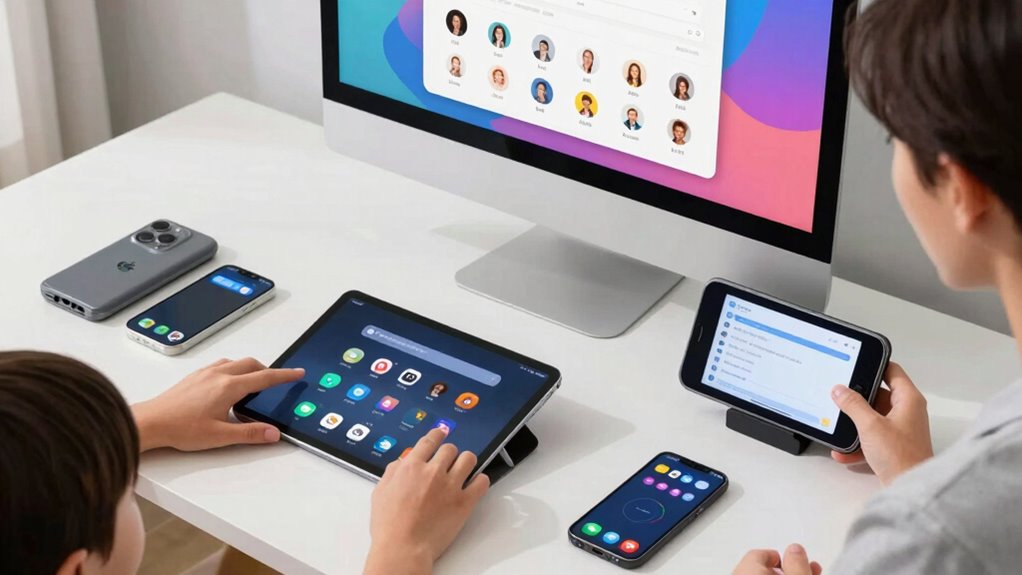
Managing screen time and app access helps you balance your family’s device use effectively. You can set time limits for each profile and customize app permissions to suit individual needs. These controls guarantee responsible use while giving everyone the freedom to enjoy their devices.
Setting Screen Time Limits
Setting screen time limits is essential for helping your family maintain a healthy balance between device use and other activities. With proper device management, you can set boundaries that encourage responsible screen time. Many platforms let you define daily limits for each profile, ensuring kids don’t spend too much time on devices. You can also schedule specific periods when devices are off or restricted, like during homework or bedtime. These controls help promote better habits without constant supervision. By actively managing screen time, you reduce the risk of overuse and support healthier routines. Regularly review and adjust these limits as your family’s needs change, making sure technology remains a helpful tool rather than a distraction.
Customizing App Permissions
Once you’ve established screen time limits, it’s important to control which apps your family members can access and for how long. This is where app customization and permission management come into play. By adjusting app permissions, you guarantee your kids only use appropriate apps and avoid distractions. You can:
- Restrict access to specific apps during certain hours
- Limit the number of times an app can be opened daily
- Block new app downloads without approval
- Set different permissions for each profile based on age
This approach helps you maintain a healthy digital balance and guarantees safe, age-appropriate app usage. Managing app permissions effectively allows you to tailor each profile’s access, giving you peace of mind and control over your family’s device activity.
Creating Secure Logins and Strong Passwords for Family Accounts
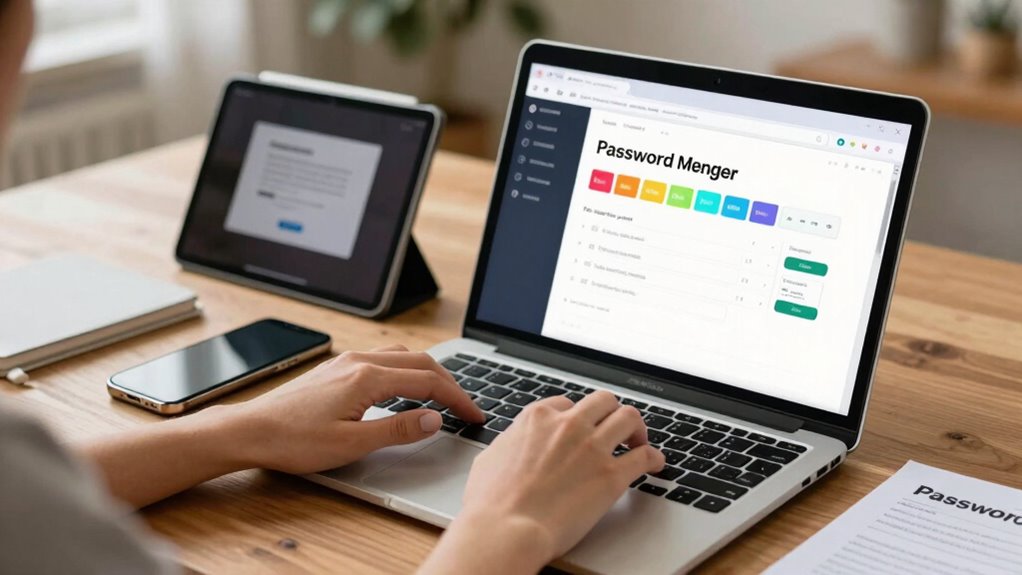
Creating secure logins and strong passwords is essential to protect your family’s online accounts. Good password security prevents unauthorized access and keeps personal information safe. Start by creating unique passwords for each account, avoiding common words or predictable patterns. Use a mix of uppercase and lowercase letters, numbers, and symbols to strengthen passwords. Enable multi-factor authentication whenever possible, adding an extra layer of security. Follow proper login protocols by not sharing passwords and regularly updating them, especially if you suspect a breach. Consider using a password manager to securely store and generate complex passwords. By implementing these practices, you guarantee your family’s accounts are well-protected against cyber threats, maintaining privacy and peace of mind across all devices.
Troubleshooting Common Setup Problems
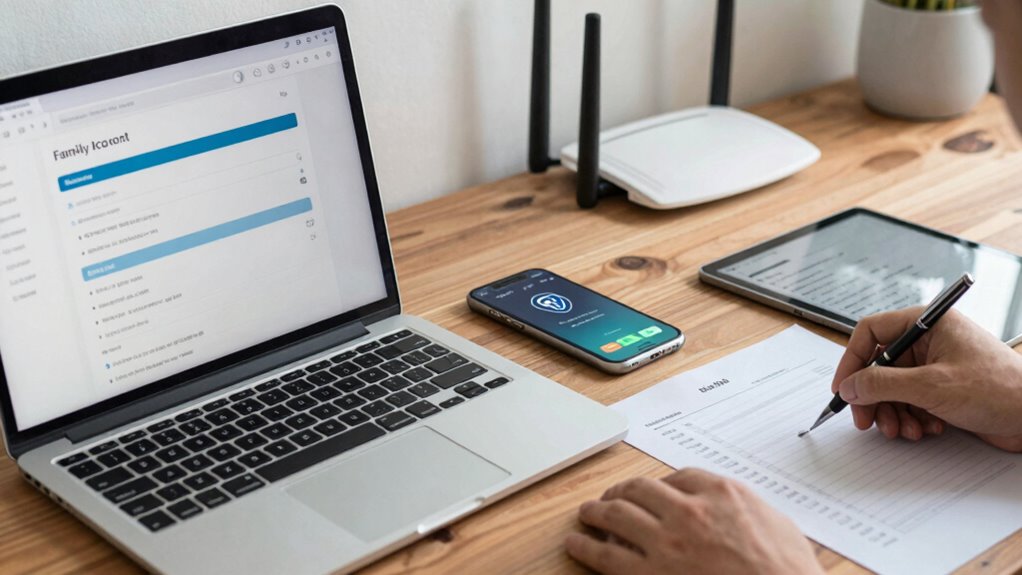
When you’re setting up family tech accounts, you might encounter common issues like forgotten passwords, device compatibility problems, or slow internet connections. These can disrupt device synchronization and hinder smooth setup. To troubleshoot, start by double-checking software compatibility to ensure the device supports the apps or updates you’re installing. If devices aren’t syncing properly, try restarting them or re-adding the account. For internet issues, verify your connection and consider resetting your router. Additionally, ensure all devices are running the latest software versions to avoid conflicts.
- Confirm device compatibility before setup
- Restart devices and re-sync accounts
- Check internet connection stability
- Update all devices to the latest software
Maintaining and Reviewing Family Device Accounts
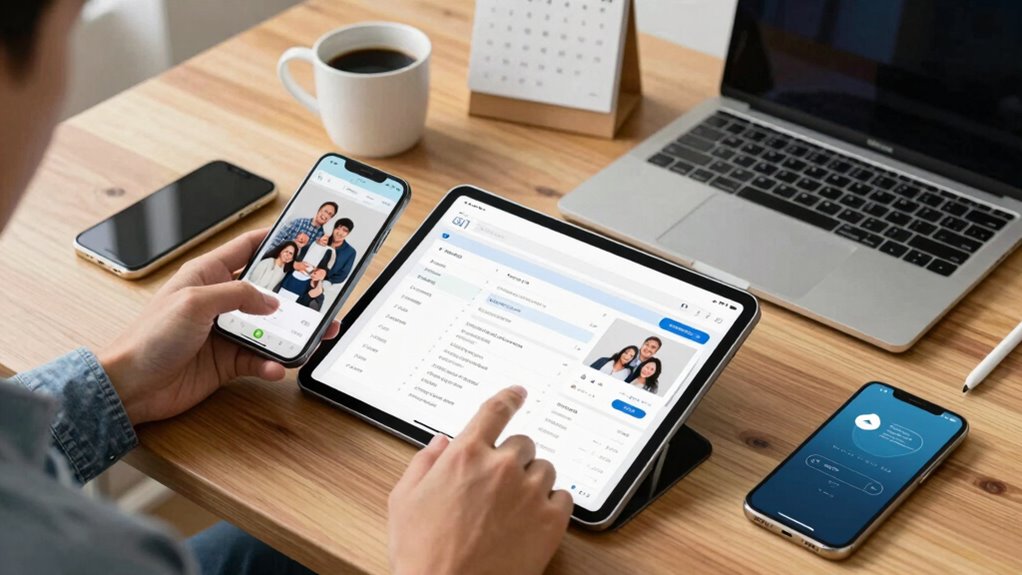
To keep your family’s device accounts secure and functional, it’s essential to regularly review and maintain them. Start by checking device sharing permissions to ensure everyone has appropriate access. Remove outdated or unused accounts to reduce security risks. Keep account synchronization settings up to date so that changes made on one device reflect across all devices seamlessly. Regularly update passwords and enable two-factor authentication where possible to add an extra layer of security. Review activity logs if available, to monitor for any suspicious activity. This ongoing maintenance helps prevent unauthorized access and keeps the accounts running smoothly. Staying proactive with these reviews ensures your family’s digital environment remains safe, organized, and easy to manage over time.
Teaching Kids and Teens About Responsible Digital Use

After setting up and maintaining family device accounts, it’s important to focus on guiding kids and teens toward responsible digital habits. Teaching digital literacy helps them understand how to evaluate online content critically, while emphasizing online safety keeps them aware of potential risks. You can do this by having open conversations about respectful online behavior and the importance of privacy. Encourage them to ask questions and share concerns. Make sure they understand the consequences of oversharing or engaging in cyberbullying. Use these strategies:
- Discuss the importance of protecting personal information
- Teach them to recognize phishing and scams
- Promote respectful communication online
- Reinforce the value of digital literacy in everyday life
Benefits of Using Separate Accounts for a Safer Family Digital Environment

Using separate accounts for each family member creates a safer digital environment by allowing you to manage and monitor online activity more effectively. This approach enhances digital security by limiting access to sensitive information and reducing the risk of malware or scams spreading across shared accounts. It also makes parental oversight easier, as you can set appropriate restrictions and review browsing habits without infringing on privacy. When each person has their own account, you can tailor content filters and time limits, helping children develop healthier online habits. Additionally, separate accounts prevent accidental changes or deletions that could disrupt device functionality. Overall, this setup promotes a safer, more controlled digital space where your family can explore technology confidently and responsibly.
Frequently Asked Questions
Can I Link Multiple Family Accounts to a Single Device?
Yes, you can link multiple family accounts to a single device through device synchronization. This allows each family member to log in with their personalized accounts, maintaining individual settings and preferences. To do this effectively, you’ll need to set up account customization options on the device, enabling seamless switching between accounts. This way, everyone gets a tailored experience without needing separate devices, making family tech management more convenient.
How Often Should I Review and Update Account Permissions?
You should review and update account permissions regularly—at least once every few months—to maintain strong account security. This helps you catch any unauthorized access and adjust permission management as your family’s needs change. Frequent reviews ensure that everyone has appropriate access, and unnecessary permissions are revoked promptly. Staying proactive keeps your devices secure, reduces potential risks, and guarantees that your family’s digital environment remains safe and well-managed.
Are There Age Restrictions for Creating Family Accounts?
Coincidentally, many family accounts are designed with age restrictions in mind, especially to enforce parental controls and privacy settings. You’ll find that most platforms set minimum age limits, often around 13, to comply with regulations like COPPA. These restrictions help you manage content access and protect your child’s privacy. Always check the specific platform’s policies, as age restrictions can vary, ensuring your family’s online experience remains safe and appropriate.
What Should I Do if a Family Member Forgets Their Login Details?
If a family member forgets their login details, guide them through the password recovery process, which usually involves answering security questions or receiving a reset link via email. Remind them to prioritize account security by creating strong, unique passwords once they regain access. Encourage regularly updating passwords and enabling two-factor authentication to keep accounts safe. This proactive approach minimizes disruptions and maintains secure, accessible family tech devices.
How Do I Transfer Data Between Family Member Accounts Securely?
Imagine you stumble upon a secret family recipe while transferring data; it’s a coincidence that highlights the importance of security. To transfer data safely between family member accounts, use encrypted methods like cloud services with data encryption features. Always guarantee account recovery options are updated, so if issues arise, you can restore data easily. This way, you safeguard personal info and maintain privacy during transfers.
Conclusion
Setting up separate accounts for your family devices might seem time-consuming, but it’s worth the effort. With personalized controls, you can foster responsible digital habits and keep everyone’s online experience safe and enjoyable. If you worry about complexity, remember that most management platforms are user-friendly and provide support. Investing a little time now guarantees your family stays connected securely and responsibly, giving everyone peace of mind and a healthier digital environment.
Columbus Day / Indigenous Peoples' Day Picks
long weekend sales
As an affiliate, we earn on qualifying purchases.