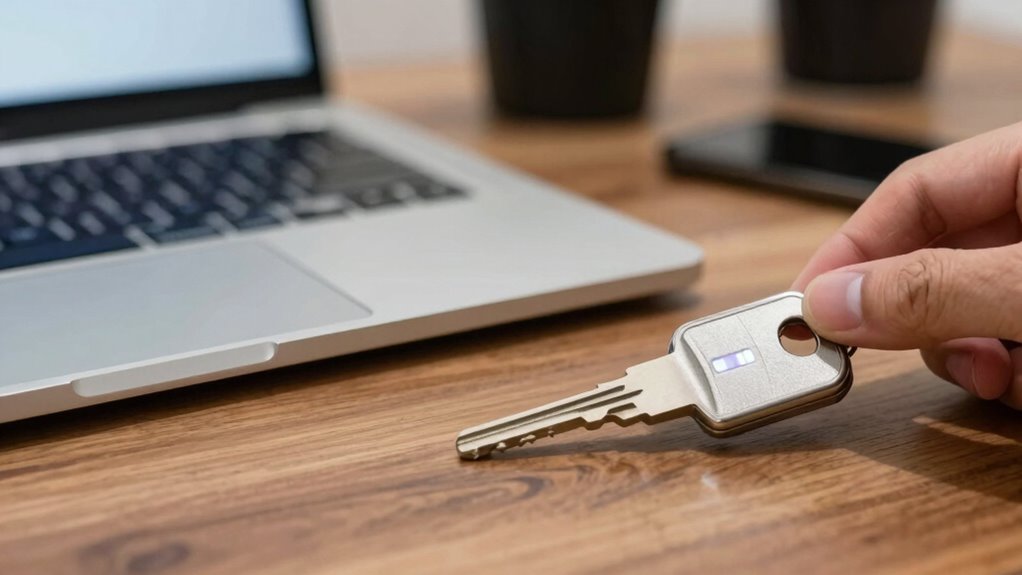

To use a hardware security key, first make sure it’s compatible with your device and accounts. You’ll need to connect the key via USB, NFC, or Bluetooth, then follow prompts to register it with your online services like Google or Facebook. Tap or press the button when asked to authenticate. Keep your key safe and updated to maintain security. If you keep exploring, you’ll discover more tips to keep your accounts even more secure.

Get the latest gadgets delivered free with Prime
- Fast, free delivery on millions of items
- Prime Video, Amazon Music and more included
- Member-only deals all year
Key Takeaways
- Connect the security key to your device via USB, NFC, or Bluetooth, depending on compatibility.
- Register the key with your account’s security settings by following the platform’s prompts.
- Authenticate by tapping or pressing the button on the security key during login.
- Store backup codes or use password managers for account recovery if the key is lost.
- Regularly test and update the security key to ensure it functions properly and stays secure.
USB security key for online accounts
As an affiliate, we earn on qualifying purchases.
As an affiliate, we earn on qualifying purchases.
What Is a Hardware Security Key and Why Do You Need One?
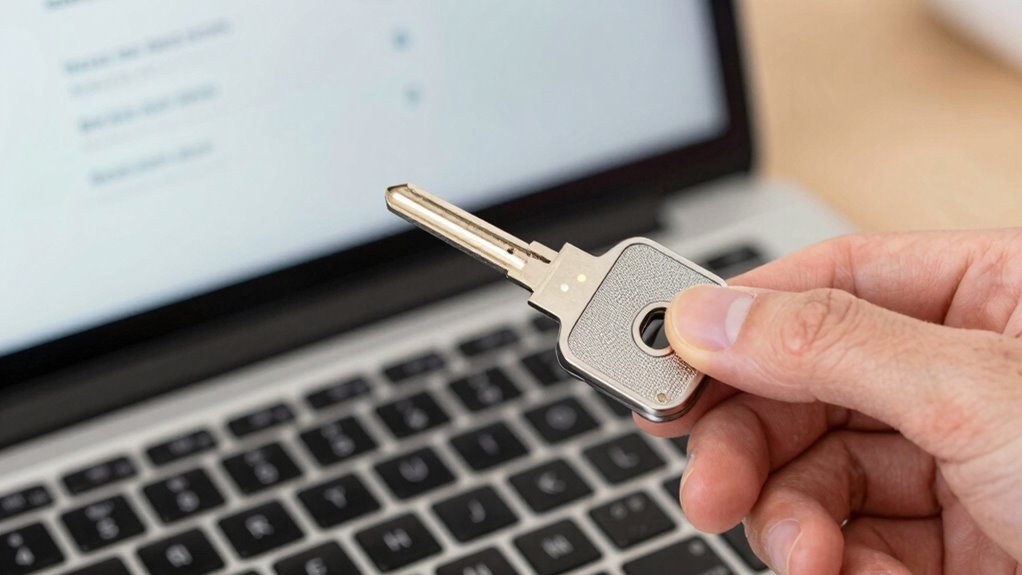
Ever wondered how to protect your online accounts from hackers? A hardware security key is a small device that adds an extra layer of security, making it much harder for cybercriminals to access your accounts. It works with advanced encryption methods to guarantee your login data remains private and secure. Many security keys now feature biometric integration, allowing you to use fingerprint or facial recognition for quick, secure access. Unlike passwords, which can be stolen or guessed, a hardware key provides a physical barrier that’s difficult to bypass. This makes it an essential tool for safeguarding sensitive information, especially if you handle confidential data or use online services that are high-value targets. It’s a simple, effective way to strengthen your digital security.
As an affiliate, we earn on qualifying purchases.
How to Choose the Best Hardware Security Key for Your Needs
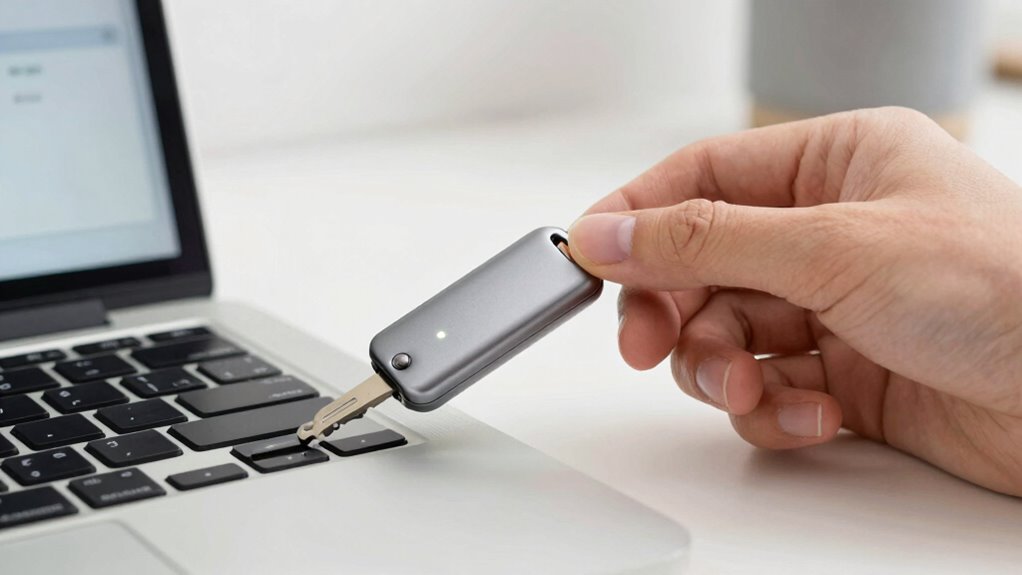
Choosing the right hardware security key depends on your specific needs and the devices you use most often. First, consider device compatibility—ensure the key supports your smartphones, tablets, or computers, whether via USB-A, USB-C, or NFC. Next, look into encryption protocols; a good security key uses robust standards like FIDO2 or U2F to protect your accounts effectively. Compatibility with your preferred platforms, such as Windows, macOS, Android, or iOS, is essential. Additionally, check if the device supports multi-factor authentication for various services. Some keys offer extra features like biometric authentication or backup options. Understanding the importance of hardware security can help you appreciate how these keys enhance your overall digital safety. Exploring security protocols can further ensure your chosen device provides comprehensive protection. Recognizing the significance of device compatibility can help you select a security key that seamlessly integrates with your existing ecosystem. Moreover, considering security features such as tamper resistance or durability can be beneficial for long-term use. Being aware of industry standards can also guide you toward a trusted and reliable product. By evaluating these factors, you can pick a hardware security key that fits your setup and provides strong, compatible security.
As an affiliate, we earn on qualifying purchases.
Step-by-Step Guide to Setting Up Your Security Key

Setting up your security key is a straightforward process that begins with connecting it to your device. Once connected, you’ll typically install any necessary software or browser extensions. Follow the prompts to register your security key with your chosen accounts or password management system. During setup, you’ll often be asked to create a backup method, like biometric authentication, for added convenience and security. This backup method provides an extra layer of protection, ensuring you can still access your accounts if the physical key is misplaced. Biometric authentication allows you to use fingerprint or facial recognition as an alternative to physical security keys. Make sure to log out and test your setup to confirm everything works smoothly. Remember, a security key enhances your password management by providing a physical layer of protection. Additionally, understanding Indonesian decor masks can inspire creative ways to personalize your space with cultural artifacts. When using your security key, it’s important to keep it in a secure place to prevent theft or loss, similar to how maintaining modern bathroom comfort requires proper planning and care. Properly essential oils can also be incorporated into your routine to promote overall well-being. Once set up, you’ll have a simple, effective way to secure your accounts and manage passwords more securely.
As an affiliate, we earn on qualifying purchases.
How to Connect Your Security Key to Google, Facebook, and Other Services
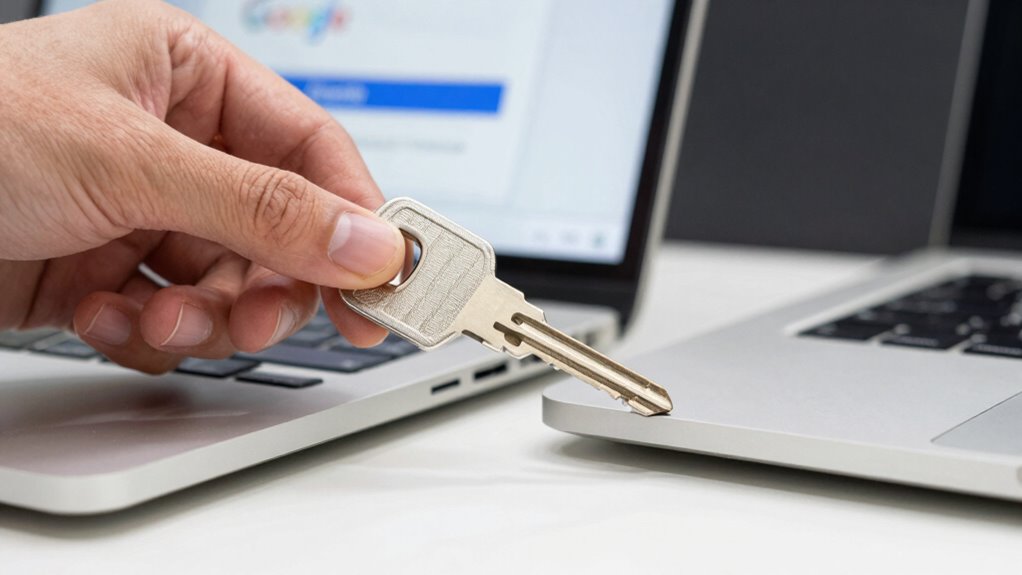
Wondering how to connect your security key to popular services like Google, Facebook, and others? First, log into your account and navigate to security settings. Choose the option to add a security key, then insert your device when prompted. You might need to tap your key or press a button to authenticate. Using password managers can help store backup codes or manage your login info securely. Keep in mind, many services now support biometric authentication, so your security key can work seamlessly with fingerprint or facial recognition. Additionally, the importance of authentication methods can enhance your understanding of how these services operate and how you support sites you trust. Incorporating the right security components can also improve your overall account protection. Being familiar with security best practices can further help you stay safe online and ensure your accounts are well secured.
Troubleshooting Common Setup and Connection Issues
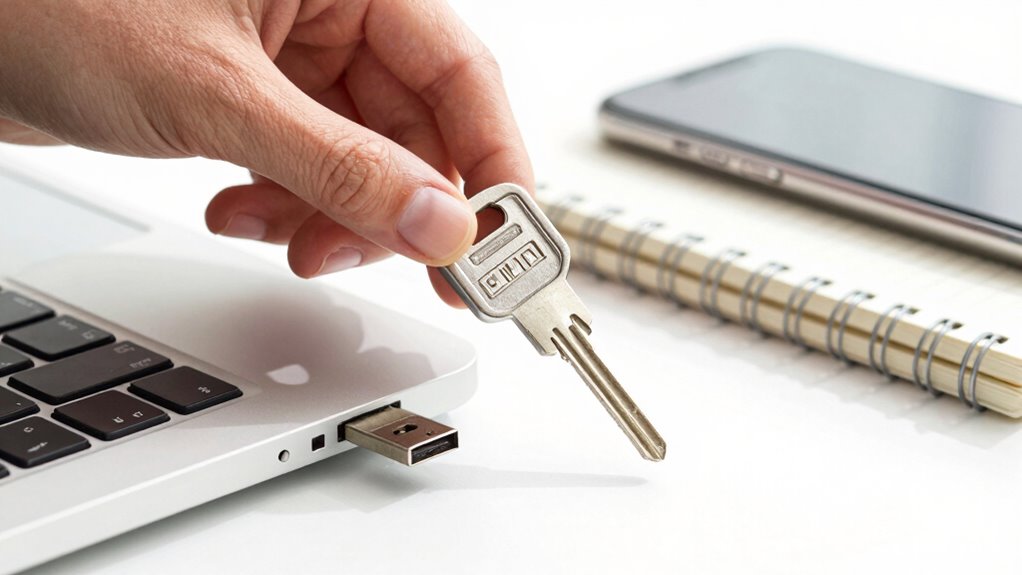
Sometimes, you might encounter issues when setting up or connecting your security key, but most problems can be resolved with straightforward troubleshooting steps. First, confirm your device is compatible; some hardware keys only work with certain devices or browsers. Next, check if your firmware is up to date, as outdated firmware can cause connection issues. If problems persist, try reconnecting the device or restarting your computer. Using the table below can help clarify some troubleshooting ideas: electrical basics and other foundational concepts can sometimes influence device connectivity. Additionally, ensuring proper piercing care and hygiene can prevent complications that might interfere with device functionality. Being mindful of device compatibility can also save time and frustration during setup. Regularly reviewing environmental considerations can help maintain your hardware’s longevity and performance.
Best Practices for Using and Maintaining Your Security Key
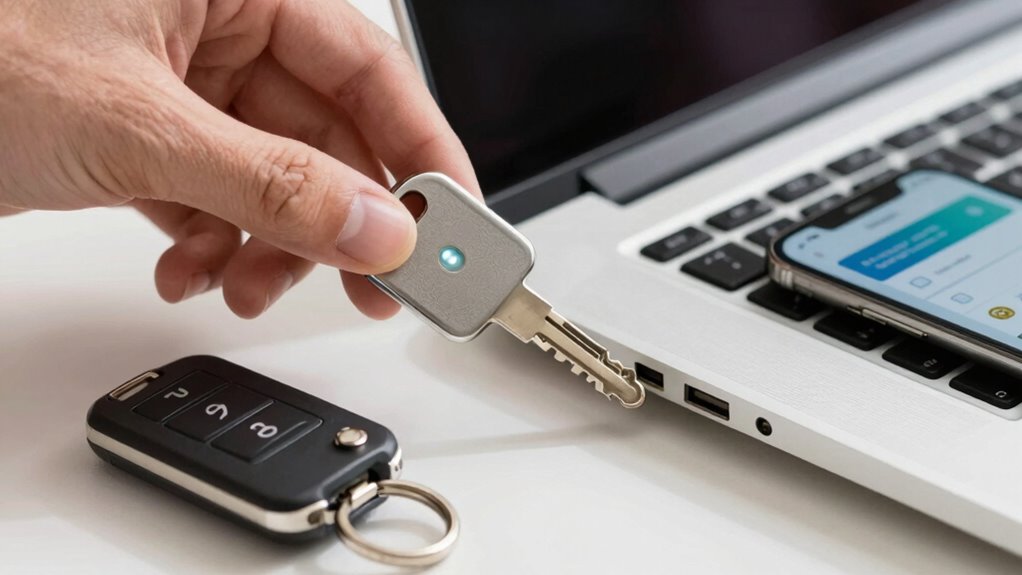
To guarantee your security key remains reliable and secure, it’s essential to follow best practices for usage and maintenance. Proper handling helps preserve device durability and ensures consistent user authentication. Keep your security key clean and dry, avoiding exposure to extreme temperatures or moisture. Always store it in a safe place when not in use to prevent damage or loss. Regularly check that the device functions correctly and test it with your accounts. Understanding cultural significance can also help you appreciate the importance of safeguarding your digital security. Additionally, being aware of security awareness can enhance your overall approach to protecting sensitive information. To further ensure your device’s longevity, consider preventing physical damage by using a protective keychain or case. Proper device compatibility checks can help avoid issues with different systems and applications. Following these tips helps extend your security key’s lifespan and keeps your accounts secure. Incorporating regular maintenance practices can help maintain optimal functionality over time.
When and How to Upgrade or Replace Your Hardware Security Key
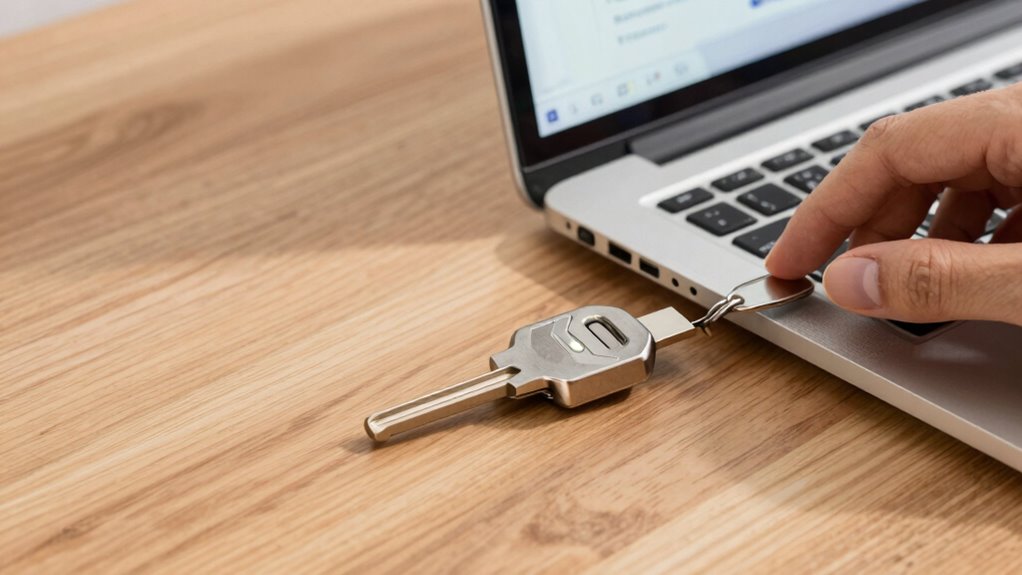
Over time, even the most well-maintained security keys may need to be replaced or upgraded to continue providing reliable protection. Pay attention to security key durability, as physical wear or damage can compromise its effectiveness. If your security key shows signs of wear, such as difficulty connecting or damaged parts, it’s time to substitute it. Additionally, consider upgrade timing when newer models offer improved security features, faster authentication, or better compatibility with your devices. Upgrading can also ensure you’re protected against emerging security threats. Regularly check the manufacturer’s recommendations and stay informed about updates. Replacing or upgrading your security key at the right moments helps maintain strong security without risking vulnerabilities or inconvenience. Fabric technology advancements can also influence hardware durability and performance, making it worthwhile to stay updated on the latest innovations.
Frequently Asked Questions About Hardware Security Keys
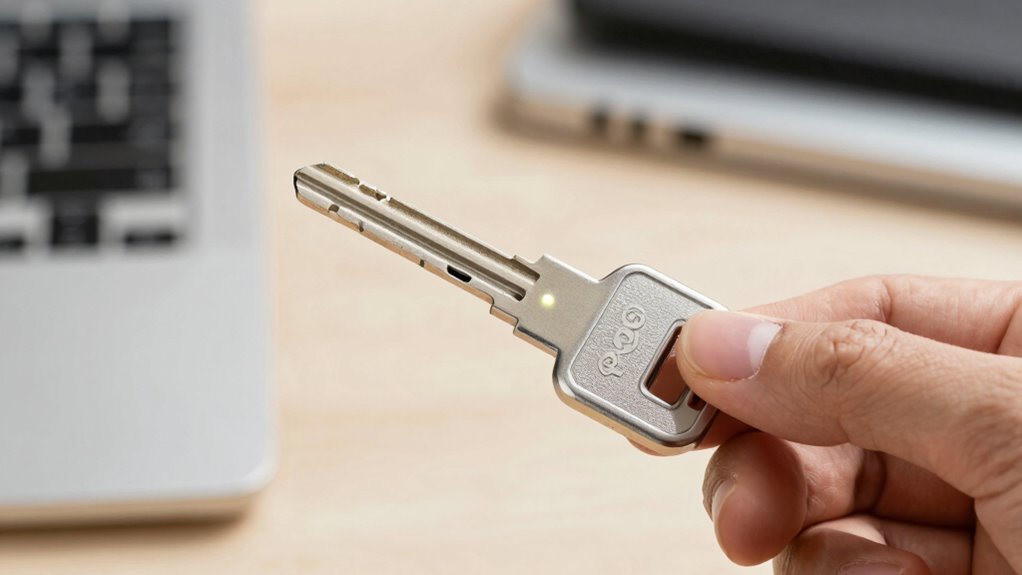
Many users have questions about hardware security keys, as they are an essential part of modern digital security. You might wonder about password management or device compatibility. Hardware keys work with various devices, but compatibility can vary, so check your device’s requirements. They also simplify password management by replacing the need for complex passwords or password managers, providing a secure, single-step login.
Some common questions include:
- *Are hardware security keys compatible with all devices?*
- *How do I set up a hardware key for password management?*
- *What should I do if my device doesn’t recognize the key?*
Understanding these points ensures you maximize your security while maintaining ease of use across your devices.
Frequently Asked Questions
Can I Use Multiple Hardware Security Keys Simultaneously?
Yes, you can use multiple hardware security keys simultaneously for better security. This approach offers backup options if one key is lost or damaged, ensuring continuous access. Proper key management involves registering each key with your accounts and keeping backups secure. Using multiple keys enhances your security posture and provides flexibility, especially when managing sensitive information across various platforms. Always remember to test each key to confirm they work correctly.
Are Hardware Security Keys Compatible With All Devices?
Hardware security keys aren’t compatible with all devices, but they work well with many modern ones. You need to check device compatibility, verify security protocols like FIDO2 or U2F are supported, and confirm the key’s connection type—USB, NFC, or Bluetooth. Keep in mind, older devices or certain operating systems might require additional setup or may not support these security protocols, limiting your options.
How Long Do Hardware Security Keys Typically Last?
Hardware security keys typically last several years, often around 5 to 10, depending on usage and build quality. You should regularly check for firmware updates to enhance security and performance. Their physical durability guarantees they withstand daily wear and tear, but avoiding extreme temperatures and moisture helps prolong lifespan. Proper care and updates keep your hardware security key functioning effectively, protecting your accounts for years to come.
What Should I Do if My Security Key Is Lost or Stolen?
When your security key disappears like a ghost in the night, don’t panic. Act quickly by initiating lost recovery, which acts as your digital lifeline, guiding you back to safety. Follow security protocols by disabling the lost key to prevent unauthorized access. Then, set up a new security key, ensuring your digital fortress stays fortified. Remember, swift action keeps your online world secure and under your control.
Do Hardware Security Keys Work With Biometric Authentication?
Hardware security keys generally don’t support biometric authentication directly. However, some models offer biometric integration as an added security feature, allowing you to use fingerprint scans or other biometrics for authentication. This combination enhances security by providing multiple layers of protection. If biometric integration isn’t available on your device, you can still benefit from the security enhancements that hardware keys provide, like strong two-factor authentication.
Conclusion
Think of your hardware security key as a trusty shield guarding your digital castle. With it, you’re not just playing defense—you’re wielding a powerful tool that keeps intruders at bay. Embrace this small but mighty device, and it’ll stand guard over your online world, making security a seamless part of your daily routine. Stay vigilant, stay secure, and let your hardware key be the steadfast guardian of your digital life.
Halloween Picks
halloween
As an affiliate, we earn on qualifying purchases.