
Your laptop battery drops in health quickly if you often keep it plugged in at 100%, use poor power habits, or expose it to high temperatures. Running background apps and high screen brightness also drain the battery faster. To slow down deterioration, follow proper charging cycles, calibrate periodically, and manage power settings. If you want to protect your battery longer, there’s more you can do to extend its lifespan effectively.
Key Takeaways
- Frequent full charge cycles and high voltage charging accelerate chemical wear and capacity loss in lithium-ion batteries.
- Keeping the laptop plugged in at 100% causes unnecessary stress and speeds up battery deterioration.
- Exposure to high temperatures during use or storage degrades battery chemistry and shortens lifespan.
- Running background apps and high screen brightness increase power consumption, leading to faster battery drain.
- Lack of calibration or neglecting proper storage practices causes inaccurate capacity readings and faster degradation.
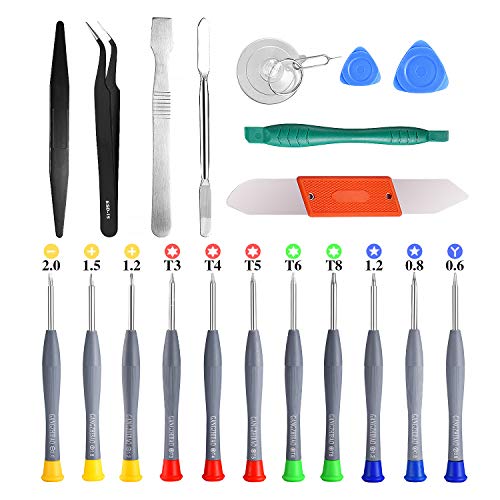
21pcs Precision Screwdriver Set Magnetic,GangZhiBao Repair Tools Kit for Fix Phone/iphone,Computer/PC,Tablet/Pad,Watch,PS4 – Replace Screen Battery Camera Small Electronics Open Pry Tool Kits Sets DIY
PentalobeScrewdriver Set: p5 Pentalobe screwdriver,PH000 Phillips Screwdriver, Pentalobe T5 Pentalobe T6 Screwdrivers Repair Tool Kit for Apple MacBook…
As an affiliate, we earn on qualifying purchases.
As an affiliate, we earn on qualifying purchases.
Why Does My Laptop Battery Drain Quickly?
If your laptop battery suddenly starts draining quickly, it’s often due to a combination of software and hardware factors. Poor power management settings can cause your device to use more energy than necessary, leading to faster drain. Regularly calibrating your battery helps guarantee accurate readings, preventing unnecessary charging cycles that wear it out faster. Proper battery calibration involves fully charging and discharging your laptop to reset its power meter. Additionally, check your power management settings; disable unused features like Bluetooth or reduce screen brightness to conserve energy. Running background apps or processes can also drain the battery quickly. By optimizing power management and performing battery calibration, you can extend your battery’s lifespan and improve overall performance, avoiding unnecessary quick drains. Incorporating battery health maintenance practices can further help preserve your battery over time. Understanding the importance of long-term device care can help you adopt habits that protect your laptop’s battery health in the long run, especially when considering support networks for new dads who rely heavily on their devices. Being aware of projector technology factors like contrast ratio and color accuracy can also help you identify issues early and take proactive steps to keep your battery in good condition.

Wireless Portable Monitor Battery-Powered, Support AirPlay Miracast, 15.6" 1080P IPS Monitor USB-C HDMI External Display, 2nd Screen for Laptop MacBook PC Phone Tablet, w/Built-in Battery(4- 5H)
【True Wireless Portable Monitor】This wireless portable monitor supports AirPlay & Miracast. Simply tap your device's screen casting icon…
As an affiliate, we earn on qualifying purchases.
As an affiliate, we earn on qualifying purchases.
How Battery Chemistry Affects Battery Lifespan
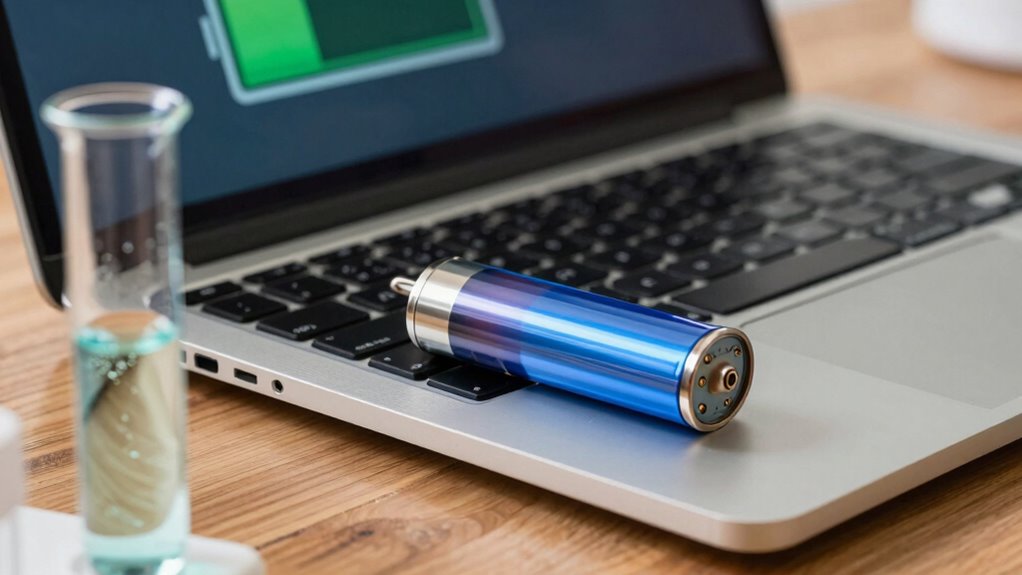
Your laptop’s battery chemistry, especially lithium-ion composition, plays a key role in how long it lasts. Each charge cycle wears down the battery differently depending on its materials, impacting overall lifespan. Understanding these effects helps you optimize your charging habits and extend your battery’s life. Additionally, utilizing proper charger settings and avoiding low-voltage cutoff can significantly reduce wear and prolong battery health. Being aware of battery chemistry can also help you choose batteries that are more resistant to capacity loss over time. Modern battery management systems often incorporate smart features that monitor and adjust charging to prevent excessive wear, which is especially important as advancements in AI-powered battery monitoring continue to improve lifespan predictions.
Lithium-Ion Composition Effects
Have you ever wondered how the chemistry inside your laptop battery influences its lifespan? The lithium-ion composition plays a key role in its durability. When you charge and discharge, chemical reactions occur, impacting electrolyte health and causing degradation. Over time, electrolyte degradation reduces ion flow efficiency, hastening capacity loss. Additionally, if you frequently charge to high voltages, lithium plating can happen—where lithium deposits on the anode instead of intercalating smoothly—leading to capacity fade and safety risks. Proper temperature management helps maintain battery chemistry, which is crucial for prolonging battery life. Understanding chemical stability is essential, as it directly affects how well the electrolyte and electrodes resist degradation over time. Maintaining optimal operating conditions minimizes chemical reactions, thereby extending the overall lifespan of the battery. Regularly monitoring and controlling charging habits can also prevent accelerated degradation caused by stress on the battery components. Paying attention to thermal stability can further help in reducing chemical breakdown and preserving battery health over time.
Charge Cycle Impact
The chemistry inside your laptop battery directly influences how many charge cycles it can endure before performance declines. Each complete charge and discharge counts as one cycle, and with repeated cycles, battery degradation accelerates. Lithium-ion batteries, common in laptops, are designed to handle a limited number of charge cycles—typically around 300 to 500—before their capacity diminishes noticeably. As you go through charge cycles, chemical reactions within the battery cause the materials to break down gradually. This deterioration reduces the battery’s ability to hold a full charge, leading to shorter usage times. To slow this process, avoid frequently fully discharging or overcharging your battery, and keep it in moderate temperature environments to minimize chemical stress and extend your battery’s lifespan. Battery chemistry plays a crucial role in how quickly these chemical changes occur, affecting overall battery longevity.

Monzlteck All-Metal Adjustable Width Power Strip/Laptop Chargers Holder Mount – Under Desk or Wall Mountable Universal Organizer for Power Strips, Laptop Chargers & Cable Management (Large)
1:UNIQUE and PRACTICAL DESIGN: Sick of reaching under your desk in the dark to find an outlet? Why…
As an affiliate, we earn on qualifying purchases.
As an affiliate, we earn on qualifying purchases.
Common User Habits That Damage Your Laptop Battery
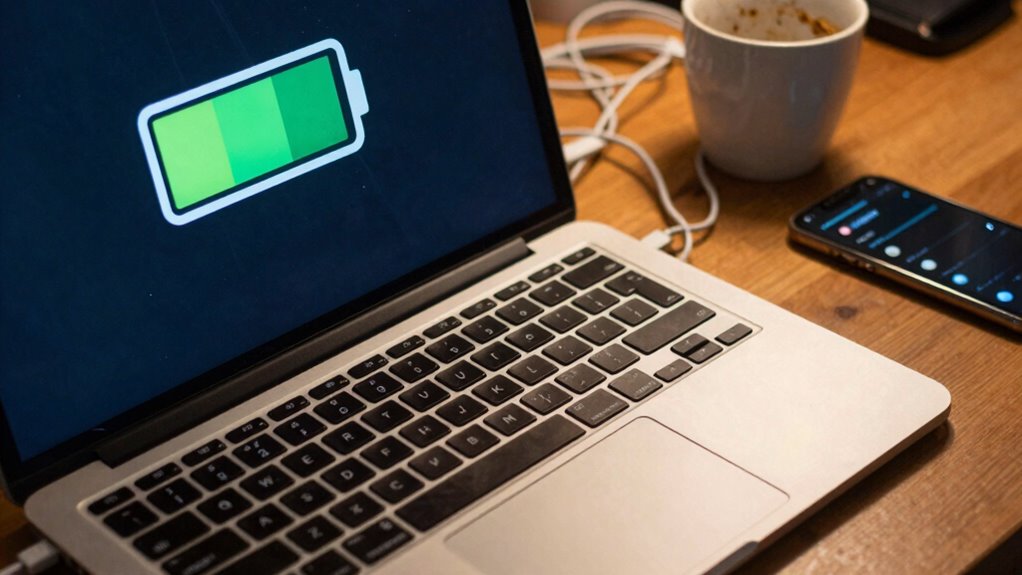
Many users unknowingly damage their laptop batteries through simple habits that seem harmless. Poor keyboard ergonomics can lead you to awkward positions, causing overheating or strain that impacts overall device performance and battery health. Using external devices without proper care can also cause power surges or drain the battery faster. Additionally, neglecting to unplug your laptop when not in use can result in unnecessary power cycles, shortening battery lifespan. Finally, keeping your laptop plugged in constantly, especially at 100%, accelerates battery wear. Implementing protocols for charging and device use can help preserve battery longevity.

havit HV-F2056 15.6"-17" Laptop Cooler Cooling Pad – Slim Portable USB Powered (3 Fans), Black/Blue
Ultra-Portable: Slim, portable, and light weight allowing you to protect your investment wherever you go
As an affiliate, we earn on qualifying purchases.
As an affiliate, we earn on qualifying purchases.
How to Recognize Signs of Battery Deterioration
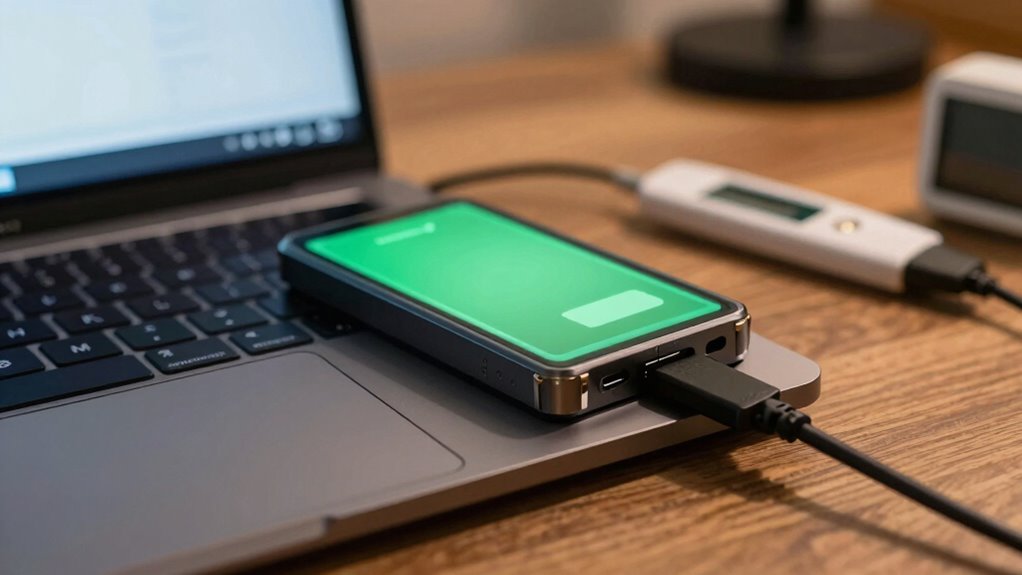
Over time, your laptop battery will show clear signs that its health is declining. You might notice shorter usage times, unexpected shutdowns, or inconsistent charging. These are signs of battery deterioration that you shouldn’t ignore. Proper battery calibration can help identify if the battery’s capacity is truly decreasing or if voltage stabilization issues are causing false readings. Look for irregular charging patterns and voltage fluctuations, which indicate aging. If your battery’s capacity drops markedly or it struggles to hold a charge, it’s a clear sign of deterioration. Monitoring these signs ensures you take timely action, preventing sudden failures.
| Sign of Deterioration | Possible Cause | Action Needed |
|---|---|---|
| Shorter battery life | Reduced capacity from aging | Replace or calibrate the battery |
| Fluctuating voltage | Voltage stabilization issues | Seek professional diagnosis |
| Unexpected shutdowns | Battery can’t hold charge | Consider replacement |
| Inconsistent charging | Battery calibration needed | Perform calibration or replace |
Tips to Extend Your Laptop Battery Life
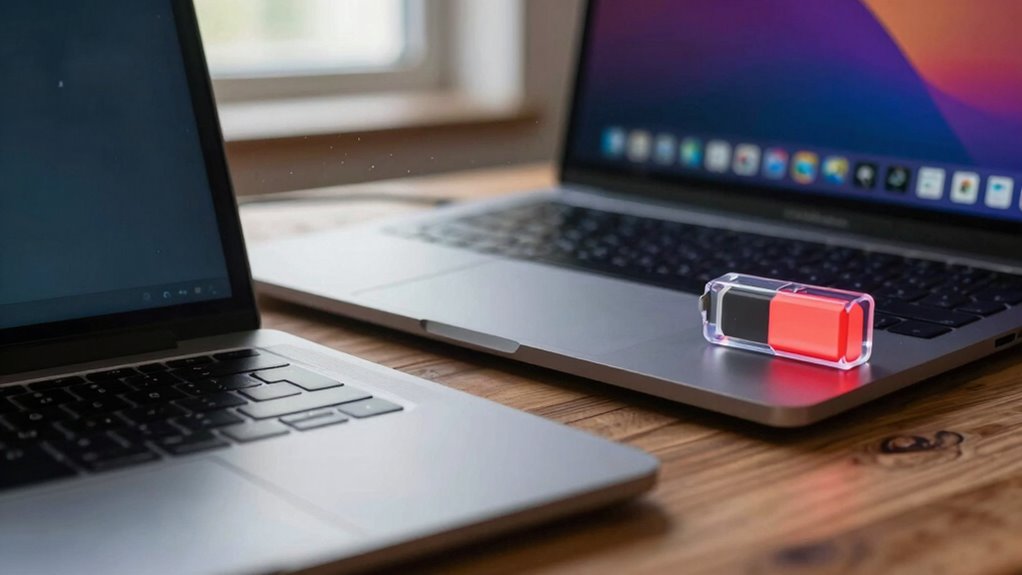
You can extend your laptop’s battery life by adjusting the screen brightness to a comfortable but lower level. Managing background apps and optimizing power settings also help conserve energy. Small changes like these make a noticeable difference in how long your battery lasts. Additionally, enabling power management features that optimize system performance can further reduce energy consumption and improve battery longevity. Understanding dream symbolism related to time can also help you become more mindful of your device usage and energy habits. Being aware of energy efficiency principles can guide you to make smarter choices in your daily routine, especially when considering routine adjustments that promote longer battery life. Incorporating home design considerations such as proper ventilation and ergonomic setups can also contribute to overall device health and energy conservation.
Adjust Screen Brightness
Adjusting your screen brightness is one of the simplest ways to conserve battery life. Reducing brightness decreases power consumption, helping your laptop last longer. You can also optimize your display by calibrating it for better clarity without increasing brightness. Lowering your display resolution slightly can further save energy, especially on high-resolution screens. Additionally, enabling automatic brightness adjustments based on ambient light can optimize power use without sacrificing visibility. Using power management settings can further enhance battery longevity by controlling background processes and screen timeout features. These small tweaks can considerably extend your battery life while maintaining visual comfort. Remember, a well-calibrated display ensures you don’t sacrifice clarity while saving power.
Manage Background Apps
One of the most effective ways to extend your laptop’s battery life is by managing background apps. Background app management helps reduce unnecessary processes that run silently, draining power without your knowledge. To improve system performance and conserve battery, regularly close apps you aren’t actively using. Check your task manager or activity monitor to identify apps consuming excessive resources. Disabling or uninstalling unnecessary programs can also prevent them from running in the background. Additionally, review startup programs and disable those that don’t need to launch automatically. By limiting background activity, you minimize power consumption, which directly prolongs your battery life. Keeping background apps in check ensures your system runs more efficiently, reducing strain on your battery and helping it last longer between charges.
Optimize Power Settings
To maximize your laptop’s battery life, optimizing your power settings is essential. Adjusting these settings helps improve power saving and boosts energy efficiency, guaranteeing your device lasts longer on a single charge. Start by lowering screen brightness, as it consumes significant power. Enable battery saver mode to limit background activity and reduce energy drain. Set your device to sleep or hibernate sooner when inactive, conserving power during idle periods. Additionally, disable unnecessary hardware features like Bluetooth and Wi-Fi when not in use. These simple adjustments make a big difference, helping your laptop run more efficiently and prolonging battery health. Regularly reviewing and tweaking your power settings ensures you get the most out of every charge, reducing wear and tear on your battery over time.
Understanding Charging Cycles and Battery Care
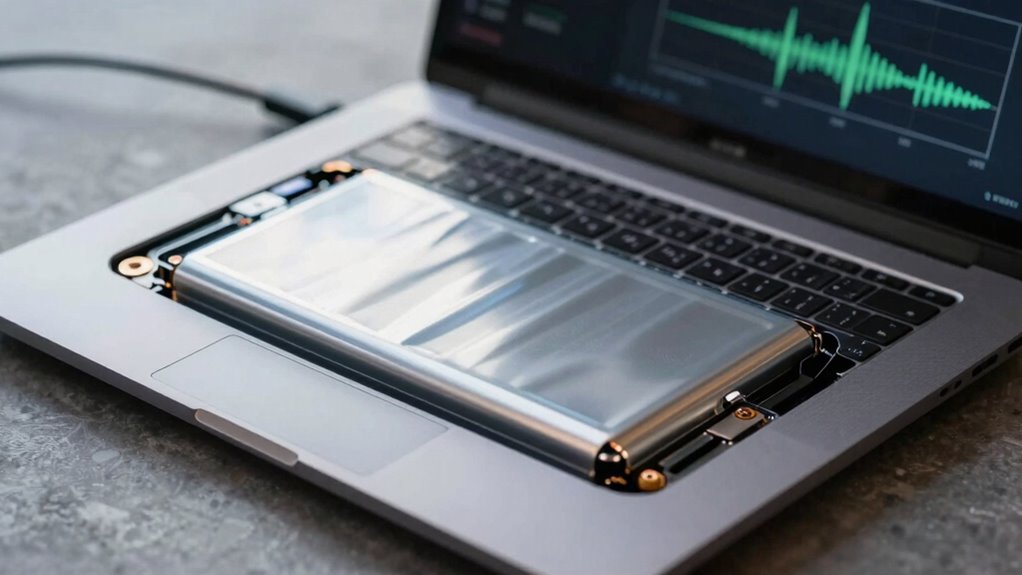
Understanding how charging cycles impact your laptop battery is essential for maintaining its health over time. Each time you charge from 0% to 100%, it counts as one cycle, gradually wearing down the battery’s capacity. To extend its lifespan, practice good charging etiquette: avoid constant top-ups and don’t let the battery drain completely regularly. Periodic battery calibration helps guarantee accurate charge readings, which involves fully charging and then fully discharging your battery every few months. This process resets the battery’s internal sensor, preventing false readings that could lead to overcharging or undercharging. By managing charging cycles thoughtfully and calibrating your battery when needed, you can slow down capacity loss and keep your laptop running smoothly longer.
How to Properly Store Your Laptop to Preserve Battery Health
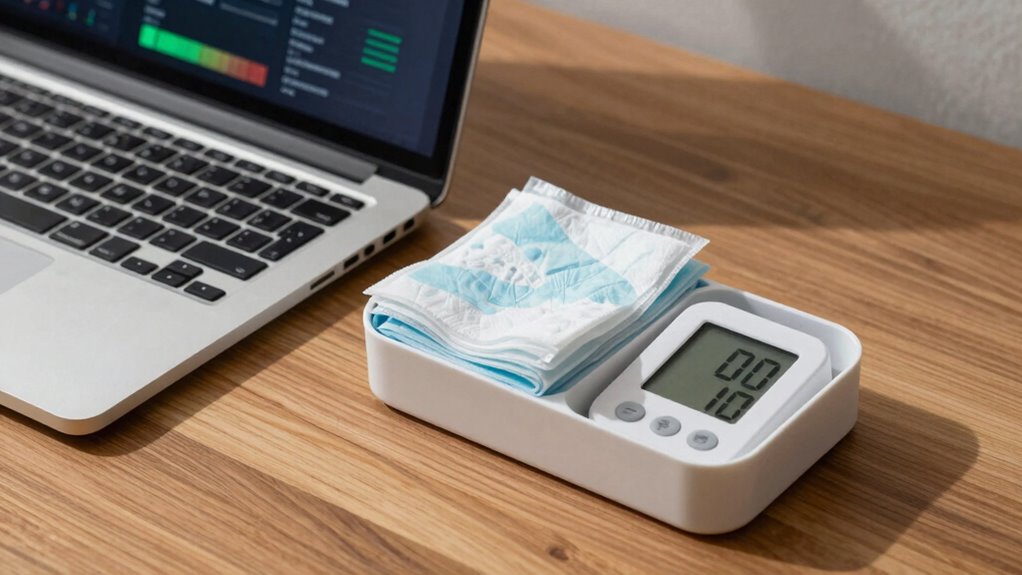
Storing your laptop properly when you’re not using it is essential for maintaining battery health. Proper battery storage minimizes capacity loss and prolongs lifespan. Keep the battery in a cool, dry place, avoiding extreme temperatures that can harm it. Aim for a temperature between 50°F and 77°F (10°C to 25°C) for ideal temperature management. Store the laptop with a charge level around 50%, not fully charged or drained, to prevent stress on the battery. Also, unplug it from power if it’s connected for long periods. Regularly check the storage environment to confirm it’s stable and free from moisture. Good battery storage habits help slow down aging and keep your laptop’s battery performing well over time.
Store your laptop in a cool, dry place with around 50% charge for optimal battery health.
- Keep the laptop in a cool, dry environment
- Maintain a charge level around 50%
- Avoid extreme temperatures
- Store in a moisture-free space
Software Tools and Settings to Maintain Battery Performance
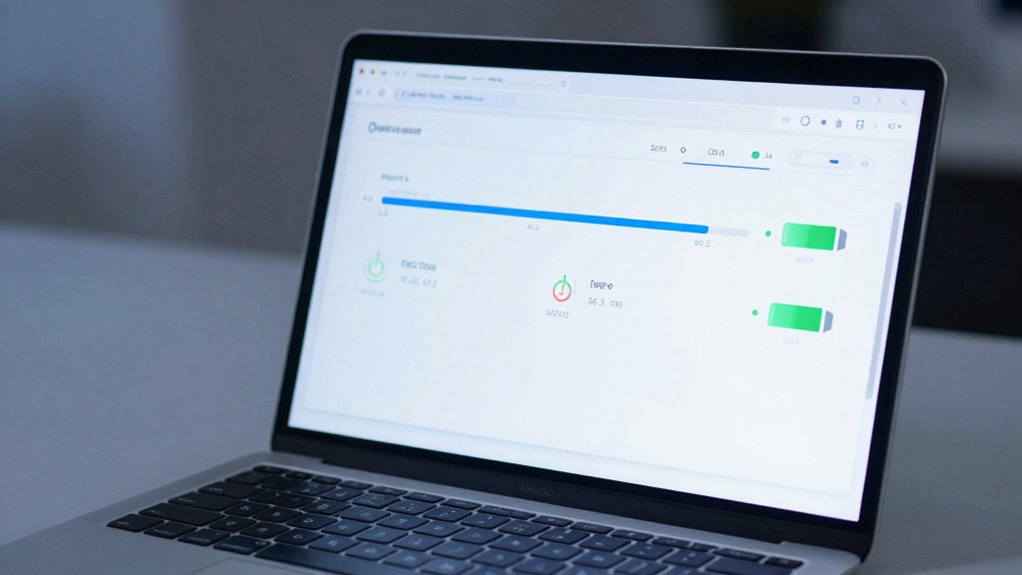
Using the right software tools and adjusting settings can considerably boost your laptop’s battery performance. Start with power management features built into your operating system; these optimize energy use by limiting background activity and adjusting screen brightness. Regularly perform battery calibration to make certain of accurate capacity readings, which helps you identify true battery health. Many laptops include manufacturer-specific tools for calibration and power management; use them for best results. Additionally, disable unused devices and unnecessary startup programs that drain power. Keep your drivers up to date, as updates often improve energy efficiency. Implementing these software techniques helps extend your battery’s lifespan and maintains consistent performance, preventing rapid health decline. Properly managing your software environment is key to preserving your laptop’s battery health over time.
When to Consider Replacing Your Laptop Battery
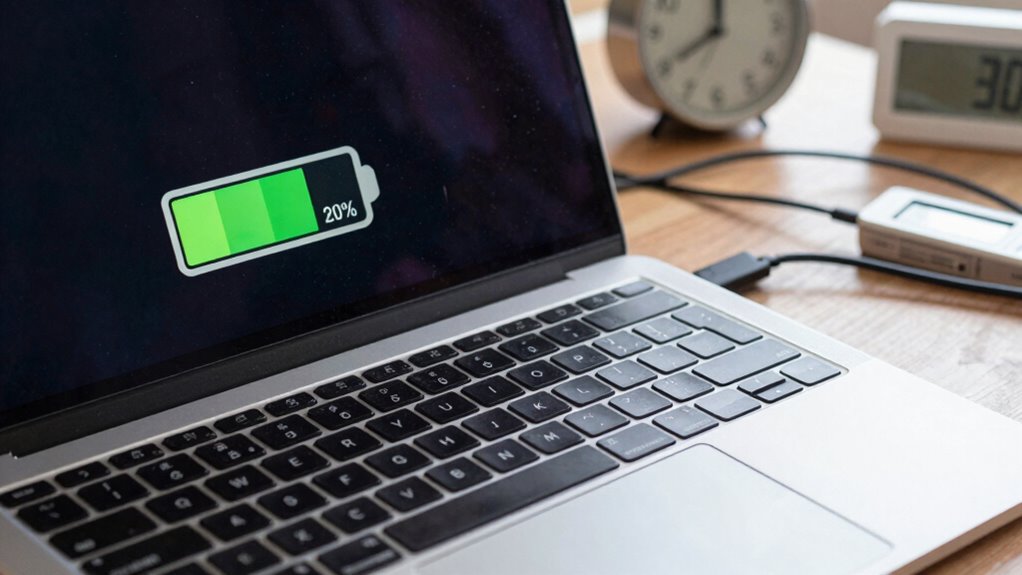
Even with proper software management, a battery’s capacity naturally diminishes over time. When your laptop’s battery no longer holds a charge or shows inconsistent readings, it’s time to consider replacing it. You should also think about replacing your battery if calibration efforts no longer improve accuracy. Check your warranty coverage—if your device is still under warranty and the battery health has markedly declined, you might be eligible for a free or discounted replacement. Additionally, if your battery swells or causes overheating, replacing it immediately is vital. Pay attention to these signs:
- Reduced runtime below acceptable levels
- Battery percentage fluctuating wildly
- Frequent unexpected shutdowns
- Physical damage or swelling
Timely replacement ensures your laptop stays reliable and safe.
Frequently Asked Questions
Can Using a Laptop on Battery Save Its Lifespan?
Using your laptop solely on battery doesn’t necessarily save its lifespan. Instead, it can wear out the battery faster if you don’t perform battery calibration regularly and rely on proper power management. To extend your battery’s life, avoid constant full discharges, keep it between 20-80%, and enable power management settings. These practices help maintain battery health, ensuring it lasts longer and performs better over time.
Does Screen Brightness Impact Battery Health?
Yes, screen brightness impacts battery health and longevity. When you keep the brightness high, your battery drains faster, which can accelerate wear over time. To preserve your battery’s longevity, lower the brightness when possible, especially during extended use. Using adaptive or auto-brightness features also helps. By managing screen brightness wisely, you can extend your laptop’s battery life and maintain its health longer.
Are Third-Party Chargers Safe for My Laptop Battery?
Third-party chargers can be safe if they match your laptop’s battery compatibility specifications. Always check the voltage, amperage, and connector type to guarantee compatibility. Using chargers not designed for your device may cause overheating, damage, or reduced battery health. It’s best to choose reputable brands and verify compatibility to maintain your laptop’s battery health and avoid potential safety risks.
How Does Temperature Influence Battery Degradation?
Imagine your laptop’s battery melting under intense heat—that’s thermal stress at work. High temperatures accelerate chemical aging, causing the battery’s capacity to plummet faster than you’d believe. Excessive heat speeds up deterioration, damaging the internal cells and reducing lifespan. To slow this down, keep your device cool, avoid leaving it in hot places, and use cooling pads. Cooler temperatures markedly extend your battery’s health and longevity.
Can Background Apps Drain My Battery Unnoticed?
Yes, background apps can drain your battery unnoticed. They run as background processes, consuming power without your immediate knowledge. To prevent this, use your device’s power management settings to limit or close unnecessary applications. Regularly check which apps are active in the background, and disable or restrict their activity. This helps conserve battery life, ensuring your laptop lasts longer between charges.
Conclusion
Taking care of your laptop battery is like tending a delicate garden—small daily habits can make a big difference. By understanding how to care for it, you prevent quick drain and extend its lifespan. Think of your battery as a loyal companion that requires patience and attention. With mindful charging and proper storage, you’ll keep your battery healthy and your laptop running smoothly for years to come. Don’t let neglect turn your battery into a fleeting shadow—nurture it wisely.