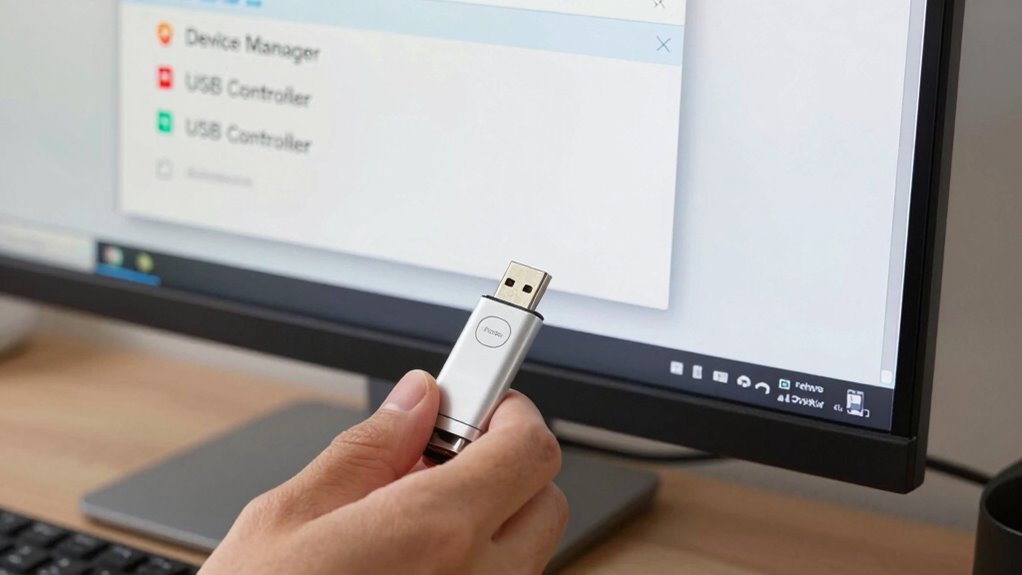

To fix USB devices not recognized without reinstalling Windows, start by checking your connections and testing different ports or computers. Update or reinstall your drivers through Device Manager, and run Windows Troubleshooter for issues. Adjust power settings by disabling USB selective suspend to prevent disconnections. Confirm ports are clean and working properly. If you keep experiencing problems, you’ll find more solutions to restore USB functionality efficiently.
Key Takeaways
- Run the Windows Troubleshooter to automatically detect and fix USB recognition issues.
- Update or reinstall USB drivers via Device Manager to resolve driver conflicts.
- Disable USB Selective Suspend in Power Options to prevent USB device disconnections.
- Uninstall and scan for hardware changes in Device Manager to refresh USB controllers.
- Test USB devices on different ports or computers to identify hardware or port problems.

Kaisi Professional Electronics Opening Pry Tool Repair Kit with Metal Spudger Non-Abrasive Nylon Spudgers and Anti-Static Tweezers for Cellphone iPhone Laptops Tablets and More, 20 Piece
Kaisi 20 pcs opening pry tools kit for smart phone,laptop,computer tablet,electronics, apple watch, iPad, iPod, Macbook, computer, LCD…
As an affiliate, we earn on qualifying purchases.
As an affiliate, we earn on qualifying purchases.
Diagnose USB Recognition Problems Quickly
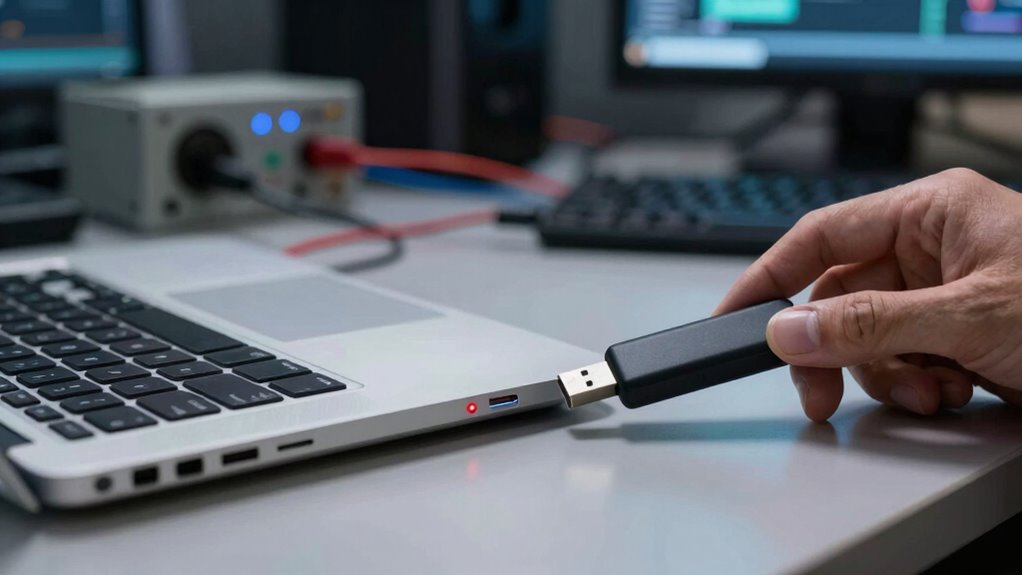
When your USB device isn’t recognized, quick diagnosis can save you time and frustration. Start by checking the USB compatibility—ensure your device works with your operating system and ports. Sometimes, outdated device firmware causes recognition issues, so visit the manufacturer’s website for updates. Disconnect and reconnect the device, listening for sounds or watching for lights that indicate proper connection. Restart your computer to refresh the USB controllers. Use device manager to see if the device appears with any warning signs, which might point to driver problems. Updating or reinstalling drivers can resolve many issues. Also, verify that your USB ports are functioning correctly. These steps help pinpoint whether the problem stems from device firmware, compatibility, or hardware, enabling faster troubleshooting. Additionally, understanding USB technology can help you identify potential limitations or issues related to bandwidth and port specifications. Knowing the role of USB standards can also guide you in choosing the right ports and devices for optimal performance. To further troubleshoot, consider checking the power requirements of your USB devices, as insufficient power can sometimes cause recognition problems. Familiarity with sound design techniques and their impact on device behavior can also assist in diagnosing hardware issues more effectively.

DROK USB Tester, USB-A USB-C 2.0 Multimeter Dual USB Ports PD QC 3.0 with Color LED Display Battery Charger Monitor, 7 Modes Capacity Voltage Current Power for Laptop Power Bank Solar Panel
【7 Modes Display Monitor】 DROK USB Tester is equipped with digital color LED display screen, which can be…
As an affiliate, we earn on qualifying purchases.
As an affiliate, we earn on qualifying purchases.
Check Your USB Device Connections and Ports
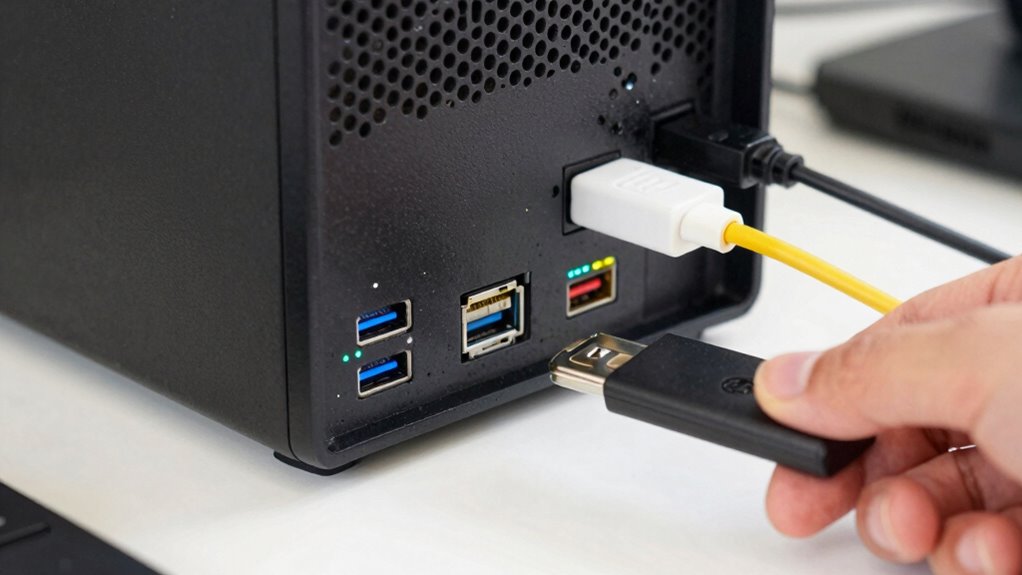
Ensuring your USB device is properly connected is a crucial first step in troubleshooting recognition issues. Check that the device is securely plugged into the USB port, avoiding loose connections. Inspect the USB port compatibility; some devices may not work with certain ports, especially if you’re using older or damaged ports. Try connecting the device to a different port to test for device connection stability. If you’re using a USB hub, connect directly to the computer instead, as hubs can sometimes cause recognition problems. Also, look for any debris or damage in the port that might interfere with connection. Confirm that the device is powered on, and consider testing it on another computer to rule out device-specific issues. Additionally, USB device recognition can sometimes be affected by driver issues, so updating or reinstalling drivers may help resolve the problem. Regularly checking device drivers can prevent many connection issues before they occur.
DriverUpdater – Automatically update Windows device drivers, faster and more stable Windows for Win 11, 10, 8, 7
Games and applications bogged down by outdated drivers run smoothly again and start faster.
As an affiliate, we earn on qualifying purchases.
As an affiliate, we earn on qualifying purchases.
Update or Reinstall USB Drivers
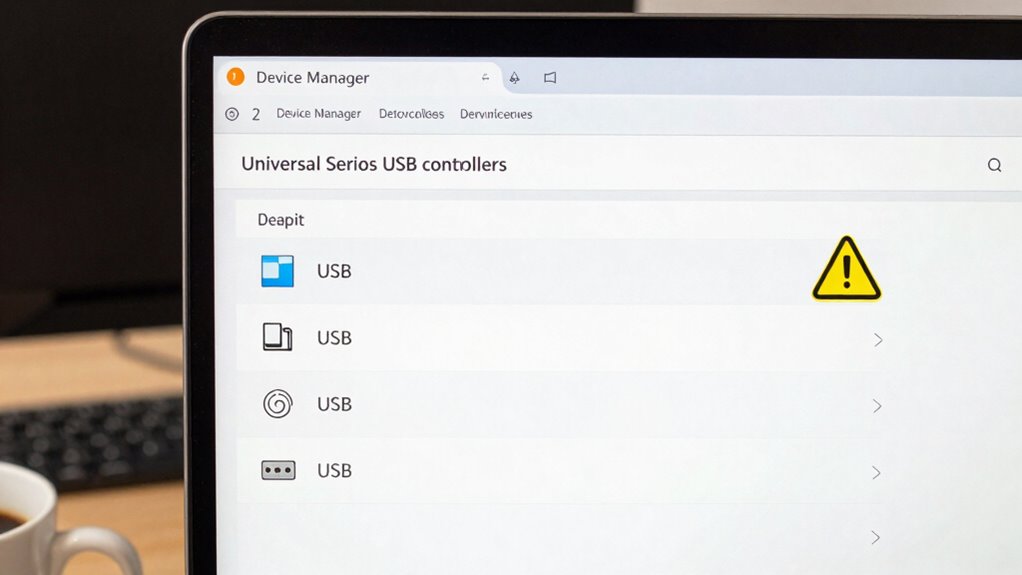
To fix USB device issues, you should start by updating your device drivers to guarantee compatibility. If that doesn’t work, reinstalling the USB controllers can often resolve deeper problems. Using a driver troubleshooter can help identify and fix issues automatically, saving you time and effort. Regularly checking your tech and vehicle alerts can also prevent recurring issues by providing early warning signs. Exploring best noise machines for sleep can offer insights into underlying problems or stresses that might be affecting your device performance. Additionally, making sure your USB port connections are secure can prevent intermittent recognition problems and improve overall stability.
Updating Device Drivers
Updating your USB device drivers is a critical step in resolving recognition issues, as outdated or corrupt drivers often cause devices to malfunction. To guarantee your device operates smoothly, check for driver updates through Device Manager. Updating drivers can also improve USB firmware and enhance device compatibility, preventing future issues. When updating, pay attention to the driver version and source to avoid compatibility problems. Additionally, ensuring your drivers are from a reliable source can help maintain overall system stability. Regularly performing maintenance on your device drivers can help prevent conflicts and improve overall device performance. Keeping your drivers up-to-date ensures that your devices are compatible with the latest system updates and security patches. Incorporating measurement tools into your troubleshooting process can assist in diagnosing hardware-related problems more effectively. Being aware of driver update best practices can further streamline your maintenance routine.
Reinstalling USB Controllers
Have you tried simply reinstalling or updating your USB controllers to fix recognition issues? Sometimes, the problem lies in corrupted or outdated drivers. To fix this, go to Device Manager, locate your USB controllers, right-click, and select “Uninstall device.” Afterward, restart your PC, and Windows should automatically reinstall the drivers. Before doing this, verify your USB ports are clean—dust or debris can interfere with connections. Also, check for firmware updates from your motherboard or device manufacturer, as these updates can improve driver compatibility. Reinstalling controllers often resolves driver conflicts or corruption, restoring normal USB device recognition. This process is straightforward and can save you from more complicated troubleshooting steps later. Additionally, ensure your system’s hardware components are functioning correctly, as they can also impact device recognition. Regularly updating your drivers can help prevent such issues from occurring in the first place, especially when combined with system maintenance. Keeping your drivers updated regularly can help prevent such issues from occurring in the first place. Regular system maintenance can also help identify underlying issues that affect device connectivity.
Using Driver Troubleshooter
If reinstalling USB controllers didn’t resolve your recognition issues, running the Driver Troubleshooter can help identify and fix underlying driver problems automatically. It’s a useful step for USB port maintenance, ensuring your ports are functioning correctly and drivers are up to date. The troubleshooter performs device compatibility testing, detecting conflicts or outdated drivers that may be causing recognition failures. To run it, open Settings, navigate to Update & Security, then Troubleshoot, and select Hardware and Devices. Follow the prompts to let Windows scan and repair driver issues. This process often resolves common USB device recognition problems without needing a full driver reinstall. It’s a quick, effective way to maintain driver health and improve device compatibility, saving you time and effort. Additionally, ensuring your USB driver updates are current can help prevent future recognition issues. Regularly checking for hardware conflicts through the troubleshooter can further enhance USB device stability.

TP-Link Powered USB Hub 3.0 with 7 USB 3.0 Data Ports and 2 Smart Charging USB Ports. Compatible with Windows, Mac, Chrome & Linux OS, with Power On/Off Button, 12V/4A Power Adapter(UH720)
Faster Speed with USB 3.0: USB 3.0 ports offer transfer speeds of up to 5Gbps, 10 times faster…
As an affiliate, we earn on qualifying purchases.
As an affiliate, we earn on qualifying purchases.
Adjust Power Settings to Prevent USB Disconnections
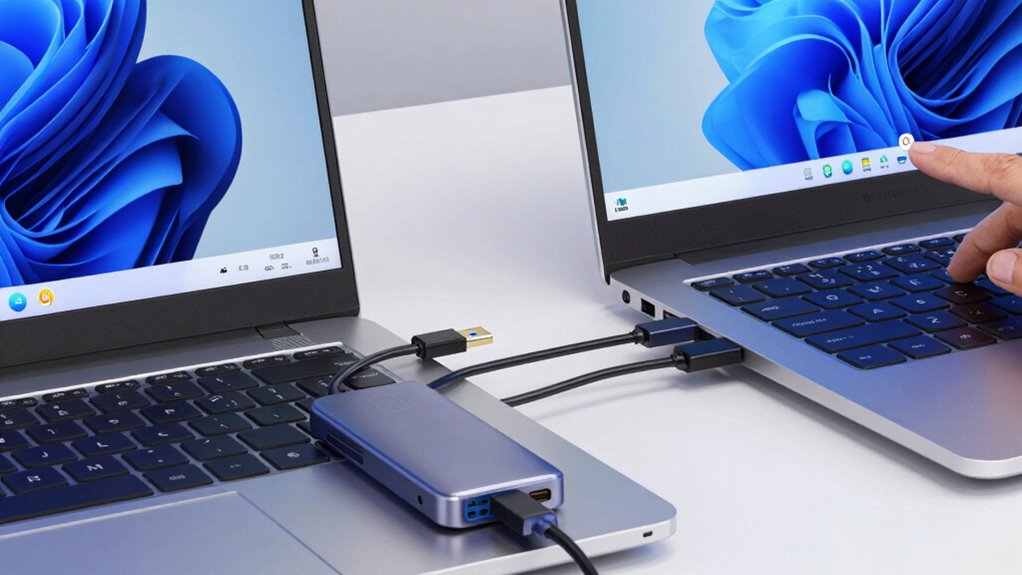
You can prevent USB disconnections by adjusting your power settings. Disabling the USB selective suspend setting helps keep devices connected steadily. Additionally, optimizing your power plan guarantees your system provides consistent power to all USB ports.
Manage USB Selective Suspend
Sometimes, Windows automatically places USB devices into a low-power state to save energy, which can cause them to disconnect unexpectedly. Managing the USB selective suspend setting can help prevent this. By disabling it, you ensure your device stays active, reducing disconnections caused by power management. Be aware, though, that this change might impact power consumption slightly. Also, compatibility issues related to USB firmware can influence device stability. If your device isn’t recognized, adjusting this setting can improve device recognition.
| Power Setting | Effect |
|---|---|
| Enable USB selective suspend | Saves power but risks disconnections |
| Disable USB selective suspend | Keeps devices active but consumes more power |
| USB firmware | Ensures device stability and compatibility |
| Device compatibility | Affects whether settings resolve recognition issues |
| Power management | Balances energy savings and device reliability |
Optimize Power Plan Settings
Adjusting your power plan settings is an effective way to prevent USB devices from disconnecting unexpectedly. By optimizing these settings for better power efficiency, you reduce the chances of your USB ports shutting down to save energy, which can cause disconnections. To do this, go to your Control Panel and select Power Options. Choose your active plan and click on Change plan settings, then Advanced power settings. Locate USB settings and set the USB selective suspend setting to Disabled. This guarantees your USB devices remain powered, improving hardware compatibility and stability. Be mindful that disabling suspend features might slightly reduce power efficiency, but it’s a worthwhile trade-off to maintain consistent device recognition and prevent disconnections.
Use Windows Troubleshooter and Device Manager to Find Problems
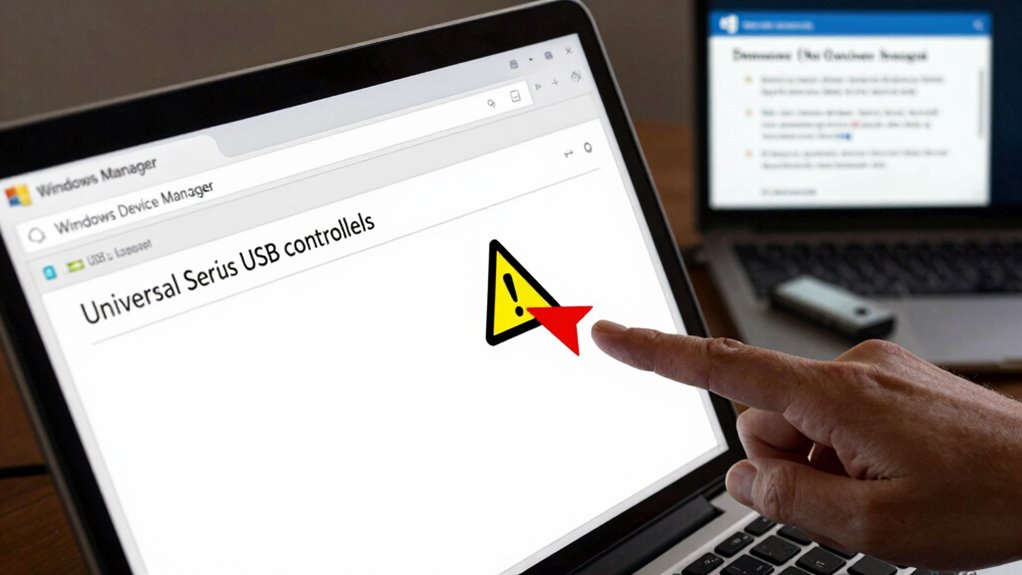
Wondering how to quickly identify why your USB device isn’t recognized? Using Windows Troubleshooter and Device Manager can help you pinpoint the issue. Here are four steps to guide you:
Use Device Manager and Troubleshooter to quickly identify and fix USB recognition issues.
- Open Device Manager and look for any yellow warning icons next to your USB device.
- Run the Windows Troubleshooter by searching “Troubleshoot” in the Control Panel, then select “Hardware and Devices.”
- Check if the device appears under “Universal Serial Bus controllers” and verify its USB compatibility.
- If encryption is involved, ensure the device isn’t protected by device encryption that could prevent recognition.
These tools help diagnose driver issues or conflicts that might affect your device’s detection, ensuring your USB device works smoothly without reinstalling Windows.
Test USB Devices on Different Ports and Hardware
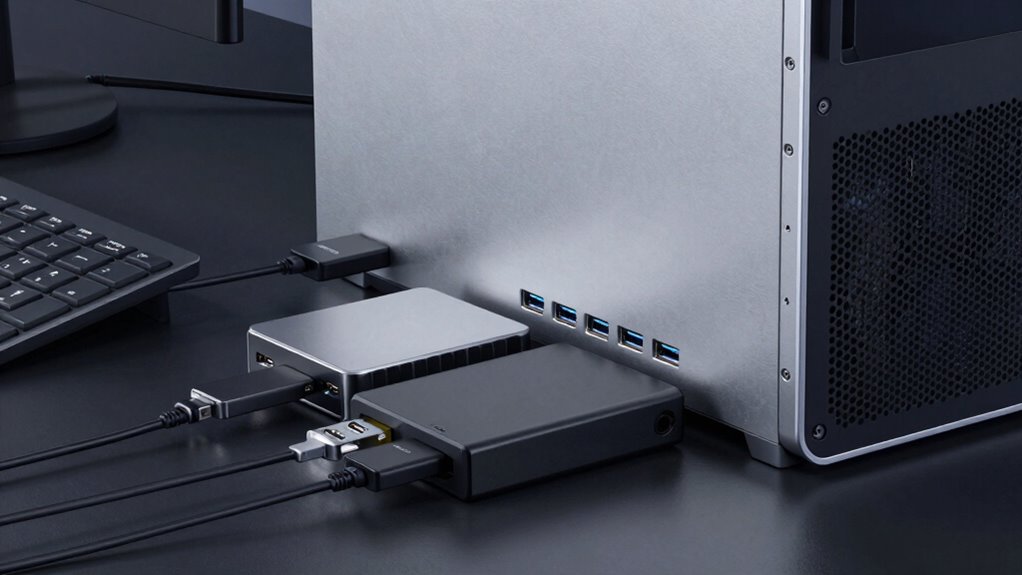
If your USB device still isn’t recognized after checking for driver issues and conflicts, testing it on different ports and hardware can reveal whether the problem lies with the port or the device itself. This step is essential for hardware troubleshooting and guarantees USB device compatibility. Try connecting your device to another USB port or a different computer. If it works elsewhere, the issue may be with your original port or port configuration. Use this table to guide your testing:
| Hardware/Port Tested | Device Recognized | Notes |
|---|---|---|
| Same device, different port | Yes/No | Check port functionality |
| Different device, same port | Yes/No | Is port hardware faulty? |
| Different computer hardware | Yes/No | Device or hardware issue? |
| External power source used | Yes/No | Power supply affecting device |
This process helps isolate the hardware problem quickly.
Frequently Asked Questions
Can Malware Affect USB Device Recognition?
Yes, malware can affect USB device recognition. It may disable drivers or corrupt system files, making your USB devices unrecognizable. To fix this, you need malware removal to eliminate any threats and guarantee your system’s security. Improving USB security by updating drivers and avoiding suspicious devices also helps prevent future issues. Regular scans and safe practices keep your USB devices working smoothly without risking malware interference.
How Do I Disable USB Selective Suspend Settings?
You can disable USB selective suspend settings through your Power Options. First, open Control Panel, go to Power Options, and select your active plan. Click on Change plan settings, then Change advanced power settings. Expand USB settings and disable the USB selective suspend setting. This tweak often resolves USB troubleshooting issues, especially if device drivers aren’t responding properly. Disabling this feature prevents Windows from suspending your USB devices unnecessarily, enhancing overall recognition.
Why Are Some USB Devices Recognized Intermittently?
You might notice some USB devices recognized intermittently due to issues with the USB port or driver conflicts. Loose connections or damaged ports can cause recognition problems, while outdated or conflicting drivers may disrupt communication. To fix this, try unplugging and replugging the device, testing different ports, updating your USB drivers, or reinstalling device drivers. These steps help resolve intermittent recognition issues without needing a Windows reinstall.
What BIOS Settings Influence USB Device Detection?
Think of your BIOS settings like the control tower for your USB ports. To improve detection, guarantee that USB legacy support and XHCI handoff are enabled; these influence device recognition. Updating your BIOS can fix issues by providing better compatibility for USB devices. Also, check that USB ports are enabled in BIOS and not disabled or set to a specific mode that could block recognition. This proactive approach helps your devices connect seamlessly.
How Do I Recover Data if USB Device Is Corrupted?
If your USB device is corrupted, you can recover data using data recovery tools designed for USB repair. First, connect the device to your computer, then run reliable data recovery software to scan for lost files. These tools often retrieve data even from damaged or corrupted drives. Remember, avoid writing new data to the device until recovery is complete to prevent overwriting. This method offers a safe way to salvage your files without reinstalling Windows.
Conclusion
Think of fixing your USB recognition issues like tuning a guitar—sometimes all it takes is a few adjustments to hit the right note. When your USB devices aren’t recognized, it’s often a simple fix that restores harmony to your system. Just like a musician carefully tweaks string tension, you can troubleshoot with patience and precision. Before reaching for drastic measures, try these steps—you might just find the perfect tune for your device connection.