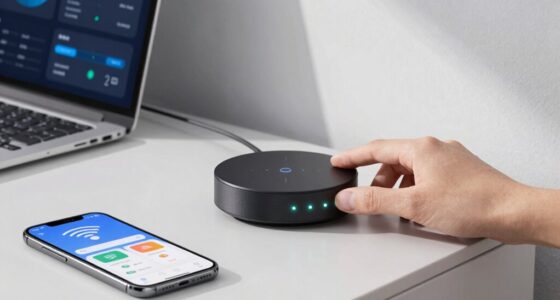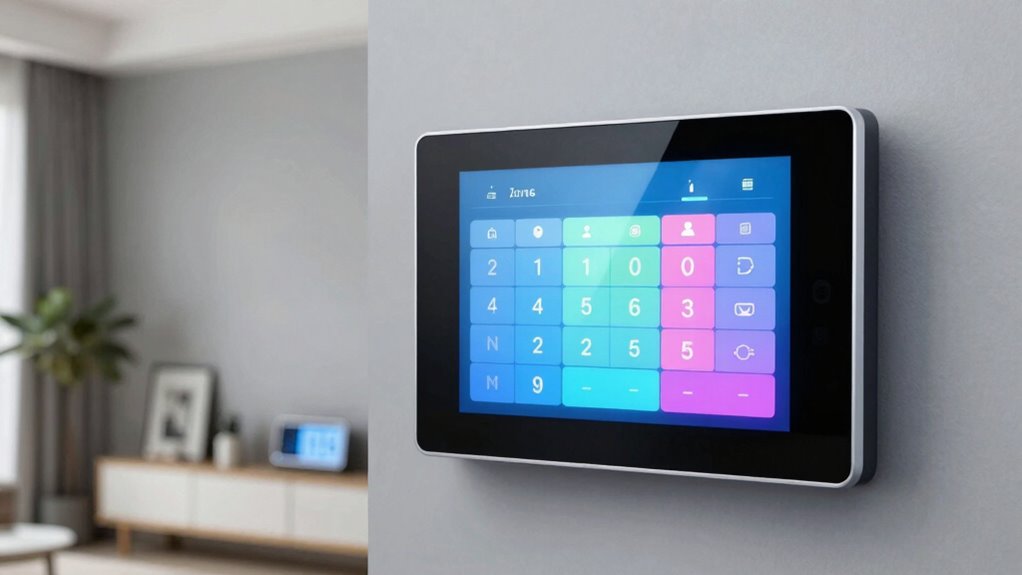

To fix smart home time zone bugs, first check and update each device’s time zone settings, ensuring they match your current location. Make sure location services are enabled and sync devices through your hub or app. Update firmware and software regularly to fix bugs and improve synchronization. Verify all devices reflect the correct time zone and keep your system updated to prevent future issues. If these steps aren’t enough, you’ll discover more ways to optimize your setup below.

Get the latest gadgets delivered free with Prime
- Fast, free delivery on millions of items
- Prime Video, Amazon Music and more included
- Member-only deals all year
Key Takeaways
- Verify and update device time zone settings to match your current location.
- Enable automatic location-based time zone detection if supported.
- Keep device firmware and app software up to date for optimal synchronization.
- Ensure stable network connections to prevent synchronization issues.
- Regularly review and adjust device settings to maintain accurate schedules.
smart home device time zone settings
As an affiliate, we earn on qualifying purchases.
As an affiliate, we earn on qualifying purchases.
Understanding How Time Zones Disrupt Your Smart Home Schedules
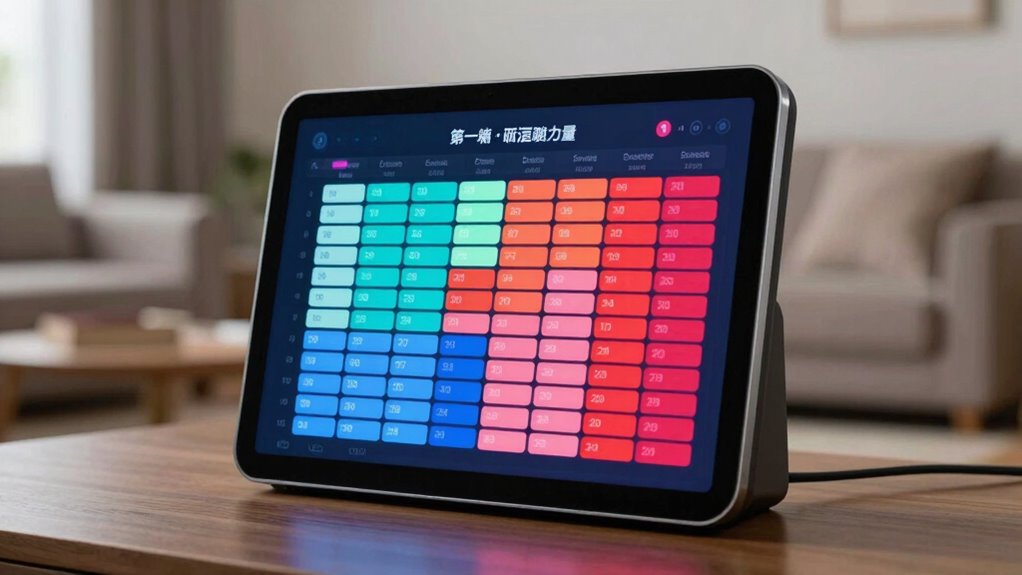
Have you ever noticed your smart home devices acting up or not following your routines properly? This often happens because of time zone challenges that your devices haven’t adjusted to correctly. When your smart devices don’t recognize your current time zone, it can lead to schedule disruptions. For example, lights might turn on or off at the wrong times, or your thermostat may not activate when it should. These issues stem from how devices sync with servers or apps that rely on accurate time zone data. If your device’s clock isn’t aligned with your location, your routines won’t execute as planned. Understanding that time zone discrepancies cause these disruptions helps you realize why your smart home isn’t functioning smoothly and guides you toward fixing the problem. Ensuring your devices are aware of your time zone settings can help prevent unauthorized changes to your settings. Additionally, regular updates to your device firmware can resolve time zone synchronization issues that cause these bugs. Incorporating automatic time zone detection features can further improve your device’s ability to stay aligned with your current location. Properly configuring device settings plays a crucial role in maintaining accurate schedules and avoiding these common bugs.
As an affiliate, we earn on qualifying purchases.
Common Causes of Time Zone Discrepancies in Smart Devices
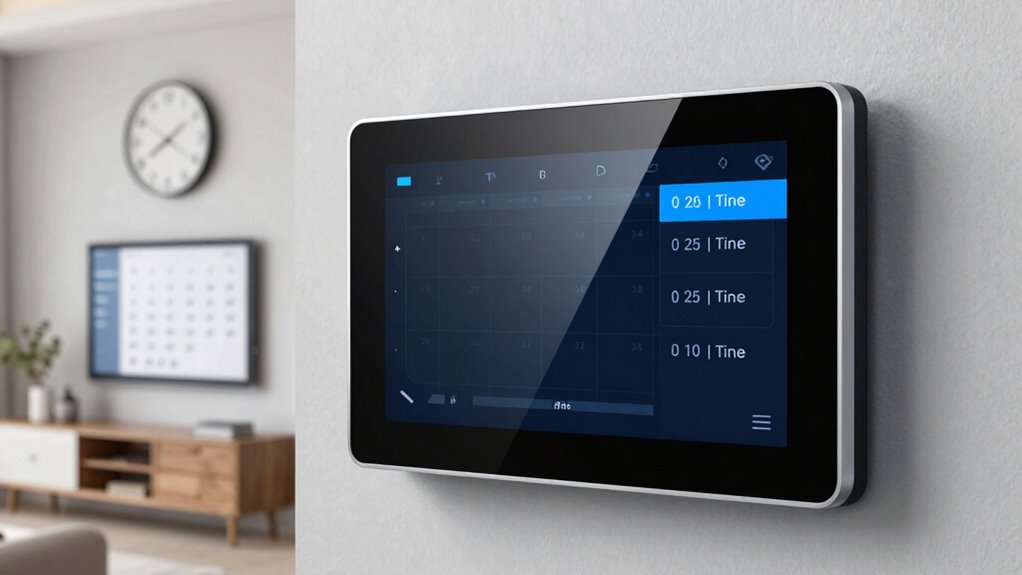
Many time zone issues come from incorrect device settings or network configuration problems. If your device’s time zone isn’t set properly, it can cause scheduling errors. Similarly, network issues can prevent devices from syncing with accurate time data. Ensuring proper cabling solutions and mount alignment can also help maintain consistent device operation and synchronization. Additionally, regular firmware updates can address software bugs that might affect time synchronization. Being aware of time zone discrepancies and understanding how they affect device behavior can help you troubleshoot more effectively.
Incorrect Device Settings
Incorrect device settings are one of the most common reasons smart home devices display the wrong time zone. If your device isn’t compatible with your system or doesn’t support proper time zone localization, it may default to an incorrect setting. Check the device’s settings menu to confirm the time zone matches your current location. Some devices may require a manual update or firmware upgrade to improve device compatibility, which can help resolve discrepancies. Also, verify that your device’s regional settings are correct, especially if you’ve recently traveled or moved. Failing to set the appropriate regional preferences can cause time zone errors. Correcting these settings ensures your devices operate with accurate time zone information, avoiding scheduling errors and ensuring smooth automation.
Network Configuration Issues
Network configuration issues often cause smart devices to display the wrong time zone, even when device and regional settings are correct. Poor network stability can disrupt communication between your device and the server, resulting in inaccurate time displays. Additionally, device compatibility issues may prevent proper synchronization with your network, especially if your router or firmware isn’t up to date. To fix this, make certain your Wi-Fi connection is stable and uses a reliable network. Restart your router and reconnect your devices. Check that your device’s firmware and software are current, as outdated versions can cause compatibility problems. Confirm that your network’s DNS settings are correct and that no security features are blocking necessary updates. A stable, compatible network setup helps your devices accurately reflect the correct time zone in schedules.
automatic time zone detection smart devices
As an affiliate, we earn on qualifying purchases.
As an affiliate, we earn on qualifying purchases.
How to Check and Correct Your Device’s Time Zone Settings
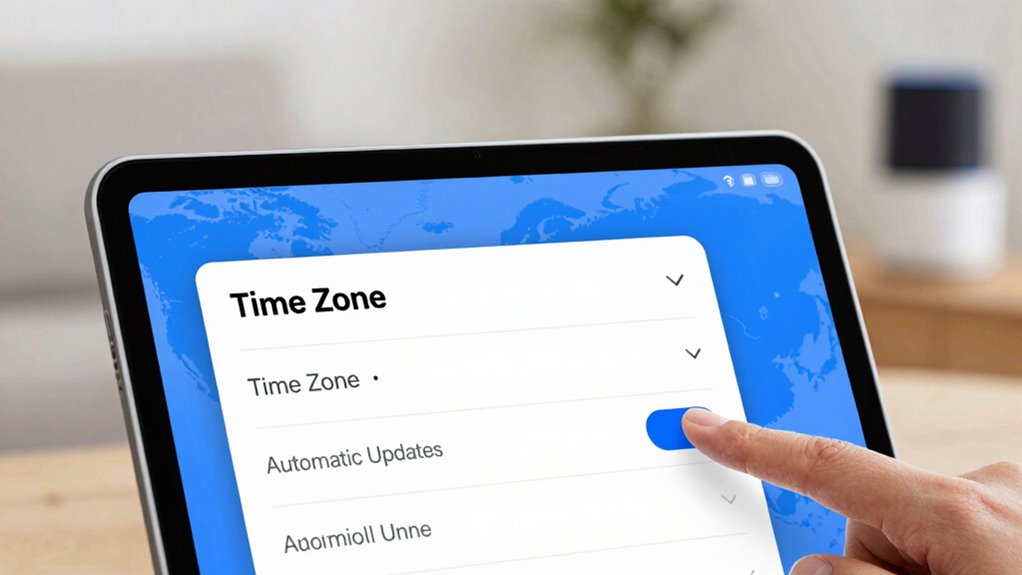
To fix time zone issues, start by accessing your device’s settings menu. Next, verify the current time zone and make sure it matches your location. Finally, adjust the setting if needed and save your changes to guarantee accurate time display.
Access Device Settings
The first step to fixing your smart home time zone bugs is to access your device’s settings, where you can review and adjust the time zone configuration. Make sure you have the necessary user permissions to make changes, especially if the device is part of a shared setup. Check device integration settings to confirm your device is correctly linked to your hub or app, which can affect time zone updates. Once inside, navigate to the time or location section and verify the current zone. If needed, update the settings manually. Here’s a quick visual guide: User permissions ensure you have the appropriate rights for modifications.
Verify Current Time Zone
After confirming your device is connected correctly and permissions are set, the next step is to verify whether the current time zone reflects the correct location. Time zone conflicts often cause scheduling errors, so verifying this setting is essential. Check your device’s time zone setting in the device’s menu or app, making sure it matches your actual location. If it’s incorrect, you might see discrepancies in scheduled actions, like lights turning on or off at wrong times. Some devices automatically update the time zone based on your location, so ensure location services are enabled if available. If the time zone is wrong, correcting it can resolve many scheduling issues caused by time zone conflicts, restoring your smart home’s routines to work as intended. Additionally, understanding how geographic location influences device settings can help prevent future scheduling problems. Being aware of time zone accuracy and how it impacts your device’s scheduling ensures your routines stay consistent regardless of changes in your environment. Regularly reviewing your device settings helps maintain proper synchronization and avoid unexpected disruptions.
Adjust and Save Changes
Once you’ve confirmed that your device’s time zone is incorrect, it’s important to adjust the setting and save your changes immediately. Access your smart home architecture’s settings through the app or control panel. Locate the time zone option, select the correct zone, and guarantee it aligns with your local time. Saving these adjustments updates your device’s schedule, preventing time-related bugs. Correct time zone settings improve energy efficiency by optimizing device operation times, like heating, cooling, or lighting. Double-check that all connected devices reflect the change to maintain consistency across your smart home system. Properly configured settings reduce scheduling errors, enhance energy savings, and keep your smart home running smoothly. Always verify the adjustments after saving to confirm your devices are synchronized accurately. Monitoring your body jewelry measurements ensures comfort and proper fit during daily use.
smart home device synchronization tools
As an affiliate, we earn on qualifying purchases.
As an affiliate, we earn on qualifying purchases.
Sync Multiple Devices and Platforms to the Right Time Zone
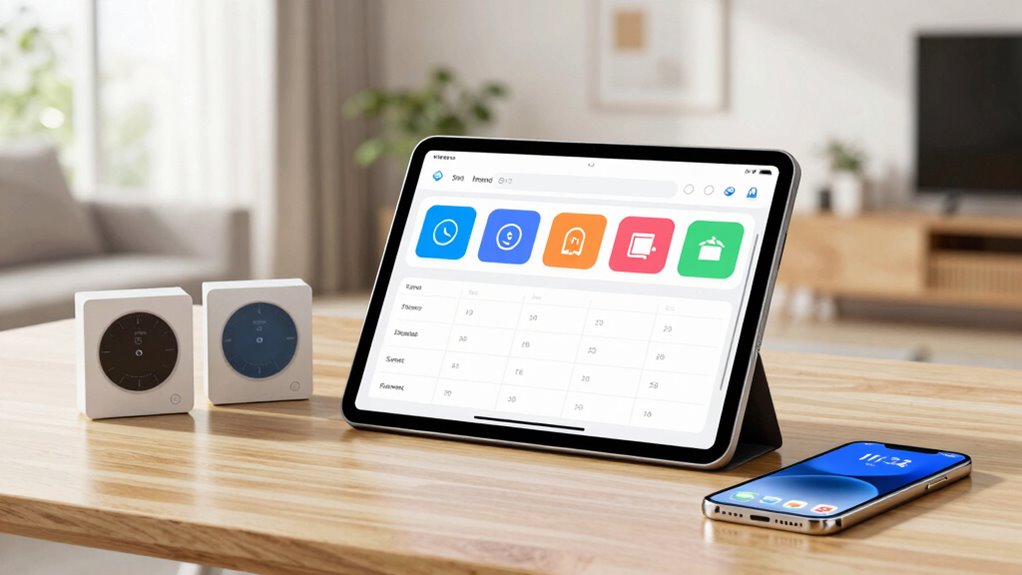
To guarantee all your smart home devices display the correct time, you need to synchronize them across multiple platforms and devices. Start by ensuring device synchronization is consistent, so every gadget reflects the same time zone. Check each device’s settings and update them if needed. Platform compatibility is essential; verify that your smart home apps and hubs support automatic time zone updates or manual adjustments. Some platforms allow you to set a default time zone that applies across all connected devices. If you use different ecosystems, consider linking them via a central hub or app that manages time settings uniformly. This way, you prevent discrepancies and keep your schedules accurate, regardless of the device or platform you’re using. Also, ensure your devices comply with extension cord standards and are protected against power surges to avoid unexpected outages that could affect your device synchronization. Regularly verifying your device settings and power management practices can help maintain consistent time synchronization across your smart home system. Additionally, keeping your device firmware up to date ensures they can properly support automatic time updates, reducing potential bugs related to time zone discrepancies. Implementing network security protocols can also prevent interference that may disrupt device connectivity and synchronization.
Troubleshooting Persistent Time Zone Bugs in Your Smart Home
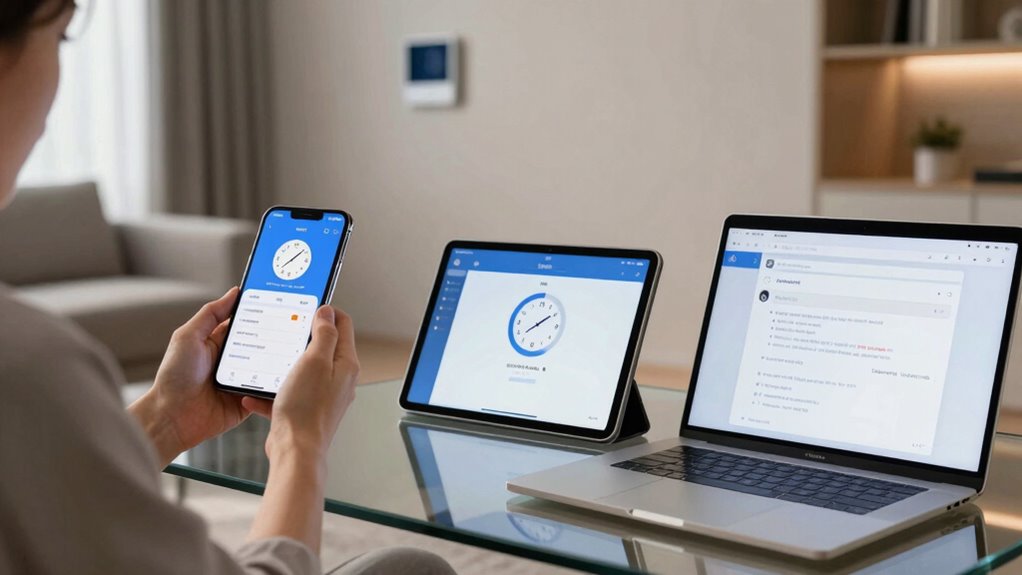
Persistent time zone bugs can be frustrating, especially when they keep causing your smart home devices to display incorrect times despite previous fixes. To troubleshoot, start by double-checking your device settings and verify the time zone matches your current location. Sometimes, smart home automation platforms have hidden or default settings that override manual adjustments. Resetting devices or removing and re-adding them can resolve sync issues. If you use voice command customization, verify that voice commands aren’t unintentionally changing time settings or schedules. Also, update your device firmware and app to the latest versions, as bugs are often fixed in updates. Additionally, understanding quorum sensing in bacterial communities can remind us that communication and synchronization are vital for system stability, similar to how your smart home devices need to stay in sync. Ensuring your network is reliable can also help prevent timing discrepancies caused by connectivity issues. Recognizing how system synchronization issues can impact your entire setup is crucial, especially since inconsistent device behavior may stem from underlying biological principles. If problems persist, contact support to report the issue, providing details of your setup and troubleshooting steps taken.
Best Practices to Prevent Future Time Zone Issues
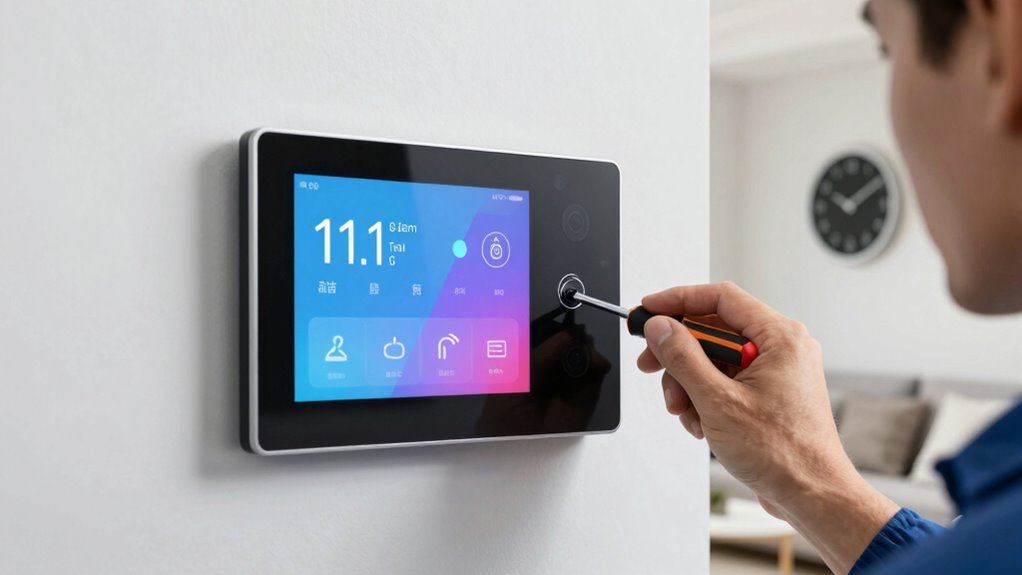
Preventing future time zone issues starts with careful setup and ongoing maintenance of your smart home devices. First, confirm your device preferences are correctly set for your current location, including time zone and regional settings. Regularly verify that these preferences remain accurate, especially after updates or changes to your devices. Choose devices known for good compatibility with your smart home ecosystem to minimize conflicts. When setting up new devices, double-check that they automatically sync with your system’s time zone or allow manual adjustments. Keep firmware and app versions up to date, as updates often address bugs and improve compatibility. Additionally, reviewing regional settings can help ensure your devices are configured correctly for your location. By maintaining accurate user preferences and selecting compatible devices, you reduce the risk of future time zone bugs disrupting your schedules. Monitoring device synchronization can help catch discrepancies early and ensure your system remains consistent. It’s also helpful to stay informed about software updates that may include fixes for time zone issues.
When to Seek Support or Firmware Updates for Your Devices
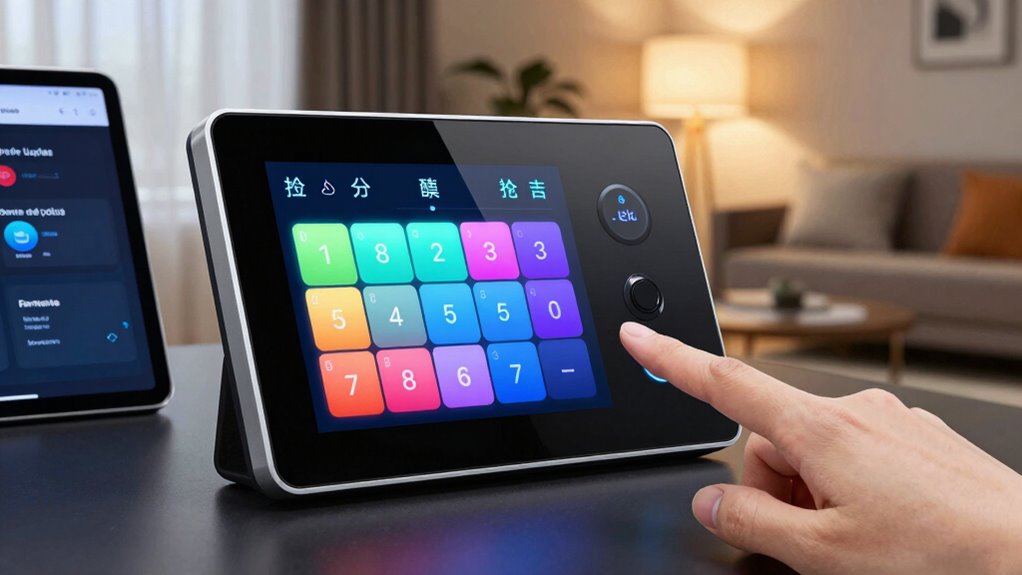
Recognizing the right time to seek support or update your device firmware is essential for maintaining smooth operation. If you notice persistent time zone bugs despite troubleshooting, it’s likely a compatibility issue or outdated firmware. Check if your device supports the latest firmware updates, which often fix bugs and improve device compatibility. If your device isn’t functioning correctly or schedules are off, contact support to confirm if there are known issues or updates available. Firmware updates can resolve time zone discrepancies and enhance overall performance. Don’t wait too long—updating your device’s firmware guarantees compatibility with the latest software and prevents future issues. Regularly checking for updates and support options helps keep your smart home running smoothly.
Frequently Asked Questions
Can Incorrect Daylight Saving Settings Cause Schedule Issues?
Yes, incorrect daylight saving settings can cause schedule conflicts. When your smart home system doesn’t adjust properly for daylight saving time, it may run routines at the wrong times, leading to schedule issues. You might find devices turning on or off unexpectedly or at unintended hours. To prevent this, make sure your system’s daylight saving settings are correct and automatically update, so your schedules stay synchronized with real-world time changes.
Do Time Zone Bugs Affect Automation Routines or Only Scheduled Events?
Time zone bugs can affect both automation routines and scheduled events, leading to schedule disruptions and automation glitches. When the time zone isn’t correct, your smart home devices may trigger at the wrong times or not at all, causing confusion and inconvenience. You should double-check your settings and make certain your devices are synchronized to prevent these issues, so your routines run smoothly and on schedule.
Are There Specific Smart Home Brands More Prone to Time Zone Errors?
Imagine trying to tune a radio station, but some brands are more like stubborn stations, prone to static. Brands like Samsung SmartThings or older Nest models tend to be more susceptible to time zone errors due to inconsistent firmware updates and compatibility issues. Staying current with firmware updates and choosing brands known for robust compatibility can reduce these errors. Always check for updates to keep your schedules running smoothly.
How Often Should I Verify My Device Time Zone Settings?
You should verify your device time zone settings at least once a month to guarantee proper device synchronization. Regularly checking allows you to catch any discrepancies early, especially after time zone updates or daylight saving changes. By staying proactive, you prevent scheduling errors and maintain seamless operation of your smart home system. Consistent verification helps keep your devices aligned with your local time, avoiding unexpected automation issues.
Can Third-Party Apps Interfere With Device Time Zone Configurations?
Did you know that over 60% of smart home users experience device synchronization issues? Third-party apps can indeed interfere with your device time zone configurations by overriding or conflicting with native settings. When these apps alter your device’s behavior, schedules may not trigger correctly, leading to confusion. To prevent this, regularly check app permissions and guarantee your third-party apps don’t disrupt your device’s time zone, keeping everything running smoothly.
Conclusion
By staying vigilant and regularly checking your device settings, you can prevent pesky time zone bugs from turning your smart home into a chaotic circus. Keep your schedules synchronized like a well-oiled machine, and don’t hesitate to seek support or updates when needed. With these tips, you’ll master your smart home’s time zones and keep everything running smoother than a rocket launch—no more missed events or sleepy devices. Your smart home will thank you!
Columbus Day / Indigenous Peoples' Day Picks
long weekend sales
As an affiliate, we earn on qualifying purchases.