
Your laptop fan runs constantly because of overheating, dust buildup, or background apps making the system work harder. Blocked vents or high ambient temperatures can also cause the fan to spin non-stop. Check your CPU and GPU usage—heavy processes or malware can increase heat. Regular cleaning and managing background programs can help, but if issues persist, you’ll find more ways to troubleshoot and solve the problem.
Key Takeaways
- Dust, dirt, or blocked vents obstruct airflow, causing the laptop to overheat and the fan to run constantly.
- High CPU or GPU usage from background processes or malware increases heat, prompting continuous fan operation.
- Overheating due to poor ventilation, high ambient temperatures, or worn thermal paste can lead to persistent fan activity.
- Outdated drivers, software bugs, or unnecessary background apps can cause system strain and continuous fan noise.
- If cleaning and managing software don’t resolve the issue, seek professional repair to prevent hardware damage.
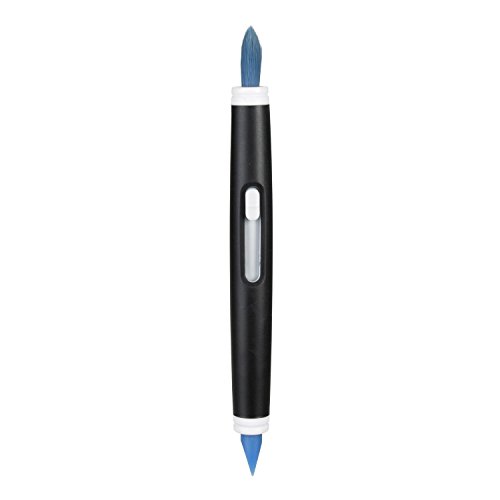
OXO Grips Electronics Cleaning Brush
Soft bristles gently sweep away dust
As an affiliate, we earn on qualifying purchases.
As an affiliate, we earn on qualifying purchases.
Why Is My Laptop Fan Always Running? Common Causes Explained
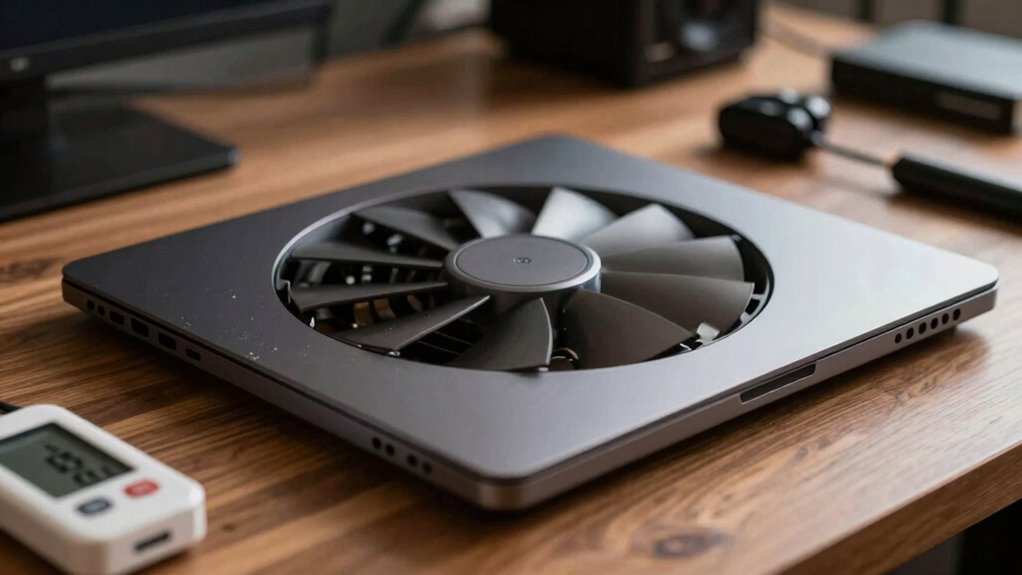
Why Is My Laptop Fan Always Running? Common Causes Explained
If your laptop fan is always running, it’s often a sign that your device is working harder than it should be or there’s an underlying issue. One common cause is blocked or dirty laptop vents, which prevent proper airflow and cause the fan to run constantly to cool the system. Fan noise can also increase if dust builds up inside, forcing the fan to work harder. Additionally, background programs or malware can put extra load on your processor, making the fan run nonstop. Sometimes, high ambient temperatures or a crowded workspace contribute as well. Keep an eye on your laptop’s vents and listen to the fan noise—if it’s persistent, it’s time to check for these common causes and take action to prevent overheating or hardware damage. Regular maintenance and proper cooling solutions, similar to projector cooling technology, can significantly help in managing your laptop’s temperature and fan behavior, especially in hot environments where heat dissipates less effectively.
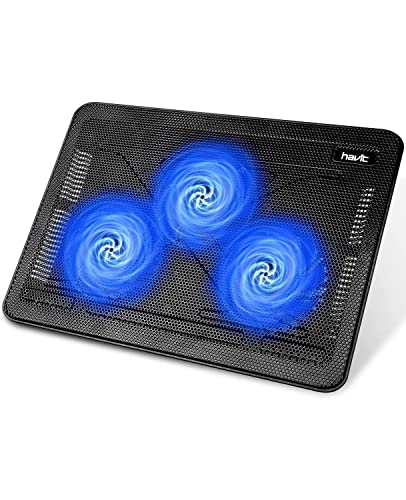
havit HV-F2056 15.6"-17" Laptop Cooler Cooling Pad – Slim Portable USB Powered (3 Fans), Black/Blue
Ultra-Portable: Slim, portable, and light weight allowing you to protect your investment wherever you go
As an affiliate, we earn on qualifying purchases.
As an affiliate, we earn on qualifying purchases.
Signs Your Laptop Is Overheating and How to Troubleshoot
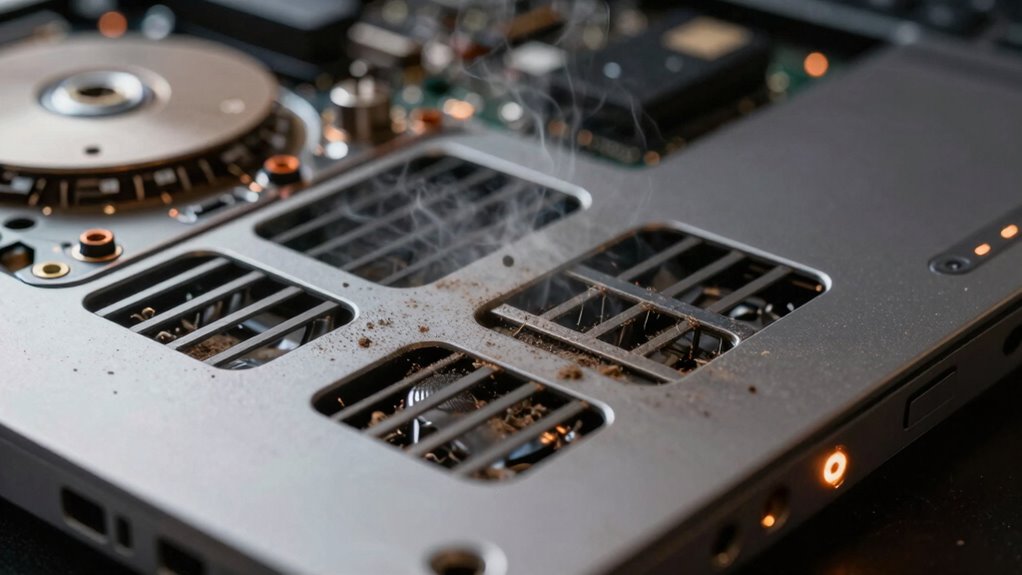
How can you tell if your laptop is overheating? One clear sign is if it feels unusually hot to the touch, especially near vents or the bottom. You might notice your laptop slowing down or freezing, which indicates thermal throttling as the system tries to limit heat. A change in the laptop’s design, such as limited airflow or poorly placed cooling systems, can worsen overheating. Other signs include unexpected shutdowns or loud fan noise, even during light tasks. To troubleshoot, start by monitoring temperature using software tools, and make sure vents aren’t blocked. Check if the cooling system is functioning properly, and consider elevating your laptop for better airflow. Recognizing these signs helps you address overheating before it causes hardware damage. Proper gear care and maintenance can also improve cooling performance and longevity. Additionally, understanding the design limitations of your laptop can help you identify potential causes of overheating and implement appropriate solutions. Being aware of regional cooling solutions and how different environments affect heat dissipation can also aid in effective troubleshooting. Remember that airflow management plays a crucial role in maintaining optimal temperatures.
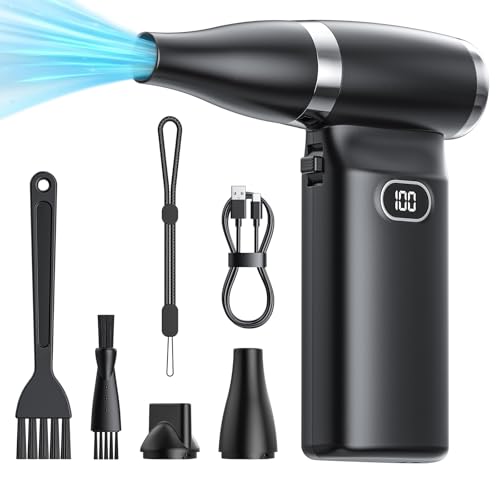
Electric Compressed Air Duster Cordless: 60 MPH High Wind Speed Mini Air Blower for Electronics Portable Computer Cleaner Hand Keyboard Cleaning Powerful Duster for Car, Fans and Other Sences
Stronger Airflow: Providing an airflow speed of over 60MPH, allowing you to easily remove dust from various crevices…
As an affiliate, we earn on qualifying purchases.
As an affiliate, we earn on qualifying purchases.
How Dust and Blockages Cause Fans to Spin Continuously

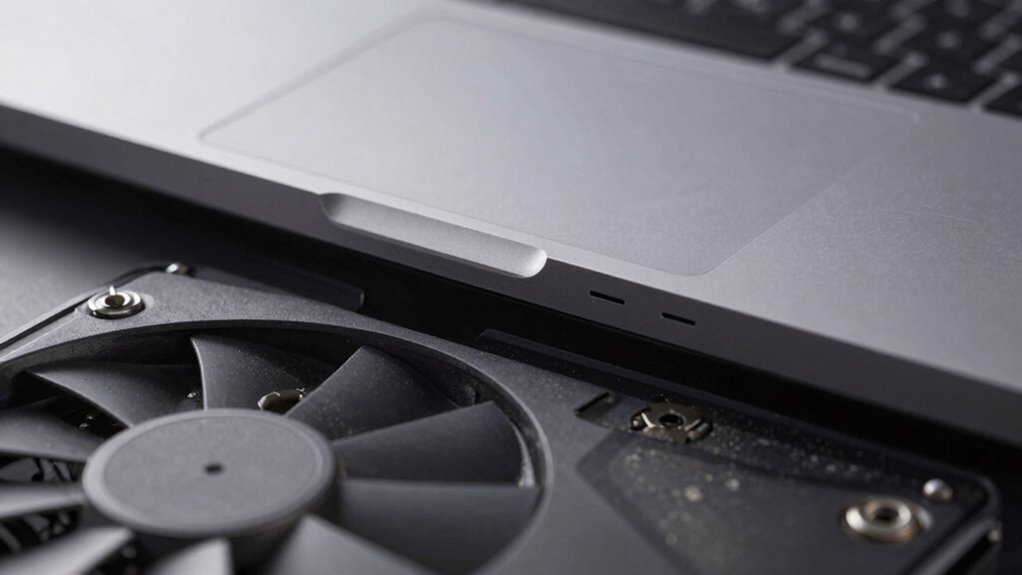
Dust and blockages are common culprits behind fans that keep spinning nonstop. Over time, dust buildup inside your laptop accumulates around vents, fans, and heatsinks, creating airflow obstruction. This buildup prevents proper heat dissipation, causing your laptop’s cooling system to work harder and the fan to run constantly. When airflow is obstructed, the fan detects higher temperatures and activates continuously to cool internal components. You might notice increased noise or your laptop feeling warmer than usual. Regularly cleaning out vents and fans helps remove dust and clear airflow pathways. Additionally, ensuring proper airflow management can help prevent future blockages. Proper airflow is essential for maintaining your device’s health and performance, especially as dust can quickly accumulate if the laptop is used in dusty environments. Keeping your laptop clean guarantees proper airflow, reducing unnecessary fan activity and helping your device stay cool without running fans nonstop. To maintain optimal cooling, consider preventative maintenance like routine cleaning and checking for airflow obstructions.

ARCTIC MX-4 (4 g) – Premium Performance Thermal Paste for All Processors (CPU, GPU – PC, PS4, Xbox), Very high Thermal Conductivity, Long Durability, Safe Application, Non-Conductive, Non-capacitive
CONSISTENT QUALITY: Our thermal paste packaging design has evolved over time, but the formula has remained the same,…
As an affiliate, we earn on qualifying purchases.
As an affiliate, we earn on qualifying purchases.
Checking CPU and GPU Usage to Find Excessive Load
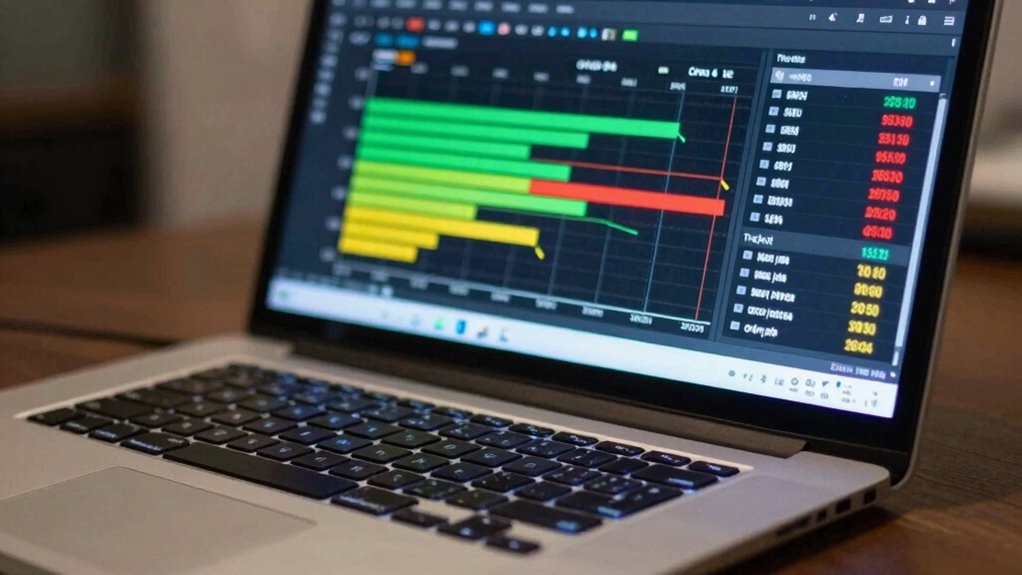
To find out if your CPU or GPU is causing your fan to run constantly, you should check their resource usage. Use your Task Manager to monitor which processes are active and identify any background apps that might be overworking your system. This quick check helps you pinpoint if excessive load is making your fans spin continuously. Additionally, understanding how passive voice detection can improve your writing may help you communicate more clearly about troubleshooting steps. Being aware of internet safety practices can also help you avoid malware or unwanted programs that might cause unnecessary system strain. Monitoring system temperatures, especially in regions with bucolic beauty of Saratoga Springs, can also prevent overheating issues that lead to persistent fan activity. Incorporating biosensor data can further optimize your system’s performance by detecting hardware stress early. Regularly checking for hardware stress indicators can alert you to potential issues before they escalate.
Monitor Resource Usage
Monitoring your CPU and GPU usage is a crucial step in identifying if an excessive load is causing your laptop fan to run constantly. High resource usage often indicates background apps or processes that need attention. Use task managers or system monitors to check real-time activity, paying attention to spikes. If you notice consistently high usage, consider optimizing your battery settings to reduce power drain and prevent overheating. Also, make certain your software is up to date, as outdated drivers or applications can cause unnecessary load. Regular updates improve efficiency and fix bugs that might contribute to high CPU or GPU activity. Keeping resource usage in check helps maintain a cooler system and can reduce fan noise, making your laptop run more smoothly and efficiently. Monitoring resource consumption is essential for diagnosing overheating issues related to hardware performance. Additionally, understanding Twin Flame connections and how they impact emotional and energetic states can sometimes manifest as unexplained hardware behaviors or system anomalies, reminding us to pay attention to subtle signs. Recognizing hardware stress factors can further help in maintaining optimal system health. Sometimes, thermal management plays a key role in preventing your system from overheating and causing the fans to run constantly.
Identify Background Processes
After checking resource usage, the next step is to identify which background processes are consuming excessive CPU or GPU power. System monitoring tools help you spot these processes quickly, revealing what’s putting strain on your system. Keep an eye on high-resource background processes that may be running unnoticed. A helpful tip is to use performance monitoring tools to get detailed insights into process activity and resource allocation. To ensure accurate detection, look for processes that are passively consuming resources without apparent reason.
Use Task Manager
Using Task Manager is an effective way to identify if any processes are overloading your CPU or GPU. Open it by pressing Ctrl + Shift + Esc, then check the Processes tab to see which applications consume the most resources. If you notice high CPU or GPU usage from unfamiliar programs, consider closing them or troubleshooting further. Excessive load can cause your fan to run constantly. Regular laptop cleaning helps prevent dust buildup that worsens overheating. If software fixes don’t reduce the noise, a fan replacement might be necessary. Monitoring resource usage through Task Manager helps pinpoint issues early, reducing the need for more invasive solutions. Keeping your system optimized prevents overheating, keeps your laptop cool, and guarantees your fan doesn’t run nonstop.
How Background Apps Keep Your Laptop Fan Active
Unseen app processes can run in the background without you realizing it, causing your laptop’s fan to stay active. Excessive background activity from multiple apps or system tasks can also keep your CPU busy, leading to constant cooling. Resource-intensive programs, even when minimized, demand more power and generate heat, making your fan run nonstop. Additionally, home soundproofing techniques can help reduce the overall noise and heat generated by your device, contributing to quieter operation. Being aware of background apps and managing their activity can help you identify and manage these processes to improve your device’s performance. Understanding smart home technology can also assist in optimizing your workspace environment for better cooling and noise reduction. Properly managing system resources ensures your laptop runs efficiently and prevents overheating caused by unnecessary background activity.
Unseen App Processes
Background apps can quietly keep running even when you’re not actively using them, causing your laptop’s fan to stay on. These hidden app processes run in the background, often without your knowledge, consuming CPU and memory. They can include system updates, cloud syncs, or poorly optimized software.
- Some background processes automatically restart after closing, keeping your system busy.
- Hidden apps may perform tasks like data syncing or malware activity that drain resources.
- You might not see these processes in your task manager unless you look closely.
To identify them, check your task manager for unfamiliar or high-resource-consuming apps. Stopping or disabling unnecessary background processes can help reduce fan activity and improve overall performance.
Excessive Background Activity
When unnecessary background activity persists, it can keep your laptop’s fan running continuously. Apps running in the background often consume power and generate heat, forcing your cooling system to stay active. To address this, check your power management settings and disable any unnecessary background apps. Sometimes, outdated software updates can cause background processes to malfunction or run inefficiently, increasing CPU load. Ensuring your system is up-to-date helps optimize background activity and reduce unnecessary fan noise. Additionally, review your task manager or activity monitor to identify apps running without your knowledge. Managing background activity effectively not only improves performance but also reduces heat, preventing your laptop’s fan from running constantly.
Resource-Intensive Programs
Have you noticed your laptop’s fan running loudly even when you’re not doing anything demanding? Resource-intensive programs can silently keep your fan active. These background apps use significant CPU and RAM, forcing your hardware to work harder and generate heat. To fix this, consider software optimization by closing unnecessary apps and disabling startup programs. If your laptop is still struggling, hardware upgrades like adding more RAM or switching to an SSD can help manage high workloads more efficiently. Keep an eye on task managers to identify which programs consume the most resources. Regularly cleaning up software and optimizing your system reduces the load, assure your fan from constantly running. Staying proactive with these steps ensures your laptop runs smoothly without overheating.
Should You Upgrade or Replace Your Laptop for Better Cooling?

If your laptop’s fan runs constantly despite cleaning and troubleshooting, it might be time to think about upgrading or replacing it. Older laptops often struggle with heat because their components become less efficient, affecting laptop ergonomics and comfort during use. Over time, battery health declines, causing the system to work harder to compensate, which increases heat and fan activity. Upgrading might help if your current device is only a few years old, as newer models offer improved cooling systems and better power management. However, if your laptop is outdated, replacing it could be more cost-effective. Consider your needs—if better cooling is a priority, investing in a device with advanced airflow design and optimized hardware may be the best choice.
Easy Tips to Keep Your Laptop Cooler and Improve Airflow
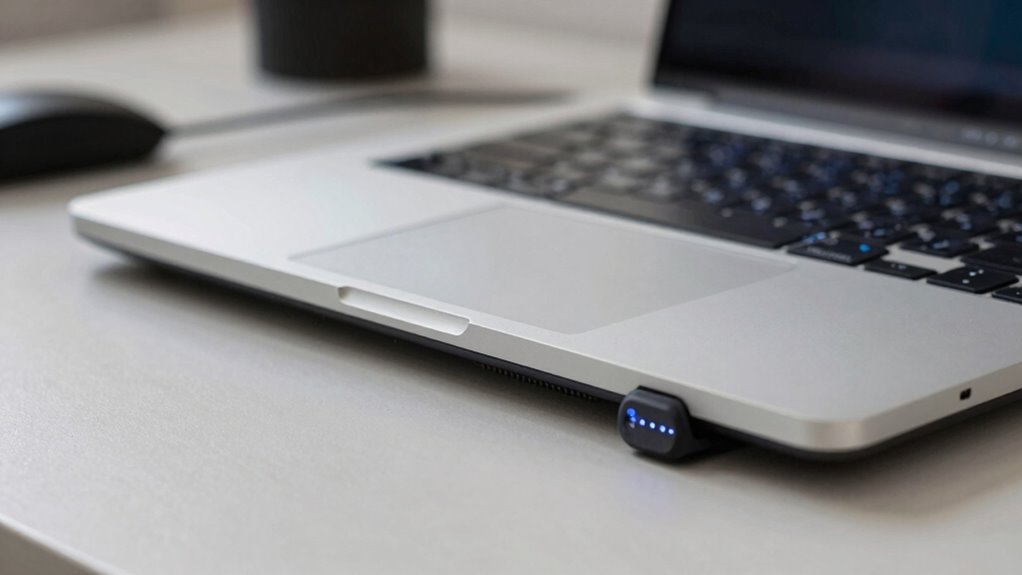
To keep your laptop cooler and improve airflow, start by ensuring its vents are free of dust and debris. Dust buildup can block airflow, causing your fan to run constantly and increasing fan noise comparison. Good airflow not only enhances cooling but also maintains your laptop’s sleek aesthetics.
Try these easy tips:
- Use compressed air to blow out dust from vents regularly.
- Elevate your laptop on a stand or small riser to improve airflow underneath.
- Keep your workspace cool and avoid blocking vents during use.
These simple steps help reduce fan noise and prevent overheating, keeping your laptop quiet and efficient. Better airflow can also extend your device’s lifespan, making your laptop both cooler and more visually appealing.
When to See a Professional for Persistent Fan Problems
Persistent fan problems that don’t improve despite cleaning and airflow adjustments often indicate a deeper issue that requires professional attention. If your laptop’s fan noise levels remain high or constant, it can affect your device’s aesthetics, making it look worn or damaged. When the noise becomes disruptive or the laptop feels unusually hot, it’s time to consult a technician. Continuous fan operation might signal a failing cooling system, clogged vents, or faulty sensors. Ignoring these signs can lead to hardware damage or data loss. If troubleshooting doesn’t reduce fan activity, professional diagnosis ensures proper repairs, preserving your laptop’s performance and appearance. Don’t delay if these issues persist—expert help is crucial for resolving persistent fan problems effectively.
Frequently Asked Questions
Can Malware Cause My Laptop Fan to Run Constantly?
Yes, malware can cause your laptop fan to run constantly. A virus infection or unauthorized access can overload your system’s resources, making the CPU work harder and generating more heat. This increased activity prompts the fan to run continuously in an effort to cool down your laptop. To fix this, run a thorough antivirus scan, update your security software, and check for any suspicious programs or processes.
Does an Old Battery Affect Fan Performance?
An old battery can affect your fan’s performance because battery degradation causes your laptop to work harder to manage power, which can increase internal temperature. This extra strain may lead the fan to run more frequently, impacting its lifespan. When your battery ages, your laptop’s cooling system compensates for power issues, making the fan run constantly. Replacing the battery can help restore ideal fan performance and extend its lifespan.
How Does Ambient Temperature Impact Laptop Cooling?
You might notice your laptop’s fan runs more often during hot days, which isn’t a coincidence. Ambient temperature directly impacts thermal regulation, making your device work harder to keep cool. To improve airflow optimization, verify vents aren’t blocked and use your laptop in a cooler environment. When temperatures rise, your laptop’s cooling system kicks in more frequently, keeping components safe but causing the fan to run constantly.
Are There Software Tools to Monitor Fan Speed?
Yes, there are software tools to monitor fan speed using hardware sensors. Fan control applications like HWMonitor, SpeedFan, or MSI Afterburner let you see real-time fan speeds and temperatures. These tools help you identify if the fan is running constantly due to overheating or hardware issues. By adjusting settings or checking sensor readings, you can optimize cooling and prevent unnecessary noise or hardware stress.
Can Overclocking Increase Fan Noise and Activity?
Yes, overclocking can definitely ramp up fan noise and activity. When you push your laptop beyond its limits, it increases heat, and the cooling solutions work harder, making the fan run more often. This also heightens the risks of overheating or damaging components. To keep things in check, consider better cooling solutions or lowering your overclocking settings. Remember, sometimes a little moderation keeps the system running smoothly.
Conclusion
If your laptop fan runs constantly, you’re not alone—about 60% of users report similar issues. Regularly checking for dust, closing unnecessary apps, and monitoring CPU usage can make a big difference. If problems persist, consider upgrading or seeking professional help. Keeping your laptop cool not only improves performance but also extends its lifespan. Don’t ignore persistent fan noise—it’s a sign your device needs some extra care to stay in top shape.