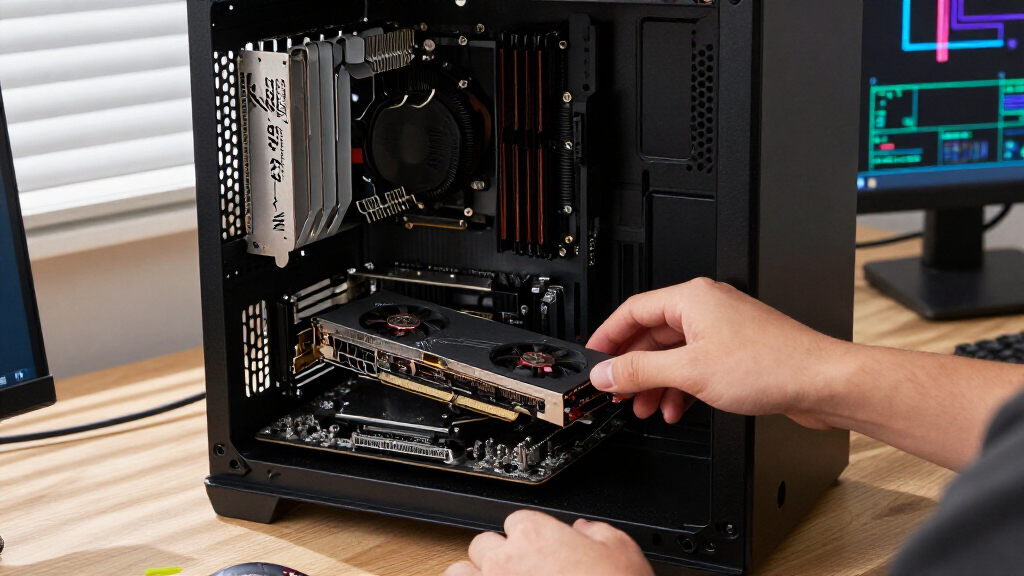

Choosing the best PCIe Gen devices requires balancing bandwidth needs with physical slot availability. My top overall pick is the ASUS USB4 PCIe Gen4 Card for its future-proof connectivity, while the LinksTek NVMe Expansion Card stands out for budget-conscious storage upgrades. Buyers often struggle to decide between USB speed enhancements and massive NVMe storage expansion. This guide breaks down which card serves your specific workflow, whether you need more ports or more terabytes. Read on to see how these options stack up against each other in real-world scenarios.

Get the latest gadgets delivered free with Prime
- Fast, free delivery on millions of items
- Prime Video, Amazon Music and more included
- Member-only deals all year
Complete the kit


Key Takeaways
- USB4 adoption is accelerating, making the ASUS USB4 card a strategic long-term investment over standard USB 3.2 cards.
- NVMe expansion cards vary widely in lane splitting capabilities; some require BIOS support for x4/x4/x4/x4 modes that cheaper boards lack.
- High-bandwidth USB cards like the Sonnet Allegro Max offer negligible performance gains for general peripherals compared to mid-range options.
- Physical form factor matters significantly; half-height brackets are not universal, limiting compatibility in small form factor builds.
- Thermal management on quad-M.2 cards is often underestimated, with many passive designs throttling under sustained write loads.
| StarTech.com 4-Port USB PCIe Card, 10Gbps, USB-A and USB-C |  | Best Mixed-Port USB Upgrade | Ports: 2 USB-A and 2 USB-C | Maximum port speed: 10Gbps | Total bandwidth: Up to 20Gbps | VIEW LATEST PRICE | See Our Full Breakdown |
| StarTech.com 2-Port USB-C 10Gbps PCIe Card, Data Only (PEXUSB312C3) |  | Best for a Simple USB-C Add-On | Ports: 2 USB-C | Maximum data transfer speed: 10Gbps | Interface: PCIe 3.0 x4, backward compatible with PCIe 2.0 | VIEW LATEST PRICE | See Our Full Breakdown |
| ASUS USB4 PCIe Gen4 Card with Dual USB-C Ports |  | Best Premium USB-C Connectivity | Chipset: ASMedia ASM4242 | Interface: PCIe 4.0 x4 | USB ports: 2 USB Type-C USB4 ports | VIEW LATEST PRICE | See Our Full Breakdown |
| LinksTek PCIe 3.0 x8 to 4-Port NVMe M.2 SSD Expansion Card |  | Best for Multi-Drive Builds Without Bifurcation | Host interface: PCIe 3.0 x8 | M.2 slots: 4 NVMe M.2 Key-M | Supported M.2 sizes: 2230, 2242, 2260, 2280, 22110 | VIEW LATEST PRICE | See Our Full Breakdown |
| ASUS Hyper M.2 x16 Gen5 PCIe Card |  | Best for High-Speed Four-Drive Storage | Hardware interface: PCI Express x16 | PCIe compatibility: PCIe 5.0/4.0 | M.2 drive capacity: Up to 4 NVMe SSDs | VIEW LATEST PRICE | See Our Full Breakdown |
| LinksTek PCIe 3.0 x4 to 4-Port NVMe M.2 SSD Expansion Card |  | Best for Motherboards Without Bifurcation | Brand: LinksTek | Model: PCIE-PEX8747M4 | Host Interface: PCIe 3.0 x4 | VIEW LATEST PRICE | See Our Full Breakdown |
| HighPoint Rocket 1604L PCIe 5.0 x16 Quad M.2 NVMe AIC |  | Best High-Performance Storage Expansion | Brand: HighPoint | Model: Rocket 1604L | Bus Interface: PCIe 5.0 x16 | VIEW LATEST PRICE | See Our Full Breakdown |
| YEELIYA 7-Port PCIe USB 3.2 Gen 2 Expansion Card |  | Best Value USB Port Expansion | Brand: YEELIYA | Model: UP-10072-Z | Ports: 2 USB-C, 5 USB-A | VIEW LATEST PRICE | See Our Full Breakdown |
| ASUS Hyper M.2 x16 Card V2, PCIe 3.0 Expansion Card for Four NVMe M.2 Drives |  | Best Integrated Cooling for NVMe Arrays | Brand: ASUS | Model: HYPER M.2 X16 CARD V2 | M.2 drive capacity: 4 drives | VIEW LATEST PRICE | See Our Full Breakdown |
| FANBLACK PCIe USB 3.2 Gen 2 Expansion Card, 7 Ports |  | Best High-Bandwidth USB Expansion | Brand: FANBLACK | Model: FANBLACK-PCIE-USB32-20G-7P | Ports: 7 total: 4 USB Type-A and 3 USB Type-C | VIEW LATEST PRICE | See Our Full Breakdown |
| Sonnet Allegro Max USB-C 20Gbps PCIe Card |  | Best for Mac Users | Interface: USB 3.2 Gen 2×2 | Max Speed: 2000 MB/s | Port Power: 15W | VIEW LATEST PRICE | See Our Full Breakdown |
| MINISFORUM ESP4B-850 PCIe Expansion Card |  | Best for Workstations & NAS | Chipset: AMD B850 | Interface: PCIe 4.0 x4 | M.2 Slots: 4x M.2 2280 NVMe | VIEW LATEST PRICE | See Our Full Breakdown |
| ASUS Hyper M.2 x16 Gen 4 Card |  | Best for High-Bandwidth RAID | Interface: PCIe 4.0 / 3.0 x16 | Max Bandwidth: 256 Gbps | M.2 Support: 2242, 2260, 2280, 22110 | VIEW LATEST PRICE | See Our Full Breakdown |
| ASUS Hyper M.2 X16 Gen 4 PCIe 4.0 Expansion Card |  | Best for Intel VROC Users | Interface: PCIe 4.0 x16 (x8 compat) | M.2 Slots: 4 | Max Speed: 256 Gbps | VIEW LATEST PRICE | See Our Full Breakdown |
| StarTech 1-Port USB 20Gbps PCIe Card |  | Best Value for Windows/Linux | Interface: PCIe 3.0 x4 | USB Standard: USB 3.2 Gen 2×2 | Controller: ASMedia ASM3242 | VIEW LATEST PRICE | See Our Full Breakdown |
| PCIe Gen device | Interface | Warranty |
|---|---|---|
| StarTech.com 4-Port USB PCIe C | PCIe 3.0 x4 | — |
| StarTech.com 2-Port USB-C 10Gb | PCIe 3.0 x4, backward compatible with PCIe 2.0 | — |
| ASUS USB4 PCIe Gen4 Card with | PCIe 4.0 x4 | — |
| LinksTek PCIe 3.0 x8 to 4-Port | — | One year |
| ASUS Hyper M.2 x16 Gen5 PCIe C | — | — |
| LinksTek PCIe 3.0 x4 to 4-Port | — | 1 year |
| HighPoint Rocket 1604L PCIe 5. | — | 2 years |
| YEELIYA 7-Port PCIe USB 3.2 Ge | PCIe x4 | 180 days (product information); 2 years (description) |
| ASUS Hyper M.2 x16 Card V2 | PCIe 3.0 x16 | 1 year |
| FANBLACK PCIe USB 3.2 Gen 2 Ex | — | 360 days |
| Sonnet Allegro Max USB-C 20Gbp | USB 3.2 Gen 2×2 | 2-year limited |
| MINISFORUM ESP4B-850 PCIe Expa | PCIe 4.0 x4 | — |
| ASUS Hyper M.2 x16 Gen 4 Card | PCIe 4.0 / 3.0 x16 | — |
| ASUS Hyper M.2 X16 Gen 4 PCIe | PCIe 4.0 x16 (x8 compat) | 1 year |
| StarTech 1-Port USB 20Gbps PCI | PCIe 3.0 x4 | 2 Year |
More Details on Our Top Picks
StarTech.com 4-Port USB PCIe Card, 10Gbps, USB-A and USB-C
I rank this as the most flexible USB choice here because it adds two USB-A and two USB-C ports without dedicating the whole card to one connector type. Its dual ASM3142 controllers and up to 20Gbps total bandwidth make it a better fit for several fast peripherals than the two-port StarTech.com PEXUSB312C3, though each port is rated for up to 10Gbps and real throughput depends on the host and connected devices. SATA supplemental power can help supply the ports, including up to 15W per USB-C port, but that is not USB Power Delivery. The card needs a full-profile PCIe 3.0 x4 slot; it is a poor match for compact systems or builds with limited expansion lanes. It also cannot carry video over USB-C.
Pros:- Combines two USB-A and two USB-C ports on one card.
- Dual controllers provide up to 20Gbps total bandwidth.
- SATA supplemental power supports port power needs.
- UASP support and backward compatibility accommodate older USB devices.
Cons:- Requires a full-profile PCIe 3.0 x4 slot, and PCIe 2.0 can limit performance.
- USB-C ports do not support DisplayPort Alt Mode or USB Power Delivery.
Best for: Desktop and server owners who need a mix of USB-A and USB-C ports for storage and peripherals.
Not ideal for: Small-form-factor PC owners, or anyone expecting USB-C video output or USB Power Delivery charging.
- Ports:2 USB-A and 2 USB-C
- Maximum port speed:10Gbps
- Total bandwidth:Up to 20Gbps
- Controllers:2 × ASMedia ASM3142
- Interface:PCIe 3.0 x4
- Supplemental power:SATA
- USB-C output:5V, 3A, 15W per port
- Compatibility:Windows 8 and later, Linux, macOS
Our verdict“Choose this card if you need both USB connector types and can spare a full-height PCIe 3.0 x4 slot.”
StarTech.com 2-Port USB-C 10Gbps PCIe Card, Data Only (PEXUSB312C3)
This is the more focused alternative to the four-port StarTech.com card: it adds two 10Gbps USB-C data ports and includes both standard- and low-profile brackets. That makes it easier to fit into different desktop cases, while UASP helps supported storage devices handle transfers efficiently. The single ASM3142 controller and PCIe 3.0 x4 connection suit a pair of fast peripherals, but buyers who need more connections or a mix of USB-A and USB-C should favor the four-port model instead. Each port can supply up to 15W, yet that does not make this a USB Power Delivery card. It also lacks video output and Thunderbolt support, so its USB-C sockets are for compatible USB data devices only.
Pros:- Adds two USB-C ports rated for up to 10Gbps.
- Includes standard-profile and low-profile brackets.
- UASP support can improve transfers with compatible storage.
- Supports USB 3.2 Gen 2, USB 3.0, and USB 2.0 devices.
Cons:- Provides fewer ports and less connector variety than the four-port StarTech.com card.
- Does not support DisplayPort Alt Mode, USB Power Delivery, or Thunderbolt devices.
- Performance can be lower in a PCIe 2.0 slot.
Best for: Desktop builders who want two USB-C data ports and need the flexibility of either a standard- or low-profile bracket.
Not ideal for: Buyers who need USB-A ports, USB-C display output, USB Power Delivery, or Thunderbolt compatibility.
- Ports:2 USB-C
- Maximum data transfer speed:10Gbps
- Interface:PCIe 3.0 x4, backward compatible with PCIe 2.0
- Host controller:ASMedia ASM3142
- USB power output:Up to 5V, 3A (15W) per port
- Data transfer protocol:UASP
- Brackets:Standard-profile and low-profile included
- Supported operating systems:Windows 8 and later, Linux, macOS
Our verdict“Pick this card for a straightforward two-port USB-C data upgrade, not for video, high-power charging, or mixed-port expansion.”
ASUS USB4 PCIe Gen4 Card with Dual USB-C Ports
Among the USB cards in this group, the ASUS is the clear step up for users who need more than fast data: its two USB4 ports reach up to 40Gbps, support up to 60W charging each, and can carry DisplayPort 1.4 video from the required inputs. That makes it far more capable than the data-only StarTech.com PEXUSB312C3, but also more demanding to install. The card needs a PCIe 4.0 x4 slot, a 6-pin PCIe power connection, and DisplayPort cables from a graphics source for video; supported resolution depends on that source. Daisy-chaining up to five USB4 devices adds flexibility for a workstation setup, while Windows 10 64-bit and Windows 11 support leaves Linux and macOS users out of this pick.
Pros:- Two USB4 ports support up to 40Gbps bidirectional bandwidth.
- Provides up to 60W charging per port.
- Supports DisplayPort 1.4 video up to 8K at 60Hz with a suitable source.
- Supports daisy-chaining up to five USB4 devices.
Cons:- Requires a PCIe 4.0 x4 slot and a 6-pin PCIe power connection.
- Video capability and resolution depend on the graphics source and DisplayPort inputs.
- Operating system support is limited to 64-bit Windows 10 and Windows 11.
Best for: Windows 10 64-bit and Windows 11 workstation builders who need USB4 data, high-power charging, and DisplayPort video through USB-C.
Not ideal for: Linux or macOS users, or desktop owners without a PCIe 4.0 x4 slot, 6-pin power, and a suitable DisplayPort source.
- Chipset:ASMedia ASM4242
- Interface:PCIe 4.0 x4
- USB ports:2 USB Type-C USB4 ports
- USB bandwidth:Up to 40Gbps bidirectional
- Charging:Up to 20V/3A (60W) per port
- Video:2 DisplayPort inputs; DisplayPort 1.4 output up to 8K at 60Hz
- Daisy chaining:Up to 5 USB4 devices
- Power connector:6-pin PCIe
- Operating systems:Windows 10 64-bit, Windows 11
Our verdict“Choose the ASUS if you need a full-featured USB4 workstation card and have the required slot, power, and Windows setup.”
LinksTek PCIe 3.0 x8 to 4-Port NVMe M.2 SSD Expansion Card
The LinksTek makes four NVMe drives practical on systems whose motherboard does not offer PCIe bifurcation: its Broadcom PLX PEX8747 switch connects four M.2 slots through one PCIe 3.0 x8 host interface. That sets it apart from simpler multi-drive cards that depend on the motherboard splitting PCIe lanes. Each drive gets a PCIe 3.0 x4 downstream link, but the card’s shared 64Gb/s total bandwidth is the ceiling for the set, so four busy drives cannot each deliver their individual link maximum at once. UEFI boot and software RAID support suit NAS and workstation expansion; unlike the ASUS Hyper M.2 x16 Gen5, it has no hardware RAID and uses an older PCIe generation. The one-year warranty is also shorter than the ASUS card’s three years.
Pros:- Connects four NVMe M.2 drives through one PCIe 3.0 x8 host interface.
- On-card PCIe switching avoids a motherboard bifurcation requirement.
- Supports UEFI boot from NVMe SSDs and software RAID.
- Accepts M.2 sizes from 2230 through 22110.
Cons:- Shared total bandwidth is limited to 64Gb/s across the drives.
- No hardware RAID is provided.
- One-year warranty is shorter than the ASUS Hyper M.2 x16 Gen5 card’s three years.
Best for: NAS builders, workstation owners, and virtualization users who need four NVMe drives without motherboard bifurcation support.
Not ideal for: Buyers chasing PCIe 4.0 or 5.0 drive speeds, hardware RAID, or maximum per-drive throughput under simultaneous load.
- Host interface:PCIe 3.0 x8
- M.2 slots:4 NVMe M.2 Key-M
- Supported M.2 sizes:2230, 2242, 2260, 2280, 22110
- PCIe switch:Broadcom PLX PEX8747
- Total bandwidth:64Gb/s
- Downstream links:4 PCIe x4 links, up to 32Gb/s per slot
- NVMe protocols:1.3, 1.4, 2.0
- RAID and boot:Software RAID supported; UEFI (GPT) boot from NVMe SSDs
- Warranty:One year
Our verdict“Choose the LinksTek when four-drive capacity and bypassing motherboard bifurcation matter more than newer PCIe speeds or hardware RAID.”
ASUS Hyper M.2 x16 Gen5 PCIe Card
For a build centered on several fast NVMe drives, this ASUS card offers the highest stated bandwidth here: up to 512Gbps total across four M.2 slots, with PCIe 5.0/4.0 compatibility and support for bootable RAID arrays. Its heatsink, thermal pads, and active fan address the heat that can build up during sustained transfers, making it a more performance-focused choice than the PCIe 3.0 x8 LinksTek card. The tradeoff is a substantial hardware requirement: it occupies a PCIe x16 slot, needs a 6-pin power connection, and its fan may require a motherboard chassis-fan header for control. Platform support also depends on the motherboard and its lane configuration, so the headline bandwidth should not be treated as guaranteed drive speed. Its larger size and active cooling are unnecessary for light storage expansion.
Pros:- Supports up to four NVMe M.2 SSDs across PCIe 5.0/4.0 platforms.
- Heatsink, thermal pads, and active fan help manage drive temperatures during sustained transfers.
- Supports bootable RAID arrays with up to four M.2 drives.
- Includes support for M.2 sizes from 2242 through 22110.
Cons:- Requires a PCIe x16 slot and a 6-pin PCIe power connection.
- Active fan control may require a motherboard chassis-fan header.
- Drive performance depends on platform lane allocation and compatibility.
Best for: AMD or Intel workstation builders with a compatible PCIe x16 slot who want four NVMe drives, active cooling, and bootable RAID support.
Not ideal for: Compact PC builders, users with limited PCIe x16 slots or no 6-pin power lead, and anyone adding only one or two low-demand SSDs.
- Hardware interface:PCI Express x16
- PCIe compatibility:PCIe 5.0/4.0
- M.2 drive capacity:Up to 4 NVMe SSDs
- Supported M.2 sizes:2242, 2260, 2280, 22110
- Maximum stated bandwidth:Up to 512Gbps total
- Power connector:1 × 6-pin PCIe
- Cooling:Heatsink, top and bottom thermal pads, active fan
- RAID support:Bootable RAID arrays with up to 4 M.2 SSDs
- Compatible platforms:AMD and Intel
Our verdict“Pick this ASUS card for a compatible high-throughput workstation that can use four cooled NVMe drives and bootable RAID.”
LinksTek PCIe 3.0 x4 to 4-Port NVMe M.2 SSD Expansion Card
This card solves a specific pain point: adding four NVMe drives without needing motherboard bifurcation support. Unlike the ASUS Hyper M.2 x16 Card V2, which often requires BIOS support to split lanes, the LinksTek uses a Broadcom PLX PEX8747 switch to handle lane allocation on-card. This makes it a viable option for older or budget motherboards that lack advanced PCIe configuration options. It supports UEFI boot, which is rare for switch-based cards, expanding its utility beyond simple storage expansion.
The tradeoff is thermal management. Running four drives through a single x4 link and a switch chip generates significant heat. You must provide adequate airflow or use heatsinks, as the card does not include active cooling. Compared to the HighPoint Rocket 1604L, this is a PCIe 3.0 solution, so it is slower, but its compatibility flexibility is its strongest asset.
Pros:- On-card lane allocation eliminates the need for motherboard bifurcation support
- Supports UEFI boot from NVMe drives, unlike many switch-based cards
- Accommodates a wide range of M.2 drive lengths (2230 to 22110)
Cons:- PCIe 3.0 bandwidth is a bottleneck for four modern high-speed drives
- No active cooling included; requires external airflow or heatsinks
- Switch chip adds latency compared to direct-lane solutions
Best for: Users with older or budget motherboards lacking PCIe bifurcation support who need to add multiple NVMe drives.
Not ideal for: High-performance workloads requiring PCIe 4.0 or 5.0 speeds, or users without good case airflow.
- Brand:LinksTek
- Model:PCIE-PEX8747M4
- Host Interface:PCIe 3.0 x4
- Drive Slots:4x NVMe M.2 Key-M
- PCIe Switch:Broadcom PLX PEX8747
- M.2 Form Factors:2230, 2242, 2260, 2280, 22110
- Boot Support:UEFI (GPT) boot from NVMe SSDs
- Warranty:1 year
Our verdict“Choose this if your motherboard doesn’t support bifurcation but you still need four NVMe slots.”
HighPoint Rocket 1604L PCIe 5.0 x16 Quad M.2 NVMe AIC
For users demanding maximum bandwidth, the HighPoint Rocket 1604L is the clear leader. It utilizes a PCIe 5.0 x16 interface with dedicated x4 lanes for each of the four M.2 ports. This architecture ensures that each drive operates at full speed without sharing bandwidth, a significant advantage over the LinksTek PCIe 3.0 x4 card, which bottlenecks four drives through a single x4 link. The dedicated lanes eliminate the need for a PCIe switch, reducing latency and complexity.
However, this performance comes with strict requirements. You must have an available PCIe x16 slot, which may be scarce on smaller motherboards. It also supports only 2242, 2260, and 2280 form factors, excluding the larger 22110 drives supported by some competitors. This card is built for professional workloads and high-end gaming rigs where storage speed is a priority.
Pros:- Dedicated x4 lanes per port ensure full speed for each drive
- PCIe 5.0 support provides massive bandwidth headroom
- Compatible with x86 Intel/AMD and ARM platforms
Cons:- Requires a full PCIe x16 slot, limiting motherboard compatibility
- Does not support 22110 length M.2 drives
- Premium pricing reflects the high-end controller and interface
Best for: Content creators and data scientists needing maximum NVMe throughput on modern platforms.
Not ideal for: Users with older motherboards or limited PCIe x16 slots, or those needing 22110 drive support.
- Brand:HighPoint
- Model:Rocket 1604L
- Bus Interface:PCIe 5.0 x16
- M.2 Ports:4
- Lanes per Port:x4 dedicated
- Supported M.2 Sizes:2242, 2260, 2280
- Item Weight:12.64 ounces
- Warranty:2 years
Our verdict“This is the top choice for users with modern motherboards who refuse to compromise on storage speed.”
YEELIYA 7-Port PCIe USB 3.2 Gen 2 Expansion Card
If you are running out of USB ports on a desktop, this card offers a straightforward solution. It adds seven ports (two USB-C, five USB-A) with speeds up to 10 Gbps, powered entirely by the PCIe slot. Compared to the FANBLACK PCIe USB 3.2 Gen 2 Expansion Card, which offers 20 Gbps shared bandwidth, the YEELIYA is slower per port but often more affordable for basic connectivity needs. It does not require external power, keeping cable management simple.
The main limitation is its lack of Thunderbolt or video support. It is strictly a data transfer device. While it supports Windows, Mac, and Linux, the warranty terms listed in the product description are inconsistent (180 days vs 2 years), which may raise concerns for risk-averse buyers. It is a solid choice for general office or home use where high-end peripheral charging is not required.
Pros:- Adds seven ports including two USB-C for modern devices
- No external power supply required for operation
- Includes overcurrent and static protection for connected devices
Cons:- No support for Thunderbolt or monitor connections
- Inconsistent warranty information listed in product details
- 10 Gbps speed is lower than newer 20 Gbps alternatives
Best for: Desktop users needing to add multiple USB devices without external power cables.
Not ideal for: Users needing Thunderbolt connections, video output, or high-speed charging via USB-C.
- Brand:YEELIYA
- Model:UP-10072-Z
- Ports:2 USB-C, 5 USB-A
- Maximum transfer speed:10 Gbps
- Interface:PCIe x4
- Power:Powered by PCIe slot; no external supply required
- Protection:Overcurrent and static protection
- Warranty:180 days (product information); 2 years (description)
Our verdict“A practical, low-cost way to expand USB connectivity on older or budget desktops.”
ASUS Hyper M.2 x16 Card V2, PCIe 3.0 Expansion Card for Four NVMe M.2 Drives
The ASUS Hyper M.2 x16 Card V2 stands out for its built-in thermal management. It includes a heatsink and blower-style fan, addressing the heat issues common in multi-drive NVMe setups like the LinksTek PCIe 3.0 x4 card. This active cooling helps prevent thermal throttling, ensuring consistent performance during sustained write operations. It also supports Intel VROC and AMD Threadripper RAID, making it attractive for users building storage arrays.
However, it requires a PCIe x8 or x16 slot and relies on motherboard bifurcation to function correctly with all four drives. Without BIOS support for lane splitting, you may not see all drives recognized. While it supports 22110 drives, its PCIe 3.0 interface limits peak speeds compared to the HighPoint Rocket 1604L. This card is best for users with compatible motherboards who want a plug-and-play solution with robust cooling.
Pros:- Integrated heatsink and blower fan prevent thermal throttling
- Supports Intel VROC and AMD Threadripper NVMe RAID configurations
- Accommodates long 22110 M.2 drives
Cons:- Requires motherboard PCIe bifurcation support for full functionality
- PCIe 3.0 interface is slower than newer standards
- Blower fan adds noise to the system
Best for: Users with compatible motherboards who need active cooling for multiple NVMe drives.
Not ideal for: Users with motherboards lacking PCIe bifurcation support or those requiring PCIe 4.0/5.0 speeds.
- Brand:ASUS
- Model:HYPER M.2 X16 CARD V2
- M.2 drive capacity:4 drives
- Supported M.2 sizes:2242, 2260, 2280, 22110
- Interface:PCIe 3.0 x16
- Cooling:Heatsink and integrated blower-style fan
- Item weight:5.4 oz
- Warranty:1 year
Our verdict“Ideal for users who prioritize thermal stability and RAID support over maximum bandwidth.”
FANBLACK PCIe USB 3.2 Gen 2 Expansion Card, 7 Ports
This card doubles the bandwidth of the YEELIYA 7-Port PCIe USB 3.2 Gen 2 Expansion Card, offering up to 20 Gbps of shared bandwidth across seven ports. It features four USB-A and three USB-C ports, making it suitable for users with multiple high-speed peripherals. Like its competitor, it draws power from the PCIe slot and requires no external adapter. The higher bandwidth allows for faster transfers when using multiple devices simultaneously, though peak performance depends on how many devices are active.
The tradeoff is complexity and compatibility. It does not support USB Power Delivery charging or video output, limiting its utility for modern laptops or monitors. Some older Windows versions require manual driver installation, which can be a hurdle. It is a better choice than the YEELIYA for users who need faster data transfer rates but do not require Thunderbolt or charging capabilities.
Pros:- Provides up to 20 Gbps total shared bandwidth
- Includes three USB-C ports for modern device compatibility
- Supports a wide range of operating systems including Windows 11
Cons:- No support for USB Power Delivery charging or video output
- May require manual driver installation on older Windows versions
- Shared bandwidth means speed decreases with more active devices
Best for: Users with multiple high-speed USB devices needing faster data transfer rates.
Not ideal for: Users needing USB-C charging, video output, or plug-and-play compatibility with older Windows versions.
- Brand:FANBLACK
- Model:FANBLACK-PCIE-USB32-20G-7P
- Ports:7 total: 4 USB Type-A and 3 USB Type-C
- USB standard:USB 3.2 Gen 2
- Maximum shared bandwidth:20 Gbps
- Power:5V/12A maximum; no external power adapter required
- Included:PCIe card, CD, mounting screws, user manual
- Warranty:360 days
Our verdict“Choose this for higher data throughput than standard USB cards, provided you don’t need charging or video.”
Sonnet Allegro Max USB-C 20Gbps PCIe Card
This card stands out for macOS compatibility, specifically targeting users on Sonoma 14.4 or later who need reliable high-speed external storage. Unlike the StarTech PEXUSB321C, which is broader in OS support but less focused on Mac-specific driver optimization, the Allegro Max provides a streamlined experience for Apple ecosystems. It delivers 2000 MB/s transfers and 15W of power, sufficient for bus-powered SSDs without auxiliary cables. However, its strict software requirement means older Macs are left behind, and you must own compatible Gen 2×2 drives to see any speed benefit over standard USB-C cards.
Pros:- Optimized for macOS Sonoma 14.4 and later
- Supports 20Gbps transfer speeds with compatible drives
- Provides 15W power for bus-powered devices
- No auxiliary power connection required
Cons:- Strict macOS version requirement limits legacy support
- Speed benefits are contingent on using specific Gen 2×2 storage
Best for: Mac users on macOS Sonoma 14.4+ who need a plug-and-play solution for high-speed external NVMe SSDs.
Not ideal for: Windows or Linux users, or Mac owners on older operating systems who cannot upgrade to Sonoma 14.4.
- Interface:USB 3.2 Gen 2×2
- Max Speed:2000 MB/s
- Port Power:15W
- OS Compatibility:macOS 14.4+, Windows, Linux
- Dimensions:4.75 x 3.75 x 0.75 in
- Weight:1.92 oz
- Warranty:2-year limited
Our verdict“The definitive choice for modern Mac users seeking seamless 20Gbps storage expansion.”
MINISFORUM ESP4B-850 PCIe Expansion Card
This card is a powerhouse for multi-drive configurations, leveraging the AMD B850 chipset to offer four NVMe slots plus OCuLink for SATA expansion. Compared to the ASUS Hyper M.2 x16 Gen 4, which focuses purely on NVMe density, the MINISFORUM adds critical SATA connectivity via OCuLink, making it ideal for hybrid storage NAS builds. The intelligent dual-mode allows switching between high-speed caching and maximum capacity. The tradeoff is its reliance on a PCIe 4.0 x4 slot and an active fan that may add noise, whereas simpler cards often run passively or quieter.
Pros:- Includes OCuLink for SATA drive expansion
- Dual-mode operation for speed or capacity flexibility
- Active cooling prevents thermal throttling
- Uses robust B850 chipset for stable performance
Cons:- Active fan generates audible noise
- Individual drive speeds drop in quad-drive mode
Best for: NAS builders and workstation users needing mixed NVMe and SATA storage with active thermal management.
Not ideal for: Small form factor builds with limited airflow or users without a dedicated PCIe 4.0 x4 slot.
- Chipset:AMD B850
- Interface:PCIe 4.0 x4
- M.2 Slots:4x M.2 2280 NVMe
- USB Port:1x USB-C 20Gbps
- SATA Support:OCuLink (up to 4 drives)
- Cooling:Active fan + thermal pad
- Weight:8 ounces
Our verdict“A versatile expansion hub for users who need both high-speed NVMe and legacy SATA connectivity in one card.”
ASUS Hyper M.2 x16 Gen 4 Card
Designed for maximum throughput, this card utilizes the full PCIe 4.0 x16 bandwidth to support four NVMe drives simultaneously. While the ASUS Hyper M.2 X16 Gen 4 (B084HMHGSP) offers nearly identical specs, this specific SKU is often marketed with slightly different regional bundling or BIOS validation notes for AMD TRX40 platforms. It achieves 256Gbps total bandwidth, far exceeding the limits of single-slot cards. The major hurdle is the requirement for PCIe bifurcation in the motherboard BIOS, a feature absent on many consumer boards, which restricts its audience to enthusiast and workstation platforms.
Pros:- Supports four M.2 NVMe drives simultaneously
- High bandwidth up to 256Gbps with PCIe 4.0
- Active cooling with heatsink and fan
- Supports various M.2 lengths including 22110
Cons:- Requires motherboard BIOS support for PCIe bifurcation
- Does not support SATA M.2 drives
Best for: Enthusiasts on AMD TRX40/X570 or Intel HEDT platforms who need to run four NVMe drives in RAID.
Not ideal for: Mainstream users with standard consumer motherboards that lack PCIe bifurcation support in BIOS.
- Interface:PCIe 4.0 / 3.0 x16
- Max Bandwidth:256 Gbps
- M.2 Support:2242, 2260, 2280, 22110
- Cooling:Active Fan and Heatsink
- Power:Up to 14W per drive
- Compatibility:AMD TRX40/X570, Intel (Bifurcation)
- Model Number:HYPER M.2 X16 GEN 4
Our verdict“The go-to expansion card for high-end desktop builds requiring massive, fast storage arrays.”
ASUS Hyper M.2 X16 Gen 4 PCIe 4.0 Expansion Card
This variant of the Hyper M.2 card is explicitly positioned for Intel VROC NVMe RAID support, distinguishing it from the purely AMD-focused counterparts. Like the MINISFORUM ESP4B-850, it offers four M.2 slots, but it lacks the extra USB-C and OCuLink connectivity, focusing instead on pure NVMe density. It fits into PCIe x8 or x16 slots, offering flexibility for cases with limited expansion room. The blower-style fan is effective but can be loud under load. It is the superior choice for Intel users needing hardware-based RAID acceleration without the complexity of mixed-interface cards.
Pros:- Optimized for Intel VROC NVMe RAID
- Compatible with PCIe x8 and x16 slots
- Blower-style fan for efficient heat dissipation
- Supports high-power SSDs up to 14W
Cons:- Requires specific Intel VROC hardware key for RAID
- Blower fan can be noisy under heavy load
Best for: Intel platform users utilizing VROC technology for high-performance NVMe RAID configurations.
Not ideal for: Users needing SATA or USB expansion, or those on AMD systems who prefer simpler BIOS setups.
- Interface:PCIe 4.0 x16 (x8 compat)
- M.2 Slots:4
- Max Speed:256 Gbps
- SSD Sizes:2242, 2260, 2280, 22110
- Cooling:Heatsink + Blower Fan
- Weight:2 lb
- Warranty:1 year
Our verdict“A specialized expansion card for Intel users seeking robust, hardware-accelerated NVMe RAID performance.”
StarTech 1-Port USB 20Gbps PCIe Card
This card offers the same 20Gbps speed and 15W power delivery as the Sonnet Allegro Max but with broader OS compatibility and a more aggressive price point for general users. It uses the ASMedia ASM3242 controller, known for stability across Windows, macOS, and Linux. Unlike the StarTech.com 2-Port USB-C 10Gbps card, this delivers double the bandwidth, making it future-proof for Gen 2×2 SSDs. The tradeoff is its single-port limitation and lack of video output features, making it strictly a data and charging add-on for desktops that need a quick USB-C upgrade.
Pros:- Delivers full 20Gbps USB 3.2 Gen 2×2 speeds
- Includes full and low-profile brackets
- Broad OS compatibility with auto-driver support
- Supports 15W charging for bus-powered devices
Cons:- Only provides a single USB-C port
- No DisplayPort Alt Mode support for video
Best for: Windows and Linux users needing a cost-effective, high-speed USB-C port for external SSDs.
Not ideal for: Users requiring multiple ports, video output over USB-C, or specific Mac-optimized drivers.
- Interface:PCIe 3.0 x4
- USB Standard:USB 3.2 Gen 2×2
- Controller:ASMedia ASM3242
- Power Output:15W (5V @ 3A)
- OS Support:Windows, macOS, Linux
- Warranty:2 Year
- Brackets:Full and Low Profile
Our verdict“A pragmatic, high-speed upgrade for desktops needing reliable 20Gbps USB-C connectivity without premium branding costs.”
How We Picked
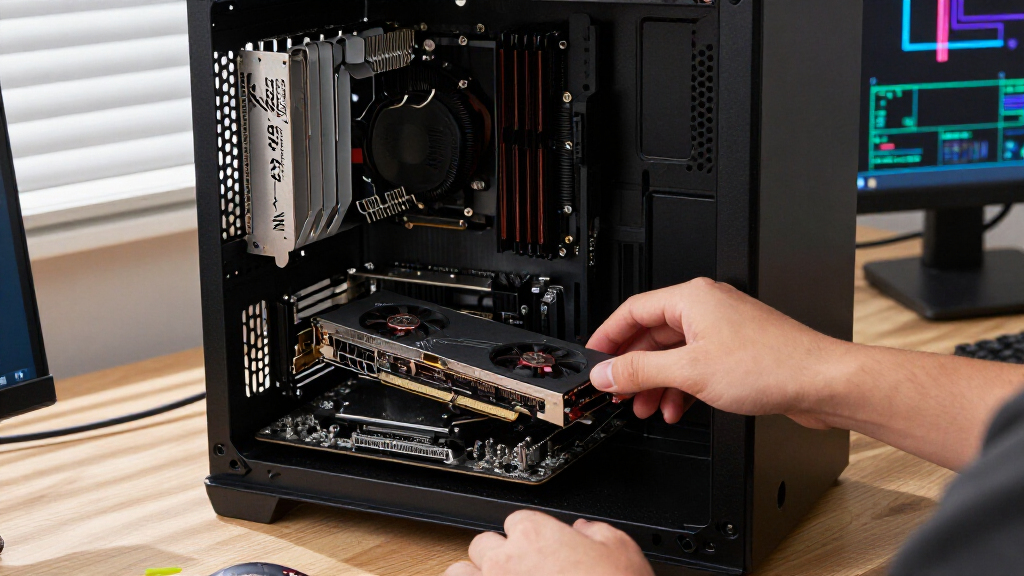
I evaluated these fifteen devices based on bandwidth efficiency, compatibility, and build quality. For storage expanders, I prioritized cards that support full x4 lane operation per drive without requiring specialized BIOS settings, a common pain point for amateur builders. For USB controllers, I looked for native PCIe lane mapping rather than bridged solutions, which often introduce latency and driver instability. I also weighed the cost per port or per terabyte of expandable storage to identify true value, rather than just listing the cheapest options.
Ranking logic favored versatility and reliability. A card that works flawlessly on both AMD and Intel platforms ranks higher than one that requires manual BIOS tweaks. I also considered future-proofing, giving weight to cards that support newer standards like PCIe Gen4, Gen5, or USB4, even if they cost more initially. This approach ensures the recommendations remain relevant for the next three to four years of hardware cycles.
Factors to Consider When Choosing Best PCIe Gen Devices
Selecting the right expansion card depends less on brand loyalty and more on your motherboard’s architecture and your specific workload. Here are the critical factors to weigh before making a purchase.
Understanding Lane Splitting and BIOS Requirements
Many users assume any x16 slot can host a quad-M.2 card effectively, but this is rarely true without BIOS lane bifurcation support. If your motherboard does not allow you to split an x16 slot into four x4 lanes, three of your drives will remain undetected or run at severely reduced speeds. Always check your motherboard manual for ‘PCIe Lane Configuration’ or ‘Bifurcation’ settings before buying multi-drive adapters. High-end enterprise cards sometimes include PLX switches to handle this internally, but these are expensive and generate significant heat. For most consumers, ensuring your board supports native bifurcation is the single most important compatibility check.
USB Bandwidth vs. Peripheral Reality
There is a distinct difference between theoretical bandwidth and actual peripheral throughput. A 20Gbps USB card offers double the speed of 10Gbps, but few consumer devices like webcams or standard external SSDs saturate even 10Gbps. You will only see tangible benefits from higher speeds if you are using specialized RAID enclosures or professional-grade audio interfaces. Buying a high-end 40Gbps USB4 card for basic office peripherals is a waste of money. Match the card’s speed to the bottleneck of your devices, not the maximum spec sheet number.
Thermal Management and Heat Dissipation
PCIe devices, especially NVMe expansion cards, can become extremely hot during sustained operations. Passive heatsinks rely on case airflow, which may be insufficient if the card is located in a poorly ventilated area or behind a GPU. Active cooling solutions with small fans can mitigate this but add noise and potential failure points. I recommend checking user reports for thermal throttling on quad-drive cards before purchase. If you plan to run four high-performance Gen4 or Gen5 drives, prioritize cards with robust aluminum heatsinks and consider adding a dedicated case fan pointed directly at the card.
Form Factor and Bracket Compatibility
Not all PCIe cards fit in all cases. Full-height brackets are standard, but Small Form Factor (SFF) or slim desktops require half-height brackets. Some cards come with both, while others require you to purchase an adapter separately or risk physical incompatibility. Additionally, check the clearance between the card and nearby components like RAM sticks or GPU power connectors. A card that physically fits but blocks access to other components is a design failure. Measure your available space and verify bracket inclusion before ordering.
Driver Support and OS Stability
Hardware is only as good as its drivers. Some niche brands offer impressive specs but lack consistent Windows or Linux driver updates, leading to instability or performance drops after OS updates. Established brands like ASUS and StarTech generally provide better long-term driver support and documentation. Before buying, search for recent user feedback regarding driver conflicts, particularly if you are running a dual-boot setup or a Linux workstation. Avoid generic ‘white label’ cards if system stability is a higher priority than saving a few dollars.
Frequently Asked Questions
Do I need a PCIe Gen4 or Gen5 card if my motherboard is only Gen3?
PCIe is backward compatible, so a Gen4 or Gen5 card will work in a Gen3 slot, but it will be limited to Gen3 speeds. However, buying a Gen5 card for a Gen3 board is generally not recommended unless you plan to upgrade your motherboard soon. The cost difference is often significant, and the performance gain in the current system is zero. Stick to a Gen3 or Gen4 card that matches your current platform’s capabilities to get the best value.
Why are my NVMe drives not detected on my expansion card?
This is almost always due to missing PCIe bifurcation settings in your BIOS. The motherboard must be configured to split the x16 slot into four x4 lanes; otherwise, it treats the slot as a single x16 connection, and the drives on the other three lanes remain invisible. Check your BIOS under ‘Advanced’ > ‘PCIe Configuration’ for lane splitting options. If your BIOS lacks these options, you cannot use a standard quad-M.2 card without expensive PLX-based hardware.
Is USB4 the same as Thunderbolt 4?
USB4 is based on the Thunderbolt 3 protocol, but certification is not mandatory for USB4 devices. This means a USB4 card might lack features found in Thunderbolt 4, such as guaranteed minimum speeds for PCIe tunneling or specific power delivery profiles. For most users, USB4 offers sufficient bandwidth for external storage and displays. However, if you rely on specific Thunderbolt-only peripherals or docking stations, verify that the card explicitly supports Thunderbolt compatibility or stick to certified Thunderbolt cards.
Can I use an NVMe expansion card to boot Windows?
Yes, but it requires BIOS support for booting from PCIe NVMe devices on non-native slots. Many older motherboards only allow booting from drives connected directly to the M.2 slots on the board. You may need to update your BIOS to the latest version to enable this feature. Additionally, the expansion card must be recognized during the POST process. If your system fails to see the drive during boot, you may need to install the OS on a standard drive first and then migrate the partition.
Do I need active cooling for a USB expansion card?
Active cooling is rarely necessary for USB expansion cards unless you are in a very compact, poorly ventilated case. USB controllers generally consume less power and generate less heat than NVMe controllers. Most USB cards come with passive heatsinks that are sufficient for normal operation. If you experience disconnections or performance drops under heavy load, check your case airflow before assuming the card itself is overheating. Adding a case fan is usually a more effective solution than seeking a card with a built-in fan.
Conclusion
For most users, the ASUS USB4 PCIe Gen4 Card is the best overall choice, offering a balance of modern connectivity and future-proofing. If your primary goal is storage expansion on a budget, the LinksTek PCIe 3.0 NVMe Card provides excellent value, provided your motherboard supports lane bifurcation. Beginners should stick to simple, single-port USB cards like the StarTech 1-Port USB 20Gbps to avoid complex BIOS configurations. Professionals needing massive storage should look at the HighPoint Rocket 1604L for its robust build and thermal management, despite the higher cost. Match the card to your specific bottleneck—whether it is port count or storage capacity—and verify compatibility before buying.