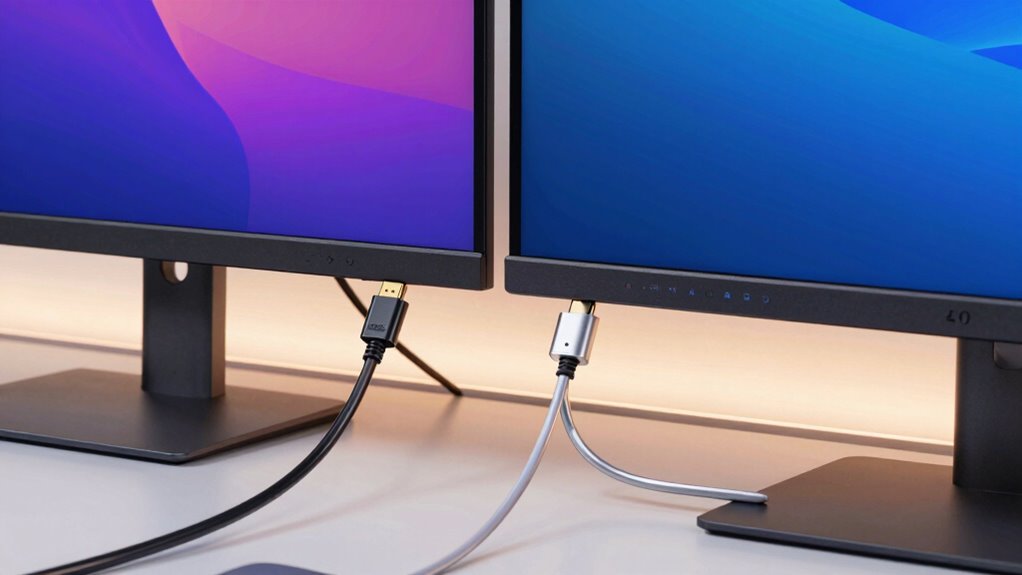

When choosing between HDMI and DisplayPort for your PC monitor, consider your needs for resolution, refresh rate, and compatibility. HDMI is more common across devices, making it easy to connect with TVs and laptops, while DisplayPort is favored for high-performance setups, supporting higher refresh rates and color accuracy. Both connect to most modern monitors, but your choice can impact performance and future-proofing. Keep exploring to find out which option suits your specific setup best.

Get the latest gadgets delivered free with Prime
- Fast, free delivery on millions of items
- Prime Video, Amazon Music and more included
- Member-only deals all year
Key Takeaways
- HDMI is more widely supported across consumer electronics, while DisplayPort is common in high-performance and gaming setups.
- DisplayPort offers better support for higher resolutions, refresh rates, and color depths compared to HDMI.
- Monitors often include both HDMI and DisplayPort inputs for versatile connectivity options.
- HDMI cables are generally more flexible and easier to connect, whereas DisplayPort cables are more robust with locking mechanisms.
- Compatibility depends on device outputs, monitor inputs, and supported features like resolution and adaptive sync technologies.
As an affiliate, we earn on qualifying purchases.
What Are the Basic Differences Between HDMI and DisplayPort?
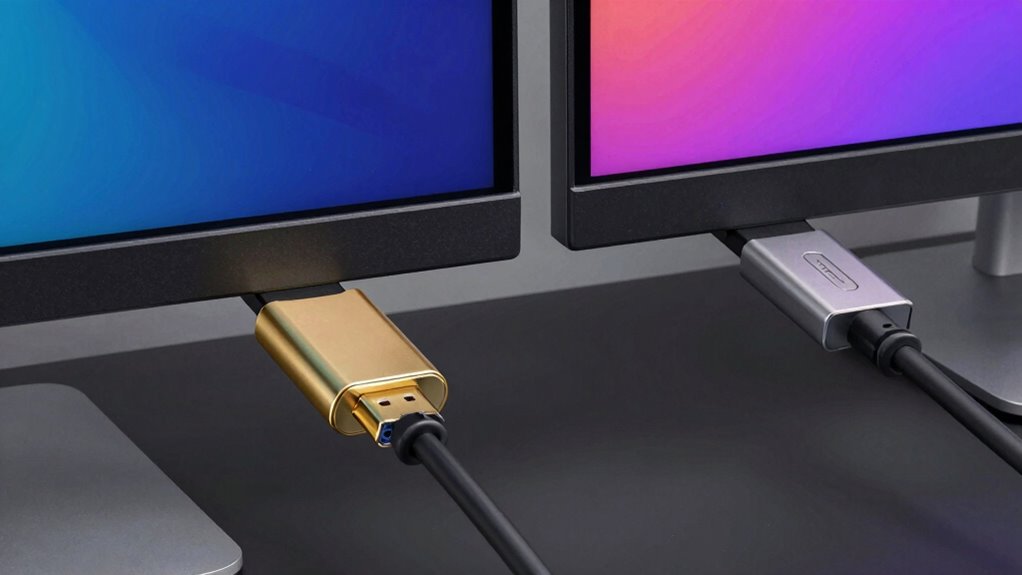
HDMI and DisplayPort are two common types of digital interfaces used to connect your PC to monitors, but they have distinct differences. When it comes to color accuracy, DisplayPort often offers slightly better support for high color depths and wider color gamuts, making it ideal for tasks demanding precise visuals. HDMI, however, has become more widespread and widely compatible with various devices. Regarding cable durability, DisplayPort cables are generally more robust, with locking mechanisms that prevent accidental disconnection, enhancing long-term reliability. HDMI cables are more flexible and easier to plug in, but they may wear out faster if frequently connected and disconnected. Understanding these differences helps you choose the right interface based on your needs for color fidelity and cable longevity, especially if you prioritize a long-lasting and reliable connection. Additionally, considering cable durability can influence your choice, especially if you prioritize a long-lasting and reliable connection. Moreover, the technology compatibility between devices can also impact your decision, ensuring seamless performance across your setup. As technology advances, the compatibility between different devices and interfaces becomes increasingly important to maintain an optimal display experience.
Furthermore, factors like connection stability and the specific features of each interface can also play a significant role in your overall setup performance.
high refresh rate gaming monitor with DisplayPort
As an affiliate, we earn on qualifying purchases.
As an affiliate, we earn on qualifying purchases.
Which Devices and Monitors Support HDMI and DisplayPort?
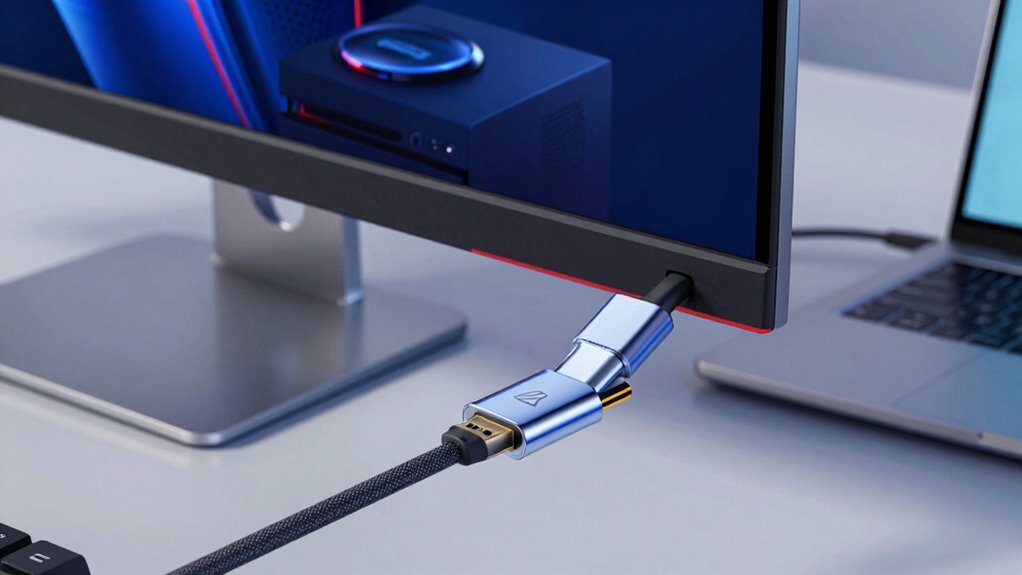
Many devices and monitors now support both HDMI and DisplayPort, but compatibility depends on the type of device and its connection ports. You’ll find that supported monitor features, like resolution and refresh rate, often vary based on the connection type. Checking the available ports and supported features helps guarantee your setup meets your needs. Additionally, understanding the essential survival gear items can be valuable in ensuring your overall preparedness during technical issues or emergencies. Being aware of digital connectivity standards can also help you optimize your device compatibility and performance. Recognizing the differences in bandwidth between HDMI and DisplayPort can further assist in selecting the appropriate connection for high-performance setups, especially when considering the hardware capabilities of your devices. Understanding these standards and their compatibility requirements ensures you choose the best connection for your specific needs.
Compatible Device Types
Are your devices compatible with HDMI and DisplayPort connections? Most modern PCs, laptops, and gaming consoles support these standards, making it easy to connect to a variety of monitors. Monitors themselves often come with both HDMI and DisplayPort inputs, enhancing port versatility and allowing for flexible setups. When choosing cables, consider their durability; high-quality cables tend to last longer and resist wear and tear better. HDMI is widely supported across consumer electronics, while DisplayPort is common in high-performance monitors and professional setups. Compatibility also extends to graphics cards and motherboards, many of which include multiple ports for seamless connectivity. Ensuring your device types are compatible helps maximize your monitor’s capabilities without sacrificing performance or convenience. Understanding port compatibility is essential to avoid connection issues and optimize display quality.
Supported Monitor Features
Most modern devices and monitors support HDMI and DisplayPort connections, making it easy to enjoy high-quality visuals with excellent color accuracy and ergonomic design. These ports enable you to connect a wide range of devices, from gaming monitors to professional displays, ensuring sharp images and vibrant colors. Many monitors are specifically designed to optimize ergonomic features like adjustable stands and flicker-free screens, enhancing your viewing comfort. Here’s a quick look at supported features:
| Device Type | Supported Features |
|---|---|
| Gaming Monitors | High refresh rate, adaptive sync |
| Professional Displays | Precise color accuracy, calibration |
| Laptops | Portable, versatile connections |
| Desktop Monitors | Adjustable ergonomics, sharp images |
Connection Port Availability
Connecting your devices to monitors relies heavily on the ports they support. Most modern monitors and PCs feature HDMI ports, which are common and widely compatible, especially for consumer electronics. DisplayPort is often found on higher-end monitors and gaming setups, offering better support for high refresh rates and advanced features. When choosing a device, consider cable durability—HDMI cables tend to be more flexible, while DisplayPort cables are typically thicker. Port placement also matters; HDMI ports are usually easier to access on TVs and monitors, whereas DisplayPort ports are often located in less obvious spots. Some monitors support both, giving you flexibility. Check device specifications to guarantee compatibility, and consider how easy it is to connect based on port placement for a seamless setup.
4K monitor with HDMI and DisplayPort inputs
As an affiliate, we earn on qualifying purchases.
As an affiliate, we earn on qualifying purchases.
Key Features: Resolution, Refresh Rate, and Audio Quality
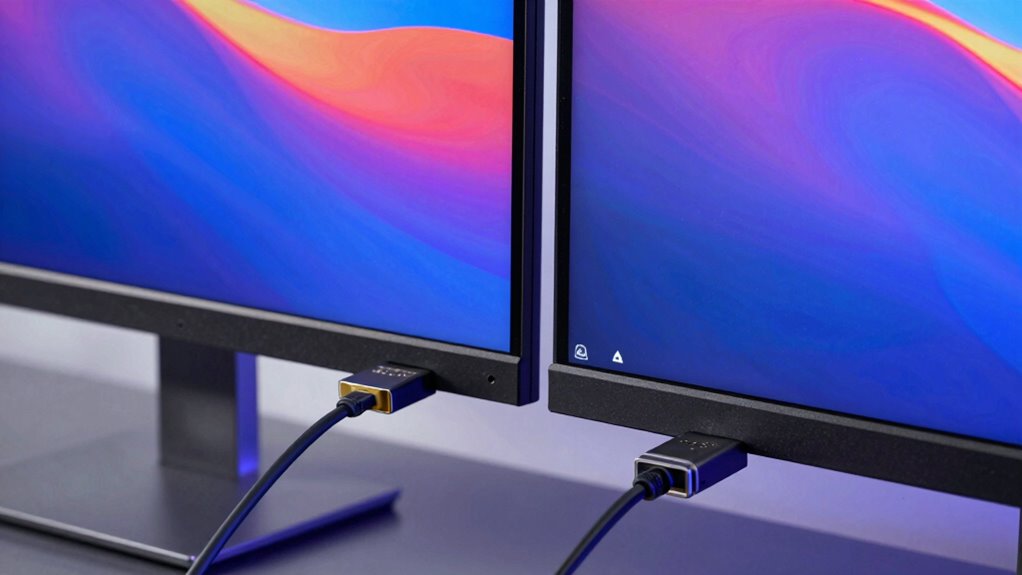
When choosing a monitor for your PC, understanding its key features can considerably impact your experience. Resolution, refresh rate, and audio quality determine how sharp, smooth, and immersive your display feels. Higher resolutions offer better color accuracy and detail, essential for creative work. Refresh rates affect how smoothly motion appears, especially in fast-paced activities. Audio quality ensures clear sound without extra equipment. Keep in mind, cable durability influences long-term performance, especially with high-bandwidth connections.
- Resolution for clarity and detail
- Refresh rate for smooth motion
- Audio quality for immersive sound
- Color accuracy for vibrant visuals
- Cable durability for reliability
durable DisplayPort cable with locking mechanism
As an affiliate, we earn on qualifying purchases.
As an affiliate, we earn on qualifying purchases.
Which Connection Is Better for Gaming or Creative Work?
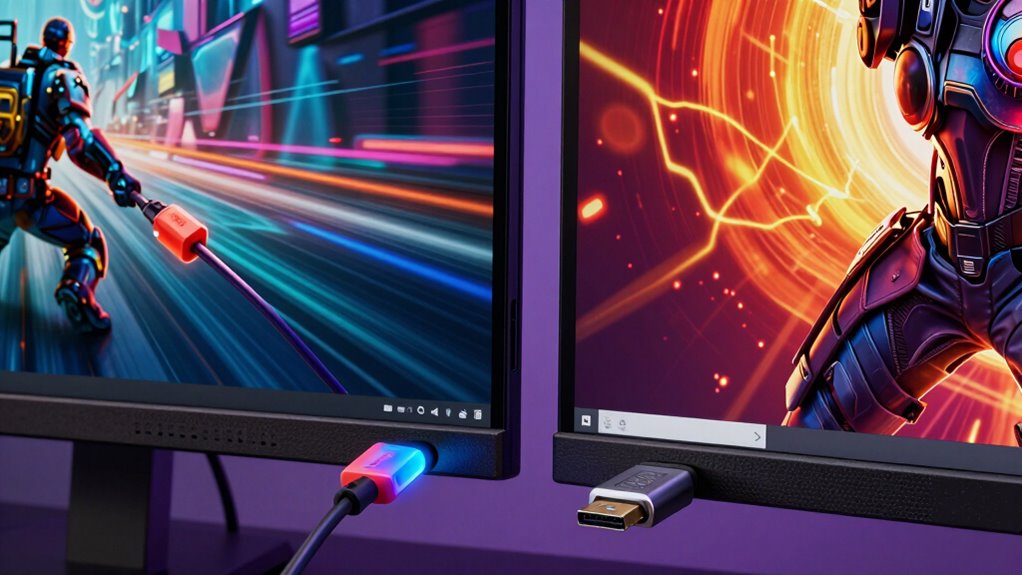
Choosing the right connection type can considerably impact your gaming and creative experiences. For gaming, low latency is key, making DisplayPort preferable due to its minimal latency differences. Creative work, especially involving color accuracy, benefits from HDMI’s higher bandwidth and support for wider color gamuts. Here’s a quick comparison:
| Feature | HDMI | DisplayPort | Best For |
|---|---|---|---|
| Color Accuracy | Good, supports HDR | Excellent, higher bit-depth | Creative work |
| Latency Differences | Slightly higher, manageable | Minimal, ideal for gaming | Gaming |
| Bandwidth | Up to 48 Gbps | Up to 80 Gbps | High-resolution, creative tasks |
| Compatibility | Widely supported | Mainly on newer devices | Both gaming and creative work |
Choose based on your priorities: speed or color precision. Additionally, signal quality can vary based on the cable and connection quality, impacting overall performance. Proper cable quality is essential for maintaining optimal data transfer. To ensure you are making a future-proof choice, consider the latest standards that support higher resolutions and advanced features.
How to Connect Your Devices Using HDMI or DisplayPort
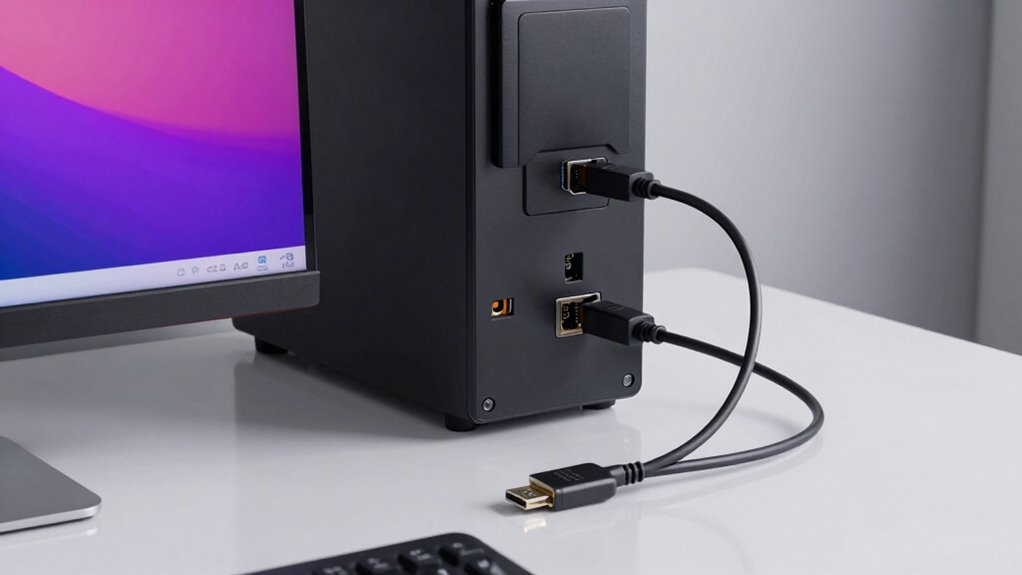
To connect your devices with HDMI or DisplayPort, start by ensuring the cables are plugged in securely. Next, check that your monitor and graphics card support the chosen connection and are set up correctly. Additionally, verifying hardware capabilities can help you select the most suitable connection type for your setup. A thorough understanding of cable compatibility is also essential to prevent potential issues. You may also want to consult DIY tools and safety tips to ensure proper handling of your cables and connectors. It’s also helpful to understand the bandwidth requirements of your devices to optimize performance. Finally, adjust your display settings for the best resolution and refresh rate to optimize performance.
Connecting Cables Properly
Ever wonder if you’re connecting your devices correctly? Ensuring proper cable connection is key for peak performance. First, check the cable’s durability; choose high-quality cables that resist wear and tear. Next, look for color coding on connectors and ports—HDMI and DisplayPort often have distinct colors to guide proper matching. When plugging in, avoid forcing the connector, as damage can occur. Confirm that the cable is fully inserted and clicks into place. Keep cables organized to prevent stress on the connectors, which can cause damage over time. Also, verify that your cables are compatible with your devices’ specifications for resolution and refresh rate. Properly connecting your cables guarantees a stable signal and longer-lasting equipment. Additionally, inspecting the connectors’ compatibility can help prevent connection issues and ensure optimal performance.
Compatible Device Setup
Once your cables are properly connected and organized, you need to guarantee your devices are compatible for seamless communication. Check that your PC’s output port matches the input port on your monitor—either HDMI or DisplayPort. Make certain your cables support the desired features, like high color accuracy for vibrant images or 4K resolution. Opt for high-quality cables with good cable durability to prevent signal loss or damage over time. Confirm that your graphics card and monitor are compatible with the chosen connection type, especially if you’re aiming for specific resolutions or refresh rates. Doing this ensures a stable connection, preserves image quality, and maintains consistent color accuracy. Proper setup reduces the risk of display issues and maximizes your monitor’s performance.
Optimal Display Configuration
Connecting your devices using HDMI or DisplayPort is straightforward if you follow a few key steps. First, make sure your cables are securely connected to both your PC and monitor. Next, access your display settings to select the best resolution and refresh rate for clear visuals. For a clutter-free workspace, consider wireless connectivity options if supported, reducing cable clutter. Adjust your monitor’s height and tilt for ergonomic positioning, preventing strain during long use. To maximize viewing comfort, minimize glare and position your monitor directly in front of you. Regularly update your graphics drivers to ensure compatibility and smooth performance. Additionally, understanding the differences between HDMI and DisplayPort can help you choose the best connection type for your setup. Finally, test different configurations to find what works best for your setup, comfort, and productivity.
Adapters and Converters: Do You Need Them?
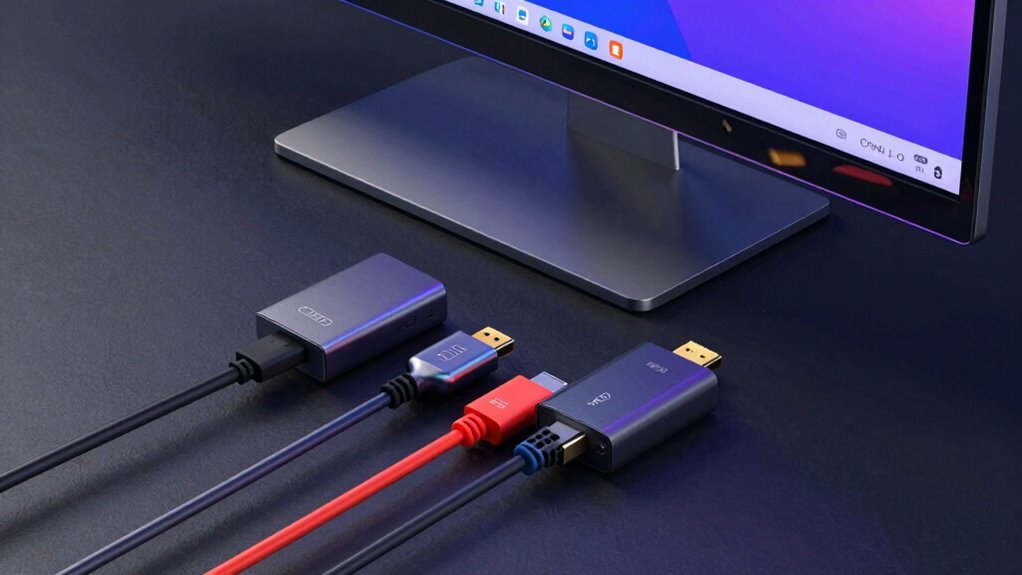
When your PC’s ports don’t match your monitor’s input, adapters and converters become essential tools to bridge the gap. Choosing the right adapter depends on ensuring good cable durability to avoid frequent replacements. Look for high-quality materials and sturdy connectors that withstand daily use. Adapter compatibility is also vital; verify that the adapter supports your specific ports and resolutions. Some adapters may work well initially but fail over time if they aren’t built to last or don’t match your setup’s requirements. If you’re connecting a DisplayPort to HDMI or vice versa, check for active or passive options based on your needs. Using incompatible or low-quality adapters can lead to signal issues or degraded display quality, so invest in reliable, compatible solutions for seamless connectivity. Additionally, considering connection standards can help ensure your setup remains future-proof and compatible with evolving technology. It’s also beneficial to stay informed about adaptation techniques, which can enhance your troubleshooting skills and improve overall setup stability. Understanding signal integrity can further help prevent issues related to poor cable quality or incompatible adapters.
Compatibility and Future-Proofing Your Setup
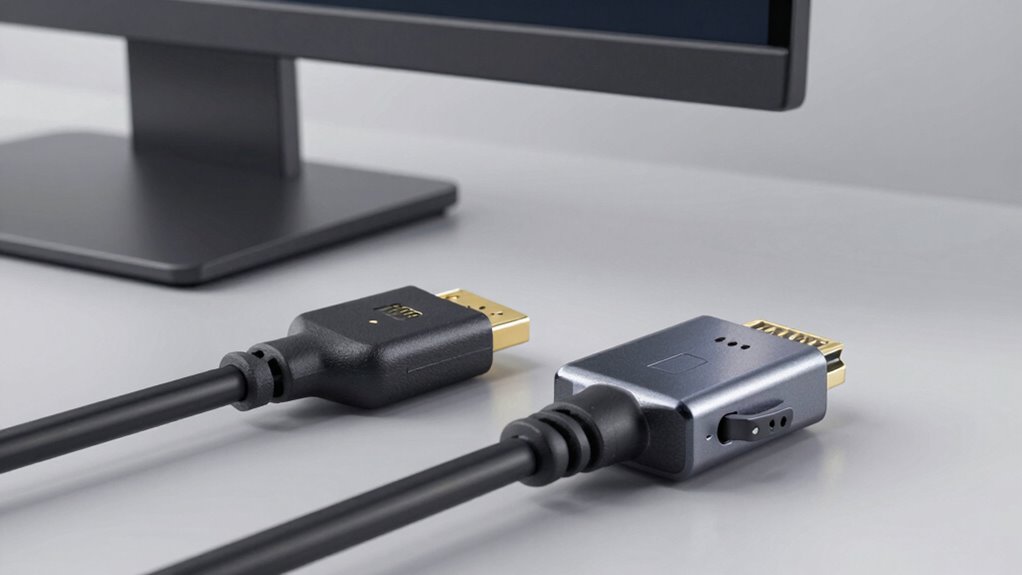
Ensuring your PC’s connectivity setup remains compatible with future technology is essential for avoiding repeated upgrades. Choosing the right connection type, like HDMI or DisplayPort, impacts your setup’s longevity and adaptability. Consider wireless connectivity options, which are increasingly future-proof and eliminate cable concerns altogether. Cable durability also matters—look for high-quality cables that resist wear and tear, ensuring long-term reliability. To future-proof effectively, stay aware of upcoming standards and device compatibility.
- Support for newer standards like HDMI 2.1 or DisplayPort 2.0
- Compatibility with wireless display options
- Quality and durability of cables
- Versatility across different devices
- Software updates for connectivity features
Final Recommendations: Choosing the Right Connection for Your Needs
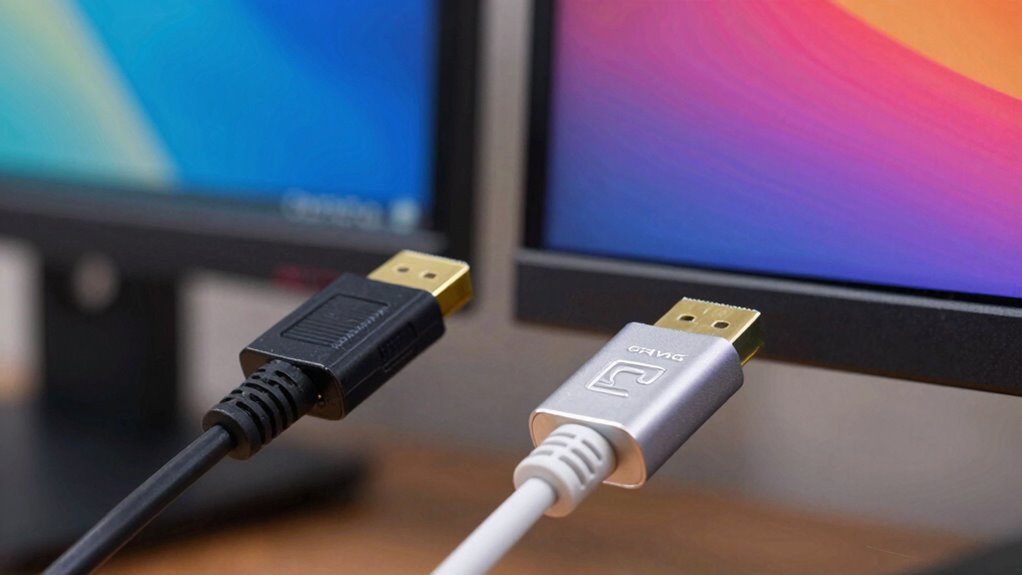
Choosing the right connection type depends on your specific needs and the devices you use. If you prioritize a clutter-free setup, wireless connectivity options like Miracast or Wi-Fi Direct can eliminate cables altogether, but confirm your devices support these features. For high-quality video and audio, HDMI is ideal for most home entertainment setups, while DisplayPort excels in professional environments requiring high resolutions or multiple monitors. Consider power delivery needs; if your monitor supports it, a single cable can transmit both video and power, reducing desk clutter. Ultimately, assess your device compatibility, whether you need fast refresh rates, or plan to upgrade in the future. Selecting the right connection guarantees peak performance, convenience, and future-proofing your setup.
Frequently Asked Questions
Can HDMI or Displayport Support Multiple Monitors Simultaneously?
Yes, both HDMI and DisplayPort can support multi-monitor configurations, but it depends on your device’s capabilities and cable compatibility. DisplayPort often handles multiple monitors better with daisy chaining, while HDMI might require a splitter or multiple ports. Check your graphics card specs and cable types to confirm they support multi-monitor setups. Your choice depends on the number of monitors you want to connect and the compatibility of your cables.
Are There Differences in Cable Durability and Lifespan?
Think of HDMI and DisplayPort cables as sturdy bridges—you want one that lasts. HDMI cables are generally more flexible, making them less prone to damage over time, while DisplayPort cables offer solid durability for frequent use. Both have good connector compatibility, but the choice depends on your needs. If you value flexibility and ease of use, HDMI might be your better pick; for heavy-duty setups, DisplayPort’s robustness shines.
How Do Cable Lengths Affect Signal Quality?
Longer cables can cause signal attenuation, leading to weaker images or audio issues. Cable interference from nearby electronics may also disrupt signal quality, especially over extended lengths. To maintain good quality, keep HDMI or DisplayPort cables within recommended lengths—typically up to 15 feet for HDMI and 3 meters for DisplayPort. Shorter cables reduce the risk of interference and attenuation, ensuring a clearer, more stable connection.
Do HDMI and Displayport Support 8K Resolutions?
Yes, HDMI and DisplayPort support 8K resolutions, but their ability depends on bandwidth limitations and video compression. HDMI 2.1 offers enough bandwidth for uncompressed 8K at 60Hz, while DisplayPort 1.4 can handle 8K at 60Hz through compression like DSC. Keep in mind, higher resolutions demand greater bandwidth, which may involve video compression to transmit 8K content smoothly without signal degradation.
Are There Security Concerns With HDMI or Displayport Connections?
You should be aware that HDMI and DisplayPort connections have some security concerns. Both use encryption protocols to protect data, but hardware vulnerabilities can still pose risks, such as potential interception or unauthorized access. While these connections are generally secure for everyday use, sensitive environments might require additional measures. Regularly updating firmware and using trusted cables can help mitigate these vulnerabilities and enhance overall security.
Conclusion
Choosing between HDMI and DisplayPort is about matching your needs with the right connection. Think of it as picking the right tool for the job—each has its strengths. Whether you’re gaming, working on creative projects, or setting up a home theater, understanding these differences helps you avoid putting all your eggs in one basket. By making an informed decision, you’ll guarantee your setup is future-proof and ready to go when you need it most.
Halloween Picks
halloween
As an affiliate, we earn on qualifying purchases.