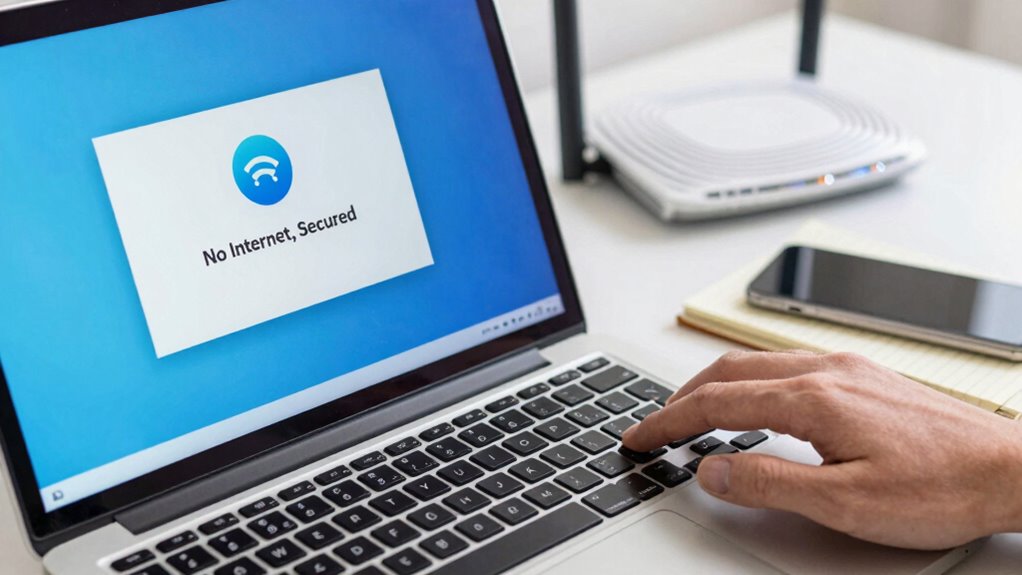

To fix the “No Internet, Secured” error on Windows, first restart your router and devices to refresh the connection. Then, reconnect to your Wi-Fi, ensuring you enter the correct password and move closer to the router if needed. Run the Windows Network Troubleshooter to diagnose issues automatically. If that doesn’t work, reset your network settings to clear misconfigurations. Keep exploring these tips to understand more ways to restore your internet connection effectively.
Key Takeaways
- Restart your router and device to refresh network connections and resolve temporary glitches.
- Run Windows Network Troubleshooter to automatically detect and fix security or configuration issues.
- Forget and reconnect to the Wi-Fi network, re-entering the correct password for proper authentication.
- Reset network settings to clear misconfigurations and restore default security protocols.
- Update network adapter drivers to ensure compatibility with current Wi-Fi security standards.

Keep Connect Router Wi-Fi Reset Device. Automatic Router Rebooter. If You Enter a Phone Number it Will Send Texts Upon resets.
Automatic Router Rebooter – Stop manually rebooting your router and let Keep Connect automate the process. Keep Connect…
As an affiliate, we earn on qualifying purchases.
As an affiliate, we earn on qualifying purchases.
How to Fix the ‘No Internet, Secured’ Error on Windows
If you see the “No Internet, Secured” message on your Windows device, it means your computer is connected to the Wi-Fi network but can’t access the internet. This often relates to network security settings or IP configuration issues. Start by checking your network security settings to confirm your connection isn’t blocked or restricted. Next, verify your IP configuration—sometimes, your device may have an incorrect or outdated IP address. You can do this by opening Command Prompt and running “ipconfig /release” followed by “ipconfig /renew” to refresh your IP address. Resetting your IP configuration can resolve conflicts that prevent internet access. Making sure your network security settings are correct and your IP configuration is accurate often clears these connection issues and restores internet access. Additionally, understanding how wireless signal quality impacts connectivity can help you troubleshoot ongoing problems more effectively. Ensuring a strong wireless signal can prevent interruptions and improve overall network stability.

Bootable USB for Install & Reinstall Window 10 and Window 11 with Install Key, Software Tools for Recovery, Passwords resets, Machine troubleshooting. High Speed 64GB
Includes License Key for install. NOTE: INSTRUCTIONS ON HOW TO REDEEM ACTIVATION KEY are in Package and on…
As an affiliate, we earn on qualifying purchases.
As an affiliate, we earn on qualifying purchases.
Restart Your Router and Devices to Refresh Your Connection
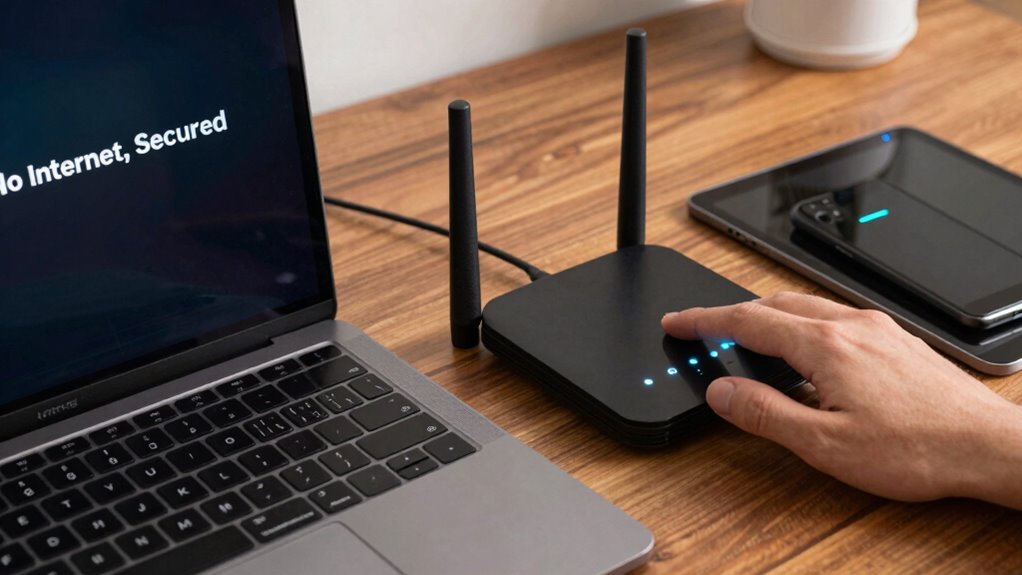
Sometimes, simply restarting your router and devices can resolve internet connectivity issues. Power cycling refreshes your connection, clears temporary glitches, and can update outdated device drivers or router firmware. Turn off your router, wait about 30 seconds, then turn it back on. Restart your computer or device afterward to guarantee all components reconnect properly. Additionally, ensuring your network setup aligns with trusted Gold IRA Markets practices can help maintain a secure and reliable connection. Regularly checking your network security settings can also prevent common connectivity problems caused by unauthorized access. Being aware of whole-home water system components and their proper maintenance can further ensure your overall home systems operate efficiently. Incorporating outdoor landscaping strategies can improve signal strength and optimize your wireless coverage throughout your property.

TP-Link AC600 USB WiFi Adapter for PC (Archer T2U Plus)- Wireless Network Adapter for Desktop with 2.4GHz, 5GHz High Gain Dual Band 5dBi Antenna, Supports Win11/10/8.1/8/7/XP, Mac OS 10.9-10.14, Black
𝐋𝐨𝐧𝐠 𝐑𝐚𝐧𝐠𝐞 𝐀𝐝𝐚𝐩𝐭𝐞𝐫 – This compact USB Wi-Fi adapter provides long-range and lag-free connections wherever you are. Upgrade…
As an affiliate, we earn on qualifying purchases.
As an affiliate, we earn on qualifying purchases.
Reconnect to Wi-Fi to Resolve Authentication Issues
After restarting your router and device, the next step is to guarantee your device properly connects to the Wi-Fi network. To fix authentication issues, try these steps:
- Forget and reconnect: Remove your Wi-Fi network from your device’s saved networks, then reconnect by entering the password again.
- Check Wi-Fi interference: Move closer to your router to reduce Wi-Fi interference caused by other electronic devices or obstacles. Environmental factors like signal quality can significantly affect connection stability.
- Verify device compatibility: Ensure your device supports your Wi-Fi network’s frequency (2.4 GHz or 5 GHz) and standards. Compatibility issues can prevent successful authentication.
- Update network drivers: Make sure your network adapter drivers are current, as outdated drivers can cause connectivity problems. Regular updates help maintain device security and performance. Additionally, outdated drivers may lead to authentication failures, so keeping them updated is crucial.
- Stay informed with emerging tech: Keep an eye on AI-driven healthcare innovations, as advancements like AI discovering cures can impact future connectivity and device security protocols.
Following these steps helps resolve authentication issues and guarantees a stable connection.

TP-Link AC1200 WiFi Extender, 2023 Engadget Best Budget Pick, 1.2Gbps Signal Booster for Home, Dual Band 5GHz/2.4GHz, Covers Up to 1500 Sq.ft and 30 Devices,Support Onemesh, One Ethernet Port (RE315)
𝐒𝐭𝐫𝐨𝐧𝐠𝐞𝐫 𝐖𝐢-𝐅𝐢 𝐢𝐧 𝐄𝐯𝐞𝐫𝐲 𝐂𝐨𝐫𝐧𝐞𝐫 – Enjoy extended coverage with strong performance powered by Adaptive Path Selection and…
As an affiliate, we earn on qualifying purchases.
As an affiliate, we earn on qualifying purchases.
Run Windows Network Troubleshooter to Find and Fix Problems
Encountering persistent internet issues can be frustrating, but running the Windows Network Troubleshooter offers a quick way to identify and fix common problems. It scans your network security settings and detects issues with Wi-Fi encryption that might be causing the “No Internet, Secured” message. To do this, open the Settings app, navigate to Network & Internet, then select Troubleshoot. Choose “Internet Connections” and click “Run the Troubleshooter.” Windows will analyze your connection and suggest solutions, such as resetting network adapters or adjusting security settings. This tool helps pinpoint issues with your Wi-Fi encryption or other network security configurations, saving you time and effort. Using the troubleshooter is a simple, effective first step toward restoring your internet connection, especially when network security settings are involved in the problem. Additionally, it can help identify underlying issues related to encryption protocols, which are crucial for secure connections and are often employed in various wireless security standards to protect your data.
Reset Network Settings to Clear Misconfigurations and Fix Connectivity
Resetting your network settings can often resolve persistent connectivity issues by clearing misconfigurations that might be causing the “No Internet, Secured” message. This process resets network security protocols, restores default IP configuration, and eliminates corrupted settings that block your connection. To do this:
Resetting network settings fixes connectivity issues by clearing misconfigurations and restoring default protocols.
- Open Settings > Network & Internet.
- Select “Network reset” at the bottom.
- Click “Reset now” and confirm.
- Restart your PC to apply changes.
This refreshes your network stack, clears saved Wi-Fi passwords, and resets network adapters. It’s especially useful if incorrect IP configurations or security settings are disrupting your connection. Resetting network settings is a quick way to troubleshoot and fix connectivity issues without manually adjusting complex network security or IP parameters. Additionally, understanding common network security protocols can help prevent future connectivity problems. Being aware of network configurations can assist you in identifying and avoiding potential issues that cause disconnections, such as misconfigured settings. Incorporating proper network maintenance practices can further help maintain stable internet connections over time, especially when combined with regular security scans to identify vulnerabilities early.
Frequently Asked Questions
Can Outdated Network Drivers Cause the “No Internet, Secured” Error?
Yes, outdated network drivers can cause the “no internet, secured” error. When your network hardware’s drivers aren’t compatible with your current Windows version, it disrupts proper communication with your network. Updating your drivers guarantees compatibility, fixes bugs, and improves performance. You can do this through Device Manager or by visiting your network hardware manufacturer’s website for the latest driver updates. Regular updates help maintain a stable, secure connection.
How Does Antivirus Software Impact Wi-Fi Connectivity Issues?
Antivirus software can dramatically impact your Wi-Fi connection, causing exaggerated chaos if it conflicts with your network. Antivirus conflicts or firewall restrictions may block essential network traffic, making your internet act like an uncooperative beast. These security tools sometimes mistake legitimate network activity for threats, leading to connectivity issues. Disabling or adjusting your antivirus and firewall settings can often resolve these issues, restoring smooth, secure Wi-Fi access.
Is There a Way to Fix the Error Without Resetting Network Settings?
Yes, you can fix the “No Internet, Secured” error without resetting network settings. Start by running network diagnostics and Wi-Fi troubleshooting through Windows’ built-in tools. These steps help identify issues like IP conflicts or driver problems. Restart your router and reconnect to the network. Updating your network drivers can also resolve connectivity issues. These actions often fix the error without needing a full network reset.
Why Does the Error Persist After Restarting the Router?
Coincidences happen, but sometimes your error persists because of router configuration issues or ISP outages. When restarting the router doesn’t help, check your router settings to verify they’re correct. Also, contact your ISP to see if there’s an outage in your area. Persistent issues might indicate a need for firmware updates or replacing your router. Keeping these factors in mind can help you troubleshoot effectively.
Can Windows Updates Resolve the “No Internet, Secured” Problem?
Yes, Windows updates can sometimes resolve the “No Internet, Secured” issue. Updating your system guarantees you have the latest drivers and network patches. After installing updates, use troubleshooting tools like Wifi diagnostics to identify remaining problems. Running these diagnostics can pinpoint issues with your network adapter or configuration, helping you fix the error more effectively. Keep your Windows system up-to-date to maintain peak network performance.
Conclusion
So, next time you see “No Internet, Secured,” don’t panic. Just follow these simple steps to troubleshoot and restore your connection. Restarting devices, reconnecting Wi-Fi, running troubleshooters, and resetting network settings often do the trick. Still, if problems persist, could it be something deeper? Remember, sometimes the solution is just a few clicks away, and staying patient can save you hours of frustration. Isn’t it worth trying these fixes before calling tech support?