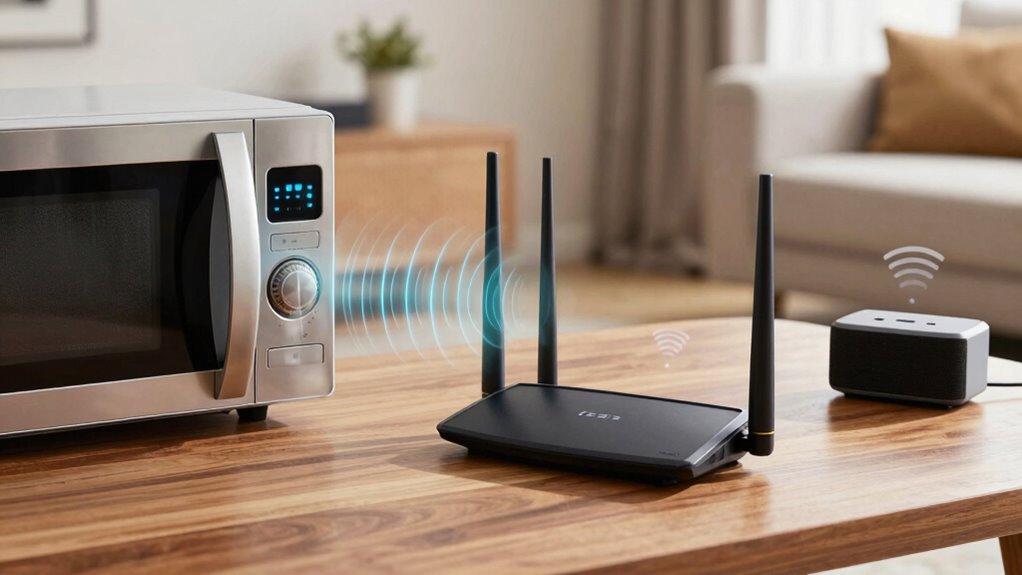

To reduce Wi-Fi interference from microwaves, Bluetooth, and other household devices, keep your router away from these sources and position it centrally in your home. Use the 5 GHz band for less congestion, and regularly change channels to find the clearest one. Turn off unused Bluetooth devices, and limit their use during high-speed activities. Managing device placement and updating firmware can further improve your connection — discover more tips to optimize your Wi-Fi environment.
Key Takeaways
- Keep your Wi-Fi router away from microwave ovens, Bluetooth devices, and other electronics that emit interference, especially during high-usage times.
- Use the 5 GHz band instead of 2.4 GHz to reduce congestion and minimize interference from common household devices.
- Change your Wi-Fi channel to less crowded options (like 1, 6, or 11) using a Wi-Fi analyzer tool for optimal performance.
- Turn off or disconnect unused Bluetooth devices and avoid placing Bluetooth gadgets near the Wi-Fi router.
- Elevate and centrally position your router, maintaining distance from large metal objects and thick furniture that can block signals.
As an affiliate, we earn on qualifying purchases.
How Wi-Fi Interference Affects Your Internet Speed
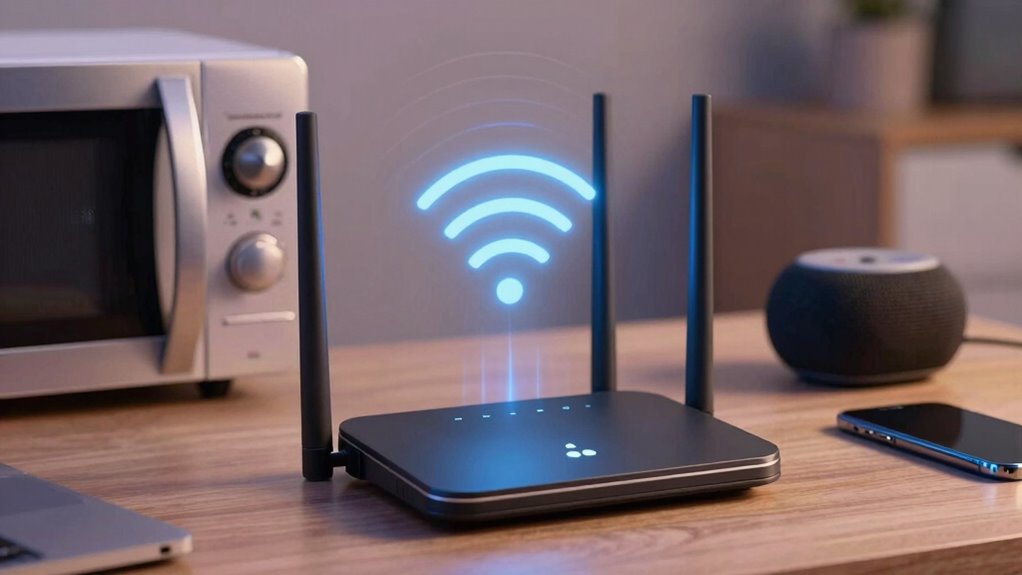
Have you ever noticed your internet slowing down unexpectedly? Wi-Fi interference can be a culprit, disrupting your connection and lowering speeds. When signals clash, your router struggles to transmit data efficiently, causing buffering and lag. This interference often stems from household devices or environmental factors. Strong wireless security measures, like data encryption, are essential for protecting your network, but they don’t prevent interference. Instead, they add a layer of protection, ensuring your data stays private even if your connection slows. To maintain ideal speed, keep your Wi-Fi router away from electronic devices that emit interference and update its firmware regularly. Understanding how interference impacts your connection helps you take steps to improve speed and keep your online experience smooth. Recognizing the sources of interference around your home can help you better manage and reduce disruptions. Additionally, being aware of home environment factors can further assist in minimizing signal interference, including avoiding placement near electromagnetic emissions from household appliances. Proper device placement and regular maintenance can significantly enhance your Wi-Fi performance, especially if you consider the home design layout to optimize signal flow.
As an affiliate, we earn on qualifying purchases.
Identify Household Devices Causing Wi-Fi Interference
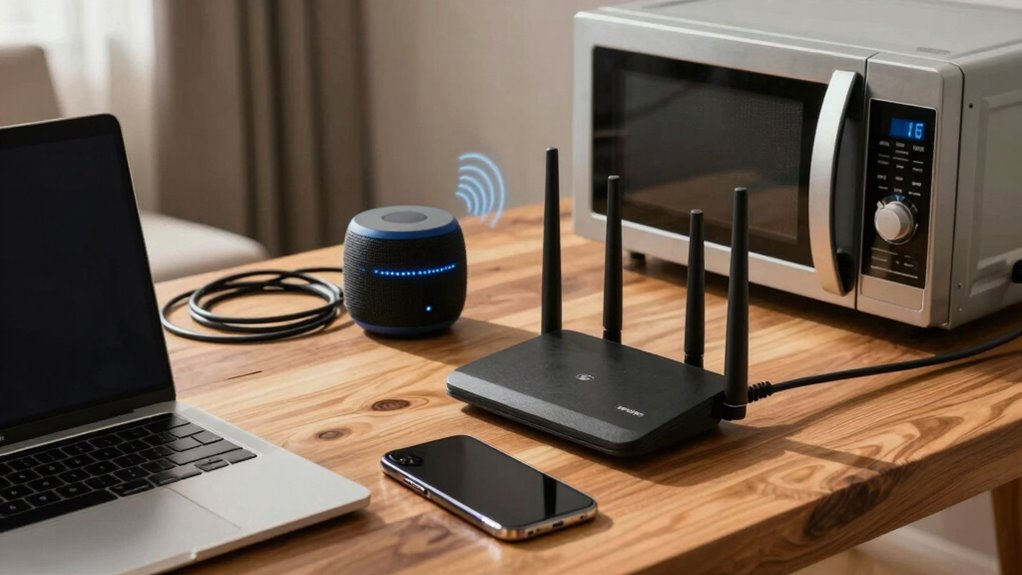
Many household devices can interfere with your Wi-Fi signal, causing slower speeds and connection drops. Common culprits include smart home gadgets, Bluetooth devices, and cordless phones, which often operate on the same 2.4 GHz band. These devices contribute to increased interference and energy consumption, potentially weakening your Wi-Fi connection. To identify the offenders, observe which devices are active when your Wi-Fi slows down or drops out. Turn off or disconnect gadgets one at a time to see if speeds improve. Smart home devices, especially those that frequently transmit data, can be major sources of interference. Understanding which devices are causing issues helps you manage your network more effectively, reducing interference and maintaining a stable, fast Wi-Fi connection. Additionally, interference factors like contrast ratio and color accuracy in your home entertainment setup can impact overall device performance and network stability. Being aware of Wi-Fi interference sources and how they operate can further aid in optimizing your network performance and avoiding disruptions. Recognizing how radio frequency signals interact within your environment can also help you better mitigate interference and improve connectivity, especially when considering the frequency bands used by different household devices.
As an affiliate, we earn on qualifying purchases.
Choose the Best Wi-Fi Channel to Reduce Interference
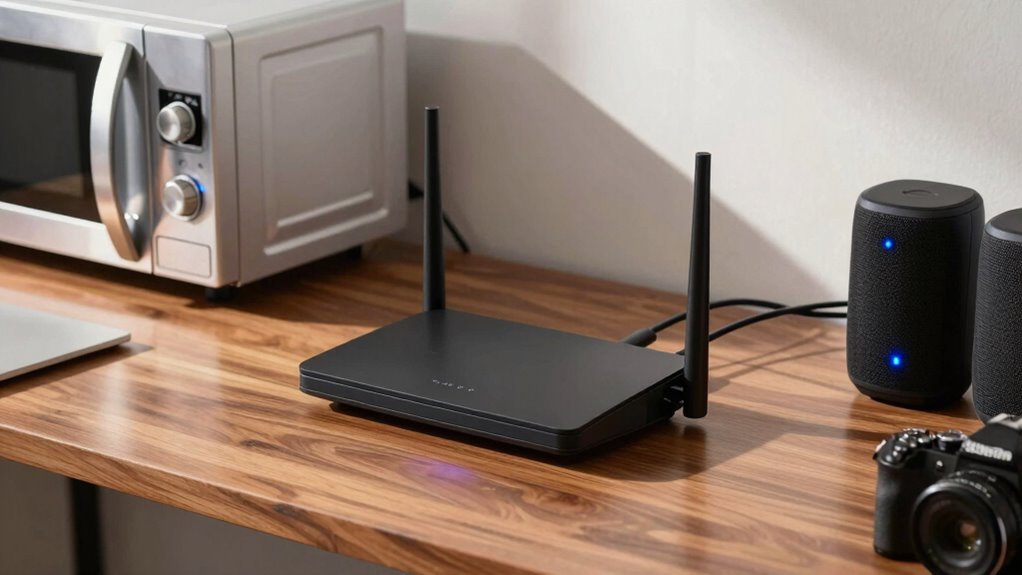
Choosing the right Wi-Fi channel can particularly reduce interference and improve your connection speed. Proper channel selection is essential for effective frequency optimization. To minimize disruptions, scan your environment to identify the least congested channels. Most routers support automatic channel selection, but manual tuning can yield better results.
Optimizing your Wi-Fi channel reduces interference and boosts connection speed through environment scanning and manual tuning.
Consider these tips:
- Use Wi-Fi analyzer tools to find the clearest channels
- Switch between 2.4 GHz and 5 GHz bands based on interference levels
- Avoid channels heavily used by neighboring networks
- Select channels with fewer overlapping signals
- Regularly reassess your channel choice as interference patterns change
As an affiliate, we earn on qualifying purchases.
Position Your Router for Better Signal Clarity
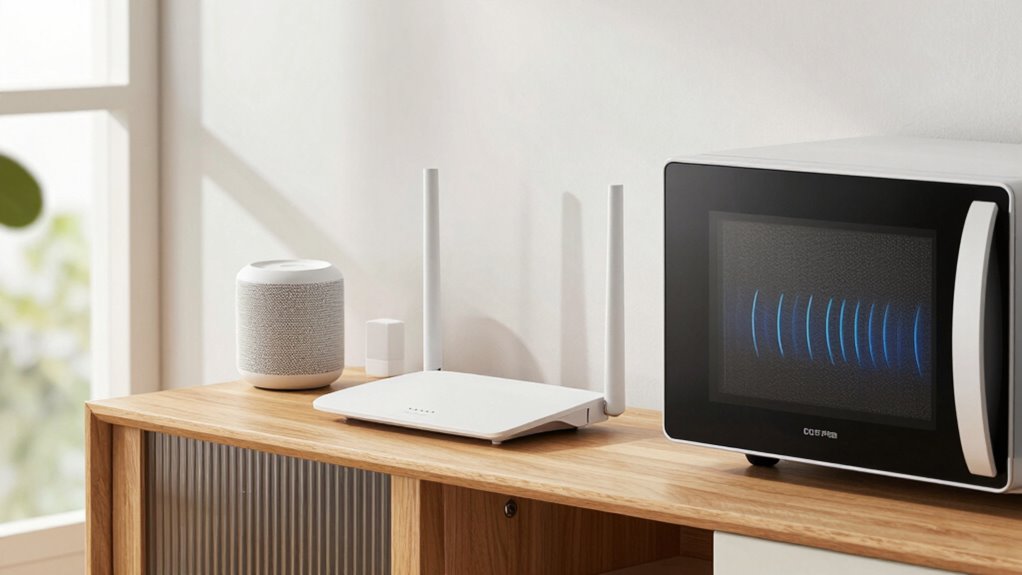
To improve your Wi-Fi signal, placing your router in the right location is essential. Proper router placement minimizes signal obstruction and boosts clarity. Keep your router elevated and central in your home, avoiding walls, metal objects, and appliances that can block signals. Positioning it away from microwaves and Bluetooth devices reduces interference. Also, steer clear of placing it near thick furniture or large metal surfaces that can obstruct the signal. Consider the table below to understand ideal placement strategies:
| Placement Tip | Reason | Effect |
|---|---|---|
| Elevate your router | Avoid ground-level obstructions | Signal travels more freely |
| Central location | Cover entire home evenly | Better overall coverage |
| Away from interference sources | Reduce signal interference | Clearer, stronger signal |
| Open space | Minimize signal obstruction | Improved signal clarity |
| Avoid metal surfaces | Prevent signal reflection | More reliable connection |
Additionally, ensuring that your router’s firmware is up to date can enhance performance and stability. Regularly updating your firmware can also help in reducing interference caused by outdated software. It is also helpful to identify and eliminate interference sources within your home environment that might impact your Wi-Fi performance.
Use Dual-Band and Mesh Networks to Improve Performance
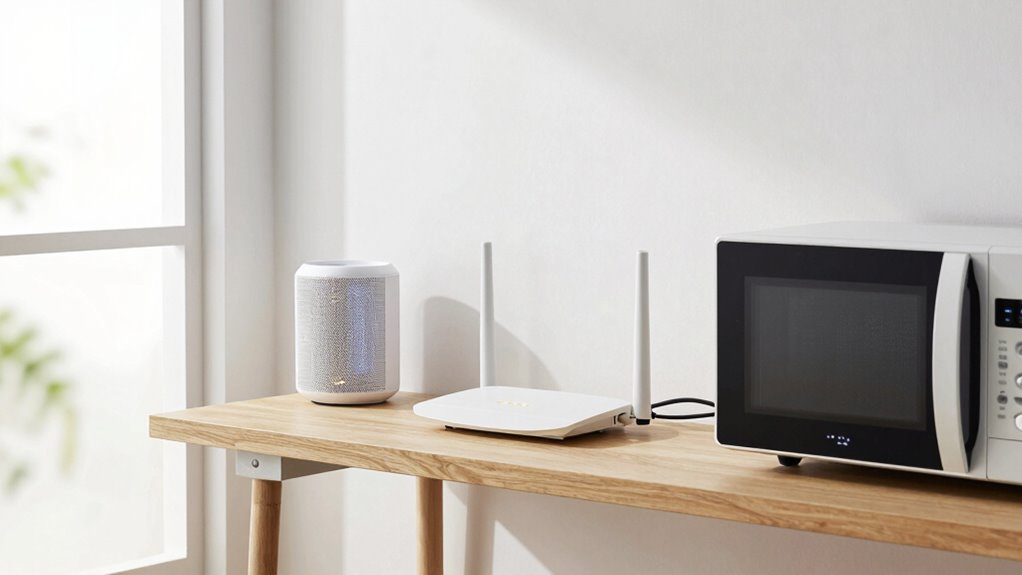
Using dual-band and mesh networks can markedly enhance your Wi-Fi performance, especially in larger homes or areas with multiple devices. Dual band enhancement allows you to separate your devices between the 2.4 GHz and 5 GHz bands, reducing congestion and interference. Mesh network deployment creates a seamless network that covers your entire space, eliminating dead zones. Here are some tips to maximize these features:
Enhance Wi-Fi with dual-band and mesh networks for seamless, interference-free connectivity throughout your home.
- Enable dual-band enhancement on your router
- Use dedicated backhaul channels in mesh systems
- Place mesh nodes strategically for even coverage
- Keep firmware updated for peak performance
- Limit device connections during high-demand periods
- Consider wireless interference mitigation techniques to further reduce disruptions
These steps help improve signal stability and speed, making your Wi-Fi more resilient against interference from other electronics.
How to Minimize Microwave and Bluetooth Interference
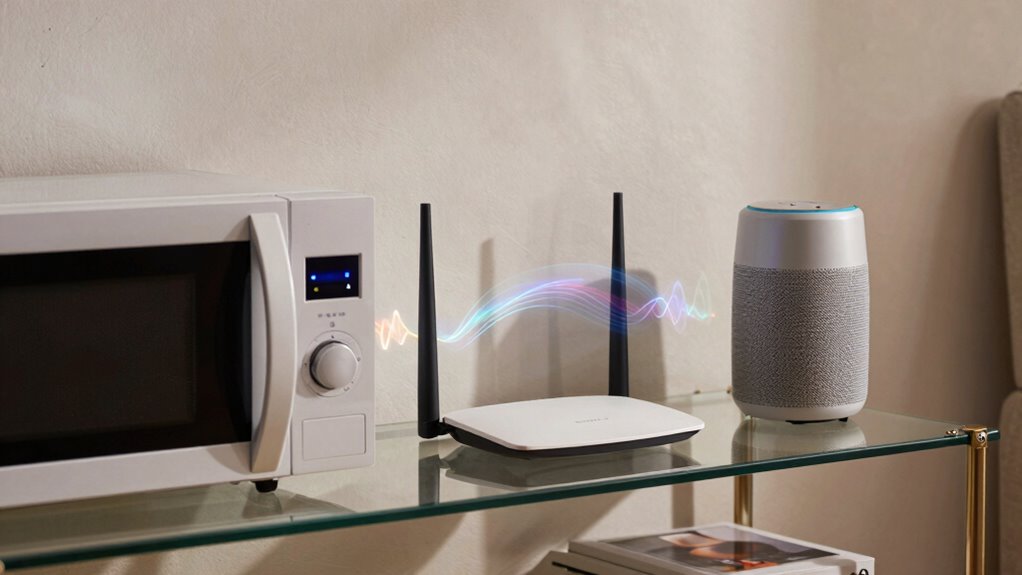
To reduce microwave and Bluetooth interference, keep these devices away from your Wi-Fi equipment whenever possible. Using the 2.4 GHz or 5 GHz bands can help minimize signal clashes, so choose the one that works best for your setup. Also, limit Bluetooth device usage near your router to prevent unnecessary disruptions. For optimal performance, consider adjusting your router placement and ensuring your studio setup avoids common interference sources. Being aware of wireless frequency bands can help you better understand how to optimize your network and reduce interference. Additionally, understanding the mythology-inspired names can serve as a helpful reminder that just like powerful names carry meaning, selecting the right frequency and placement can give your network a strong, interference-free signal. Properly managing your household device placement is essential for maintaining a reliable Wi-Fi connection. To further enhance your setup, staying informed about electromagnetic interference sources can help you proactively address potential issues before they affect your connection.
Keep Devices Away From Microwave
Have you ever noticed your Wi-Fi slowing down whenever you use the microwave? Microwave proximity can cause interference, disrupting your signal. To minimize this, guarantee good device separation between your Wi-Fi equipment and the microwave. Keep your router and devices away from the microwave oven during use, especially if they share the same room. Here are some tips:
- Place your router at least a few feet away from the microwave.
- Avoid setting devices directly next to or above the microwave.
- Use a different power outlet for your Wi-Fi equipment.
- Keep microwave doors closed when cooking to contain interference.
- Position your router in a central, open spot for better signal distribution.
These steps help reduce microwave proximity issues, ensuring smoother Wi-Fi performance.
Use 2.4 GHz or 5 GHz Bands
Switching between the 2.4 GHz and 5 GHz Wi-Fi bands can considerably reduce interference from microwaves and Bluetooth devices. Frequency selection is key to band optimization—choosing the best band for your environment minimizes disruptions. The 2.4 GHz band covers a broader range but is more prone to interference, while the 5 GHz band offers less congestion and faster speeds. To optimize your Wi-Fi, try switching bands based on your device’s location and activity. Use the table below to understand the differences:
| Band | Pros | Cons |
|---|---|---|
| 2.4 GHz | Better range, wider compatibility | More interference, slower speeds |
| 5 GHz | Faster, less interference | Shorter range, fewer compatible devices |
Adjusting your settings guarantees smoother connections and reduces interference issues. Additionally, selecting the appropriate Wi-Fi band based on your wireless network environment can help enhance overall performance and reduce potential interference sources.
Minimize Bluetooth Device Usage
Since Bluetooth devices operate on the same 2.4 GHz frequency as many Wi-Fi networks, using them simultaneously can cause significant interference. To improve your Wi-Fi performance, minimize Bluetooth device usage when possible. Practice Bluetooth optimization by turning off devices you aren’t actively using. Avoid unnecessary device pairing, which can keep Bluetooth signals active in the background. Keep Bluetooth devices away from your Wi-Fi router to reduce signal overlap. Disconnect devices that don’t need to stay connected constantly. Limit the number of active Bluetooth connections during high-bandwidth tasks. By managing device pairing carefully and turning off unused Bluetooth devices, you’ll reduce interference and enhance your Wi-Fi connection’s stability.
Troubleshoot Wi-Fi Problems When Interference Persists
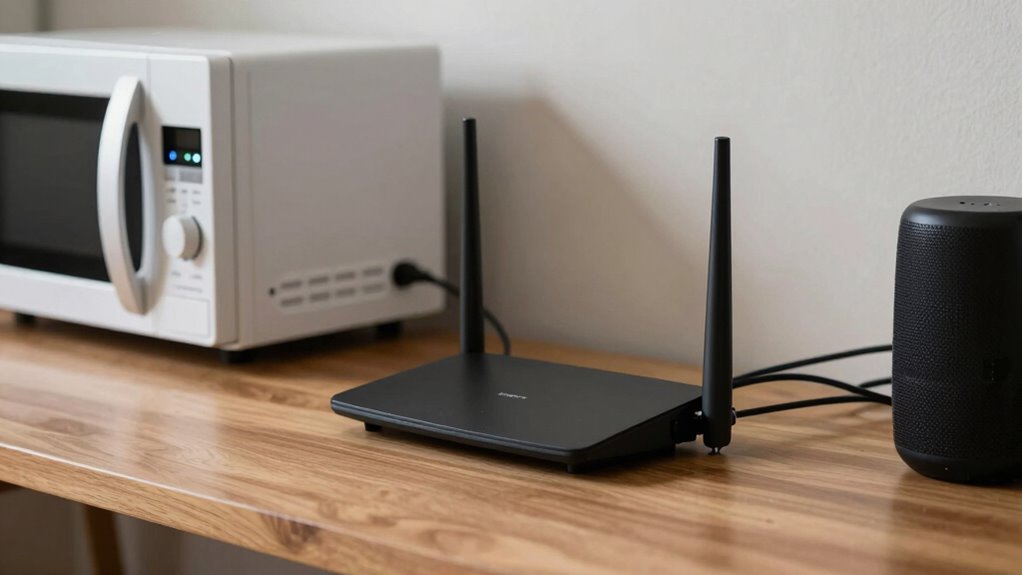
When Wi-Fi issues persist despite your efforts, you need to identify the ongoing interference sources first. Adjust your router settings or try using Wi-Fi analyzing tools to pinpoint the problem areas. These steps can help you find solutions even when interference seems stubborn.
Identify Persistent Interference Sources
Are persistent Wi-Fi issues frustrating you? To identify interference sources, focus on electromagnetic interference that causes signal attenuation. Pinpointing these sources helps you understand what’s disrupting your connection. Look for devices nearby that emit strong signals, such as cordless phones or baby monitors. Check for appliances like microwaves operating simultaneously, which can cause interference. Use a Wi-Fi analyzer app to scan for crowded channels or high interference zones. Keep an eye on Bluetooth gadgets, as they can also interfere with Wi-Fi signals. Moving or turning off suspected devices temporarily can help confirm if they’re causing issues. Remember, persistent interference often stems from these sources, and identifying them is the first step to reducing Wi-Fi disruptions effectively. Additionally, being aware of your environmental factors, such as nearby electronic devices, can help you better manage interference sources. Understanding how free-floating devices like outdoor electronics or landscaping features might contribute to interference can further assist in troubleshooting.
Adjust Router Settings
After identifying potential sources of interference, adjusting your router’s settings can often improve your Wi-Fi performance. First, change your router’s Wi-Fi channel to avoid crowded bands; channels 1, 6, and 11 are usually best. Make sure your router uses the latest firmware updates, which can fix bugs and improve stability. Check your router’s security settings to prevent unauthorized access that might cause interference or slowdowns. Enable WPA3 or WPA2 encryption and change default passwords. If your router has a dual-band setup, switch to the 5 GHz band for less congestion and interference. Additionally, disable unnecessary features like QoS or WPS if they’re not needed. Regularly updating firmware and optimizing security settings can greatly reduce interference and boost Wi-Fi reliability.
Use Wi-Fi Analyzing Tools
If interference continues despite your adjustments, using Wi-Fi analyzing tools can help pinpoint the problem sources. These tools perform spectral analysis and interference mapping to identify interference patterns and their origins. By analyzing the spectrum, you can detect overlapping signals, such as microwaves or Bluetooth, causing disruptions. Interference mapping visually shows where interference is strongest, guiding your troubleshooting efforts.
Consider these steps:
- Use spectral analysis tools to detect unexpected signals
- Perform interference mapping to locate interference hotspots
- Identify sources like cordless phones or neighboring networks
- Check for channel overlaps causing congestion
- Adjust your router placement based on analysis results
These insights empower you to make targeted fixes, ensuring a more stable Wi-Fi connection.
Tools and Devices to Boost Your Wi-Fi Signal
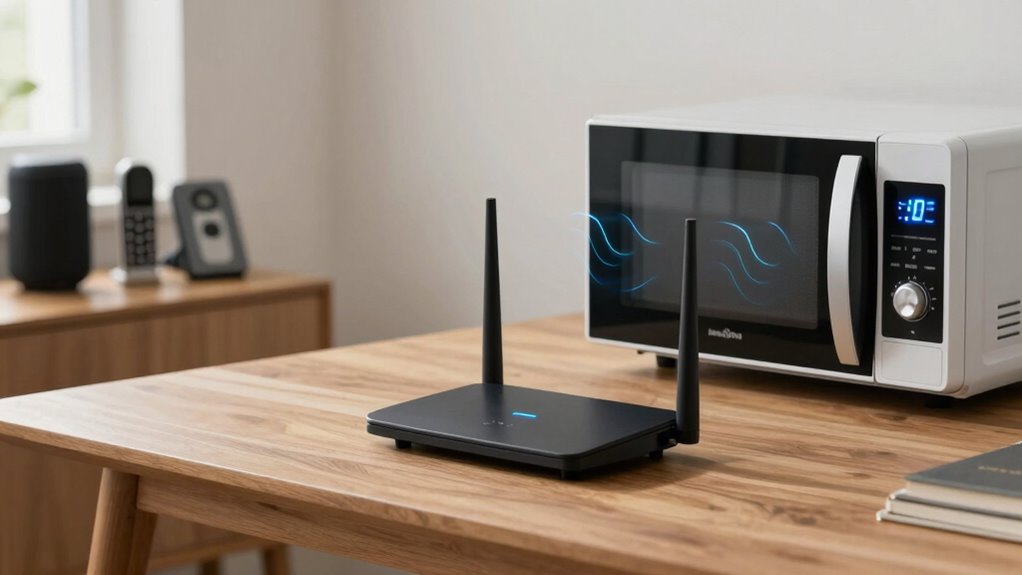
To effectively boost your Wi-Fi signal, you can turn to a variety of tools and devices designed to enhance coverage and reduce interference. Signal boosters are popular options for expanding your network, especially in larger homes or smart home setups. These devices amplify your existing Wi-Fi, ensuring all devices stay connected. You might also consider mesh networks, which use multiple nodes to create a seamless coverage area. Additionally, smart home devices often include built-in Wi-Fi extenders, simplifying setup. Here’s a quick comparison:
| Tool/Device | Best for |
|---|---|
| Signal Boosters | Strengthening weak signals in specific areas |
| Mesh Networks | Whole-home coverage, seamless connection |
| Wi-Fi Extenders | Expanding coverage in targeted zones |
| Smart Home Devices | Integrating Wi-Fi with automation |
These options help optimize your Wi-Fi, reducing interference and improving performance.
Frequently Asked Questions
Can Changing Wi-Fi Frequency Bands Eliminate All Interference Issues?
Changing Wi-Fi frequency bands can substantially reduce interference issues, but it may not eliminate all problems. Frequency switching helps by moving your connection to a less congested band, improving signal stability. However, other factors like physical obstructions or electronic devices can still cause interference. So, while switching bands is a useful step, you should also optimize your router placement and minimize nearby electronic disruptions for the best results.
How Can I Identify Hidden Sources of Wi-Fi Interference in My Home?
To identify hidden Wi-Fi interference sources, start by checking your device’s signal strength in different areas of your home. Weak signals often indicate interference. Adjust your device placement to see if signal improves, and look for appliances or electronics like cordless phones or baby monitors that might cause interference. Using Wi-Fi analysis tools can also help spot hidden sources, so you can optimize your setup for better connectivity.
Are Third-Party Wi-Fi Channels More Effective Than Default Settings?
Like a skilled navigator steering through a storm, third-party Wi-Fi channels often outperform default settings. They allow you to optimize your channel selection, reducing interference and improving signal clarity. By customizing your channels, you can boost your Wi-Fi signal and minimize disruptions. Channel optimization and signal boosting make your network more resilient, especially in crowded environments. So, yes, third-party channels can be more effective than default ones for better Wi-Fi performance.
What Safety Precautions Should I Take When Repositioning My Router?
When repositioning your router, you should prioritize good router placement to optimize signal strength and minimize interference. Keep it elevated, away from thick walls, metal objects, and electronic devices like microwaves and Bluetooth gadgets. Always unplug the router before moving it, and avoid placing it near water or metal surfaces. Ensuring clear line-of-sight and avoiding obstructions will boost your signal strength and improve overall Wi-Fi performance safely.
Can Software Updates Reduce Wi-Fi Interference Problems?
Software updates can help reduce Wi-Fi interference problems through software enhancement, which improves your router’s performance and stability. Updated firmware often includes interference mitigation features that better manage signal channels and reduce conflicts with devices like microwaves or Bluetooth. By keeping your router’s software current, you enhance its ability to handle interference, leading to a clearer, more reliable Wi-Fi connection. Regular updates are a simple way to maintain peak network performance.
Conclusion
Think of your Wi-Fi as a delicate dance, where every device and signal plays a part. When interference strikes, it’s like losing the rhythm. But with mindful positioning, the right channels, and smart device choices, you can restore harmony. Your internet connection becomes the steady heartbeat of your home, enabling connection, comfort, and joy. Take control, clear the chaos, and let your Wi-Fi sing its true song—steady, strong, and reliable.