
If your streaming quality drops randomly, start by checking your internet speed with online tests like Ookla or Fast.com, and monitor your connection for stability issues. Adjust your bitrate settings to match your network speed and limit background apps that consume bandwidth. Restart your router and modem regularly, and consider disabling VPNs or proxies temporarily. Ensuring your devices and firmware are up-to-date can also help. Keep these tips in mind, and you’ll find more ways to optimize your streaming experience.

Get the latest gadgets delivered free with Prime
- Fast, free delivery on millions of items
- Prime Video, Amazon Music and more included
- Member-only deals all year
Key Takeaways
- Verify your internet speed and stability with regular tests to identify fluctuations or drops during streaming.
- Adjust streaming bitrate and resolution settings to match your current internet bandwidth for smoother playback.
- Limit background apps and device usage to reduce network congestion and improve streaming performance.
- Restart your router and modem regularly to clear glitches and ensure optimal connection stability.
- Disable VPNs or proxies temporarily to see if they are causing bandwidth or connection issues.
Products Worth Considering

LG 34GX90SA-W 34-inch Ultragear WQHD OLED Curved Gaming Monitor

LG UltraGear 32GX850A-B 32-Inch 4K UHD Glossy OLED Gaming Monitor

Samsung 27 Odyssey OLED G5 (G50SF) QHD QD-OLED Gaming Monitor
As an affiliate, we earn on qualifying purchases.
Why Does My Streaming Keep Dropping or Buffering?
Have you ever wondered why your streaming suddenly buffers or drops? The main culprit is often streaming latency, which slows down data transfer between your device and the server. When latency spikes, your device struggles to keep up, causing interruptions. Buffering causes, such as a weak Wi-Fi signal or network congestion, also play a significant role. If your internet connection is inconsistent or overloaded, data packets can’t arrive smoothly, leading to pauses or quality drops. Heavy network usage from other devices or background apps can increase buffering causes. Sometimes, your streaming device or app itself may be the issue, but most often, the root lies in your connection quality. Understanding these buffering causes helps you identify where the problem originates and how to fix it. Additionally, projector technology can influence overall viewing experience, especially if you’re streaming to a home theater setup. Improving your network bandwidth can also make a noticeable difference in streaming stability and quality. Furthermore, optimizing your router settings can help reduce latency and prevent buffering issues, especially if you adjust for QoS settings to prioritize streaming traffic.
How to Check Your Internet Speed and Connection Stability
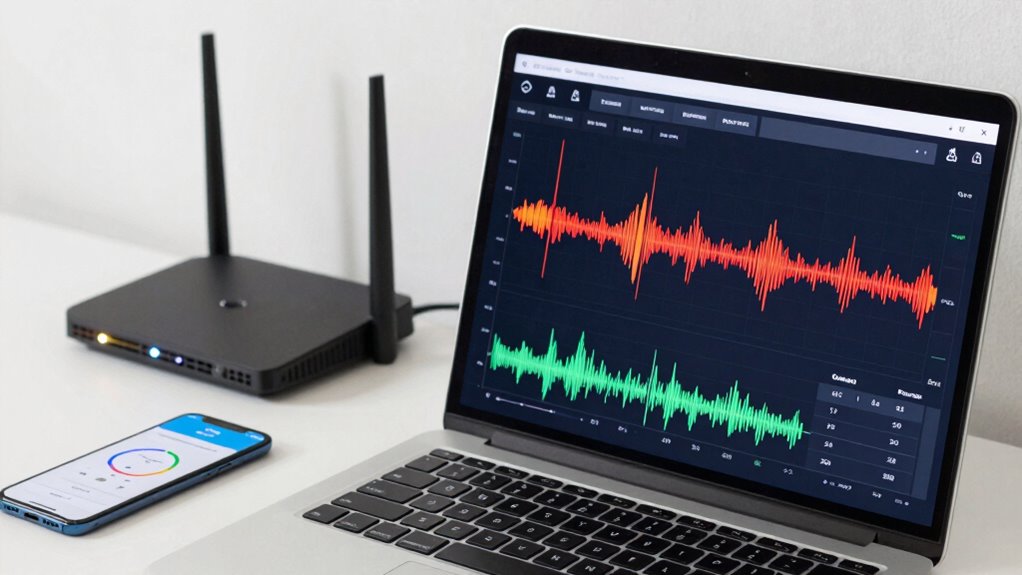
To diagnose streaming issues effectively, it’s essential to check your internet speed and connection stability. Start by running an online speed test using tools like Ookla or Fast.com. These tests measure your download and upload speeds, giving you a clear picture of your internet’s performance. Additionally, check your connection stability by observing if your network drops or experiences lag during the test. Understanding your internet capacity can help determine if your current setup supports high-quality streaming. Monitoring the network performance over time can also reveal if there are intermittent issues affecting your connection.
What Settings Can Improve Streaming Quality?
You can improve your streaming quality by adjusting your bitrate settings to better match your internet speed. Optimizing your network connection, such as using a wired connection or reducing other device usage, also helps prevent drops. These simple tweaks can make a noticeable difference in keeping your stream smooth. Additionally, ensuring your home network setup is optimized can contribute to more stable streaming performance. Reviewing your internet plan can also ensure you have sufficient bandwidth for high-quality streaming. For further stability, consider prioritizing streaming traffic through your router settings for a more consistent experience. Regularly updating your network equipment can also help maintain optimal performance. Being aware of whole-home water systems and their impact on your household infrastructure can help you identify potential sources of interference that might affect your overall connectivity.
Adjust Bitrate Settings
Adjusting your bitrate settings is a crucial step in improving streaming quality, especially when you notice drops or buffering issues. Bitrate adjustments directly influence how much data is transmitted per second, impacting overall clarity and smoothness. Lowering the bitrate can reduce buffering on slower connections, while increasing it enhances image quality. Keep in mind, your streaming resolution also plays a role; higher resolutions require higher bitrates for clear visuals. To find the right balance, experiment with different bitrate settings, aiming for the highest quality your connection can handle without causing interruptions. Many streaming platforms allow you to customize these settings easily. Adjusting your bitrate thoughtfully ensures a smoother, more consistent viewing experience without sacrificing visual fidelity. For reliable streaming, it’s also useful to know about trusted businesses and services that can help optimize your setup.
Optimize Network Connection
Optimizing your network connection can substantially reduce streaming interruptions and improve overall quality. Start by ensuring your connection has sufficient bandwidth for streaming, which minimizes buffering. A stable connection is essential for consistent playback. Perform network troubleshooting to identify and fix issues like interference or slow speeds. Consider using a wired Ethernet connection instead of Wi-Fi for stability. Prioritize streaming traffic through your router settings if available. Use the following table to guide your adjustments:
| Setting | Action | Benefit |
|---|---|---|
| Bandwidth Optimization | Limit background apps consuming bandwidth | Less congestion, smoother streaming |
| Network Troubleshooting | Restart your router and check for firmware updates | Resolves connectivity issues |
| Quality of Service (QoS) | Enable QoS settings for streaming devices | Prioritizes streaming traffic |
Additionally, understanding network fundamentals can help you make more informed adjustments to improve your streaming experience. Being aware of bandwidth management techniques can further enhance the quality of your stream by reducing unnecessary data usage. Implementing proper network configuration can help ensure consistent performance and prevent drops in streaming quality. Incorporating all-waterpark amenities in your network setup, like dedicated bandwidth for streaming devices, can also contribute to a better experience.
How to Check and Fix Your Device’s Network Settings
Network issues often cause streaming quality to drop unexpectedly, but checking your device’s network settings can help identify and resolve the problem. Start with device troubleshooting by examining your Wi-Fi or Ethernet connections. Confirm your device is connected to the correct network and that the connection is stable. Check your network configurations, like IP address and DNS settings, and reset them if needed. Disable any VPNs or proxies that might interfere with your connection. Restart your device to refresh network settings and clear temporary glitches. Also, update your device’s software and network drivers to the latest versions. These simple steps can often fix underlying network issues, improving your streaming experience without needing to adjust your router or modem.
Are Your Router and Modem Set Up Correctly?
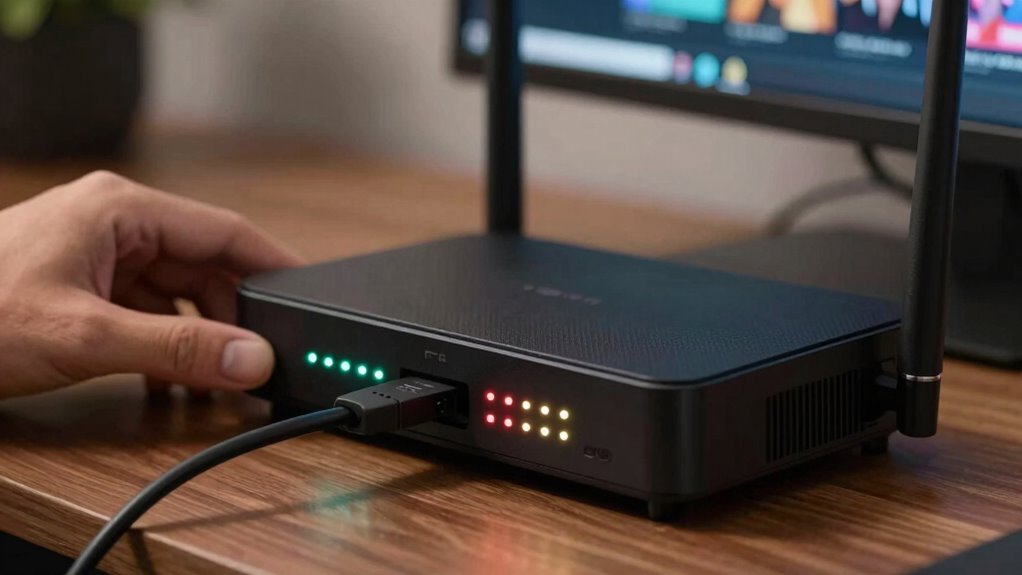
While checking your device’s settings can fix many issues, sometimes the problem lies with your router or modem setup. Proper router placement is essential—place it centrally, off the floor, and away from obstructions to improve signal strength. Ensuring modem compatibility is equally important; your modem should support your internet plan’s speeds and standards. Here are four key checks:
Proper router placement and compatible modems are key to a stable, high-quality internet connection.
- Verify your router is positioned in a central, open location.
- Confirm your modem meets your internet provider’s specifications.
- Update your router’s firmware for maximum performance.
- Restart both your router and modem regularly to clear glitches.
- Use quality gap-sealing products to minimize signal interference and enhance overall connection stability. Proper setup also involves understanding privacy and security practices, as creative placement can sometimes improve aesthetics and signal distribution in your space. Additionally, avoiding common signal interference sources can significantly boost your connection quality.
Correct setup helps maintain a stable connection, reducing the chances of streaming quality drops. Proper placement and compatible equipment are crucial to consistent, high-quality streaming.
How to Manage Other Devices and Apps Using Your Bandwidth
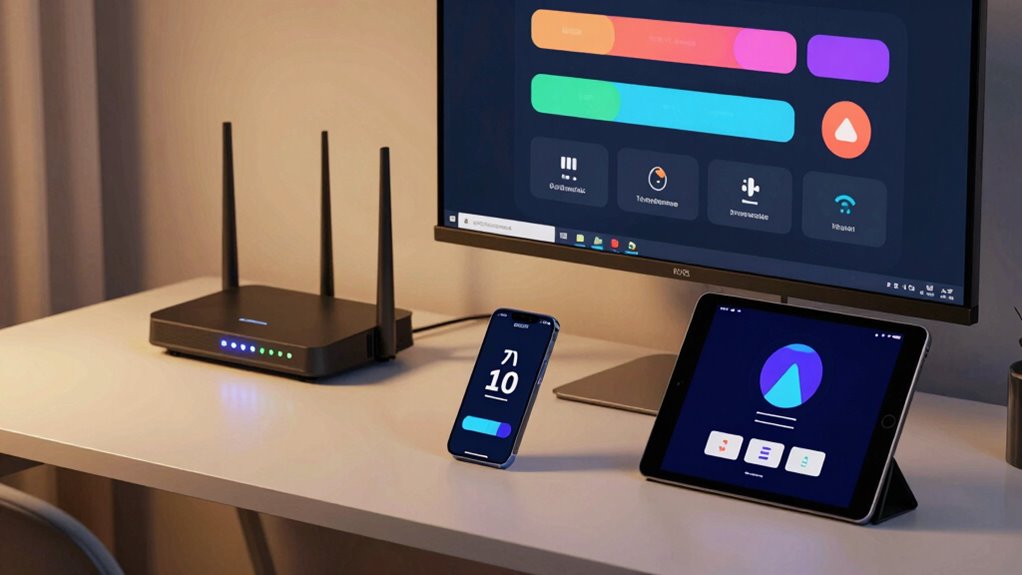
When multiple devices and apps are using your internet connection simultaneously, they can quickly drain your bandwidth and cause streaming issues. To prevent this, implement bandwidth management by limiting or scheduling background activities on less critical devices. Use device prioritization to assign higher priority to your streaming devices, ensuring they get the necessary bandwidth when needed. Many routers offer Quality of Service (QoS) settings, allowing you to allocate bandwidth preferences for specific devices or apps. This helps keep your streaming smooth by reducing interruptions caused by other devices hogging bandwidth. Regularly review connected devices and pause or restrict those that aren’t actively in use. Managing your bandwidth effectively keeps your streaming experience consistent, even when multiple devices are connected. Incorporating home safety products such as network security tools can also help protect your connected devices from malicious activity that might impact performance, especially considering the challenges in molecular-scale circuits and nanotech fabrication that could influence future network security solutions. Additionally, staying informed about network security developments can help you better safeguard your network against potential threats.
Why Keep Apps and Firmware Up to Date for Better Performance
Keeping your apps and firmware up to date guarantees better device compatibility, so everything runs smoothly without interruptions. Updates also include security enhancements that protect you from vulnerabilities. Plus, they fix bugs and improve stability, reducing the chances of streaming issues.
Enhanced Device Compatibility
Ever wondered why your streaming experience sometimes stalls or drops quality unexpectedly? It often comes down to enhanced device compatibility. When your apps and firmware are up to date, your device can better handle hardware enhancement, guaranteeing smoother performance. To improve streaming quality, consider these steps:
- Keep your streaming apps updated regularly.
- Update your device’s firmware for better hardware compatibility.
- Use devices recommended by your streaming service for ideal performance.
- Restart devices after updates to ensure improvements take effect.
Staying current with updates helps prevent compatibility issues that cause buffering or quality drops. It guarantees your hardware runs efficiently and supports the latest streaming features, reducing interruptions and providing a more consistent viewing experience.
Improved Security Measures
Regularly updating your apps and firmware isn’t just about accessing new features; it’s also vital for maintaining security. Updates often include the latest encryption protocols, which protect your data from interception and unauthorized access. They also strengthen access controls, ensuring only authorized users can connect to your devices or network. Without updates, vulnerabilities can emerge, making it easier for malicious actors to exploit weaknesses. Keeping your software current guarantees you benefit from the latest security measures, reducing the risk of breaches that can disrupt your streaming experience. Plus, improved security helps prevent disruptions caused by malware or hacking attempts that could slow down or interfere with your streaming quality. Staying up-to-date is a simple yet powerful step toward smoother, safer streaming.
Bug Fixes and Stability
Updating your apps and firmware guarantees that bugs and glitches are fixed promptly, which can greatly enhance your streaming experience. Regular updates address issues like streaming latency and buffering problems, ensuring smoother playback. Outdated software can cause unexpected crashes or slowdowns, making your stream unreliable. To maximize stability:
- Keep your device firmware current to improve compatibility.
- Update streaming apps to fix known bugs.
- Enable automatic updates for convenience.
- Check for updates regularly to prevent performance drops.
Staying up-to-date minimizes interruptions and reduces buffering issues, providing a more consistent viewing experience. By maintaining current versions, you guarantee your device runs efficiently, and streaming quality remains steady, preventing random drops or lag during playback.
Should You Switch Servers or Content Delivery Networks?
When your streaming quality suddenly drops, switching servers or content delivery networks (CDNs) can often help restore smooth playback. Server enhancement is key here; selecting a server closer to your location reduces latency and improves speed. Sometimes, your current server may be overloaded or experiencing issues, causing disruptions. By manually changing servers or choosing a different CDN, you can find a more reliable connection. Proper CDN selection ensures your content is delivered from the most efficient source, minimizing buffering and pixelation. Keep in mind that switching servers isn’t always a fix, but it’s a quick step to test when you notice inconsistencies. Regularly evaluating your server choices can help you maintain excellent streaming quality and prevent future drops.
When and Why to Disable VPNs or Proxy Services
VPNs and proxy services can greatly enhance your online privacy, but they often interfere with streaming quality. VPN restrictions and proxy interference can cause buffering, reduced resolution, or dropped connections. You should consider disabling these services when:
VPNs and proxies can disrupt streaming—disable them temporarily to improve your viewing experience.
- You experience sudden streaming lag or buffering.
- The VPN or proxy is causing VPN restrictions that block certain content.
- You notice a significant drop in video quality.
- Your internet speed test shows reduced bandwidth when connected to a VPN or proxy.
Disabling VPNs or proxy services can help determine if they’re the cause of your streaming issues. While they protect your privacy, they can also introduce latency or limit bandwidth, making it harder to enjoy smooth streams. Turn them off temporarily to test improvements.
How to Test Your Streaming Setup on Different Devices and Networks
To accurately identify streaming issues, it’s essential to test your setup across different devices and networks. Start by trying your streaming service on various devices, like smartphones, tablets, and smart TVs, to check device compatibility. If the quality drops on one device but not others, the problem might be device-specific. Next, switch between different networks, such as Wi-Fi, mobile data, or wired connections, to perform network troubleshooting. Notice any changes in streaming quality or buffering. Use speed tests on each network to verify your connection meets the service’s requirements. This process helps pinpoint whether the issue stems from your device, network, or both. Regular testing across devices and networks provides clarity, allowing you to optimize your setup effectively.
Frequently Asked Questions
Can Background Applications Affect Streaming Quality?
Yes, background app interference can affect your streaming quality. When you run multiple apps at once, multitasking effects can slow down your device’s performance and consume bandwidth, leading to buffering or quality drops. To improve streaming, close unnecessary background apps, free up memory, and guarantee your internet connection isn’t overwhelmed. This helps prioritize your streaming app and minimizes disruptions caused by multitasking effects.
Does Device Age Impact Streaming Performance?
Your device’s age can dramatically impact streaming performance, sometimes feeling like a slow-motion relic from the stone age. As devices get older, their compatibility with the latest streaming technology diminishes, causing buffering and quality drops. To fix this, make certain your device’s firmware is up to date because manufacturers often release updates that optimize performance and fix bugs, helping your device better handle modern streaming demands.
How Do Parental Controls Influence Streaming Settings?
Parental controls influence your streaming settings by implementing content filtering and access restrictions. These features limit what content is visible or accessible, ensuring a safer viewing experience for children. When you enable parental controls, you can set age-appropriate filters and restrict certain features, which may affect streaming quality or available options. Adjust these settings carefully to balance safety with seamless streaming, ensuring your family enjoys content responsibly.
Can Screen Resolution Settings Cause Buffering?
Think of screen resolution settings as a traffic cop directing your video traffic. If you set it too high, it demands more from your internet bandwidth, which can cause buffering like a slow-moving parade. Lowering your resolution reduces the strain on video compression and your internet connection, helping your stream flow smoothly. So, adjusting resolution can be a quick fix to avoid those annoying buffering pauses.
Is There a Way to Prioritize Streaming Traffic on My Network?
Yes, you can prioritize streaming traffic on your network by configuring QoS (Quality of Service) settings. This helps manage network congestion by giving streaming data higher priority, reducing buffering and quality drops. Access your router’s QoS configuration, set rules to prioritize streaming applications or devices, and save the settings. Doing this guarantees your streaming experience remains smooth, even when multiple devices compete for bandwidth.
Conclusion
If your streaming quality keeps dropping, taking these steps can make a big difference. Have you checked your internet speed, updated your devices, and optimized your network settings? Sometimes, a simple tweak or switch can restore smooth streaming. Isn’t it worth ensuring your setup is at its best before giving up? With a little troubleshooting, you can enjoy seamless streaming—so why settle for constant buffering when a fix might be just a few clicks away?