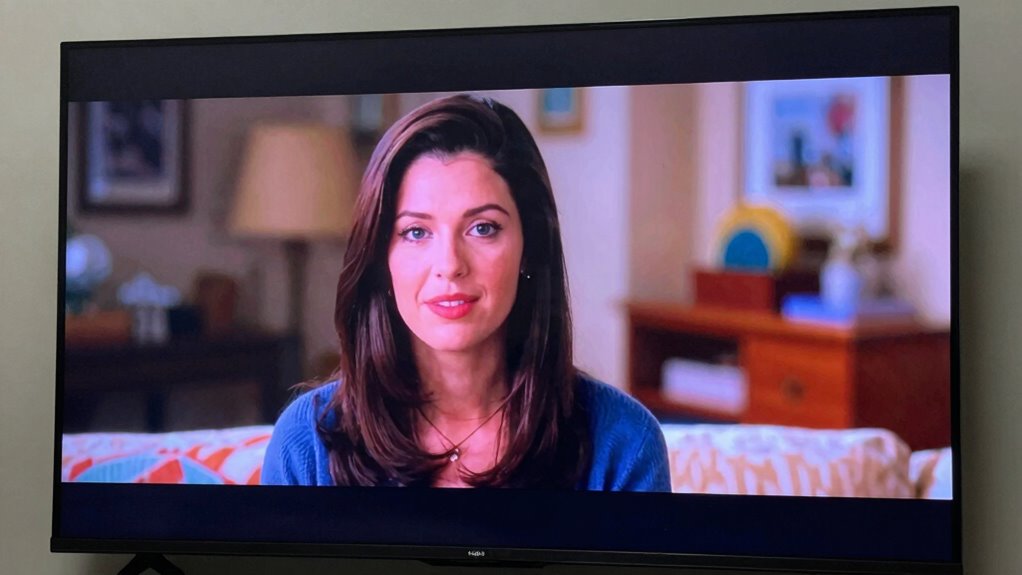

Your TV looks “soap opera” smooth because motion smoothing is enabled, adding extra frames to make fast scenes look unnaturally fluid. This feature is often turned on by default but can be disabled to restore a more authentic cinematic appearance. Turning it off reduces the artificial, overly polished look and helps scenes feel more natural. If you want to know exactly how to do this and improve your viewing experience, there’s more to uncover below.

Get the latest gadgets delivered free with Prime
- Fast, free delivery on millions of items
- Prime Video, Amazon Music and more included
- Member-only deals all year
Key Takeaways
- Motion smoothing inserts extra frames, creating an unnaturally smooth, soap opera-like appearance.
- It’s usually enabled by default in modern TVs under settings like “Motion Interpolation” or “Auto Motion Plus.”
- Disabling motion smoothing restores natural motion, preserving cinematic look and reducing artificial effects.
- Access picture settings menu to toggle off features like “TruMotion” or “Motion Interpolation.”
- Turning off motion smoothing enhances film authenticity and reduces the “soap opera” effect.
As an affiliate, we earn on qualifying purchases.
What Is Motion Smoothing and Why Does It Make TV Look Like a Soap Opera?
Have you ever noticed how some TV shows and movies look unnaturally smooth, almost like a soap opera? That’s motion smoothing at work. This feature, rooted in the evolution of historical television technologies, was designed to improve picture quality by reducing motion blur. It predicts and inserts extra frames between the original ones, making fast-moving scenes appear smoother. While some viewers prefer this effect for sports or action movies, many find it distracting and unnatural, giving a “soap opera” look. Motion smoothing is often enabled by default on modern TVs because manufacturers assume it aligns with viewer preferences for a clearer picture. However, it can alter the original cinematic experience, which is why many people choose to turn it off to enjoy movies and shows as they were intended. Additionally, understanding the refresh rate of your TV can help you better grasp how motion smoothing impacts your viewing experience, especially since higher refresh rates can make this feature more noticeable. Some advanced TVs also include settings to customize or completely disable motion smoothing, allowing viewers to preserve the director’s original vision. Knowing about image processing techniques can help you better understand how these features modify your viewing experience.
best TV picture settings for movies
As an affiliate, we earn on qualifying purchases.
As an affiliate, we earn on qualifying purchases.
How to Check If Your TV Is Using Motion Interpolation
To check if your TV is using motion interpolation, start by accessing your picture settings. Look for options related to motion or frame smoothing—these are often labeled as “Motion Settings” or “Motion Interpolation.” Identifying whether these features are turned on will help you decide if you want to disable the effect.
Access Picture Settings
Many modern TVs hide their picture settings within menus that can be confusing to navigate. To check if motion interpolation is enabled, start by accessing your TV’s main menu. Look for options labeled “Picture” or “Settings,” then enter the submenu. Once there, you might see options for “Picture Mode” or “Advanced Settings.” Check if features like “Motion Smoothing” or “Auto Motion Plus” are turned on. While you’re in these menus, it’s a good idea to review color calibration and sound adjustment settings, ensuring your picture matches your preferences. Turning off unnecessary enhancements can help reduce the soap opera effect. If you’re unsure, consult your TV’s user manual for specific instructions, as menu labels vary across brands.
Identify Motion Settings
After you’ve explored your picture settings, the next step is to identify whether motion interpolation is active. Many TVs have a motion sensor that automatically detects fast-moving scenes and applies smoothing, which creates that “soap opera” effect. Check your TV’s picture calibration menu for options like “Motion Smoothing,” “Auto Motion Plus,” or “TruMotion.” If these are turned on, they’re likely causing the unnatural smoothness. Some models display a toggle or a slider so you can adjust or disable the feature. Take a moment to review your settings and disable any motion interpolation. Turning it off will restore a more natural look, reducing that overly smooth, unrealistic appearance and giving you a clearer, more cinematic picture. Additionally, understanding how Free Floating elements in your backyard can influence your viewing environment may help optimize your outdoor space for better viewing conditions. It’s also helpful to be aware that some TVs have additional motion settings that can be fine-tuned for optimal picture quality.
TV with customizable motion interpolation
As an affiliate, we earn on qualifying purchases.
As an affiliate, we earn on qualifying purchases.
How Over-Smoothing Ruins Movie Quality

When your TV over-smooths images, you lose important cinematic details that make movies feel authentic. The artificial look can make scenes seem flat and unengaging, stripping away the depth filmmakers intended. This over-smoothing can turn a rich, immersive experience into something that feels disconnected and less like real life. To preserve the true quality of your viewing experience, it’s essential to understand how home soundproofing techniques can also help reduce distracting noise, allowing you to focus fully on the picture.
Loss of Cinematic Detail
Over-smoothing on your TV can strip away the fine details that make movies look realistic and immersive. When smoothing features are too aggressive, they eliminate subtle textures, shadows, and nuances that contribute to cinematic authenticity. This loss of detail makes scenes appear flat and artificial, reducing visual clarity and the depth that filmmakers intentionally included. Instead of appreciating the craft behind each shot, you’re left with a blurred, generic image that undermines the movie’s impact. To restore the authentic look, turn off or reduce smoothing effects. Preserving fine details helps you experience movies as they were meant to be seen, with the richness, contrast, and clarity that bring scenes to life. Removing over-smoothing enhances the true cinematic quality of your viewing experience.
Artificial Viewing Experience
While smoothing features can eliminate unwanted noise and judder, excessive use turns your viewing into a manufactured experience rather than a genuine one. Artificial enhancement creates an overly polished look that diminishes the authenticity of what you’re watching. This artificial viewing experience can make movies and shows feel less immersive, stripping away the natural motion and detail that filmmakers intended. Over-smoothing blurs the fine textures and subtle nuances, making scenes appear flat and less dynamic. To preserve viewing authenticity, it’s best to turn off or reduce smoothing settings. Doing so restores the natural motion, giving you a more genuine and engaging experience that closely resembles how content was originally meant to be seen.
how to disable motion smoothing on Samsung TV
As an affiliate, we earn on qualifying purchases.
As an affiliate, we earn on qualifying purchases.
How to Turn Off Motion Smoothing on Your TV
Ever wonder how to get rid of that unnatural, soap-opera look on your TV? Turning off motion smoothing is usually straightforward. First, access your TV’s picture settings—this varies by brand but often involves pressing the menu or settings button. Look for options like “Motion Interpolation,” “TruMotion,” or “Auto Motion Plus,” and disable them. While you’re there, check your color calibration; improper settings can enhance the soap-opera effect. Also, ensure your audio synchronization is correct, as mismatched audio can make the picture seem even more artificial. Disabling motion smoothing reduces the overly smooth, hyper-real movement, making scenes look more natural. Once turned off, you’ll notice a more authentic picture, closer to what filmmakers intended.
Why Disabling Motion Smoothing Creates a More Natural Picture
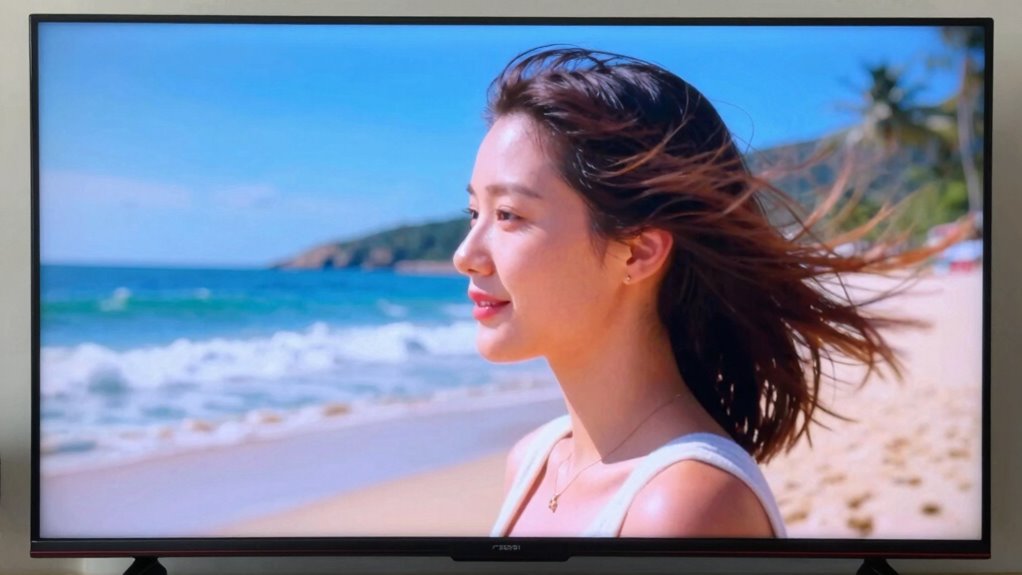
Disabling motion smoothing allows your TV to display movement more naturally because it removes the artificial enhancements that smooth out every motion. This creates a picture that’s closer to how films and TV shows were originally shot, echoing historical film techniques that rely on a consistent, authentic look. Many motion smoothing myths suggest it’s necessary for clarity, but in reality, it often introduces the “soap opera” effect, making footage look unnatural. When you turn it off, you see motion as it truly occurs, preserving the original cinematography’s intent. This results in a more authentic viewing experience, free from the hyper-smoothness that can distract from the story. Disabling motion smoothing helps your TV deliver a more genuine, immersive picture, closer to how content was meant to be seen, especially since content types like movies and shows are often designed to be viewed without artificial enhancements. Understanding the film preservation techniques used historically can help you appreciate why a natural picture aligns better with the original artistic intent. Additionally, many modern TVs are capable of processing techniques that can enhance picture quality without resorting to motion smoothing. In fact, advanced processing can sometimes improve clarity while maintaining a natural motion appearance. Recognizing these visual techniques can help you optimize your viewing experience for both comfort and authenticity.
Common Mistakes When Adjusting Motion Settings and How to Avoid Them
Adjusting motion settings can seem straightforward, but many people make common mistakes that negatively impact their viewing experience. One mistake is overcorrecting motion settings, which can create unnatural artifacts and reduce viewing comfort. Instead of fine-tuning for a natural look, you might set the settings too high or too low, leading to a “soap opera” effect or a choppy picture. Another mistake is ignoring overall TV calibration; poor calibration can exacerbate motion issues and cause eye strain. To avoid these pitfalls, adjust motion settings gradually, aiming for a balance that preserves realism. Remember, the goal is to enhance your viewing comfort without sacrificing picture quality. Proper TV calibration guarantees your settings support a natural, comfortable viewing experience.
Other Picture Settings to Enhance Your Viewing Experience
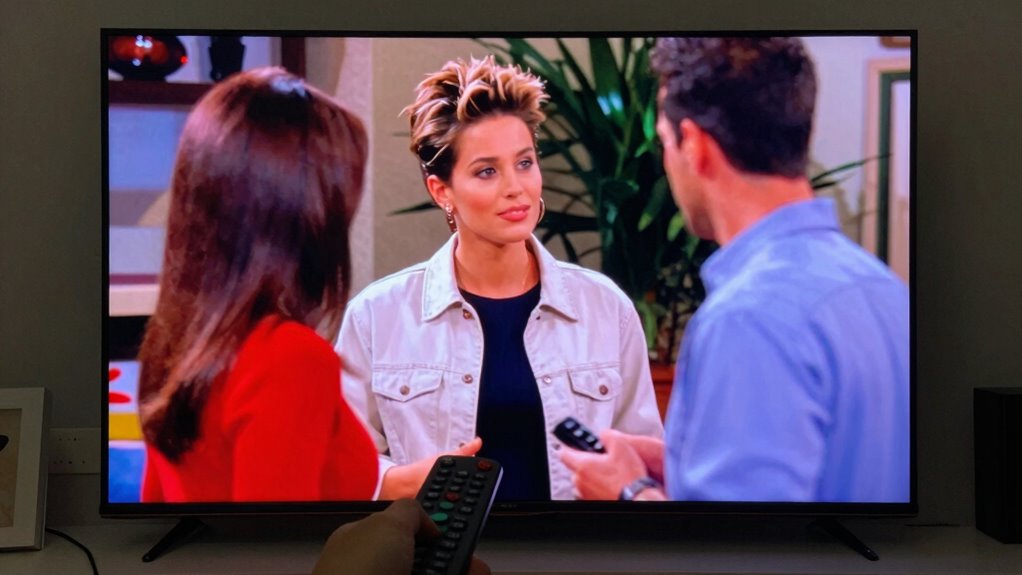
Beyond motion settings, other picture adjustments can considerably enhance your viewing experience. Start with color calibration to guarantee your TV displays accurate, vibrant colors. Use the calibration tools or preset modes to fine-tune brightness, contrast, and color temperature, making scenes look more natural. Don’t forget sound optimization—adjust audio settings or enable features like equalization to improve clarity and balance, creating a more immersive experience. Some TVs also offer picture modes tailored for movies or sports; switching to these can help achieve better visual quality. While adjusting these settings, aim for a balanced picture that reduces glare and enhances detail without over-saturating colors. Proper calibration and sound optimization make your viewing more comfortable and true-to-life. Additionally, ensuring your environment is safe from hazards like trip hazards can help create a secure space for everyone enjoying their screen time. Regularly reviewing and adjusting your picture settings can also ensure your TV continues to deliver optimal quality over time, especially as display technology evolves and standards improve. Paying attention to calibration techniques can further help you achieve the best possible picture quality.
Troubleshooting Tips If You Can’t Find the Motion Smoothing Option
If you’re having trouble finding the motion smoothing option on your TV, don’t worry—many models hide this feature in obscure menus or under different labels. Sometimes, it’s called “Auto Motion,” “Motion Enhancement,” or “Frame Interpolation.” Check your user manual or online guides specific to your model. If you still can’t locate it, explore the TV’s advanced or picture settings menu. Adjusting these settings can reduce motion artifacts like judder or soap opera effect. For those interested in understanding how these features work, learning about small wood stoves can provide insight into practical heating and maintenance tips.
| Tip | Description |
|---|---|
| Check labels | Look for terms like “Auto Motion” or “Motion Plus” |
| Refer to manual | Search online for your TV model’s guide |
| Explore menus | Dive into advanced picture settings |
| Use remote | Some remotes have dedicated motion smoothing buttons |
| Contact support | Customer service can help locate hidden options |
Should You Keep Motion Smoothing Off or Use It for Certain Content?
Deciding whether to keep motion smoothing on or off depends on the type of content you’re watching and your personal preference. For fast-paced sports or action movies, turning it on can improve viewing comfort by reducing motion blur and making fast movements clearer. However, for dramas, films, or shows with a cinematic look, keeping it off preserves the director’s intended visual style. Consider your technology compatibility—some TVs handle motion smoothing better than others, and certain settings may cause artifacts or input lag. If you’re sensitive to the “soap opera” effect, turning it off generally offers a more natural viewing experience. Additionally, understanding TV calibration can help you optimize picture settings for different content types. Experimenting with motion smoothing settings can help you find the perfect balance between clarity and the authentic aesthetic, tailored to your preferences. Ultimately, experiment with the setting to see what feels best for your content and comfort level.
Frequently Asked Questions
Does Disabling Motion Smoothing Affect Gaming Performance on Your TV?
Disabling motion smoothing doesn’t impact your gaming performance directly, but it can improve your viewing experience. With motion smoothing off, you’ll notice better color accuracy and more natural motion, making games look more realistic. It also helps with audio synchronization, preventing lag between visuals and sound. Overall, turning off motion smoothing guarantees you get the best picture quality and a more immersive gaming experience without sacrificing performance.
Can I Customize Motion Smoothing Settings for Different Content Types?
Like a painter choosing different brushes for each stroke, you can customize motion smoothing settings for various content types. You simply access your TV’s menu and explore the setting preferences, adjusting them to suit movies, sports, or gaming. This content customization allows you to enjoy a cinematic feel for movies while maintaining smooth motion for fast-paced sports or gaming, giving you tailored visuals for every viewing experience.
How Does Motion Smoothing Impact TV Refresh Rate and Input Lag?
Motion smoothing can increase the perceived refresh rate, making fast-paced scenes look smoother and improving film clarity. However, it may also introduce visual artifacts, like halos or ghosting, which can distract you. It often adds input lag, affecting gameplay or quick responses. Overall, while it enhances motion, it can compromise image authenticity and responsiveness, so adjusting these settings helps you find the right balance for your viewing experience.
Are There Any Health Risks Associated With Watching TV With Motion Smoothing On?
Watching TV with motion smoothing on isn’t linked to significant health risks, but it can cause eye strain and sleep disruption for some viewers. The unnatural motion and bright screen may lead to eye fatigue, especially during long viewing sessions. Additionally, blue light exposure before bed can interfere with sleep patterns. To reduce these issues, consider turning off motion smoothing and limiting screen time before bedtime.
Will Turning off Motion Smoothing Improve the Lifespan of My TV?
Turning off motion smoothing won’t directly improve your TV’s lifespan, but it can enhance your viewing experience by improving sound quality and reducing unnecessary energy consumption. When you disable motion smoothing, your TV doesn’t work as hard to process extra frames, which may lower energy use slightly. Plus, clearer, more natural motion can make your TV feel more comfortable and less straining, potentially extending its overall performance and longevity.
Conclusion
Now that you know how motion smoothing affects your viewing, you’re ready to take control. Will you leave it on, sacrificing realism for smoothness? Or turn it off and enjoy a more natural picture? The choice is yours, but remember—sometimes, the most cinematic moments come alive when you see them without the extra polish. So, what will you choose? Your perfect viewing experience is just a toggle away—are you ready to make the switch?
Halloween Picks
halloween
As an affiliate, we earn on qualifying purchases.