To fix a missing Bluetooth adapter on Windows, start by checking if it’s enabled in Settings, Device Manager, and the BIOS. Update or reinstall your Bluetooth drivers, run the Windows troubleshooter, and make certain there are no hardware conflicts or interference from other devices. Reset network settings if needed. If issues persist, it could be a hardware problem, so seeking professional help or replacing the adapter might be necessary. Keep going to discover detailed solutions to reclaim your Bluetooth connectivity.

Get the latest gadgets delivered free with Prime
- Fast, free delivery on millions of items
- Prime Video, Amazon Music and more included
- Member-only deals all year
Key Takeaways
- Verify Bluetooth is enabled in Windows Settings, Device Manager, and BIOS to ensure hardware activation.
- Update, reinstall, or roll back Bluetooth drivers via Device Manager to resolve driver conflicts.
- Run Windows Troubleshooter and perform system file checks to identify and fix software or corruption issues.
- Check for wireless interference from other devices and ensure hardware is not physically damaged.
- Reset network settings and update system firmware to restore Bluetooth functionality and prevent future issues.
Bluetooth adapter for Windows 10
As an affiliate, we earn on qualifying purchases.
As an affiliate, we earn on qualifying purchases.
Why Your Bluetooth Adapter Might Disappear on Windows
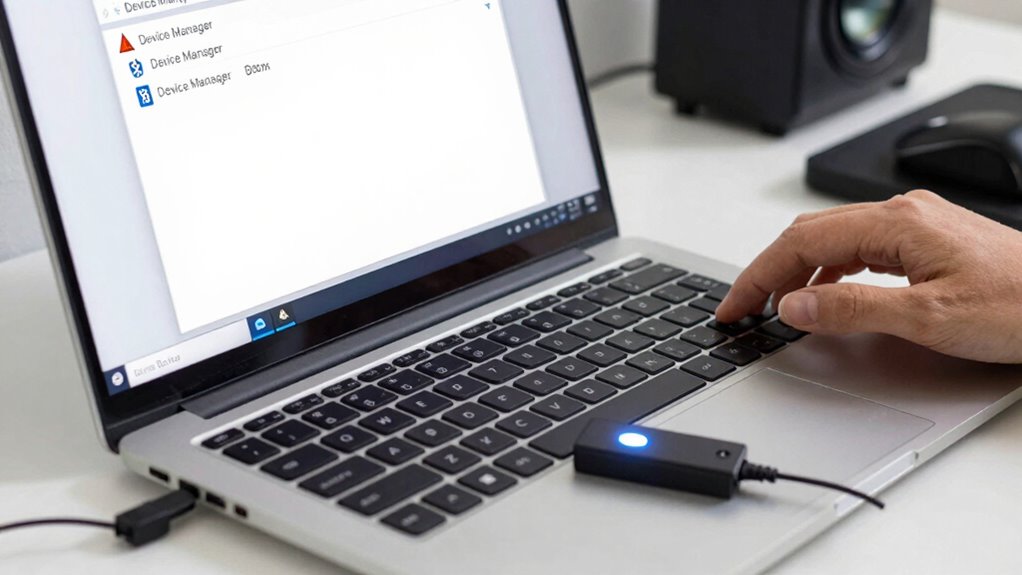
If your Bluetooth adapter suddenly disappears from your Windows device, it can be frustrating and confusing. Sometimes, this happens because of issues with Bluetooth security settings or conflicts caused by wireless interference. Other times, interference from nearby devices like Wi-Fi routers, cordless phones, or microwaves can disrupt the Bluetooth connection, making the adapter seem missing. You might also experience this if the driver becomes outdated or corrupted, or if Windows mistakenly disables the device to prevent security vulnerabilities. Wireless interference can cause signal drops, leading Windows to hide or disable the adapter. Ensuring your environment is free from interference sources and keeping your Bluetooth drivers updated can help prevent your adapter from disappearing unexpectedly. Additionally, understanding how wireless interference impacts device performance can help you troubleshoot and optimize your setup. Recognizing the impact of interference on connectivity can further assist in maintaining a stable Bluetooth connection. Regularly checking your device manager and driver management settings can also help identify and resolve underlying issues. To further improve stability, consider adjusting your device’s Bluetooth security settings to reduce potential conflicts. Being aware of interference sources and their effects can help you troubleshoot more effectively.
As an affiliate, we earn on qualifying purchases.
How to Check If Your Bluetooth Adapter Is Enabled in Windows Settings
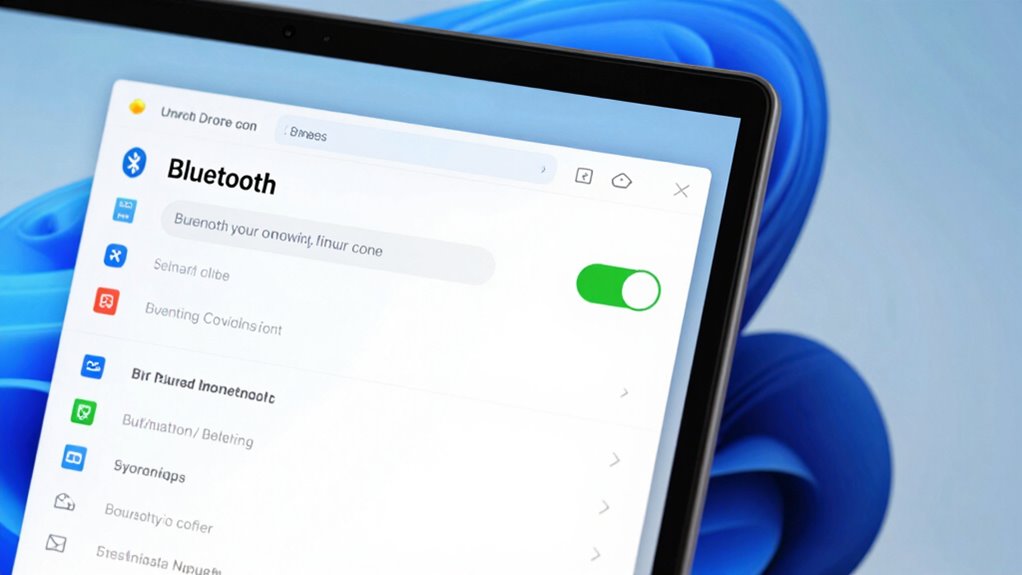
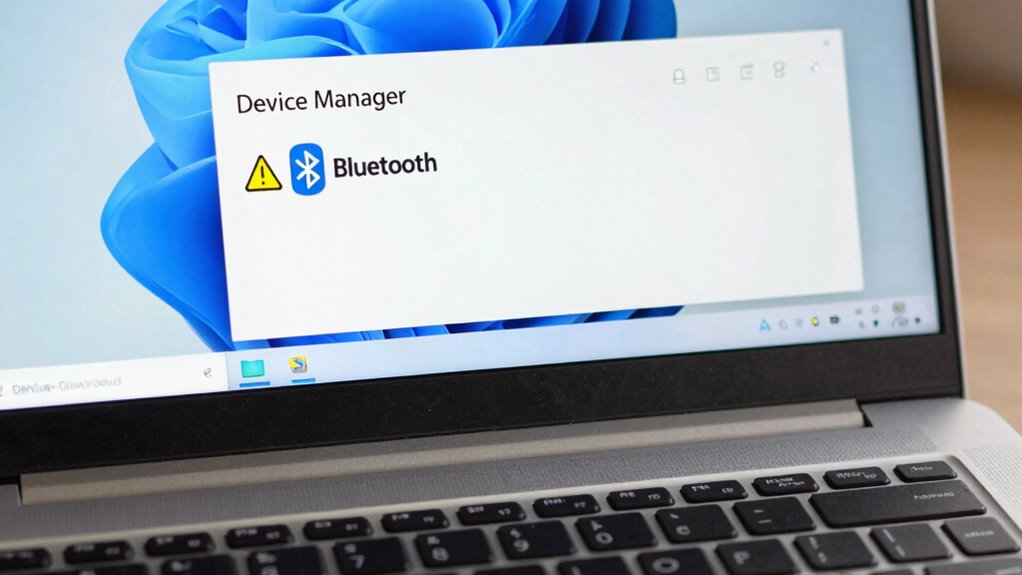
Wondering how to confirm if your Bluetooth adapter is enabled in Windows? First, open the Settings app and navigate to Devices > Bluetooth & other devices. Make sure the toggle switch for Bluetooth is turned on. If Bluetooth still doesn’t appear, check Device Manager by right-clicking the Start menu and selecting it. Look for your Bluetooth adapter under “Bluetooth” or “Network adapters.” If it’s disabled, right-click and choose “Enable device.” Sometimes, wireless interference or poor Bluetooth compatibility can cause the adapter to disable or malfunction. Verify that your device supports Bluetooth and that no interference from other wireless devices is is blocking the signal. Confirming your Bluetooth adapter is enabled in Windows settings is an essential step to troubleshoot missing Bluetooth functionality. Understanding Bluetooth hardware can help you identify potential issues with your device’s connection capabilities. Additionally, being aware of wireless interference sources can help prevent signal disruptions that may disable or impair your Bluetooth connection. It’s also beneficial to keep your drivers updated, as outdated drivers can contribute to hardware malfunctions. Regularly checking for driver updates can help maintain optimal Bluetooth performance.
As an affiliate, we earn on qualifying purchases.
How to Update or Reinstall Bluetooth Drivers
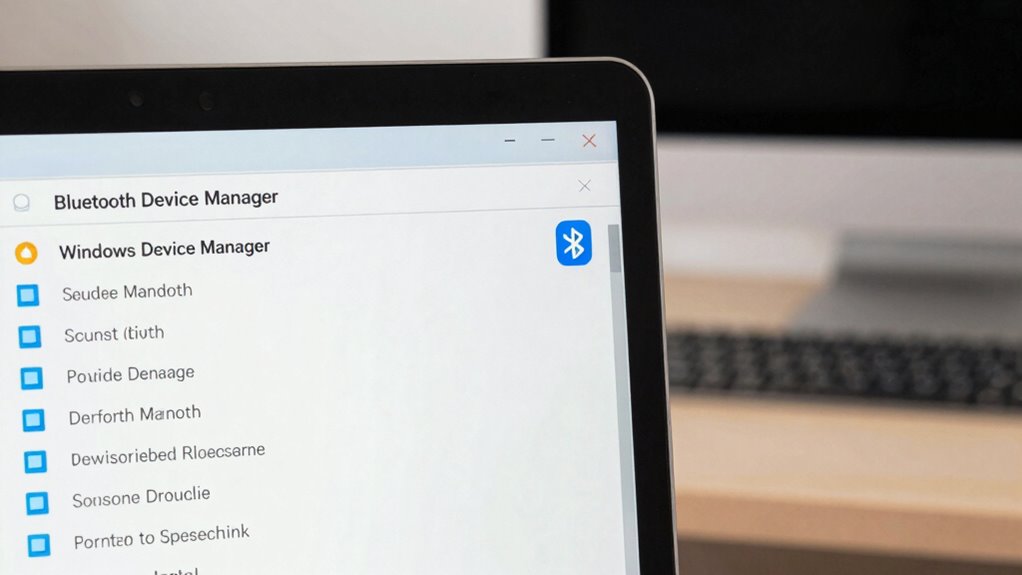
Updating or reinstalling your Bluetooth drivers can often resolve connectivity issues and restore missing functionality. To do this, open Device Manager, locate your Bluetooth device, and choose “Update driver.” Select “Search automatically for updated driver software” to make certain you get the latest version, which improves driver compatibility and enhances Bluetooth security by patching vulnerabilities. If updating doesn’t work, uninstall the driver by right-clicking the device and selecting “Uninstall device.” Then restart your PC, and Windows will attempt to reinstall the driver automatically. Confirming your drivers are current helps prevent security risks and compatibility problems, keeping your Bluetooth connection stable. Reinstalling drivers can be a quick fix for missing Bluetooth functionality, especially if driver corruption or outdated software caused the issue. Regular driver updates also help prevent driver conflicts, ensuring smoother performance and reducing potential compatibility issues. Additionally, staying informed about driver management best practices can help maintain optimal Bluetooth performance over time. Ensuring your drivers are up-to-date can also mitigate issues related to driver vulnerabilities, which is crucial for maintaining security. Regularly checking for updates can also help you stay aligned with latest driver standards, further improving device stability and security.
As an affiliate, we earn on qualifying purchases.
Using the Windows Bluetooth Troubleshooter to Fix Issues
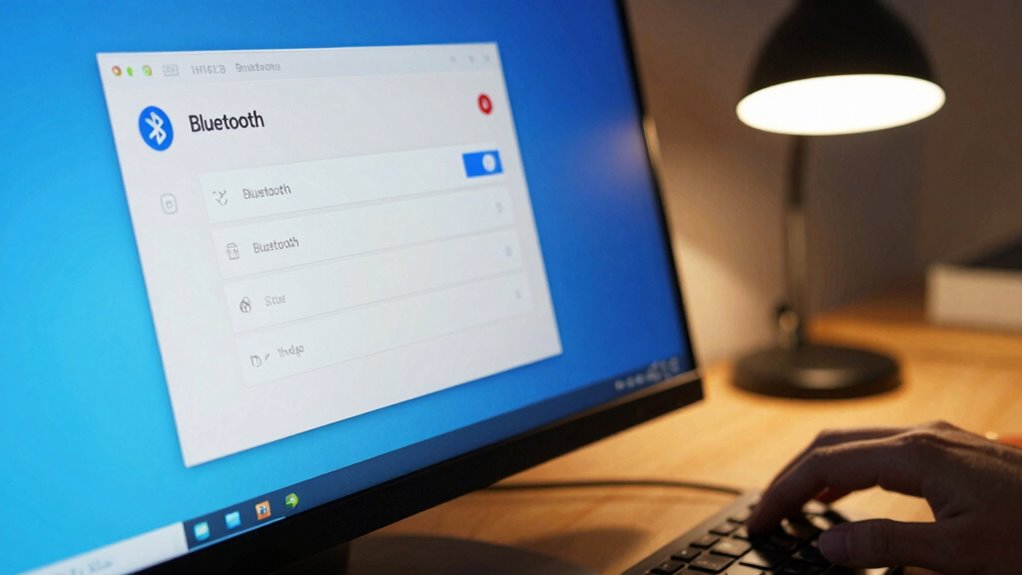
When Bluetooth problems persist after updating drivers, running the Windows Bluetooth Troubleshooter can quickly identify and fix common issues. It checks for Bluetooth compatibility problems and detects driver conflicts that might be causing missing or malfunctioning Bluetooth options. To use it, go to Settings > Update & Security > Troubleshoot > Additional troubleshooters, then select “Bluetooth” and click “Run the troubleshooter.” The tool scans your system, identifies conflicts, and suggests fixes. If driver conflicts are detected, it may recommend updating or reinstalling drivers. This process is effective for resolving issues related to missing Bluetooth adapters and ensuring your device’s Bluetooth functionality works correctly. Additionally, understanding driver care tips related to maintaining your device’s hardware can help prevent future connectivity problems. Proper hardware maintenance can prevent hardware failures that lead to Bluetooth issues and other connectivity troubles.
How to Enable Bluetooth in Device Manager and BIOS Settings
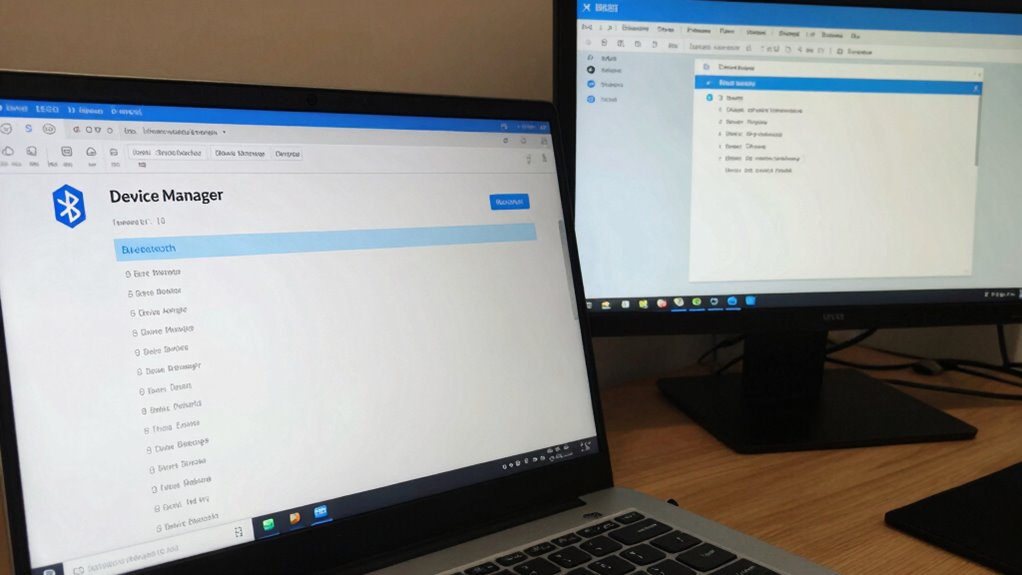
Sometimes, Bluetooth may be disabled in your system’s settings, preventing it from appearing or functioning properly. To fix this, first check Device Manager to verify the Bluetooth adapter is enabled. Right-click the Start button, select Device Manager, and locate your Bluetooth device. If it’s disabled, right-click and choose Enable. Then, access your BIOS settings—restart your PC and press the designated key (like F2 or Del). In BIOS, ensure Bluetooth or Wireless options are enabled. Being aware of family photoshoot fails can help you troubleshoot unexpected issues during hardware setup. In addition, ensure your drivers are up to date to prevent compatibility problems. Updating your drivers can also enhance overall airless paint spraying performance. Regular maintenance of your hardware components, including BIOS updates, can prevent hardware malfunction, ensuring smoother operation. Also, keeping your system’s firmware current can improve Bluetooth connectivity and stability. Remember, hardware configuration and system updates are crucial for reliable Bluetooth performance. Then, proceed to save your settings and exit BIOS—your Bluetooth should now be enabled and functioning properly.
Resolving Hardware Conflicts and External Interference
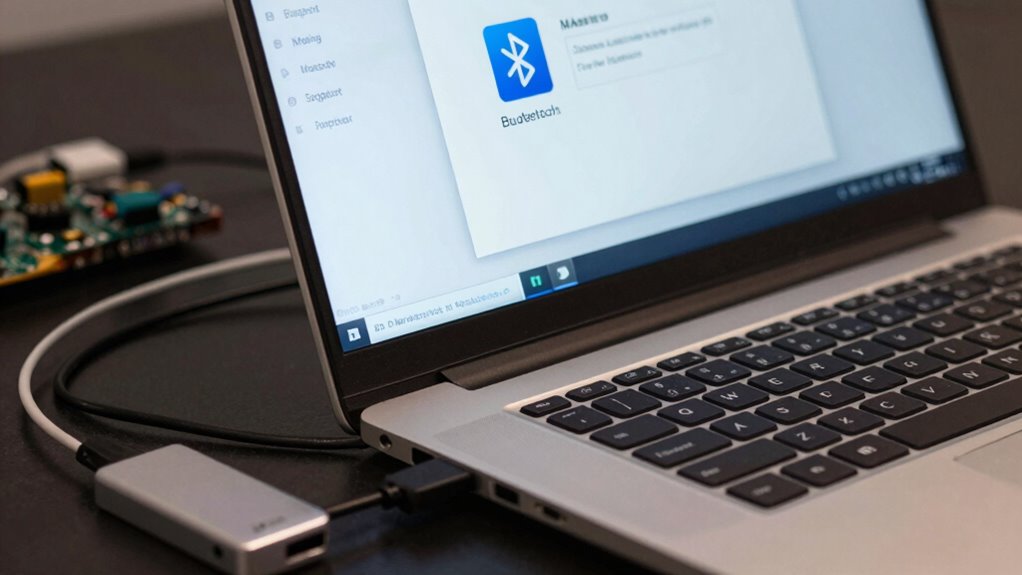
Even after enabling Bluetooth in Device Manager and BIOS, hardware conflicts or external interference can still prevent your device from working properly. Radio frequency interference from other electronic devices, such as Wi-Fi routers, cordless phones, or microwaves, can disrupt Bluetooth signals. To resolve this, move your computer away from potential sources of interference, especially those emitting strong radio frequencies. Check for conflicts with other hardware by opening Device Manager and looking for yellow warning signs. Disable or update conflicting drivers, especially for network adapters and other wireless devices. You might also consider switching to a different USB port for your Bluetooth adapter, preferably one away from other wireless devices. Reducing external signal interference helps guarantee a clear, stable connection for your Bluetooth device. Additionally, paying attention to support breakfast options near your workspace can help maintain focus and energy during troubleshooting. To further improve your connection, consider hardware troubleshooting techniques such as resetting the network stack or updating your device drivers.
Fixing System Files and Resetting Network Settings
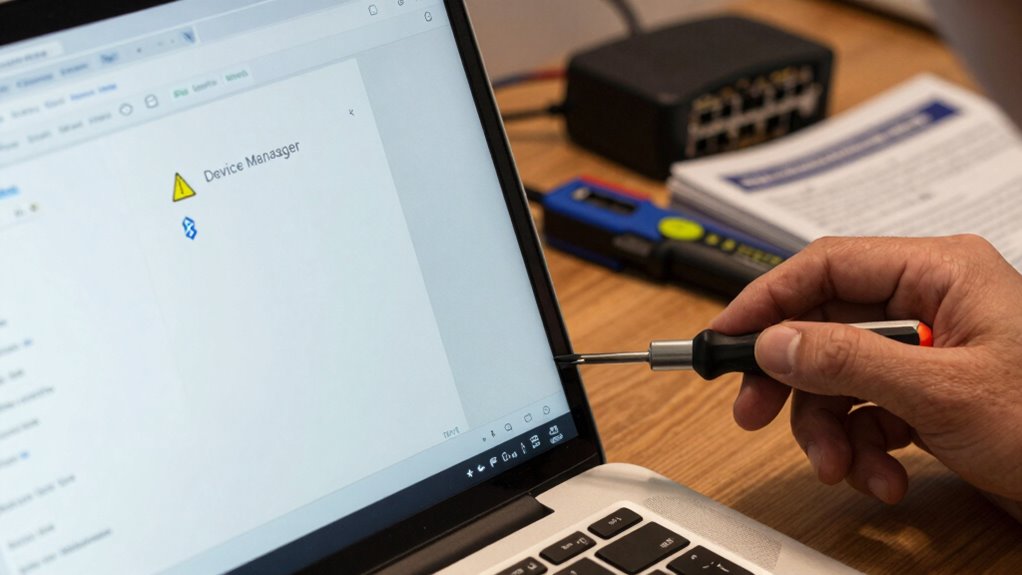
Corrupted system files or misconfigured network settings can prevent your Bluetooth from functioning properly. To fix this, start by running the System File Checker (SFC) tool to repair corrupted files. Open Command Prompt as an administrator and type “sfc /scannow.” Next, reset your network settings by going to Settings > Network & Internet > Status > Network reset. This will remove and reinstall network adapters, which can resolve connectivity issues affecting Bluetooth. Keep in mind that Bluetooth security settings may also block device connections, so review your privacy and security preferences. Additionally, verify driver compatibility for your Bluetooth adapter; outdated or incompatible drivers can cause problems. Updating or reinstalling the driver often restores proper Bluetooth functionality and stabilizes network configurations.
When to Seek Professional Help or Consider Hardware Replacement
If your Bluetooth hardware keeps failing despite multiple troubleshooting attempts, it’s time to contemplate professional help. When devices remain unrecognized or won’t connect, hardware issues might be the culprit. At this point, replacing the hardware could be the most effective solution.
Persistent Hardware Failures
When troubleshooting persistent hardware failures, recognizing the signs that indicate you need professional help or hardware replacement is essential. If your Bluetooth adapter regularly disconnects, shows inconsistent behavior, or won’t detect devices despite updates, hardware failure is likely. Persistent issues may compromise Bluetooth security, risking data breaches. Also, if your device struggles with wireless protocols, it suggests hardware limitations. Use this table as a guide:
| Symptom | Possible Cause | Action |
|---|---|---|
| Bluetooth not detected | Hardware malfunction | Seek professional repair |
| Devices disconnect frequently | Failing adapter | Consider replacement |
| Slow or unreliable connection | Hardware failure or interference | Test with another device |
| Security vulnerabilities | Outdated or broken hardware | Replace hardware |
| Incompatibility with protocols | Hardware incompatibility | Professional diagnosis needed |
Multiple Troubleshooting Attempts
Repeatedly troubleshooting your Bluetooth issues without success can be frustrating and time-consuming. If you’ve already tried updating drivers, checking Bluetooth security settings, and verifying adapter compatibility, it might be time to seek professional help. Persistent problems could indicate a hardware fault or a compatibility issue beyond simple fixes. When your adapter isn’t recognized or remains missing, even after multiple attempts, replacing the hardware could be necessary. Also, if troubleshooting doesn’t resolve your Bluetooth missing problem, consider that the adapter might be incompatible with your system or the latest Windows updates. In these cases, consulting a technician or considering a hardware replacement ensures you avoid wasting more time on ineffective solutions.
Unrecognized Bluetooth Devices
Sometimes, despite trying various troubleshooting steps, your Bluetooth device still shows up as unrecognized or missing from your system. If your device isn’t pairing correctly or appears as an unknown device, it might be time to seek professional help or consider hardware replacement. Persistent issues could indicate hardware failure or outdated Bluetooth security protocols that hinder device pairing.
| When to Seek Help | Signs You Need Hardware Replacement |
|---|---|
| Device remains unrecognized after updates | Device no longer detects or connects at all |
| Frequent pairing failures | Hardware damage or internal faults suspected |
| Bluetooth security vulnerabilities remain | Repair costs outweigh replacement value |
| No improvements after driver reinstalls | Compatibility issues with your system |
Tips to Prevent Your Bluetooth Adapter From Disappearing Again
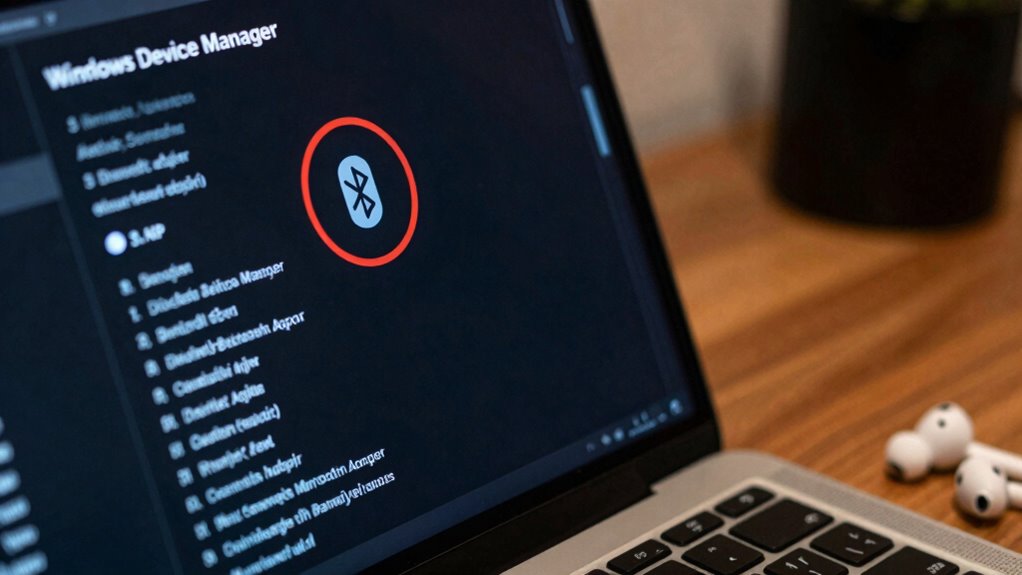
To prevent your Bluetooth adapter from disappearing again, maintaining updated device drivers and avoiding unnecessary system changes that could disrupt driver functionality is crucial. Ensuring your Bluetooth security settings are solid helps prevent conflicts that might cause the adapter to vanish. Additionally, keeping your system’s wireless compatibility in check ensures smooth operation with other devices. Here are three tips:
- Regularly update your Bluetooth drivers to patch bugs and improve stability.
- Avoid installing incompatible software or updates that could interfere with Bluetooth functionality.
- Use trusted security protocols to prevent interference or conflicts with other wireless devices.
Following these steps helps maintain a stable Bluetooth connection, reducing the chances of the adapter disappearing again. Proper management keeps your Bluetooth security tight and wireless compatibility intact.
Frequently Asked Questions
Can Bluetooth Disappear After Windows Updates?
Yes, Bluetooth can disappear after Windows updates. During Windows updates, Bluetooth troubleshooting issues may arise, causing your Bluetooth adapter to become unavailable or hidden. Updates sometimes reset settings or disable drivers, making it seem like Bluetooth has vanished. To fix this, check device manager, update drivers, or run the Bluetooth troubleshooter. Staying updated on Windows updates and regularly troubleshooting Bluetooth can help prevent and resolve such problems quickly.
Does Disabling Airplane Mode Affect Bluetooth Visibility?
Disabling airplane mode makes your Bluetooth visible again because it turns off the airplane mode, which blocks all wireless connections, including Bluetooth. When you toggle airplane mode off, you restore Bluetooth’s visibility, allowing your devices to connect. If Bluetooth still doesn’t appear, check the Bluetooth toggle and confirm airplane mode is fully disabled. This simple step often resolves visibility issues caused by airplane mode activation.
How Do I Identify Hardware Conflicts Causing Bluetooth Issues?
To identify hardware conflicts causing Bluetooth issues, start by opening Device Manager and look for any yellow warning signs. Check for driver conflicts, which often cause problems, by right-clicking your Bluetooth device and selecting “Update driver” or “Uninstall device” to troubleshoot. Disable other devices that might interfere, and verify that your Bluetooth hardware is enabled and properly recognized. This process helps you isolate hardware conflicts effectively.
Are There Specific BIOS Settings for Bluetooth Activation?
Yes, there are specific BIOS settings for Bluetooth activation. You should access your BIOS menu during startup, then navigate to the “Hardware detection” or “Integrated Peripherals” section. Look for options like “Bluetooth,” “Wireless,” or “Onboard Devices,” and verify they’re enabled. Saving these settings allows Windows to detect the Bluetooth hardware properly. Adjusting these BIOS settings can resolve hardware detection issues and restore Bluetooth functionality.
Can Third-Party Security Software Block Bluetooth Functionality?
Yes, third-party security software can block Bluetooth functionality. It may interfere through security software interference, mistakenly identifying Bluetooth connections as threats, or by blocking necessary drivers. Additionally, driver compatibility issues can cause Bluetooth to stop working if security settings restrict driver updates or communications. To fix this, temporarily disable your security software, update or reinstall Bluetooth drivers, and make sure your system settings permit Bluetooth connections.
Conclusion
If your Bluetooth adapter keeps disappearing, it might be due to a simple driver glitch or a hardware hiccup. Sometimes, restarting your PC or updating drivers can solve the mystery. Curiously, some experts believe that interference from other wireless devices can cause your Bluetooth to vanish temporarily—so keep those gadgets in check. With a few troubleshooting tricks, you’ll likely keep your Bluetooth connection steady, avoiding future adapter traps altogether.
Halloween Picks
halloween
As an affiliate, we earn on qualifying purchases.