
To set up parental controls at the network level, start by choosing a router with built-in control features or make certain your current router supports firmware updates or third-party software. Log into your router’s admin panel via a web browser, locate the parental control settings, and create profiles with filters and time limits for each family member. Apply the controls across all devices, and regularly review or adjust settings to keep up with your kids’ needs. If you want to learn more, continue exploring the key steps and tools involved.

Get the latest gadgets delivered free with Prime
- Fast, free delivery on millions of items
- Prime Video, Amazon Music and more included
- Member-only deals all year
Key Takeaways
- Access your router’s admin panel via its IP address using a web browser.
- Locate the parental control or access restrictions section within the router settings.
- Create user profiles with specific filtering rules and set time limits for each device or user.
- Enable and customize content filters to block inappropriate websites and categories.
- Test restrictions on connected devices and regularly update settings to ensure ongoing safety.
router with built-in parental controls
As an affiliate, we earn on qualifying purchases.
As an affiliate, we earn on qualifying purchases.
What Are Network-Level Parental Controls and How Do They Work?

Network-level parental controls act as a shield that filters and manages internet access across all devices connected to your home network. They enforce parental control policies by blocking unsafe content, limiting screen time, and monitoring activity without needing individual device setups. These controls work at the router level, meaning they apply uniformly to smartphones, tablets, computers, and smart devices. By doing so, they strengthen your network security, preventing malicious sites and unauthorized access. You set rules once, and they automatically enforce them across your entire network. This centralized approach simplifies management and guarantees consistent safety measures, making it easier to protect your children online. Overall, network-level parental controls provide an all-encompassing way to regulate internet use while maintaining a secure home environment.
network parental control software
As an affiliate, we earn on qualifying purchases.
As an affiliate, we earn on qualifying purchases.
How to Choose the Best Router for Parental Control Features
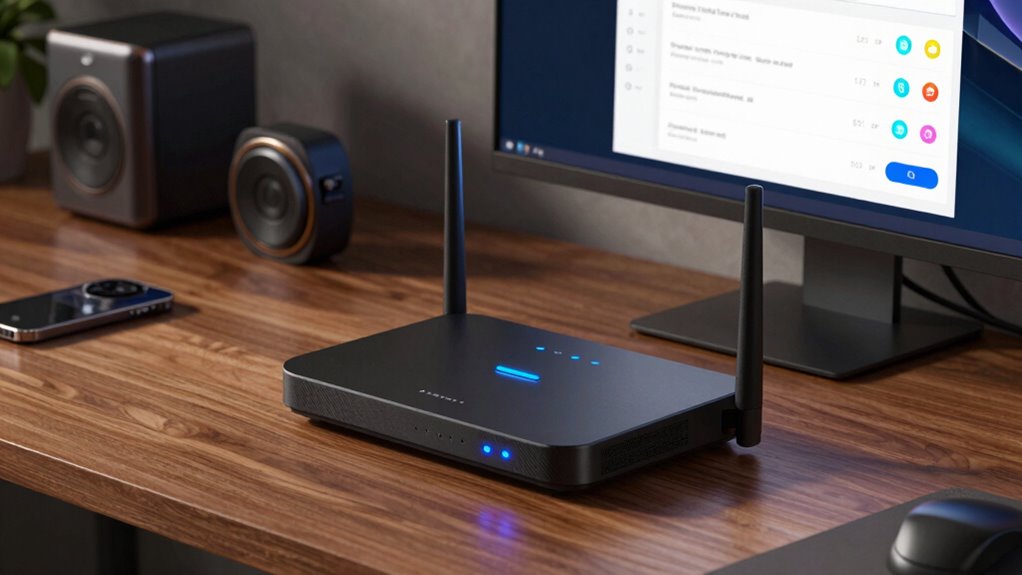
Choosing the right router is essential for effective parental controls, as not all devices offer the same features or level of control. When selecting a router, consider its compatibility with parental control software and how well it integrates with your existing devices. Additionally, evaluate its signal range to guarantee coverage throughout your home, especially in areas where kids spend time. A secure smart home privacy setup can further enhance your child’s online safety by preventing unauthorized access. To make an informed choice, look for: 1. Built-in parental control features that allow easy management and scheduling. 2. Strong router compatibility with third-party control apps or firmware for added flexibility. 3. Robust signal range to cover your entire home without dead zones. 4. Consider the long-term adaptability of the router to ensure it continues to meet your evolving needs. Staying aware of the latest family technology trends can help you select a device that remains relevant and effective as your household’s needs grow. Additionally, understanding network security protocols can help protect your family’s online environment and ensure your parental controls remain effective. Regularly updating firmware is also crucial to address vulnerabilities and enhance overall security, making sure your network protection remains resilient. Prioritize these factors to guarantee your router supports effective, reliable parental controls.
Wi-Fi router with content filtering
As an affiliate, we earn on qualifying purchases.
As an affiliate, we earn on qualifying purchases.
Step-by-Step Guide to Setting Up Parental Controls on Your Router
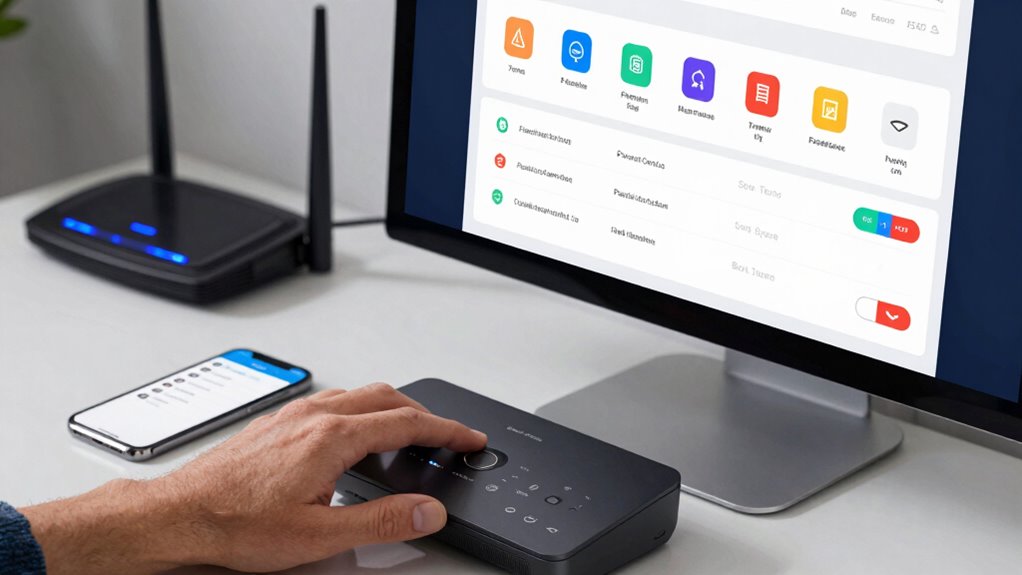
Setting up parental controls on your router might seem intimidating at first, but with a few straightforward steps, you can easily restrict access to certain websites or limit internet usage times. First, log into your router’s admin panel—usually through a web browser by entering its IP address. Next, locate the parental control or access restrictions section. Here, you can create profiles for each family member, applying filters for inappropriate content or setting time limits. Remember, parental involvement is key—discuss these boundaries with your kids to foster digital literacy and responsible online habits. Save your settings and test the restrictions on different devices. By actively managing these controls, you help your children navigate the internet safely while promoting understanding of healthy digital practices.
router firmware for parental controls
As an affiliate, we earn on qualifying purchases.
As an affiliate, we earn on qualifying purchases.
How to Use Parental Control Software for Your Home Network
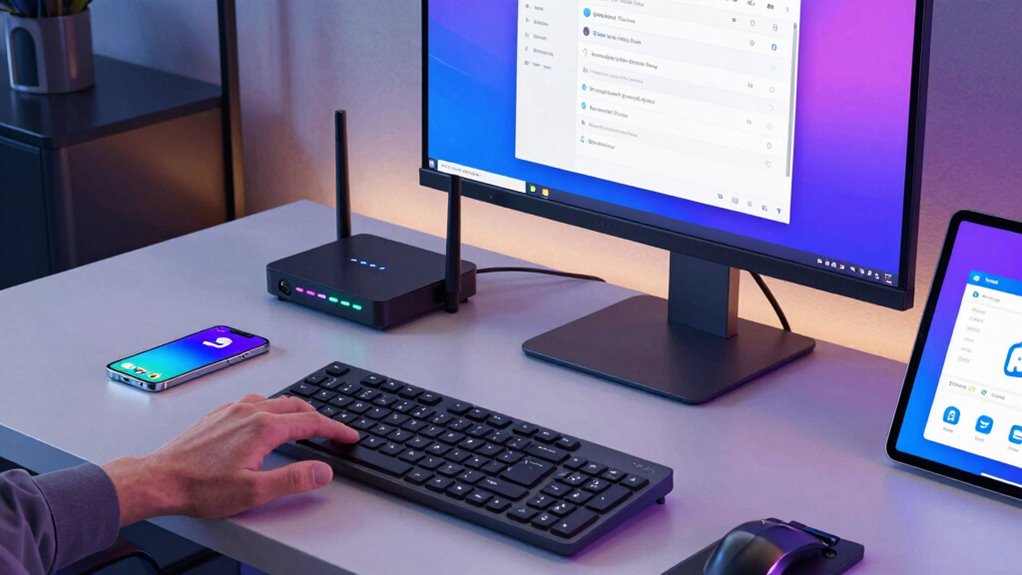
To use parental control software effectively, start by installing it on your devices or network. Once it’s set up, you can configure access restrictions to block inappropriate content and limit screen time. This setup helps create a safer online environment for your family. Incorporating gaming gear that includes parental controls can further enhance your ability to monitor and restrict gaming activities. Understanding network-level controls helps in managing multiple devices more efficiently and provides an added layer of security. Additionally, familiarizing yourself with the evolution of arcade games can help in selecting appropriate gaming content for children. Recognizing the importance of fundamentals like ergonomics and layout can also contribute to creating a more comfortable and secure digital space. Being aware of hive health concepts, such as proper maintenance and environmental conditions, can serve as an analogy for maintaining a balanced and secure digital environment.
Installing Parental Control Software
Wondering how to effectively install parental control software on your home network? First, choose software that aligns with your parenting strategies and promotes digital literacy. Once selected, follow these steps:
- Download and Install the software on your router or devices, depending on your setup.
- Create user profiles for each child, setting age-appropriate restrictions and monitoring options.
- Configure settings to filter content, manage screen time, and receive activity reports.
Configuring Access Restrictions
Once you’ve installed your parental control software, the next step is to configure access restrictions to effectively manage your home network. This involves setting rules that limit screen time, block inappropriate content, and control app usage. By establishing these boundaries, you promote parental engagement and encourage open conversations about online safety. Focus on creating age-appropriate filters and schedules that align with your family’s routines. Use the software’s features to monitor activity and adjust restrictions as your child’s digital literacy develops. Clear, consistent rules help children understand boundaries and foster responsible internet use. Remember, the goal isn’t just to restrict but to guide your kids toward healthier online habits through active management and ongoing communication. Additionally, understanding content filtering helps you better tailor restrictions to protect your children from unsuitable material. Implementing effective restrictions can enhance your control and ensure a safer online environment for your family. To optimize these settings, consider network security measures that prevent unauthorized access and safeguard your entire home network. Furthermore, considering the power of electric bikes, such as those with 10 to 20 horsepower, can inspire you to think about how energy efficiency plays a role in sustainable technology.
How to Block Unwanted Content and Create Effective Blocklists
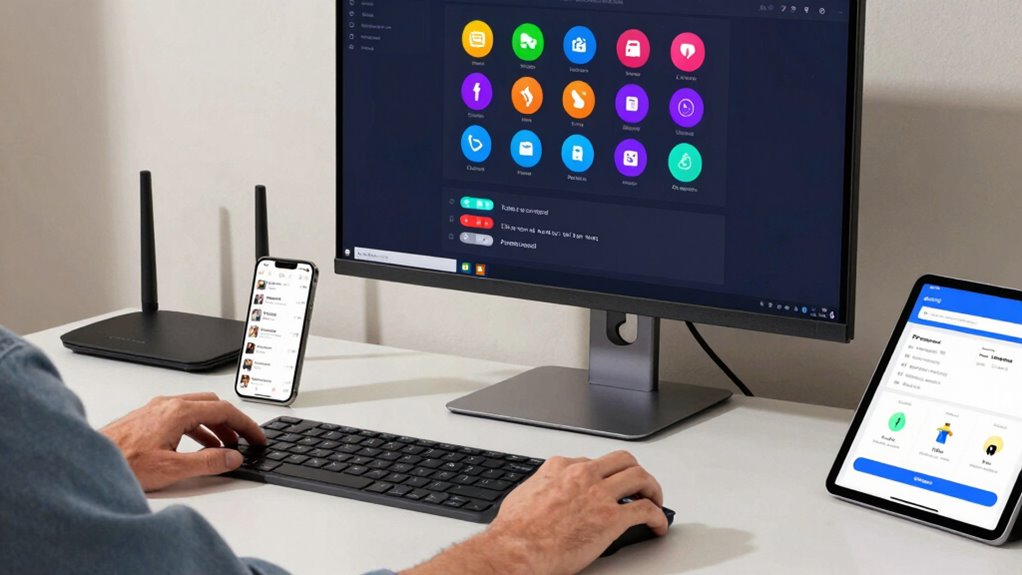
Are you unsure how to effectively block unwanted content on your child’s devices? Creating a strong blocklist is key to maintaining safe browsing. Start by researching reputable sources for known harmful websites and adding them to your blocklist. Use content filtering tools to automatically restrict categories like adult content, gambling, or violence.
Creating a strong blocklist is essential for safe browsing and protecting children from harmful content.
Here are three steps to enhance your blocklist management:
- Regularly update your blocklist to include new sites and remove false positives.
- Use specific URLs or keywords to fine-tune restrictions.
- Utilize dynamic filters that adapt based on content trends.
Managing Internet Access Times and Schedules for Kids
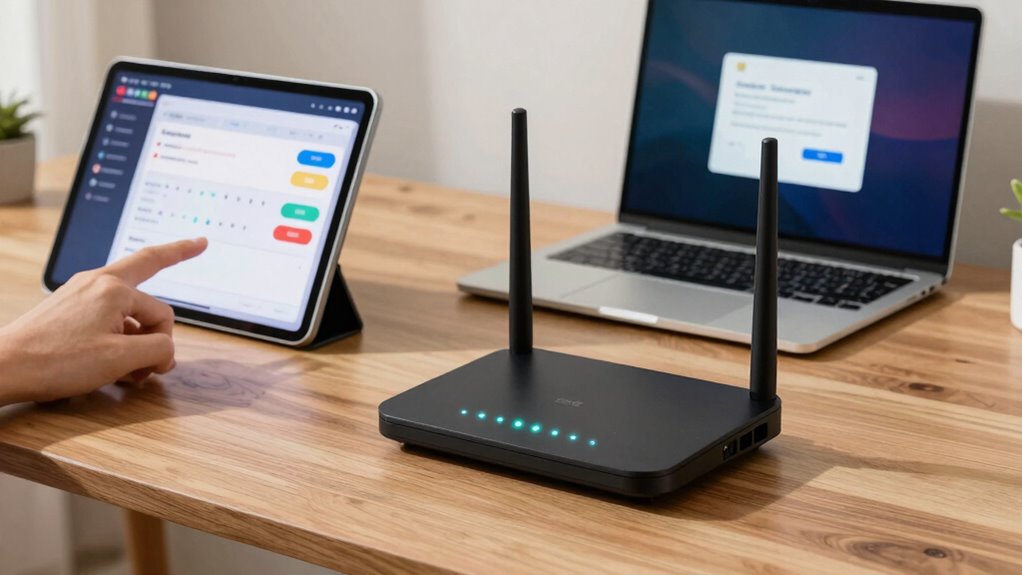
You can control your child’s online time by setting clear limits and schedules. Establishing bedtime restrictions helps guarantee they get enough rest, while scheduling device access keeps screen time in check. By actively managing these time frames, you promote healthier internet habits and balance in their daily routine.
Setting Time Limits
Have you ever wondered how to guarantee your kids balance their screen time effectively? Setting time limits helps you do just that. Start by establishing clear schedules that align with their daily routines, ensuring they have time for homework, chores, and outdoor activities. Use content filtering and usage monitoring tools to enforce these limits, preventing overuse.
Here are three ways to set effective time limits:
- Define specific hours during which internet access is allowed, and restrict access outside these periods.
- Use parental control features to set daily or weekly usage caps.
- Regularly review usage reports to adjust schedules as needed, ensuring your kids stay balanced and safe online.
Creating Bedtime Restrictions
Creating bedtime restrictions is essential for ensuring your kids get enough rest while still enjoying their online activities. Establishing consistent bedtime routines helps signal when it’s time to wind down, making it easier for children to shift away from screens. Use parental controls to set specific internet access times, ensuring devices turn off during designated hours. This supports screen-free zones, especially in bedrooms or the dining area, reinforcing healthy boundaries. By managing access times, you prevent late-night browsing and encourage healthier sleep habits. Communicate these rules clearly, emphasizing the importance of rest and offline time. Consistent bedtime restrictions create a balanced routine, helping your kids develop good habits and maintain their well-being without feeling deprived of online fun.
Scheduling Device Access
Scheduling device access allows you to effectively control when your kids can connect to the internet, helping reinforce healthy routines. By setting specific times for device use, you can guarantee they’re offline during homework, meals, or bedtime. This approach enhances device monitoring and supports content filtering by limiting internet activity to approved hours. To implement this:
- Define daily time blocks for internet access, aligning with routines and restrictions.
- Use your router’s scheduling features to automatically activate or deactivate internet access during designated periods.
- Adjust schedules as needed, especially for special occasions or holidays, to maintain consistent boundaries.
- Incorporate network management tools to monitor and optimize overall device performance and usage.
This method helps your children develop better habits while reducing exposure to inappropriate content outside designated times. Proper scheduling ensures a balanced online-offline lifestyle for your family.
Troubleshooting Common Issues With Network Parental Controls
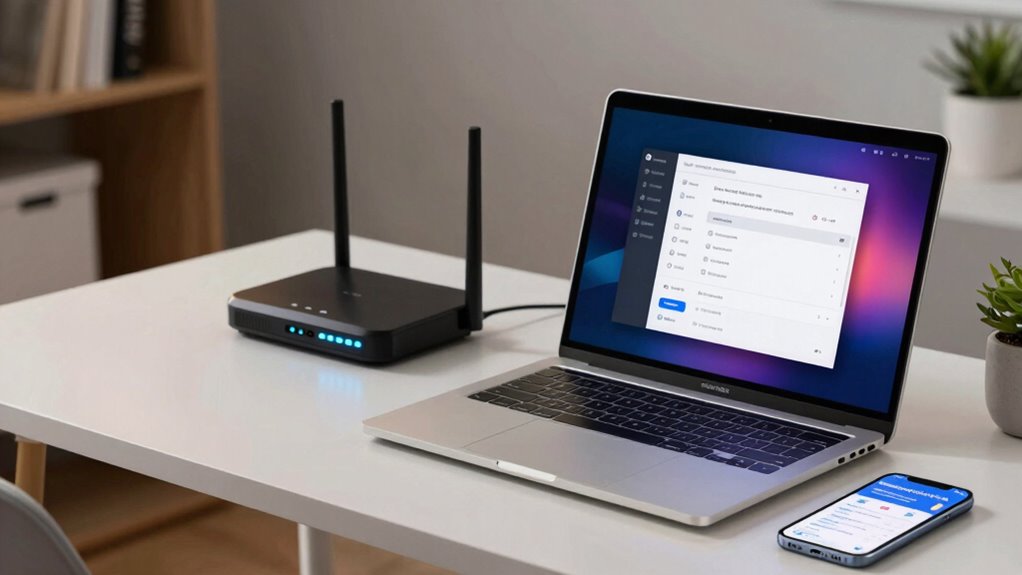
When network parental controls don’t work as expected, troubleshooting can seem intimidating, but many issues have straightforward solutions. One common problem is network interference, which can disrupt the controls’ effectiveness. Restart your router and check for nearby devices causing interference. Also, confirm that your parental controls are properly enabled and updated on the router or device. Sometimes, parental awareness is overlooked—parents may not realize their settings aren’t active or are overridden by other apps. Double-check your settings regularly and make certain your firmware is current. If restrictions still aren’t applying, clear your device’s cache or reconnect to the network. Being proactive and aware of potential issues helps ensure your controls work smoothly and your kids stay protected online. Incorporating wireless network security features into your backyard setup can also help create a secure environment for family time and monitoring. Additionally, understanding Pen Vape innovations can inform safer discussions about emerging tech with teens. Staying informed about child development principles can further support your efforts to foster a healthy and safe online experience for your children.
Tips for Monitoring and Adjusting Controls as Your Kids Grow

As your kids grow, their online needs and behaviors change, making it crucial to regularly review and adjust your parental controls. This guarantees they stay safe while exploring new interests. To do this effectively:
- Adjust screen time limits to reflect their age and responsibilities, preventing excessive use.
- Update content filters to allow access to educational or age-appropriate material, blocking harmful content.
- Monitor their activity logs periodically to identify patterns or concerns, helping you make informed adjustments.
- Be aware of cookie categories that impact their online privacy and how they might be tracked or targeted with ads. Understanding the role of web tracking technologies can help you better protect their online privacy. Additionally, familiarizing yourself with DIY tools for monitoring online activity can provide extra insights and control, especially when considering traditional Indonesian decor masks and their cultural significance in creating meaningful spaces. Recognizing the importance of content filtering can further enhance your ability to safeguard their browsing experience.
Additional Tools and Resources to Enhance Your Family’s Internet Safety

To effectively enhance your family’s internet safety, consider utilizing a variety of additional tools and resources designed to complement parental controls. These include educational programs that boost digital literacy, helping kids understand responsible online behavior. You can also set clear guidelines for screen time, encouraging healthy habits. To visualize, imagine this table:
| Tool/Resource | Benefit |
|---|---|
| Parental control apps | Manage content and monitor activity |
| Digital literacy courses | Teach responsible internet use |
| Screen time management tools | Promote balanced device usage |
| Online safety resources | Keep your family informed and secure |
Together, these tools reinforce safe internet habits and help you stay proactive. Incorporating digital literacy education can empower children to make smarter choices online, further strengthening your overall safety strategy.
Frequently Asked Questions
Can Parental Controls Be Bypassed by Tech-Savvy Children?
Yes, tech-savvy children can sometimes bypass parental controls, especially if they understand child privacy and parental control limitations. They might find ways to access restricted sites or disable controls. To stay ahead, you should regularly update your security settings, monitor their activity, and have open conversations about responsible internet use. Remember, combining technical controls with trust and communication creates a more effective approach.
Are There Differences in Parental Controls Between Wired and Wireless Networks?
You might think wired and wireless networks offer the same parental controls, but there are key differences. Wired security relies on router settings, making controls more consistent and harder to bypass. Wireless flexibility, however, often depends on Wi-Fi router features, which can vary considerably. This means you need to customize controls based on your network type, ensuring your child’s online activity stays protected, whether on a wired or wireless connection.
How Often Should I Update or Review My Parental Control Settings?
You should review your parental control settings regularly, ideally every few months, to guarantee content customization aligns with your child’s age and maturity. Updates are essential whenever there’s a change in your child’s interests or when new devices are added. Consistent reviews help maintain policy enforcement, prevent access to inappropriate content, and adapt controls to evolving online behaviors, ensuring your child’s safety and responsible internet use.
Can Parental Controls Block Specific Apps or Only Websites?
Parental controls can do both, blocking specific apps and filtering websites. You can set app restrictions to prevent access to certain applications, guaranteeing your child only uses age-appropriate ones. Content filtering works to block websites with inappropriate content. Most network-level controls allow you to customize these settings, giving you control over what your child can access online. This way, you ensure a safer browsing environment tailored to your family’s needs.
Do Parental Controls Affect Internet Speed or Device Performance?
Did you know that over 60% of parents worry about internet speed slowing down? Parental controls typically have minimal bandwidth impact, so your internet speed remains mostly unaffected. However, some advanced filtering or monitoring tools can slightly reduce device responsiveness, especially if they run continuously in the background. Overall, setting up parental controls shouldn’t noticeably affect your internet speed or device performance, allowing you to maintain a smooth online experience.
Conclusion
With wise planning and careful customization, you’ll confidently control your kids’ clicks, curbing clutter and creating a safer space. By balancing boundaries and boundaries, you build a better, brighter digital domain. Keep monitoring, modifying, and maintaining your network’s nuances, nurturing a nurturing, no-nonsense environment. Remember, a proactive approach promotes peace of mind and healthy habits. So, step up, set safeguards, and stay savvy—your family’s online safety is worth the effort!
Halloween Picks
halloween
As an affiliate, we earn on qualifying purchases.