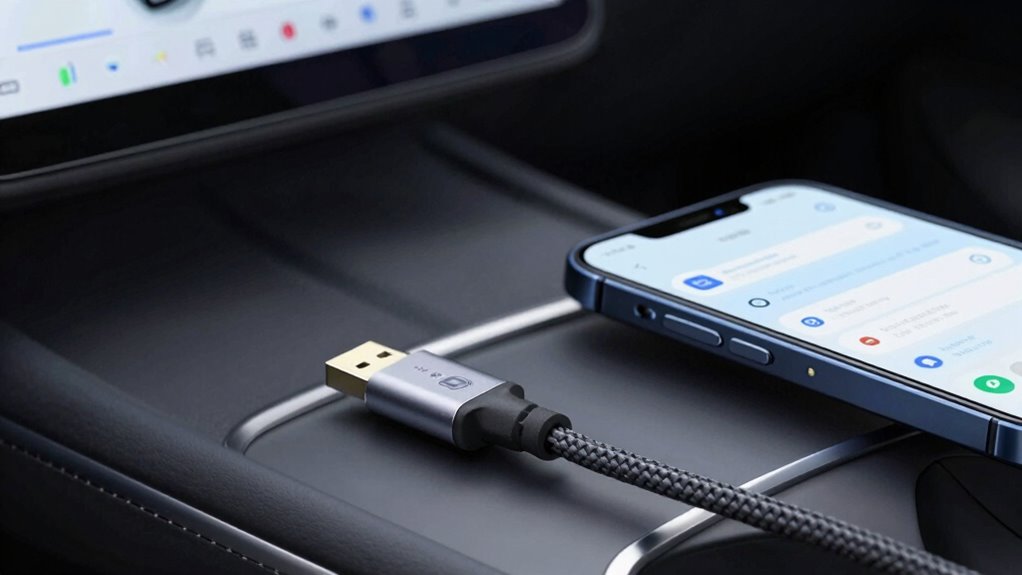

To stop Android Auto disconnects, start with a high-quality, reinforced USB cable and check it regularly for damage. Update your Android Auto app, phone system, and vehicle firmware to guarantee everything’s compatible and bug-free. Adjust your vehicle settings and disable unnecessary Bluetooth devices to reduce interference. Confirm your device supports Android Auto’s protocols and avoid aggressive power-saving modes. For more tips and detailed steps, keep exploring the essential cable and settings fixes to make certain of a stable connection.

Get the latest gadgets delivered free with Prime
- Fast, free delivery on millions of items
- Prime Video, Amazon Music and more included
- Member-only deals all year
Key Takeaways
- Use high-quality, certified cables with shielding to ensure stable physical connections.
- Regularly inspect and replace damaged or frayed cables to prevent disconnections.
- Update Android Auto app, vehicle firmware, and phone system to fix bugs and improve stability.
- Disable unnecessary Bluetooth devices and power-saving modes to reduce interference.
- Calibrate vehicle touchscreen and optimize device settings for consistent connection performance.
high quality USB cable for Android Auto
As an affiliate, we earn on qualifying purchases.
As an affiliate, we earn on qualifying purchases.
Why Does Android Auto Keep Disconnecting?
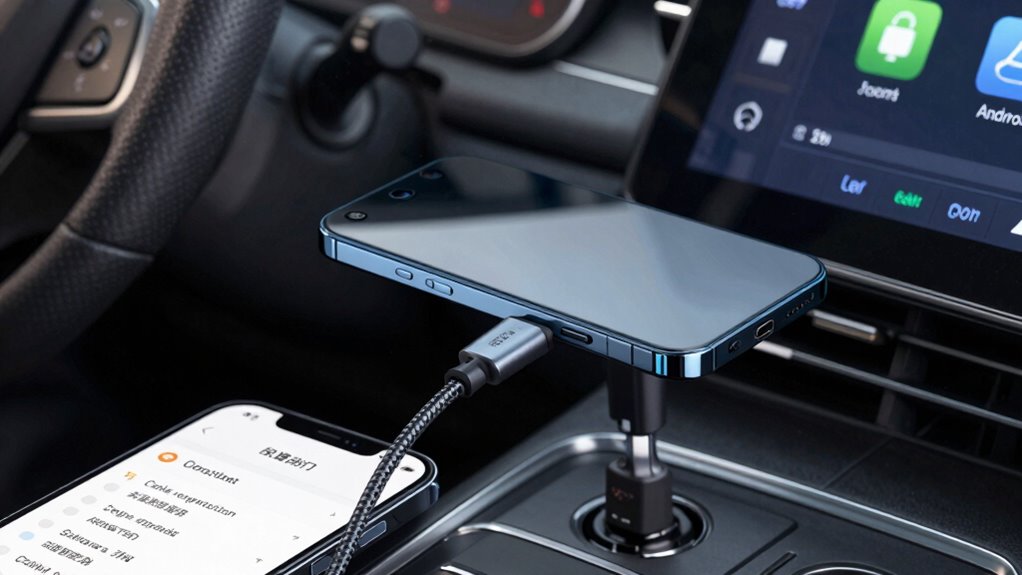
If your Android Auto keeps disconnecting, there could be several reasons behind this frustrating issue. One common cause is unstable wireless connectivity, which can drop your connection unexpectedly. If you’re using wireless Android Auto, signal interference or weak Wi-Fi can lead to frequent disconnects. Additionally, issues with voice commands can also contribute; if your device isn’t recognizing or responding to commands properly, it might disrupt the connection. Compatibility problems between your phone and car system can cause interruptions as well. Make sure your device supports wireless connectivity fully and that your network signal is strong. Updating your Android Auto app and your car’s firmware can also help stabilize the connection, reducing disconnects and ensuring smoother operation. Projector technology plays a role in how well your device maintains a stable connection, especially if your system relies on high-quality hardware components. Ensuring your device’s wireless standards are up to date can further improve stability and prevent disconnections. Regularly reviewing software updates can also prevent compatibility issues from causing disconnections, especially if you keep an eye on technological advancements that enhance connectivity features. Additionally, checking for hardware compatibility issues can help identify if your devices are fully optimized for a stable connection.
Android Auto compatible vehicle firmware update
As an affiliate, we earn on qualifying purchases.
As an affiliate, we earn on qualifying purchases.
Check and Improve Your USB Cable Quality
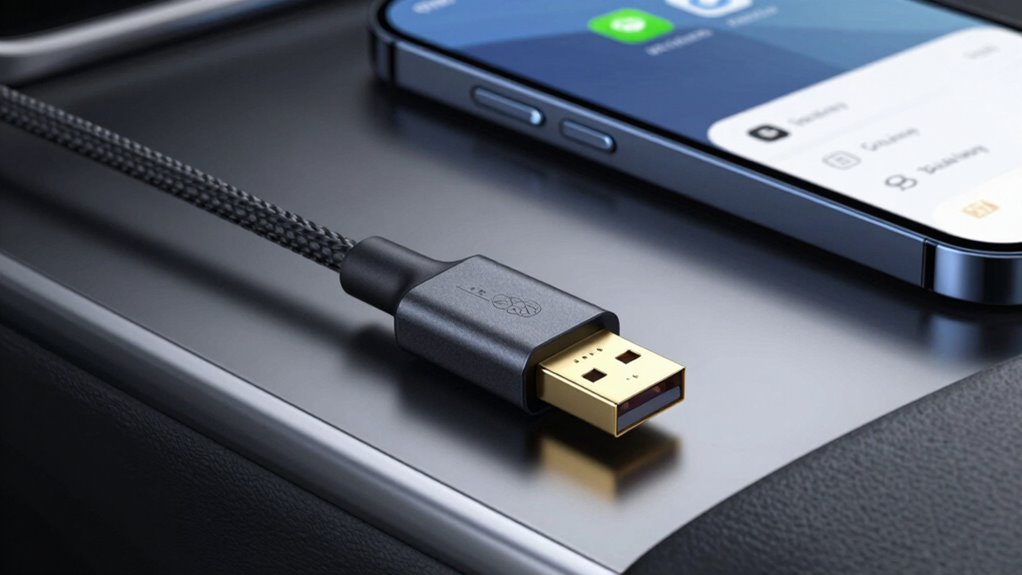
A faulty or low-quality USB cable is a common culprit behind Android Auto disconnects. Poor cable durability can lead to internal breaks or frayed wiring, causing inconsistent connections. When choosing a cable, opt for one with reinforced connectors and good build quality to guarantee longevity. Signal interference is another factor that can disrupt data transfer; avoid cables that run near electronic devices or sources of electromagnetic interference. Using a certified or high-quality cable reduces the risk of connection issues and maintains a stable link between your phone and vehicle. Always inspect your cable for visible damage, and replace it if you notice any wear or fraying. Making sure your cable is durable and free from interference greatly enhances your Android Auto experience. Additionally, selecting a cable with appropriate horsepower can improve data transfer stability and performance. To further ensure a reliable connection, consider using a cable with shielding designed to minimize electromagnetic interference. Properly testing your cables can help identify issues before they cause disconnection problems. Regularly checking cable durability and considering the use of cables with protective reinforcements helps prevent unexpected failures during use.
shielded USB cable for car connection
As an affiliate, we earn on qualifying purchases.
As an affiliate, we earn on qualifying purchases.
Update Android Auto and Phone Software
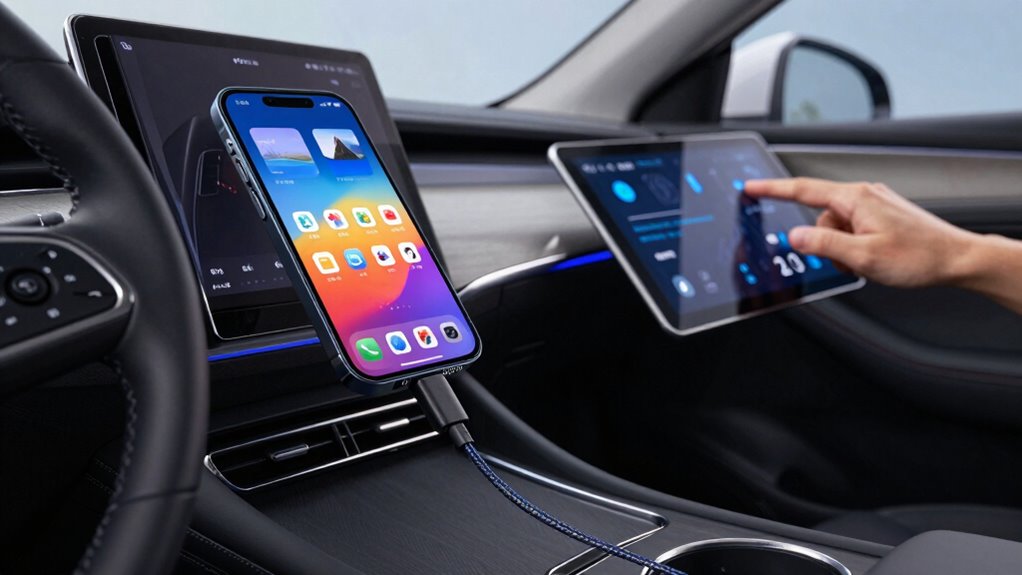
Updating both Android Auto and your phone’s software guarantees compatibility and smooth operation, reducing the chance of disconnects caused by outdated programs. Keeping your apps and system current ensures better wireless connectivity and compatibility with your vehicle’s infotainment system. Software updates often include bug fixes that improve stability, especially during voice command interactions, which are vital for hands-free control. To update, go to your phone’s settings and check for system updates, then update Android Auto through the app store. Regular updates help maintain a seamless connection, minimize lag, and prevent interruptions during calls, navigation, or media streaming. Staying current with software versions is a simple yet effective step toward a more reliable Android Auto experience. Software compatibility is essential for optimal performance and fewer disconnections. Ensuring your device’s connection stability can significantly improve overall experience and reduce disconnection issues. Additionally, device firmware updates can further enhance connection reliability and device performance. Performing these updates regularly can also help address known bugs that may cause unexpected disconnects, and staying informed about system requirements can ensure your device remains compatible with the latest Android Auto features.
Bluetooth interference reduction device
As an affiliate, we earn on qualifying purchases.
As an affiliate, we earn on qualifying purchases.
Adjust Your Car and Phone Settings for Stability
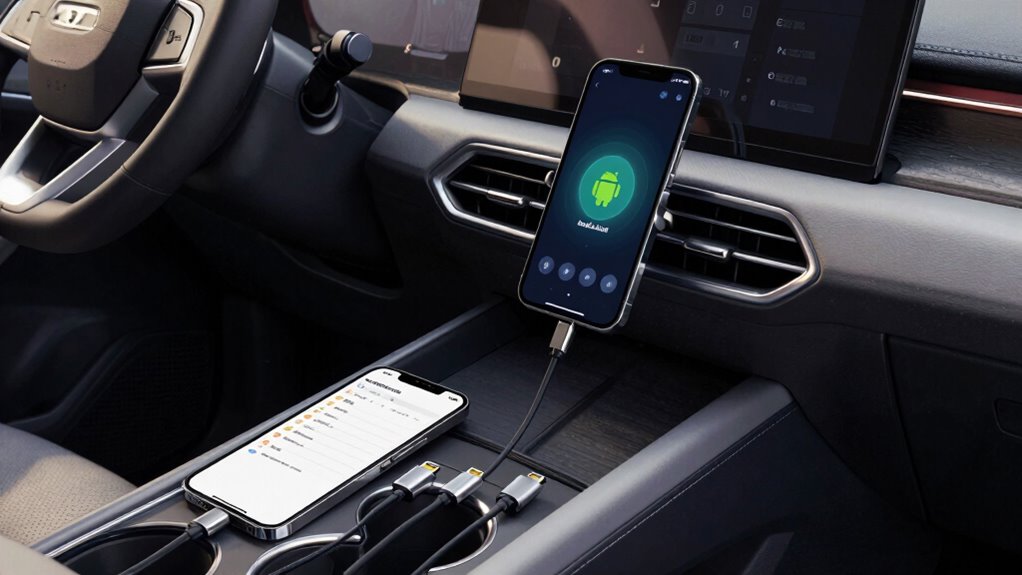
Ensuring your car and phone settings are optimized can considerably improve the stability of your Android Auto connection. Start by reducing Bluetooth interference, which can disrupt data transfer. Turn off unnecessary Bluetooth devices in your car or phone to minimize interference. Next, check your car’s touchscreen calibration—an uncalibrated screen can cause touch responsiveness issues, affecting your interaction with Android Auto. Calibrate the touchscreen if needed, following your vehicle’s instructions. Additionally, disable any aggressive power-saving modes on your phone, as they can limit background activity and impact connectivity. Keep your phone’s display brightness and auto-lock settings user-friendly to prevent interruptions during use. These adjustments help create a stable environment, reducing disconnects and enhancing your Android Auto experience. For added stability, consider using water-cooled mattress pads to prevent overheating of your device, which can also affect performance. Maintaining a comfortable temperature and ensuring proper device cooling can optimize your device’s overall functioning during extended use, especially when using temperature regulation tools. Also, be mindful of security updates, as outdated software can sometimes cause connectivity issues.
Verify Device Compatibility and Support
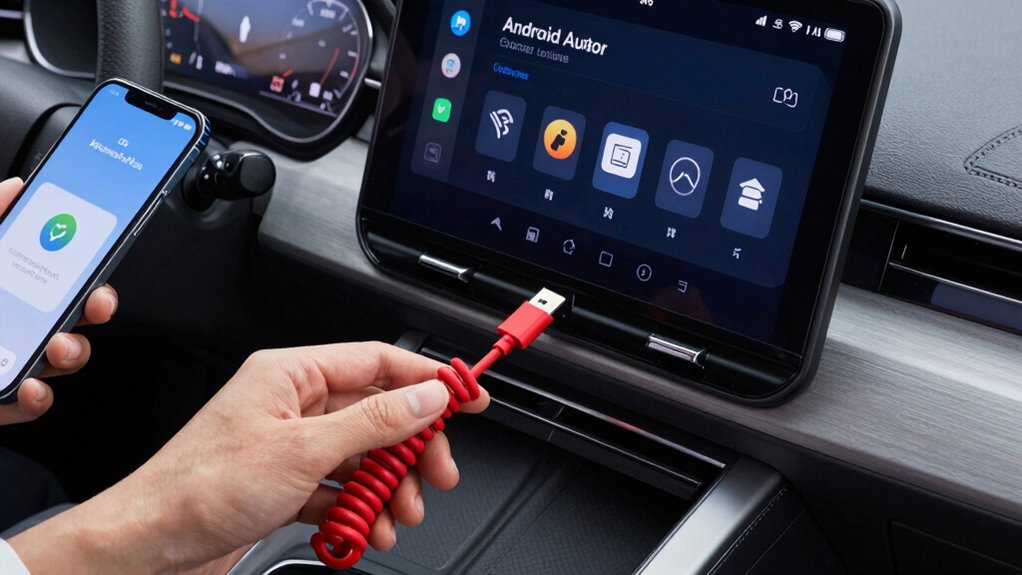
Before troubleshooting further, it’s vital to verify that your device and vehicle support Android Auto. Check your car’s manual or manufacturer’s website to confirm compatibility, paying attention to compatibility protocols. Your phone’s device firmware must also be up to date, as outdated firmware can cause connection issues. Make sure your device runs a supported Android version, typically Android 6.0 or higher. Some devices may require specific hardware or software updates to meet compatibility protocols. If your device isn’t officially supported, Android Auto may disconnect frequently. Confirming support helps prevent unnecessary troubleshooting steps and guarantees your device meets the necessary requirements for a stable connection. Keeping both your device firmware and vehicle software current is essential for seamless integration. Additionally, understanding device firmware and its updates can help you maintain a reliable connection. Ensuring your device has the latest software updates can also improve compatibility and connection stability. Regularly reviewing device compatibility guidelines can help you stay informed about any changes or requirements for optimal performance. It’s also beneficial to monitor manufacturer support resources for updates or notices that could impact your connection stability. Being aware of compatibility protocols can further assist in identifying and resolving potential issues early.
Frequently Asked Questions
Can Using a Wireless Connection Prevent Android Auto Disconnects?
Using wireless connectivity can reduce Android Auto disconnects, but it may not eliminate them entirely. Wireless connections are more vulnerable to signal interference from other devices or obstacles, which can cause disconnections. If your wireless setup has a strong, stable signal, it might prevent some disconnects. However, guarantee your device is compatible, and minimize potential sources of signal interference for a smoother experience.
How Often Should I Replace My USB Cable for Optimal Performance?
Did you know that a USB cable’s durability often drops after just six months of regular use? You should replace your cable every 6 to 12 months to guarantee peak performance. Over time, cables face wear and tear, which can cause compatibility issues or disconnects. Regular replacement keeps your Android Auto connection stable, reducing frustration and improving your driving experience. Choose high-quality cables for longer-lasting, reliable connections.
Does Phone Storage Space Affect Android Auto Stability?
Yes, your phone’s storage space can impact Android Auto stability. When storage runs low, your phone struggles to run apps smoothly, causing disconnects. To prevent this, do regular storage cleanup by deleting unnecessary files and apps. Also, check app permissions to guarantee Android Auto has access to necessary data. Keeping your storage optimized and permissions properly set helps maintain a stable connection while using Android Auto.
Are There Specific Android Auto Settings to Enhance Connection Reliability?
Think of your Android Auto connection like a tightrope walk — it needs balance and stability. To improve wireless stability, guarantee your device’s Wi-Fi and Bluetooth are strong, and disable any power-saving modes that might interfere. For wired connections, check that you use high-quality cables, as cheap or damaged ones can cause disconnects. Adjusting developer options for enhanced USB configuration can also help, making your connection more reliable, just like a steady step on that wire.
Will Disabling Bluetooth Improve Android Auto Connection Stability?
Disabling Bluetooth can improve your Android Auto connection stability by reducing Bluetooth interference, which often causes disconnections. When Bluetooth is active, it may compete with your phone’s Wi-Fi or data signals, weakening overall signal strength. Turning off Bluetooth guarantees a cleaner, more stable connection between your phone and car, ultimately reducing disconnects. Keep in mind, if you use Bluetooth for calls or audio, you’ll need to weigh the trade-offs.
Conclusion
Think of fixing Android Auto disconnections like tending a garden—you need the right tools, good nourishment, and a little patience. By checking your cables, keeping everything updated, and tweaking your settings, you’re nurturing a smooth connection that blooms with reliability. Don’t let glitches be weeds choking your ride’s tech garden. With these tips, you’ll keep your Android Auto humming along like a well-tuned engine—ready to take you wherever your digital journey leads.
Halloween Picks
halloween
As an affiliate, we earn on qualifying purchases.