
If your mobile data isn’t working, start by checking your APN settings, which tell your device how to connect to your carrier’s network. Make sure the APN details match your carrier’s official info, and reset or update them if needed. Restart your device afterward. Other issues like network outages or software glitches can cause problems, but proper APN setup often fixes the most common issues. If you want to find out more, you’ll discover simple steps to troubleshoot effectively.

Get the latest gadgets delivered free — and shop member deals
- Fast, free delivery on millions of items
- Access to Prime Big Deal Days deals on October 6–7
- Prime Video, Amazon Music and more included
Key Takeaways
- Verify that your APN settings match your carrier’s recommended configuration to ensure proper internet connection.
- Restart your device to refresh network settings and resolve temporary connectivity glitches.
- Reset your APN to default or manually input correct details provided by your carrier.
- Check for software updates to ensure compatibility with network settings and improve stability.
- Confirm that your data plan is active, not restricted, and that signal strength is sufficient for data use.
As an affiliate, we earn on qualifying purchases.
What Are APN Settings and Why Do They Matter?
Have you ever wondered how your phone connects to the internet through mobile data? It all comes down to APN settings—Access Point Names that tell your device how to connect to your carrier’s network. If these settings are incorrect or outdated, APN troubleshooting becomes necessary to restore your mobile data. Proper APN configuration is essential for mobile data optimization, ensuring your device uses the right network pathways for fast, reliable internet. When your APN settings are misconfigured, you might experience slow speeds or no data at all. Knowing what your APN settings should look like helps you identify issues quickly. Adjusting these settings correctly can resolve many mobile data problems, restoring your connection and improving overall performance.
As an affiliate, we earn on qualifying purchases.
How Can I Check My APN Settings on My Phone?
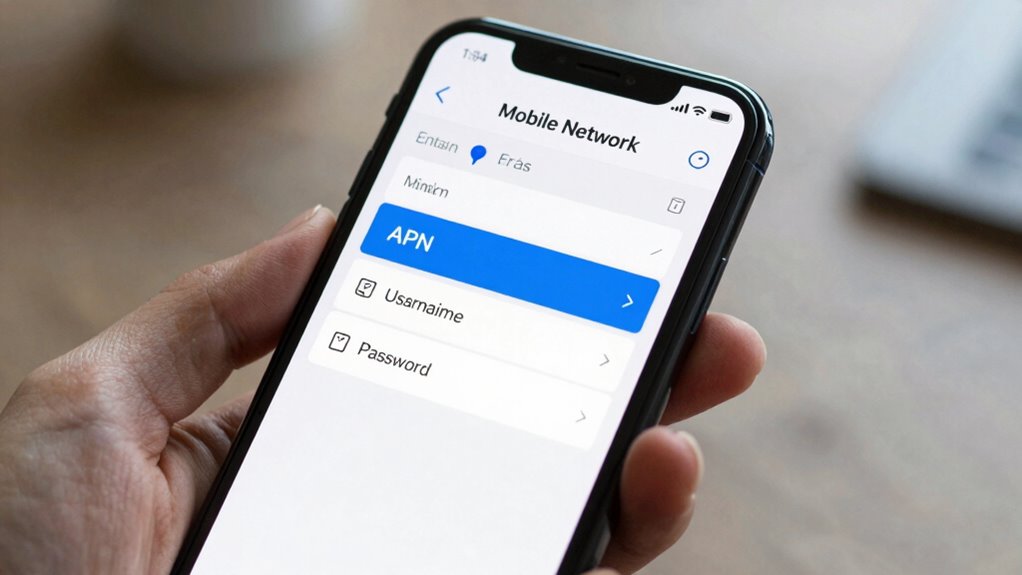
To check your APN settings, start by locating them in your phone’s settings menu, usually under Mobile Networks or Connections. Once there, verify that the APN details match those provided by your carrier. Ensuring these settings are correct can often resolve mobile data issues quickly. Understanding content formats can also help you recognize what types of data your device is configured to handle. Additionally, reviewing the role of contrast ratio in image quality can help you understand how visual clarity impacts your viewing experience. Being aware of media literacy can also help you critically evaluate the information you encounter online and avoid misinformation. Moreover, familiarity with privacy policies can inform you about how your data and browsing habits are protected and used.
Locate APN Settings
Checking your APN settings is a straightforward process that can help identify why your mobile data isn’t working. To locate them, go to your phone’s Settings menu. For Android, tap on “Network & Internet” or “Connections,” then select “Mobile Network” and “Access Point Names” (APN). On iPhone, navigate to Settings > Cellular > Cellular Data Options > Cellular Data Network. Your APN settings are listed here, and you can review if they match your carrier’s recommended configuration. Correct APN settings are essential for network security and data encryption, ensuring your connection is both safe and private. If you don’t see any APN or suspect incorrect info, it’s a good idea to verify with your carrier’s support documentation. Additionally, understanding how network security functions can help you better comprehend the importance of proper APN configuration.
Verify APN Details
Once you’ve located your APN settings, verifying that the details are correct helps guarantee your mobile data works properly. Check that the APN name, username, password, and MCC/MNC codes match your carrier’s recommended settings. Accurate APN data ensures ideal signal strength and network security, preventing unauthorized access and maintaining a stable connection. To verify, compare your current settings with your carrier’s official info. If anything’s off, update the details accordingly. Keep in mind, incorrect APN settings can weaken signal strength and compromise network security, causing data issues. Double-check everything before saving changes. This simple step ensures your device connects securely and efficiently to your network, reducing the chances of data disruptions.
Carrier-specific APN configuration
As an affiliate, we earn on qualifying purchases.
As an affiliate, we earn on qualifying purchases.
How Do I Fix Mobile Data When APN Settings Are Correct?
If your APN settings are correct but mobile data still isn’t working, start by restarting your device to refresh the network connection. You might also need to reset your APN settings to their default values or check if you’ve hit any data limits with your plan. These quick steps can often resolve the issue without further troubleshooting. Additionally, ensure that your device’s network connection is enabled and functioning properly. Making sure your device’s network configuration is accurate can help prevent issues related to incorrect settings or restrictions. It’s also helpful to verify that your signal strength is strong enough to support data connectivity, especially in areas with poor reception. Sometimes, carrier restrictions may impact your mobile data, so contacting your service provider can provide additional insights.
Restart Your Device
Sometimes, simply restarting your device can resolve mobile data issues even when your APN settings are correct. This refreshes your device’s connection and clears minor glitches. If your device was overheating or experiencing signal interference, a restart can help cool it down and reduce interference, improving data stability.
Here are some tips:
- Power off completely, wait a few seconds, then turn it back on
- Remove and reinsert your SIM card during restart
- Check if any background apps are causing overheating or interference
- Avoid restarting in areas with high signal interference or poor reception
A quick restart often fixes temporary issues, ensuring your device reconnects to the network smoothly.
Reset APN Settings
Even when your APN settings appear correct, they can sometimes become misconfigured or corrupted, leading to mobile data issues. Resetting your APN settings can resolve this by restoring defaults and fixing potential errors. To do this, go to your device’s network or mobile data settings and select “Reset to Default” for APNs. This can help address issues related to APN security and data encryption, which are essential for secure and reliable mobile data connections. Resetting clears any incorrect or outdated configurations that might be blocking data access, without altering your account details. After the reset, restart your device and check if mobile data works properly. Proper APN configuration is crucial for optimal mobile data performance, ensuring your connection remains stable and secure. This simple step often fixes stubborn connectivity problems caused by misconfigured APN settings.
Check Data Limitations
Wondering why your mobile data isn’t working despite correct APN settings? The issue might be data limitations. Carriers often set data caps, which limit how much data you can use before slowing down or disconnecting. Network throttling can also reduce your speeds once you hit a certain threshold, making it seem like your data isn’t working. Additionally, some plans may include Free Floating features that impact data usage in specific scenarios.
Check these common issues:
- Your monthly data cap may have been reached
- You’re experiencing network throttling after exceeding your limit
- Your plan might have restrictions on hotspot or tethering use
- You may have accidentally turned off mobile data limits in your settings
Review your carrier’s data plan details or contact customer support to clarify your current data status.
Smartphone network troubleshooting kit
As an affiliate, we earn on qualifying purchases.
As an affiliate, we earn on qualifying purchases.
What Are the Common Causes of APN and Mobile Data Problems?
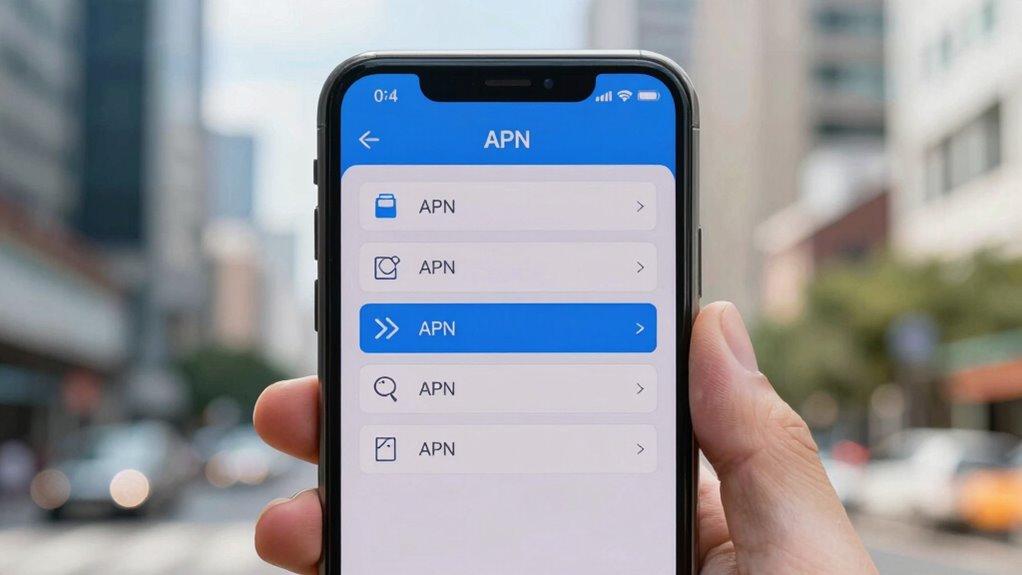
Many common causes of APN and mobile data problems stem from incorrect settings, network outages, or outdated software. Network congestion can slow or block your data connection, especially during peak usage times, making it seem like your device isn’t working properly. SIM card issues are also frequent culprits; a damaged, misaligned, or improperly inserted SIM card can prevent data from connecting. Sometimes, your SIM might be deactivated or not recognized by the network. Additionally, outdated phone software can cause compatibility issues with your carrier’s network. These problems often cause dropped connections, slow speeds, or no data at all. Identifying whether the issue is due to congestion, a faulty SIM, or software can help you troubleshoot more effectively. Proper filter sizing/flow and understanding system performance can also prevent network-related issues in mobile devices. Regularly checking your network settings and ensuring your device firmware is up to date can help maintain a stable data connection. Troubleshooting network configuration issues can further improve your mobile data reliability. Ensuring your device supports the latest software updates can also help mitigate compatibility problems with your network. Being aware of network coverage and signal strength can additionally help diagnose connectivity issues.
How to Update or Reset Your APN Settings Step-by-Step
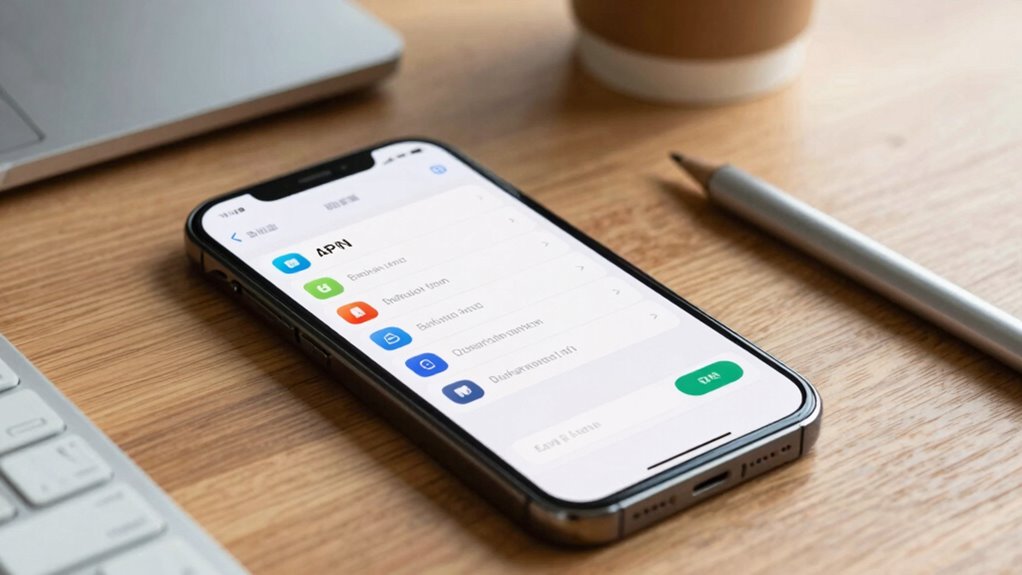
Incorrect or outdated APN settings often cause mobile data issues, preventing your device from connecting properly to your carrier’s network. To update or reset them, start by navigating to your device’s Settings > Mobile Networks > Access Point Names. To reset, select the menu icon and tap “Reset to Default” or similar. To update, tap “Add” or the plus icon, then enter the correct APN details provided by your carrier. Ensure your settings prioritize network security and are accurate for your region. After making changes, save the new settings and restart your device. If problems persist, perform SIM card troubleshooting by removing and reinserting the SIM. Properly configuring APN settings can resolve data issues and improve network security.
Tips to Prevent Future Mobile Data and APN Issues
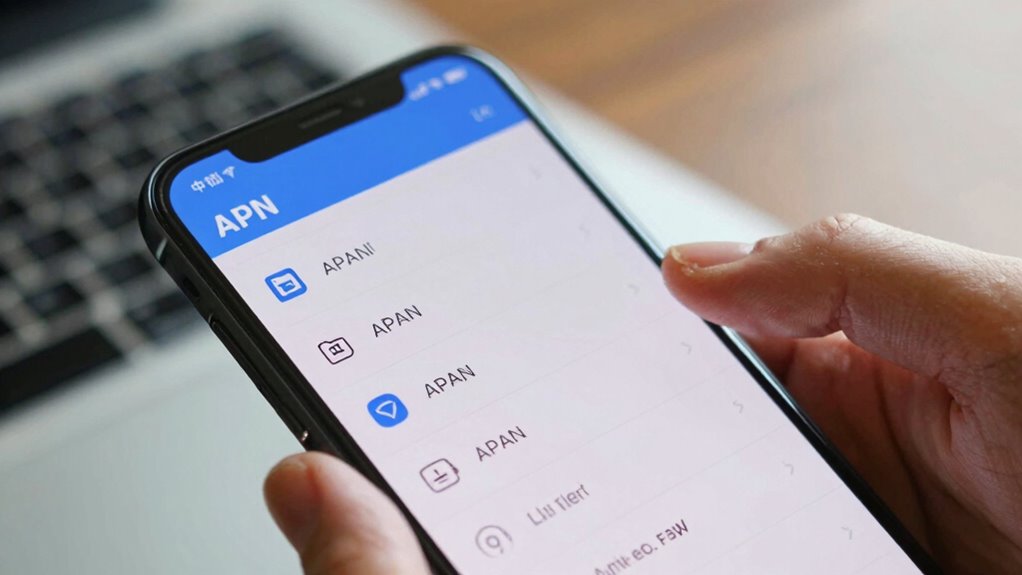
To prevent future mobile data and APN issues, it’s essential to keep your device’s settings accurate and up-to-date. Regularly check your network coverage; weak signals can cause data disruptions. Confirm your device is updated with the latest software and carrier settings, which can improve data speed and stability. Avoid manual APN modifications unless necessary, as incorrect settings can cause issues. Use the table below to understand key tips:
| Tip | Action | Benefit |
|---|---|---|
| Check network coverage | Stay in areas with strong signals | Better data speed and connection |
| Keep device updated | Install updates promptly | Improved network compatibility |
| Use recommended APN settings | Follow provider guidelines | Reliable mobile data |
| Restart device regularly | Refresh network connection | Prevents temporary glitches |
Additionally, understanding the APN basics can help troubleshoot persistent issues more effectively. Recognizing how network configurations work enables you to address problems more confidently. A basic understanding of network infrastructure can further assist in diagnosing connectivity problems.
Frequently Asked Questions
Can I Change APN Settings on My iPhone?
Yes, you can change APN settings on your iPhone for customization or troubleshooting purposes. To do this, go to Settings > Cellular > Cellular Data Options > Cellular Network. Just be aware that changing APN settings can affect your APN security, so only modify them if you’re confident or following trusted instructions. This customization helps optimize your mobile data connection, but incorrect settings could cause connectivity issues.
Do APN Settings Affect MMS or Only Internet Data?
You’re right on the money—APN settings do more than just internet data; they also affect MMS. When APN security and compatibility aren’t set correctly, your multimedia messages might not go through, making you feel like you’re stuck in a jam. Ensuring your APN supports both internet and MMS, with proper security, keeps everything flowing smoothly. Double-check your settings to avoid the headache of missing messages or connectivity issues.
How Often Should I Update My APN Settings?
You should update your APN settings whenever your carrier releases new configurations or when you experience connectivity issues. Regular updates guarantee ideal APN security and data encryption, safeguarding your information. Check with your provider periodically or after a system update, as outdated APN settings can compromise your mobile data security and performance. Keeping your APN current helps maintain a secure connection and prevents potential data breaches.
Will Resetting Network Settings Erase My Data?
Resetting your network settings won’t erase your personal data like photos or contacts, but it does remove saved Wi-Fi passwords and custom network configurations. This process restores network security and settings to factory defaults, which can resolve connectivity issues. Keep in mind, device compatibility matters; some devices may require specific updates after resetting. Always back up important info and verify your device’s compatibility to guarantee a smooth reset.
What Should I Do if My Carrier’s APN Is Not Listed?
When your carrier’s APN isn’t listed, think of it as missing a piece of a puzzle. Reach out to carrier support to confirm the correct APN settings—they often have detailed guides. You can also try APN troubleshooting by manually adding the settings. If needed, visit your carrier’s store for personalized help. This proactive approach helps guarantee your mobile data works smoothly again.
Conclusion
Think of your APN settings as the bridge connecting your phone to the vast digital universe. When this bridge is clear and well-maintained, your mobile data flows smoothly, like a river running unimpeded. But if it’s blocked or misconfigured, connections become choked, leaving you stranded. By understanding and caring for these settings, you’re ensuring your digital highway remains open and vibrant, so you can navigate the world with confidence and connection, anytime you need.
Halloween Picks
halloween
As an affiliate, we earn on qualifying purchases.